

TL;DR:
Need an HD screen recorder for clear, smooth videos? These 10 tools cover PC, Mac, Android, and online recording. Here are our top picks:
- Screen Recorder: Best overall for high-quality recording and annotations.
- OBS Studio: Best free HD screen recorder for PC.
- Bandicam: Best for Full HD gameplay recording.
- AZ Screen Recorder: Best HD screen recorder for Android.
- QuickTime Player: Best free option for Mac.
- Snipping Tool: Best for quick Windows 11 recordings.
- Loom: Best for online recording and sharing.
- Camtasia: Best for recording and video editing.
- Xbox Game Bar: Best free PC gaming recorder.
- ScreenRec: Best for quick recordings and cloud sharing.
Whether you're recording an exciting gaming session, creating a step-by-step tutorial, saving an online meeting, or showing someone how to use an app, a good HD screen recorder can make your videos look much clearer and more professional. But finding the right one isn't always easy. So, which screen recorder is actually worth trying? We've rounded up 10 of the best options for Windows, Mac, and mobile, including free and paid tools, to help you capture smooth, high-quality videos without unnecessary hassle.
- 1. Snipping Tool - Best Free Built-in HD Screen Recorder for Windows
- 2. Xbox Game Bar - Best Free HD Screen Recorder for PC Gaming
- 3. QuickTime Player - Best Free HD Screen Recorder for Mac
- 4. Screen Recorder - Best Overall HD Screen Recorder for PC and Mac
- 5. OBS Studio - Best Free HD Screen Recorder for Professional Use
- 6. Bandicam - Best Full HD Screen Recorder for Windows Gaming
- 7. ScreenRec - Best Lightweight HD Screen Recorder for Quick Tutorials
- 8. Camtasia - Best HD Screen Recorder with Built-in Video Editing
- 9. Loom - Best Online HD Screen Recorder for Collaboration
- 10. AZ Recorder - Best HD Screen Recorder for Android
HD Screen Recorder Comparison: 10 Best Tools for PC, Mac, and Mobile
| Software | Platform | Main Features | Resolution | Free Version |
|---|---|---|---|---|
| Snipping Tool | Windows 11 | Selected-area recording, basic editing | HD (limited customization) | Free |
| Xbox Game Bar | Windows 10/11 | Gameplay and app recording, audio capture | Full HD (settings dependent) | Free |
| QuickTime Player | macOS | Full-screen and selected-area recording, basic trimming | HD (settings dependent) | Free |
| Screen Recorder | Windows, Mac | 8K recording, webcam, annotations, scheduled recording | Up to 8K | 3-min trial |
| OBS Studio | Windows, Mac, Linux | Multi-source recording, audio mixing, live streaming | Up to 4K | Free |
| Bandicam | Windows | Game, screen, and device recording | Up to 4K | 5-min limit |
| ScreenRec | Windows, Mac, Linux | Screen and webcam recording, cloud sharing | Up to 720p free; up to 4K with paid plans | Free plan |
| Camtasia | Windows, Mac | Screen recording, timeline editing, annotations | Up to 4K | Limited trial |
| Loom | Windows, Mac, iOS, Android | Online recording, webcam, cloud sharing | Up to 720p free; up to 4K paid | Free plan |
| AZ Screen Recorder | Android | Mobile recording, editing, live streaming | Up to 1080p | Free with ads |
1. Snipping Tool - Best Free Built-in HD Screen Recorder for Windows
Platform: Windows 11
Price: Free
Best For: Recording selected screen areas without installing additional software.
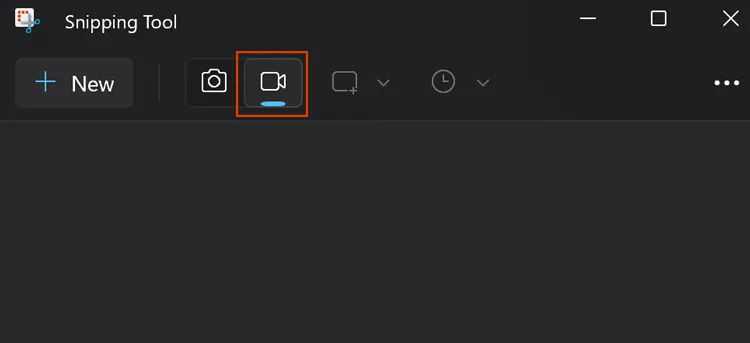
If you need a simple HD screen recorder for PC free, Windows' built-in Snipping Tool is a convenient starting point. Originally designed for taking screenshots, it now also supports video recording, allowing you to capture a selected rectangular area of your screen.
You can open Snipping Tool from the Start menu or use the Windows + Shift + R shortcut to access its video recording interface. Select the area you want to capture, click Start, and begin recording. When finished, stop the recording and save the video to your computer.
- Completely free and built into supported Windows versions.
- No additional screen recorder installation required.
- Allow you to record a selected screen area.
- Simple interface suitable for beginners.
- Support quick video editing through Clipchamp integration.
- Limited recording and editing controls.
- Not designed for professional gameplay recording.
- Does not provide extensive resolution, bitrate, or frame-rate customization.
- Not suitable for advanced multi-source recording.
2. Xbox Game Bar - Best Free HD Screen Recorder for PC Gaming
Platform: Windows 10/11
Price: Free
Best For: Recording PC games and supported application windows.
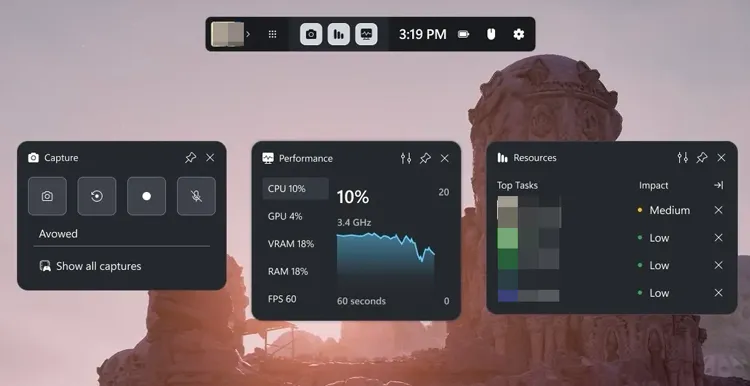
Xbox Game Bar is a free Windows tool designed mainly for recording games and supported applications. Press Windows + G to open the overlay, or use Windows + Alt + R to start or stop recording. Its Capture widget also supports screenshots and microphone controls.
As a convenient full HD screen recorder for PC, it lets you capture gameplay without installing extra software. Recordings are usually saved in Videos > Captures.
- Free and integrated into Windows.
- No additional installation required on supported systems.
- Convenient keyboard shortcuts for recording.
- Support gameplay and application recording.
- Include microphone and audio controls.
- Beginner-friendly interface.
- Not designed for recording the entire Windows desktop in every situation.
- Limited advanced recording and editing features.
- Some applications and protected content cannot be captured.
- Recording quality depends on system settings and hardware.
- Not suitable for complex tutorials involving multiple video sources.
3. QuickTime Player - Best Free HD Screen Recorder for Mac
Platform: macOS
Price: Free
Best For: Basic screen recording on Mac without third-party software.
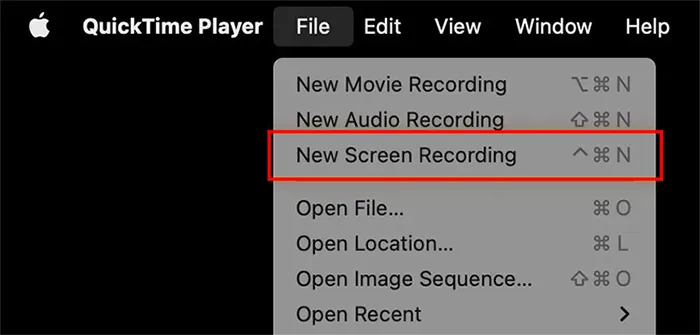
QuickTime Player is Apple's built-in media player and a handy free HD screen recorder for Mac. Open it and select File > New Screen Recording to capture your entire screen or a selected area. You can also choose the save location and whether to show the mouse pointer or clicks.
After recording, you can play the video or trim unwanted sections in QuickTime. It's easy to use and requires no installation, account, or subscription, making it suitable for presentations, software demos, and simple tutorials.
- Free and included with macOS.
- No additional software installation required.
- Support full-screen and selected-area recording.
- Simple recording workflow.
- Allow basic video trimming.
- Suitable for everyday screen capture.
- Limited advanced recording settings.
- No comprehensive built-in video editing suite.
- Audio capture options are less flexible than dedicated recorders.
- Not designed for professional gameplay recording.
- Primarily intended for Mac users.
4. Screen Recorder - Best Overall HD Screen Recorder for PC and Mac
Platform: Windows and Mac
Price: Free trial; paid plans available
Best For: Recording high-resolution videos, tutorials, gameplay, and webcam footage.
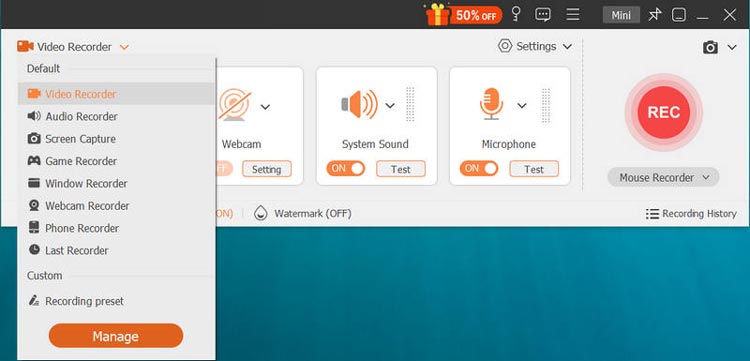
Screen Recorder is a more powerful alternative to built-in recording tools for Windows and Mac. It supports multiple recording modes, including full screen, custom area, app window, gameplay, webcam, system audio, and microphone. Depending on your hardware and settings, it can record at up to 8K resolution and 120 FPS. You can also adjust video and audio settings to balance recording quality and file size.
This full HD screen recorder offers real-time annotations, webcam overlays, scheduled recording, and basic video editing features such as trimming and merging. It supports MP4, MOV, WMV, AVI, and WebM formats, making it suitable for tutorials, presentations, and gameplay videos.
- Support Windows and Mac computers.
- Offer multiple recording modes for different scenarios.
- Support high-resolution recording, including up to 8K on supported configurations.
- Capture system audio, microphone input, and webcam footage.
- Provide real-time annotation tools.
- Support iOS and Android screen mirroring.
- Offer scheduled recording and customizable hotkeys.
- Include basic video trimming and merging.
- Full functionality requires a paid license.
- Free trial limits recording duration to three minutes.
- High-resolution recording consumes considerable system resources.
- Wireless mobile mirroring may experience latency.
- Protected streaming content may prevent successful recording.
Download for Win Download for Mac
5. OBS Studio - Best Free HD Screen Recorder for Professional Use
Platform: Windows, macOS, and Linux
Price: Free and open-source
Best For: Professional screen recording, live streaming, and gameplay capture.
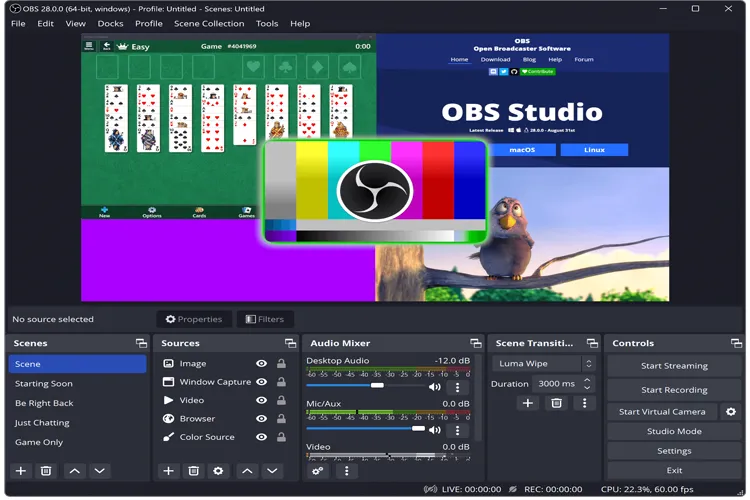
If you're looking for the best free HD screen recorder for PC, OBS Studio is a great choice. This free, open-source tool lets you record your screen, games, webcams, and multiple sources in customizable scenes.
It supports Full HD and 4K recording, with adjustable resolution, frame rate, bitrate, and output format. Best of all, it has no mandatory watermark, subscription fee, or recording time limit.
- Completely free and open-source.
- No recording time limits imposed by a paid plan.
- No mandatory watermark.
- Support Windows, Mac, and Linux.
- Offer customizable recording resolution and frame rate.
- Support multiple video and audio sources.
- Include scene transitions and audio mixing.
- Suitable for both recording and live streaming.
- The interface can be complicated for beginners.
- Require manual configuration for optimal results.
- High-quality recording can consume significant CPU/GPU resources.
- No comprehensive built-in video editing suite.
- Incorrect recording settings can produce large files or poor-quality footage.
6. Bandicam - Best Full HD Screen Recorder for Windows Gaming
Platform: Windows
Price: Free version and paid version
Best For: Recording gameplay, desktop activities, and webcam footage.
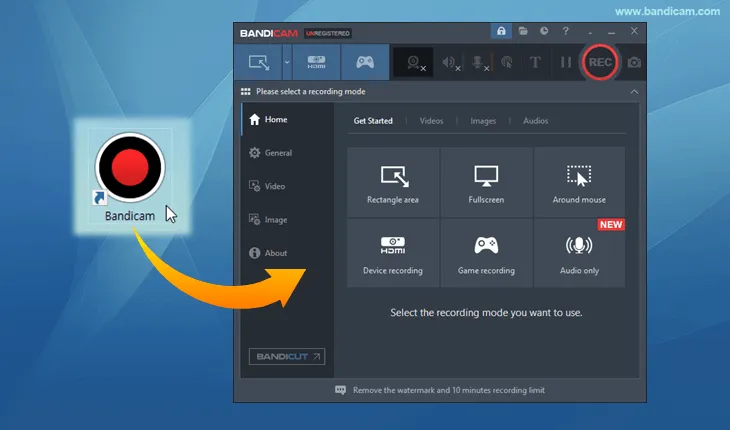
Bandicam is a user-friendly Windows screen recorder for capturing gameplay, desktop activities, and tutorials. It offers three recording modes: Screen Recording, Game Recording, and Device Recording, allowing you to capture your entire screen, selected areas, application windows, games, and supported external devices.
As a full HD screen recorder for PC, Bandicam lets you customize resolution, frame rate, and video quality. It also supports hardware-accelerated encoding, simultaneous system audio and microphone recording, webcam overlays, scheduled recording, real-time drawing, and mouse click effects.
- Support screen, game, and device recording.
- Offer customizable resolution and frame-rate settings.
- Support high-resolution recording, including 4K on compatible systems.
- Can record system sound and microphone input simultaneously.
- Provide webcam overlay and real-time drawing tools.
- Support hardware-accelerated encoding.
- Include scheduled recording and mouse effects.
- Relatively straightforward interface.
- Free recordings are limited to five minutes.
- Edited exports from the free version contain a watermark.
- Full recording functionality requires payment.
- Primarily designed for Windows.
- Advanced editing capabilities are limited compared with dedicated video editors.
7. ScreenRec - Best Lightweight HD Screen Recorder for Quick Tutorials
Platform: Windows, Mac, and Linux
Price: Free and paid plans
Best For: Quick screen recordings, tutorials, and workplace communication.
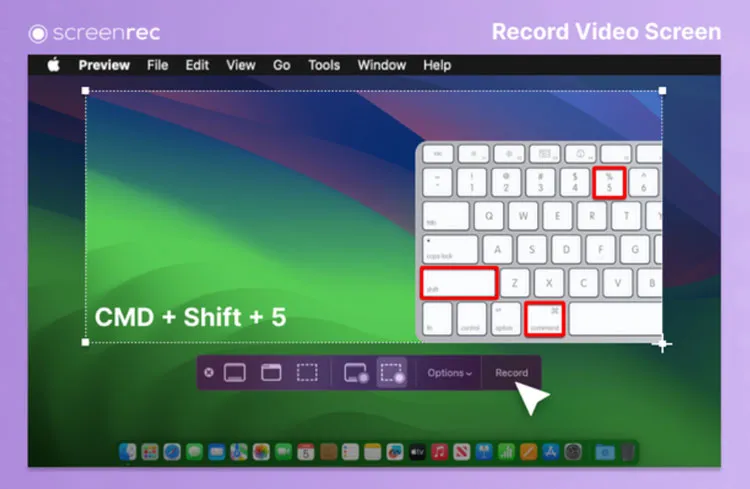
ScreenRec is a lightweight screen recorder designed for quick capture and easy sharing. You can record your desktop, selected screen areas, webcam, and audio, as well as take screenshots and add annotations to highlight important details.
Its cloud-sharing feature lets you generate a shareable video link without manually uploading files to another platform. This makes ScreenRec a convenient choice for remote collaboration, customer support, and software tutorials.
- Simple and beginner-friendly interface.
- Support Windows, Mac, and Linux.
- Free version offers unlimited recording length for registered users.
- No watermark on free recordings.
- Support screen, webcam, and audio recording.
- Include screenshot and annotation tools.
- Provide convenient cloud sharing.
- Paid plans offer higher recording resolutions.
- Free plan is limited to 720p.
- Free cloud storage is restricted to 2GB.
- Full HD recording requires a paid plan.
- Advanced video editing features are limited.
- Cloud-based sharing may not suit users who prefer local-only storage.
8. Camtasia - Best HD Screen Recorder with Built-in Video Editing
Platform: Windows and Mac
Price: Paid software; trial availability
Best For: Creating professional tutorials, training videos, and presentations.
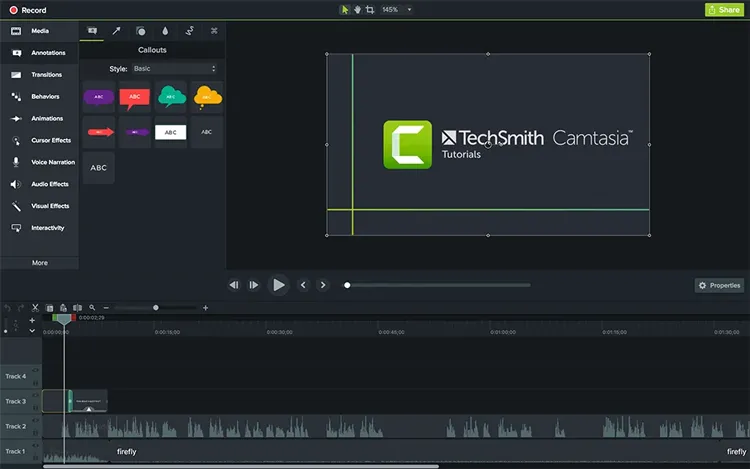
Camtasia is designed for users who want to record their screens and create professional-looking videos in one application. It combines screen capture with a built-in timeline editor, allowing you to record your desktop, webcam, system audio, and microphone, then refine the footage without switching between different tools.
As an HD screen recorder, Camtasia offers editing features such as cursor effects, transitions, annotations, captions, callouts, and visual effects. You can also arrange recordings on separate tracks to create polished tutorials, training videos, and professional presentations.
- Combine screen recording and video editing.
- Support screen, webcam, microphone, and system audio capture.
- Offer Full HD and 4K video workflows.
- Include transitions, annotations, and visual effects.
- Provide cursor effects and zoom-and-pan tools.
- Suitable for professional tutorials and training materials.
- Support detailed timeline-based editing.
- Paid software with a higher cost than basic recorders.
- Require time to learn advanced editing features.
- Can consume considerable system resources.
- More complicated than necessary for simple screen recordings.
- Trial restrictions may affect exporting and commercial use.
9. Loom - Best Online HD Screen Recorder for Collaboration
Platform: Windows, Mac, iOS, Android, and browser extension
Price: Free Starter plan and paid plans
Best For: Recording and sharing tutorials, presentations, and work-related videos.
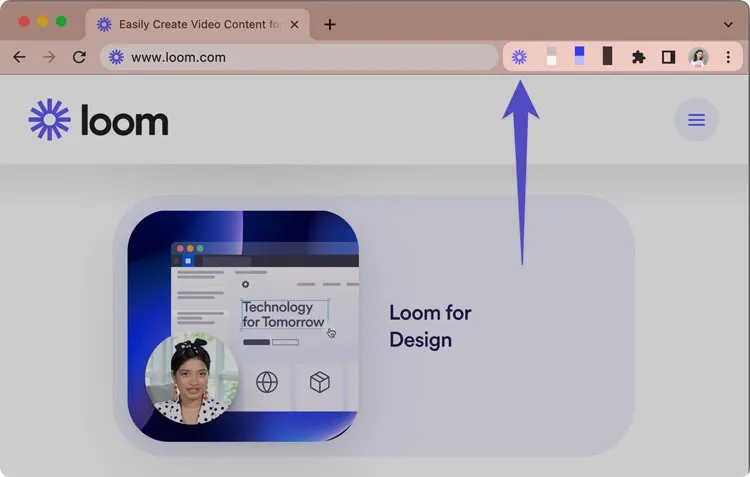
Loom is a convenient online HD screen recorder for capturing and sharing videos without sending large attachments. It lets you record your screen, webcam, or both simultaneously, with support for system audio.
Once recording is complete, Loom automatically uploads the video to the cloud and generates a shareable link, so recipients can watch it directly in their browsers. It also offers transcription, captions, comments, and basic editing tools, making it a practical choice for remote collaboration, online tutorials, product demonstrations, and business communication.
- Support browser-based recording and desktop applications.
- Available on Windows, Mac, iOS, and Android.
- Support screen and webcam recording.
- Capture system audio.
- Automatically generates shareable video links.
- Include transcription and caption features.
- Convenient for remote communication and tutorials.
- Paid plans support higher recording resolutions.
- Free recordings are limited to five minutes each.
- Free Starter plan allows only 25 videos per person.
- Free recording quality is limited to 720p.
- Full HD and 4K recording require a paid plan.
- Cloud sharing requires an internet connection.
- Not designed for advanced gameplay recording.
10. AZ Recorder - Best HD Screen Recorder for Android
Platform: Android
Price: Free with ads and in-app purchases
Best For: Recording Android gameplay, app tutorials, and mobile screen activities.
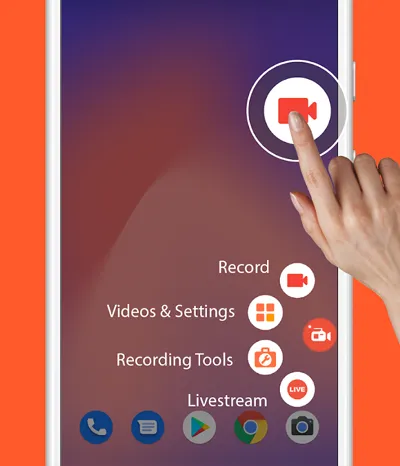
AZ Screen Recorder is a convenient HD screen recorder app for capturing Android gameplay, app demonstrations, tutorials, and other mobile activities without connecting your phone to a computer.
As a high-quality screen recorder for Android, it supports up to 1080p resolution, 60 FPS, and a 12 Mbps bitrate on compatible devices. Its floating controls let you start, pause, and stop recordings easily, while microphone recording helps you add commentary to gameplay and tutorials.
AZ Screen Recorder also includes basic video editing tools for trimming clips and removing unwanted sections. It supports live streaming as well, making it a practical choice for everyday mobile recording and content creation.
- Support Android screen recording up to 1080p.
- Supports up to 60 FPS and 12 Mbps bitrate on compatible devices.
- Simple floating recording controls.
- Support microphone audio recording.
- Include basic video editing tools.
- Offer live-streaming functionality.
- Suitable for gameplay and app tutorials.
- No mandatory recording time limit advertised.
- Available primarily for Android devices.
- Contain advertisements and in-app purchases.
- Some advanced features may require payment.
- Recording performance depends on device hardware.
- High-resolution recording can consume considerable storage and battery power.
Sum Up
Choosing the best HD screen recorder depends on your device and recording needs. OBS Studio is a great free option for PC users, QuickTime Player works well for Mac, and AZ Screen Recorder is a convenient choice for Android. If you want more recording flexibility, high-resolution output, and useful editing features, Screen Recorder is worth considering. Compare their features and limitations to find the tool that makes recording your screen easy and hassle-free.
Download for Win Download for Mac
Related Articles
Best Screen Recording Software in 2026: Top 16 Screen Recorders
8 Popular Loom Alternatives for Screen Recording in 2026