TL;DR:
ScreenRec is a simple, lightweight screen recorder for Windows, Mac, and Linux, offering watermark-free recording, webcam and audio capture, screenshots, annotations, and quick cloud sharing. Its free plan removes the 5-minute recording limit after registration, but is limited to 720p, 2GB of cloud storage, and personal use.
If you need higher-quality recording, 8K/120 FPS support, gameplay recording, phone screen capture, scheduled recording, and more editing controls, Screen Recorder is a more powerful alternative.

Screen Recoder Record screen on PC/Mac with ease


If you are looking for a lightweight screen recorder for quick tutorials, meetings, gameplay clips, or screenshots, ScreenRec is worth considering. It focuses on simple recording and instant sharing rather than advanced video editing. But is ScreenRec really free, safe, and good enough for your recording needs?
In this ScreenRec review, we look beyond its feature list to examine what it can actually do, its free-plan limitations, advantages and drawbacks, and whether it is a good choice for gaming and professional recording. We will also introduce Screen Recorder as an alternative if you need more recording controls and editing features.
Part 1. What Is ScreenRec?
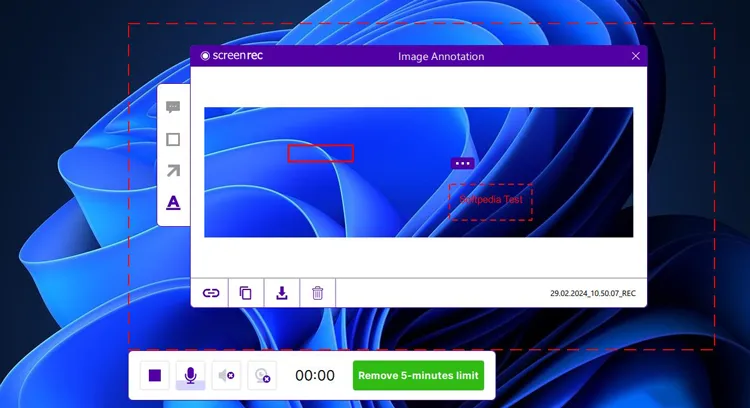
ScreenRec is a desktop tool that combines screen recording, screenshots, annotations, and instant sharing in one application. Unlike some screen recording software designed primarily for professional video creators, ScreenRec places greater emphasis on "record and share instantly". It can record the entire screen or a selected area, while also capturing your webcam, microphone, and computer system audio. After recording, you can save the content locally or use ScreenRec's cloud service to generate a sharing link.
In terms of its intended use, ScreenRec is particularly suitable for:
- Creating software tutorials.
- Recording bugs and incorrect operations.
- Demonstrating procedures to colleagues.
- Creating customer support videos.
- Recording online courses or presentations.
- Quickly capturing and annotating screen content.
- Communicating with remote teams.
- Sharing short videos rather than producing fully edited content.
Part 2. Which Platforms Does ScreenRec Support?
ScreenRec's official download page currently provides versions for Windows, Mac, and Linux. The detailed platform support is as follows:
- Windows: Supports Windows 7 and later. The minimum requirements include an Intel Pentium 4 processor or higher and at least 1 GB of RAM, with 2 GB of RAM recommended.
- macOS: Supports macOS 11, 12, and 13, and is compatible with both Apple Silicon and Intel Macs.
For users looking for a desktop screen recorder that works across Windows, Mac, and Linux, ScreenRec offers convenient cross-platform support. However, ScreenRec currently does not offer an official mobile app. If your main need is to record your screen on an iPhone or Android device, ScreenRec may not be the most suitable option.
Part 3. What Can ScreenRec Do for You?
ScreenRec's main advantage is that it combines screen recording, audio capture, webcam recording, screenshots, and sharing in one lightweight application.
1. Record Your Screen
ScreenRec allows you to capture your entire screen or a selected area. This is useful when you only need to demonstrate a specific application or part of your desktop instead of recording everything displayed on your monitor.
2. Record Your Webcam and Audio
ScreenRec can combine screen recordings with webcam footage, allowing you to create presentation videos, tutorials, or review clips while showing your face on screen.
It can also capture microphone and computer audio, so you can record your voice along with sounds produced by your computer.
3. Take Screenshots and Add Annotations
Screen recording is not ScreenRec's only feature. It also provides screenshot capture and annotation tools.
You can capture a specific area of your screen and add annotations to highlight important information. This is useful for explaining software issues, marking sections of a document, or providing visual instructions to others.
4. Share Recordings Quickly
ScreenRec is designed with quick sharing in mind. After recording, you can use its cloud-sharing workflow to create a private link without manually uploading the file to another service.
The free plan includes 2GB of cloud storage, while paid plans provide more storage and additional business features. This is particularly convenient for remote support and workplace communication, as recipients can access the recording directly through the link.
Part 4. Is ScreenRec Free to Use?
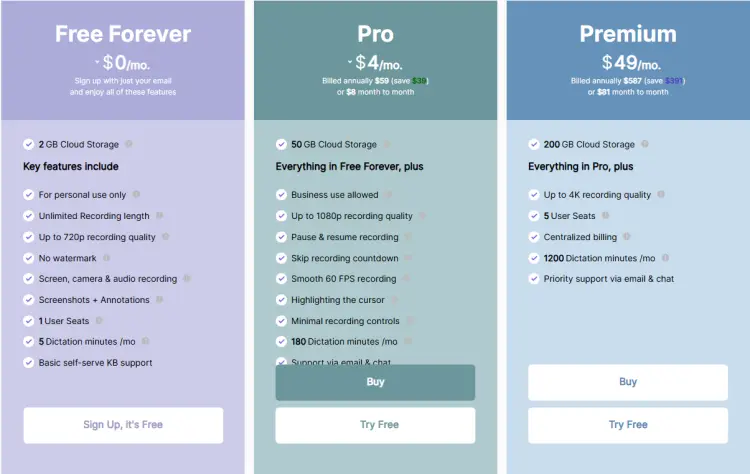
Yes. ScreenRec currently offers a Free Forever plan, but there are some important limitations to keep in mind. After creating a free account, the free plan provides unlimited recording time, recording quality of up to 720p, no watermark, screen/webcam/audio recording, screenshots and annotations, and 2GB of cloud storage.
However, the free plan is designed for personal use. If the 720p recording quality and 2GB of cloud storage are not enough for your needs, you can upgrade to the Pro plan. The exact price may vary depending on the billing method and your region.
ScreenRec Free vs. Paid
| Feature | Free | Pro | Premium |
|---|---|---|---|
| Recording length | Unlimited | Unlimited | Unlimited |
| Maximum quality | 720p | 1080p | 4K |
| Watermark | No | No | No |
| 60 FPS | ✗ | ✓ | ✓ |
| Pause/Resume recording | ✗ | ✓ | ✓ |
| Skip countdown | ✗ | ✓ | ✓ |
| AI microphone enhancement | ✗ | ✓ | ✓ |
| Cloud storage | 2 GB | 50 GB | 200 GB |
| Commercial use | ✗ | ✓ | ✓ |
| Number of users | 1 | 1 | 5 |
Part 5. What Are the Pros and Cons of ScreenRec?
- ScreenRec has a simple and easy-to-use interface.
- The free plan provides watermark-free recordings.
- A free account removes the 5-minute recording limit.
- It supports screen, webcam, microphone, and system audio recording.
- Cloud sharing makes it easy to send recordings through private links.
- Screenshots and annotation tools are useful for support and documentation.
- It supports Windows, Mac, and Linux.
- The free plan is limited to 720p recording.
- Free users get only 2GB of cloud storage.
- Commercial and professional use requires a paid plan.
- Video editing features are limited.
- 1080p, 4K, 60 FPS, and other advanced recording features require a paid plan.
Part 6. Best Alternative to ScreenRec: Screen Recorder
If you like ScreenRec for its simplicity and ease of use but find that its recording quality and advanced controls do not fully meet your needs, Screen Recorder is worth considering.
Screen Recorder is a more feature-rich desktop screen recorder for Windows and Mac. It supports screen recording, webcam recording, audio recording, game recording, screenshots, phone screen recording, scheduled recording, and real-time annotations. It currently supports recording at up to 8K and 120 FPS, although the exact capabilities may vary depending on the recording mode and system configuration.
Key Features of Screen Recorder:
- Record the full screen, selected areas, or specific windows.
- Capture webcam footage alone or together with screen recording.
- Record gameplay smoothly with support for high-resolution and high-frame-rate video.
- Record system sound, microphone, or both at the same time.
- Capture high-quality video at up to 8K resolution and 120 FPS.
- Mirror and record iPhone or Android screens on your computer.
- Reduce background noise and remove webcam backgrounds with AI.
- Add text, arrows, shapes, lines, and other annotations while recording.
- Set a recording task to start and stop automatically.
- Take screenshots and perform basic edits after recording.
- Export recordings in various video, audio, and image formats.
- Available for both Windows and macOS.
Download for Win Download for Mac
How to Use Screen Recorder:
-
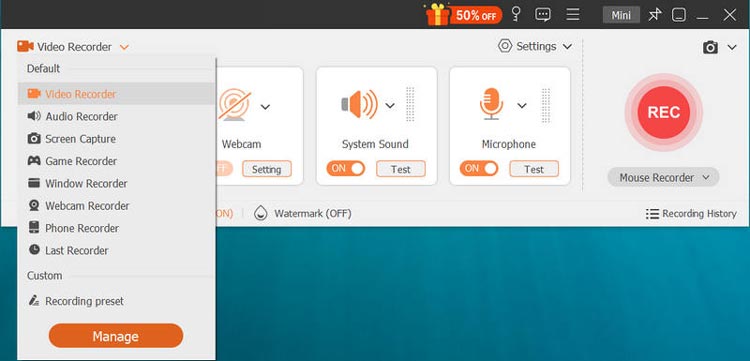
Download and install Screen Recorder, then launch the program. Select "Video Recorder" and choose whether to record the full screen, a specific window, or a custom area.
-
Configure your recording settings. Turn on "System Sound", "Microphone", and "Webcam" as needed, then click "REC" to start.
-
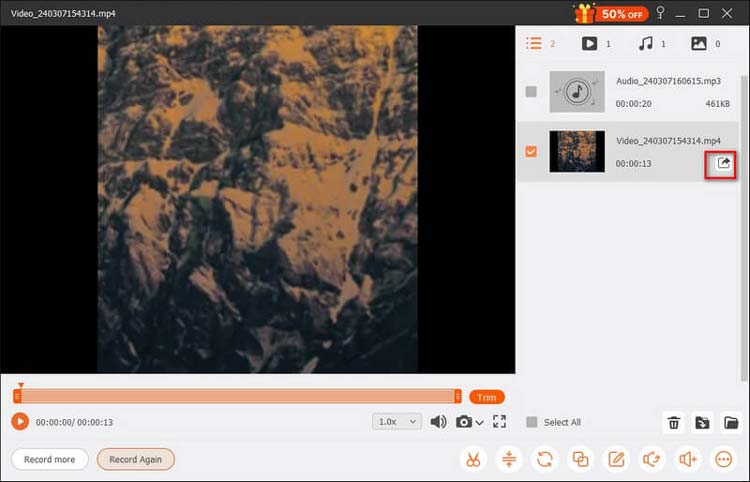
Add text, shapes, drawings, or highlights during the recording. When you're done, click "Stop" to finish. Preview and make any necessary edits, then save the recording in your preferred format.
ScreenRec vs. Aiseesoft Screen Recorder
| Feature | ScreenRec | Screen Recorder |
|---|---|---|
| Screen Recording | ✓ | ✓ |
| Webcam Recording | ✓ | ✓ |
| Audio Recording | ✓ | ✓ |
| Game Recording | Limited | ✓ |
| Phone Screen Recording | ✗ | ✓ |
| Screenshot & Annotation | ✓ | ✓ |
| Recording Quality | Up to 4K with Premium | Up to 8K |
| Frame Rate | Up to 60 FPS with Pro | Up to 120 FPS |
| AI Tools | Limited | AI noise reduction & background removal |
| Scheduled Recording | ✗ | ✓ |
| Real-Time Annotations | Limited | ✓ |
| Output Formats | Mainly MP4 | Multiple video, audio, and image formats |
| Cloud Sharing | ✓ | ✗ |
| Quick Editing | Limited | ✓ |
| Free Version | ✓ | ✓ |
| Operating Systems | Windows, Mac, Linux | Windows, Mac |
Part 7. FAQs on ScreenRec
Q1. Is ScreenRec a virus?
No. ScreenRec is not generally identified as a virus. The official website describes it as an ad-, spam-, and virus-free screen recording tool. For safety, download it from the official website and keep your operating system and security software updated.
Q2. Is ScreenRec safe to use?
ScreenRec uses 128-bit AES encryption for recordings and screenshots and supports private sharing links. However, you should still avoid recording passwords, confidential documents, or other sensitive information unless you understand how your recordings are stored and shared.
Q3. Is ScreenRec good for gaming?
ScreenRec supports high-resolution screen recording, including 4K, making it suitable for casual gameplay recording. However, its output and recording controls are somewhat limited. If you need more control over recording settings and editing options, Screen Recorder is a more versatile choice for recording and editing gameplay.
Q4. Does ScreenRec have a time limit?
Yes, but it depends on how you use it. Guest users can record for up to 5 minutes, while creating a free account removes the recording time limit.
The Bottom Line
ScreenRec is a solid choice if your priority is simple, lightweight screen recording with no watermark and convenient sharing. Its free account removes the 5-minute recording restriction and provides useful basic recording features, but the 720p quality, 2 GB cloud storage, personal-use restriction, and limited editing capabilities may become obstacles for more demanding users.
If you need more control over recording quality, gameplay capture, output formats, phone recording, editing, or high-resolution content creation, Screen Recorder is a more flexible alternative worth considering.
Download for Win Download for Mac
Related Articles
Bandicam Screen Recorder Review: Features, Pricing & Guide
Icecream Screen Recorder Review: Features, Pros, Cons & Best Alternative
Wondershare DemoCreator Review: Is It Worth It in 2026?
ScreenFlow Review and Best Alternatives (Trustworthy Tutorial)