TL;DR:
Wondershare DemoCreator is an all-in-one screen recorder and video editor for Windows and Mac.
- Records screens, webcams, audio, gameplay, and presentations.
- Offers AI tools for subtitles, text-to-speech, voice changing, AI clips, and background removal.
- The free version adds a watermark and has recording/export limits.
- Paid plans unlock watermark-free, longer, higher-quality recordings and more AI features.
- Ideal for users who want recording, editing, and AI tools in one app.
For simpler, high-quality screen, webcam, audio, and gameplay recording, Screen Recorder is a strong alternative.
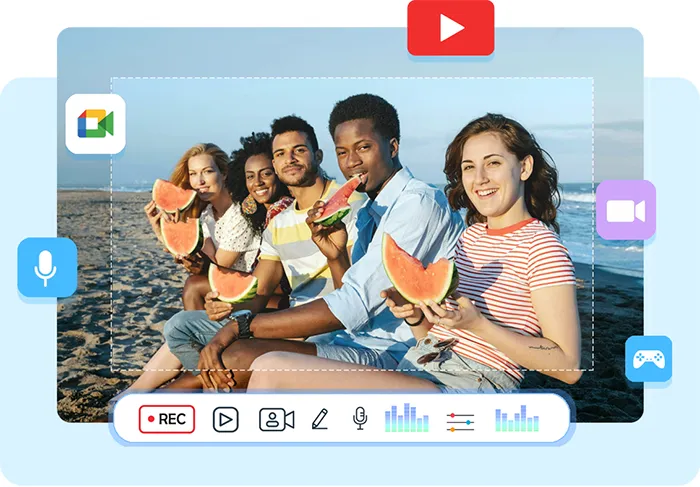
If you need to record your computer screen, create tutorials, capture gameplay, or make product demos, an easy-to-use screen recorder can greatly improve efficiency. Wondershare DemoCreator is a screen recording and video editing tool from Wondershare that combines screen, webcam, audio recording, and video editing in one platform. Whether you're creating online courses, YouTube videos, software tutorials, or recording games and meetings, DemoCreator offers a comprehensive solution.
But is Wondershare DemoCreator actually worth paying for? This Wondershare DemoCreator review covers what it is, its key features, pros, cons, and whether it's worth choosing.
Part 1. What Is Wondershare DemoCreator?
Wondershare DemoCreator is an all-in-one screen recording and video editing tool developed by Wondershare. It lets users record screens, webcams, games, and audio, then edit recordings without switching to another program.
Designed for educators, gamers, marketers, business users, and content creators, DemoCreator combines recording, video editing, creative assets, and AI-powered features in one platform.
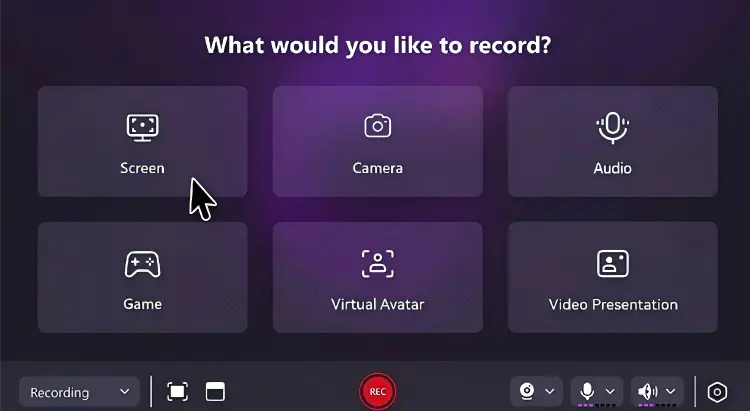
It supports several recording modes, including:
- Screen recording.
- Webcam recording.
- Game recording.
- Audio recording.
- Video presentation recording.
- Virtual camera recording.
You can also record your screen, webcam, microphone, and system audio separately, giving you more flexibility when editing your videos.
Part 2. What Can Wondershare DemoCreator Do for You?
The biggest selling point of Wondershare DemoCreator is that it combines several content-creation tasks into one application.
1. Record Your Screen
DemoCreator lets you capture your entire screen, a selected area, or a specific window. You can also combine screen recording with webcam and audio.
This makes it suitable for software tutorials, presentations, online classes, product demonstrations, and other instructional content. Wondershare also provides screen annotation and drawing tools so you can highlight important areas while recording.
2. Record Gameplay
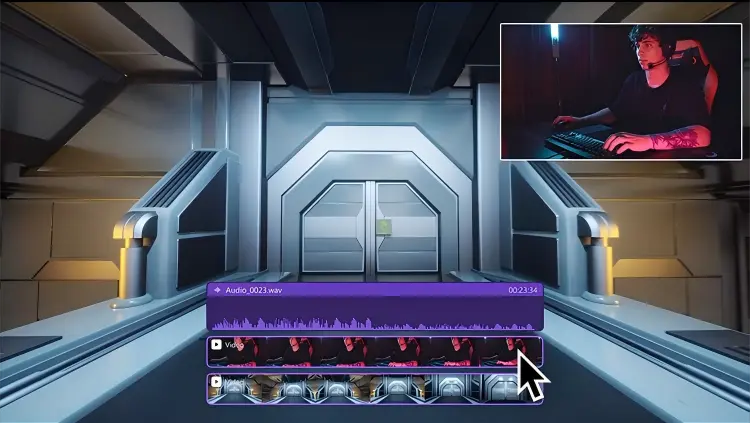
DemoCreator provides a dedicated game recorder for capturing smooth gameplay in up to 4K/8K and 120 FPS, regardless of your monitor resolution. You can also enhance your gameplay videos with highlights, stickers, and creative effects to make them more engaging and share-worthy.
3. Record Webcam and Microphone
DemoCreator can capture your webcam, microphone, and screen separately. This is useful when you want to create a picture-in-picture tutorial or presentation. For example, you can show your face in one corner while demonstrating software on the main screen.
4. Record With a Virtual Avatar
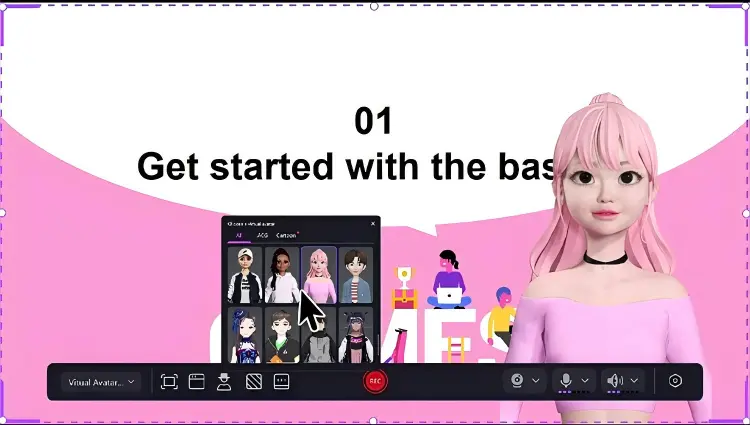
Wondershare DemoCreator lets you create content with a virtual avatar instead. With 30 AI avatars to choose from, you can create videos with natural facial expressions and movements while giving your content a personalized look.
5. Video Editing
DemoCreator is more than a screen recorder—it also includes built-in video editing tools. After recording, you can edit your videos directly without switching to another editor.
You can:
- Trim and split videos.
- Add text and captions.
- Add stickers and visual effects.
- Add background music.
- Adjust audio.
- Add transitions and animations.
- Adjust video settings.
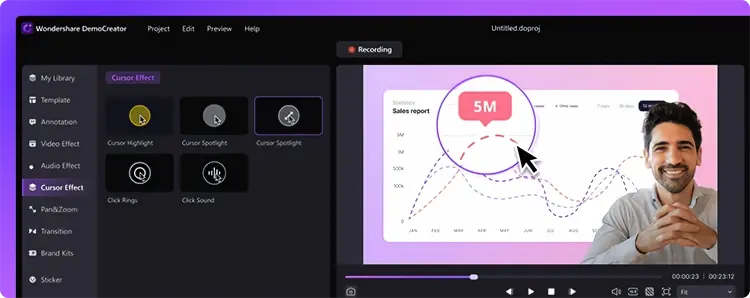
- Add cursor and mouse-click effects.
This means you can record, edit, and polish your videos in one workflow instead of using separate recording and video editing software.
6. AI Video Tools
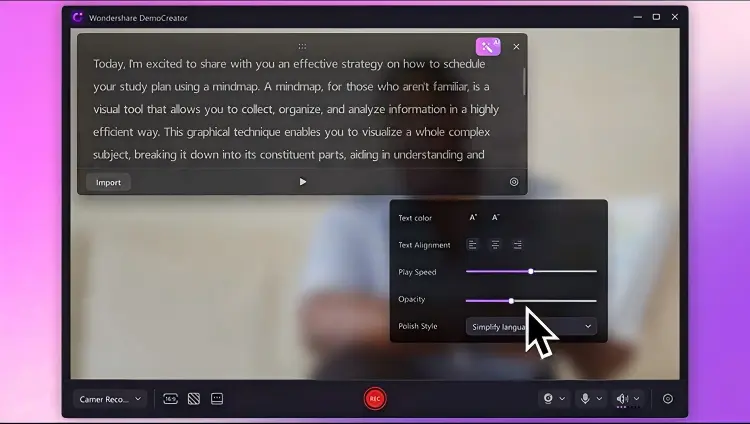
DemoCreator has expanded beyond conventional recording and editing by adding AI-powered features. Current features include AI text-based editing, AI subtitle generation, AI text-to-speech, AI voice changing, AI denoise, AI background removal, AI clip generation, AI music generation, vocal removal, and other AI-assisted tools.
7. Share Your Content Anywhere
Wondershare DemoCreator makes it easy to share your content with instant social sharing and seamless team collaboration. Once your video is recorded and edited, you can share it directly to platforms such as YouTube, Vimeo, TikTok, and Instagram, helping you reach your audience anytime, anywhere.
Part 3. Is Wondershare DemoCreator Free or Paid?
Wondershare DemoCreator has a free trial, but it is not a completely unrestricted free screen recorder.
According to Wondershare's current information, the trial version provides access to the software's features, but exported videos contain a watermark. Wondershare's current Windows pricing page also lists a 5-minute recording/export limit for the free trial, with paid plans increasing recording length and export quality.
DemoCreator Free vs. Paid
|
Free Trial | Paid Version | |
|---|---|---|---|
| Screen recording | Yes | Yes | |
| Video editing | Yes | Yes | |
| Watermark-free export | No | Yes | |
| Recording length | Limited | Unlimited | |
| 4K export | Limited | Yes | |
| Higher frame rates | Limited | Up to 120 FPS | |
| AI tools | Limited | More access | |
| Creative assets | Limited | More resources |
How Much Does Wondershare DemoCreator Cost?
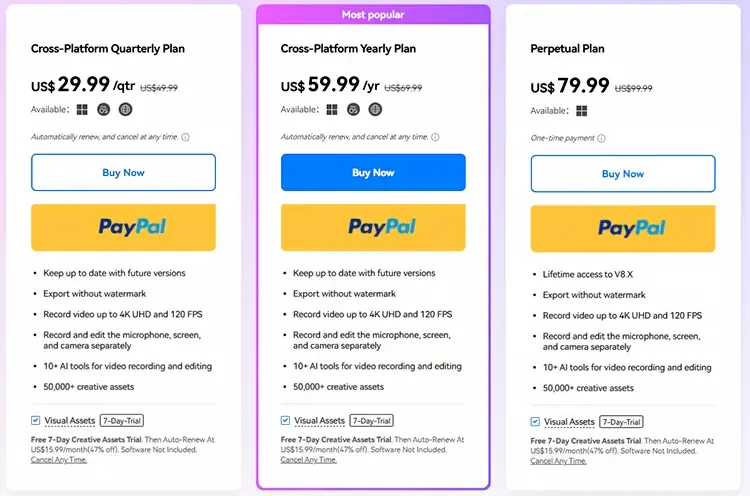
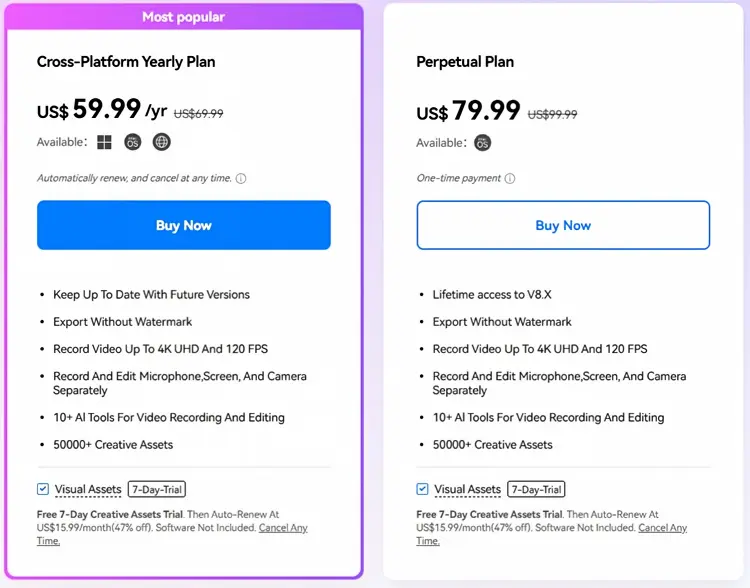
Wondershare currently lists several paid options, including monthly, quarterly, yearly, and perpetual plans.
For Windows:
For Mac:
Is the Free Version Enough?
It depends on what you want to do.
If you only want to test the interface or make a short personal recording, the free version can be useful.
But if you want to publish videos professionally, the watermark becomes a major limitation. Similarly, users who need longer recordings, 4K output, or higher frame rates will likely need a paid plan.
Part 4. What Are the Pros and Cons of Wondershare DemoCreator?
Before purchasing DemoCreator, consider both its strengths and limitations to see whether it fits your recording and editing needs.
Pros of Wondershare DemoCreator:
+ You can record your screen and edit videos in the same application.
+ It supports screen, webcam, audio, gameplay, and presentation recording.
+ AI tools include subtitles, text-to-speech, text-based editing, AI clips, voice changing, and background removal.
+ Annotations, screen drawing, captions, and webcam overlays make it suitable for tutorials and presentations.
+ Paid plans support recording at up to 4K UHD and 120 FPS.
+ Built-in templates, effects, transitions, stickers, backgrounds, and audio resources provide more creative options.
Cons of Wondershare DemoCreator:
- Videos exported from the free trial include a watermark.
- The Windows free trial has a 5-minute recording limit.
- Some AI features require AI credits or paid access.
- The wide range of features may feel overwhelming if you only need basic screen recording.
- Some premium creative assets may require additional payment or a separate subscription.
- The built-in editing tools may be unnecessary if you already use another video editor.
Part 5. Best Alternative to Wondershare DemoCreator
If your main goal is high-quality screen recording, rather than having a large collection of video editing and AI features, Screen Recorder is worth considering. It focuses more directly on screen, audio, webcam, gameplay, and phone recording while still providing useful editing and annotation features.
It currently advertises support for recording up to 8K and 120 FPS, multiple recording modes, 20+ output formats, and AI-powered webcam background removal.
Key features of Screen Recorder:
- Record high-quality videos in up to 8K resolution and 120 FPS.
- Capture your full screen, custom area, specific window, gameplay, or webcam.
- Record screen, webcam, system sound, and microphone simultaneously.
- Record iPhone and Android screens on your computer.
- Add text, arrows, shapes, highlights, and drawings while recording.
- Reduce background noise and echo for clearer audio.
- Schedule recordings and control recording functions with shortcuts.
- Export recordings in formats such as MP4, MOV, MKV, MP3, WAV, PNG, and JPG.
Download for Win Download for Mac
Here is how to use Screen Recorder:
-
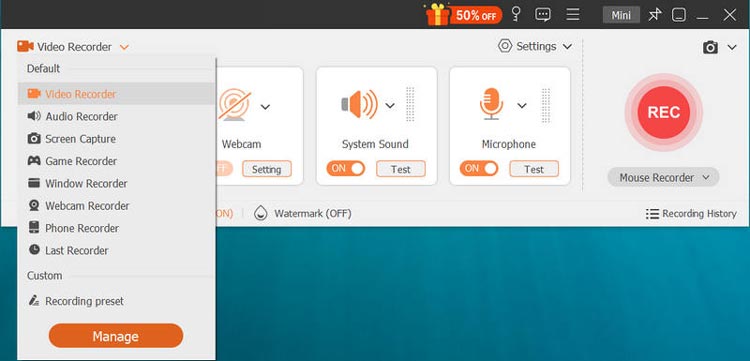
Download and launch Screen Recorder on your PC. Select "Video Recorder" and choose the area of your screen you want to capture.
-
Turn "System Sound" and "Microphone" on or off based on your needs. Enable the webcam if you want to add a face overlay, then click "REC" to start.
-
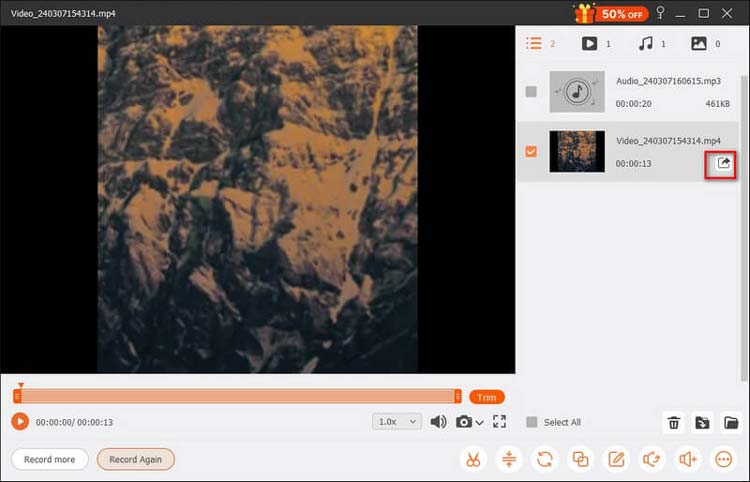
During recording, you can add text, draw shapes, highlight the cursor, and apply other effects. When finished, click "Stop", preview the recording, and save the video.
Screen Recorder vs. Wondershare DemoCreator
|
Wondershare DemoCreator | Screen Recorder | |
|---|---|---|---|
| Screen recording | Yes | Yes | |
| Webcam recording | Yes | Yes | |
| Audio recording | Yes | Yes | |
| Gameplay recording | Yes | Yes | |
| Video editing | Strong | Basic-to-moderate | |
| AI video tools | Extensive | More focused | |
| AI subtitles | Yes | — | |
| AI text-to-speech | Yes | — | |
| AI voice changer | Yes | — | |
| Annotation tools | Yes | Yes | |
| Phone recording | — | Yes | |
| Recording quality | Up to 4K/120 FPS on current paid plan | Up to 8K/120 FPS advertised | |
| Best for | Recording + editing + AI creation | High-quality recording and capture |
Part 6. Q&A of Wondershare DemoCreator
Q1. Is Wondershare DemoCreator completely free?
No. DemoCreator offers a free trial, but the free version has limitations. Exported videos contain a watermark, and the current Windows pricing comparison lists a 5-minute recording limit for the free trial.
Q2. Does Wondershare DemoCreator have a watermark?
Yes, videos exported using the free trial contain a watermark. A paid plan is required for watermark-free exports.
Q3. Is Wondershare DemoCreator good for YouTube videos?
Yes. DemoCreator can be useful for YouTube tutorials, gameplay videos, software demonstrations, presentations, and educational content because it combines screen recording, webcam capture, audio recording, editing, captions, and other creative tools.
However, whether it is the best choice depends on how much editing you need. If you mainly produce screen recordings, a dedicated screen recorder may be simpler.
Q4. Can DemoCreator record gameplay?
Yes. DemoCreator includes a dedicated gameplay recording mode and supports high-resolution, high-frame-rate recording on supported paid plans.
Q5. Can DemoCreator record a webcam and screen at the same time?
Yes. DemoCreator supports screen and webcam recording and can separately capture microphone, screen, and camera sources, which is useful for tutorials and presentation videos.
Q6. Can DemoCreator record audio?
Yes. DemoCreator can record microphone and system audio alongside video, making it suitable for tutorials, gameplay commentary, presentations, and other content requiring narration.
Q7. Does DemoCreator support 4K recording?
Yes. Wondershare's current paid plans advertise recording and export up to 4K UHD and 120 FPS.
Q8. Is Wondershare DemoCreator good for beginners?
It can be. Its interface combines recording and editing in one application, which can simplify the content creation process.
However, beginners who only need simple screen recording may find the large number of editing and AI features unnecessary.
Q9. Is Wondershare DemoCreator better than a basic screen recorder?
It depends on your needs.
If you want to record and edit videos in the same application, DemoCreator has a clear advantage.
If you only need to record your screen, webcam, or audio, a simpler screen recorder may be more efficient and less expensive.
Final Verdict
Overall, Wondershare DemoCreator is a solid all-in-one solution for screen recording and video editing, especially if you need AI-powered tools for tutorials, gameplay, presentations, or social content. However, its free version comes with limitations, and users who mainly need reliable, high-quality screen recording may not need all of its editing features.
If you want a simpler and more focused recording experience with features such as high-resolution recording, audio enhancement, webcam capture, phone screen recording, and flexible recording modes, Screen Recorder is a worthwhile alternative to consider.
Download for Win Download for Mac
Related Articles:
Screen Recorder for Windows 11/10 PC: Top 11 Screen Recording Tools
Snagit Screen Capture Software Review Guide and 15 Viable Alternatives
AZ Screen Recorder Guide and 9 Practical Alternatives and Review
Screen Recorder for Mac: 12 Tools for Screen Recording on Mac