


"Hi, does anyone know a good screen recording software/app for Windows? I want a screen recorder for Windows that can record audio, select an area for recording, no watermark, free (flexible on this, but ideally not insanely expensive). Require long recording times (plan to use it for university lectures where work is on the computer but lecture is in person that last 2-3 hours."
- From Reddit
Finding the right screen recording software is more and more necessary, whether you are a student, professional educator, a hardcore gamer, or a business professional looking to streamline communication. If you want a suitable screen recorder for Windows 11/10, here are 11 options for you.
Part 1: What Are the Criteria for an Excellent Screen Recorder for Windows?
An "excellent" screen recorder is defined by more than just the ability to capture video. To truly stand out, a tool should meet several key benchmarks:
- High Performance & Low Latency: It should capture high-resolution video (1080p or 4K) at high frame rates (60 FPS) without lagging your system.
- Flexible Capture Modes: Users should be able to record the full screen, a specific window, or a custom-selected region.
- Audio Versatility: The ability to record system sound and microphone input simultaneously - and ideally on separate tracks - is crucial for tutorials and gaming.
- User-Friendly Interface: The best tools balance powerful features with an intuitive design that doesn't require a steep learning curve.
- Built-in Editing & Annotation: Features like trimming, highlighting the cursor, and adding real-time text or shapes add professional polish to the output.
- Compatibility: A reliable screen recorder must be fully compatible with Windows 11 and Windows 10, and should receive regular updates.
Part 2: Top 11 Screen Recorders for Windows 11/10
Below are ten widely used and trusted screen recorders for Windows PCs, covering both free and professional solutions.
You can quickly browse this table and find the screen recorder for PCs that best suits your needs.
| User Needs | Recommended Tool | Main Benefit |
|---|---|---|
| Flexible area selection for screen recording, instant screenshot annotation, and local processing. | iReaShare Screen Recorder | High-quality MP4/PNG/JPG/JPEG/BMP output with 100% privacy and no cloud uploads. |
| High-performance capture for games, lectures, and mobile mirroring | Screen Capture | All-in-one stability with hardware acceleration and phone-to-PC recording. |
| Professional broadcasting and advanced multi-source customization | OBS Studio | Powerful, free, and open-source with unlimited scene/audio layering. |
| Technical automation and high-efficiency command-line tasks | FFmpeg | Extremely lightweight; uses minimal resources for lossless recording. |
| Quick video messaging and instant team feedback | Loom | Fast sharing via instant cloud links and built-in camera "bubble." |
| Temporary use without installing any software on the PC | Apower Online Recorder | Fully web-based; convenient for one-off tasks across different computers. |
| Open-source productivity with automated sharing workflows | ShareX | Completely free with complex post-capture tasks and GIF creation. |
| Quick, native capture of active game or app windows | Xbox Game Bar | Pre-installed on Windows; zero setup required for simple clips. |
| Visual communication and bug reporting for remote teams | Zight | Streamlined cloud storage with professional annotation and GIF tools. |
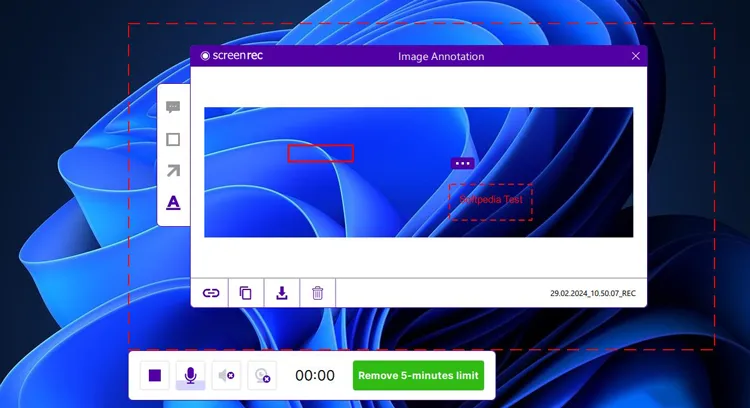
| Private, encrypted recording with basic viewer analytics | ScreenRec | No watermarks on the free plan and "instant" secure link sharing. |
| Creation of high-end educational courses and professional tutorials | Camtasia | Industry-leading video editor with interactive quizzes and animations. |
2.1 iReaShare Screen Recorder
iReaShare Screen Recorder is a lightweight yet powerful tool designed for capturing your computer screen effortlessly. Whether you need it for gaming, business presentations, or creating step-by-step tutorials, this software allows you to record high-quality videos and take precise screenshots with ease, while ensuring total user privacy.
Main features of the Screen Recorder software:
* High-resolution recording without time limits.
* Full screen and custom region are supported.
* Record system audio or microphone capture.
* Take screenshots and edit the images on the PC.
* Export in MP4 format for videos, and PNG, JPG, JPEG, and BMP for screenshots.
Pros:
+ Minimal impact on system performance.
+ Records without time limits.
+ Accessible for beginners with an intuitive interface.
+ Ideal balance of ease-of-use and capability for tutorials, demos, and presentations.
Cons:
- No video editing features at present.
- The free version has a watermark.
Download iReaShare Screen Recorder.
Here's how to use this screen recording software on Windows 10/11:
-
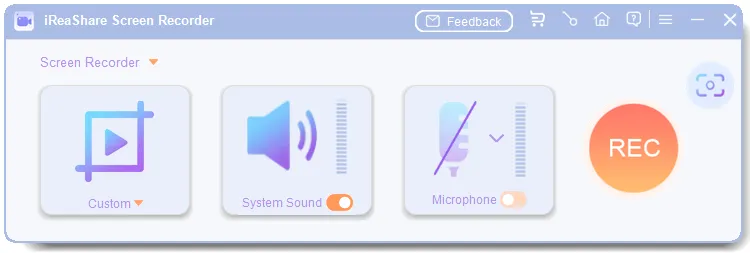
Download, install, and run the Screen Recorder software on your Windows PC. Then choose the "Custom" mode, enable one audio source.
-
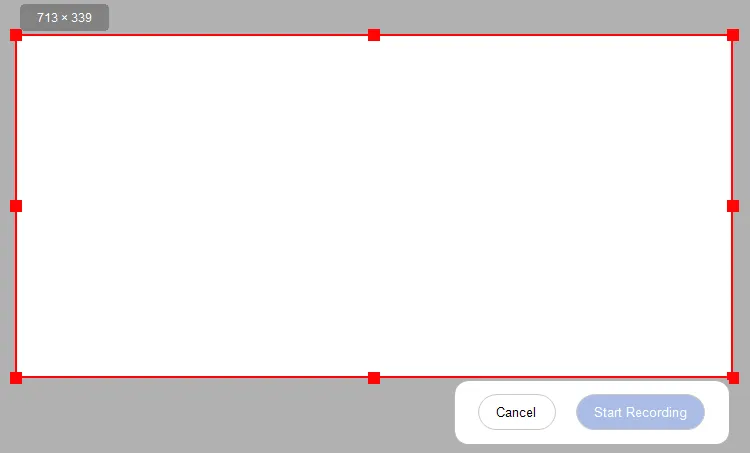
Navigate to the window you want to record, and click "REC". Next, select an area, and tap "Start Recording" to record your Windows screen.
-
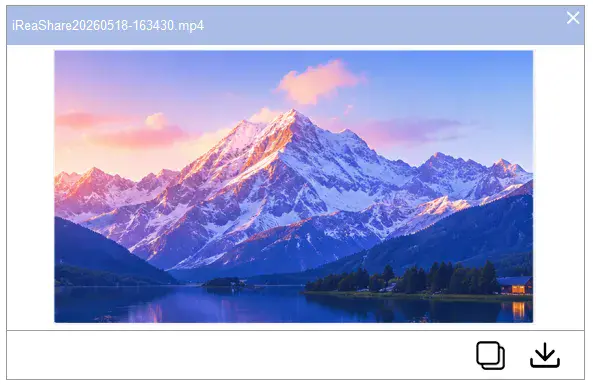
After recording, please click "Stop Recording". Finally, click "Save" to export the video on your computer directly.
You can watch the video guide to record your Windows PC's screen:
2.2 Screen Capture
Screen Capture is designed for users who want a balance between simplicity and professional output. It supports full-screen recording, custom region capture, webcam overlay, and synchronized audio recording. It is particularly popular for its stability and its ability to record gameplay, online meetings, and live streams without watermarks on the premium version. If you want a Windows 11/10 screen recorder that supports high resolution, opt for it.
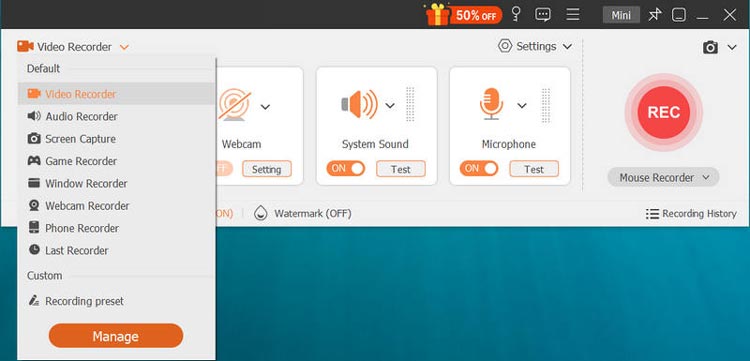
Pros:
+ Runs smoothly on low-end computers and minimizes the lag.
+ Enables you to start recording with just a few clicks without getting overwhelmed by complex settings.
+ Exports to over 20+ video, audio, and image formats (including MP4, WMV, MOV, AVI, GIF, MP3, PNG, etc.
+ Can record system audio and microphone inputs simultaneously or separately.
Cons:
- The free trial version is severely limited, restricting users to recording only 3 minutes per video.
- No timeline-based video editing features.
- video trimmer, file compressor, and high-tier audio cancellation tools require upgrading to the paid version.
Download the Screen Capture software.
Download for Win Download for Mac
Tips: Want to record the screen on a MacBook? Then you can download the Mac version and start the recording.
2.3 OBS Studio
The gold standard for power users and streamers. OBS (Open Broadcaster Software) is free, open-source, and offers limitless customization. It supports "Scenes" for switching between different inputs and has a massive library of plugins. Its Windows version is available for download. However, it has a steeper learning curve than most alternatives.
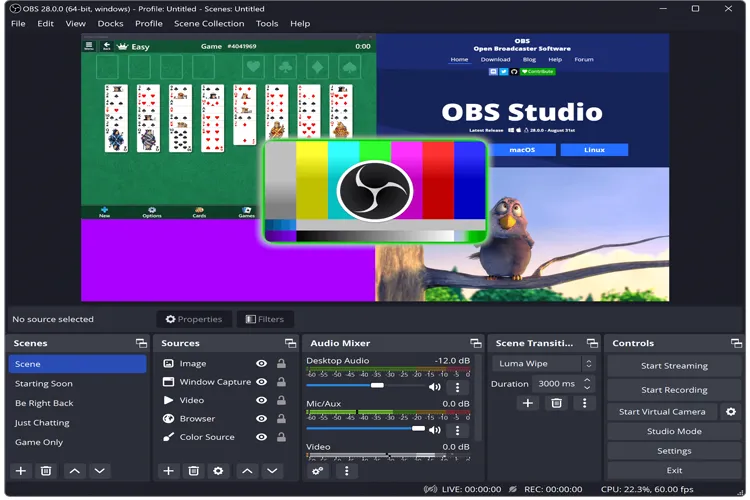
Pros:
+ Real-time capture of multiple sources (screen, webcam, audio).
+ Highly customizable, scalable to complex workflows.
+ Completely free and open-source with no watermarks or time limits.
+ Strong community, frequent updates, and cross-platform support (Windows/Mac/Linux).
Cons:
- Steep learning curve for beginners.
- No integrated post-recording editing interface.
- The interface can appear cluttered and overwhelming for simple tasks.
2.4 FFmpeg
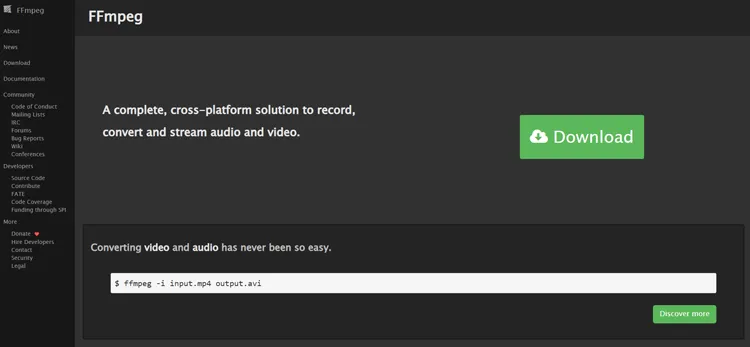
FFmpeg is a command-line powerhouse. While it lacks a graphical user interface (GUI), it is incredibly lightweight and efficient for those comfortable with scripts. It allows for deep technical control over codecs, bitrates, and streaming protocols, making it a favorite for developers and automated workflows. If you are tech-savvy, you will like this screen recorder for Windows 11/10/8/7.
Pros:
+ Supports screen capture, encoding, and format conversion.
+ Extremely wide format support.
+ Lightweight footprint as it runs without GUI overhead.
+ Capable of automating complex capture workflows via scripting.
Cons:
- Not intuitive without command-line proficiency.
- Limited real-time preview and monitoring during capture.
- Not suitable for beginners.
2.5 Loom
Loom revolutionized workplace communication by focusing on "instant" video messages. It records your screen and webcam simultaneously in a "bubble" format. Once you stop recording, the video is instantly uploaded to the cloud with a link ready for sharing, making it perfect for quick tutorials or project updates.
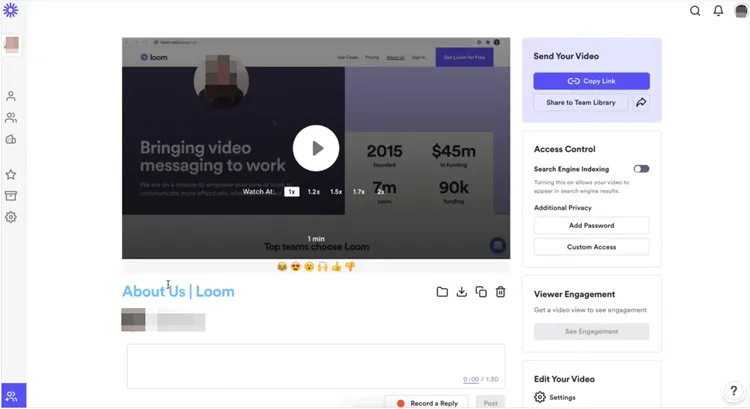
Pros:
+ Support one-click screen + webcam recording.
+ Automatic cloud upload and link sharing.
+ Integrations with business tools (Slack, email, etc.).
Cons:
- Free tier may have feature limits (e.g., video length, analytics).
- Limited advanced editing and customization compared to professional editors.
- Might require a subscription for full business-oriented features.
2.6 Apower Online Screen Recorder
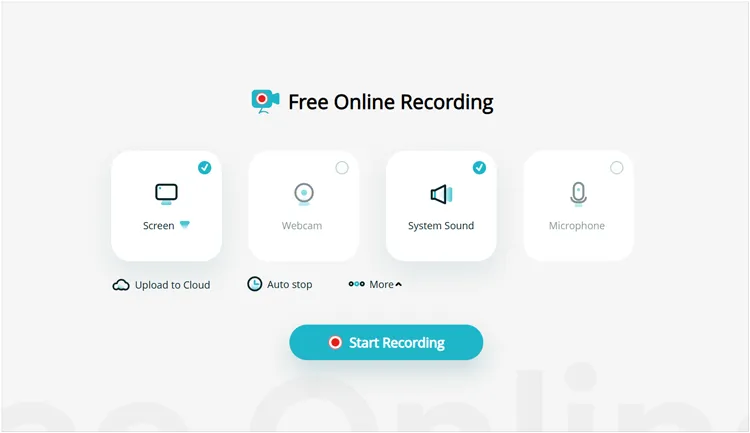
If you want to record the screen on your Windows PC but don't want to install software, Apower Online Screen Recorder is a browser-based solution. It is surprisingly powerful for a web tool, offering unlimited recording time and the ability to export to various formats like MP4, WMV, and AVI.
Pros:
+ Browser-based screen recording without installation.
+ System and microphone audio capture.
+ No time limits or watermarks (depending on free version).
+ Quick start capability and basic customization.
Cons:
- Relies on browser plugin or add-on for full functionality.
- Lacks advanced editing and timeline tools.
- Performance and options are limited compared with desktop clients.
2.7 ShareX
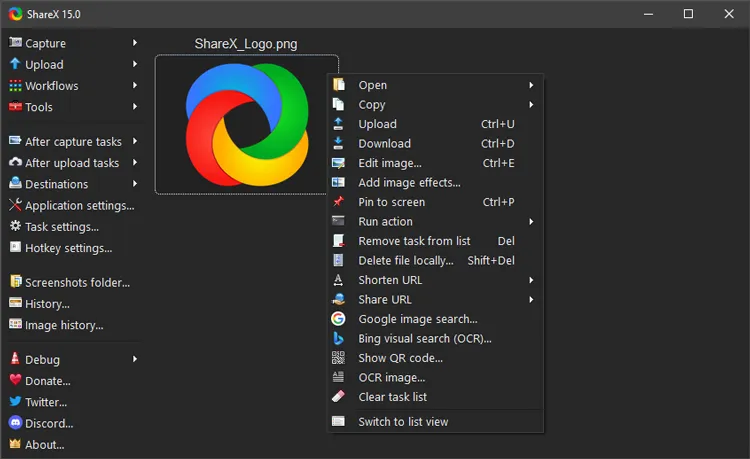
ShareX is an open-source productivity tool that goes far beyond screen recording. It is famous for its "after-capture" tasks - it can automatically upload your recording to a host of your choice, shorten the URL, and copy it to your clipboard. It is lightweight and completely free without ads. With it, you can complete the screen recording on Windows 11/10 without trouble.
Pros:
+ Highly customizable and lightweight.
+ No watermarks or restrictions.
+ Support region, full screen, and custom capture.
+ GIF and image annotation support.
Cons:
- Not beginner-friendly: interface and options can be confusing.
- No built-in timeline video editor.
- Recording is best for shorter clips or documentation rather than lengthy high-production videos.
2.8 Xbox Game Bar
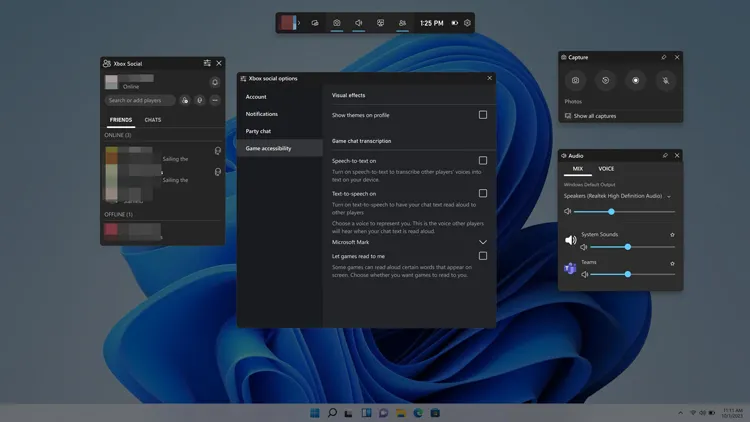
Built directly into Windows 11 and 10, Xbox Game Bar (accessed via Win + G) is one of the most practical screen recorders for PC. It requires no installation and is optimized for capturing gameplay. While it doesn't support recording the desktop or File Explorer, it is perfect for quickly grabbing a clip of an active application window.
Pros:
+ Built into Windows 10 and Windows 11.
+ Capture game clips, screen, system sound, and microphone.
+ Very low system overhead and simple UI.
Cons:
- Cannot record certain system UI components like File Explorer.
- Limited configuration, no multi-source scenes or advanced filters.
- No built-in editing features beyond what the OS provides.
2.9 Zight
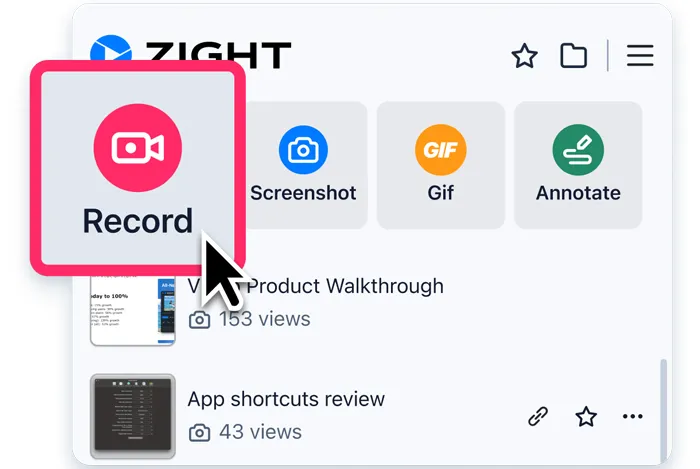
Zight, the screen record software, focuses on speed and collaboration. Similar to Loom, it allows for quick screen-to-cloud recording. It stands out with its annotation features and GIF creation tool, which are ideal for QA testers and design teams who need to point out specific bugs or UI elements.
Pros:
+ Screen and webcam recording with annotations and GIF creation.
+ Provide collaboration features (team libraries, viewer analytics).
+ Multi-platform support, including Windows and browser extensions.
Cons:
- Advanced video editing tools are limited compared with full video suites.
- Cloud dependency for core sharing workflows (internet required).
- Some users report UI polish and feature maturity varies.
2.10 ScreenRec
ScreenRec is a lightweight screen record program that offers a 100% free, no-watermark experience once you create a free account. It provides "instant sharing" through a private cloud link and includes basic analytics to see who has viewed your video.
Pros:
+ Lightweight screen and webcam capture with audio.
+ Instant cloud sharing and analytics.
+ Low system resource usage.
Cons:
- Free version may limit export resolution and storage.
- No built-in post-recording editing tools.
- Some users report mixed experiences with cloud management and install behavior.
2.11 Camtasia
If you need a professional-grade editor built into your recorder on your Windows PC, Camtasia is the top choice. It is a premium, paid software that features an industry-leading video editor. It allows for complex animations, callouts, and quizzes, making it the preferred tool for high-end educational content and corporate training.

Pros:
+ All-in-one solution for capture and polished production.
+ Beginner-friendly UI despite deep features.
+ Excellent for tutorials, training videos, and marketing content.
Cons:
- Premium price point — higher cost than most alternatives.
- Resource-intensive on older hardware.
- Overkill for small, simple clips or quick brief recordings.
Part 3: Q&A About Screen Recorder for Windows PC
Q1: Does SimpleScreenRecorder have a Windows version?
No. SimpleScreenRecorder is designed specifically for Linux systems and does not have an official Windows version. Windows users should consider alternatives such as OBS Studio, Screen Recorder on iReaShare, etc.
Q2: Which is the best screen recorder for Windows 11/10 PCs?
The best screen recorder depends on user needs:
- For beginners: iReaShare Screen Recorder, Screen Capture, or ScreenRec.
- For professionals: Camtasia.
- For advanced users: OBS Studio or FFmpeg.
- For quick sharing: Loom or Zight.
There is no single universal solution, but these tools cover nearly all use cases.
Q3: Do Windows PCs have a built-in screen recording tool?
Yes. Windows 10 and Windows 11 include Xbox Game Bar, which allows users to record gameplay and application windows. It can be launched using the shortcut Win + G. However, it has functional limitations and may not meet professional recording requirements.
Conclusion
Choosing the right screen recorder for Windows 11 or Windows 10 depends on your objectives, technical skill level, and budget. From lightweight built-in tools like Xbox Game Bar to professional solutions such as iReaShare Screen Recorder, Screen Capture, Camtasia, and versatile free options like OBS Studio, Windows users have no shortage of choices.
By the way, if you want to record your screen on your PC with simple clicks and then edit the video file without hassle, iReaShare Screen Recorder will be an ideal option. Every beginner can use it with ease.
Related Articles
How to Permanently Delete Files on Windows 11 /10 PC (5 Ways)
How to Send Video from iPhone to Android Device (No Quality Loss)
Guide: How to Record Android Screen Without Any Effort
File Date Changer: The Complete Guide to Modify File Dates on Windows

