


When you "delete" a file on Windows, you might think it's gone forever. However, for anyone concerned about privacy or selling an old computer, the truth is a bit more complex. Most deleted data remains on your hard drive until it is overwritten by new information.
To solve how to permanently delete files on a Windows 11 or 10 PC, we've tested quite a few methods, and listed the top 5 in this guide, ensuring your files are gone for good on Windows 11 and 10.
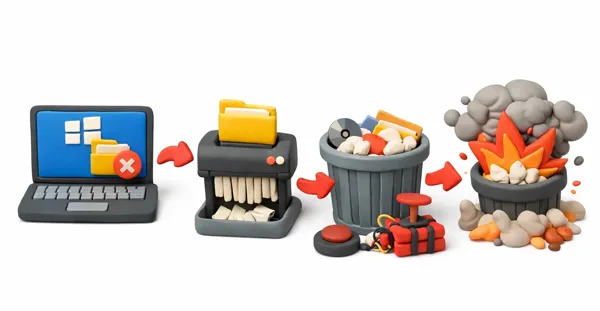
Part 1: What's the Difference Between Normal Deletion and Permanent Deletion?
Understanding how Windows handles data is the first step toward digital privacy.
Normal Deletion: When you right-click a file and select "Delete" (or press the Delete key), Windows simply moves the file to the Recycle Bin. The file still occupies space on your drive and can be restored with a single click.
Permanent Deletion: This occurs when you bypass the Recycle Bin. The operating system removes the file's "pointer" and marks that storage space as "available".
However, even with permanent deletion, the actual binary data (the 1s and 0s) often stays on the disk until a new file is saved over that exact spot. This is why data recovery software can often "undelete" files.
Part 2: How to Permanently Delete Files on Windows 11/10
If you want to ensure your files cannot be recovered by standard means from your Windows 11/10 PC, use one of the following methods. First, read through their pros and cons.
| Method | Pros | Cons |
|---|---|---|
| iReaShare Data Wipe | 1. Overwrites data multiple times to make it unrecoverable. 2. Professional and reliable. 3. Enable you to select files and folders before erasing them. 4. Provides two modes: Quick Erase and Deep Erase. |
1. Requires downloading and installing a software app on a PC. 2. Needs a license for registration. |
| Shortcut (Shift + Delete) | 1. A simple keyboard shortcut that instantly bypasses the Recycle Bin. 2. Time-saving. |
1. Only removes the file reference. 2. The actual data remains on the disk. |
| File Explorer Ribbon | 1. A great option for users who prefer using a mouse over keyboard shortcuts. 2. Easy to use. |
1. Data is still physically present and can be recovered with software. |
| PowerShell | 1. Efficient for bulk deletions or files that are "locked" by the system. 2. Works on locked files. |
1. No confirmation or "undo" option. 2. A typo can delete the wrong directory. |
| Cipher Command | 1. Wipes the "ghost" data from files you previously deleted using normal methods. 2. Built-in Windows tool. |
1. Overwrites all free space on a drive. 2. Cannot be used for just one specific file. |
2.1 Using iReaShare Data Wipe
For users who want a "military-grade" guarantee that data is unrecoverable, third-party tools like iReaShare Data Wipe are the most reliable. Unlike Windows' built-in tools, these programs overwrite the data 3 times with random patterns. It's Deep Erase mode follows the US DoD 5220.22-M(E) standard, so it can make sure all your files are unrecoverable.
Main features of iReaShare Data Wipe:
* Erase existing and deleted files from Windows 11/10 PCs.
* Wipe a hard drive on a PC at once.
* Shred specific files and folders from a Windows computer.
* Wipe external USB drives, SD cards, and other storage devices.
* Wipe free space on SSDs and HDDs on Windows PCs without removing existing files.
* Support Windows 11/10/8/7.
Download iReaShare Data Wipe.
To permanently delete files from a Windows 11 PC via this Data Wipe software:
-
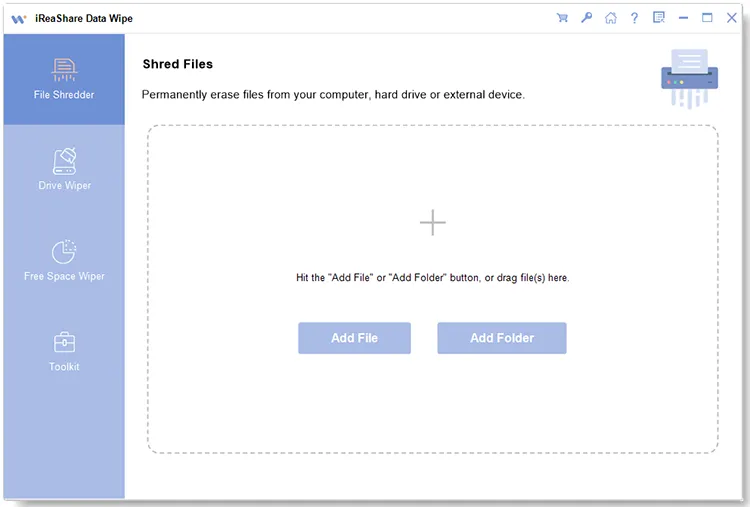
Install iReaShare Data Wipe on your Windows 11 PC, open it, and choose "File Shredder".
-
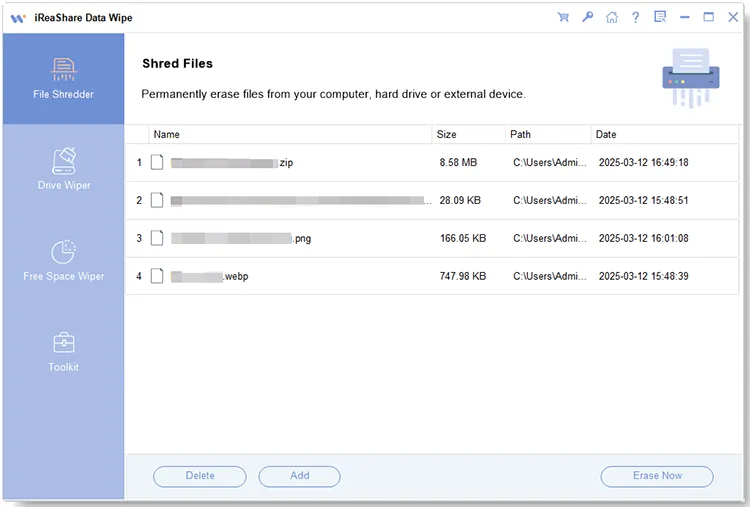
Tap "Add File" to select your files from your PC. If you want to delete folders, tap "Add Folder". By the way, if you would like to delete all files from a hard drive, please opt for "Drive Wiper" on the left pane.
-
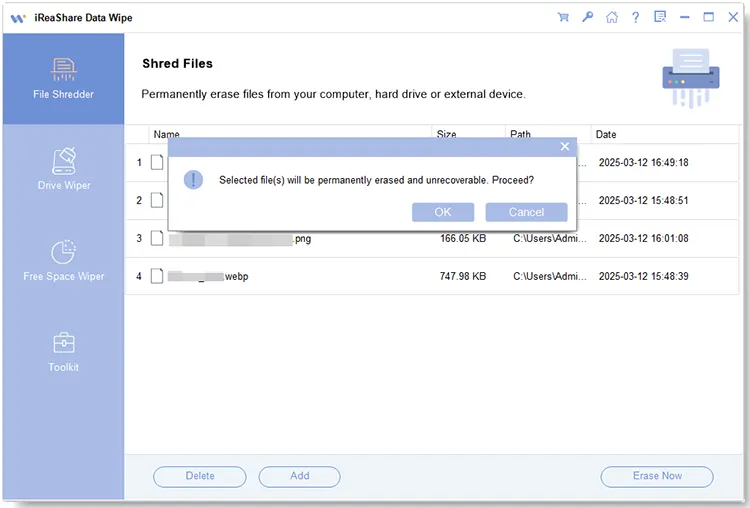
After selecting files, click "Erase Now" > "OK" to delete the files permanently from your Windows 11 PC.
You can watch the video guide to permanently delete files from a PC:
2.2 Using Shortcut (Shift + Delete)
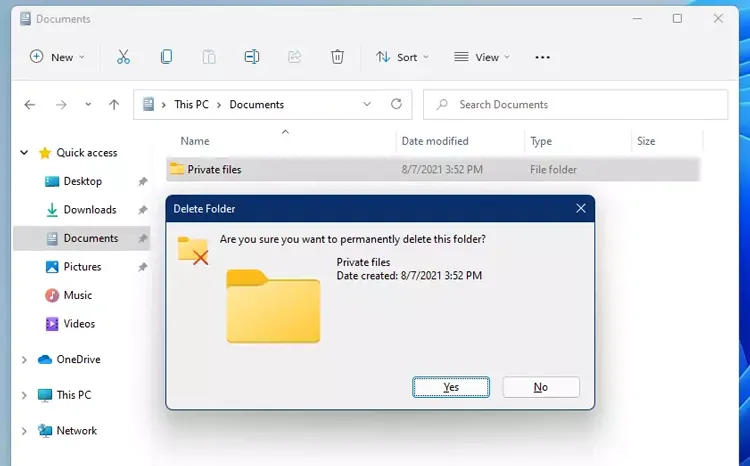
Windows 11 also provides a quick shortcut to bypass the Recycle Bin. This method permanently removes the file from the Recycle Bin. However, it does not overwrite the data, meaning recovery may still be possible with specialized tools. It is faster than normal deletion but not the most secure option.
Here's how:
-
Select the files or folders you wish to delete.
-
Press "Shift" + "Delete" on your keyboard at the same time.
-
A confirmation box will appear asking, "Are you sure you want to permanently delete this file?" Click "Yes".
2.3 Using File Explorer Ribbon
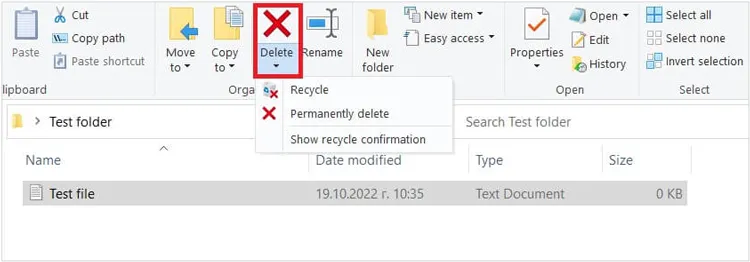
Similar to the shortcut method, the File Explorer ribbon on a Windows 11/10 PC can bypass the Recycle Bin but does not guarantee complete data erasure.
To permanently remove files from a Windows 11 PC via the File Explorer ribbon:
-
Click "Windows" + "E" to open File Explorer on your Windows 11 or 10 PC.
-
Navigate to the files that you want to remove, and highlight them for selection.
-
Tap the drop-down button of "Delete" on the top menu ribbon, and choose the "Permanently delete" option. Finally, tap "Yes" on the pop-up.
2.4 Using PowerShell
PowerShell is a powerful tool for users who prefer a command-line interface. This tool is available on most Windows OSes, including Windows 11, so you can use it to delete your files permanently.
Here are the steps:
-
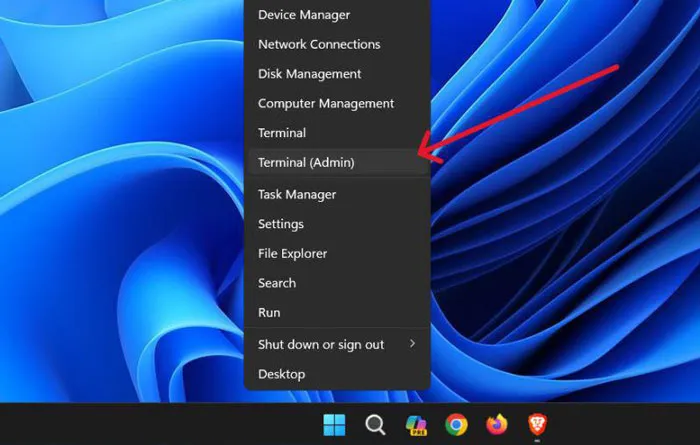
Right-click the "Start" icon on the Windows 11 PC, and choose "Powershell (Admin)" or "Terminal (Admin)".
-
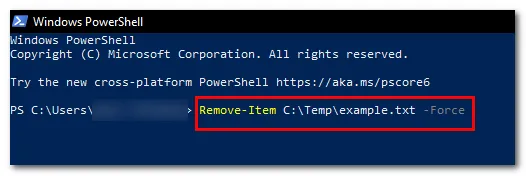
Type the following command (replace the path with your actual file path): Remove-Item -Path "C:\Users\YourName\Desktop\file.txt" -Force. Remember, replace "C:\Users\YourName\Desktop\file.txt" with your actual file path and file name.
-
Click "Enter". This forces the system to remove the item immediately.
2.5 Using Cipher
If you have already deleted files normally and want to make sure they can't be recovered from the "free space" on your drive, Windows 11/10 has a built-in tool called Cipher.
To permanently delete files on Windows 11 via Cipher:
-
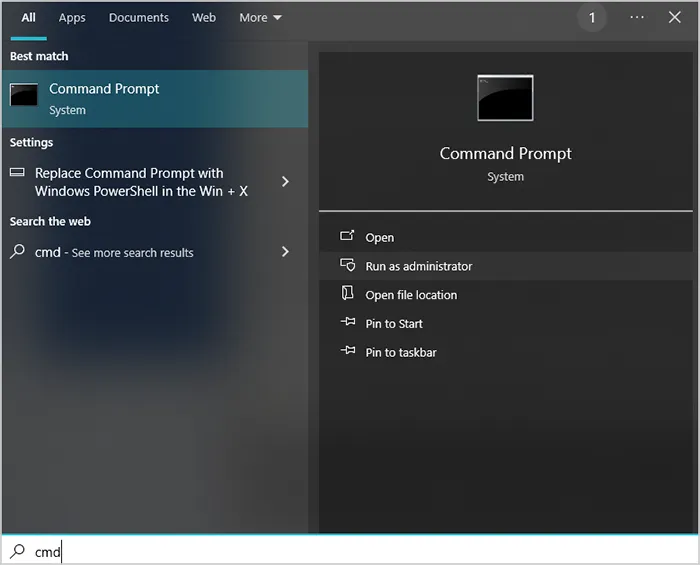
Open "Command Prompt" as "Administrator" on your Windows 11/10 PC.
-
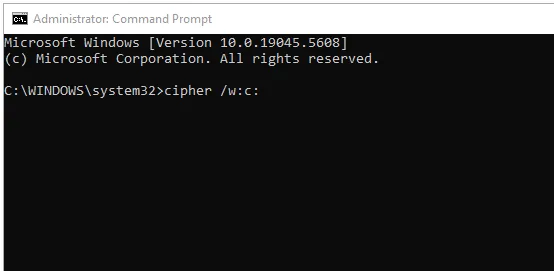
Type "cipher /w:C:", and then replace "C:" with the drive letter you want to clean.
-
This will overwrite all deallocated (deleted) space on the drive with random data. Please note that this does not delete your existing files; it only wipes the "ghosts" of previously deleted ones.
Part 3: Q&A About Permanently Deleting Files on Windows 11/10
Q1: Can police recover permanently deleted files?
Yes, often. Law enforcement uses advanced forensic tools (like EnCase or FTK) that can look for data fragments or magnetic traces. Unless the data has been overwritten multiple times using professional wiping software, it is technically possible to recover it.
Q2: Where do permanently deleted files actually go?
They don't "go" anywhere immediately. The file system (NTFS) simply forgets where the file starts and ends, and tells the computer, "You can write new data on top of this area." The old data remains there in a "hidden" state until new photos, documents, or apps occupy that physical space on the drive. Once overwritten, the original data is destroyed and replaced, making recovery nearly impossible.
Q3: How to make sure a file is deleted forever?
To be 100% sure, you must overwrite the data. Using the iReaShare Data Wipe's Deep Erase mode and Cipher command mentioned above or a dedicated data destruction tool, is the only way to ensure that even forensic software cannot reconstruct the original file. For SSDs, the system's TRIM command usually handles this over time, but manual wiping is still the safest bet for sensitive info.
Conclusion
While normal deletion methods are convenient, they do not provide true data security. For permanent deletion, users should rely on secure wiping tools or overwriting techniques such as Cipher or professional data erasure software like iReaShare Data Wipe. This tool allows you to delete and overwrite your files with simple clicks, so you don't need to type those complicated command lines.
Related Articles
Completely Overwrite Hard Drive on Windows 11/10 PC (Proven)
Solved: How to Factory Reset Windows 7 Safely with 4 Methods
7 Best DBAN Alternatives Available to Wipe Hard Drive Completely
How to Delete Everything Except Windows 10 OS on PC (Useful Tips)

