


Whether you are upgrading to a newer PC or selling an old external drive, your data's security should be your top priority. Simply deleting files or emptying the Recycle Bin isn't enough; those files can often be recovered with basic software. To protect your privacy, you need to "wipe" the drive, which involves overwriting the data so it becomes unrecoverable. Now, let's see how to wipe a hard drive before selling it.

Take a look at the pros and cons of the 3 methods:
| Wiping Method | Pros | Cons |
|---|---|---|
| 1. iReaShare Data Wipe |
1. Wipes all data at one go. |
1. Requires a paid license. 2. Must be installed on an active Windows OS. |
| 2. DBAN (Boot and Nuke) | 1. 100% free and open-source. 2. Wipes the entire PC by booting from USB. 3. Industry standard for high security. |
1. Not for SSDs (can cause wear/damage). 2. Requires technical BIOS/USB setup. 3. Text-only interface. |
| 3. Diskpart (clean all) | 1. Built-in to Windows (no downloads). 2. Works on both HDDs and SSDs. 3. Completely free and fast to launch. |
1. No "Undo" button; high risk of human error. 2. No progress bar (looks like it's frozen). 3. Requires command-line knowledge. |
Part 1: How to Wipe a Hard Drive Before Selling via iReaShare Data Wipe
iReaShare Data Wipe is a professional-grade utility designed for users who want a straightforward interface to securely wipe a hard drive before selling it. It is particularly useful if you want to ensure that data is overwritten using industry-standard algorithms without needing to learn complex commands.
Main features of iReaShare Data Wipe:
* Wipe a hard drive completely on a Windows PC.
* Wipe external flash drives without any hassle.
* Wipe the free storage space on your hard drive and SSD without removing your files.
* Erase files and folders on a PC permanently.
* Thoroughly erase files from SD cards.
* Support Windows 11/10/8/7.
Download iReaShare Data Wipe.
Here's how to wipe a hard drive before selling it:
-
Install the iReaShare Data Wipe software on your Windows PC and launch it. Then choose "Drive Wiper".
-
If you want to erase an external hard drive, please connect it to your PC with a USB cable. Then the software will detect your drive.
-
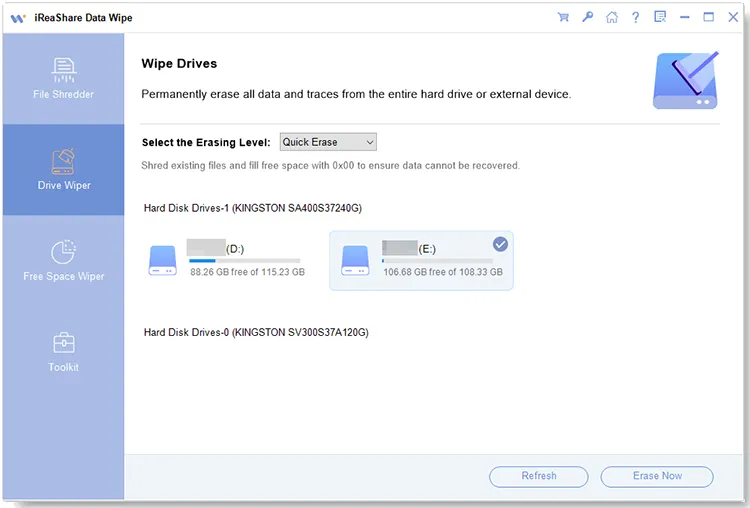
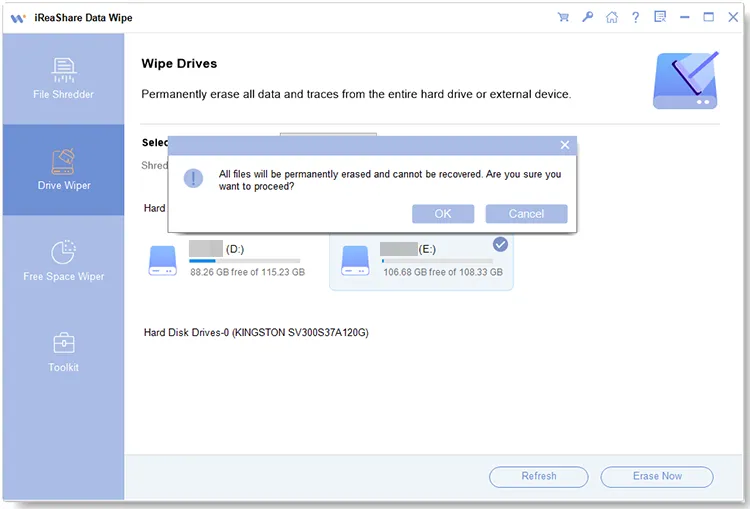
Select your hard drive on the interface, and choose "Deep Erase". Finally, click "Erase Now" > "OK".
Part 2: How to Wipe an External Hard Drive Before Selling via DBAN
DBAN is a legendary, open-source tool used for "nuking" hard drives. Because it runs from a bootable USB, it is highly effective for wiping the primary drive of a computer that you are about to sell. Besides, please note that DBAN is designed for traditional Hard Disk Drives but not SSDs.
To wipe an external hard drive before selling it via DBAN:
-
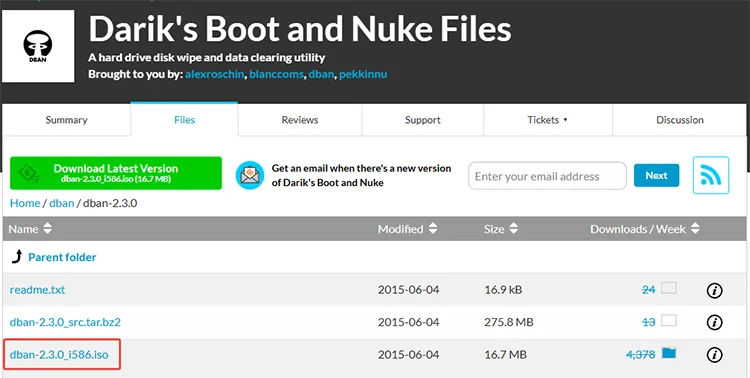
Download the DBAN ISO file and use a tool like Rufus to burn it onto a USB flash drive.
-
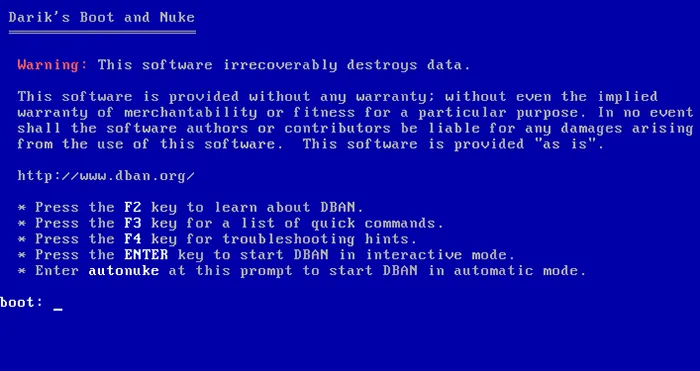
Restart your computer and enter the BIOS/UEFI settings to boot from the USB drive. Once the DBAN interface loads, select the external or internal hard drive you want to wipe.
-
Press "M" to choose a wiping method. The "DoD Short" is usually sufficient for most users. Now, press "F10" to start the process. Depending on the size of the drive, this can take several hours.
Part 3: How to Wipe a Hard Drive on Windows 11/10 Before Selling via Diskpart Command
If you prefer not to download third-party software, Windows has a built-in tool called Diskpart. While the standard "Format" command only clears the file table, the clean all command in Diskpart writes zeros to every sector of the disk. You can use this command to wipe your hard drive completely before selling it.
Here's the guide:
-
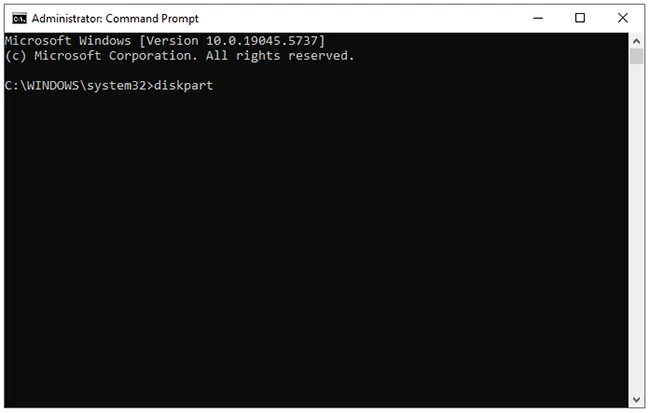
Search for "cmd" in the "Start" menu, right-click it, and select "Run as Administrator". In the "Command Prompt" window, type "diskpart" and hit "Enter".
-
Type "list disk" and press "Enter" to see all the drives connected to your computer. Then identify the disk number of the drive you wish to wipe and type "select disk X" (replace X with the correct disk number).
-
Type "clean all" and hit "Enter". The clean all command will securely erase all data on the selected drive. After the process completes, type "exit" to close the Diskpart utility.
Part 4: Q&A About Wiping a Hard Drive Before Selling
Q1: Can I fully wipe my hard drive by resetting my PC, and is factory reset the same as wiping?
No, they are not exactly the same. A standard Factory Reset (especially the "Keep my files" option) simply restores the OS to its original state. Even if you choose "Remove everything," Windows usually performs a "Quick Format", which leaves data reachable via recovery tools. For a true wipe, you must select the "Clean the drive" or "Data erasure" option within the Windows Reset settings, which takes much longer but is significantly more secure.
Q2: What's the difference between wiping and deleting?
- Deleting: Removes the "pointer" to the file. The actual data stays on the disk until it is eventually overwritten by new files.
- Wiping: Actively overwrites every part of the storage medium with new, random data or zeros. Once a drive is wiped, the original data no longer exists in any form.
Q3: Is it safe to sell or donate a wiped hard drive?
Yes, it is safe provided you used a full wipe method (like the clean all command, DBAN, or a high-level erase in iReaShare Data Wipe). These methods ensure that identity thieves or the next owner cannot use forensic software to peek at your old photos, passwords, or financial documents.
Conclusion
Taking the extra time to properly wipe your hard drive is a vital step in digital hygiene. If you plan to sell your hard drive or PC, please wipe it completely first. With iReaShare Data Wipe, you can wipe the hard drive by overwriting up to 3 times, which is the most secure method. The other two methods are useful, even though they are not as easy as using iReaShare. Once the wipe is complete, you can sell or donate your hardware with total peace of mind.
Related Articles
File Shredder for Windows Review - Find Your Best One [New]
How to Erase Locked Hard Drive Effectively? Exhaustive Explanation
How to Clean Disk Using CMD Without Effort in 2026 (Solved)
How to Delete Files on PC Easily (No File Can Be Recovered)

