iPhone Manager
Manage iOS Data
iPhone Data Recovery
Recover iOS Data
iPhone Data Eraser
Wipe iOS Data
Android Manager
Manage Android data
Android Data Recovery
Recover Android Data
Android Data Eraser
Wipe Android Data
Phone Transfer
Transfer Data Between Phones
Data Recovery
Recover Lost Data
iOS Backup and Restore
Back Up & Restore iOS Data
WhatsApp Transfer
Transfer WhatsApp Chats
PC Data Recovery
Recover PC Data
Android Backup and Restore
Back Up & Restore Android Data
WhatsApp Transfer for iOS
Transfer iPhone WhatsApp Chats
WhatsApp Recovery
Recover WhatsApp Chats
Windows Backup
Back Up & Restore PC Data
Data Manager
Manage Phone and Data
Broken Android Data Recovery
Recover Broken Android
Mac Backup
Back up & Restore Mac Data
Partition Manager
Manage Partitions on PC
Photo Recovery
Recover Photos and Videos
Data Wipe
Erase Data, Folders & Drives
iOS System Recovery
Repair iOS System
Location Changer
Change Virtual Location
PDF Editor
Edit PDF Files
iTunes Repair
Repair iTunes Issues
Screen Mirror
Mirror Phone Screen
PDF Converter
Convert PDF Files
iPhone Unlocker
Unlock iOS Devices
Parental Control
Phone Monitoring App
Mind Map Maker
Mind Mapping
Android Unlocker
Unlock Android Devices
WhatsApp Tracker
WhatsApp Tracking Tool
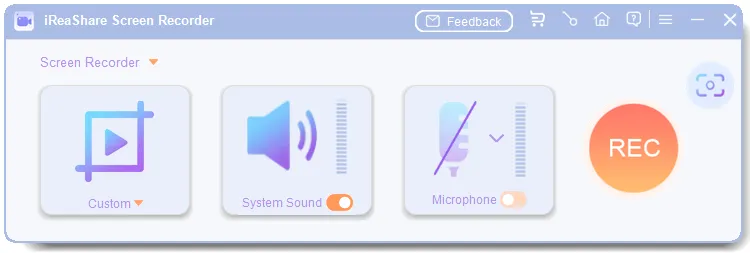
Screen Recorder
Record Screen on PC
Video Compressor
Compress Video Size
Video Watermark Maker
Best Watermark Adder for Videos
Video Editor
Simple Video Editing
Video Merger
Merge Two or More Videos
GIF Maker
Make GIFs from Video/Photo
Video Downloader
Download Videos Anywhere
Video Trimmer
Trim and Edit Video Clips
Background Noise Removal
Noise Reduction from Audio/Video
Video Converter
AI Video Converter
Video Cropper
Best Video Cropper to Crop Videos
Volume Booster
Sound Booster to Turn Volume Up
Video Player
Best Media Player for Windows PC
Video Speed Controller
Speed Up or Slow Down a Video
Screen Capture
Capture Screen on PC
Background Remover
Remove Image Background
Text to Speech
AI Text to Speech Generator
File Repair
File/Video/Photo Restoration
Watermark Remover
Remove Photo & Video Watermark
Voice Generator
AI Voice Generator & Cloner
AI Photo Editor
Edit Pictures with AI Image Editor
Object Remover
Remove Video Objects/People
Voice Changer
Real Time AI Voice Changer
Thumbnail Maker
Best YouTube Thumbnail Maker
Photo Enhancer
Best AI Image Enhancer
AI Music Generator
Best AI Song Generator
AI Writer
Best AI Writing Generator
Video Enhancer
Enhance and Adjust Videos
AI Video Generator
Convert Text to Videos with AI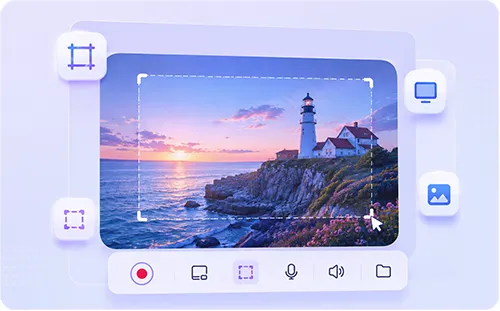
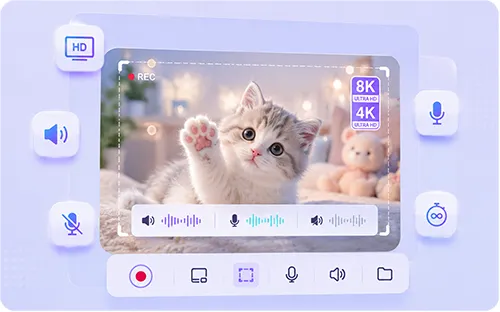
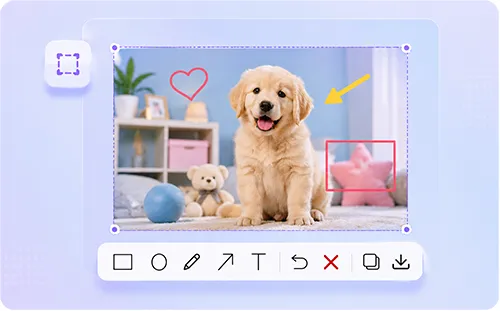

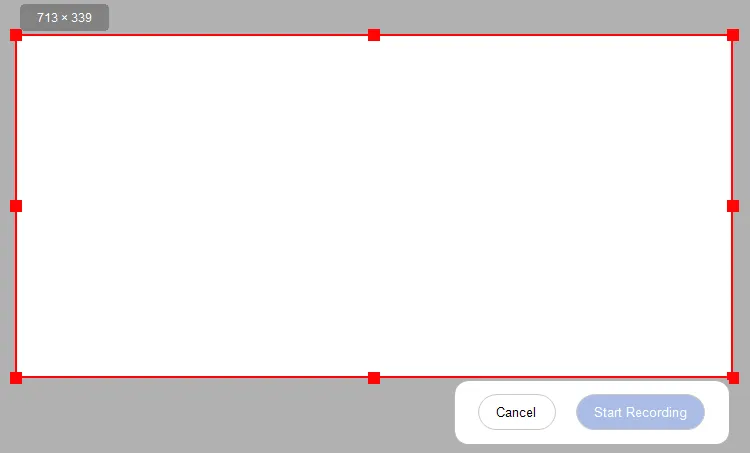
 Custom Area Selection
 Quality Recording
 Audio Capture Options
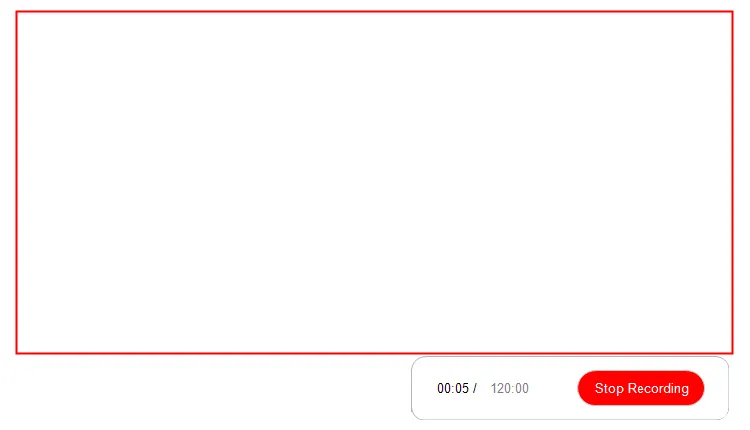
 Instant Saving
 Screenshot Editing
 100% Private