


Screen recording has become a necessary function for Mac users, whether for creating tutorials, recording online meetings, producing video content, or capturing gameplay. While macOS includes basic screen recording tools, many users require more advanced features such as system audio recording, video editing, annotations, or cloud sharing.
In this article, we will review the top 12 screen recorders for Mac, covering both built-in and third-party options. We will also answer common questions about Mac screen recording to help you choose the most suitable solution.
Part 1: Top 12 Screen Recorder for Mac
Here are 12 pieces of screen recording software for Mac. You can check their advantages and disadvantages below.
Take a quick look at these Mac screen recording tools:
| User Needs | Recommended Tools | Main Benefit |
|---|---|---|
| Quick, basic captures without extra software. | Screenshot Toolbar / QuickTime Player | Instant access and zero cost; perfect for simple, no-frills tasks. |
| Professional software demos that need to look polished. | Screen Studio | Automatic zooming and smooth cursor motion for a cinematic look. |
| High-end tutorials with complex post-production. | Mac Screen Recorder on iReaShare / ScreenFlow | Powerful multi-track editing suites built directly into the recorder. |
| Live streaming or complex multi-source setups. | OBS Studio | Ultimate flexibility and professional broadcasting features for free. |
| Fast workplace communication and video messages. | Loom / Dadan | Instant cloud sharing links that eliminate the need for long emails. |
| All-in-one productivity utility for screenshots/video. | CleanShot X | A sleek replacement for native tools with built-in cloud hosting. |
| Technical documentation and instructional guides. | Snagit | Specialized tools for scrolling captures and easy "step" annotations. |
| Editing video via text and removing filler words. | Descript | AI transcription that lets you edit video by simply deleting text. |
| Lightweight sharing with encrypted business links. | ScreenRec | Simple, secure, and fast recording with free cloud storage. |
1.1 Built-in Screenshot Toolbar
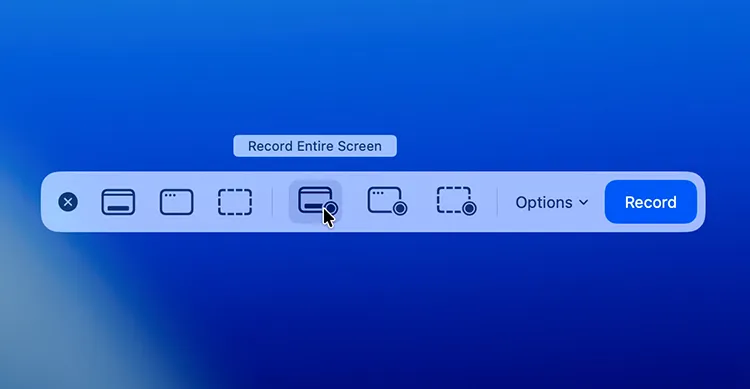
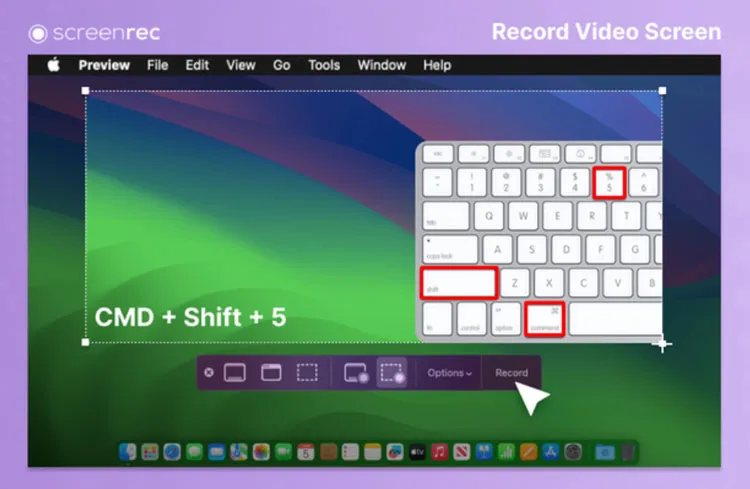
Using the built-in screenshot toolbar is the fastest way to record by pressing Command + Shift + 5. It's free, requires no installation, and allows you to record the entire screen or a selected portion. It's perfect for basic tasks.
Pros:
+ Quick access to capture options (record, screenshot, timer).
+ Integrate with macOS UI for saving/preview.
+ Simple UI, easy to launch.
Cons:
- Cannot record system audio natively (requires third-party audio drivers).
- No timeline-based editing, advanced export, or annotation tools.
- Limited configuration (no detailed bitrate, framerate, or scene setup).
Read more: You now know the pre-installed screen recording tool on Mac, but if you want a screen recorder for Android, you may need other apps.
1.2 Mac Screen Recorder on iReaShare
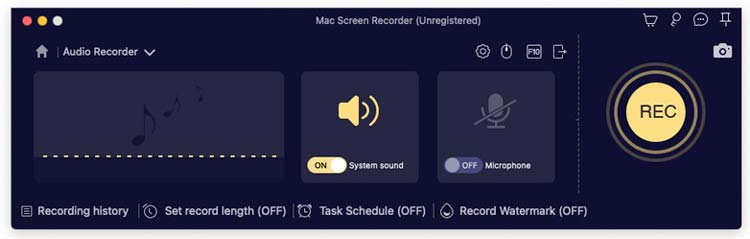
If you want the best screen recorder for MacBook that can record internal sound, you can use the Mac Screen Recorder software on iReaShare. It's a robust choice that excels in versatility. It allows users to record video, system audio, and microphone simultaneously. It also features a "Blue-light" real-time processing technology to ensure smooth recording without lagging your CPU.
Main features of this screen recorder:
* Record customizable screen region (full or partial).
* Capture system audio, microphone and webcam simultaneously.
* Support basic annotation and screenshot capability during recording.
* Export in common formats (MP4, MOV, etc.).
* Mac and Windows versions are available, so it is also a screen recorder for Windows.
Pros:
+ Professional-grade capture with system sound support.
+ Adjustable capture area and multiple audio sources.
+ Capture system audio without plugins.
+ Include basic video trimming.
Cons:
- Require paid license for full functionality.
- Editing capabilities are basic.
Download the Mac Screen Recorder software.
Download for Mac Download for Win
Here's how to record the screen on Mac with Mac Screen Recorder:
-
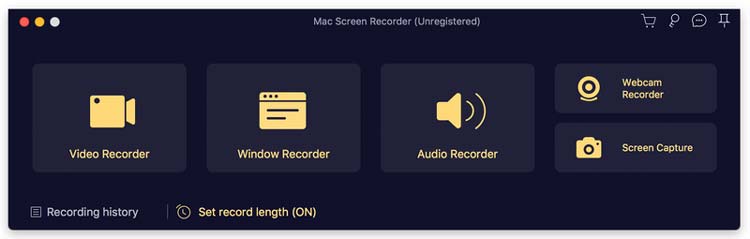
Download and install Mac Screen Recorder on your MacBook, and then open it on the desktop.
-
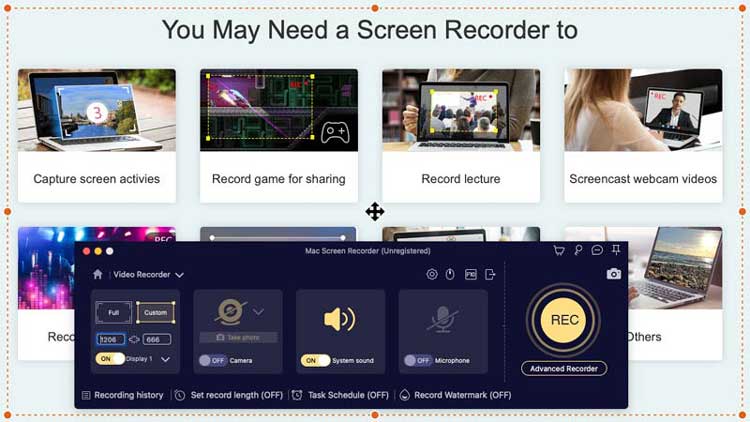
Click "Video Recorder", then select screen area and audio source. You can enable system audio and microphone.
-
Finally, click "REC" to begin capturing the Mac screen. Then save the video on your Mac.
1.3 QuickTime Player
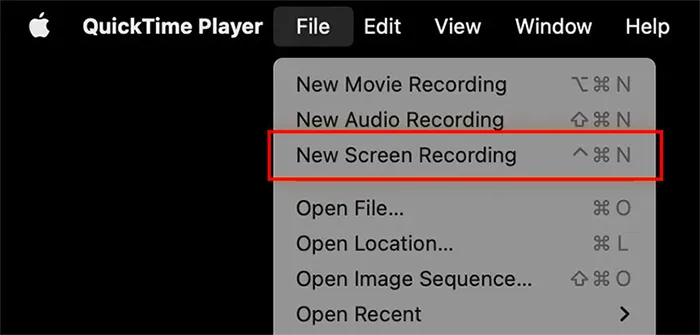
QuickTime Player is a classic Mac staple. While many use it for viewing, its "New Screen Recording" feature is reliable. It is slightly more flexible than the Screenshot Toolbar for older macOS versions but lacks internal audio recording by default.
Pros:
+ Pre-installed macOS app.
+ Record full screen or a selected window.
+ Support microphone audio capture.
+ Provide basic export and trim tools.
Cons:
- No internal system audio recording without external drivers.
- Minimal configuration for quality control (no advanced settings).
- Cannot mix multiple sources (e.g., webcam overlay) by default.
1.4 Screen Studio
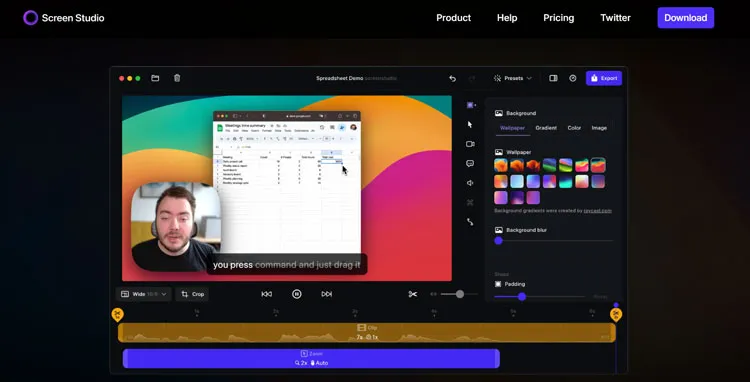
Currently, Screen Studio is the "gold standard" for beautiful software demos. It automatically adds smooth zoom-ins, cursor highlighting, and professional backgrounds, making your raw footage look like it was edited for hours.
Pros:
+ Automatic cinematic effects such as smooth zooms and cursor motion.
+ Branding elements and customizable backgrounds.
+ Produce visually refined recordings with minimal manual editing.
+ Ideal for tutorials, demos, social videos.
Cons:
- Subscription model (no more non-subscription license in recent updates).
- Limited deep editing (not a full timeline editor).
- Support macOS only.
1.5 ScreenRec
ScreenRec is a lightweight, no-nonsense tool designed for quick communication. It provides instant sharing links and encrypted cloud storage, making it a favorite for business teams who need to explain things visually without the bulk.
Pros:
+ Free screen recorder with no watermark and no time limit (when logged in).
+ Capture screen, webcam, system audio, and voice.
+ Instant cloud upload with link sharing.
+ Quick sharing with automatic link generation.
Cons:
- Cloud layer may not be suitable for all privacy preferences.
- Less robust built-in editing than full video editors.
- Some users report occasional performance or UI smoothness issues.
1.6 OBS Studio
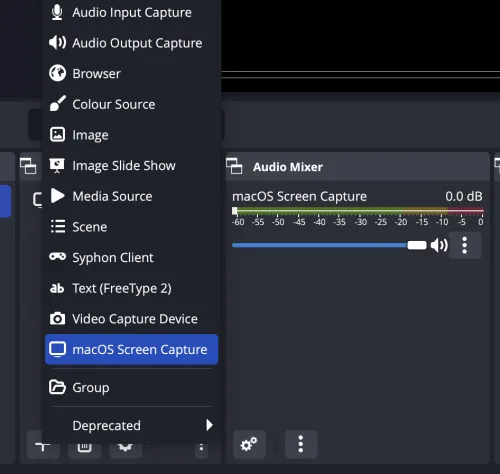
OBS Studio is the powerhouse for streamers and power users. It is free and open-source, offering infinite customization, scene switching, and "Virtual Camera" capabilities. However, this Mac screen recorder is not easy enough to use for beginners.
Pros:
+ Extremely powerful and highly customizable.
+ Support for plugins, filters, audio mixers, and encoding options.
+ Sources & Scenes system for capturing multiple inputs.
Cons:
- Difficult for new users.
- Can be resource-intensive without optimization.
1.7 ScreenFlow
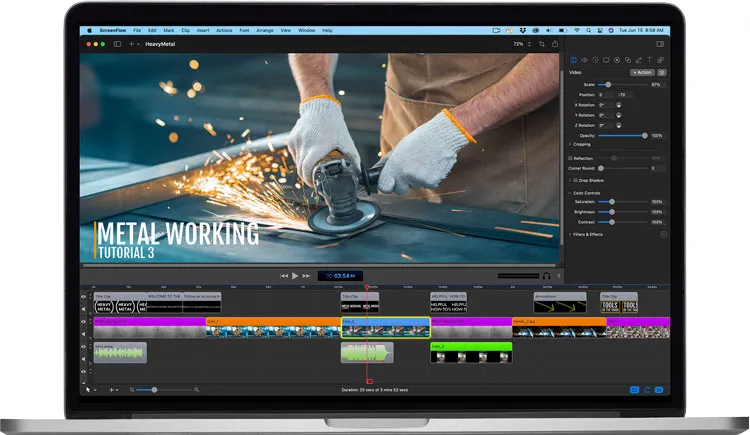
ScreenFlow is a professional-grade editor and recorder in one. It is specifically built for macOS and is highly regarded for its powerful post-production tools, such as callouts, transitions, and multi-track editing.
Pros:
+ Professional screen recorder + video editor.
+ Timeline editing with transitions, callouts, animations.
+ Export presets and high-resolution output.
Cons:
- Paid software with higher cost than simple recorders.
- More complexity than needed for basic tasks.
Tips: If you want to cast an Android screen to a PC, you will not need screen recorders but screen mirroring apps.
1.8 CleanShot X
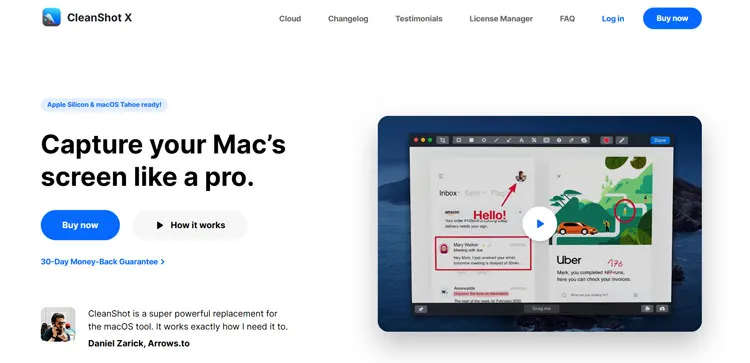
This screen recorder software for Mac is frequently cited as the best all-around utility. It replaces the native screenshot tool and adds a sleek overlay, quick editing, and a built-in cloud for hosting your recordings.
Pros:
+ All-in-one screenshot and screen recorder for macOS.
+ Native macOS performance and UI integration.
+ Excellent screenshot + annotation capabilities.
Cons:
- Limited advanced video editing (trimming only).
- Not a full production tool for complex videos.
1.9 Descript
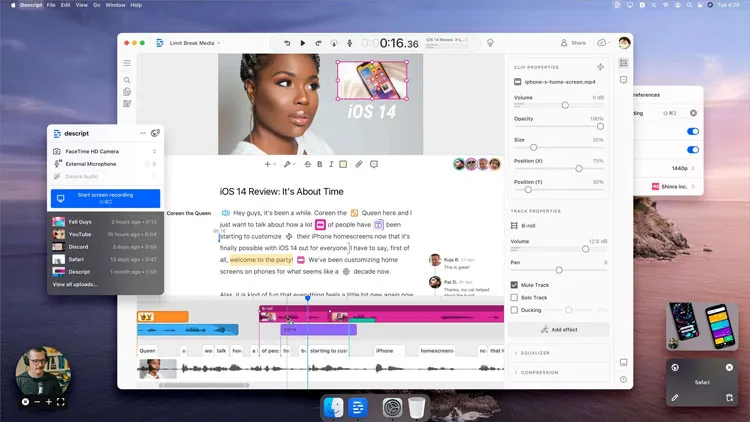
If you want an AI-powered "all-in-one" video editor, Descript will be suitable. Its standout feature is that it transcribes your recording instantly; you can then edit the video by simply deleting or moving text in the transcript.
Pros:
+ AI-powered screen recorder and video editor with text-based interface.
+ Screen + webcam capture, podcast tools, and revision history.
+ Integrations with workflow tools for teams.
+ Text-based editing makes video editing faster and intuitive.
Cons:
- AI features may be limited by plan tier and usage caps.
- Timeline editor can be overwhelming for beginners.
- Requires subscription for full capability.
1.10 Snagit
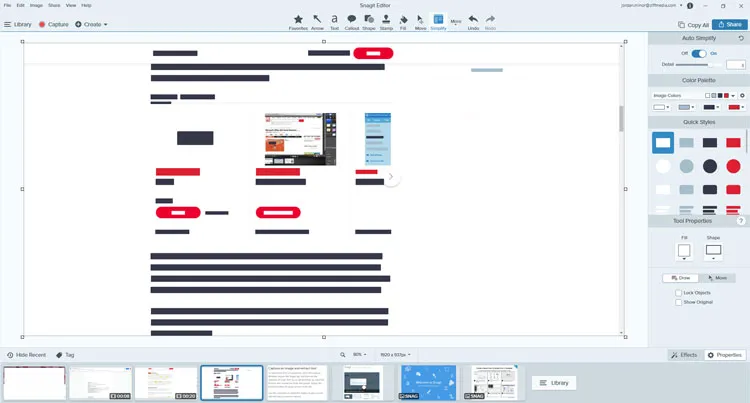
Developed by TechSmith, Snagit focuses on visual instructions. It is excellent for capturing scrolling windows (like long webpages) and adding professional annotations and "Step" bubbles to your videos.
Pros:
+ Simple and fast UI for capturing and annotating.
+ Ideal for technical documentation, tutorials, guides.
+ Export and quick sharing.
Cons:
- Limited video editing (no timeline multi-clip editing).
- Paid license required for pro features.
- Not a replacement for full editors like ScreenFlow.
See also: It's easy to sync an iPhone to Mac, even if you don't want to use iCloud.
1.11 Dadan
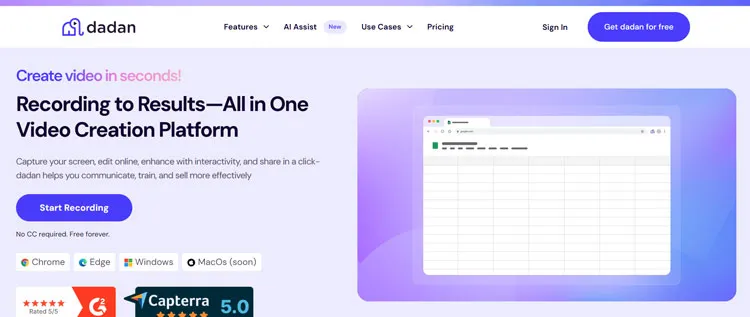
Dadan, a newer player in the market that focuses on video messaging and project management. It's great for creating "walkthroughs" where you can track who has viewed your video and at what time.
Pros:
+ Embed interactive elements (polls, quizzes) in videos.
+ Team collaboration and integration with marketing tools.
+ Combine screen recording and engagement tools for async communication.
+ Advanced analytics support.
Cons:
- Require subscription for full feature set and collaboration tiers.
- More complex than simple recorders — not ideal for casual use.
1.12 Loom
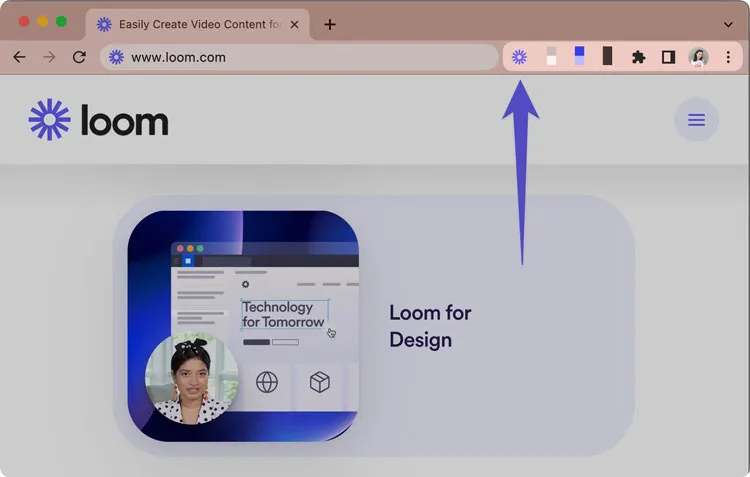
Loom is the pioneer of the "bubble cam". Loom lives in your browser or menu bar and is designed for high-speed sharing. It's the industry standard for sending quick video emails to colleagues.
Pros:
+ Cloud-based screen recorder with webcam, audio, and editing.
+ Instant shareable links, viewer comments, basic analytics.
+ Cross-platform support (including browser and mobile).
Cons:
- Subscription required for premium features (HD export, unlimited storage).
- Focused on communication more than production.
- Limited advanced editing (no timeline or multi-scene features).
Part 2: Q&A About Screen Recorder Software for Mac
Q1: How long can a MacBook screen record?
There is no hard-coded time limit for screen recording on a Mac. You can record for as long as you have available disk space. However, keep in mind that high-resolution recordings (like 4K) create massive files—roughly 2GB to 5GB per hour - which can eventually slow down your system performance or stop the recording if the drive becomes full.
Q2: Can I install an extension on Mac to record system audio with the built-in screen recorder?
Yes. Historically, macOS did not allow "internal audio" capture for privacy reasons. You can install third-party "virtual audio drivers" like BlackHole or Loopback. By setting your audio output to these drivers in System Settings, the built-in Screenshot Toolbar can then "hear" and record your system sounds.
Q3: Will Apple add the feature of recording system audio to the built-in Screenshot toolbar in the future?
While Apple does not officially comment on future software roadmaps, recent updates in macOS (Sequoia and the upcoming iterations) have shown a move toward better integration. With the release of the iPhone 17 and the latest Mac chips, Apple has significantly improved the "ScreenCaptureKit" framework, which now allows developers—and potentially Apple's own native tools - to capture system audio much more easily than in the past.
Conclusion
Choosing the right screen recorder for Mac depends largely on your specific needs. For basic recording, built-in tools like the Screenshot Toolbar and QuickTime Player are sufficient. However, for professional use—such as tutorials, online courses, business presentations, or content creation - third-party solutions like ScreenFlow, OBS Studio, Mac Screen Recorder on iReaShare, or Loom offer significantly more flexibility and control.
By understanding the strengths and limitations of each tool, you can select a screen recorder that aligns with your workflow and ensures high-quality results on macOS.
Download for Mac Download for Win
Related Articles
Back Up Android to Mac Without Hurdle: 5 Useful Solutions
How to Transfer Music from iPhone to Mac with Ease (6 Ways)
Sync Messages from iPhone to Mac (Full Steps and Schematics)
Solve Notes Not Syncing Between iPhone and Mac in 9 Ways

