


It's easy to find a screen recorder on the app market. However, if you want the best screen recording software, you may need to find out your requirements first, and do some research to compare many video recording apps. To save you time, this review display top 16 screen recorders, so you can directly learn about their key features, merits, and weaknesses, and then you may gain your best recording tool.
Part 1: 16 Best Screen Recording Software Apps in 2026
To select your best screen recorder, you can check these 16 video recording apps in detail below.
Before learn about their pros and cons, you can take a quick look at their main benefits first:
| User Needs | Recommended Tool | Main Benefit |
|---|---|---|
| Recording or capture a screen on a Windows PC. | iReaShare Screen Recorder | Record a screen with audio and quality; no time limit; take screenshots and edit the images with simple features. |
| Lightweight PC Recording with editing features | Screen Capture | High stability with minimal CPU/RAM usage on mid-range hardware; support 4k and 8K; user-friendly. |
| High-FPS Game Capture | Bandicam | Professional 4K/480 FPS recording with superior file compression. |
| Instant Video Messaging | Loom | Instant cloud link sharing with AI-powered filler word removal. |
| Professional Streaming | OBS Studio | Open-source power with unlimited customization and source mixing. |
| Educational Tutorials | Camtasia | A powerful screen recorder bundled with a full-scale pro video editor. |
| Quick Bug Reporting | ScreenRec | Zero-wait private sharing and encrypted storage for enterprise teams. |
| Sales & Lead Tracking | Vidyard | Advanced viewer analytics and CRM integration to boost conversions. |
| Native Windows Editing | ClipChamp | Built into Windows with AI text-to-speech and social media templates. |
| No-Install Recording | ApowerSoft | Flexible web-based capture that works directly from your browser. |
| Visual Team Feedback | Zight | Fastest tool for creating GIFs and annotated clips for Slack/Jira. |
| Premium macOS Design | CleanShot X | Refined UI with scrolling capture and desktop icon hiding features. |
| Power-User Automation | ShareX | Open-source automation for capturing, uploading, and URL shortening. |
| Flipped Classrooms | ScreenPal | Includes a script manager to help educators sync voiceovers perfectly. |
| AI Video Production | VEED | Powerful AI subtitles and eye-contact correction in a browser editor. |
| SOP Documentation | Scribe | Automatically generates step-by-step written guides from screen actions. |
1.1 iReaShare Screen Recorder
A rising favorite for its simplicity, iReaShare Screen Recorder offers a lightweight, stable recording experience. It is particularly effective for high-quality video capture with low CPU impact, making it ideal for users with mid-range hardware. Besides, it is positioned as user-friendly for tutorials and product demos.
Main features of this screen recording software:
* Record the screen on your Windows computer.
* Capture videos and audio at the same time.
* Allow you to select the screen area you want.
* Take screenshots and edit the pictures directly.
* Support the screen recording with high quality.
Pros:
+ Extremely low CPU/RAM usage.
+ Support recording microphone or system audio.
+ Stable for long-duration recordings.
+ Vey easy to use for beginners.
+ No time limit for screen recording.
+ No ads on the interface.
Cons:
- Cannot record microphone and system audio sources at the same time.
- The free version has a watermark.
Download the program to record a screen.
If you want to use this screen recording app on your computer, follow this guide:
-
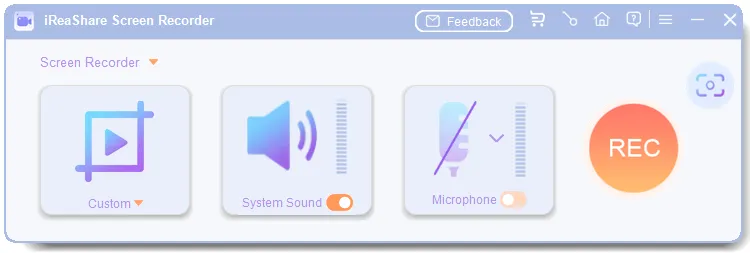
Download and install the screen recorder on your computer, and then launch it. Choose the "Custom" mode, and enable a sound you want. Then open the window you want to record, and click "REC".
-
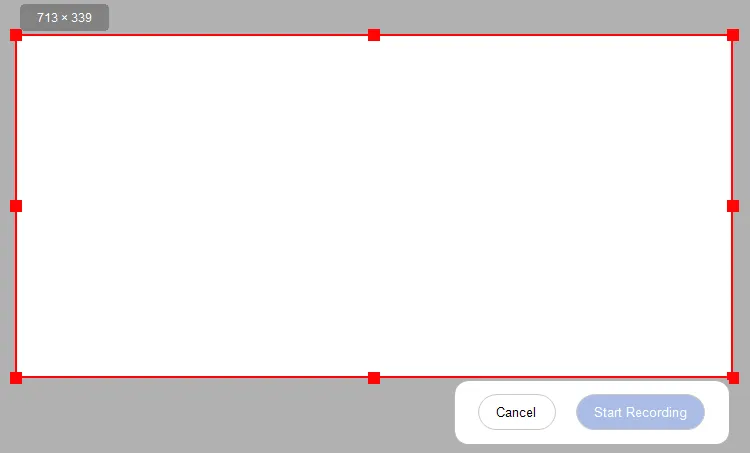
Select a recording area, hit "Start Recording" to proceed.
-
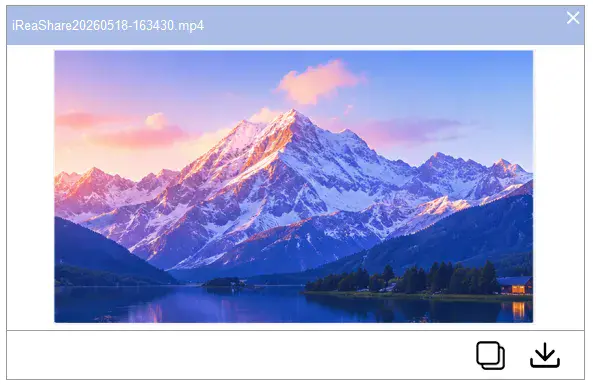
Once done, click "Stop Recording", and click "Copy" or "Save" to export your video.
Tips: If you want to transfer the video from your computer to your Android phone after recording, you can use these methods.
1.2 Screen Capture
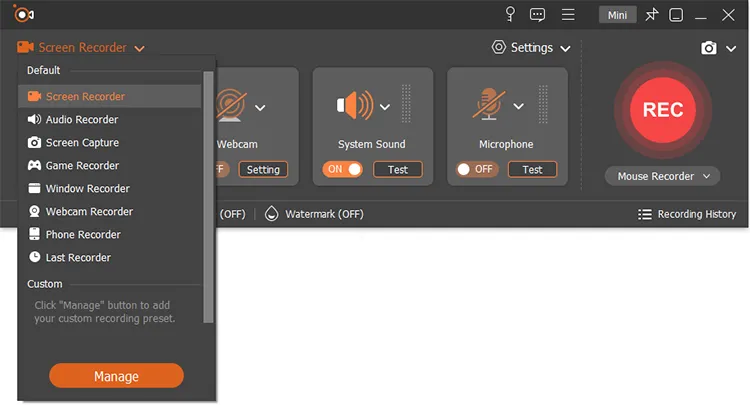
If you want a comprehensive screen recording tool, Screen Capture will be a more suitable option. It not only allows you to record your computer's screen, also enables you to mirror your phone screen and then record it, including Android and iOS. Besides, you can directly trim the video after recording.
Pros:
+ Include specialized modes like Game Recorder, Window Recorder, Webcam Recorder, and Audio Recorder.
+ Support capturing video up to 4K and 8K resolutions, with frame rates extending up to 60 FPS or 120 FPS.
+ Feature microphone noise cancellation, audio enhancement, and the ability to record system sound and microphone audio onto separate tracks.
+ Record system audio and microphone inputs simultaneously or separately.
+ Record a screen on a Mac computer.
Cons:
- The free trial version is severely limited, restricting users to recording only 3 minutes per video and locking most post-processing tools.
- While it offers quick-editing features like a basic video trimmer, compressor, and merger, it lacks advanced timeline-based video editing capabilities
- If you intend to use the software on both a Windows PC and a Mac, the licenses must be purchased separately.
Download Screen Capture and have a try.
Download for Win Download for Mac
1.3 Bandicam
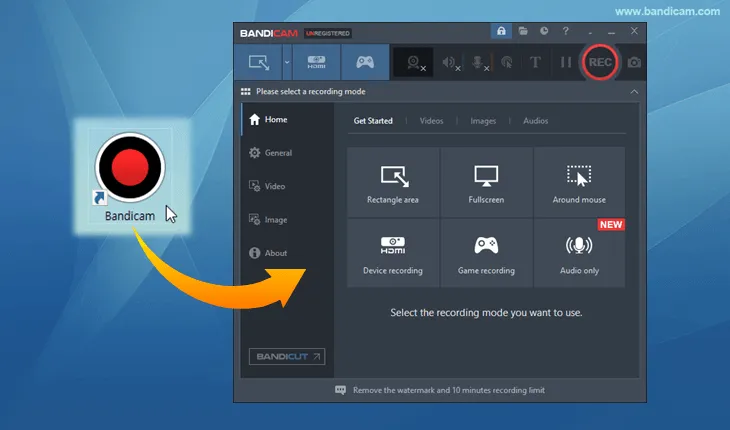
Bandicam is a long-standing lightweight recorder popular for high-performance capture on Windows. It supports multiple modes such as screen recording, game recording (DirectX/OpenGL), and device recording (e.g., webcam or HDMI inputs).
Additionally, Bandicam displays real-time FPS during game capture, supports high frame rates (up to 480 FPS), and produces high-quality output with low CPU load. However, the free version adds a watermark and limits recordings.
Pros:
+ High-performance recording for games (DirectX/OpenGL/Vulkan) and PC screens.
+ Support 4K UHD video and up to 480 FPS.
+ Excellent compression (smaller files with high quality).
+ Record external devices (Xbox, PlayStation, Smartphone).
+ No sign-in required to use.
Cons:
- No built-in live streaming support.
- Free version has watermark and recording limits.
- Support Windows only.
1.4 Loom
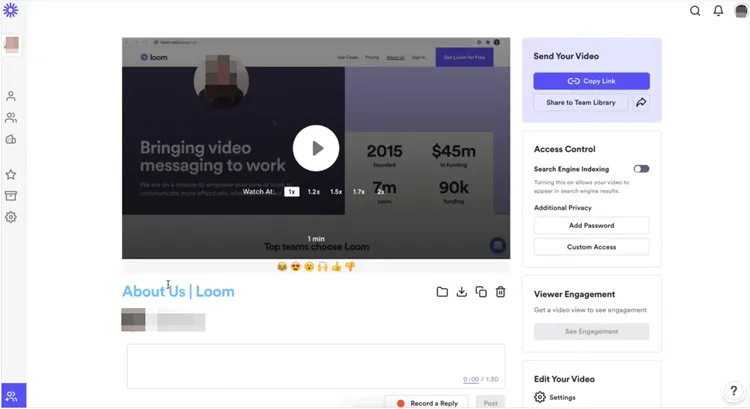
Loom is the leader in "asynchronous video messaging." It excels at quick, shareable clips where your webcam is overlaid on the screen. In 2026, its AI-powered "instant edit" feature automatically removes filler words like "um" and "uh".
Pros:
+ "Instant share" functionality with cloud hosting.
+ Feature a circular webcam overlay and AI-powered "filler word removal".
+ Zero-wait sharing (link is ready the second you stop).
+ Cross-platform support.
Cons:
- Require a stable internet connection for cloud uploads.
- Free tier has a 5-minute recording limit.
- Very limited manual editing tools.
1.5 OBS Studio
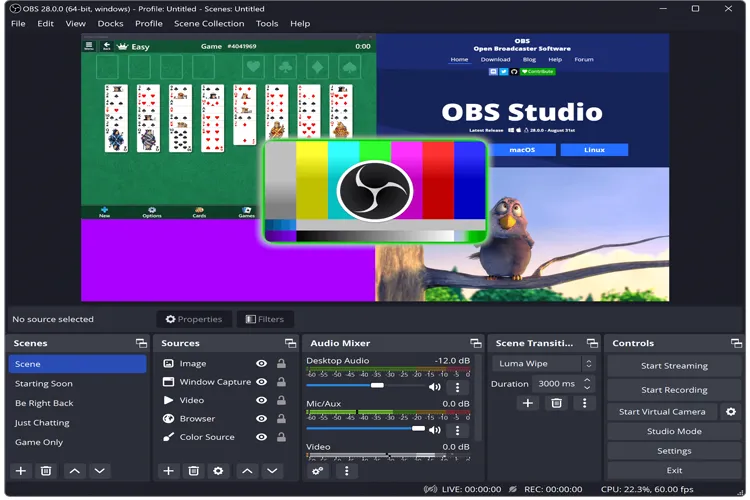
OBS Studio is the ultimate free, open-source choice. This video recording software provides professional-grade broadcasting and recording features. It offers unlimited recording length, multiple input sources (screen, webcam, audio, images), custom transitions, and extensive scene configurations. Its advanced settings make it powerful for professional content creation and gaming, though there is a steeper learning curve compared to simpler tools.
Pros:
+ Professional-grade open-source recording and live streaming.
+ Supports unlimited scenes, sources (webcams, windows, capture cards), and an advanced audio mixer.
+ Completely free with no watermarks.
+ Highly customizable for professional layouts.
Cons:
- No built-in video editor.
- Can be resource-heavy on lower-end systems.
- Difficult to use for beginners.
Read also: Android screen recorders are also necessary for Android users. If you also need a recommendation, read this review.
1.6 Camtasia
Camtasia is more than a recorder; it is a full-scale video editor. It provides advanced recording features plus an integrated editor for trimming, annotations, callouts, transitions, and audio editing. Camtasia is often featured as the best overall tool for polished tutorials and corporate training videos, supporting export to multiple formats and direct publishing to platforms like YouTube.

Pros:
+ A hybrid of a screen recorder and a professional video editor.
+ Includes a library of royalty-free music, animations, and interactive "quiz" features for educators.
+ Best-in-class for tutorials and training.
+ High-quality cursor effects.
+ Easy drag-and-drop editing.
Cons:
- One of the most expensive options.
- Heavy software that requires significant disk space.
- Slow rendering times for long 4K videos.
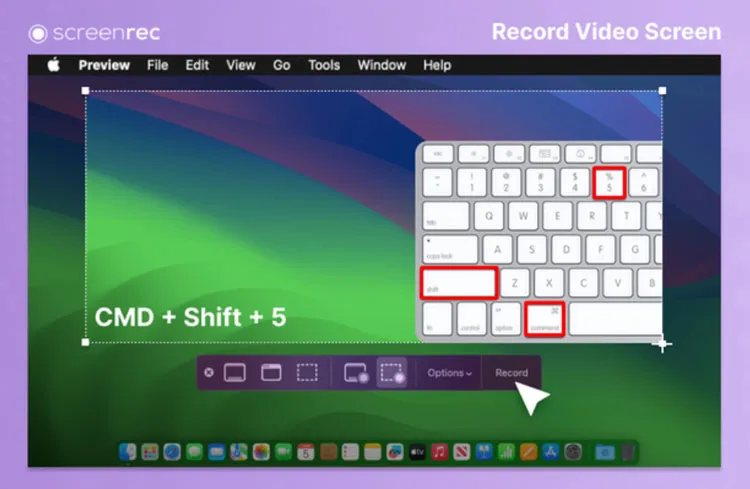
1.7 ScreenRec
If you value speed and privacy, ScreenRec is a top contender. It offers instant private sharing links and encrypted cloud storage, perfect for corporate environments where security is a priority. Besides, this screen recording app emphasizes simple, rapid recording and instant sharing via link, with basic screenshot annotation features.
Pros:
+ A business-focused tool that captures screen, mic, and webcam with one click.
+ Provides 2GB of free encrypted cloud storage.
+ Ad-free and no watermarks (even in free version).
+ Instant private sharing.
+ Extremely lightweight.
Cons:
- Video quality is often capped at 720p or 1080p (no 4K).
- Lack advanced editing or annotation features.
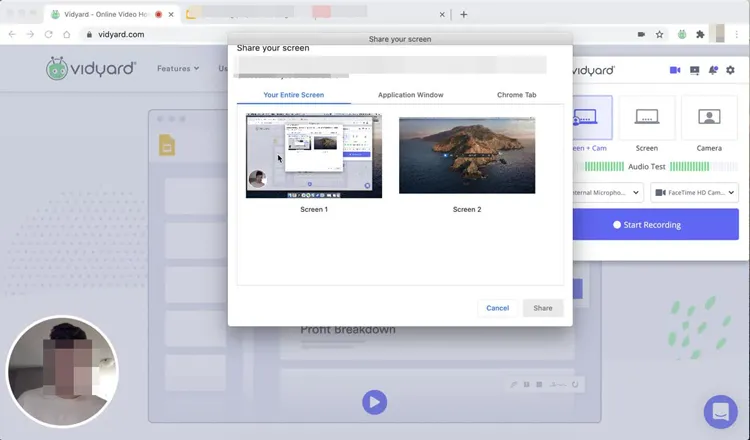
1.8 Vidyard
Vidyard pairs screen recording with video creation tools and analytics, designed for sales, marketing, and customer communication. You can record your screen and webcam, edit recordings, and share them with professional features such as view tracking and performance notifications. Vidyard’s free plan supports basic recording and sharing, while paid tiers expand editing and analytics.
Pros:
+ Video sales and marketing platform.
+ Track detailed viewer engagement data and integrates with CRMs like Salesforce and HubSpot.
+ Powerful analytics for business leads.
+ Allows custom CTAs inside the video.
+ AI-generated scripts and avatars.
Cons:
- Very expensive for small teams.
- Designed strictly for business, making it unsuitable for gaming or casual use.
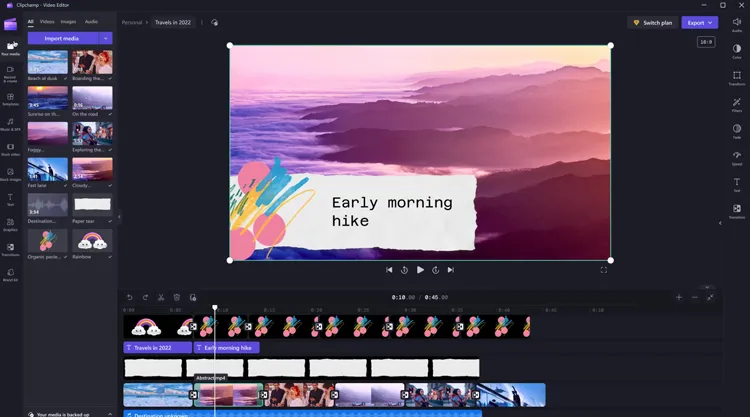
1.9 ClipChamp
ClipChamp (now part of Microsoft) is a browser-based recorder and editor that lets you capture your screen and webcam and immediately start editing using built-in tools. It caters to creators who want a quick, integrated workflow without installing desktop applications, with timeline editing, templates, and direct export options.
Pros:
+ Microsoft's built-in web-based editor and recorder (no installation needed)
+ Feature a modern timeline, stock media library, and AI text-to-speech.
+ Excellent for social media formatting; very beginner-friendly.
- Integrated video editor with templates, transitions, and audio controls.
Cons:
- Export times can be slow as it relies on the browser.
- 4K exports often require a premium subscription.
- Dependent on internet connectivity.
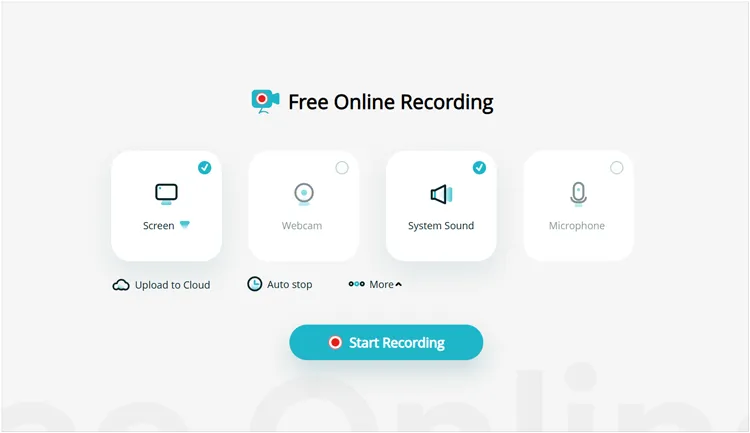
1.10 ApowerSoft
ApowerSoft offers an all-in-one screen recorder with built-in editing features. This tool enables recording full screen or region, scheduling capture times, and exporting in multiple formats. It’s suited for users needing a robust capture and edit environment without switching tools. You can use its online screen recorder without installing it.
Pros:
+ A browser-based recorder that works without installing heavy software.
+ Include real-time annotation (drawing on screen while recording).
+ No time limits on the web version.
+ Record both system audio and microphone simultaneously.
+ Multi-format support.
Cons:
- Require a small "launcher" plugin.
- Web version lacks editing functions.
- Desktop version (ApowerREC) has a very restrictive free trial (1 minute).
1.11 Zight
Zight (formerly CloudApp) is a versatile screen recorder for screenshots, GIFs, and video capture across desktop and mobile platforms. It supports full or partial screen recording, audio and webcam capture, real-time annotation, and cloud sharing. Its focus on business workflows makes it useful for client communication, documentation, and design feedback loops.
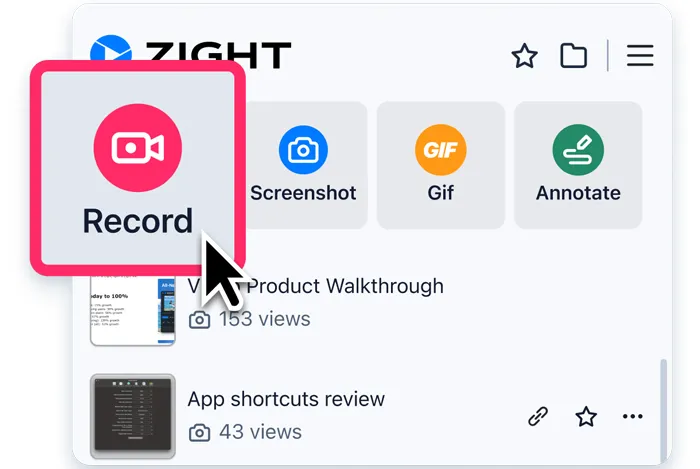
Pros:
+ High-speed capture tool for screenshots, GIFs, and videos.
+ Designed for quick bug reports and visual feedback.
+ Provide excellent annotation tools.
+ Integrate with Slack, Trello, and Jira.
+ Support instant cloud backup.
Cons:
- Free version has a 5-minute recording limit.
- The UI buttons can sometimes feel cluttered or intrusive.
- Advanced editing features are restricted to paid plans.
1.12 CleanShot X
CleanShot X is a macOS-exclusive screen capture and recorder with strong annotation capabilities and cloud sharing. It supports video recording with system audio and webcam, highlights mouse interactions and keystrokes, and includes a lightweight built-in video editor. CleanShot X also integrates OCR and utilities to streamline capture workflows for Mac users.
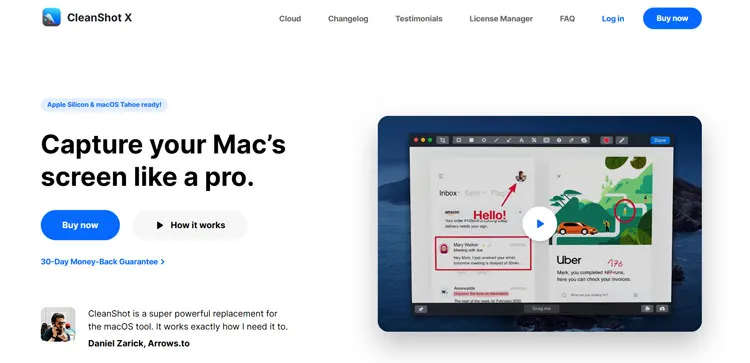
Pros:
+ The definitive screen tool for Mac.
+ Includes "Scrolling Capture", "Freeze Screen," and the ability to hide messy desktop icons during recording.
+ Gorgeous, native macOS UI.
+ Highly polished annotations.
+ Built-in cloud sharing (CleanShot Cloud).
Cons:
- Support macOS only but not Windows.
- Require a one-time purchase or subscription for updates.
- No advanced video editing (trimming only).
1.13 ShareX
ShareX is a powerful, open-source screen recording app for Windows. It is famous for its automated "after-capture" tasks, such as uploading to an FTP server or adding watermarks immediately after the recording ends.
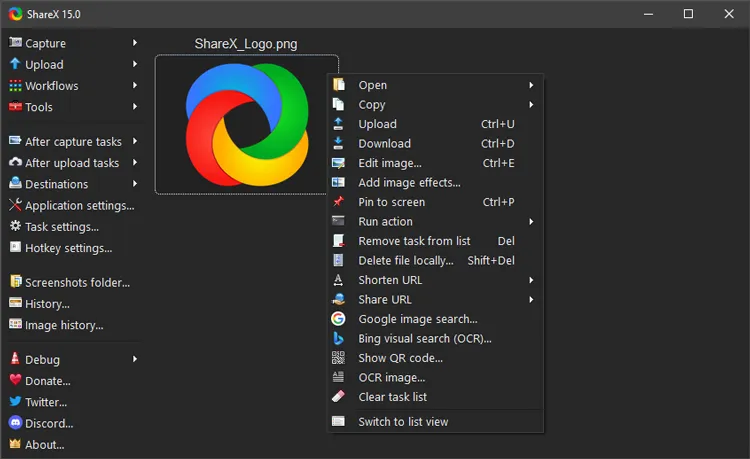
Pros:
+ Open-source productivity tool for Windows.
+ Automate the entire workflow (Record -> Upload -> Copy Link -> Shorten URL).
+ Support "Scrolling Capture" for long web pages.
+ Allow custom automation scripts.
Cons:
- Overwhelming and technical user interface.
- No built-in video editor.
- Not available for Mac or Linux.
1.14 ScreenPal
ScreenPal (formerly Screencast-O-Matic) is a cross-platform screen recorder and video editor. It supports screen and webcam capture, basic editing, annotations, and hosting, with integrations tailored for educators and business users. Its intuitive interface makes it suitable for beginners and intermediate creators.
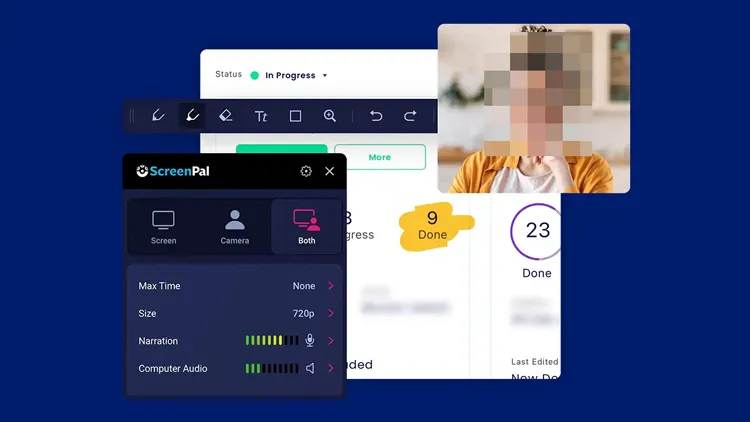
Pros:
+ Popular in education for its easy "Script Manager" and ability to record screen/webcam for flipped classrooms.
+ Very affordable compared to Camtasia.
+ Include a green screen filter.
+ Offer a robust free version with cloud storage.
Cons:
- The "Free" version is heavily limited.
- File management system can feel clunky.
- The interface can feel slightly dated compared to newer tools.
1.15 VEED
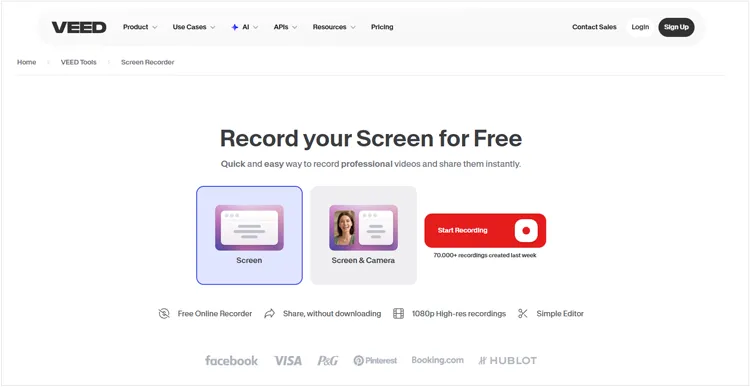
VEED is a cloud-based online video editor and screen recorder designed for creators, teams, and marketers. It provides an integrated workflow for recording screens and webcams, editing videos, adding AI-powered enhancements, and publishing content online - all within a browser.
Pros:
+ Can automatically transcribe recordings into over 100 languages.
+ Offers a full timeline editor including filters, transitions, progress bars, and "clean audio" features to remove background noise.
+ Uses AI to subtly adjust your pupils so you appear to be looking at the camera.
+ Allows businesses to automatically apply their colors, logos, and fonts to every screen recording for a consistent professional look.
+ Works on any device with a modern browser (Chromebooks, Windows, Mac).
Cons:
- Uploading high-resolution 4K recordings requires a fast and stable internet connection.
- The best features (like 4K export and long recordings) are locked behind a monthly subscription.
- Rendering a complex video with many AI effects can sometimes take longer than a desktop-based application like Camtasia.
1.16 Scribe
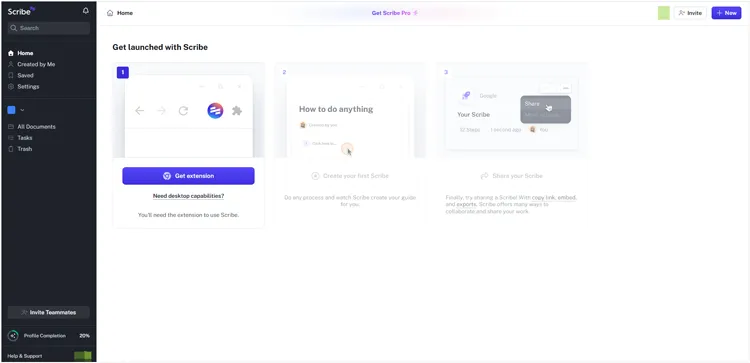
Scribe is a modern documentation tool that records step-by-step workflows into annotated guides. While not strictly a traditional screen recorder for video, it captures actions and automatically generates instructional documentation, making it useful for user onboarding, process documentation, and internal training.
Pros:
+ An AI-powered tool that converts your screen movements into a written, step-by-step PDF guide with screenshots.
+ Best for documentation and SOPs (Standard Operating Procedures).
+ Save hours of typing; automatically blurs sensitive data.
+ Excellent for workflows, onboarding, and process standardization.
Cons:
- Not a traditional "video" recorder.
- Monthly cost for the Pro version is high.
- Limited to browser and desktop app recording.
Part 2: Q&A About Screen Recording Software
Q1: What is the most trusted screen recorder?
There is no single "most trusted" tool for all use cases; selection depends on needs. For professional polished tutorials and training, Camtasia is frequently cited as best overall. For free, customizable power features and streaming capability, OBS Studio is widely trusted by creators and educators. For rapid team communication with minimal setup, iReaShare Screen Recorder, Loom and Vidyard are trusted in business environments.
Q2: How many GB is a one-hour recording?
The size of a one-hour screen recording varies greatly based on resolution, frame rate, codec, and whether audio is captured. As a rough estimate, a 1080p 30 fps recording using H.264 compression may range from about 1 GB to 4 GB per hour, while higher resolutions (e.g., 4K) or higher frame rates can produce much larger files. Many tools provide settings to adjust quality and compression to manage file sizes.
Here are some examples:
- 720p at 30fps: ~0.5 GB to 1 GB.
- 1080p at 60fps: ~2 GB to 5 GB.
- 4K at 60fps: Can exceed 20 GB per hour.
Note: Using modern codecs like H.265 (HEVC) can reduce these sizes by nearly 50% without losing quality.
Q3: Is it legal to screen record someone?
Legality depends on context and jurisdiction. In general, screen recording your own device content or content you have permission to record is lawful. Recording someone else's copyrighted material (e.g., movies, streamed content) without authorization may violate copyright law. Recording private meetings or conversations without consent may be restricted by local privacy laws. Always check the relevant legal and ethical standards in your region and obtain consent where appropriate.
Conclusion
The "best" screen recording software depends on your specific goal. If you want power and customization, go with OBS Studio. For quick communication, Loom is unbeatable. For professional tutorials, Camtasia remains the king. Specialized solutions like CleanShot X provide platform-specific enhancements, while tools like ShareX empower power users with customization and automation.
The iReaShare Screen Recorder provides easy-to-use and lightweight screen recording services. You can record a screen on a Windows computer without effort, even if it is your first time for screen recording.
By understanding each video screen recorder's strengths, you can choose the best screen recorder for their particular workflow, purpose, and budget. Hope this review helps you.
Related Articles
How to Transfer Large Video Files from iPhone to PC (No Quality Loss)
How to Convert MOV to MP3: 8 Best Tools and Methods
How to Enhance Video Quality via Software, Plugins, Online Enhancers, etc.
How to Remove TikTok Watermark from Videos: 5 Practical Methods

