


Whether you are documenting a professional webinar, creating step-by-step software tutorials, or preserving high-score gaming moments, iReaShare Screen Recorder offers a powerful yet intuitive platform to get the job done. This guide will walk you through the essential steps to master screen recording and screen capturing on a Windows PC, ensuring you achieve high-quality results with minimal effort.
Part 1: How to Record Screen on Windows PC
To easily record your PC's screen on Windows, you can download iReaShare Screen Recorder, and then follow these steps:
-
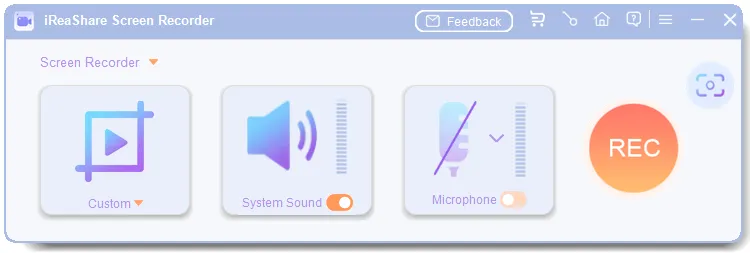
Install and launch the software, and choose the screen size. If you want to record the specified area only, choose the "Custom" option. If you want to record the whole screen, choose the "Full Screen" option.
-
Enable "System Sound" if you want to record the system audio resource. If you want to record the microphone sound, enable the "Microphone" option. You can also record the screen without any sound.
-
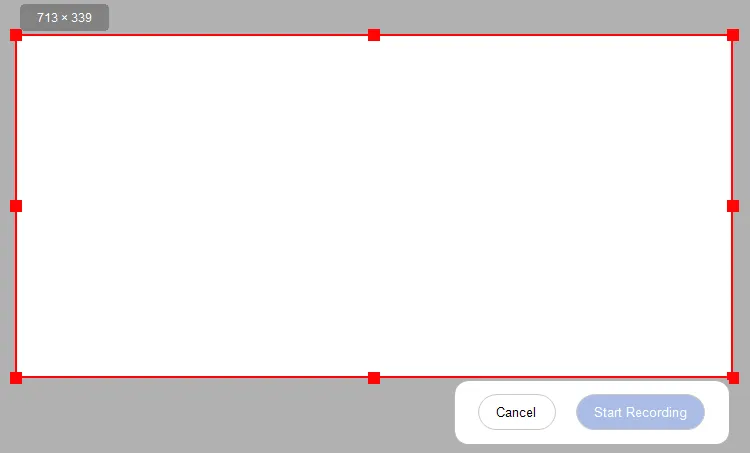
After the settings, click "REC" or press "Alt + Shift + C", and drag and select the screen area you want. Then click the "Start Recording" icon.
-
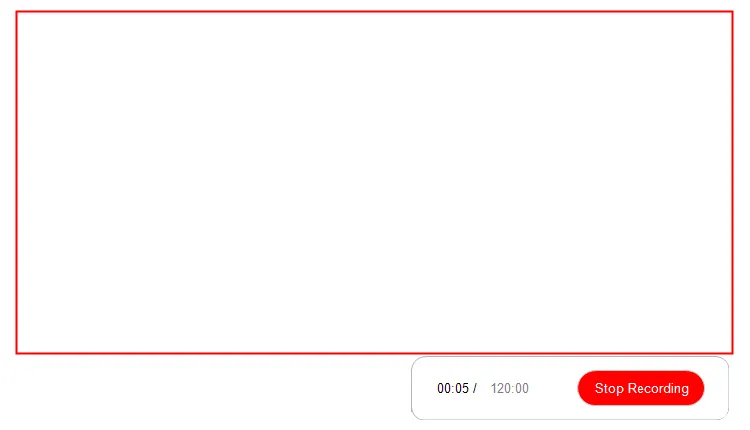
Once done, click "Stop Recording". Then you can "Copy" or "Save" the video on your computer.
Part 2: How to Take Screenshot on Windows PC
You can also use iReaShare Screen Recorder to capture the screen, and edit the image on your PC.
-
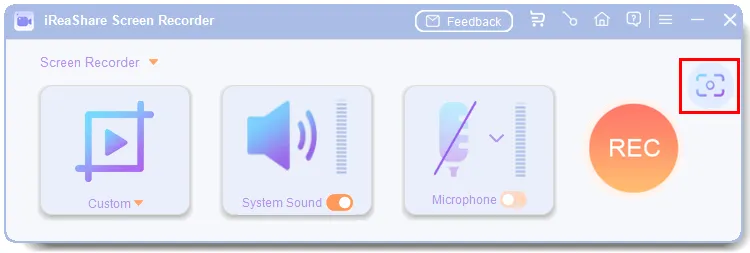
Run the program on your computer, and click the "Screenshot" icon at the upper right, or you can press "Alt + "Shift + X" to take a screenshot.
-
Select the screen region you want. The program will display the resolution of the image you select.
-
After capturing the screen, you can directly annotate the screenshot with rectangles, circles, lines, arrows, and text content. Finally, please "Copy" it to a document or a social app directly, or "Save" it to your computer

Conclusion
By following the steps outlined above, you can now efficiently navigate the core features of iReaShare Screen Recorder on your Windows system. From capturing smooth, high-definition video to taking precise snapshots of your screen, you can complete it without any hassle. Should you encounter any technical hurdles, the official support center is always available to provide detailed assistance.

