


Many users want a screen capture software app that provides the scrolling capture feature like Snagit. However, Snagit is not a totally free-to-use tool, and some screen capture apps cannot work well for games. If you want to find an alternative to Snagit to capture your screen without any hassle, don't miss this review guide, which offers 15 reliable screenshot apps. By the way, some of them can also record a screen in video.
Part 1: Snagit Specs, Pros, Cons, and How to Use It
Snagit, developed by TechSmith, is a powerful screen capture and screen recording tool designed for professional use. It allows users to capture images and videos from their screen and enhance them with advanced editing features.
Key Specifications:
- Platforms: Windows, macOS
- Capture Types: Full screen, region, window, scrolling screen
- Recording: Screen video, webcam, audio
- Editing Tools: Annotations, arrows, text, blur, callouts
- Output Formats: PNG, JPG, GIF, MP4, and more
- Pricing: Paid (one-time license)
Pros:
+ Comprehensive screenshot and video capture features.
+ Powerful built-in image and video editor.
+ Excellent scrolling capture for long web pages.
+ Stable performance and professional support.
+ Can extract text directly from an image.
Cons:
- Not free; relatively expensive for casual users.
- May feel overkill for simple screen capture tasks.
- Can be slower to launch than lightweight system tools.
- No Linux version.
How to use Snagit to capture a screen:
-
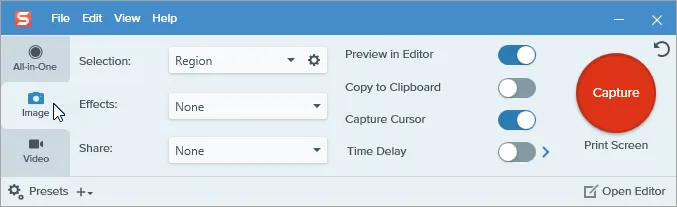
Install and open Snagit on your computer, and you'll see three main tabs on the left.
-
Use the "All-in-One" tab to select your area. Then click the red button or use a hotkey (like PrintScreen). Select the region or choose "Scrolling Capture".
-
Your capture opens automatically. Use the toolbar to add arrows, text, or use the "Step" tool to number your process.
-
Click "Share Link" or export directly to apps like Word, Slack, or Google Drive.
Tips: Want to learn about OBS and get powerful alternatives? Click this link.
Part 2: Screen Capture Software - Top 15 Alternatives to Snagit
If Snagit feels too heavy or pricey for your needs, these 15 alternatives offer a range of capabilities, from lightweight freebies to advanced video-first tools.
2.1 Windows Snipping Tool
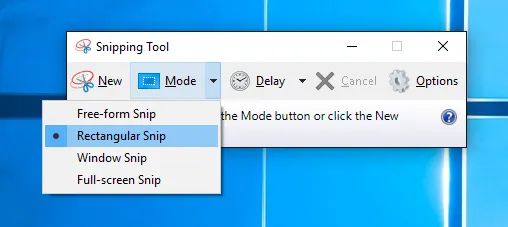
The Windows Snipping Tool (and Snip & Sketch) is a built-in utility for Windows users. It supports basic screenshot capture and annotations, making it a simple and free Snagit alternative for everyday tasks.
Best for: Basic screenshots on Windows.
Pros:
+ Multiple snip modes: free-form, rectangular, window, full-screen.
+ Provides basic pen/highlighter annotation in app.
+ Integrates with Windows notifications and clipboard.
+ Built into Windows — no installation needed.
+ Simple and fast for quick captures.
+ Works well for occasional screenshots.
Cons:
- Very basic editing tools; no advanced annotations.
- No scrolling capture or video recording.
- No OCR text extraction.
2.2 FastStone Capture
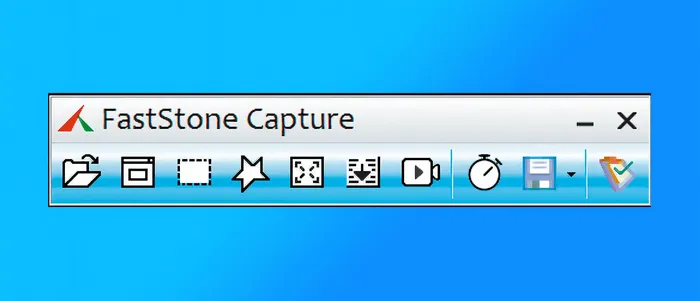
FastStone Capture is a lightweight yet powerful screen capture software. It offers scrolling capture, screen recording, and simple annotation tools at a much lower cost than Snagit.
Best for: Users wanting a low-cost Snagit alternative with professional features.
Pros:
+ Flexible capture modes: region, window, scrolling, freehand.
+ Simple video recording with audio support.
+ Built-in editor with annotation tools.
+ Lots of capture options despite small footprint.
+ One-time purchase (no subscription).
+ Supports basic video capture with audio.
Cons:
- Interface may feel dated and cluttered.
- Editing tools are more basic than Snagit's editor.
- Limited advanced video editing compared to dedicated recorders.
- Lacks collaboration features.
2.3 iReaShare Screen Recorder
iReaShare Screen Recorder focuses on high-quality screen and audio recording, but it also supports capturing a screen on a Windows computer. The screen capture feature is completely free. Besides, it enables you to edit your screenshot directly by adding text/lines/arrows, doodling, etc.
Best for: Screen capture with editing features and screen recording.
Pros:
+ Focuses on screen and audio recording with high-quality output.
+ Supports scrolling screenshots with multiple editing features.
+ Straightforward setup and capture workflow.
+ Recording videos with system or microphone sounds.
+ Records a screen with no time limits.
+ Enables you to save the video as MP4 files, and screenshots as PNG/JPG/JPEG/BMP.
Cons:
- Limited local editing tools compared to Snagit.
- The full screen recording feature is not free to use (the free version can record for 3 minutes).
Download the Screen Recorder software.
Here's how to use this Snagit alternative for screen capture:
-
Install the screen recorder on your computer after downloading it. Then launch it.
-
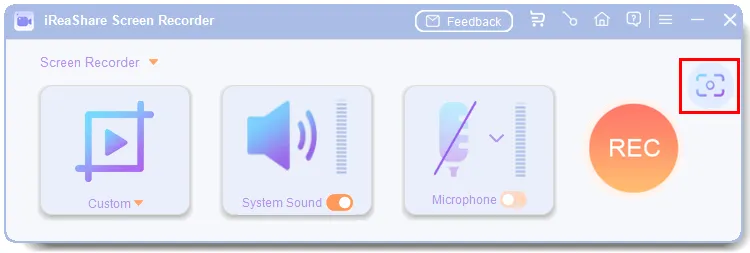
Navigate to the screen that you want to capture. Next, click the "Screenshot" icon, or press "Shift + Alt + X".
-
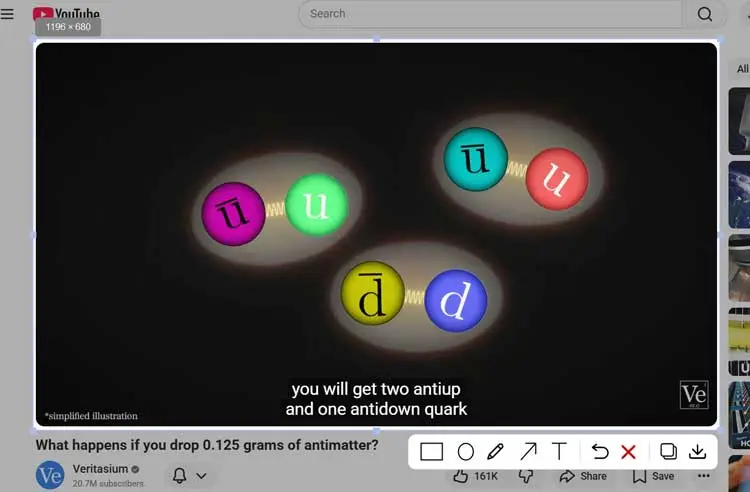
Select your desired area. If you want to take a scrolling screenshot, and you can edit the image if needed. Once done, click the "Save" icon. The screenshot will be stored on your computer.
2.4 Greenshot
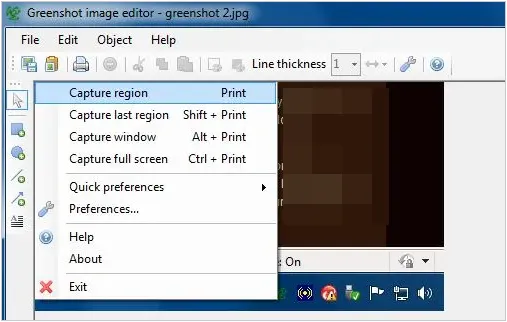
Greenshot is a popular open-source screen capture software for Windows and macOS. It provides fast screenshot capture and basic annotation tools.
Best for: Free, open-source Snagit alternative.
Pros:
+ Captures full, region, or window screenshots.
+ Provides annotation tools: arrows, text, highlights.
+ Has hotkeys and plugin integrations.
+ Fully free and open-source.
Cons:
- Scrolling capture only works with Internet Explorer (outdated).
- No video capture.
- Less robust annotation/edit features than Snagit.
2.5 ShareX
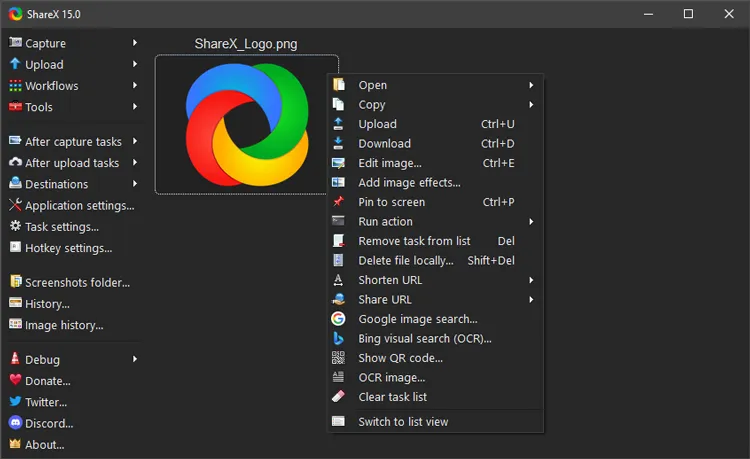
ShareX is one of the most powerful free Snagit alternatives. It supports advanced screenshot workflows, GIF creation, scrolling capture, and automated uploads.
Best for: Power users and developers.
Pros:
+ Captures screenshots and recordings (video & GIF).
+ Built-in image editor + advanced tools (OCR, color picker).
+ Highly customizable, hotkeys & scripting.
+ Automated workflows & upload destinations.
Cons:
- Interface can feel overwhelming.
- No professional video editor.
2.6 ScreenRec
ScreenRec is a modern, cloud-based screen capture software that allows instant sharing via links. It combines screenshot and video capture with automatic cloud storage.
Best for: Remote teams and quick sharing.
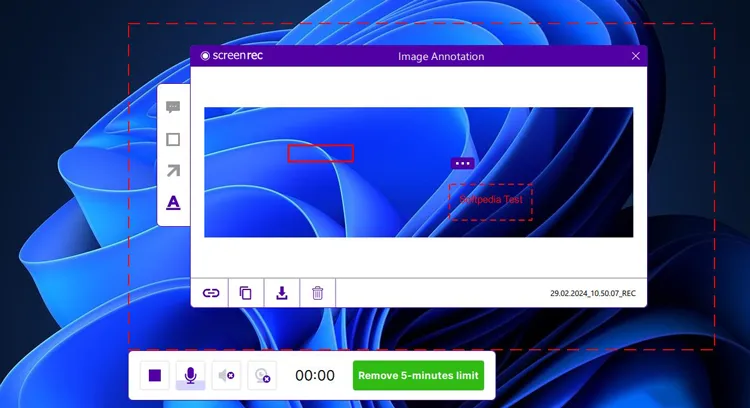
Pros:
+ Screenshot and screen recording with cloud sharing.
+ Local gallery/history of captures.
+ Quick access to history without file searching.
+ Easy private link sharing.
Cons:
- No image/video editing tools.
- Requires an internet connection for cloud features.
2.7 TinyTake
TinyTake is a simple screen capture and recording tool with cloud sharing features. It is often used for quick collaboration and feedback.
Best for: Lightweight screen capture with cloud storage.
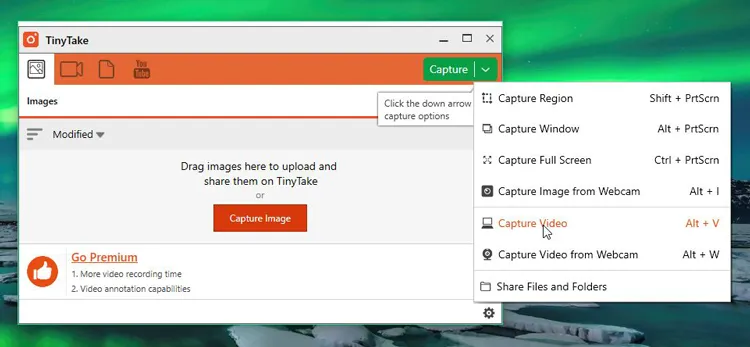
Pros:
+ A streamlined tool for those who want a simple gallery to manage their captures.
+ 2GB cloud storage.
+ Ability to capture video up to 120 mins (paid).
+ Bulk file sharing.
Cons:
- Free plan limits video length ((5-minute video limit) and has ads.
2.8 Lightshot
Lightshot is a fast and minimal screenshot tool that emphasizes speed and simplicity. It is ideal for users who need quick captures without complex features.
Best for: Quick screenshots.
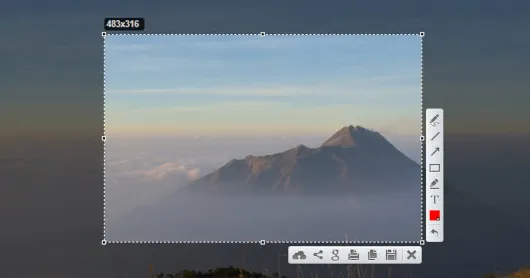
Pros:
+ The "speed king" for quick web-based sharing.
+ Cross-platform (Windows/Mac/Browser).
+ Quick region capture with a few clicks.
Cons:
- No history of captures (unless signed in).
- Limited to static screenshots.
2.9 Picpick
PicPick is an all-in-one screen capture software with image editing tools similar to Snagit. It is free for personal use and offers a familiar interface.
Best for: Designers and educators.
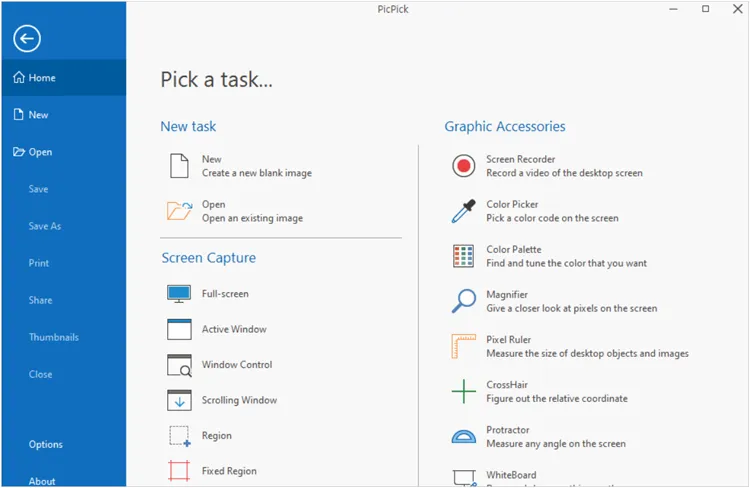
Pros:
+ Advanced image editor.
+ Supports scrolling capture.
+ Modern UI.
Cons:
- Free for personal use only (requires a license for business).
- Windows only.
2.10 Shutter
Shutter is a Linux-focused screen capture software offering extensive screenshot and annotation options.
Best for: Linux users looking for a Snagit alternative.
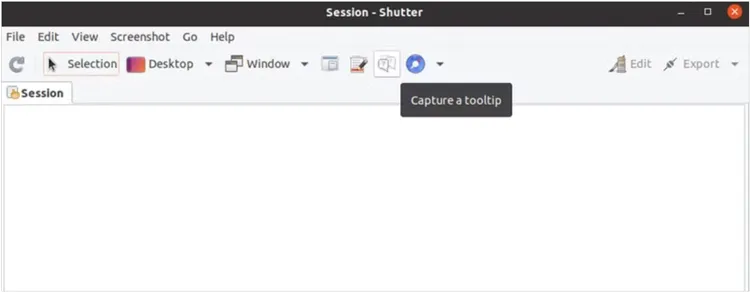
Pros:
+ The primary Snagit alternative for the Linux community.
+ Captures specific workspace/menu.
+ Built-in drawing editor.
Cons:
- Not available for Windows or Mac.
- Can be difficult to install on some distros.
2.11 OBS Studio
OBS Studio is a free, open-source screen recording and streaming tool. While it is not optimized for screenshots, it is a strong alternative to Snagit for video recording.
Best for: Screen recording and live streaming.
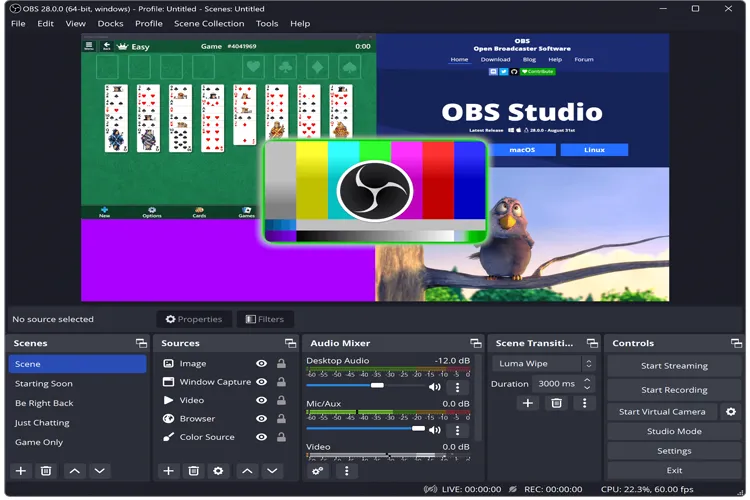
Pros:
+ Multiple "Scenes" (switch between webcam and screen).
+ Studio mode.
+ Unlimited recording length and quality.
+ best for 4K video tutorials; free.
Cons:
- No screenshot annotation features.
- Heavy on system resources.
- Complex setup.
2.12 ScreenPal
ScreenPal (formerly Screencast-O-Matic) offers both screen capture and recording, with a strong focus on education and training content.
Best for: Teachers and trainers.
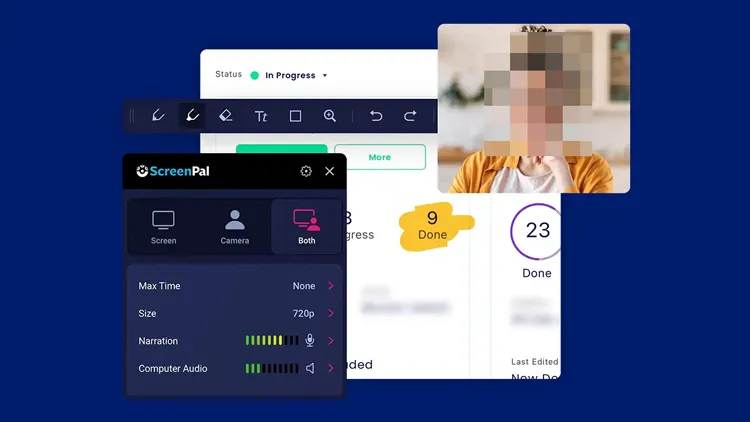
Pros:
+ Screen & webcam recording with editor.
+ Provides hosting and sharing options.
+ Screenshot capture included.
+ Green screen support.
Cons:
- Subscription-based for best features.
- Image editing is secondary to video.
2.13 Zight
Zight (formerly CloudApp) combines screenshots, screen recordings, and cloud sharing into one platform, making it a collaboration-friendly Snagit alternative.
Best for: Team communication and visual feedback.
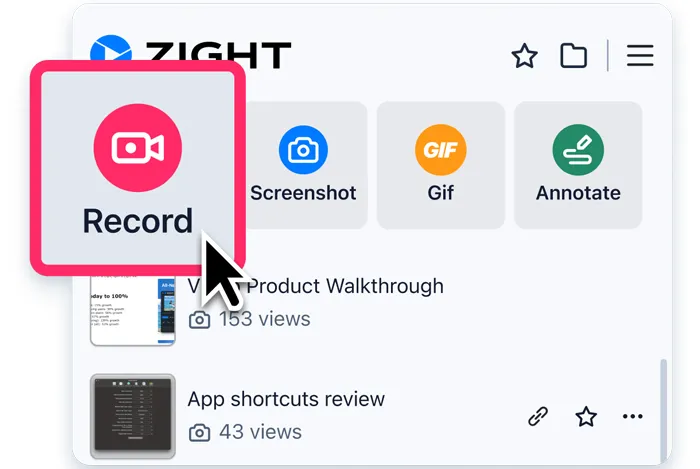
Pros:
+ Video, GIF & screenshot capture with sharing.
+ Instant GIF creation.
+ Link permissions and integrations with Slack/Jira.
Cons:
- Advanced editing locked behind paid plans.
- Focused on "short-term" sharing.
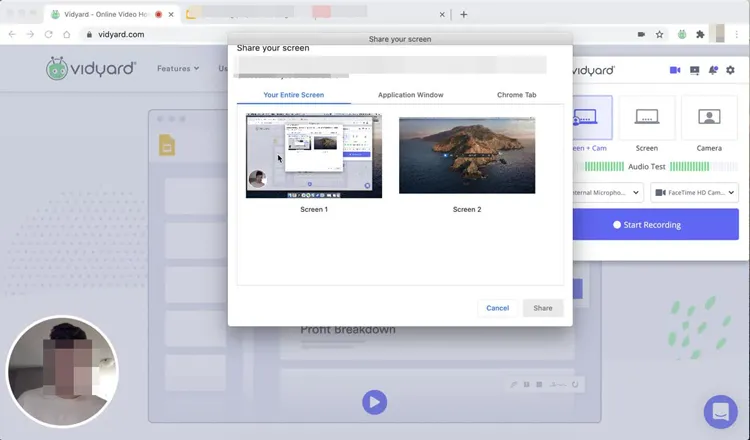
2.14 Vidyard
Vidyard is primarily a video messaging and screen recording platform. It is a specialized Snagit alternative for sales and marketing professionals.
Best for: Video-based communication.
Pros:
+ CRM integrations (Salesforce/HubSpot).
+ Supports browser extension.
+ Incredible analytics.
+ High-quality webcam + screen recording.
Cons:
- Expensive for non-business users.
- Focused on video messaging, not static captures.
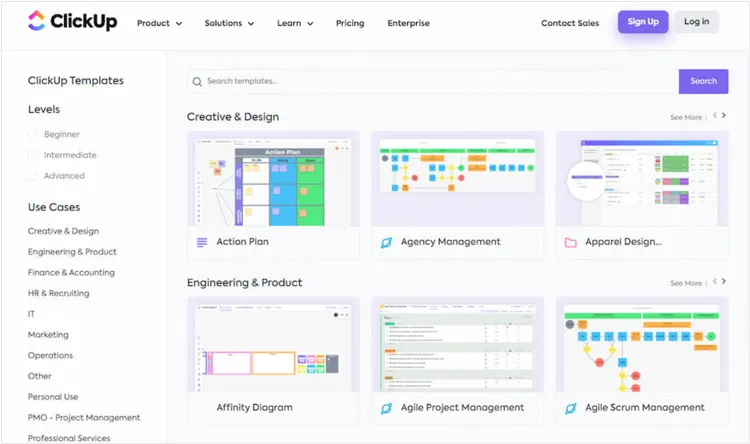
2.15 ClickUp
ClickUp is not a traditional screen capture software, but it includes built-in screen recording features for project management and collaboration.
Best for: Teams already using ClickUp for productivity.
Pros:
+ Combines capture with productivity workflows.
+ Helps keep screenshots/video tied to tasks.
+ Zero context switching.
+ Keeps all communication inside the project.
Cons:
- No standalone image editor.
- Requires a ClickUp account.
- Very basic recording controls.
Conclusion
Snagit remains a robust and professional screen capture solution, especially for users who need advanced editing and scrolling capture features. However, it is not always the best choice for everyone. Depending on your budget, platform, and workflow, there are many excellent screen capture software Snagit alternatives available - ranging from free open-source tools like ShareX and Greenshot to user-friendly and practical capture and recording tools like iReaShare Screen Recorder.
By understanding your specific needs—whether it's quick screenshots, high-quality screen recording, or seamless sharing—you can confidently choose the best Snagit alternative to enhance your productivity and communication.
Related Articles
AZ Screen Recorder Guide and 9 Practical Alternatives and Review
OBS Screen Recorder Review Guide: How to Use It and 10 Alternatives
How to Transfer Photos from Mac to Android: Full Guide with 6 Solutions
Solved: How to Transfer Photos from iPad to Computer in 5 Ways

