


"Is there an OBS Alternative that is the best? I've been using OBS for a while now to record my screen. It works, but I keep running into little issues and recently had some crashes. I'm really new to screen recording, so I'm just looking for something easy to use without constant bugs or crashes."
- From Reddit
In the realm of digital content creation, few tools are as iconic as OBS Studio. However, the OSB screen recorder is not perfect for many users. If you want to know how to use OBS, or desire to get an OBS Studio alternative for screen recording, this article can meet your all needs. Read on, and you will get what you want.

Part 1: What's OBS Screen Recorder and How to Use It?
OBS Studio (Open Broadcaster Software) is one of the most popular screen recording and live streaming tools available today. It's open-source, free to use, and highly customizable, making it the go-to choice for many content creators, gamers, and professionals.
Here's how to use OBS to record a screen on a computer:
-
Visit the official OBS website and download the version for your OS. Upon first launch, OBS will ask if you want to optimize for streaming or recording.
-
Under the "Scenes" box, click "+". Then, in the "Sources" box, click "+" and selec "Display Capture" or "Game Capture".
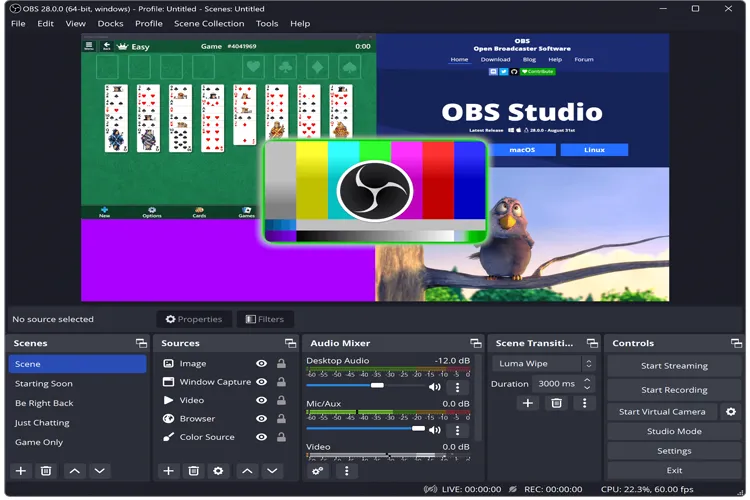
-
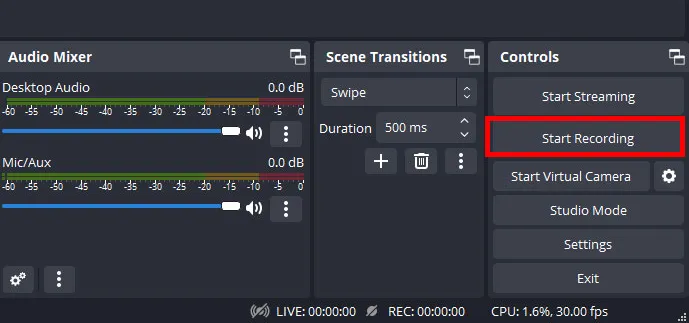
Use the "Audio Mixer" to ensure your mic and desktop sounds are balanced. Click the "Start Recording" button in the bottom-right control panel.
Part 2: Why Do We Need an Alternative to OBS Screen Recorder?
While OBS is powerful, it isn't perfect for everyone. Users often seek alternatives for several reasons:
- Steep Learning Curve: The interface can be intimidating for beginners.
- Heavy Resource Usage: It can be taxing on CPU and RAM, especially on mid-range laptops.
- Overkill for Simple Tasks: If you just need a quick 30-second clip, setting up OBS feels like building a house just to hang a picture.
- Niche Needs: Some users require built-in editing tools or cloud-based streaming features that OBS lacks natively.
Part 3: 10 Alternatives to OBS Screen Recorder
If you want an alternative to the OBS Studio screen recorder, don't miss this part, which provides detailed reviews of 10 replacement tools. Before that, you can take a quick comparison of these 10 alternatives.
| User Needs | Recommended Tool | Main Benefit |
|---|---|---|
| High-quality capture for tutorials/mobile workflows. | iReaShare Screen Recorder | Low system lag with intuitive 4K/8K recording modes. |
| Quick clips, GIFs, and instant cloud sharing. | ShareX | Completely free and automates the capture-to-upload process. |
| High-performance gaming on mid-range PCs. | Bandicam | Excellent hardware compression keeps file sizes very small. |
| No-install recording for Windows users. | Xbox Game Bar | Native to Windows; perfect for "retroactive" recording. |
| Lightweight, efficient recording on Linux OS. | SimpleScreenRecorder | Extremely fast on older hardware with a simple wizard. |
| Modern streaming optimized for Apple Silicon/Mac. | Meld Studio | Sleek UI with native performance for M1/M2/M3 chips. |
| Browser-based remote interviews and guests. | StreamYard | Guests join via link; no software installation required. |
| All-in-one recording and heavy video editing. | Filmora | Transition from recording to professional editing instantly. |
| Professional live production and NDI networking. | vMix Desktop Capture | Industry-grade reliability for multi-PC setups. |
| Streaming to 30+ platforms simultaneously via browser. | Restream Studio | Cloud processing saves your local CPU and RAM. |
3.1 iReaShare Screen Recorder
The iReaShare Screen Recorder is an intuitive screen recorder for Windows users. Known for its user-friendly interface, this screen recorder allows users to record their screen in high-quality resolution. It comes with features like video copying, screen capturing, and image editing. It's a great OBS alternative for those who need a simple, no-fuss screen recording tool.
Main features of this alternative:
* Records a computer's screen easily, including video and audio.
* Captures the video with system or microphone audio source.
* Records the screne up with a high resolution.
* Allows you to take screenshots and edit the image directly.
* Supports recording and saving in the MP4 format.
* Offers options to capture the entire screen or specific windows.
Pros:
+ Designed for simplicity, making it ideal for beginners.
+ Provides the ability to add text, shapes, and lines on screenshots.
+ Record a screen without time limit.
+ Offers a free version with sufficient features for casual use.
Cons:
- Lacks some of the advanced customization options that OBS offers (e.g., multi-source streaming).
- Does not support live streaming, focusing only on screen recording.
- The free version has a watermark.
Download the Screen Recorder software to replace OBS.
Here's how to use this screen recording software:
-
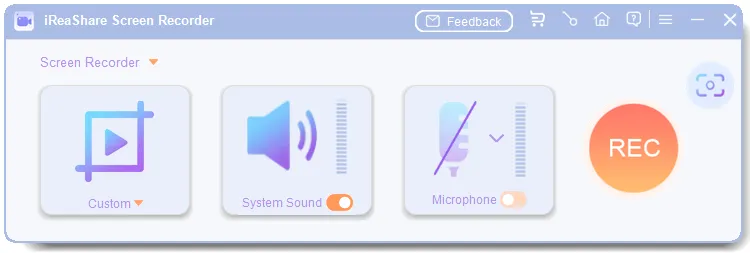
Install it on your Windows computer. Then open it on the desktop. Choose the "Custom" mode if you want to select a desired region. Then enable "System Sound" or "Microphone", and click "REC".
-
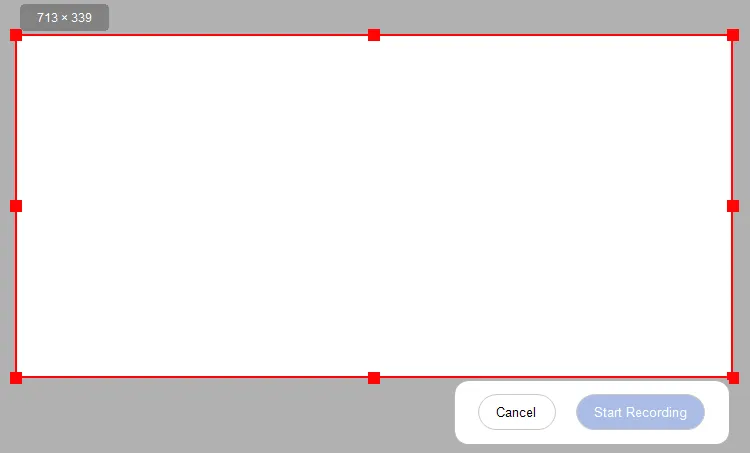
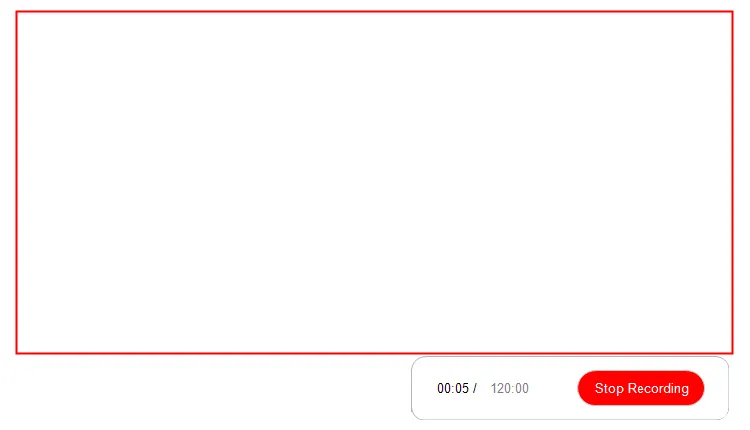
Next, drag and select the screen area you want, and click "Start Recording".
-
Finally, click "Stop Recording", and hit "Copy" or "Save" to export the video.
3.2 ShareX
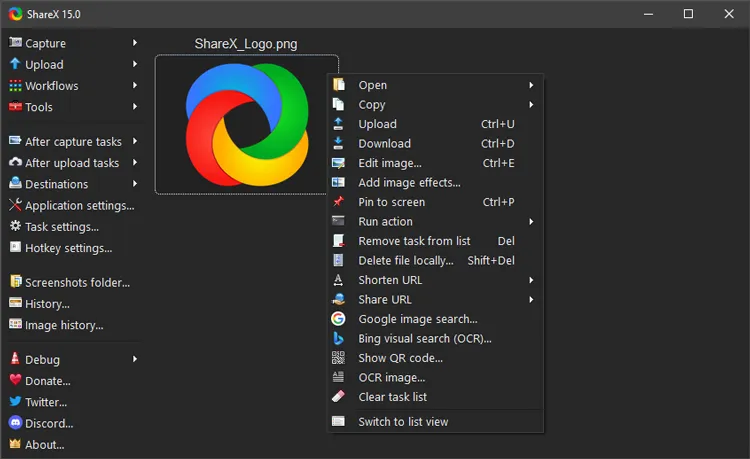
ShareX is a free, open-source screen capture and recording tool for Windows. It offers a wide array of advanced features, including custom workflows, screen annotations, and support for multiple output formats. While it might not have the streaming capabilities of OBS, ShareX is excellent for users who need powerful screen capture features and a highly customizable interface.
Pros:
+ Captures the entire screen, a specific region, or a window.
+ Supports screen recording in both video formats (MP4, AVI, etc.) and animated GIFs.
+ Users can add text, shapes, and highlights to images and videos.
+ Offers numerous advanced features and customizable workflows.
+ The software is efficient and does not consume many system resources.
+ No need to pay for the premium version as everything is accessible.
Cons:
- Compared with the former screen recorder, the interface can be overwhelming for beginners due to the sheer number of options.
- No live streaming feature.
- Limited video editing features; users will need a separate video editor.
3.3 Bandicam
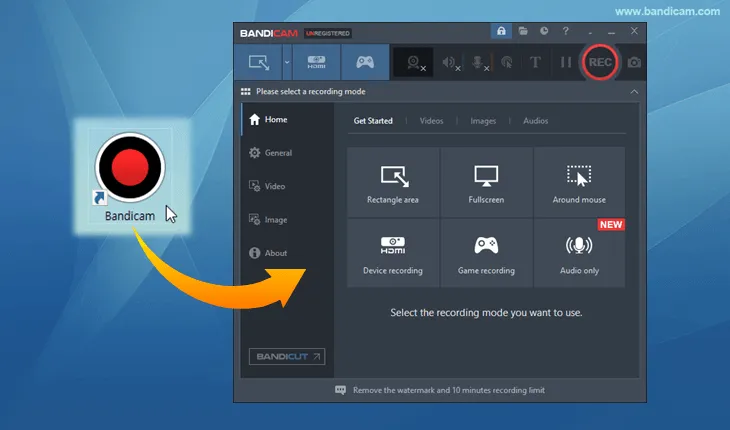
If you want an alternative to OBS that is lightweight and supports recording both the screen and gameplay in high-quality resolutions, Bandicam will be very suitable. It's especially popular among gamers due to its ability to record high-performance games with minimal lag. It's an easy-to-use tool for those who don’t need the full complexity of OBS.
Pros:
+ Supports recording at up to 4K resolution with high compression for smaller file sizes.
+ Special mode for capturing gameplay with minimal lag.
+ Easy to set up and use, making it suitable for both beginners and more advanced users.
+ The game recording mode ensures minimal lag and high-quality gameplay footage.
Cons:
- The free version of Bandicam adds a watermark to the videos.
- Does not support live streaming like OBS does.
3.4 Xbox Game Bar
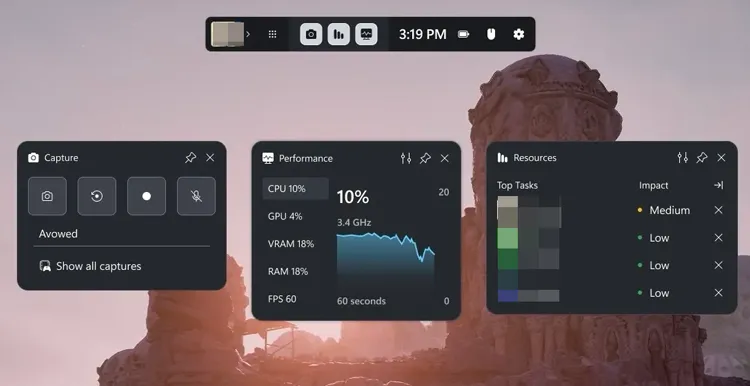
For Windows 10 and 11 users, Xbox Game Bar is an integrated tool for screen recording and live streaming. It comes pre-installed on most Windows devices and allows users to record gameplay or screen activities with just a few clicks. Though it's primarily aimed at gamers, its lightweight design and simplicity make it a great option for those who need a quick screen recording solution without installing third-party software.
Pros:
+ Integrated into Windows 10 and 11, requiring no additional downloads.
+ Captures gameplay or other on-screen activities.
+ Allows users to add a webcam overlay while recording or streaming.
+ Minimal system resource usage makes it great for low-end PCs.
+ Optimized for game recording with a focus on ease of use.
Cons:
- Lacks advanced recording options and settings available in tools like OBS.
- Cannot record the desktop or File Explorer (only specific apps/games).
- Limited output settings.
3.5 SimpleScreenRecorder
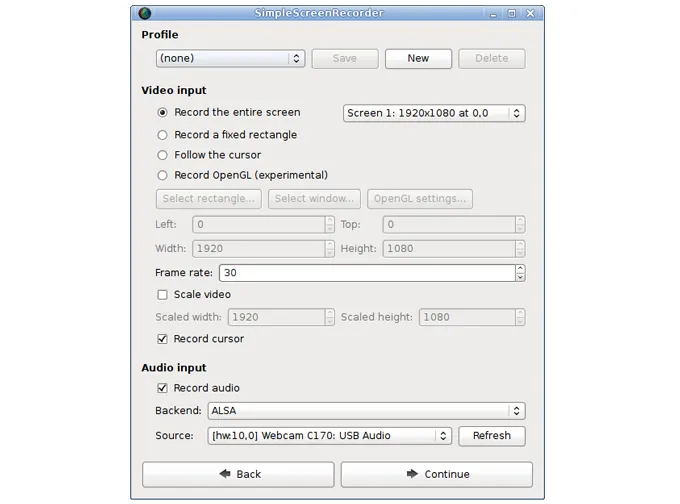
As its name suggests, SimpleScreenRecorder is a straightforward tool for recording your Linux desktop environment. It's perfect for users looking for a no-hassle recording experience with an emphasis on ease of use. Although it's designed for Linux, it's an excellent choice for anyone seeking a quick, reliable screen recorder that doesn't come with the complexity of OBS.
Pros:
+ Great for Linux users, as it's tailored for this operating system.
+ Supports recording in multiple resolutions and formats.
+ Captures both system audio and microphone input.
+ Offers an intuitive setup wizard to get started quickly.
+ Users can preview the recording before starting the actual capture.
Cons:
- Not available for Windows or macOS.
- Lacks streaming capabilities and has fewer customization options than other tools like OBS.
- Lacks webcam support.
- The interface looks outdated compared to 2026 standards.
3.6 Meld Studio
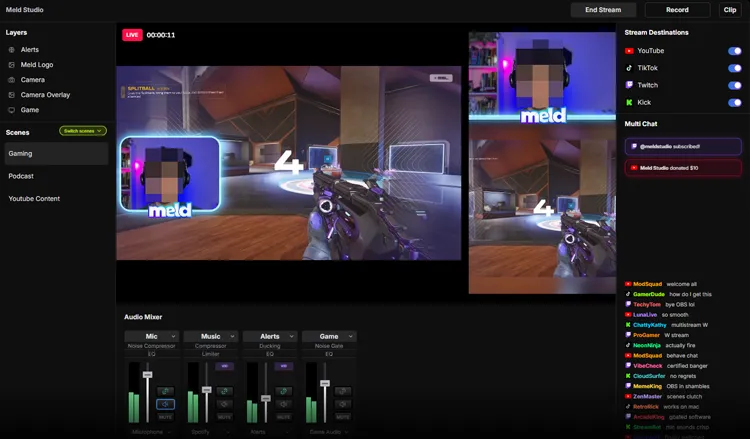
Meld Studio is a screen recording and video editing software that combines both tools in one package. It's particularly useful for users who want to record their screen and simultaneously edit videos within the same platform. Meld Studio offers a range of editing tools to trim, cut, and enhance recorded videos, making it a fantastic OBS alternative for content creators who prefer an all-in-one tool.
Pros:
+ Combines screen recording and editing features, eliminating the need for multiple apps.
+ Supports recording from a webcam alongside screen capture.
+ Offers flexibility in saving videos in different formats.
+ Records at high resolutions with options for adjusting frame rates.
+ Suitable for beginners who want a straightforward editing and recording solution.
Cons:
- While it's great for basic video production, it may lack the features that professional streamers or video editors require.
- Can be resource-intensive depending on the video quality and editing effects used.
3.7 Streamyard
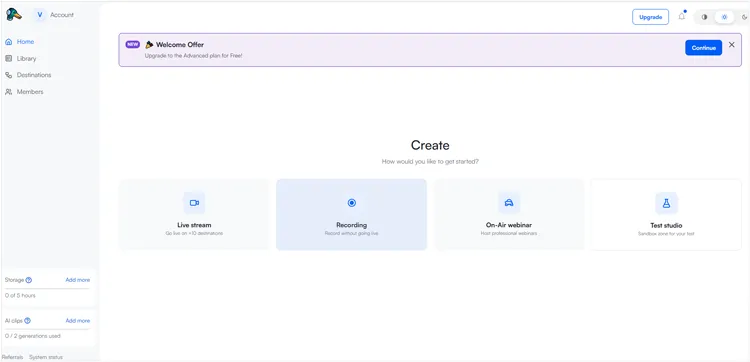
Streamyard is a browser-based video streaming and recording platform designed specifically for live streaming. It provides users with simple tools to invite guests, add logos, share screens, and stream directly to social media platforms. Its cloud-based nature eliminates the need for powerful hardware, making it an excellent choice for those who want to focus on content rather than configuration.
Pros:
+ No software installation required, making it easy to access from any device.
+ Directly streams to platforms like YouTube, Facebook, and LinkedIn.
+ Allows users to invite guests to join the live stream with ease.
+ Supports sharing your screen along with webcam footage during broadcasts.
+ Offers features like branding, overlays, and screen layouts.
Cons:
- Since it's cloud-based, you need a stable internet connection for smooth performance.
- Not as feature-rich as OBS when it comes to video editing and customization.
3.8 Filmora
Streamyard is a browser-based video streaming and recording platform designed specifically for live streaming. It provides users with simple tools to invite guests, add logos, share screens, and stream directly to social media platforms. Its cloud-based nature eliminates the need for powerful hardware, making it an excellent choice for those who want to focus on content rather than configuration.
Pros:
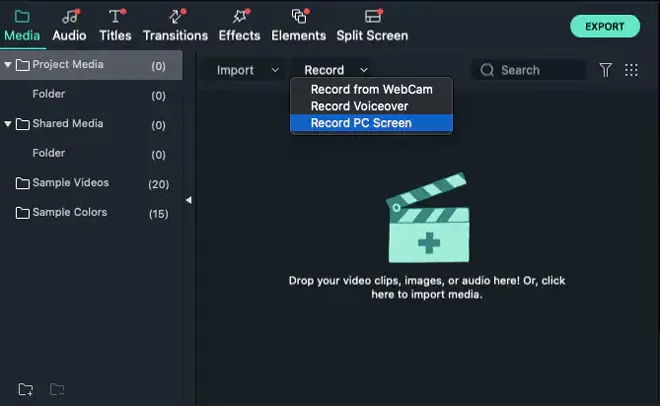
+ Dual-screen recording, AI-powered noise removal, and a massive library of stickers and motion titles.
+ One-click export to YouTube/TikTok.
+ Provides powerful editing features to trim, cut, and add effects to videos.
+ Includes a variety of text, title, and transition effects for videos.
+ Allows exporting to various video formats.
+ More affordable than professional video editing software.
Cons:
- Lacks live streaming capabilities like OBS.
- "Perpetual" licenses often charge extra for yearly major updates.
- The free version adds a watermark to the videos.
3.9 vMix Desktop Capture
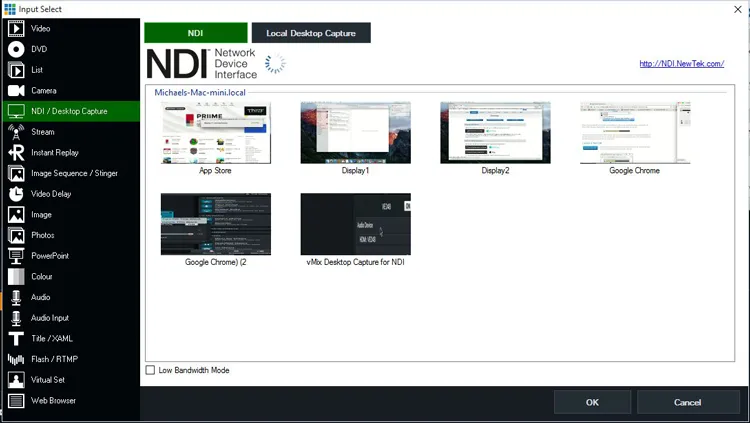
vMix is a professional-grade video production software that includes desktop capture functionality. It's designed for live-streaming and video production environments where high-quality video and multiple video sources are required.
With this OBS Studio screen recording alternative, you can capture and mix video from various sources, including webcams, desktop screens, and external cameras. It's an excellent choice for professional streamers or creators who need full control over their video production.
Pros:
+ Can capture video from multiple sources, including webcams, screens, and external cameras.
+ Supports live streaming to platforms like YouTube, Facebook, and Vimeo.
+ Allows users to mix video sources in real-time, making it ideal for live production.
+ Offers customizable graphics, lower thirds, and overlays for live broadcasts.
+ Supports up to 4K recording and streaming.
Cons:
- Can be costly, with different pricing tiers for various features.
- The range of features may overwhelm beginners and those seeking simple solutions.
- Requires a powerful computer to handle all of its features smoothly.
3.10 Restream Studio
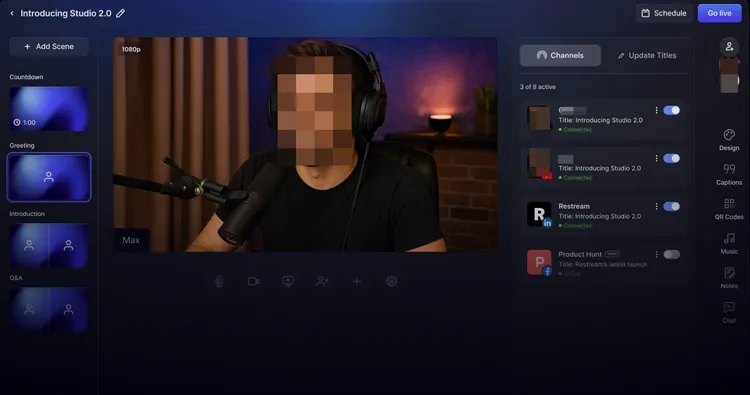
Restream Studio is a cloud-based live-streaming platform that lets users broadcast to multiple platforms simultaneously. Its screen recording and live-streaming features are easy to use, and it supports various integrations with platforms like YouTube, Facebook, and Twitch. Restream Studio is an ideal OBS alternative for streamers who want to simplify the broadcasting process and stream directly from the cloud.
Pros:
+ Stream to multiple platforms simultaneously from the cloud.
+ Supports adding your webcam feed and sharing your screen during live broadcasts.
+ Customize your broadcast with logos, banners, and other branding tools.
+ Easy to invite guests for live streaming sessions.
+ Allows you to view and interact with live chat from multiple platforms in one window.
Cons:
- Requires a stable internet connection for optimal performance.
- Lacks advanced production tools that OBS or vMix might offer.
- While it offers a free version, some features are locked behind a subscription.
Part 4: Q&A About OBS Studio Screen Recorder
Q1: Is OBS still the best in 2026?
Yes and no. It remains the "best" for power users who need total control and plugin support. However, for specialized tasks like quick sharing or browser-based interviews, newer dedicated tools have overtaken it.
Q2: Does OBS take a lot of RAM?
OBS itself is relatively efficient, but the encoding process and the number of active Sources (like high-res overlays) can consume significant RAM and CPU.
Q3: Can OBS run on a low-end PC?
It can, but you must lower the settings. In 2026, if you are using an older machine, it is recommended to use "Hardware Encoding" (NVENC or AMF) and set your output to 720p at 30fps to avoid system crashes.
Conclusion
OBS Studio remains a titan in the industry, offering unparalleled depth for free. However, the "best" recorder is ultimately the one that fits your specific workflow. If you value simplicity, tools like iReaShare Screen Recorder or Xbox Game Bar might be your winners. If you are a professional, vMix or Meld Studio are worth the look.
Related Articles
Screen Recorder for Windows 11/10 PC: Top 10 Screen Recording Tools
Excellent Screen Recorder for Android: 11 Options (With or Without Computer)
How to Move Videos to SD Card from Android: 5 Solutions
How to Transfer Large Video Files from iPhone to PC (No Quality Loss)

