


As videos continue to take up an increasing amount of storage space on Android devices, many users find that their internal storage fills up quickly. If you want to move videos to an SD card on Android for freeing up space without removing your media files, you can utilize the 5 methods provided in this guide.
- Part 1: How to Move Videos to SD Card on Android via File Manager
- Part 2: How to Transfer Videos to SD Card from Android via Files by Google
- Part 3: How to Move Videos from Phone to SD Card via iReaShare Android Manager
- Part 4: How to Put Video on SD Card via Windows Computer (Manual Drag and Drop)
- Part 5: How to Save Video to SD Card from Android on Mac via OpenMTP
- Part 6: FAQs About Moving Videos to SD Card on Android
Take a quick look at the pros and cons of these 5 methods:
| Method | Pros | Cons |
|---|---|---|
| File Manager on Android | 1. No extra apps needed. 2. Quick and simple. 3. Works offline. |
1. Limited features. 2. Varies by device brand. 3. Not ideal for bulk transfers. |
| Files by Google | 1. Clean interface. 2. Reliable and safe. 3. Smart storage suggestions. |
1. Requires installation. 2. Limited advanced controls. |
| iReaShare Android Manager | 1. Strong management features. 2. Efficient for bulk videos and other data. 3. Large-screen operation. |
1. Requires a computer. 2. USB debugging needed. 3. Third-party software. |
| Windows Computer (Drag & Drop) | 1. No additional software. 2. Familiar workflow. 3. Suitable for large files. |
1. Windows only. 2. File paths can be confusing. 3. Cable required. |
| Mac via OpenMTP | 1. Stable Android–Mac transfer 2. Dual-panel view. 3. Free tool. |
1. Mac only. 2. Third-party software required. 3. Initial setup needed. |
Part 1: How to Move Videos to SD Card on Android via File Manager
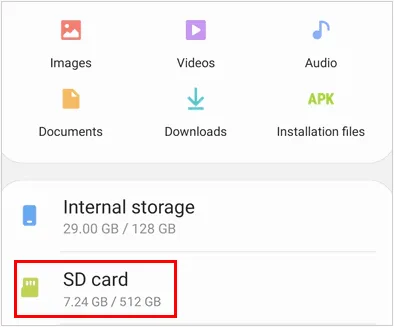
Most Android phones come with a built-in File Manager or My Files app that allows users to manage storage directly on the device. Thus, you can directly move your videos from your Android phone to your SD card with the File Manager app if you can install the SD card to your phone directly. If not, you will need a card reader.
To move videos from an Android phone to an SD card via File Manager:
-
Insert the SD card into your Android phone and ensure it is properly detected. Then open the File Manager app.
-
Navigate to "Internal Storage" > "DCIM" or "Movies", or the folder containing your videos.
-
Long-press the video files you want to move. Then tap "Move" or "Copy". By the way, To ensure the integrity of the video transfer, we recommend that you "Copy" the videos and then delete the original after the transfer is complete.
Part 2: How to Transfer Videos to SD Card from Android via Files by Google
Files by Google is a free and reliable file management app that offers an intuitive interface and smart storage suggestions. If the built-in File Manager app is damaged, you can install this app on your Android phone to transfer your videos.
Here's how:
-
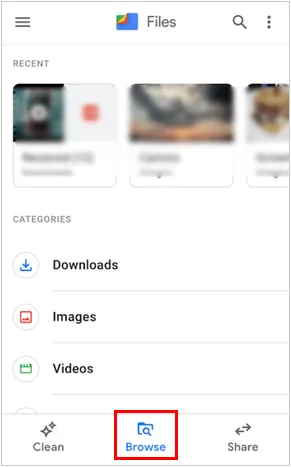
Download, install, and launch Files by Google. Tap the "Browse" tab at the bottom.
-
Select "Internal Storage" under "Storage devices". Then find your video files, tap the three-dot icon next to a file (or select multiple files).
-
Choose "Move" to and select "SD card". Next, confirm the location and tap "Move here".
Part 3: How to Move Videos from Phone to SD Card via iReaShare Android Manager
For those with a massive library of videos, using a desktop tool like iReaShare Android Manager provides a much clearer interface for bulk management. It can export all your videos at once via USB, and enables you to manage your data on your computer directly, like editing contacts, sending SMS, removing files, etc.
Main features of iReaShare Android Manager:
* Transfer videos from an Android device to an SD card on a computer.
* Never damage the video resolutions during the transfer process.
* Move videos from your phone to your computer and vice versa.
* Back up and restore all Android data without cloud storage space.
* Export contacts, SMS, call logs, photos, music, and more.
Download iReaShare Android Manager.
Download for Win Download for Mac
To save videos from Android to an SD card with this software:
-
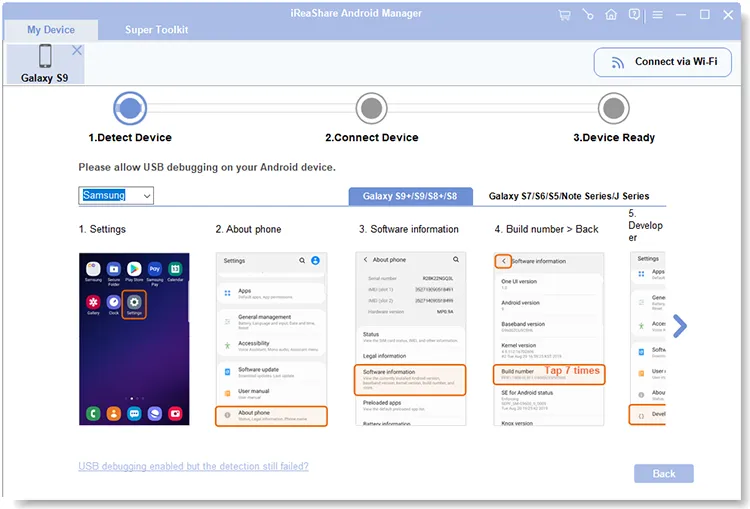
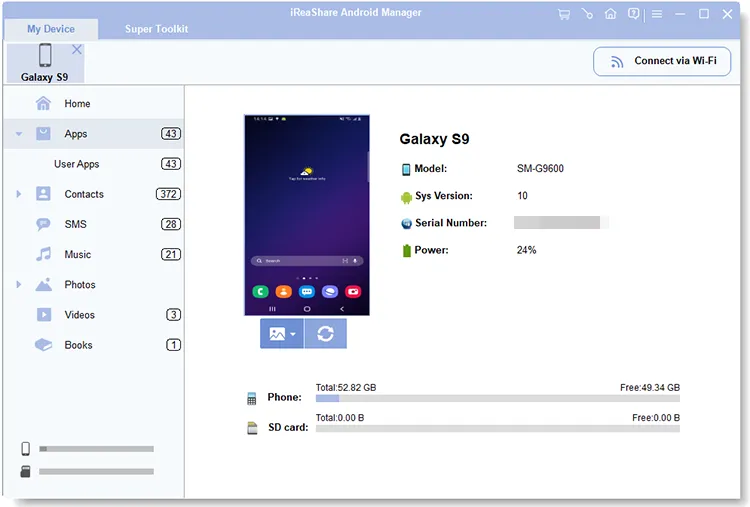
Install and launch the Android Manager software on your computer. Then connect your Android phone via USB cable, and ensure USB debugging is enabled on the phone.
-
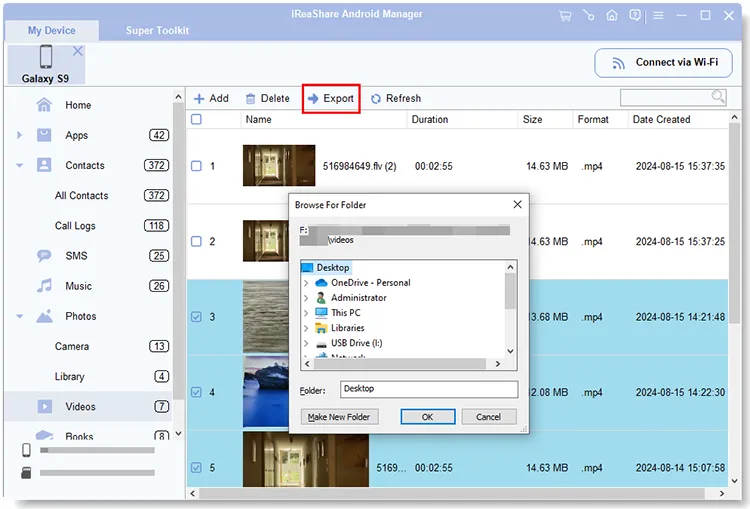
Once connected, go to the "Videos" tab on the left sidebar. Then select the videos you want to transfer.
-
Insert your SD card into the computer with a card reader. Next, click "Export", then select your memory card as the destination, and tap "OK". Your videos will be saved to your SD card. Once done, you can remove the videos from your Android device.
Part 4: How to Put Video on SD Card via Windows Computer (Manual Drag and Drop)
This is the classic "plug-and-play" method that requires no extra software. Just prepare a workable USB cable and a compatible card reader.
To move videos from an Android phone to a micro SD card via drag and drop:
-
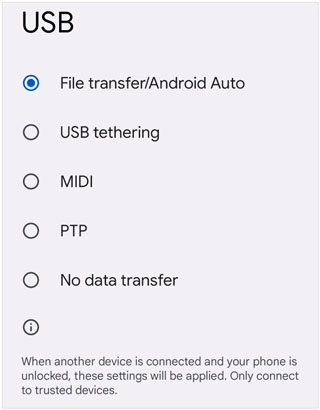
Connect your Android phone to your PC using a USB cable. On your phone, swipe down the notification shade and set the USB mode to "File transfer/Android Auto" or "MTP".
-
Open "This PC" on your computer and double-click your phone's name. Then open the "Internal Storage" window and find your videos.
-
Open the "SD Card" window in a separate folder view. Simply drag and drop the files from the "Internal Storage" window to the "SD Card" window.

Part 5: How to Save Video to SD Card from Android on Mac via OpenMTP
Since macOS doesn't natively support Android file systems, you cannot access your Android phone on Mac directly. In this situation, OpenMTP is a useful tool to make your Mac and Android device communicate with each other.
Here's how to transfer videos to an SD card via OpenMTP:
-
Download and install OpenMTP on your Mac. Then connect your Android phone to your Mac via USB and select the "File transfer" mode on the phone.
-
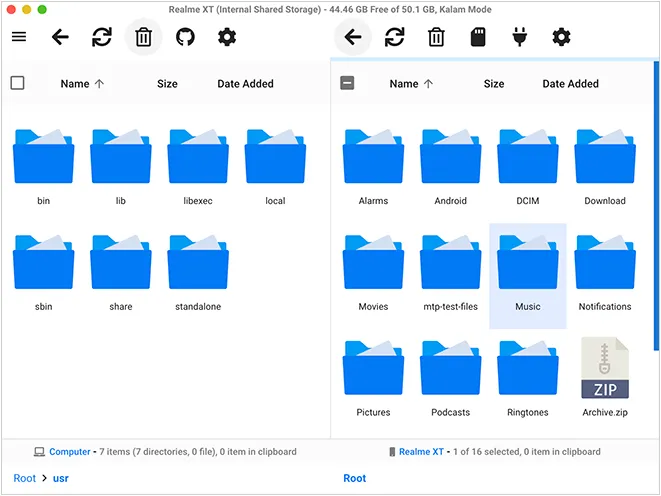
Open OpenMTP; you will see your Mac files on the left and Android files on the right. On the Android side, toggle the view to show the SD Card.
-
Navigate to your internal storage videos, then drag them over to the SD card directory within the app.
Part 6: FAQs About Moving Videos to SD Card on Android
Q1: How do I use an SD card instead of internal storage on Android?
On supported devices, you can format the SD card as internal storage by going to Settings > Storage > SD Card > Format as internal. This allows apps and files to be stored directly on the SD card. Note that this option is not available on all devices and Android versions.
Q2: Why can't I move files from my Android phone to my SD card?
This usually happens for three reasons:
- Write Protection: The SD card might be locked (if using an adapter) or set to read-only.
- Permissions: You may need to grant the File Manager app "All Files Access" in your phone's settings.
- File System Limits: If your SD card is formatted as FAT32, you cannot move individual video files larger than 4GB.
Q3: What are the risks of using an SD card as internal storage on my Android phone?
Using an SD card as internal storage carries several risks:
- Slower performance compared to built-in storage.
- Increased risk of data loss if the SD card fails.
- The SD card becomes encrypted and cannot be used on other devices.
- Removing the SD card may cause apps to malfunction.
Conclusion
You can effectively manage your internal storage on your Android phone by moving videos to an SD card. If you can install your memory card directly on your phone, you can use File Manager or Files by Google to move your videos easily. Also, using a computer works. But if you want to manage your Android files at the same time, iReaShare Android Manager will help.
By selecting the method that best fits your needs, you can keep your Android device organized and running smoothly.
Download for Win Download for Mac
Related Articles
How to Send Long Videos on Android Device: 6 Viable Solutions
How to Transfer Videos from PC to Android in 7 Wired or Wireless Ways
How to Wipe Android Phone Permanently | Protect Personal Privacy
How to Download Apps on Android Phone and Tablet: 6 Solutions

