To connect your Android phone to iReaShare computer software (using a USB cable or Wi-Fi), the companion mobile utility - iReaShare Android Manager App (Android Version) - must be installed on your target Android device.
This guide works for these iReaShare tools: iReaShare Android Manager, iReaShare Phone Transfer, iReaShare Android Data Eraser.
Part 1: Automatic USB Installation (Easiest Way)
When you plug your Android phone into the computer using an official/original USB cable and ensure that USB Debugging is enabled, the iReaShare desktop program will automatically try to push and install the companion app for you. Then you can manage your Android data on computer using the iReaShare desktop software.
- Missed Permission Prompt: A security box popped up on your phone screen, but it timed out or was ignored.
- Low Phone Storage: Your phone does not have enough free space left to save the new app.
- Bad USB Connection: The USB cable is loose, broken, or plugged into a faulty port.
If automatic setup does not work for you, just move down to Part 2 to install the app by hand.
Part 2: Manual Download & Sideloading (Alternative if Auto Fails)
If automated installation is restricted by your device settings, you can manually acquire and install the APK package through three simple pathways:
Step 1: Download the iReaShare Android Manager APK to Your Phone
Pick any of these three easy ways to get the APK file:
Method 1: Direct Download Button
If you are reading this page right on your mobile phone browser, click this button to download the APK file right away.Method 2: Scan the QR Code
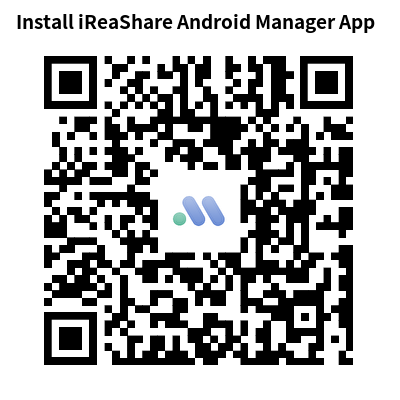
Open the camera app on your phone, point it at the QR code below, and tap the link that pops up on your screen to download and save the APK file.
Method 3: Visit the Web Link
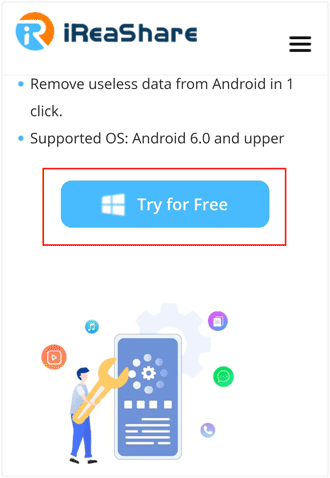
Open any web browser on your phone, type a.ireashare.com into the address bar, and tap "Try for Free" button on the page to download the APK file directly from the page.
Step 2: Enable "Install Unknown Apps" Permission
Because the APK is obtained outside the Google Play Store, Android protects your device by blocking unauthorized packages initially. You can bypass this quickly:
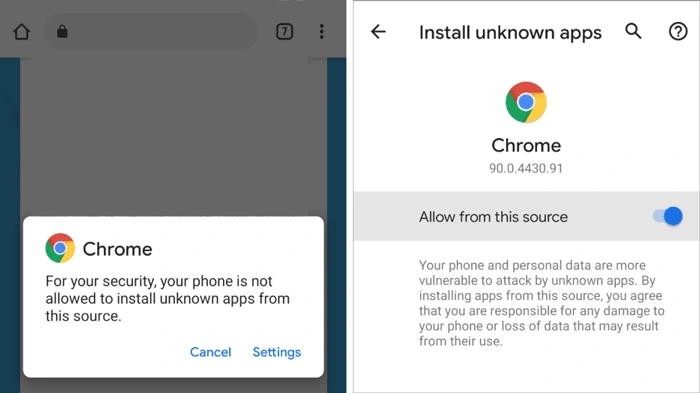
(1) Quick Popup Method: Tap the downloaded iReaShareAndroid.apk file. When a security warning pops up, tap Settings and enable Allow from this source.
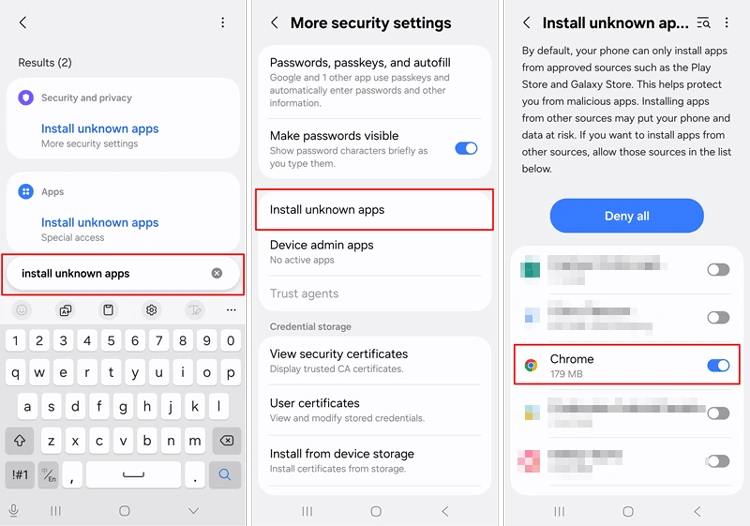
(2) Manual Device Settings: Go to your phone Settings > search for "Install unknown apps" > select your browser/file manager > toggle on Allow from this source.
Step 3: Complete Installation & Authorize System Permissions
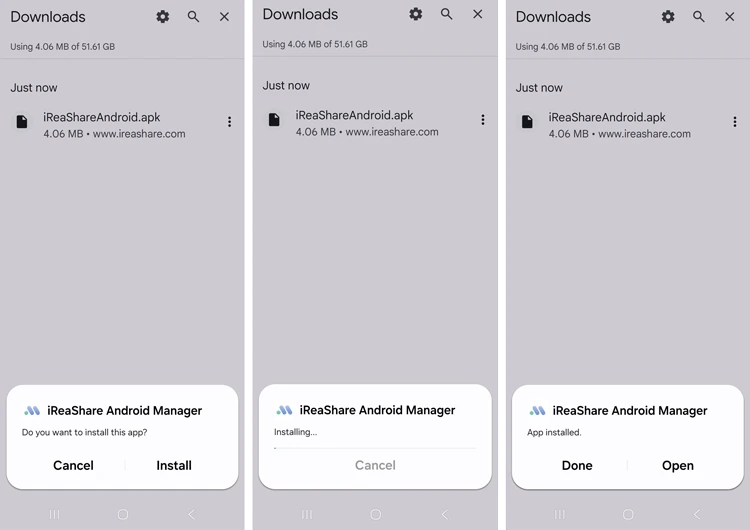
(1) Open your notification shade or File Manager, tap iReaShareAndroid.apk, and select Install.
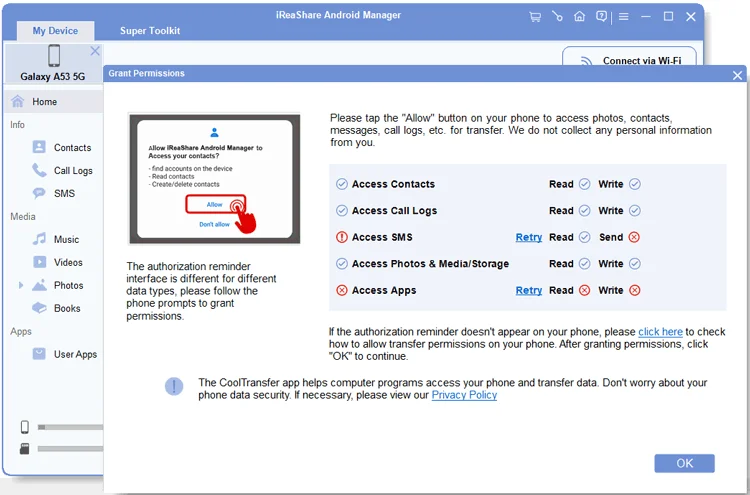
(2) Launch the newly installed app and grant all requested access permissions (such as Contacts, Messages, Logs, and Storage) so the desktop software can successfully manage your phone data.
(3) Optional Wi-Fi Pairing: If you wish to switch to a wireless connection, open the mobile app, tap the top-right Scan Code icon, and scan the QR code shown on your computer screen.
(Tips: To show the QR code, open iReaShare desktop software and click "Connect via Wi-Fi" button or Wi-Fi icon.)
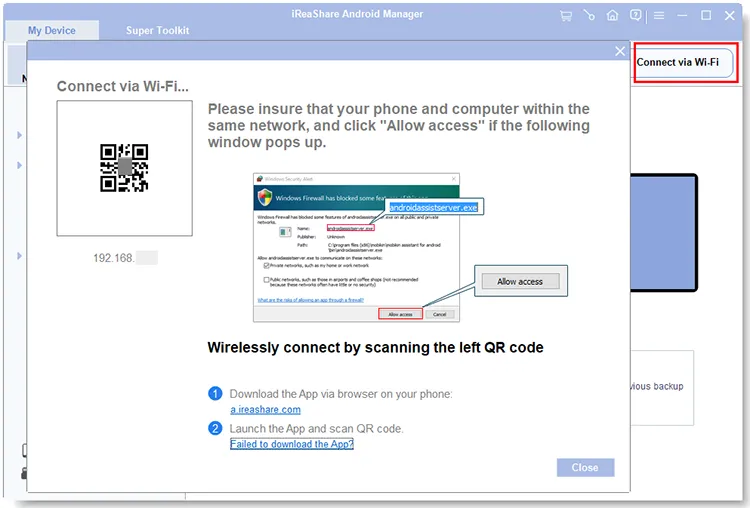
Part 3: Wireless Setup via CoolTransfer (Google Play Store Alternative)
If strict security protocols prevent you from installing external APKs, you can download our official alternative app - CoolTransfer - directly from the Google Play Store to enable a wireless Wi-Fi connection.
- Open Google Play Store on your Android phone, search for CoolTransfer, and install it.
- Ensure your phone and computer operate under the same network environment.
- Open CoolTransfer and tap the scan icon in the corner to read the QR code on your iReaShare PC program.
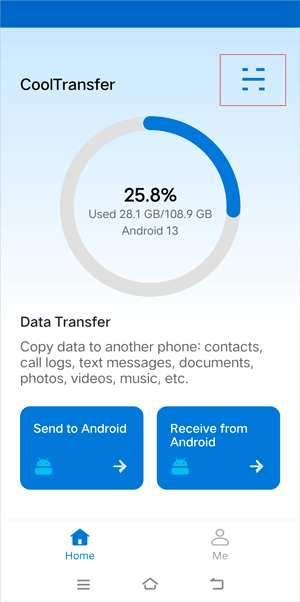
While CoolTransfer excels at fast wireless file transfers, it does not support sending SMS messages or managing mobile app through the desktop interface. For full operational capability, installing the primary iReaShare Android Manager app (Android Version) remains recommended.
Part 4: Need Further Help? Contact Support
If connection issues persist after trying these steps, feel free to reach out to our support specialists at support@ireashare.com. Please include:
- Your phone brand and exact model name.
- Your Android system version number.
- A short description of the problem along with any error screenshots.
Part 5: FAQs about iReaShare Android Manager app (Android version)
Q1: Why do I need to download and install the iReaShare Android Manager APK file on my Android device?
The Android version of iReaShare Android Manager is a bridge to link your Android device and computer when using iReaShare desktop software, which is the key to establishing the connection between devices. With it, you can transfer and manage your Android files via Wi-Fi on a computer.
Q2: What can the iReaShare Android Manager app (Android version) do on my Android phone?
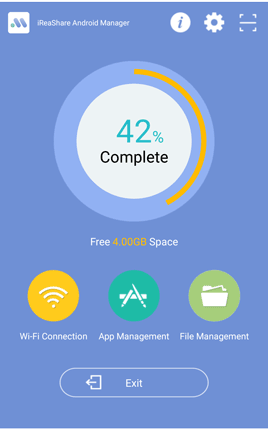
Besides helping you connect your Android devices and computer, it can free up the storage space of your Android device by cleaning junk files, and allow you to view and manange your apps and files.
Q3: Is the iReaShare Android Manager app (Android version) free to use?
Yes, the iReaShare Android Manager app (Android version) is totally free to install and use.
Troubleshooting Guides:
Why the Program Does Not Recognize Android Device and How to Fix It?
5 Solutions: Android USB Debugging Enabled But Detection Failed
Driver Installed Failed: Find Out Reasons and Install Driver Smoothly
How to Use iReaShare Android Manager