


"Hi, I'm new to Mac and wanted to transfer some photos to my mom's phone. But she uses a Samsung. I tried using Android File Transfer but it didn't recognise the device. Any advice would be appreciated. Thanks."
- From Reddit
Moving photos from a Mac to an Android phone or tablet can sometimes feel like crossing a digital divide. Since Mac and Android operate on different ecosystems, a direct drag-and-drop approach isn't possible. If you want to transfer photos from Mac to Android, you can try the effective methods in this guide, which can transfer pictures with quality.
- Part 1: How to Transfer Photos from Mac to Android via iReaShare Android Manager
- Part 2: How to Transfer Pictures from Mac to Android via Google Photos
- Part 3: How to Transfer Photos from Mac to Android Phone via AirDroid
- Part 4: How to Transfer Pics from Mac to Android Device via OpenMTP
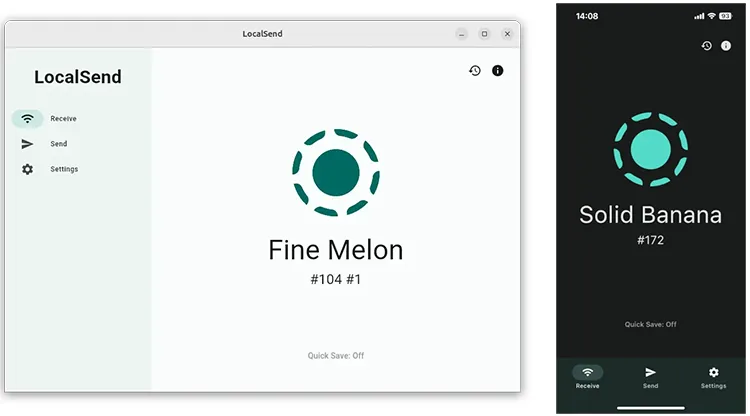
- Part 5: How to Send Photos from Mac to Android Phone via LocalSend
- Part 6: FAQs About Transferring Photos from Mac to Android
Have a quick look at these 5 methods:
| Method | Pros | Cons |
|---|---|---|
| iReaShare Android Manager | 1. Dedicated software for full device control and organization, including transferring and managing photos. 2. Provides USB and Wi-Fi connections between Android and Mac/PC. 3. Export or import photos between Android and Mac without damaging quality or format. 4. Support one-click backup and restore Android data on a computer. |
1. Requires installation of desktop software on Mac. 2. It is a paid application. 3. The Wi-Fi connection is not as stable as the USB. |
| Google Photos | 1. No cable required; access files anywhere. 2. Automatic backup/sync once set up on both devices. 3. Free (up to storage limit). 4. Cross-platform compatibility (native Android app). |
1. Requires an internet connection for upload/download. 2. Upload time depends on internet speed and file size. 3. Compresses high-quality photos after storage limit is reached. |
| AirDroid | 1. No cable needed. 2. Remote management capabilities (send SMS, screen mirror). 3. Easy drag-and-drop interface. |
1. Requires the same Wi-Fi network for local transfers. 2. Speed is dependent on local network performance. 3. Free version has file size/transfer limits and ads. 4. Requires installation on both devices. |
| OpenMTP | 1. Free and open-source. 2. Dedicated MTP bridge for Mac. 3. Dual-pane interface for easy navigation and direct transfer. 4. Fast (uses USB cable). |
1. Requires setting Android to File Transfer/MTP mode. 2. Requires a USB cable. 3. Can sometimes be less stable than paid software. |
| LocalSend | 1. Fast and secure transfer over local network. 2. Completely free and open-source. 3. No internet connection needed (only local network). 4. Simple interface; no account required. |
1. Requires installation on both Mac and Android. 2. Requires both devices to be on the same Wi-Fi network. 3. Primarily for transfer only (no file management features). |
Part 1: How to Transfer Photos from Mac to Android via iReaShare Android Manager
Dedicated desktop software like iReaShare Android Manager is designed to provide a comprehensive, all-in-one solution for managing your Android device from a Mac. With this program, you can directly transfer pictures from Mac to Android and vice versa with original quality.
Main features iReaShare Android Manager:
* Copy photos from a Mac computer to an Android device.
* Transfer photos from Android to Mac as well.
* Allow you to preview and select your photos before transferring them.
* Also transfer videos, music, documents, contacts, SMS, call logs, and apps.
* Support the read-only mode to ensure security for data transfer.
* Work for the Android devices running Android 6.0 or later, such as Samsung, OnePlus, TCL, Tecno, OPPO, Vivo, Honor, Google, Motorola, etc.
Download iReaShare Android Manager.
Download for Mac Download for Win
To transfer photos from Mac to a Samsung Android device with Android Manager:
-
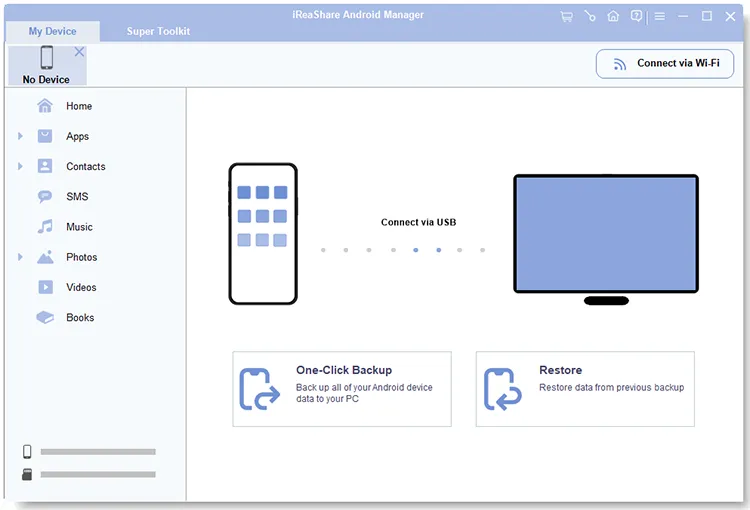
Download the iReaShare Android Manager application for Mac and install it. Then launch the software and connect your Android device to the Mac computer with a USB cable. If you want a wireless connection, please connect both devices to the same Wi-Fi network and click "Connect via Wi-Fi".
-
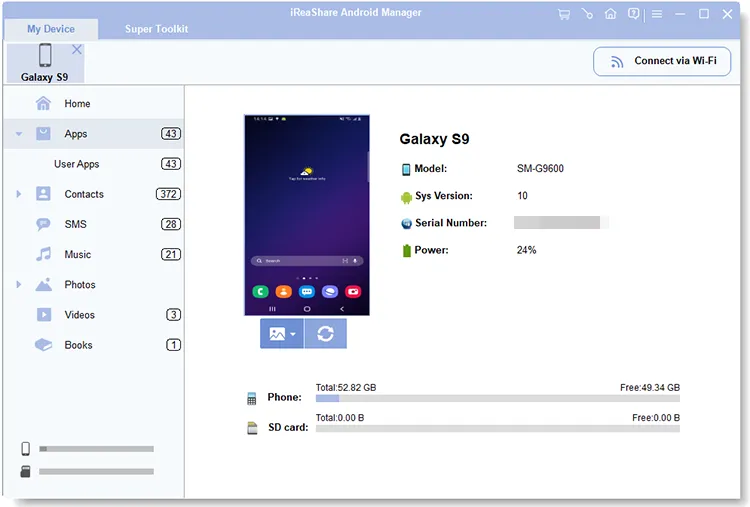
Follow the on-screen instructions to enable USB debugging on Android. The connection will be established.
-
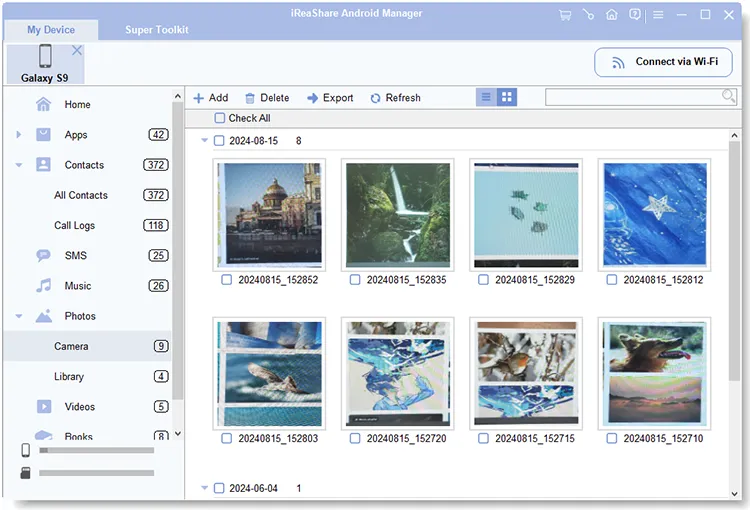
Now, choose the "Photos" category. Then click "Camera" or "Library", and tap "Add" to select photos from your Mac computer. Finally, click "Open" or "OK" to start importing your photos to the Android device.
Part 2: How to Transfer Pictures from Mac to Android via Google Photos
Google Photos is a cross-platform cloud storage and synchronization service, providing one of the easiest ways to sync files between a Mac and an Android device without a cable. However, if you don't have adequate cloud storage on your account, you cannot upload all your pictures at once.
To sync photos from Mac to Android:
-
Open your web browser on your Mac and go to the Google Photos website. Then sign in with the same Google Account you use on your Android phone.
-
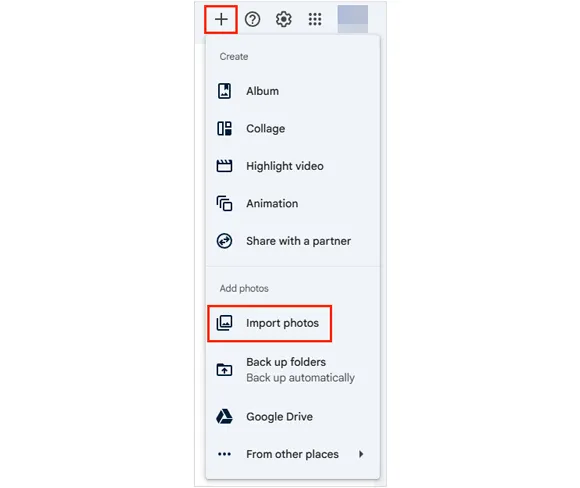
Click the "+" button > "Import photos", and select the photos from your Mac's local storage. Wait for the upload to complete.
-
On your Android phone, open the Google Photos app. Ensure you are logged into the same Google Account. The photos you uploaded from your Mac will automatically appear in your Google Photos library on your Android device, accessible via Wi-Fi or mobile network.
-
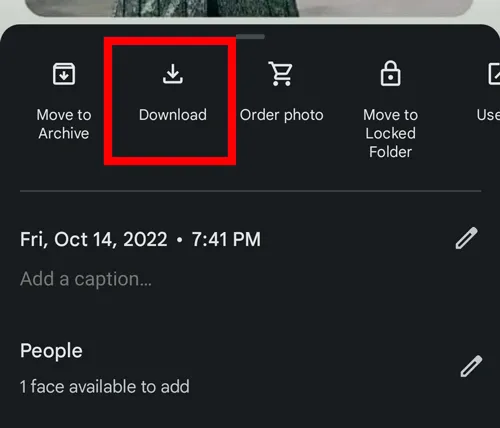
If you want to store the photos locally on your Android device's storage, open the picture in the Google Photos app, tap the three-dot menu, and select "Download".
Part 3: How to Transfer Photos from Mac to Android Phone via AirDroid
AirDroid is a popular third-party application suite that allows you to manage your Android device wirelessly from a desktop, making file transfers straightforward and convenient.
To transfer photos from Mac to an Android phone with AirDroid:
-
Download and install the AirDroid app on both your Android phone and your Mac. Create an AirDroid account and sign in on both devices.
-
Ensure both your Mac and Android phone are connected to the same Wi-Fi network. On your Mac, open the AirDroid desktop application.
-
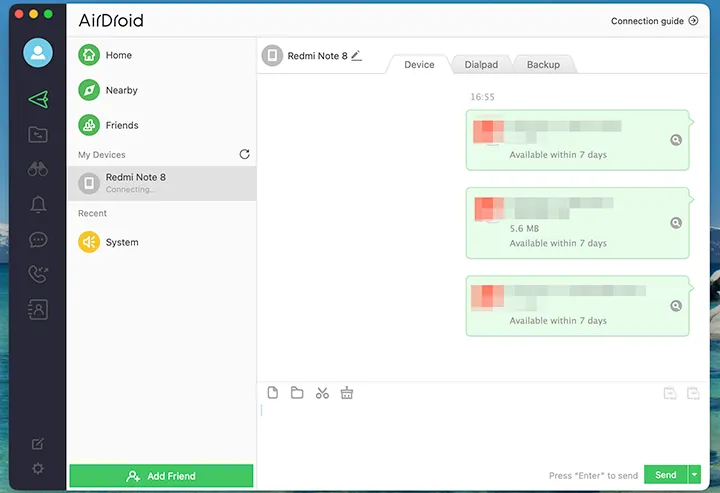
Select your Android device from the list, and choose the "Device" tab.
-
Drag the photos you want to transfer from your Mac's Finder window and drop them onto the AirDroid file transfer interface associated with your Android. The transfer happens wirelessly over your network. The photos will be saved in the designated AirDroid folder on your Android phone.
Part 4: How to Transfer Pics from Mac to Android Device via OpenMTP
OpenMTP is a free, open-source application specifically designed to solve the Mac-to-Android file transfer problem by utilizing the MTP (Media Transfer Protocol) standard. It acts as a dedicated bridge for file browsing.
To transfer pictures from Mac to Android via OpenMTP:
-
Download the OpenMTP application for Mac and install it. Then connect your Android device to your Mac using a USB cable.
-
On your Android phone, pull down the notification shade and tap the USB connection notification. Select the option for "File transfer/Android Auto" or "MTP".
-
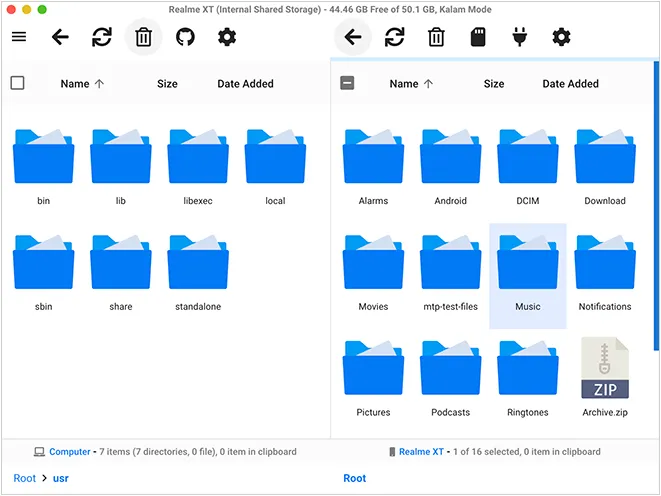
Launch the OpenMTP application on your Mac. It features a dual-pane interface: one side for your Mac's files (left) and one for your Android's internal storage (right).
-
Navigate to the folder on your Mac containing the photos (left pane) and navigate to the desired destination folder on your Android (right pane). Select the photos in the Mac's pane and click the "Transfer" button (usually an arrow pointing from left to right) to initiate the transfer.
Part 5: How to Send Photos from Mac to Android Phone via LocalSend
LocalSend is a cross-platform, open-source application that allows secure, peer-to-peer file sharing over a local network, similar to Apple's AirDrop, but works with Android, Mac, Windows, and Linux.
To move photos from Mac to Android via LocalSend:
-
Download and install the LocalSend application on both your Mac and your Android phone. Ensure both devices are connected to the same local Wi-Fi network.
-
Launch the LocalSend app on both devices. They should automatically discover each other. On the Mac app, click "Send" and select the photos you want to transfer.
-
Choose your Android device from the list of available receivers. On your Android phone, a notification will pop up. Tap "Accept" to begin the transfer.
-
The photos will be saved locally in a designated LocalSend folder on your Android device.
Part 6: FAQs About Transferring Photos from Mac to Android
Q1: Can I use Android File Transfer to drag and drop my photos from Mac to Android?
Yes, you can use the Android File Transfer (AFT) application for Mac to drag and drop photos and other files from your Mac to your Android phone. While the drag-and-drop functionality works, it's important to know that Android File Transfer is no longer officially supported or updated by Google and can often be unreliable, especially with newer versions of macOS and Android.
Q2: Can I AirDrop photos from Mac to Android?
No, you cannot use the standard, built-in AirDrop feature on your Mac to send photos to the vast majority of Android phones, including Samsung, OnePlus, etc. Even though Google has engineered between Android's "Quick Share" and Apple's AirDrop protocol. This feature is extremely new and is not yet widely available across all Mac and Android models.
Q3: Can I transfer pictures from Mac to Android via Bluetooth?
Yes, you can transfer pictures from a Mac to an Android phone using Bluetooth, as both devices support the Bluetooth file transfer protocol. This is done through the built-in Bluetooth File Exchange application on your Mac. However, be aware that this method is generally very slow and is only recommended for transferring a small number of small files, like a few pictures.
Conclusion
Now, with the methods above, you can seamlessly transfer your photos from Mac to Android without any trouble. Whether you prefer the seamless, cloud-based synchronization of Google Photos, the organizational power of iReaShare Android Manager, etc., there is a method perfectly suited for bridging the Mac and Android divide. By the way, if you often transfer files between your Mac and Android devices, iReaShare Android Manager will be the best assistant.
Download for Mac Download for Win
Related Articles
Back Up Android to Mac Without Hurdle: 5 Useful Solutions
How to Transfer Music from iPhone to Mac with Ease
Easily Transfer Photos from Android to Mac: 6 Reliable Methods
Transfer Photos from iPhone to Android Without Hassle (6 Ways)

