


When it comes to recording gameplay, whether for YouTube, Twitch streaming, or just preserving your gaming moments, having the right game recording software can make all the difference.
With so many options available, choosing the best one for your needs can be a bit overwhelming. In this article, we'll explore 11 popular game recording software options available today and offer answers to common questions to help guide your decision-making process.
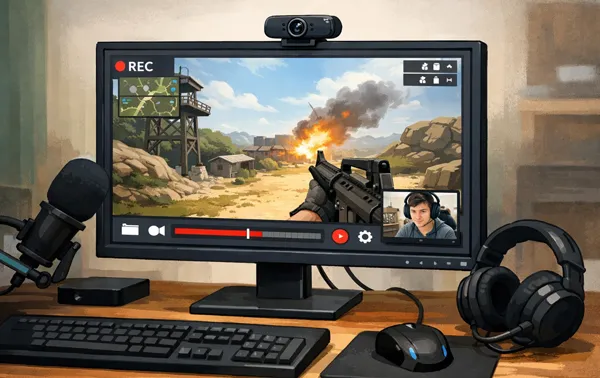
Part 1: Which Is the Best Game Recording Software?
If you want the best game recording software, this part will give you 11 reliable options. Then you can compare them easily. Please take a quick look at the comparison table of these tools.
| User Needs | Recommended Tools | Main Benefit |
|---|---|---|
| Beginners seeking high quality with a simple setup. | iReaShare Screen Recorder | Easy to record gameplay on a computer, and high-speed encoding with an intuitive user interface. |
| Professional streamers and power users. | OBS Studio | Unlimited customization and professional-grade mixing. |
| Users with limited storage or older PC hardware. | Bandicam | Superior compression that produces 4K video at small file sizes. |
| Casual Windows users wanting "zero-effort" clips. | Xbox Game Bar | Built-in to Windows; requires no installation. |
| NVIDIA GPU owners prioritizing gaming performance. | NVIDIA ShadowPlay | Hardware-level recording with virtually zero FPS impact. |
| Competitive gamers analyzing their own matches. | Insights Capture | Automatic bookmarking of kills, deaths, and key events. |
| Lightweight, open-source productivity fans. | ShareX | Completely free with instant uploading to cloud services. |
| Users needing fast, private link sharing for clips. | ScreenRec | One-click recording that generates a private sharing link instantly. |
| High-end gamers recording in 4K HDR10. | Action Recorder | Sleek HUD with built-in benchmarking and HDR support. |
| AMD GPU owners seeking driver-level stability. | Radeon ReLive | Seamless integration with AMD drivers for reliable video. |
| Social media creators who hate manual editing. | Outplayed | AI-powered highlight detection that finds your best plays. |
1.1 iReaShare Screen Recorder
iReaShare Screen Recorder is an intuitive tool designed for both casual and professional gamers. It allows you to capture your gameplay with high-quality video output. The software is lightweight, supports multiple formats, and has easy-to-use editing features. However, it might not offer the advanced features that some high-end recording programs have.
Main features of this game screen recorder:
* Support high-quality video recording with system or micropphone sound.
* Customizable recording area (full screen, window, or region).
* Provides simple editing tools for screenshots.
* Supports MP4 output format for videos, and PNG/JPG/JPEG/BMP for screenshots.
* Allows you to record a screen on a Windows PC.
* Silent video recording is supported.
Pros:
+ Very easy to use with a simple interface.
+ Offers flexibility in saving your videos.
+ Very low CPU usage.
+ Simple and modern UI.
Cons:
- Supports only MP4 output format only at present.
- Not as well-known or widely used as other recording software.
- Not free if you want to record your game without a watermark.
Download this game screen recorder.
Here's how to use this game recording software:
-
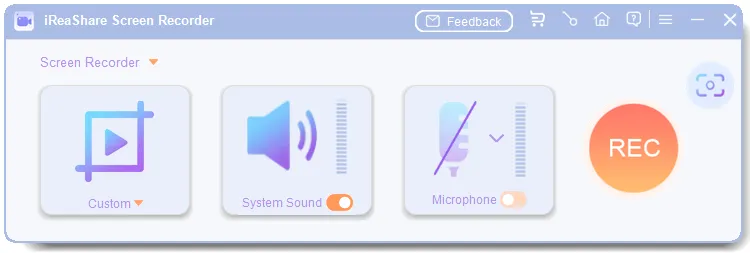
Install and open the screen recorder software on your computer after downloading it. Next, choose screen size option: "Full Screen" or "Custom", and select the audio source you need. Then click "REC".
-
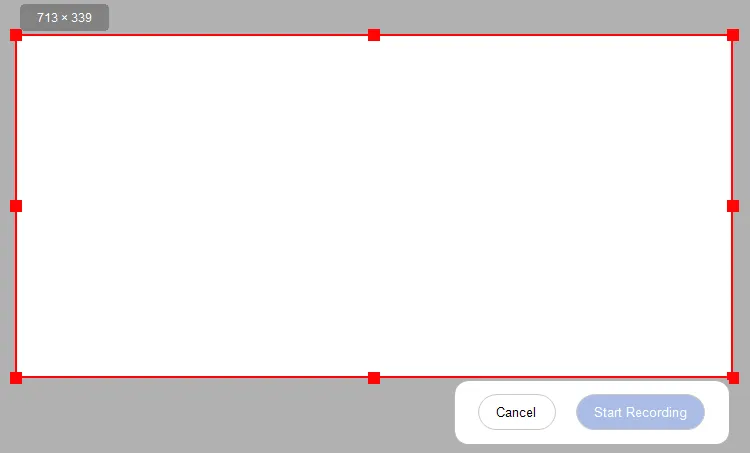
If you have chosen the "Custom" mode, you can drag and select the area you desire, and tap "Start Recording".
-
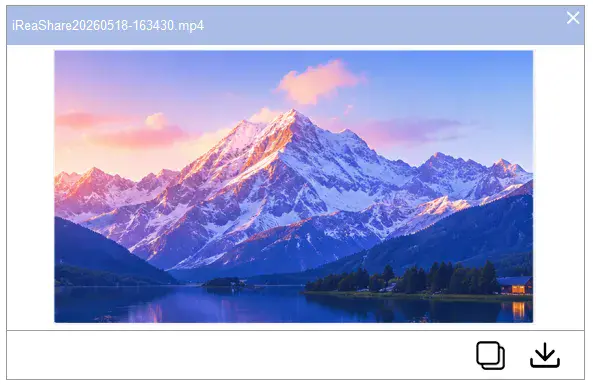
Once recorded, click "Stop Recording", and then click "Save" to export it to your computer, or directly copy and paste the video to a document or an app.
Tips: You can record a screen on a Mac computer with ease with this guide.
1.2 OBS Studio
OBS Studio is one of the most popular choices among streamers and gamers alike. It's an open-source, free software that allows for high-quality video recording and live streaming. OBS supports multiple audio and video sources, has customizable settings, and integrates well with streaming platforms like YouTube and Twitch. The only downside is that its interface may be intimidating for beginners.
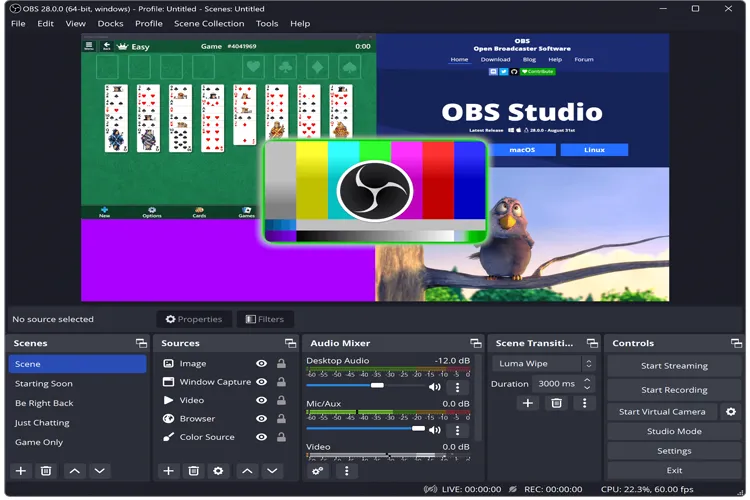
Pros:
+ Open-source and free.
+ Supports video recording and live streaming.
+ High customization for sources and scenes (e.g., webcam, overlays).
+ Multi-source recording (gameplay, webcam, system audio, microphone).
+ Supports major platforms like YouTube, Twitch, and Facebook Live.
+ Available for Windows, macOS, and Linux.
Cons:
- Not user-friendly for beginners.
- Can be demanding on system resources, potentially affecting performance.
- To get the best results, users often need to tweak settings.
1.3 Bandicam
Bandicam is a powerful and user-friendly screen recording software that specializes in high-quality video capture. With Bandicam, you can record your screen or capture game footage at resolutions up to 4K. It also offers a variety of codecs and output formats. While Bandicam is not free, it provides great value for its price and offers a trial version to test before committing.
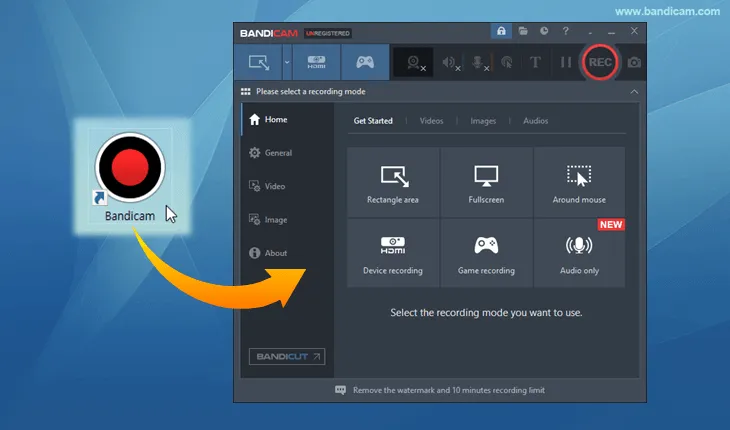
Pros:
+ High-quality video recording, including 4K UHD support.
+ Supports H.264, MPEG-4, and other popular codecs.
+ Lightweight, with minimal impact on system performance.
+ Allows for simultaneous recording of webcam and gameplay.
+ Simple interface for quick setup and recording.
Cons:
- Free version has limited features and a watermark.
- Editing capabilities are minimal.
- Doesn't support live streaming like OBS.
1.4 Xbox Game Bar
Built into Windows 10 and 11, Xbox Game Bar is a quick and simple way to record your gameplay without installing additional software. It's perfect for casual gamers who want a no-fuss solution for recording gameplay clips. While it lacks advanced features, it integrates seamlessly with Windows and provides a straightforward user experience.
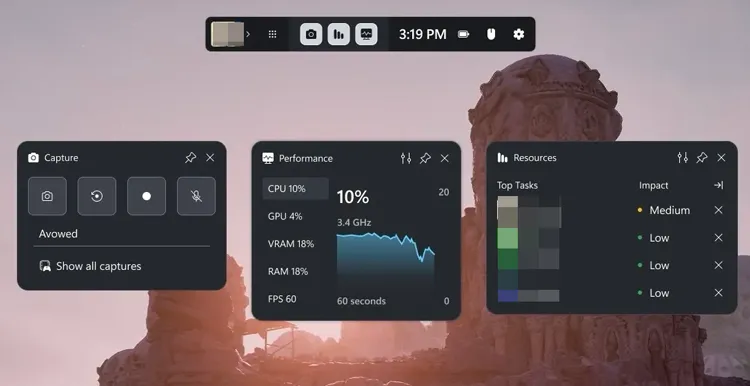
Pros:
+ Built-in Windows 10 and 11 feature, no installation required.
+ Records gameplay, takes screenshots, and controls audio.
+ Easy access through the "Windows + G" shortcut.
+ Integrates with Xbox Live for social sharing and interaction.
+ In general, no compatibility issues on Windows PCs.
Cons:
- Lacks advanced settings like frame rate or resolution controls.
- Doesn't offer the flexibility seen in other tools.
- No post-processing or editing features.
1.5 NVIDIA ShadowPlay
NVIDIA ShadowPlay is a powerful recording tool designed for users with NVIDIA graphics cards. This software allows you to capture gameplay with minimal impact on performance, thanks to its hardware acceleration. One of its standout features is the ability to record in the background and save recent gameplay clips with a simple hotkey. ShadowPlay also supports streaming and highlights, making it a go-to for NVIDIA GPU owners.
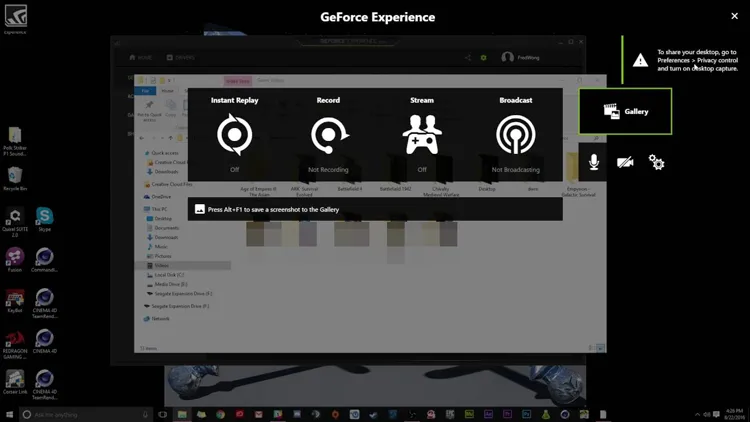
Pros:
+ Designed for NVIDIA GPU users, using hardware acceleration.
+ Supports instant replay to save recent gameplay with a hotkey.
+ High-quality recording at 4K resolution and up to 60 FPS.
+ Stream directly to platforms like Twitch and YouTube.
+ Included with NVIDIA GeForce Experience, so it's free to use.
Cons:
- Only available for systems with NVIDIA graphics cards.
- Not as customizable as OBS.
- Lacks built-in editing tools.
1.6 Insights Capture
Insights Capture is a lesser-known but highly effective game recording software that allows you to capture and edit your gameplay footage. It's especially useful for gamers who need advanced editing capabilities post-recording. While it doesn't have the same user base as OBS or Bandicam, it's still a solid option for content creators who want a balance between ease of use and powerful features.
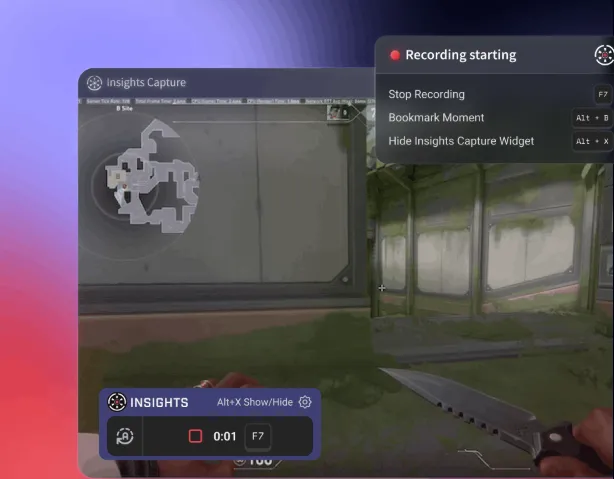
Pros:
+ High-quality screen and gameplay recording.
+ Supports annotations and text overlays during recording.
+ Provides basic editing tools for trimming videos.
+ Allows video sharing directly to social platforms.
+ Ideal for beginners or casual users.
Cons:
- Lacks high-end features for professional content creators.
- Not free (has a premium version with more features).
- Does not support live streaming, limiting its use for streamers.
1.7 ShareX
ShareX is a free and open-source screen capture tool that's packed with features. It supports high-quality game recording and offers powerful editing options, such as annotation tools. ShareX is perfect for gamers who want full control over their recordings but don't mind spending time on its complex interface.
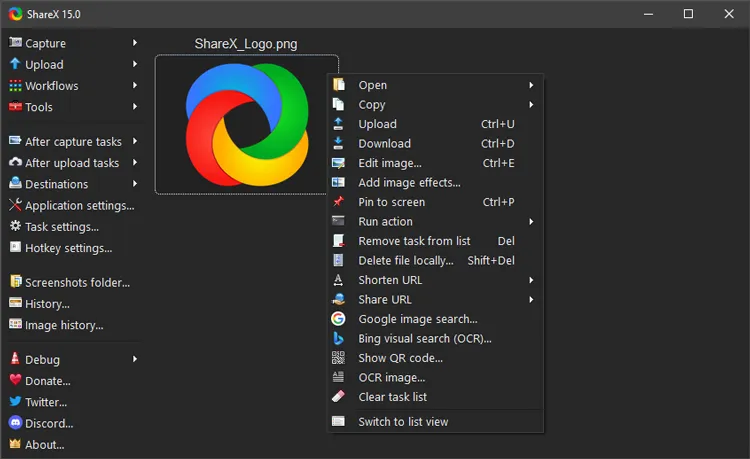
Pros:
+ Free and open-source screen capture tool.
+ Includes advanced editing tools like annotations, cropping, and resizing.
+ Customizable hotkeys for quick actions.
+ Allows screen recording, GIF creation, and direct uploads.
+ No cost, with a strong community supporting it.
Cons:
- Can be overwhelming for beginners.
- Lacks specific gaming features, like background recording, seen in other tools.
- A bit more setup is required than other tools.
1.8 ScreenRec
ScreenRec is a lightweight, fast screen recorder that's perfect for gamers who want a hassle-free experience. It's completely free and offers unlimited cloud storage for your recordings. While it may lack some advanced editing features, ScreenRec excels at simple gameplay capture and sharing with minimal system load.
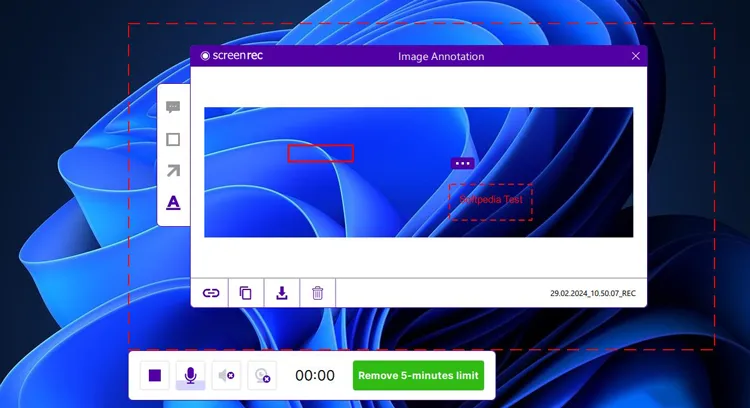
Pros:
+ Free and cloud-based screen recorder.
+ Unlimited video storage in the cloud.
+ Records high-quality video with webcam support.
+ Simple interface with easy-to-use controls.
+ Share videos via a link directly after recording.
Cons:
- No advanced editing or customization options.
- Less flexibility than higher-end tools.
- Only supports a few common formats for export.
1.9 Action! Recorder
Action! is a premium game recording software that delivers high-quality, smooth recordings at high FPS. It supports features like slow-motion video recording, live streaming, and real-time gameplay analytics. The software is highly recommended for gamers who want a comprehensive recording experience with no lag.
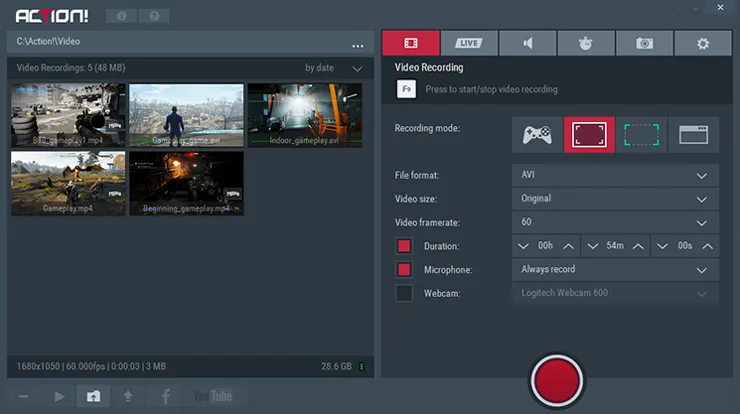
Pros:
+ High-quality video recording with frame rates up to 120 FPS.
+ Supports real-time video and audio effects.
+ Built-in live streaming support to Twitch, YouTube, and Facebook.
+ Supports 4K resolution and gameplay capture.
+ Includes slow-motion recording and webcam support.
Cons:
- No free version; requires purchasing a license.
- Can be demanding on lower-end systems.
- Lacks robust post-production editing tools.
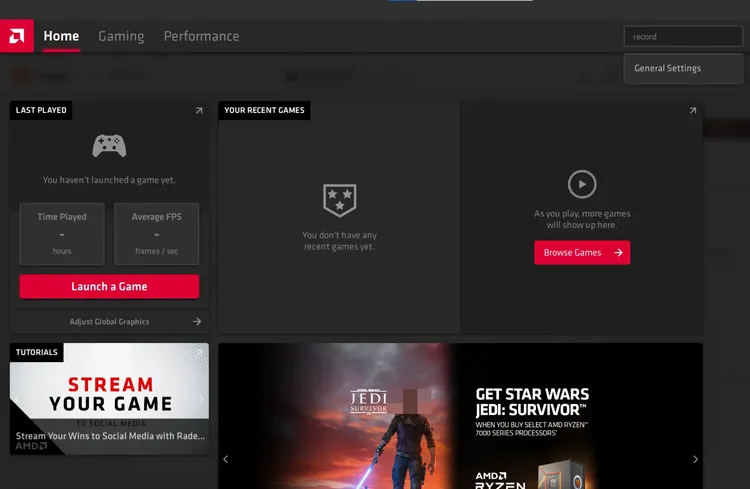
1.10 Radeon ReLive
Radeon ReLive is AMD's answer to NVIDIA ShadowPlay, offering similar performance features. It allows gamers to capture high-quality footage without a noticeable performance drop, especially when using an AMD GPU. ReLive is highly optimized for AMD users and provides a variety of settings for customizing gameplay recording, streaming, and sharing.
Pros:
+ AMD's proprietary game recording and streaming tool.
+ Supports high-quality video capture at 4K resolution.
+ Minimal performance impact due to hardware acceleration.
+ Allows instant replays and highlights.
+ Built-in streaming support for platforms like Twitch and YouTube.
+ No cost for users with AMD graphics cards.
Cons:
- Only works with AMD graphics cards, excluding NVIDIA users.
- Compared to other tools, it has fewer advanced options for editing or streaming.
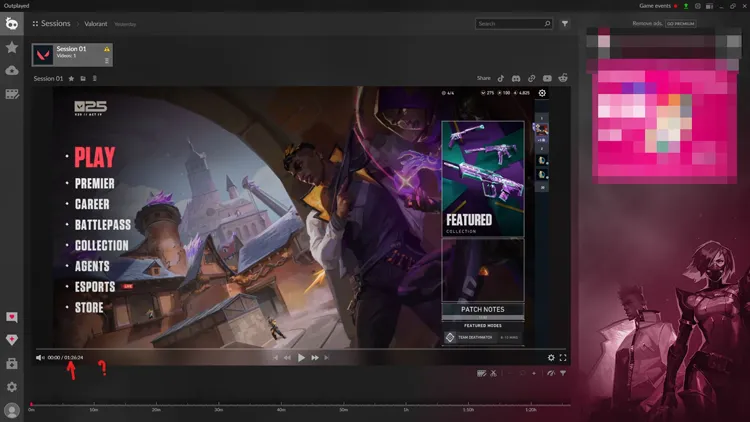
1.11 Outplayed
Outplayed is a gaming-focused recording tool that automatically detects your best gaming moments and saves them for you. It's especially useful for players who want to capture highlights without needing to manually start and stop recordings. With a simple and intuitive interface, Outplayed is perfect for casual gamers who want to easily record and share their gaming content.
Pros:
+ Automatically captures game highlights (e.g., kills, wins, best moments).
+ Lightweight and easy to use with a focus on gameplay highlights.
+ Easy for beginners to use.
+ Fast sharing options to social media.
Cons:
- Not a full-featured recording tool; focused only on highlights.
- Not as versatile as other options like OBS or Bandicam.
- Primarily for highlight capture, not full session recording.
Part 2: Q&A About Game Recording Software
Q1: How do I select a game screen recorder for PC?
Selecting the right game screen recorder depends on several factors:
- Performance: Choose a software that doesn't negatively impact your gameplay performance. Look for options with hardware acceleration, such as NVIDIA ShadowPlay or Radeon ReLive.
- Features: Determine what features you need. For instance, if you want live streaming and advanced editing, OBS Studio or Bandicam may be a better choice.
- Ease of Use: If you're new to recording, look for software that's user-friendly, like Xbox Game Bar, Screen Recorder on iReaShare, or ScreenRec.
- Price: Some programs, like OBS Studio and ShareX, are free, while others require a paid license, such as Bandicam or Action!. Consider your budget when making a choice.
Q2: What do YouTubers use to record gameplay?
Many YouTubers use OBS Studio for its versatility and customization options. It's free and allows for high-quality streaming and recording. However, some creators may also prefer Bandicam for its simple interface and ability to capture high-resolution footage. For those with NVIDIA or AMD graphics cards, ShadowPlay and Radeon ReLive are also popular choices for their minimal performance impact.
Q3: Is OBS better than Bandicam?
"Better" depends on your needs. OBS is better for streaming and complex setups because it is free and highly customizable. Bandicam is better for users who want a simpler interface, smaller file sizes, and specialized recording for low-end PCs.
Conclusion
Whether you are looking to become the next big YouTuber or just want to show off a rare achievement to your friends, there is a tool on this list for you. For the best balance of performance and ease of use, NVIDIA ShadowPlay, iReaShare Screen Recorder, or Xbox Game Bar are great starting points. If you want total control, OBS Studio remains the king, even though it is complicated to use.
Related Articles
ScreenFlow Review and Best Alternatives (Trustworthy Tutorial)
Reliable Screen Recorder for Android: 11 Options (With or Without Computer)
Camtasia Screen Recording Software: Latest Review and Top 12 Alternatives
AZ Screen Recorder Guide and 9 Practical Alternatives and Review

