


Among the many options available, ScreenFlow is a popular choice for both Mac and Windows users. This article will explore the pros and cons of ScreenFlow, provide a guide on how to use it, and introduce some of the best alternatives to ScreenFlow for those seeking different screen recording solutions.
Part 1: ScreenFlow Pros and Cons
ScreenFlow by Telestream is a sophisticated macOS-exclusive application that combines screen recording with a multi-track video editor.
Pros:
+ Captures crystal-clear video from your screen, retina displays, and even connected iOS devices.
+ Offers professional features like nested clips, closed captioning, and chroma key (green screen).
+ Allows you to record specific windows or regions, keeping your desktop clutter private.
+ Provides access to a massive library of clips and audio (with a subscription).
Cons:
- There is no Windows or Linux version available.
- Expensive.
- Beginners might find the interface more intimidating than simple "click-and-record" tools.
Part 2: How to Use ScreenFlow Software
Getting started with the ScreenFlow software is a straightforward process once you understand the dual nature of the app.
Here's how:
-
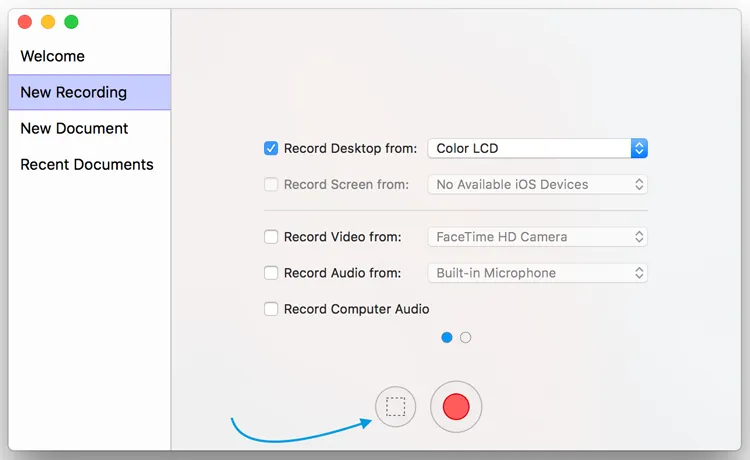
Upon launching, you'll see a "New Recording" window. Select your video source (Screen, Webcam) and your audio source (System Audio, Microphone).
-
Click the red record button. A countdown will appear, and ScreenFlow will begin capturing your desktop. After that, press "Shift" + "Cmd" + "2" to stop. The recording will automatically open in the ScreenFlow editor.
-
Drag your clips onto the timeline. You can add "Video Actions" to zoom in on specific areas or "Callouts" to highlight your cursor.
-
Once satisfied, go to "File" > "Export". You can choose presets for YouTube, Instagram, or high-definition MP4 files.
Part 3: Which's the Best ScreenFlow Alternative?
If ScreenFlow doesn't fit your budget or your operating system, these eight alternatives offer a range of features for every type of user. Take a quick look at the comparison first.
| User Need | Recommended Tool | Main Benefit |
|---|---|---|
| High-quality captures on mid-range hardware without system lag. | iReaShare Screen Recorder | Lightweight performance supporting high resolution without taxing the CPU. |
| Quick, professional results for beginners wanting a modern interface. | Movavi Screen Recorder | Extremely easy to use with "one-click" recording and scheduled capture features. |
| Advanced customization and live streaming at no cost. | OBS Studio | Powerful, free, and open-source with unlimited scenes and professional audio mixing. |
| Viral content creation for TikTok, Reels, or social media. | Vizard | AI-driven clipping and auto-captioning that turns long videos into vertical shorts. |
| Mac-optimized performance with high frame rates for gaming. | Screenflick | Superior recording performance and the ability to edit the mouse cursor after recording. |
| Classroom and training videos with hosting and interaction. | ScreenPal | Built-in cloud storage, script-based recording, and interactive quizzes for students. |
| Drawing and annotating on-screen during live demonstrations. | Ice Cream Screen Recorder | Excellent real-time "Pen" and "Shape" tools for live visual explanations. |
| Simple, instant recordings without installing third-party apps. | QuickTime Player | Completely free and pre-installed on every Mac; perfectly stable for basic needs. |
3.1 iReaShare Screen Recorder
If you want a lightweight, user-friendly option perfect for those who want a "no-fuss" experience, you can choose iReaShare Screen Recorder. It features options for recording full screen or specific areas, and it allows for screenshots. Although it lacks some advanced editing features, its ease of use and affordable price make it a solid alternative to ScreenFlow.
Pros:
+ Offers an intuitive and easy-to-use interface that makes it accessible for beginners.
+ Can record a screen on a Windows PC without lags.
+ The software is generally less expensive than ScreenFlow, providing a budget-friendly option for users.
+ Supports high-quality recording.
+ Allows saving in MP4 format to ensure compatibility across all devices.
+ Enable you to capture the screen, and edit the screenshot directly.
Cons:
- Lacks the deep multi-track timeline editing found in ScreenFlow.
- No Mac version at present.
Download iReaShare Screen Recorder.
Here's how to use this alternative to ScreenFlow:
-
Download and install the screen recorder software on your Windows computer. Then open it on the desktop.
-
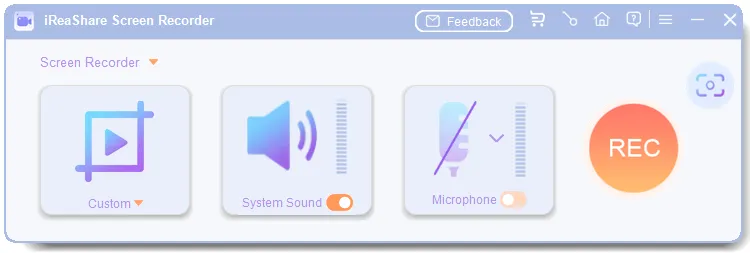
Choose a screen area: Full Screen or Custom. Then turn on "System Sound" or "Microphone", and click "REC".
-
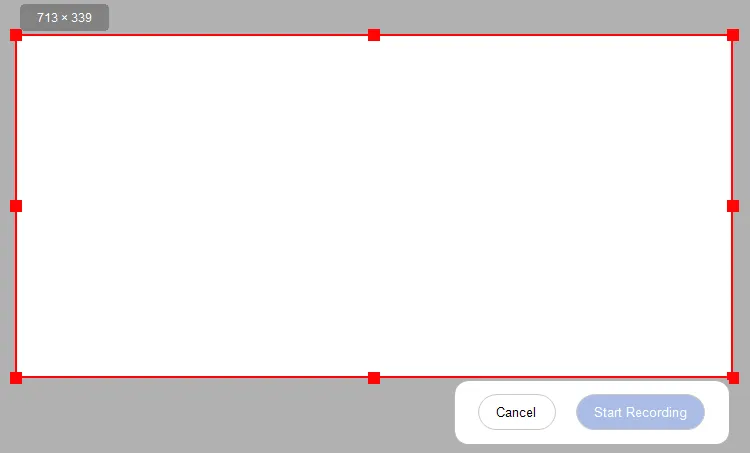
For the custom mode, you can select the screen region on your own, and click "Start Recording". After recording, tap "Stop Recording" and save the video to your computer.
3.2 Movavi Screen Recorder
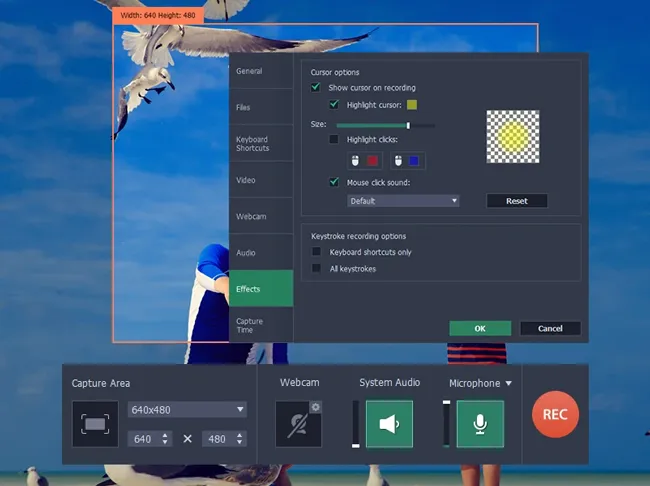
Movavi is the "Goldilocks" of recorders - not too simple, not too complex. It's available for both Mac and Windows and features a sleek interface that allows for quick annotations while you record. While Movavi lacks some of the advanced editing features of ScreenFlow, it offers a much lower price point, making it a good option for users on a budget.
Pros:
+ Movavi's clean and simple interface makes it very easy for beginners to get started quickly.
+ It's a great budget alternative for casual users or those who don't need all of ScreenFlow's advanced features.
+ Provides a timer to start and stop recording automatically (great for webinars).
+ Effortlessly merges your face and screen into a polished layout.
Cons:
- The free version adds a prominent watermark to your videos.
- Lacks the complex audio routing and scene switching required by professional streamers.
- Some users report that Movavi can lag when working on long or complex recordings.
3.3 OBS Studio
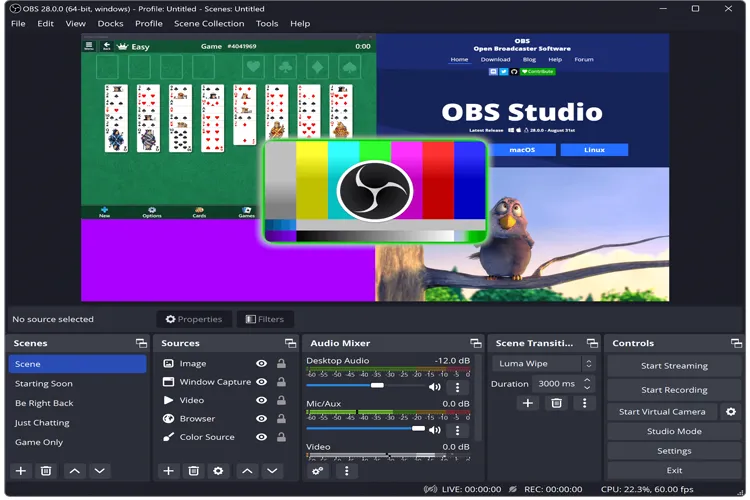
As an industry standard for streamers. OBS (Open Broadcaster Software) is free and open-source. While it has a steep learning curve, its ability to handle complex scenes and live broadcasts is unmatched. However, it lacks advanced editing tools, so users may need additional software for post-production.
Pros:
+ Completely free, making it a powerful choice for users who need an affordable screen recording tool.
+ Provides a variety of settings for both screen recording and live streaming, allowing users to tailor the software to their needs.
+ Offers unique features like live streaming integration, scene switching, and real-time video mixing, which ScreenFlow doesn't support natively.
+ Unlike ScreenFlow, OBS works on Windows, macOS, and Linux, making it a more versatile option for multi-platform users.
Cons:
- Can be overwhelming for beginners due to its advanced settings and customization options, unlike ScreenFlow, which is more user-friendly.
- While OBS excels at recording, it lacks native video editing tools.
- Can be resource-heavy, especially when recording or streaming in high resolutions, which might affect performance on lower-end devices.
3.4 Vizard
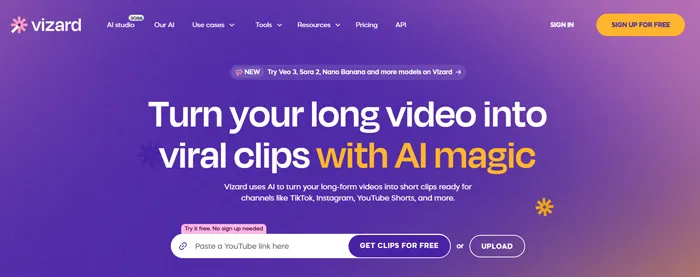
Vizard is a modern, AI-powered alternative focused on social media. While it doesn't have the same extensive feature set as ScreenFlow, it is particularly good at taking long-form recordings and automatically "clipping" them into vertical videos for TikTok or Reels.
Pros:
+ Provides simple screen recording without the complexity of heavier software.
+ Allows you to record in high definition, ensuring that videos are clear and professional.
+ No need for a powerful computer as much of the processing can happen on their servers.
+ Generates highly accurate captions on-device.
Cons:
- Most of the "magical" AI features require a monthly fee.
- Because it leans heavily on cloud features, a slow connection can hinder your workflow.
- The range of export formats and resolution options are more limited compared to ScreenFlow's versatile output capabilities.
3.5 Screenflick
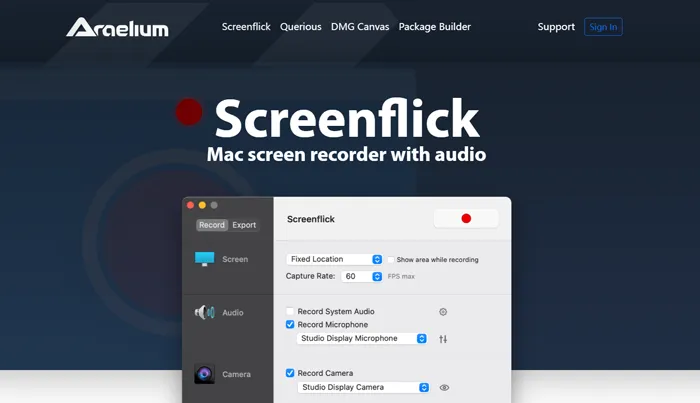
Screenflick is another excellent option for Mac users looking for a high-quality screen recording tool. It supports high-definition recordings and allows for audio and webcam capture. However, it is not as feature-packed as ScreenFlow when it comes to video editing.
Pros:
+ Allows for high-resolution screen recordings, and it supports both video and audio capture, ensuring professional results.
+ It's not as resource-intensive as some other tools, making it suitable for users with less powerful systems.
+ Allows you to change the cursor size or hide the mouse after you have finished recording.
+ Offers a much more affordable flat fee compared to ScreenFlow.
Cons:
- No tyimeline editor.
- Not an option for Windows or Linux users.
- Unlike some alternatives, Screenflick lacks cloud storage integration for easy sharing of recordings.
3.6 ScreenPal
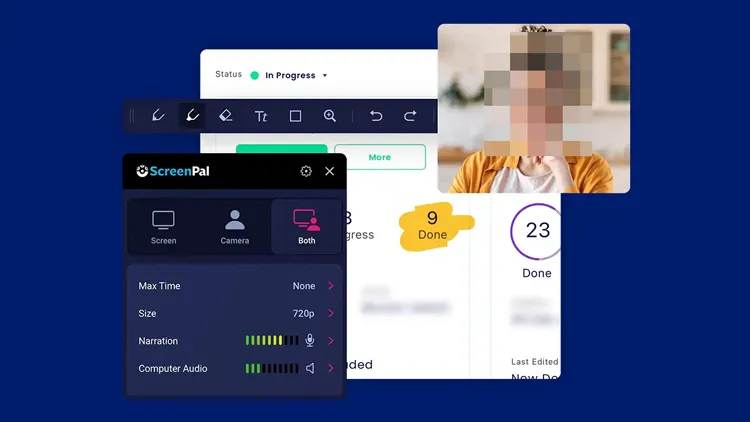
Formerly known as Screencast-O-Matic, ScreenPal offers an easy-to-use screen recorder and video editor. It's great for quick recordings and comes with basic editing tools like trimming, captions, and annotations. The free version is limited, but the premium version adds more advanced options for a reasonable price.
Pros:
+ Offers cloud hosting, allowing users to save their recordings online and access them from anywhere.
+ Offers basic editing tools such as trimming, adding captions, and drawing on the screen, which can be enough for many casual users.
+ Allows you to import a script and record your voiceover in sections to match the screen.
+ Provides a built-in cloud library for easy sharing with students or teams.
Cons:
- ScreenPal doesn't have the same advanced features as ScreenFlow, such as multi-layered editing, animations, or transitions.
- The free version includes watermarks on videos.
- The free version of ScreenPal has restrictions on video length and export options.
3.7 Ice Cream Screen Recorder
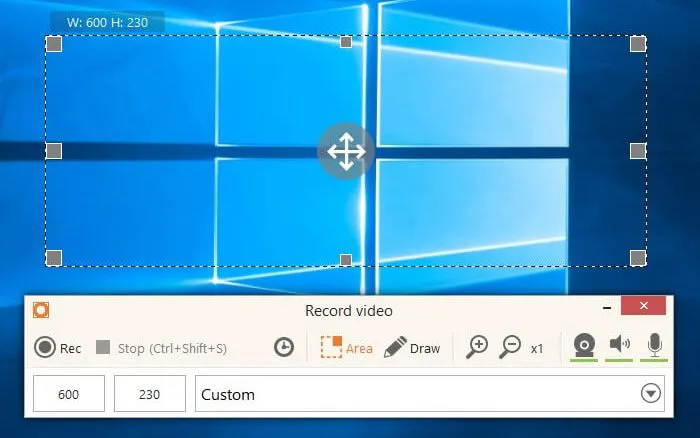
Ice Cream Screen Recorder is a budget-friendly option for Windows users. It is easy to use and offers features like annotation tools, adding watermarks, and recording area selection. The free version has limited features, but the pro version offers much more for a fair price.
Pros:
+ Supports full-screen, window-specific, and custom area recording, giving users flexibility in capturing what they need.
+ The price is relatively low, and it offers both a free version (with limitations) and an affordable paid version with more features.
+ Allows users to add annotations, such as text, shapes, and arrows, during the recording process, making it suitable for tutorial creation.
Cons:
- Lacks many advanced editing and customization tools that ScreenFlow provides, such as multi-layer editing and effects.
- The free version includes a watermark, which limits its use for professional content creators.
- The free version is quite restricted in terms of output file types.
3.8 QuickTime Player
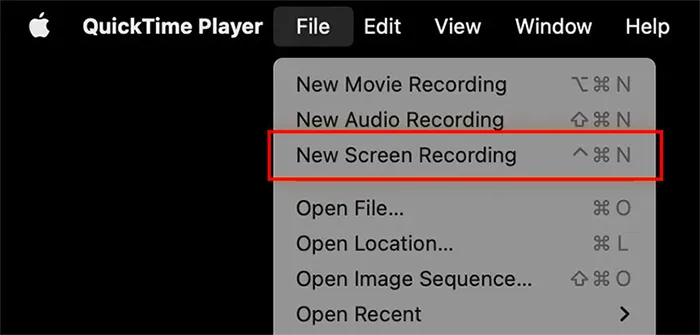
The "Old Reliable" for Mac users. It comes pre-installed and is completely free. While it lacks editing features and system audio recording (without third-party plugins), it is perfect for quick, basic screen captures.
Pros:
+ It is a built-in screen recording tool on macOS, making it free and easy to access for Mac users without any extra downloads.
+ It's perfect for basic screen recording tasks, such as capturing tutorials or demonstrations.
+ Doesn't impose watermarks on recorded videos, unlike some free alternatives.
Cons:
- Lacks advanced editing features or any post-production tools.
- There are fewer options for customization, such as selective area recording or system audio capture, which ScreenFlow provides.
Conclusion
ScreenFlow remains one of the most popular screen recording and editing tools available, particularly for Mac users. Its powerful features make it suitable for both beginners and professionals. However, its high price and Mac-only availability may make it less appealing for some.
Fortunately, there are numerous alternatives, such as Movavi, OBS Studio, iReaShare Screen Recorder, and ScreenPal, that offer similar functionality at different price points. Whether you need advanced editing capabilities or a simple screen recording tool, there's a solution out there to meet your needs.
Related Articles
AZ Screen Recorder Review and Top 9 Alternatives (Latest)
Guide: How to Use Mac Screen Recorder on iReaShare
Cast Android to Windows 10/11 PC (Contain USB and Wi-Fi Connections)
How to Transfer Videos from PC to Android in 7 Wired or Wireless Ways

