


Camtasia stands out as a long-established, all-in-one solution that combines screen capture with advanced video editing. However, not all users like using Camtasia. This article provides a comprehensive review of Camtasia, explains how to use it, compares it with 12 leading alternatives, and answers common questions.
Part 1: Latest Review of Camtasia Screen Recording Software
Camtasia remains a powerhouse by bridging the gap between a basic screen recorder and a professional video editor.
Main features of Camtasia:
* Capture full screen, specific regions, or individual application windows with high frame rates and 4K support.
* Access to royalty-free music, icons, and motion graphics that can be dragged directly into your timeline.
* A unique feature that allows you to smooth out or redirect cursor movements after the recording is finished.
* Direct export to YouTube, Vimeo, or local formats (MP4, GIF, etc.).
Pros:
+ Beginner-friendly interface with professional output.
+ All-in-one solution (recording + editing).
+ Extensive visual effects and annotation tools.
+ Reliable performance for tutorial and training videos.
Cons:
- Higher cost compared to many alternatives.
- Can be resource-intensive on older systems.
- Limited real-time streaming capabilities compared to OBS.
How to Use Camtasia to Record a Screen:
-
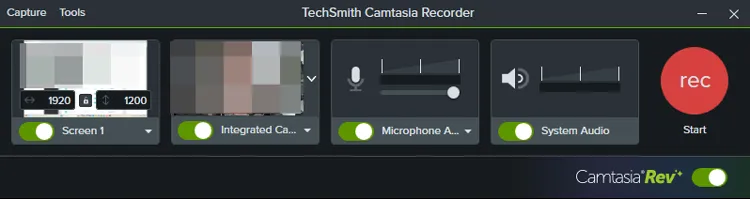
Open Camtasia and click the "New Recording" button. Then select your screen area, toggle your webcam on/off, and choose your microphone and system audio.
-
Click the red "REC" button to start recording your screen. On Windows, you can click "F10" to stop it. On Mac, click "Cmd + Option + 2".
-
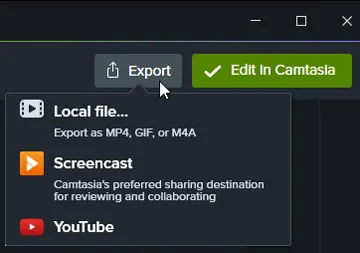
The footage automatically drops into the Camtasia editor. Trim your clips, add callouts, and click "Export" to save or share directly to YouTube or Drive.
Part 2: Top 12 Alternatives to Camtasia Screen Recorder
If Camtasia doesn't fit your budget or workflow, these twelve alternatives offer a range of specialized features.
Take a quick look at the comparison table.
| Recommended Tool | Primary User Needs | Main Benefit |
|---|---|---|
| iReaShare Screen Recorder | High-quality recording of Windows screens without an internet. | Record a screen with simple clicks, and directly take screenshots and edit images on a computer. |
| OBS Studio | Advanced users need professional-grade live streaming and multi-source capture. | Completely free, open-source, and offers unlimited customization via plugins. |
| SimpleScreenRecorder | Linux users look for a lightweight, stable, and highly efficient recording utility. | Superior performance on Linux with a "set-and-forget" approach. |
| ScreenRec | Business teams and developers who need to share quick, private video bug reports or feedback. | Automatically generates a private cloud link the moment you stop recording. |
| Snagit | Professionals who prioritize annotated screenshots and very short, instructional clips. | The industry's best tool for scrolling captures and professional image markup. |
| ScreenPal | Educators and trainers requiring interactive elements like quizzes and hosting in one place. | Robust AI tools for video storyboarding and auto-generating interactive quizzes. |
| Movavi Screen Recorder | Casual users or webinar attendees who want an easy interface and scheduled recording. | The "Scheduler" feature allows you to record live events automatically while away. |
| Vmaker | Content creators and HR teams need AI-polished "face-cam" videos for social media. | Automatically adds subtitles, B-roll, and background music using AI. |
| Bandicam | Gamers and users with low-end PCs who need high-frame-rate recording with low CPU usage. | Captures high-quality video with the smallest file sizes and minimal system lag. |
| ClipChamp | Windows users looking for a free, built-in, web-based editor for quick social media videos. | Fully integrated into Windows with a rich library of stock assets and AI voices. |
| Screencastify | Chrome users and K-12 teachers who need a simple browser extension for quick lessons. | Deep Google Drive/Classroom integration with no desktop software required. |
| ScreenFlow | macOS power users who want a professional timeline-based editor designed for Apple Silicon. | The most powerful, retina-ready recording and animation suite for Mac. |
2.1 iReaShare Screen Recorder
iReaShare Screen Recorder is a streamlined tool known for high-definition recording with zero lag, making it ideal for those who want quality without the complexity of a full editor.
Pros:
+ Supports full-screen and region capture on Windows.
+ System audio or microphone recording is available.
+ Record a screen without time limits.
+ Take screenshots on a PC and edit it with practical features.
+ Provides accessible file formats, including MP4 for videos, PNG/JPG/JPEG/BMP for screenshots.
+ Suitable for quick recordings and demos.
+ Low system requirements and easy to use.
+ Records an Android or iOS screen on a computer after mirroring with ease.
Cons:
- Limited advanced editing compared to Camtasia.
- No automation and template features.
- Requires a separate license for no-watermark screen recording.
Download this Camtasia alternative to record your screen.
How to use this alternative to Camtasia:
-
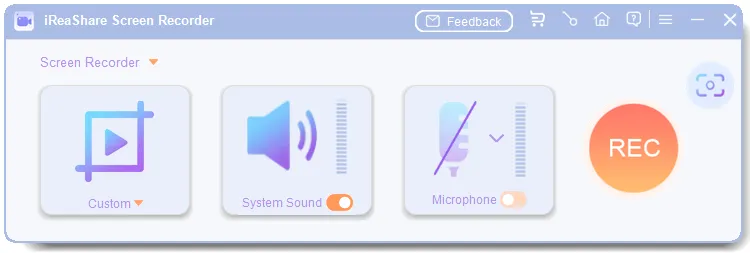
Download and install the screen recorder program on your computer. Then open it. Choose a recording area, "Full Screen" or "Custom", turn on an audio source you want, and click "REC".
-
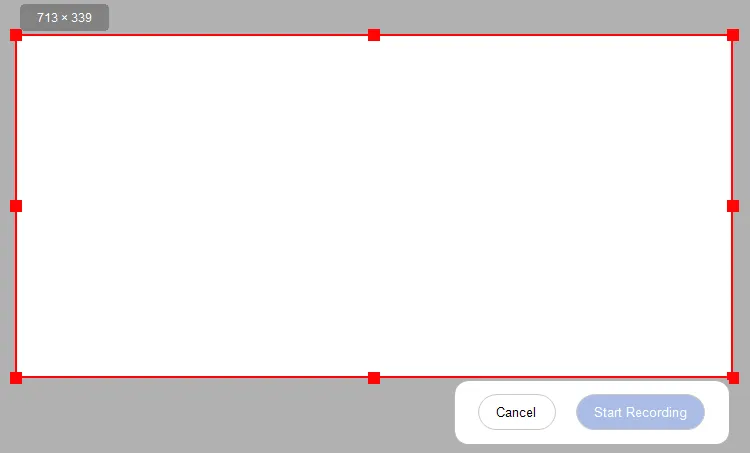
Drag and select the desired area on the screen, and click "Start Recording".
-
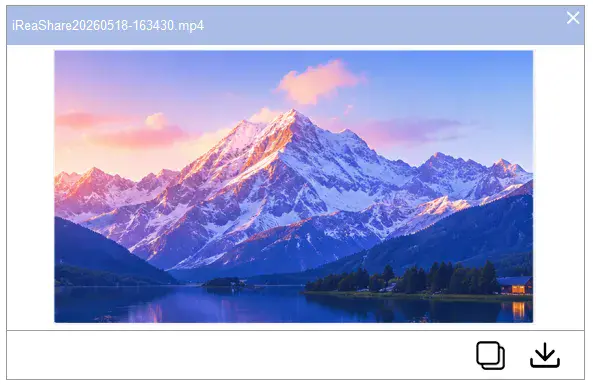
Once done, click "Stop Recording", and save it to your computer.
2.2 OBS Studio
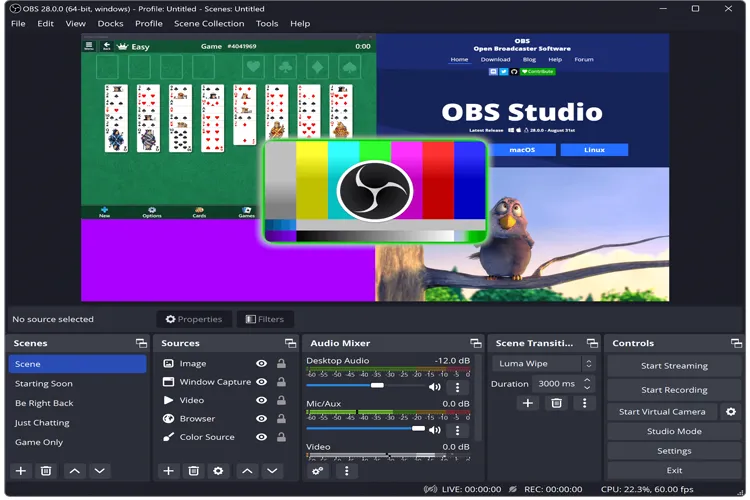
OBS Studio is the king of open-source. It is free and incredibly powerful for live streaming and multi-source recording, though it has a steep learning curve.
Pros:
+ Scene-based recording with multiple sources.
+ Live streaming integration (YouTube, Twitch).
+ Plugin ecosystem and extensive customization.
+ High-quality recording up to 4K.
+ Real-time audio mixing and filters.
+ Free and open-source with no watermarks.
Cons:
- High learning curve.
- Lacks a native timeline-based video editor.
2.3 SimpleScreenRecorder
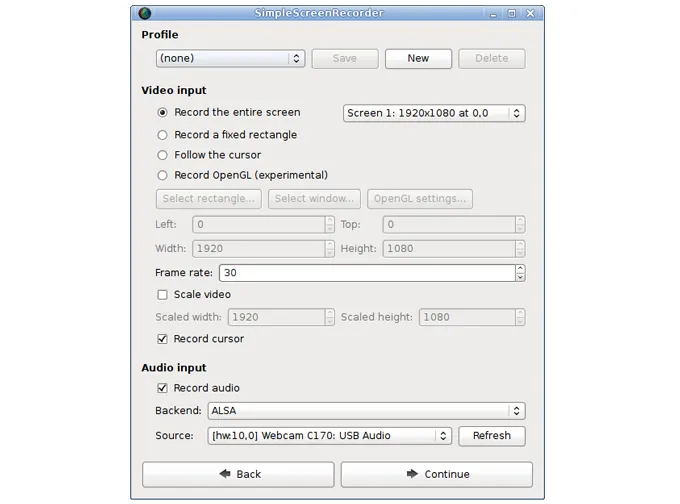
SimpleScreenRecorder is a lightweight Linux-based recorder designed for efficiency and speed.
Pros:
+ Optimized for Linux environments.
+ Low-latency recording.
+ Custom frame rate and codec control.
+ Supports live preview.
+ Efficient performance on older hardware.
Cons:
- Linux only.
- Minimal editing features.
- Outdated interface compared to modern tools.
2.4 ScreenRec
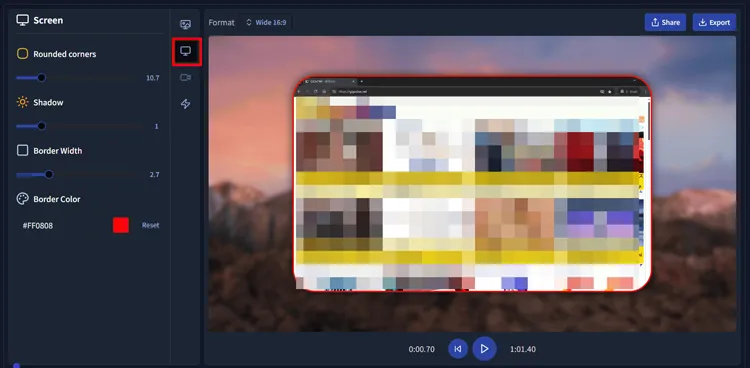
ScreenRec is a simple, no-fuss tool that focuses on instant sharing via private cloud links—great for quick workplace communication.
Pros:
+ Instant sharing via private links.
+ Screenshot and video capture.
+ Cloud storage integration.
+ Lightweight recorder.
+ Fast sharing for remote teams.
+ Minimal setup required.
Cons:
- Limited editing tools.
- Cloud reliance for full functionality.
- Not ideal for polished tutorial production.
2.5 Snagit
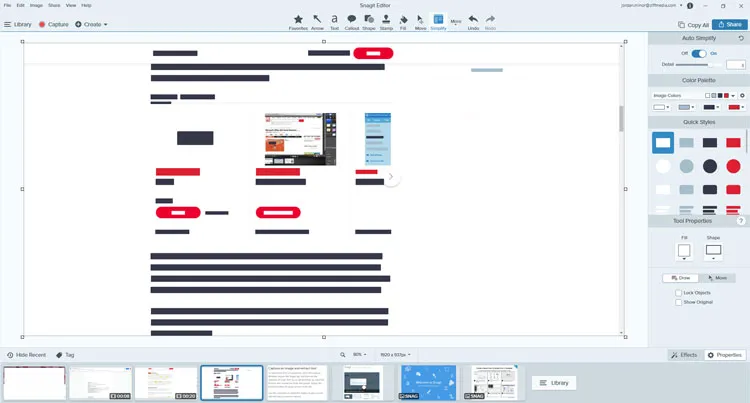
Made by the same company as Camtasia (TechSmith), Snagit is focused on quick captures and annotated screenshots rather than long-form video.
Pros:
+ Excellent for documentation and tutorials.
+ Advanced screenshot capture.
+ Short video recording.
+ Seamless integration with Camtasia.
Cons:
- Limited long-form video editing.
- Not ideal for complex video projects.
- A paid software app.
2.6 ScreenPal
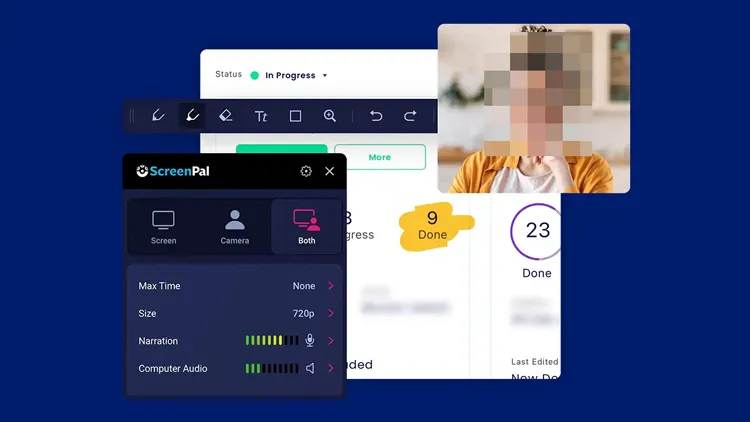
Formerly Screencast-O-Matic, ScreenPal is a versatile, budget-friendly option used widely in education.
Pros:
+ Screen, webcam, and audio recording.
+ Built-in editing (trim, cut, effects).
+ Direct publishing to platforms.
+ Background blur and webcam controls.
+ Flexible publishing and sharing options.
Cons:
- Subscription required for full features.
- Limited advanced effects compared to Camtasia.
2.7 Movavi Screen Recorder
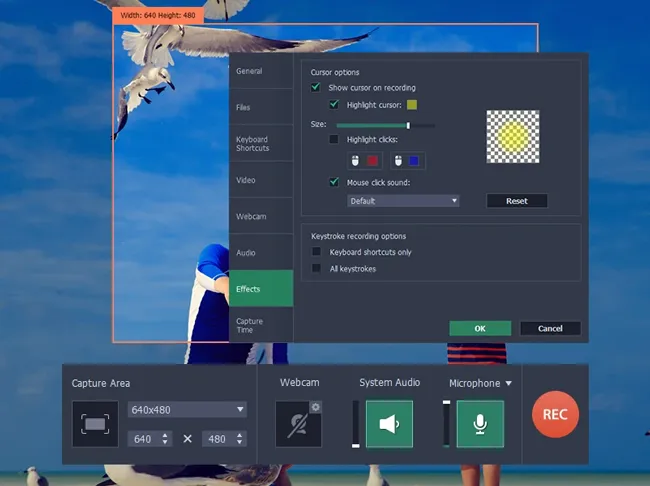
Movavi Screen Recorder is a user-friendly alternative that balances basic editing features with an interface that anyone can master in minutes.
Pros:
+ Scheduled recording (capture webinars while away), real-time drawing, and keystroke display.
+ Includes high-quality audio noise reduction and a built-in basic editor.
+ Basic editing tools.
+ Good balance between features and simplicity.
Cons:
- Limited advanced editing.
- Watermark in free version.
- Fewer templates and assets.
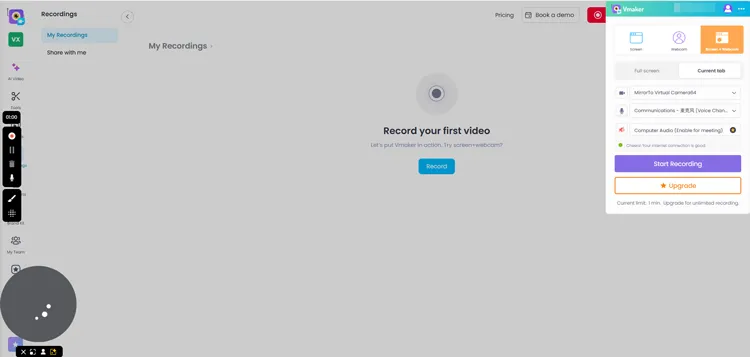
2.8 Vmaker
maker is an AI-powered recorder that simplifies the process of creating "face-cam" videos for tutorials and LinkedIn updates.
Pros:
+ Provides "Agent Force" AI bots for content tasks.
+ Virtual background support, and a collaborative team workspace.
+ Excellent for social media and LinkedIn videos.
+ Great team management features.
Cons:
- Higher-tier plans are pricey.
- Heavily dependent on a stable internet connection for cloud features.
- Free to record a screen for only 1 minute.
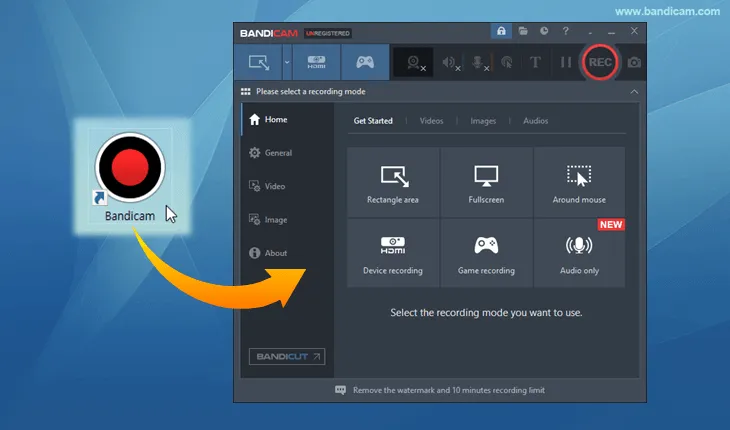
2.9 Bandicam
Bandicam is famous in the gaming community for recording at high bitrates with minimal impact on PC performance.
Pros:
+ DirectX/OpenGL/Vulkan recording.
+ Ultra-high compression (small file sizes), and 480 FPS support.
+ Minimal impact on system resources (no FPS drops in games).
+ Very reliable for long sessions.
Cons:
- Windows only.
- Trial version is limited to 10 minutes with a watermark.
- Lacks modern editing tools.
2.10 ClipChamp
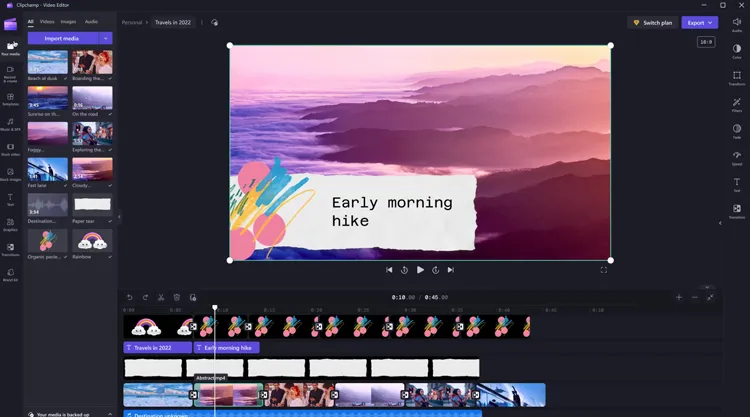
ClipChamp is now integrated into Windows 11/10, and provides a surprisingly capable web-based editor and recorder for free.
Pros:
+ AI text-to-speech, web-based timeline editor, and pre-made social media templates.
+ No download required (works in Chrome/Edge).
+ No watermarks on 1080p exports.
+ Free for Microsoft users.
Cons:
- Can be slow/buffer on large files.
- Requires a Microsoft account.
- "AI" editing can be hit-or-miss.
2.11 Screencastify
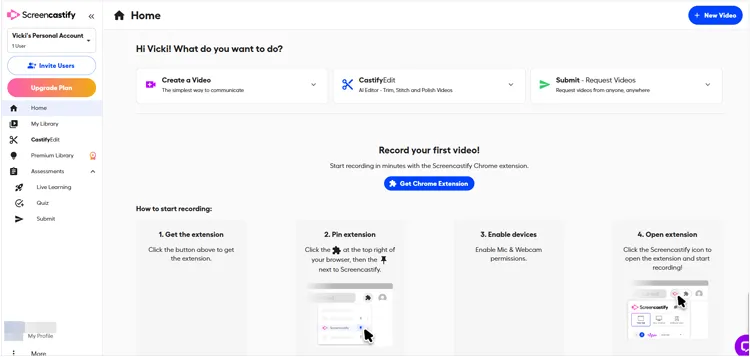
The premier Chrome extension for quick browser-based recording, Screencastify is popular among students and teachers.
Pros:
+ Google Drive integration.
+ "Submit" feature for student assignments, and interactive video questions.
+ Incredibly easy to use within the browser.
+ Excellent for 1-to-1 feedback and classroom settings.
Cons:
- Only works in Chrome.
- The free version has short time limits.
- Editor is limited for professional work.
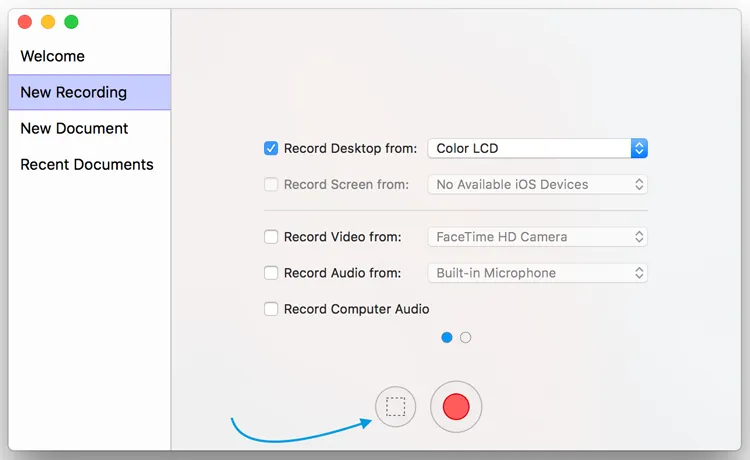
2.12 ScreenFlow
ScreenFlow is the primary rival to Camtasia for macOS users, offering deep integration with the Mac ecosystem and excellent motion graphics.
Pros:
+ Multi-device recording on Mac, iPhone, or iPad.
+ Retina-ready capture, and high-end motion graphics.
+ Deeply optimized for Apple Silicon.
+ More powerful animation tools than Camtasia.
Cons:
- Mac-only (no Windows version).
- Higher price than many alternatives.
Part 3: Q&A About Camtasia Screen Recording Software
Q1: Which is the best alternative to Camtasia screen recorder?
It depends on your goal. For versatility and ease of use, Screen Recorder on iReaShare is ideal. For professional editing, ScreenFlow (Mac) is the closest rival. For free, high-end power, OBS Studio is unbeatable. For quick workplace updates, ScreenRec or Vmaker is more efficient.
Q2: Is there a built-in screen recorder on my computer?
Yes, most operating systems include built-in tools:
- Windows: Xbox Game Bar (Win + Alt + R).
- macOS: Screenshot Toolbar (Shift + Cmd + 5).
- ChromeOS: Press Shift + Ctrl + Show Windows (the key looks like a rectangle with two lines next to it).
Q3: What is the difference between Camtasia and OBS?
The main difference is the post-production workflow. OBS is a "live" tool; you set up your scenes and filters before you hit record. Camtasia is a "post-production" tool; you record the raw footage and then use its robust editor to add effects, text, and transitions later.
Conclusion
Camtasia remains one of the most comprehensive screen recording and video editing solutions available, particularly for educators, trainers, and business professionals who need polished, professional output. However, its cost and system requirements may lead some users to explore alternatives like OBS Studio, iReaShare Screen Recorder, ScreenFlow, Bandicam, etc.
Ultimately, the best choice depends on your workflow, platform, and budget. By evaluating your needs against the strengths of each tool, you can select a screen recording tool that enhances productivity and content quality.
Related Articles
AZ Screen Recorder Guide and 9 Practical Alternatives and Review
How to Transfer Videos from Android to Mac Seamlessly (5 Ways)
How to Transfer Videos from iPhone to HP Laptop (7 Seamless Methods)
How to Enhance Video Quality via Software, Plugins, Online Enhancers, etc.

