TL;DR:
Looking for a reliable screen recorder for Windows? This Bandicam Screen Recorder review covers its key features, pricing, pros and cons, recording guide, and limitations. Bandicam offers high-quality screen and game recording, webcam overlays, audio capture, annotations, and scheduled recording, but its free version adds a watermark and limits recordings to 10 minutes. If you need broader platform support and more flexible recording features, Screen Recorder is a practical alternative.
If you need to record your computer screen, gameplay, online courses, or video conferences, Bandicam Screen Recorder is a popular screen recording software among many Windows users. It is known for high-quality recording, low system resource usage, and game recording capabilities, making it suitable for YouTube content creators, gamers, teachers, and office users.
But is Bandicam free? Does it add a watermark? This Bandicam screen recorder review covers its features, technical specifications, pricing, pros and cons, recording steps, and frequently asked questions to help you determine whether it meets your needs.
Part 1. Bandicam Screen Recorder Review
Bandicam is a screen recording and video capture program designed primarily for Windows PCs. It offers several recording modes, including full-screen and specific-area screen recording, game recording, and device recording for webcams, smartphones, consoles, and other external video sources. Its main appeal is the combination of high-quality output and relatively low system resource usage. It can also record webcam footage, microphone audio, and system sounds while adding real-time drawings or annotations.
1.1 Key Features of Bandicam Screen Recorder
Here are some of the main features to consider when evaluating the Bandicam screen recorder.
- Multiple recording modes: Record the entire screen, a selected area, a specific application window, or gameplay.
- Game recording: Capture games using DirectX, OpenGL, and Vulkan technologies.
- High-resolution recording: Support for resolutions up to 4K UHD depending on the recording environment and settings.
- Webcam overlay: Add webcam footage to screen recordings.
- System and microphone audio: Record computer sounds and your voice simultaneously.
- Real-time drawing: Draw lines, boxes, arrows, and other annotations while recording.
- Scheduled recording: Schedule recordings to start automatically at a specified time.
- Mouse effects: Highlight mouse clicks and movements for tutorials and demonstrations.
- Hardware acceleration: Compatible systems can use hardware encoding to reduce the load on the CPU.
- Screenshot capture: Capture still images from the screen in addition to recording video.
- Device recording: Bandicam can capture compatible external devices such as webcams and other video sources.
For tutorial creators, the combination of screen recording, microphone input, webcam overlay, and mouse effects can be particularly useful.
1.2 Bandicam Screen Recorder Tech Specs
Here are the key technical specifications of Bandicam Screen Recorder. These details may change over time, so check the official website for the latest information.
| Specification | Bandicam Screen Recorder |
|---|---|
| Supported Operating Systems | Windows 10/11 64-bit; Bandicam 2025 and earlier versions support older systems such as Windows 7/8. |
| Minimum System Requirements | Dual-core processor (Intel Core i3 / AMD Ryzen 3 or equivalent), 4 GB RAM, 2 GB available storage, a DirectX 11-compatible graphics card, and a display resolution of 1280 × 720 or higher |
| Supported Video Resolution | Up to 3840 × 2160 (4K UHD), depending on the hardware and encoder |
| Video Output Formats | MP4, AVI |
| Screenshot Output Formats | BMP, PNG, JPG |
| Maximum Frame Rate | Up to 480 FPS, mainly for game recording; actual performance depends on the computer and recording settings |
1.3 Bandicam Screen Recorder Pricing
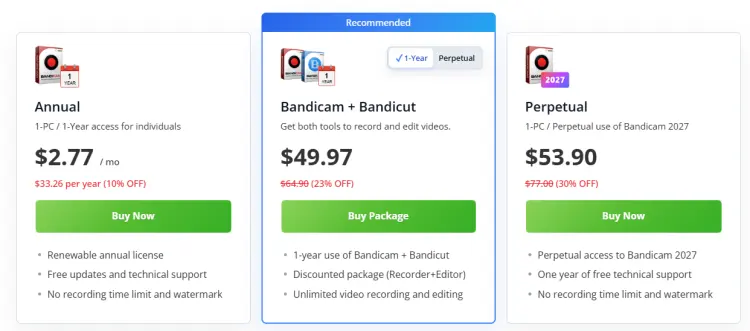
Bandicam Screen Recorder offers a free version, but recordings are limited to 10 minutes and include a watermark. If you want longer recordings and watermark-free output, you'll need the paid version. Here is the pricing for Bandicam software:
1.4 Pros and Cons of Bandicam Screen Recorder
Pros:
+ High-quality recording with support for 4K and high frame rates.
+ Comprehensive game recording features.
+ Relatively low system resource usage compared with some screen recorders.
+ Simple interface that is easy for beginners to use.
+ Support multiple recording modes.
+ Can record system audio and microphone input.
+ Support webcam overlays.
+ Include useful annotation and mouse effects.
+ Hardware acceleration can reduce the recording load on supported PCs.
+ Offer a free version for testing.
Cons:
- Only supports Windows.
- Does not support live streaming.
- The free version has recording time limits and adds a watermark.
- Some advanced features require a paid version.
- Video editing features are relatively basic.
- Not suitable for users who need team collaboration or online editing.
Part 2. How to Use Bandicam Screen Recorder
The basic process of using Bandicam Screen Recorder is very simple. Here's how to use Bandicam Screen Recorder with voice:
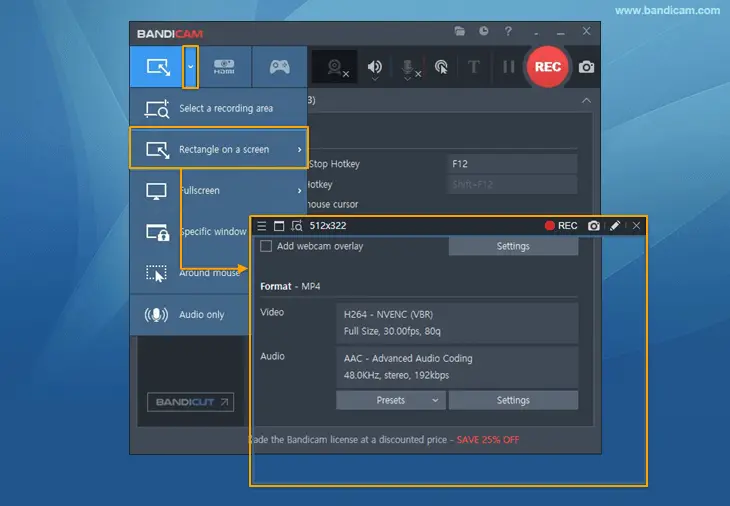
Step 1. Download and install Bandicam Screen Recorder. Launch Bandicam and select "Select a recording area", "Rectangle on a screen", or another recording mode.
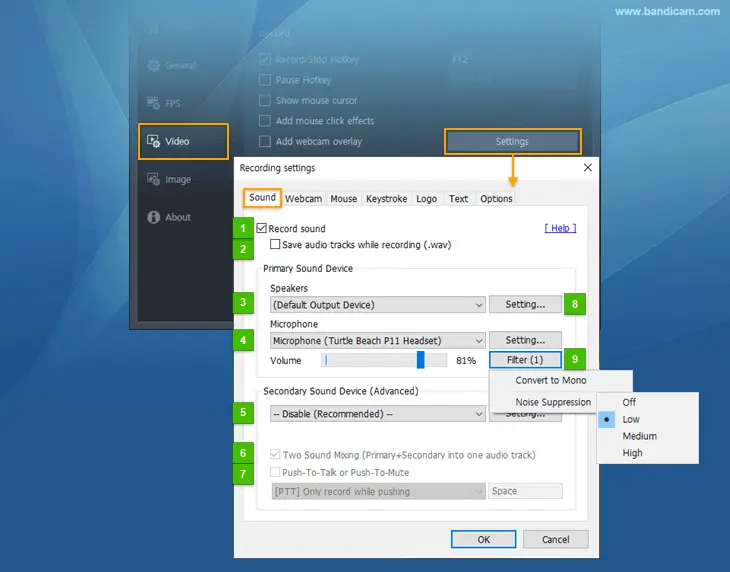
Step 2. Click the speaker and microphone settings. Select "(Default Output Device)" for Speakers to capture computer sound, and select your microphone under "Microphone" to record your voice. To record both at the same time, enable "Two Sound Mixing".
Step 3. Click the "REC" button or press "F12" to start recording. Bandicam will capture your screen together with the selected audio sources.
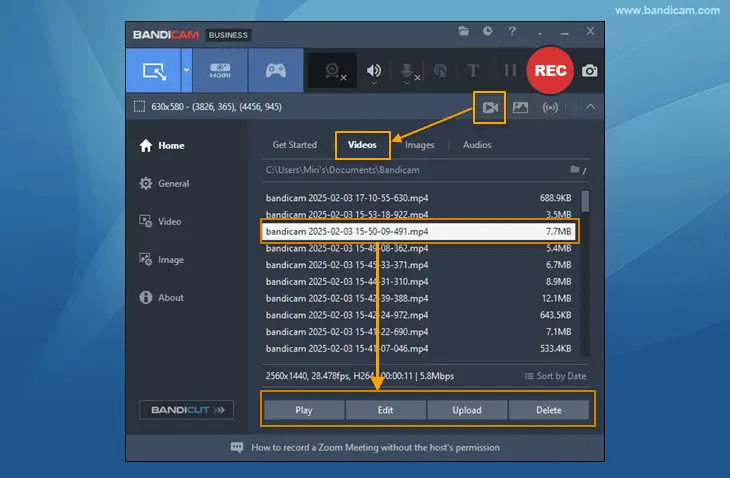
Step 4. Press "F12" again or click the "Stop" button. Open the recorded video from Bandicam's "Video" tab to check whether both your voice and system sound were captured correctly.
Part 3. Best Alternative to Bandicam Screen Recorder
If you need a screen recorder that works beyond Windows, Screen Recorder is an alternative worth considering. It supports both Windows and Mac and offers multiple recording modes for different scenarios. In addition to standard screen recording, it also includes audio recording, webcam recording, game recording, and phone recording.
Key features of Screen Recorder:
- Record the full screen, a selected area, or a specific window.
- Record gameplay with system audio, microphone, and webcam overlay.
- Record webcam footage or add a webcam overlay to screen recordings.
- Capture system sound, microphone audio, or both simultaneously.
- Mirror and record iPhone or Android screens on a computer.
- Support high-resolution recording up to 4K/8K.
- Add text, arrows, lines, shapes, and highlights while recording.
- Take screenshots during or outside screen recordings.
- Schedule recordings to start and stop automatically.
- Reduce background noise, remove echo, and enhance voice quality with AI tools.
- Preview, trim, merge, compress, and convert recorded files.
- Save recordings in multiple video, audio, and image formats.
Download for Win Download for Mac
Here is how to use Screen Recorder:
-
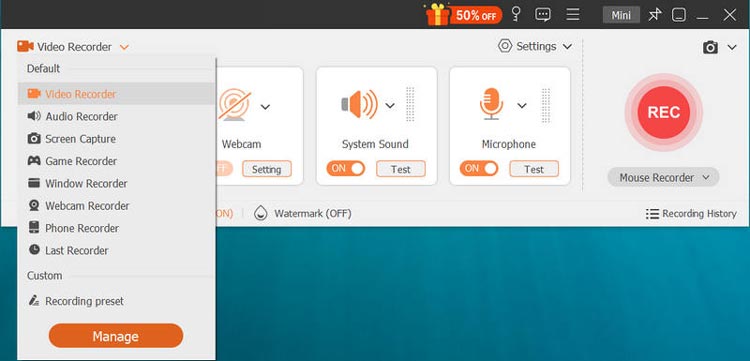
Download and install Screen Recorder, then launch it. Select "Video Recorder" and choose the area you want to capture, such as the full screen, a specific window, or a custom region.
-
Set your audio and webcam preferences. Enable "System Sound", "Microphone", and "Webcam" as needed, then click "REC" to start recording.
-
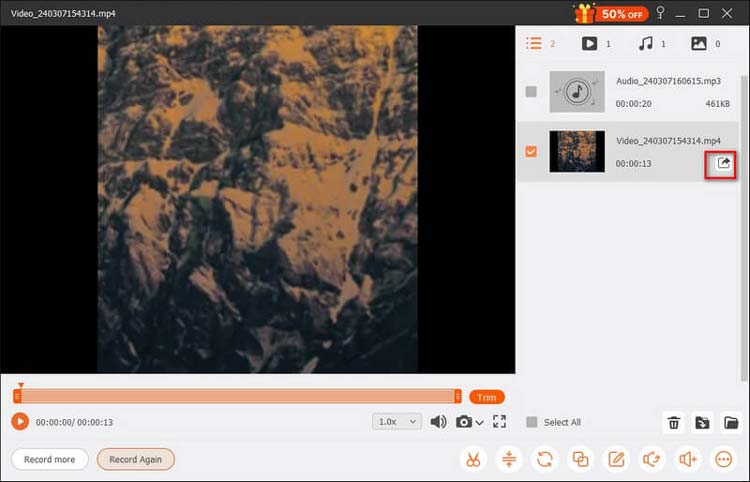
Add annotations such as text, shapes, drawings, or highlights while recording. When finished, click "Stop" to end the recording, then preview, edit, and save the video in your preferred format.
Part 4. Bandicam vs. Screen Recorder
Bandicam and Screen Recorder both support high-quality screen recording, but they differ in platform support, recording modes, AI features, and editing capabilities.
| Feature | Bandicam | Screen Recorder |
|---|---|---|
| Screen Recording | Full screen, specific area, specific window | Full screen, custom area, specific window |
| Game Recording | Yes, supports DirectX/OpenGL/Vulkan | Yes |
| Webcam Recording | Yes | Yes |
| Audio Recording | System sound and microphone | System sound and microphone |
| Phone Recording | Yes, via device recording | Yes, iPhone and Android mirroring |
| Recording Quality | Up to 4K UHD, 480 FPS | Up to 4K/8K |
| Webcam Overlay | Yes | Yes |
| Real-Time Annotation | Yes | Yes |
| Scheduled Recording | Yes | Yes |
| AI Features | AI transcription, webcam background removal, Smart Zoom | AI noise reduction, voice enhancement, echo removal |
| Screenshot | Yes | Yes |
| Video Editing | Basic built-in editing | Basic editing tools |
| Output Formats | MP4, AVI | MP4, MOV, WMV, AVI, and more |
| Platform | Windows | Windows, Mac |
| Free Version | Yes, with recording limitations | Yes, with feature limitations |
Part 5. FAQs on Bandicam Screen Recorder
Q1. Is Bandicam screen recorder free?
Yes. Bandicam has a free version, but it comes with limitations. Free recordings include a watermark and are subject to a recording-time restriction. A paid license removes the main free-version limitations.
Q2. Is Bandicam screen recorder safe?
Bandicam is a legitimate screen recording application. To reduce security risks, download it from the official Bandicam website rather than unofficial download sites or modified versions.
You should also keep the software updated and review what microphone, webcam, and screen permissions it receives.
Q3. How long can you record with Bandicam unregistered?
The unregistered/free version limits individual recordings to 10 minutes and adds a Bandicam watermark. For longer recordings without that watermark, you need a registered version.
Q4. How to fix Bandicam audio not working?
If Bandicam is not recording audio, try these checks:
- Make sure the correct speaker and microphone devices are selected.
- Check whether system audio and microphone recording are enabled.
- Verify Windows microphone permissions.
- Check the microphone volume and mute settings.
- Close other applications that may be exclusively using the microphone.
- Make a short test recording before starting a long session.
If only system audio is missing, check your Windows playback device and Bandicam's system sound settings separately from the microphone settings.
Last Words
Bandicam Screen Recorder is a solid choice for Windows users who need high-quality screen, game, webcam, and audio recording with useful features such as real-time drawing and scheduled recording. However, its free version has recording limits and adds a watermark, while Mac users cannot use the official desktop version. If you need more flexible recording options and broader platform support, Screen Recorder is a practical alternative worth considering.
Download for Win Download for Mac
Related Articles
Camtasia Screen Recording Software: Latest Review and Top 12 Alternatives
Wondershare DemoCreator Review: Is It Worth It in 2026?
8 Popular Loom Alternatives for Screen Recording in 2026
ScreenFlow Review and Best Alternatives (Trustworthy Tutorial)