TL;DR:
Looking for the best Loom alternatives? Here are the top screen recording tools for different needs:
- Screen Recorder – Best for professional recording and flexible controls.
- iReaShare Screen Recorder – Best for simple and beginner-friendly recording.
- OBS Studio – Best free tool for advanced recording and streaming.
- ScreenPal – Best for education and tutorial videos.
- Camtasia – Best for professional tutorials and video editing.
- Tella – Best for quick video messages and presentations.
- Vidyard – Best for business communication and video analytics.
- VEED.io – Best for online recording and video creation.
For users who need high-quality recording, easy operation, and powerful features, Screen Recorder is a strong Loom alternative for tutorials, meetings, presentations, and content creation.
Loom has become one of the most popular screen recording tools for quickly creating videos, sharing feedback, and communicating with remote teams. However, as user needs continue to evolve, some limitations of Loom have become increasingly apparent. As a result, more and more users are looking for Loom alternatives to find screen recording software that better suits their needs.
In this guide, we compare the 8 best Loom alternatives in 2026. Each tool is evaluated based on its features, pros and cons, and the types of users who can benefit most from it.
- Part 1. Why Should You Look for Loom Alternatives?
- Part 2. 8 Best Loom Alternatives in 2026
- 1. Screen Recorder – Best Overall Loom Alternative
- 2. iReaShare Screen Recorder – Best Simple Loom Alternative for Beginners
- 3. OBS Studio – Best Free Open-Source Loom Alternative
- 4. ScreenPal – Best Loom Alternative for Education and Tutorials
- 5. Camtasia – Best Professional Loom Alternative for Video Tutorials
- 6. Tella – Best Modern Video Messaging Alternative to Loom
- 7. Vidyard – Best Loom Alternative for Sales and Business Teams
- 8. VEED.io – Best Online Loom Alternative with Built-in Editing
- Part 3. How to Choose the Best Loom Alternative?
Part 1. Why Should You Look for Loom Alternatives?
Loom has long been a popular choice for async video messaging, but its free plan comes with several limitations that may not meet the needs of many users:
- Recording length is limited to 5 minutes per video, which can be restrictive for tutorials, presentations, and detailed walkthroughs.
- Users can create only 25 videos in total on the free plan, making it difficult for frequent creators to manage ongoing content.
- Video quality is capped at 720p, which may not be ideal for professional demos or high-quality recordings.
- An account is required before recording, adding an extra step for users who want a quick and simple recording experience.
For users who need longer recordings, higher-quality videos, or more flexible features, exploring Loom alternatives can provide a better screen recording experience.
Part 2. 8 Best Loom Alternatives in 2026
Quick Comparison: Best Loom Alternatives
| Tool | Best For | Main Advantage | Main Limitation |
|---|---|---|---|
| Screen Recorder | Professional recording | Powerful recording and editing features | Desktop software required |
| iReaShare Screen Recorder | Simple screen recording | Easy-to-use interface | Fewer advanced editing tools |
| OBS Studio | Streaming & advanced recording | Fully customizable | Steep learning curve |
| ScreenPal | Education & tutorials | Simple editing workflow | Advanced features require payment |
| Camtasia | Professional tutorials | Complete recording + editing suite | Expensive subscription |
| Tella | Video messaging | Modern browser-based recording | Less suitable for complex projects |
| Vidyard | Business communication | Sales and team collaboration | Less focused on editing |
| VEED.io | Online content creation | Browser editing tools | Internet connection required |
1. Screen Recorder – Best Overall Loom Alternative
Screen Recorder is one of the best Loom alternatives for users who need more flexible and higher-quality screen recording options. It allows you to capture any area of your screen, record webcam footage, and customize the recording region by dragging or selecting the desired size. You can also lock the recording area to a specific window, allowing you to capture content without interrupting other tasks.
For tutorials, online courses, presentations, and software demonstrations, Screen Recorder provides useful annotation tools, including drawing, highlighting mouse movements, adding text, and creating a whiteboard to make explanations clearer. Video quality is another key advantage, as users can adjust output settings based on their needs. With support for high-resolution recording, including 4K UHD videos, and multiple output formats, Screen Recorder makes it easy to create professional screen recordings for different purposes.
Key Features:
* Support HD screen recording on Windows and Mac.
* Record screen, webcam, and audio simultaneously.
* Provide real-time annotations and mouse effects.
* Support 4K high-definition video output.
* Include simple built-in video editing tools.
* Support exporting videos in multiple formats.
* Allow scheduled automatic recording.
Download for Win Download for Mac
Here is how to record a screen using Screen Recorder:
-
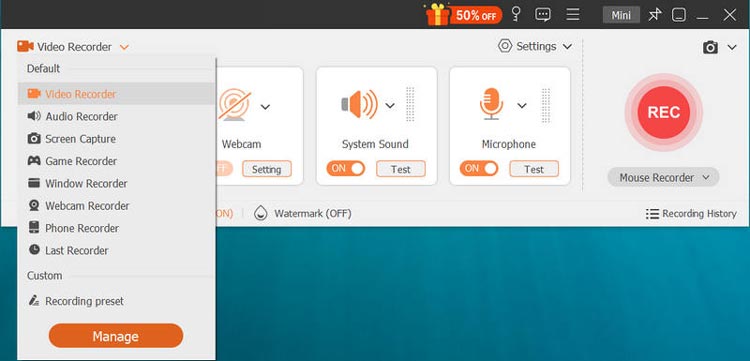
Download and launch Screen Recorder on your computer. Select "Video Recorder" from the main interface, then customize the recording area by choosing the part of the screen you want to capture.
-
Adjust the recording settings based on your needs. Turn System Sound and Microphone on or off, and enable the webcam if you want to include a facecam overlay. Click "REC" to begin recording.
-
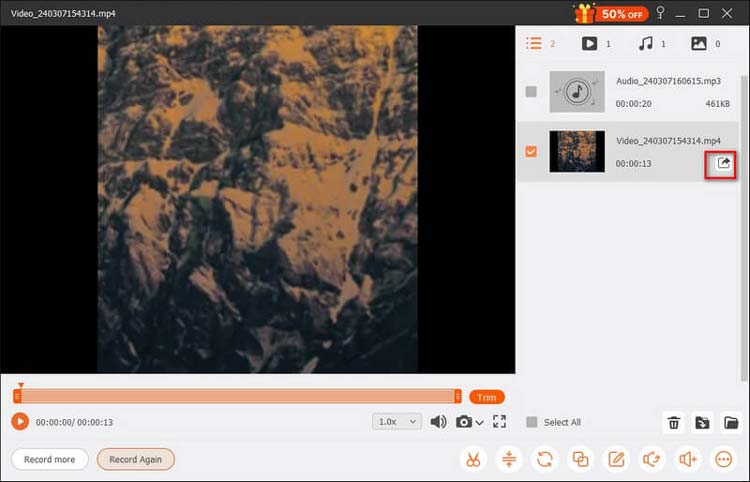
While recording, you can use built-in annotation tools to add text, draw shapes, highlight mouse movements, and apply other effects to make your content more engaging and easier to understand. Once the recording is complete, click "Stop" to finish. Preview the recorded video, make any necessary adjustments, and save it in your preferred format.
Pros:
+ Offer more recording options than Loom.
+ Support high-quality video and audio capture.
+ Include built-in editing and annotation tools.
+ Suitable for both beginners and professional users.
+ Work without relying on browser performance.
Cons:
- Require installation instead of instant browser recording.
- Advanced features may require a paid license.
- Not designed primarily for team video messaging.
Best For: Users who need a professional screen recorder for tutorials, courses, meetings, gameplay, or content creation.
2. iReaShare Screen Recorder – Best Simple Loom Alternative for Beginners
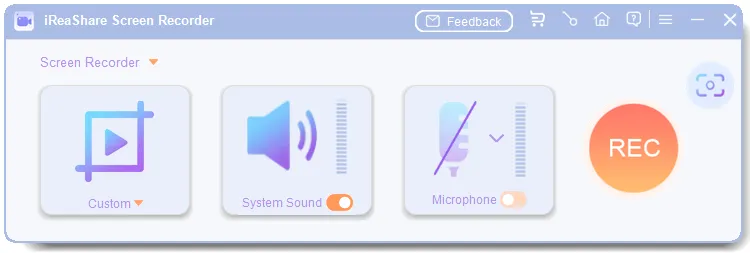
iReaShare Screen Recorder is a lightweight yet feature-rich screen recording tool and a reliable choice among Loom alternatives for Windows. It allows users to capture high-quality screen videos, record gameplay, create business presentations, and make step-by-step tutorials with ease. In addition to flexible screen recording, it also supports precise screenshots and ensures a secure recording experience while protecting user privacy.
Key Features:
* High-resolution screen recording with no time limits.
* Support full screen and custom recording areas.
* Record system audio and microphone sound.
* Capture and edits screenshots on PC.
* Export videos as MP4 and screenshots as PNG, JPG, JPEG, or BMP.
Pros:
+ Lightweight with low system impact.
+ No recording time limits.
+ Easy-to-use interface for beginners.
+ Great for tutorials, demos, and presentations.
Cons:
- No built-in video editing tools.
- Free version includes a watermark.
- No collaboration features.
Best For: Users who need a simple screen recorder for daily tasks, tutorials, and basic video creation.
3. OBS Studio – Best Free Open-Source Loom Alternative
OBS Studio is one of the most powerful free alternatives to Loom, especially for users who need advanced recording and streaming capabilities. Originally developed for live streaming, OBS Studio has become a popular choice among gamers, educators, content creators, and professional broadcasters.
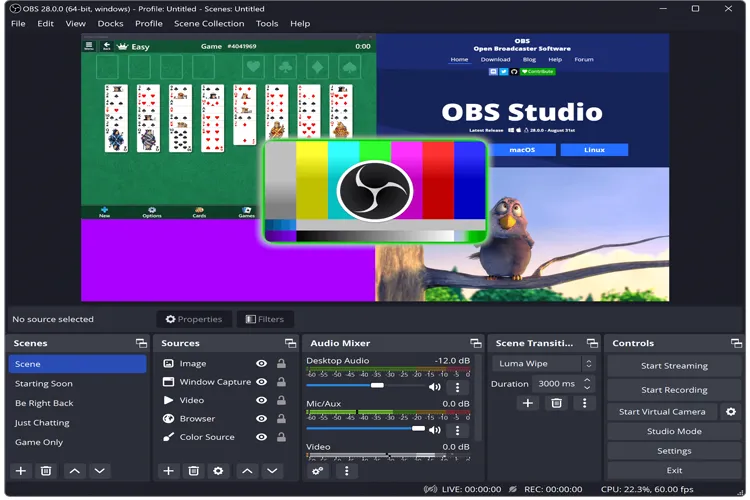
Unlike Loom's simple one-click recording approach, OBS Studio provides extensive customization options. Users can create multiple scenes, combine different video sources, add overlays, adjust audio channels, and control every aspect of their recording setup.
However, OBS Studio is designed for advanced users rather than beginners. New users may need time to learn how scenes, sources, filters, and audio settings work. For someone who only wants to record quick workplace videos, OBS may feel unnecessarily complicated.
Key Features:
* Screen and webcam recording.
* Multi-source video capture.
* Live streaming support.
* Advanced audio mixing.
* Custom scenes and overlays.
* Plugin support.
Pros:
+ Completely free and open source.
+ Extremely powerful customization options.
+ No recording time limits.
+ Excellent for streaming and professional production.
+ Support Windows, Mac, and Linux.
Cons:
- Steeper learning curve.
- No built-in cloud sharing like Loom.
- Require manual configuration.
- Limited beginner-friendly editing tools.
Best For: Streamers, educators, gamers, and advanced users who want complete control over recordings.
4. ScreenPal – Best Loom Alternative for Education and Tutorials
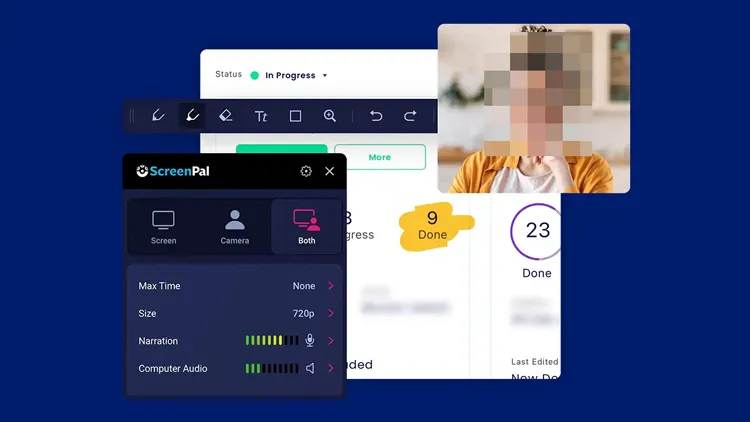
ScreenPal is an easy-to-use video recording tool that is ideal for teachers, trainers, and business users. It allows users to quickly record their screen, webcam, and voice, while also providing basic video editing features such as trimming, adding captions, and inserting background music. If you are looking for a tool similar to Loom to quickly create and share educational videos, ScreenPal is a great option.
Key Features:
* Screen and webcam recording.
* Video trimming and editing.
* Captions and subtitles.
* Drawing and annotation tools.
* Cloud hosting and sharing.
Pros:
+ Beginner-friendly interface.
+ Good educational features.
+ Support quick editing after recording.
+ Affordable compared with some professional tools.
+ Suitable for teachers and trainers.
Cons:
- Free version has feature limitations.
- Advanced editing tools are limited.
Best For: Teachers, online instructors, students, and businesses creating instructional videos.
5. Camtasia – Best Professional Loom Alternative for Video Tutorials
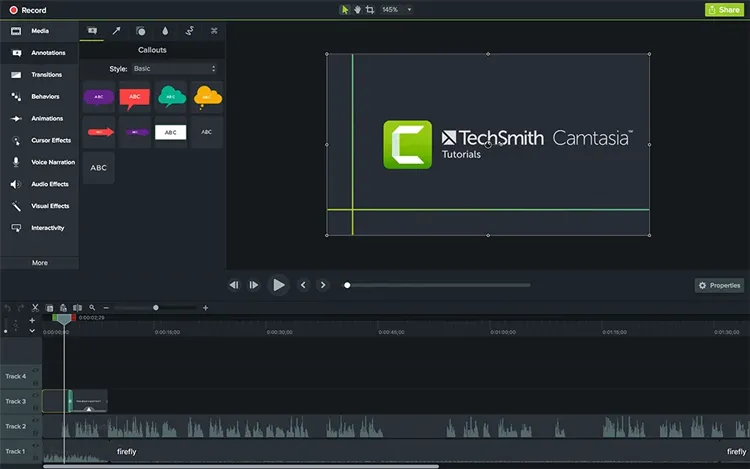
Camtasia is a professional screen recording and video editing tool designed for users who need polished tutorials, software demonstrations, and training content. Unlike Loom, which mainly focuses on quick communication and video sharing, Camtasia combines screen recording with a complete video production workflow.
Users can record screens, webcams, presentations, and audio, then edit their videos using a timeline-based editor. It includes effects, transitions, animations, captions, cursor effects, and interactive elements to help create professional-quality tutorials. For users who need to produce long-term video content, Camtasia offers a more advanced and professional solution than Loom.
Key Features:
* Professional screen recording.
* Timeline-based video editing.
* Cursor effects and animations.
* Templates and transitions.
* Audio enhancement tools.
* Interactive video features.
Pros:
+ Complete recording and editing workflow.
+ Excellent for professional tutorials.
+ High-quality output.
+ Rich effects and templates.
+ Suitable for business training.
Cons:
- Expensive compared with other alternatives.
- Require more learning time.
- Use more system resources.
Best For: Professional educators, businesses, software trainers, and content creators.
6. Tella – Best Modern Video Messaging Alternative to Loom
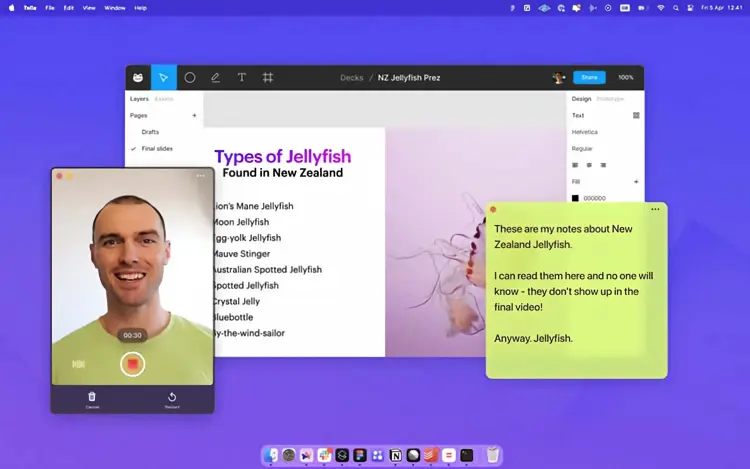
Tella is a browser-based video recording tool focused on creating attractive video messages, presentations, and product demos. It is designed as a modern alternative to traditional screen recorders, offering a cleaner workflow for creators and teams.
Unlike Loom's traditional recording interface, Tella emphasizes presentation quality. Users can combine screen recordings, webcam footage, slides, and layouts to create more engaging videos without advanced editing skills.
Key Features:
* Browser-based screen recording.
* Webcam and screen combination.
* Custom layouts and backgrounds.
* Video presentation tools.
* Simple editing options.
Pros:
+ Modern and attractive interface.
+ Easy video creation workflow.
+ Great for presentations and demos.
+ No complicated software installation.
Cons:
- Require internet connection.
- Limited advanced recording controls.
- Not suitable for high-end production.
Best For: Startup teams, marketers, sales professionals, and creators making presentation-style videos.
7. Vidyard – Best Loom Alternative for Sales and Business Teams
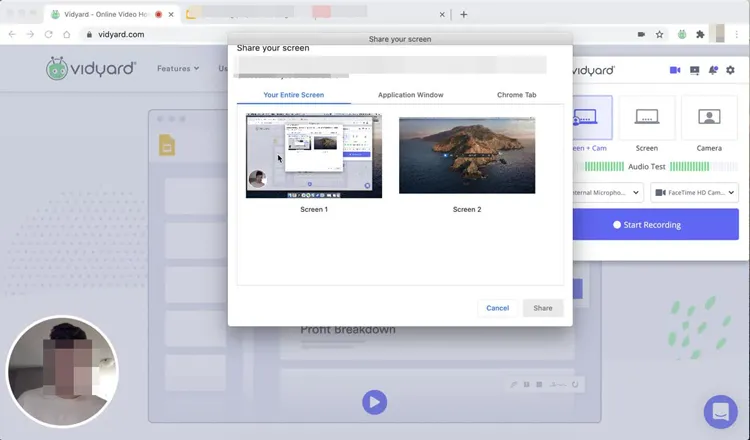
Vidyard is a video marketing and sales tool designed for business users and is one of the popular Loom alternatives. It not only supports screen recording but also provides video analytics, customer tracking, team management, and marketing features, making it ideal for sales teams, customer support teams, and corporate training. Compared with Loom, Vidyard places greater emphasis on video management and data analytics for business scenarios.
Key Features:
* Screen and webcam recording.
* Video hosting and sharing.
* Viewer analytics.
* Sales engagement tools.
* Team collaboration features.
* Personalized video messaging.
Pros:
+ Excellent for sales teams.
+ Provides detailed video analytics.
+ Easy video sharing.
+ Strong business collaboration features.
+ Help track viewer engagement.
Cons:
- Expensive for individual users.
- Limited professional editing tools.
- Business features may be unnecessary for casual users.
- Less suitable for creative video production.
Best For: Sales teams, marketing professionals, customer success teams, and businesses using video communication.
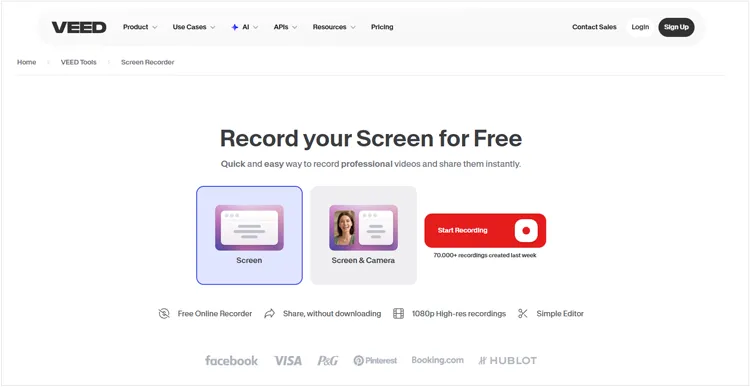
8. VEED.io – Best Online Loom Alternative with Built-in Editing
VEED.io is an online video creation platform that combines screen recording, webcam capture, video editing, subtitles, and AI-powered tools. It is designed for creators and businesses that want to record and edit videos in one browser-based workflow.
Unlike Loom, which mainly focuses on recording and sharing, VEED.io provides a more complete content creation environment. Users can record tutorials, edit videos, add subtitles, insert effects, remove backgrounds, and prepare content for social media platforms.
Key Features:
* Online screen and webcam recording.
* AI subtitle generation.
* Video editing tools.
* Background removal.
* Templates and effects.
* Social media export options.
Pros:
+ All-in-one online video creation platform.
+ No software installation required.
+ Strong subtitle and AI editing features.
+ Good for social media creators.
+ Easy collaboration.
Cons:
- Require a stable internet connection.
- Free plan has limitations.
- Large projects may feel slower online.
- Advanced features require paid plans.
Best For: Content creators, marketers, social media managers, and teams creating online videos.
Part 3. How to Choose the Best Loom Alternative?
The best Loom alternative depends on what you need from a screen recording tool. There is no single solution that works perfectly for every user.
- If you need professional screen recording, high-quality output, and more flexible audio and video controls, choose Screen Recorder or iReaShare Screen Recorder.
- If you need a free and powerful screen recording and live streaming tool, OBS Studio is the best choice.
- If you need an easy-to-use screen recorder with basic editing features for creating educational videos, ScreenPal is a better option.
- If you need to quickly create video messages and share your screen with minimal effort, Tella is a great choice.
- If you need to create professional tutorials, training videos, and business courses, Camtasia provides more comprehensive video editing features.
- If you mainly use videos for sales communication, analytics, and team collaboration, Vidyard is more suitable.
- If you want to record, edit, and create social media content online quickly, VEED.io is an ideal choice.
Final Verdict
The best Loom alternative depends on your recording needs and workflow. For users who want professional screen recording, high-quality output, and flexible recording controls, Screen Recorder is a great choice. It provides powerful recording features, audio management, annotation tools, and editing options, making it suitable for tutorials, meetings, presentations, gameplay, and everyday screen recording tasks.
Download for Win Download for Mac
Related Articles
Screen Recorder for Windows 11/10 PC: Top 11 Screen Recording Tools
AZ Screen Recorder Guide and 9 Practical Alternatives and Review
Game Recording Software: Select the Best One to Record Gameplay
Screen Recorder for Mac: 12 Tools for Screen Recording on Mac