TL;DR:
Need reliable video recording software? We tested the top 10 video recording software tools, including Screen Recorder, OBS Studio, Bandicam, Camtasia, and more. Whether you need to record tutorials, gameplay, meetings, or online classes, this guide compares features, limitations, and best use cases to help you find the right tool.
Looking to record online videos, lectures, meetings, gameplay, or create tutorials but unsure which video recording software to choose? Whether you are a student, teacher, gamer, content creator, or professional who needs to record online meetings, choosing the right video recording software can make the recording process easier and more efficient.
We tested and compared 10 popular video recording software tools and evaluated them based on recording features, ease of use, and different use cases to help you quickly find the best option for your needs.
- Part 1. 10 Best Video Recording Software in 2026
- 1.1 Screen Recorder – Best Overall Video Recording Software
- 1.2 OBS Studio – Best Free Video Recording Software for Professionals
- 1.3 Bandicam – Best for Game Recording
- 1.4 Camtasia – Best for Video Tutorials and Training
- 1.5 ScreenRec – Best for Fast Recording and Sharing
- 1.6 ShareX – Best Free Advanced Screen Recorder
- 1.7 Xbox Game Bar – Best Built-in Windows Recorder
- 1.8 QuickTime Player – Best Free Mac Recording Tool
- 1.9 Loom – Best for Workplace Video Messages
- 1.10 Clipchamp – Best for Basic Recording and Editing
- Part 2. How to Choose the Best Video Recording Software?
- Part 3. Q&A About Video Recording Software
Part 1. 10 Best Video Recording Software in 2026
Here are the top 10 video recording software options. You can check the quick comparison of the best video recording software below.
| Software | Best For | Key Advantage |
|---|---|---|
| Screen Recorder | Professional screen recording | Easy-to-use recording features, editing tools, and high-quality output |
| OBS Studio | Streaming and advanced users | Powerful customization options and free open-source features |
| Bandicam | Gameplay recording | Lightweight performance and high-quality compression |
| Camtasia | Tutorials and training videos | Combines screen recording with professional video editing |
| ScreenRec | Quick screen sharing | Fast recording with cloud sharing support |
| ShareX | Advanced free recording | Offers extensive customization options |
| Xbox Game Bar | Windows gaming capture | Built-in Windows tool with simple operation |
| QuickTime Player | Mac users | Native macOS recording solution |
| Loom | Workplace communication | Fast video messaging and easy sharing |
| Clipchamp | Basic video creation | Beginner-friendly recording and editing tools |
1.1 Screen Recorder – Best Overall Video Recording Software
Screen Recorder is a versatile choice for users who want a balance between simplicity and advanced recording features. It can capture screen activity, webcam footage, system audio, microphone input, and gameplay videos without requiring complicated settings.
Unlike basic built-in recorders, it provides additional tools such as real-time annotation, scheduled recording, video trimming, and flexible output options. This makes it suitable for online meetings, tutorials, presentations, and content creation.
One advantage of Screen Recorder is that it is easier to use than many professional recording tools while still offering features needed by advanced users. However, users looking for a completely free solution may find that some advanced functions require a paid version.
Key Features:
- Provide versatile recording modes for different screen and audio capture needs.
- Allow users to record the entire screen, a specific area, a selected window, or webcam footage.
- Support high-quality video recording, including 4K resolution and smooth frame rates such as 60fps, 120fps, or higher.
- Capture clear audio from both system sound and external microphones.
- Include built-in editing tools, annotations, and other advanced features to enhance recordings.
- Offer a task scheduler that lets users set automatic recording times in advance.
Download for Win Download for Mac
Here is how to use this video recording software for PC:
-
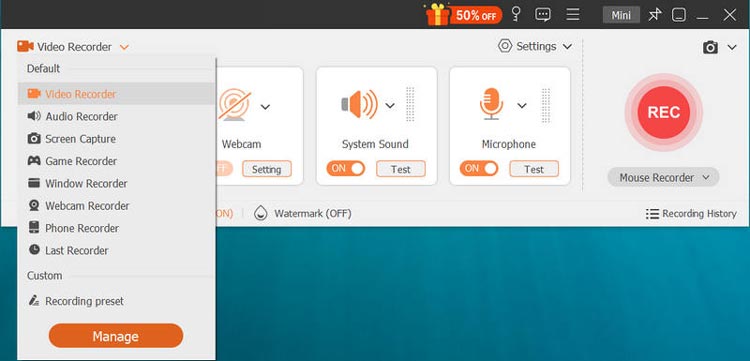
Download and open Screen Recorder, then choose the recording mode you need, including "Video Recorder", "Audio Recorder", "Game Recorder", "Webcam Recorder", or "Phone Recorder". Select the area you want to capture, such as the full screen or a customized region.
-
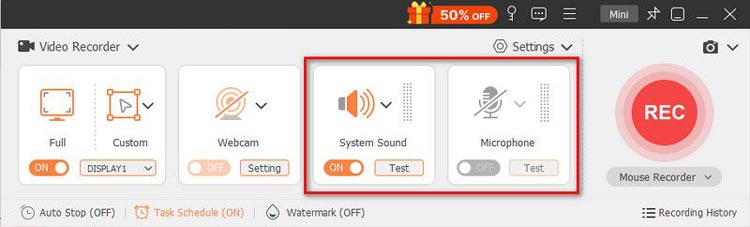
Adjust the recording settings by enabling or disabling "System Sound", "Microphone", and "Webcam" according to your recording requirements. You can choose the audio sources you need before starting the recording.
-
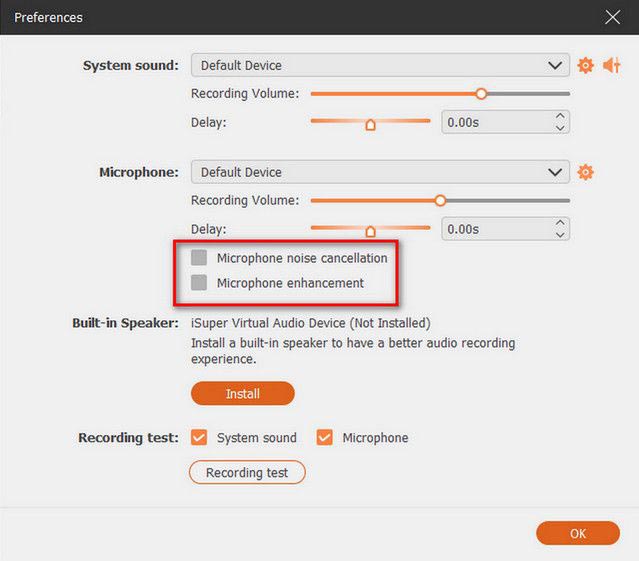
Click "Settings" to customize additional recording options. For example, enable "Microphone noise cancellation" and "Microphone enhancement" to improve audio quality and create clearer recordings.
-
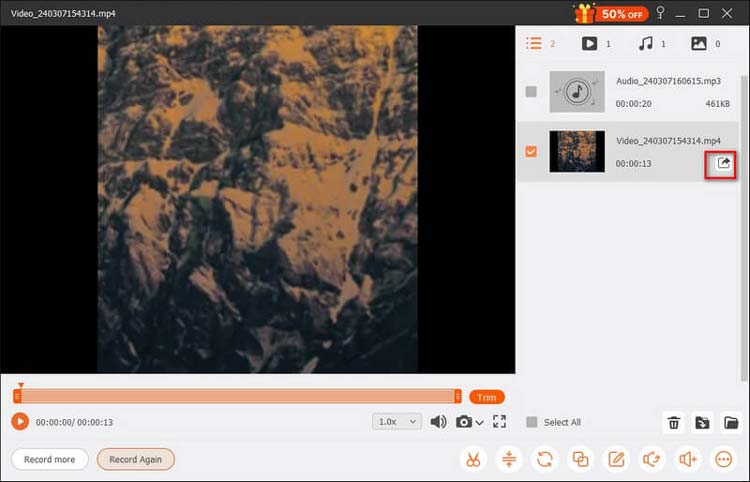
Click the "REC" button to start recording your screen. During the process, you can add real-time annotations, draw marks, or highlight important content. Once finished, preview the recorded video, make basic edits, and click "Export" to save the file in formats such as MP4 or MOV.
Pros:
* Easy interface for beginners.
* Support screen, webcam, audio, and gameplay recording.
* Include editing and annotation features.
* Suitable for professional and personal use.
Cons:
* Some advanced features require a paid license.
* May consume system resources during long recordings.
1.2 OBS Studio – Best Free Video Recording Software for Professionals
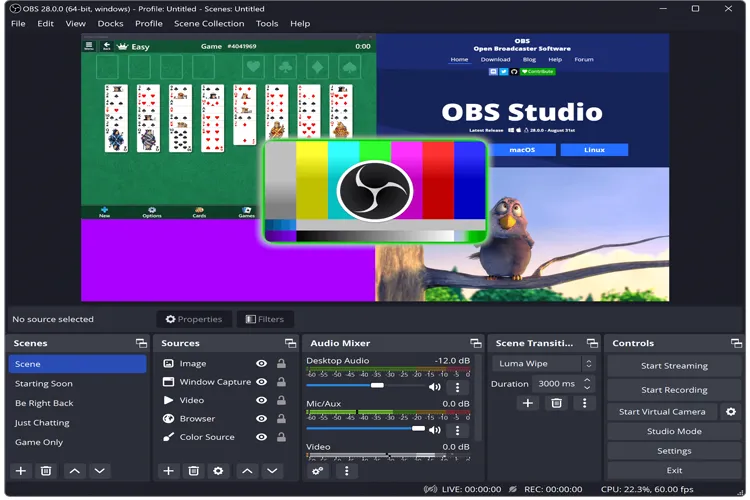
OBS Studio is one of the most popular free video recording software options for streamers, gamers, and advanced creators. It supports screen capture, webcam recording, live streaming, multiple scenes, audio mixing, and extensive customization.
Because it is open-source, OBS Studio offers powerful control over recording settings. Users can customize layouts, add overlays, configure audio sources, and connect with streaming platforms.
The downside is that OBS Studio has a steeper learning curve. Beginners may need time to understand scenes, sources, and advanced settings.
Pros:
* Completely free and open source.
* Excellent for livestreaming.
* Highly customizable.
Cons:
* Not beginner-friendly.
* Limited built-in video editing features.
1.3 Bandicam – Best for Game Recording
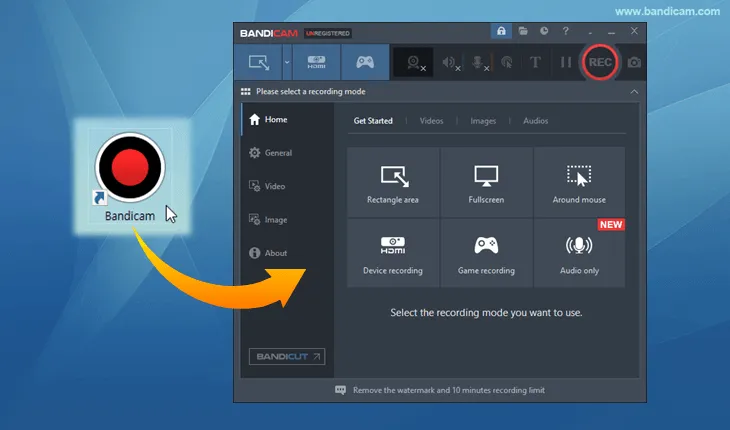
Bandicam is designed for users who need lightweight but high-quality screen recording. It is especially popular among gamers because it can record gameplay with relatively low performance impact.
The video recording software for Windows 11/10 supports high-resolution recording, webcam overlays, and hardware acceleration. It also compresses videos efficiently, helping users save storage space. However, the free version has limitations, including recording restrictions and watermark issues.
Pros:
* Lightweight performance.
* Good compression quality.
* Excellent for gameplay capture.
* Provide real-time drawing and annotation tools.
Cons:
* Available for Windows only.
* The free version has limitations, including a 10-minute recording limit and added watermarks on exported videos.
1.4 Camtasia – Best for Video Tutorials and Training
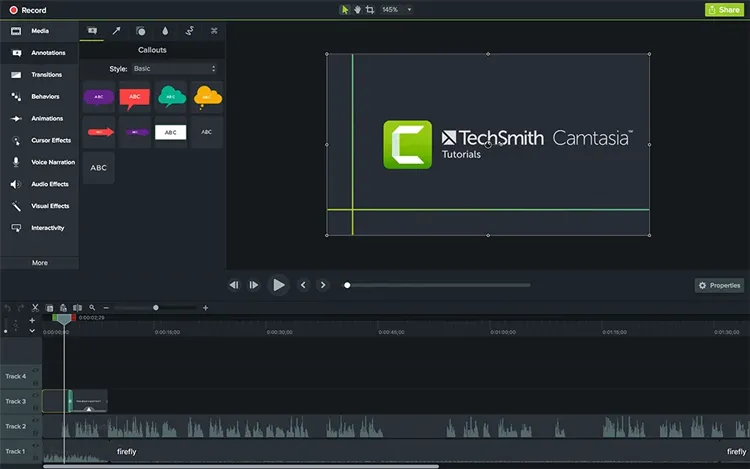
Camtasia combines screen recording with professional video editing, making it popular among educators, trainers, and businesses.
Users can record demonstrations and immediately edit videos with transitions, effects, animations, captions, and callouts. It is especially useful for creating online courses and workplace training materials. The main drawback is its higher price compared with many alternatives.
Pros:
* Powerful editing features.
* Great for tutorials and courses.
* Professional output quality.
Cons:
* Expensive.
* Require more system resources.
* The free trial is limited to 3 days.
* Require time to learn due to its complex features.
1.5 ScreenRec – Best for Fast Recording and Sharing
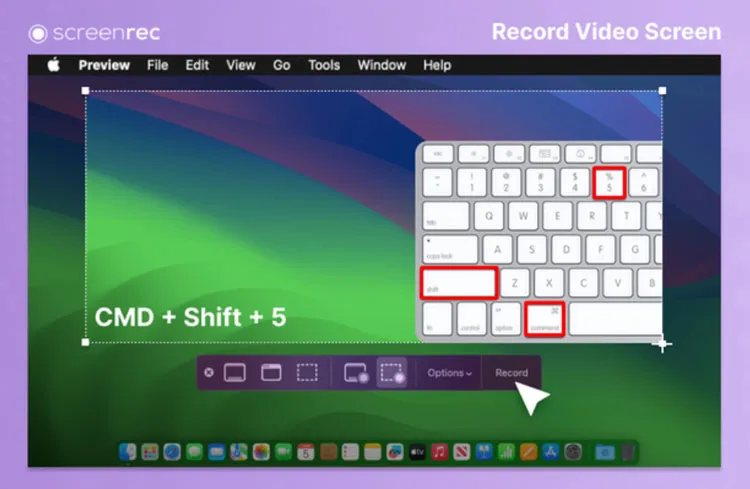
ScreenRec is designed for users who want to record and share videos quickly. It provides simple screen recording and cloud sharing features, making it useful for remote teams and quick explanations.
Its lightweight design makes it accessible for beginners, although users looking for advanced editing tools may need another solution.
Pros:
* Simple workflow.
* Fast sharing options.
* Good for business communication.
Cons:
* Limited editing features.
* Not suitable for complex projects.
1.6 ShareX – Best Free Advanced Screen Recorder
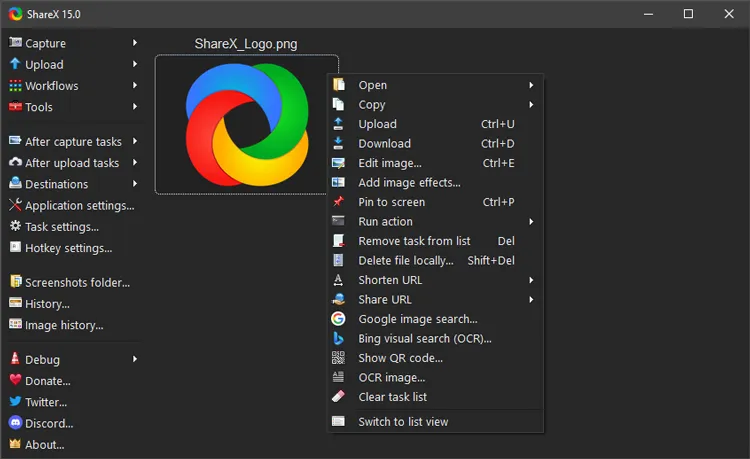
ShareX is a free and open-source video recording software for Windows with many customization options. It supports screenshots, screen recording, GIF creation, file sharing, and workflow automation. Advanced users appreciate its flexibility, but beginners may find the interface overwhelming.
Pros:
* Free and powerful.
* Many customization options.
* Support many capture methods.
* Provide an easy way to capture, edit, annotate, and share screen content.
Cons:
* Complicated for beginners.
* Interface feels less polished.
* Does not include built-in video or audio editing tools for trimming or merging clips.
* Not available for Mac or Linux.
1.7 Xbox Game Bar – Best Built-in Windows Recorder
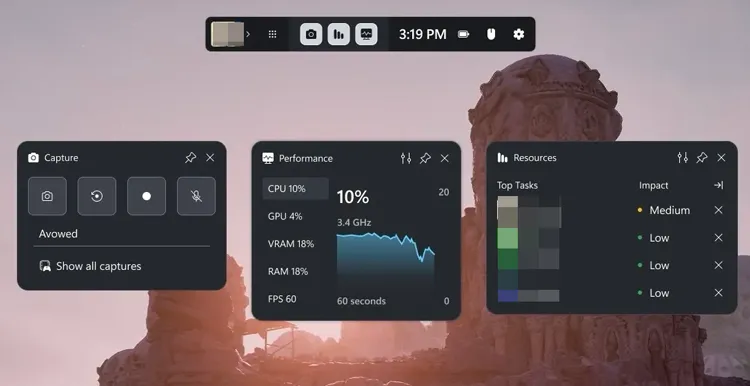
Xbox Game Bar is included with Windows and provides a convenient way to record gameplay and applications without installing additional software. It is ideal for quick captures, especially for gamers who want a simple recording solution. However, it lacks advanced editing and may not work well for every recording scenario.
Pros:
* Free and built into Windows.
* Easy keyboard shortcuts.
* No installation required.
Cons:
* Limited features.
* Not suitable for professional recording.
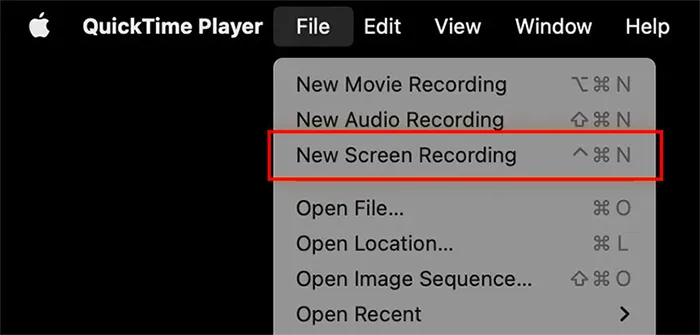
1.8 QuickTime Player – Best Free Mac Recording Tool
QuickTime Player is a free video recording tool designed for Mac users. It also provides basic editing features after recording, allowing users to trim clips, cut, copy, paste, add soundtracks, insert annotations, rotate videos, and perform other simple edits.
It is simple, reliable, and requires no additional installation. However, users often need extra solutions when they want advanced editing, system audio recording, or professional workflows.
Pros:
* Simple interface.
* No extra installation.
* Record videos in high-quality MOV format.
* Support basic trimming after recording.
Cons:
* Cannot capture internal system audio.
* Available only on macOS.
* Lack annotation tools and advanced editing features.
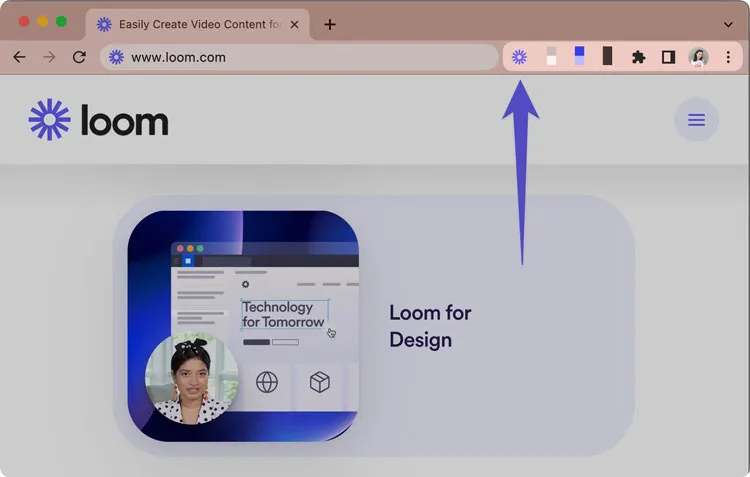
1.9 Loom – Best for Workplace Video Messages
Loom focuses on fast video communication rather than traditional screen recording. As an online video recording software, it allows users to capture their screen, webcam, and voice, then instantly share recordings through links.
It is especially helpful for remote teams, educators, and professionals who want to explain tasks, provide feedback, or share updates without scheduling unnecessary meetings.
Pros:
* Extremely easy sharing.
* Great for workplace communication.
* Browser-based workflow.
Cons:
* Not designed for advanced editing.
* The free version limits recordings to 5 minutes.
* Advanced features, such as custom recording areas, are available only with a Pro subscription.
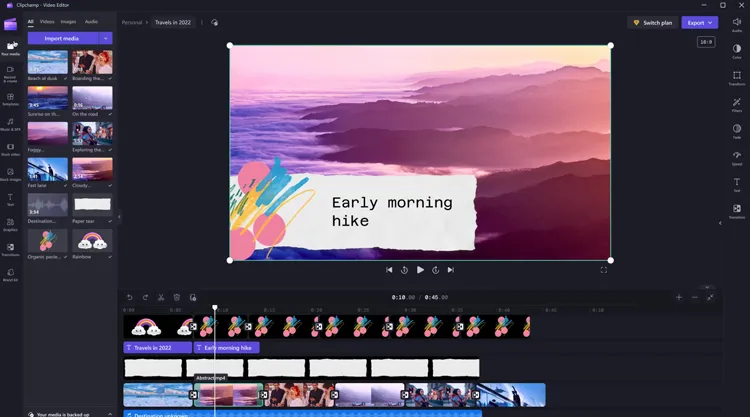
1.10 Clipchamp – Best for Basic Recording and Editing
Clipchamp is Microsoft's beginner-friendly video creation tool. It combines recording and editing features, allowing users to create simple videos without complex software.
It works well for casual creators but may not satisfy users who need professional-level recording controls.
Pros:
* Easy for beginners.
* Include editing tools.
* Work well with Windows ecosystem.
Cons:
* Limited advanced recording features.
* Better suited for simple projects.
Part 2. How to Choose the Best Video Recording Software?
The right video recording software depends on your goals:
- For professional screen recording: Choose Screen Recorder or Camtasia if you need recording plus editing features.
- For free advanced recording: OBS Studio and ShareX provide powerful tools without cost.
- For gaming: Bandicam and Xbox Game Bar are strong options because of their performance optimization.
- For business communication: Loom and ScreenRec are better choices for quick explanations and sharing.
- For Mac users: QuickTime Player is convenient for simple recordings, while professional users may prefer third-party software.
Part 3. Q&A About Video Recording Software
Q1. What is the best video recording software?
The best video recording software depends on your needs. Screen Recorder is a good choice for users who want an easy-to-use recorder with editing features, while OBS Studio is better for advanced users who need free customization and streaming tools.
Q2. What is the best free video recording software?
OBS Studio, ShareX, Xbox Game Bar, and QuickTime Player are among the best free video recording software options. They allow users to capture screens without paying, although some may lack advanced editing features.
Q3. Is video recording software safe to use?
Most popular video recording software is safe when downloaded from official websites. However, users should check privacy settings before recording meetings, online classes, or other content involving other people.
Q4. Can video recording software record system audio?
Yes. Many video recording tools can capture system audio and microphone sound. However, some built-in tools, such as QuickTime Player, may require additional settings or software to record internal Mac audio.
Q5. What video recording software do YouTubers use?
Many YouTubers use OBS Studio, Camtasia, Bandicam, and other professional recording tools. The best option depends on whether they need livestreaming, gameplay recording, tutorials, or video editing.
Q6. Which is better: OBS Studio or Screen Recorder?
OBS Studio is better for users who need advanced customization and livestreaming features. Screen Recorder is more suitable for beginners and users who want a simpler recording experience with built-in editing tools.
Final Thoughts
There is no single best video recording software for everyone. Free tools like OBS Studio, ShareX, Xbox Game Bar, and QuickTime Player are suitable for users who need basic recording, while professional solutions like Screen Recorder and Camtasia provide a smoother experience with more advanced features.
Before choosing a recorder, consider your recording purpose, editing requirements, budget, and technical experience. A good video recording tool should not only capture your screen but also make the entire content creation process easier.
Related Articles
Best Screen Recording Software in 2026: Top 16 Screen Recorders
ScreenFlow Review and Best Alternatives (Trustworthy Tutorial)
AZ Screen Recorder Guide and 9 Practical Alternatives and Review
Best Screen Recorder for Android: 11 Options (With or Without Computer)