TL;DR:
Looking for an easy screen recorder? This Icecream Screen Recorder review covers its key features, pros, cons, supported platforms, and how to record videos. If you need more advanced recording options, Screen Recorder is also worth considering.
Screen recording has become an essential tool for creating tutorials, recording online meetings, capturing gameplay, and saving streaming videos. With many screen recorders available today, choosing a simple yet powerful tool can be challenging.
Icecream Screen Recorder is a popular screen capture program designed to help users record desktop activities, webcam footage, and audio with minimal setup. It supports screen recording, screenshots, annotations, webcam overlays, scheduled recordings, and basic editing features.
In this Icecream Screen Recorder review, we will explore its key features, supported platforms, advantages and limitations, how to record screens with Icecream Screen Recorder, and a powerful alternative for users who need more advanced recording options.
Part 1. Icecream Screen Recorder Review
Icecream Screen Recorder is a lightweight screen recording software developed by Icecream Apps. It allows users to capture the full screen, selected areas, applications, online videos, webinars, and gameplay. The tool is designed for beginners who want a straightforward recording experience without complicated settings.
Unlike some professional recording software with complicated interfaces, Icecream Screen Recorder focuses on simplicity. Users can quickly select a recording area, enable audio or webcam, add annotations, and start recording within a few clicks.
1.1 Key Features of Icecream Screen Recorder
1. Record Full Screen or Custom Areas
Icecream Screen Recorder allows users to capture the entire display or select a specific recording area. This flexibility makes it suitable for different scenarios, including software tutorials, online classes, presentations, and gameplay videos.
Users can choose between:
- Full-screen recording.
- Custom area recording.
- Window recording.
- Selected application recording.
2. Record Screen with Audio
The software can record both system sound and microphone audio, allowing users to create videos with narration, explanations, or background audio.
This feature is useful for:
- Video tutorials.
- Online courses.
- Gaming commentary.
- Product demonstrations.
3. Webcam Overlay Recording
Icecream Screen Recorder supports webcam recording, allowing users to add a webcam window while capturing their screen. Users can adjust the webcam position and size to create facecam-style videos.
This is helpful for:
- YouTube videos.
- Online presentations.
- Reaction videos.
- Live tutorials.
4. Screen Drawing and Annotations
One useful feature of Icecream Screen Recorder is its drawing panel. During recording, users can add text, arrows, shapes, and other annotations to highlight important information.
This makes it easier to explain:
- Software operations.
- Step-by-step guides.
- Training materials.
- Educational content.
5. Scheduled Screen Recording
Icecream Screen Recorder includes a scheduled recording feature that allows users to set a start and stop time. The recording process can begin automatically based on the schedule.
This can be useful for recording:
- Online broadcasts.
- Webinars.
- Live events.
- Long videos.
6. Screenshots
Besides video recording, Icecream Screen Recorder also works as a screenshot tool. Users can capture screenshots, save them as image files, or upload them for sharing.
7. Basic Video Editing
Icecream Screen Recorder provides simple editing functions, including trimming recordings, adjusting playback speed, muting audio, and changing some output settings.
1.2 Supported Platforms of Icecream Screen Recorder
Icecream Screen Recorder is available for multiple operating systems, including Windows, Mac, and Android.
- For Windows: Windows 11, Windows 10, Windows 8.1, Windows 8, Windows 7.
- For Mac: macOS 10.9 or later.
- For Android: Android 5.1 or later.
1.3 Pros and Cons of Icecream Screen Recorder
Pros:
+ Easy-to-use interface with simple recording controls, making it suitable for beginners.
+ Support screen recording, webcam recording, and audio capture.
+ Allow users to record the full screen, custom areas, or specific windows.
+ Provide drawing tools and annotations to highlight important content during recording.
+ Support scheduled recording, which is useful for automatically capturing webinars, meetings, and live streams.
+ Support Windows, Mac, and Android platforms.
+ Offer a free version for users who need basic screen recording features.
+ Uses relatively low system resources.
Cons:
- The free version has recording time limitations and adds a watermark to videos.
- Advanced editing features are limited compared with professional screen recording software.
- It does not support iOS devices such as iPhone and iPad.
- It is not suitable for professional video production.
- Some advanced recording needs require upgrading to the Pro version.
Part 2. How to Screen Record Using Icecream Screen Recorder
Recording your screen with Icecream Screen Recorder is simple. Follow these steps:
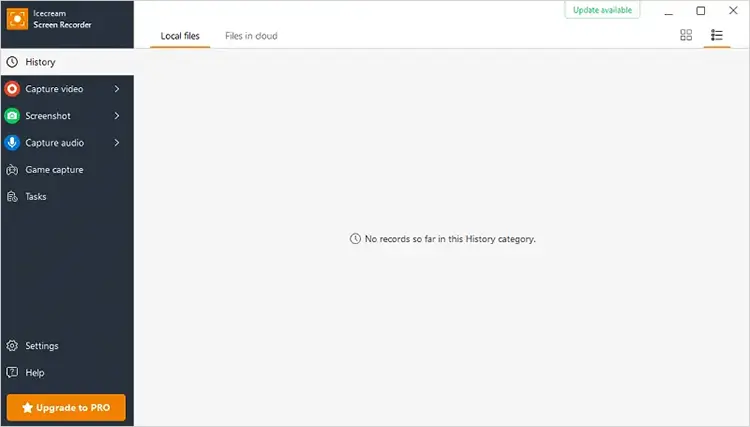
Step 1. Download and install Icecream Screen Recorder on your computer, then open the program to access the main interface. From the left-side menu, select the "Capture Video" option to start setting up your screen recording.
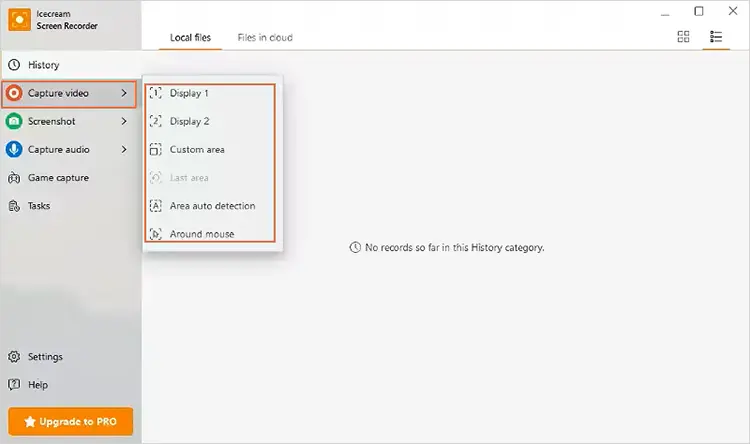
Step 2. Choose the area you want to record from the available options. You can select "Display" to capture your entire screen or choose other modes, including Custom Area, Area Auto Detection, and Around the Mouse, depending on what you need to record.
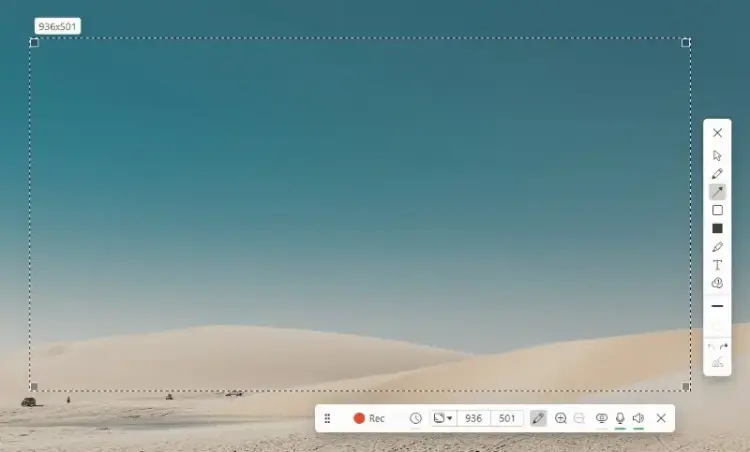
Step 3. After selecting the recording area, the recording toolbar will appear on your screen. Click the "Rec" button to begin recording. When you finish, click the "Stop" button to end the recording and save the video file to your computer.
Part 3. Best Alternative To Icecream Screen Recorder
While Icecream Screen Recorder is a convenient tool for basic screen recording, it has some limitations, such as restricted features in the free version and fewer advanced recording options. For users who need higher-quality recordings, more flexible controls, and additional editing features, Screen Recorder is a powerful alternative worth considering.
It supports recording screens, webcams, gameplay, and audio on both Windows and Mac, allowing you to capture videos in up to 4K/8K quality with customizable recording areas. With features like real-time annotations, webcam overlays, noise reduction, task scheduling, and phone screen mirroring, it provides a more complete recording experience for tutorials, meetings, online videos, and gameplay.
The highlights of Screen Recorder:
- Record full screen, custom areas, specific windows, webcam, and gameplay with flexible recording modes.
- Capture high-quality videos in up to 4K/8K resolution with smooth performance.
- Record system audio, microphone sound, or both at the same time.
- Add webcam overlays for tutorials, presentations, and online videos.
- Use real-time annotation tools to add text, arrows, shapes, and drawings during recording.
- Mirror and record iPhone or Android screens on your computer.
- Enhance audio quality with AI noise reduction and echo cancellation.
- Schedule recordings to automatically start and stop at a specific time.
- Preview and trim recorded videos with built-in editing tools.
Download for Win Download for Mac
How to Record a Video Using Screen Recorder:
-
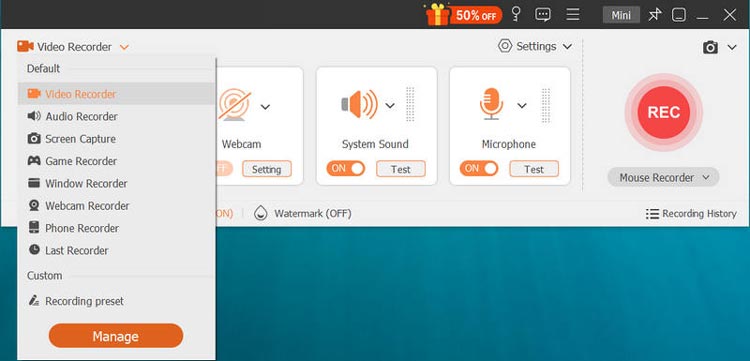
Download and install Screen Recorder on your computer, then launch the program. From the main interface, choose "Video Recorder" and select the recording area you want to capture, such as the full screen, a specific window, or a custom region.
-
Adjust the recording settings according to your needs. You can enable or disable System Sound and Microphone, and turn on the webcam option if you want to add a facecam overlay. Click the "REC" button to start recording your screen.
-
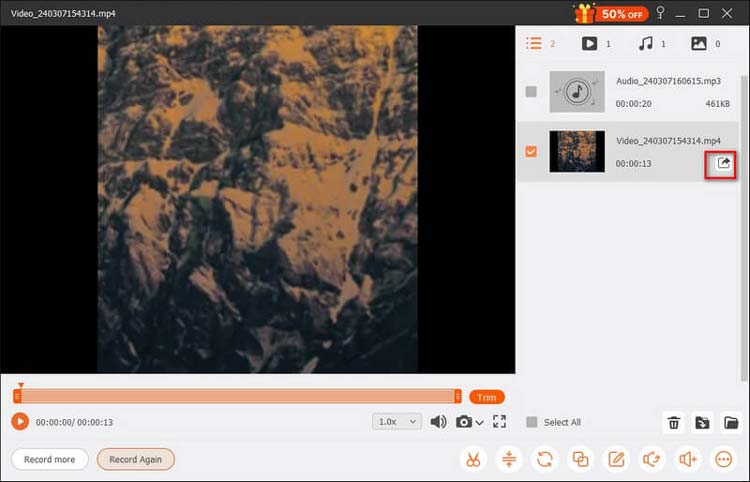
During the recording process, use the built-in annotation tools to add text, shapes, drawings, and highlights to your video. When finished, click the "Stop" button to end the recording. You can preview the video, make basic edits, and save the final recording in your preferred format.
Part 4. Icecream Screen Recorder vs. Screen Recorder
To better understand the differences between Icecream Screen Recorder and Screen Recorder, check out the comparison table below:
| Comparison | Icecream Screen Recorder | Screen Recorder |
|---|---|---|
| Best For | Basic screen recording for beginners | Professional screen recording and content creation |
| Supported Platforms | Windows, macOS, Android | Windows, macOS |
| Recording Modes | Screen, webcam, audio, screenshots | Screen, webcam, audio, game, phone recording |
| Video Quality | HD recording | Up to 8K recording with advanced settings |
| Audio Recording | System audio and microphone | System audio, microphone, and audio enhancement |
| Annotation Tools | Text, arrows, drawings | Real-time annotations and editing tools |
| Phone Recording | Limited support | iPhone and Android screen mirroring and recording |
| Editing Features | Basic trimming | More editing and customization options |
| AI Features | Not available | AI noise reduction and audio enhancement |
| Ease of Use | Simple and beginner-friendly | Easy to use with more advanced features |
| Best Choice For | Quick screen captures and simple tutorials | High-quality videos, games, meetings, and professional recordings |
Part 5. FAQs on Icecream Screen Recorder
Q1. Is the Icecream Screen Recorder safe to use?
Yes. Icecream Screen Recorder is generally considered safe when downloaded from the official Icecream Apps website. The developer states that the software does not contain malware and runs locally on your computer.
Q2. Is the Icecream Screen Recorder free?
Yes, Icecream Screen Recorder offers a free version. However, the free version comes with certain limitations, while additional features are available in the Pro version.
The pricing for the Pro version is as follows:
- 1 Year License: $29.95
- Lifetime License: $59.95
- Video PRO Package: $78
Q3. Does the Icecream Screen Recorder have a watermark?
Yes. The free version of Icecream Screen Recorder adds a watermark to recorded videos, which may affect the overall viewing experience. To remove the watermark and access more advanced recording features, you need to upgrade to a paid version.
Conclusion
Icecream Screen Recorder is a simple and user-friendly screen recording tool that works well for beginners, educators, and users who need quick screen captures. Its screen recording, webcam overlay, annotation, and screenshot features make it suitable for everyday recording tasks.
However, users who need more advanced features, higher recording flexibility, mobile recording, AI audio enhancement, and professional-quality output may want a more powerful solution. Screen Recorder provides a broader range of recording options and advanced tools, making it a reliable alternative for creating high-quality screen recordings.
Download for Win Download for Mac
Related Articles
Wondershare DemoCreator Review: Is It Worth It in 2026?
ScreenFlow Review and Best Alternatives (Trustworthy Tutorial)
Snagit Screen Capture Software Review Guide and 15 Viable Alternatives
AZ Screen Recorder Guide and 9 Practical Alternatives and Review