

TL;DR:
Looking for the best iPhone screen recorder app in 2026? Compare 4 popular iOS screen recorders, including Record it!, Go Record, DU Recorder, and Screen Recorder Voice & Video, to find the right tool for free recording, audio capture, face-cam reactions, and editing. You can also try Screen Recorder to mirror and record your iPhone screen on a PC or Mac with more recording controls.
Need to capture a game win, show someone how to use an app, or record a quick tutorial on your iPhone? An iPhone screen recorder app makes it easy to save what's happening on your screen, but not every tool offers the same features. Some are perfect for quick, free recordings, while others let you add voice commentary, face-cam reactions, or even livestream your gameplay.
In this guide, we'll explore the built-in iOS screen recorder and review four popular apps from the App Store, covering their key features, pros, and cons. Let's look together.
Here is a quick comparison of the 6 iPhone screen recorder tools:
| iPhone Screen Recorder | Best For | Main Advantage | What to Consider |
|---|---|---|---|
| Built-in iOS Screen Recording | Everyday screen capture | No extra app installation required | Limited post-recording tools |
| Record it! | Reaction videos | Combines screen capture with face-cam content | Some features may require in-app purchases |
| Go Record | Beginners | Simple option for basic recording projects | Advanced editing options may be limited |
| DU Recorder | Gaming and streaming | Suitable for users who need more than basic capture | Feature availability may vary by version and region |
| Screen Recorder Voice & Video | Tutorials and commentary | Useful for recordings that need spoken explanations | Check which features are free before using |
| Screen Recorder | Recording an iPhone on a computer | Offers a desktop-based workflow with additional recording controls | Requires a compatible PC or Mac and connection setup |
Part 1. Is There a Built-in iOS Screen Recorder?
Yes. iPhones have a built-in iOS screen recorder that lets you capture screen activity without downloading a third-party application. It is free, straightforward to use, and suitable for recording gameplay, app tutorials, settings walkthroughs, and other on-screen activities.
Apple's screen recorder can also capture microphone audio when you enable the microphone before recording. Your recordings are automatically saved to the Photos app.
Key Features:
- Free to use without downloading extra apps or paying for a subscription.
- Support microphone audio for voiceovers and tutorial narration.
- Let you start and stop recordings directly from Control Center.
- Automatically saves recorded videos to the Photos app.
- Provide quick access through Control Center once Screen Recording is added.
Here is how to record your iPhone screen using the built-in iOS screen recorder:
Step 1. Open Settings on your iPhone and select Control Center.
Step 2. Find Screen Recording and tap the "+" button to add it to Control Center.
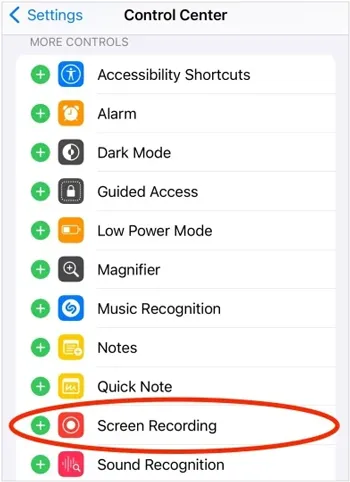
Step 3. Swipe down from the top-right corner of your screen to open Control Center. Tap the "Screen Recording" button (a circle inside another circle) and wait for the three-second countdown. Then exit Control Center and navigate to the app or screen you want to record.
Step 4. If you want to add voice commentary, open "Control Center" and touch and hold the "Screen Recording" button. Tap "Microphone" to turn it on, then tap "Start Recording" and wait for the countdown to finish.
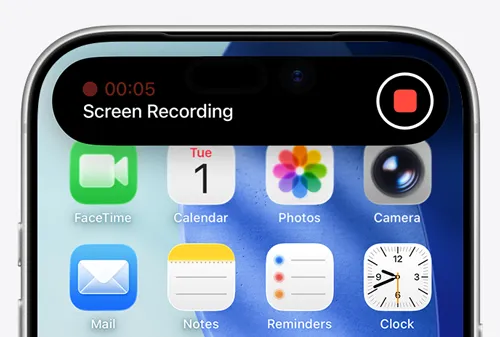
Step 5. When you're finished, tap the red recording indicator at the top of the screen and select "Stop". Alternatively, open Control Center and tap the "Screen Recording" button again.
Step 6. Open the Photos app to find your saved recording. You can watch the video, trim unwanted sections, or share it with others.
- Completely free with no third-party app required.
- Easy to start and stop recording from Control Center.
- Support microphone narration.
- Save videos directly to the Photos app for viewing and sharing.
- Limited editing, subtitle, and effects features.
- Some apps may restrict screen recording.
- Cannot record the screen and use screen mirroring simultaneously.
- Lack dedicated face-cam overlays and advanced editing tools found in some third-party apps.
Part 2. 4 Best iPhone Screen Recorder Apps on the App Store
If the built-in recorder does not meet your needs, a dedicated iOS screen recorder app may offer more editing and sharing options. The following four apps cover different use cases, from simple screen capture to live streaming and face-cam reactions.
1. Record it!
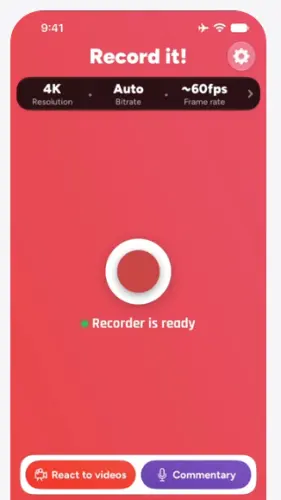
Record it! is an iPhone screen recorder app designed for users who want to capture gameplay, app demonstrations, and tutorials and then personalize the footage. It combines screen recording with a built-in video editor, audio commentary, and face-cam reaction features.
The app is particularly useful for creators who want to add their reactions or explanations to recorded videos without moving between multiple editing applications. It also lets you adjust recording quality and audio settings.
Key Features:
- One-tap screen recording for games, apps, and tutorials.
- Face-cam reactions that can be added to recordings.
- Audio commentary for narration and explanations.
- Video trimming, rotation, filters, and playback-speed adjustments.
- Recording quality and audio configuration options.
- Export to Photos, Files, AirDrop, and supported apps.
- Record games, apps, and tutorials.
- Support video trimming, speed adjustment, and rotation.
- Add face-cam reactions or voice commentary.
- Offer saving, exporting, and sharing options.
- Some features require in-app purchases.
- Require installing a third-party app.
- Face-cam features may be limited on some devices.
2. Go Record
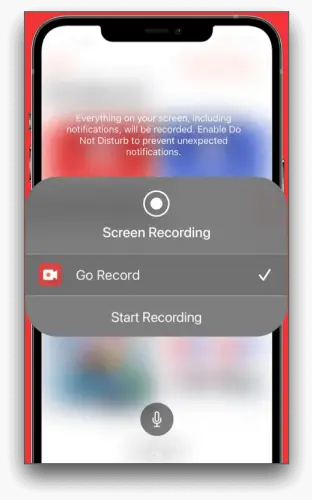
Go Record is another iOS screen recorder app for capturing gameplay, presentations, app walkthroughs, and other on-screen activities. Its main appeal is a relatively simple workflow: record your screen, add voice commentary or a face-cam reaction, make basic edits, and export the finished video.
Unlike a recorder that only saves raw footage, Go Record provides editing tools within the app. This makes it useful for people who want to prepare short videos for social media or explain a process without learning a full desktop video editor.
Key Features:
- High-quality screen recording.
- Face-cam reaction videos.
- Voice commentary.
- Built-in editing for trimming, rotation, and audio adjustments.
- Export options for sharing videos with other applications.
- Easy to use for beginners.
- Include recording, voice commentary, and editing in one place.
- Useful for app demonstrations and gameplay.
- Free to download, with optional paid features.
- Advanced editing capabilities are more limited than those of dedicated desktop editors.
- In-app purchases may be necessary for certain features.
- Face-cam reactions and commentary may require additional setup.
- The best settings for recording quality and audio depend on the iPhone and the recording scenario.
3. DU Recorder
DU Recorder is a screen recording and livestreaming app aimed at users who create gaming videos, live content, and social media clips. In addition to saving screen recordings, it supports broadcasting to platforms such as YouTube, Facebook, and Twitch, subject to account setup and the app's current compatibility.
Its editing tools include trimming, adding music and text, applying filters, adjusting playback speed, merging clips, and creating GIFs. It also advertises microphone and internal-audio recording options, making it an appealing choice for users who need more than a basic iOS screen recorder.
Key Features:
- Screen recording for games and apps.
- Livestreaming to supported platforms.
- Microphone and internal audio recording options.
- Video trimming, cropping, and merging.
- Music, subtitles, filters, stickers, and speed adjustments.
- Face-cam support for reaction videos.
- Video-to-GIF conversion.
- Offer both screen recording and livestreaming features.
- Provide more editing options than a basic built-in recorder.
- Useful for gaming creators and live-content workflows.
- Support a range of audio and video customization options.
- Some features, including watermark removal and certain broadcasting tools, require a premium subscription.
- More complex than necessary for occasional screen recordings.
- Livestreaming requires compatible accounts and a suitable network connection.
- Feature availability may vary by app version, iOS version, and platform.
4. Screen Recorder Voice & Video
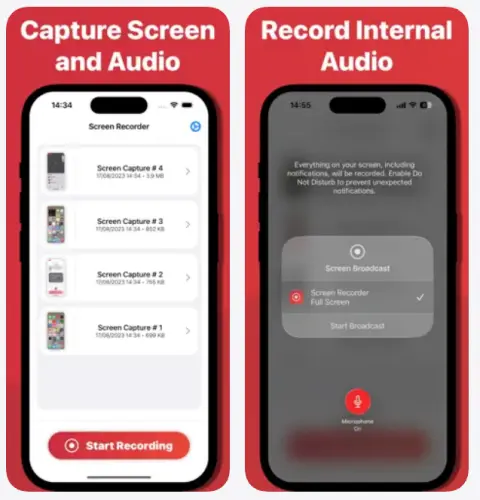
Screen Recorder Voice & Video is an iOS screen recorder app that focuses on capturing screen activity with voice and camera enhancements. It is designed for creators, educators, and gamers who want to record demonstrations, explain on-screen actions, or add their face to a video.
The app offers microphone overlays and face-camera overlays, along with sharing features. Its developer also states that recordings are processed on the device and are not stored or shared with third-party services.
Key Features:
- Screen recording for tutorials, gameplay, and app demonstrations.
- Microphone overlay for spoken explanations.
- Face-camera overlay for reaction videos.
- Video personalization and sharing tools.
- On-device processing, according to the developer.
- Combine screen capture with voice and camera features.
- Useful for tutorial videos and educational demonstrations.
- Free to download.
- Its advertised on-device processing may appeal to privacy-conscious users.
- Some functionality requires in-app purchases.
- Advanced editing options may be less extensive than those in desktop software.
- Face-camera and microphone features need appropriate permissions and configuration.
- Developer privacy claims should be checked against the latest App Store disclosures and privacy policy.
Part 3. Best iOS Screen Recorder on PC/Mac
If you need more recording controls than an iPhone app can offer, Screen Recorder is a desktop alternative worth considering. It supports Windows and Mac and includes a Phone Recorder mode that lets you mirror and record an iPhone screen on your computer.
This approach is particularly useful for recording longer tutorials, software demonstrations, mobile gameplay, and educational videos that you want to review or edit on a larger screen. Rather than relying entirely on a mobile app, you can use your computer to manage recording settings and save your footage for further editing.
It also supports multiple recording modes, audio capture, real-time annotations, and configurable output settings. Its desktop tools extend beyond phone recording to include computer screen, webcam, and audio recording.
The main features of Screen Recorder:
- Mirror and record your iPhone screen on a Windows or Mac computer.
- Record the full screen, a selected area, a specific window, or webcam footage.
- Capture system audio, microphone input, or both simultaneously.
- Add text, arrows, shapes, and highlights during screen recording.
- Customize supported output formats, video quality, frame rate, and other settings.
- Preview recordings and trim unwanted sections before exporting.
- Record computer screens, webcam footage, and audio with dedicated recording modes.
Download for Win Download for Mac
Here is how to record an iPhone screen with audio using Screen Recorder:
-
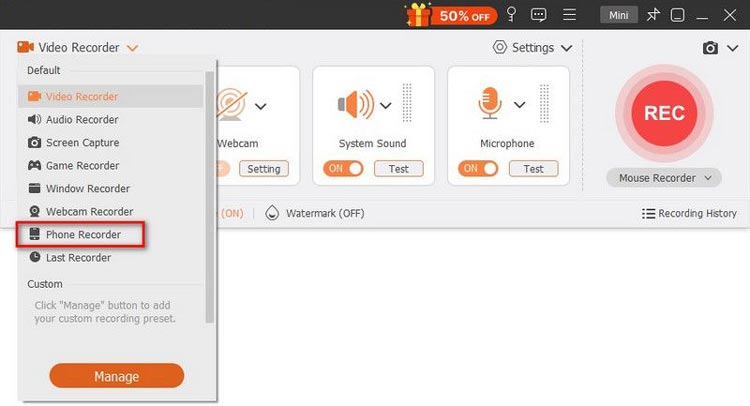
Download and install Screen Recorder on your computer. Launch the program and select "Phone Recorder" from the main interface.
-
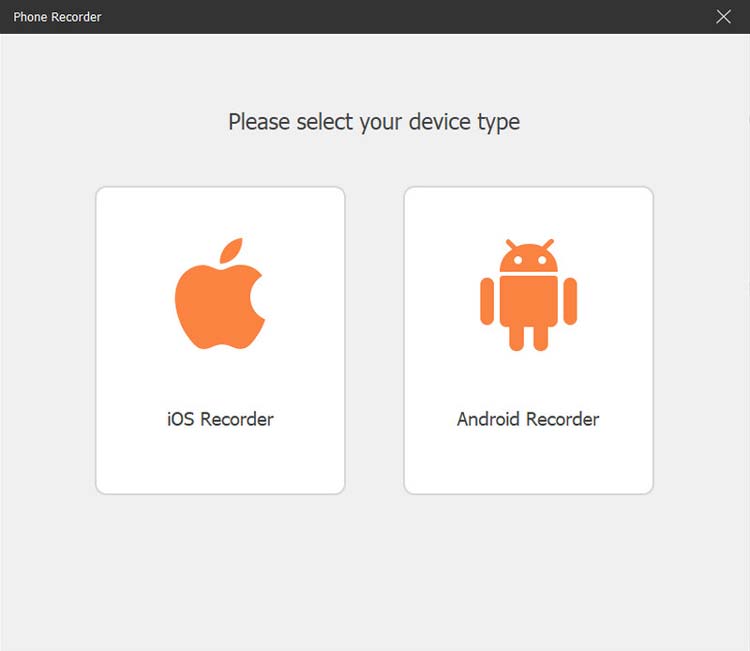
Select "iOS Recorder" and make sure your iPhone and computer are connected to the same Wi-Fi network.
-
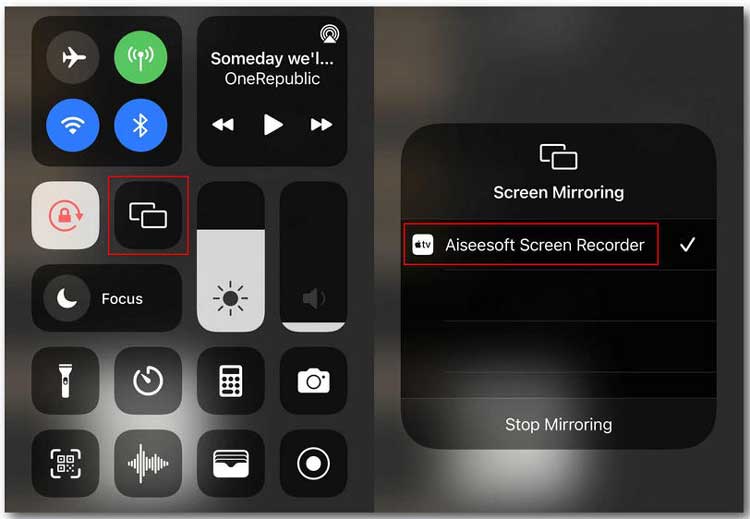
Open Control Center on your iPhone, tap "Screen Mirroring", and select "Screen Recorder" from the device list. Once connected, your iPhone screen will appear on your computer.
-
Adjust the recording settings, such as resolution, output quality, and recording area, then click "Record" to start capturing your iPhone screen.
-
Click "Stop" when finished. Preview and trim the video if needed, then click "Export" to save it to your computer.
- Let you record an iPhone screen directly to a computer.
- Provide more recording controls than a basic mobile screen recorder.
- Support system audio and microphone recording on the computer.
- Offer additional tools for recording computer screens, webcams, and audio.
- Include preview, trimming, and configurable output settings.
- Require a Windows PC or Mac rather than working as a standalone iPhone app.
- iPhone mirroring requires a compatible connection and additional setup.
- Some advanced features require a paid license.
- May be unnecessary if you only need to capture a short clip directly on your iPhone.
Part 4. FAQs on iOS Screen Recorder App
Q1. Is there a free screen recorder app for iPhone?
Yes. iPhones have a built-in screen recorder that can capture your voice. Third-party apps may offer extra features but can include in-app purchases or subscriptions.
Q2. How long can an iPhone record the screen?
There is no fixed time limit. Recording time depends on storage space, battery life, device performance, and app restrictions. For long recordings, check your storage and connect your iPhone to power.
Q3. Why is there no sound in my iPhone screen recording?
Check whether the microphone was enabled before recording and confirm your volume and app audio settings. Some content may restrict audio recording.
Q4. Are third-party screen recorder apps better than the built-in iPhone recorder?
Not necessarily. The built-in tool is suitable for basic recording, while third-party apps may offer extra editing, voice commentary, face-cam reactions, and recording settings. Choose one based on your needs.
Wrapping Up
Choosing the best iPhone screen recorder app depends on whether you need basic screen capture, voice narration, reaction videos, livestreaming, or more advanced editing. Apple's built-in iOS screen recorder is a convenient free option for everyday tasks, while Record it!, Go Record, DU Recorder, and Screen Recorder Voice & Video offer additional features for different content-creation needs.
If you regularly create tutorials, record mobile gameplay, or need greater control over your recordings, Screen Recorder is worth considering. Its iOS Recorder mode lets you mirror and record your iPhone screen on a Windows PC or Mac, while its additional recording and editing tools make it useful for broader content-production workflows.
Related Articles
Best Screen Recording Software in 2026: Top 16 Screen Recorders
Best Screen Recorder for Android: 11 Options (With or Without Computer)
Best Lecture Recorder for Students: 7 Best Picks for Class
AZ Screen Recorder Guide and 9 Practical Alternatives and Review