TL;DR:
Looking for the best lecture recorder for students? Compare 7 top tools to record classes, capture audio and video, transcribe lectures, organize notes, and review lessons with ease. Find the right recorder for your study needs, from free note-taking apps to powerful screen recording and AI transcription tools.
Taking complete notes during a fast-paced lecture can be challenging. Important explanations, examples, and discussions are often missed when students focus too much on writing. A lecture recorder provides a simple solution by allowing users to capture lectures and review them later at their own pace.
However, choosing the right lecture recording tool is not always easy. Some users only need a basic audio recorder for classroom notes, while others need advanced features such as screen recording, AI transcription, cloud sharing, or video editing. With many options available, including traditional recording software, AI note-taking apps, and online video platforms, finding the best solution depends on your specific needs.
In this guide, we compare the best lecture recorder software in 2026, explain their strengths and limitations, and help you choose the right tool for recording lectures, online classes, and educational content.
- Part 1. What Is a Lecture Recorder?
- Part 2. What to Consider When Choosing a Lecture Recorder?
- Part 3. Is It Legal to Record Lectures?
- Part 4. 7 Best Lecture Recorder Options You Can't Miss
- 1. Screen Recorder – Best Overall Lecture Recorder
- 2. Otter.ai – Best AI Lecture Recorder for Automatic Notes
- 3. Microsoft OneNote– Best Lecture Recorder for Note Organization
- 4. Notta – Best Lecture Recorder for AI Transcription
- 5. Loom – Best Lecture Recorder for Video Sharing
- 6. Zoom – Best Lecture Recorder for Online Classes
- 7. VEED – Best Online Lecture Recorder with Editing Tools
- Part 5. Common Problems When Recording Lectures
- Part 6. Frequently Asked Questions About Lecture Recorders
Part 1. What Is a Lecture Recorder?
A lecture recorder is a software or device used to capture audio, video, or both during a lecture or educational session. Depending on your needs, a lecture recorder can help you:
- Record classroom lectures for later review.
- Capture online classes from platforms like Zoom, Google Meet, or Microsoft Teams.
- Save presentations with voice explanations.
- Create educational videos and training materials.
- Convert spoken lessons into reusable study resources.
Part 2. What to Consider When Choosing a Lecture Recorder?
Before selecting a lecture recording tool, consider the following factors.
1. Audio Quality
Clear audio is the most important feature of a lecture recorder. Poor microphone quality or background noise can make recordings difficult to understand. A good recorder should support:
- High-quality microphone recording.
- System audio capture.
- Noise reduction.
- Volume adjustment.
2. Recording Flexibility
Different users have different needs. Students may only need audio recording, while teachers and content creators may need:
- Screen capture.
- Webcam recording.
- Presentation recording.
- Real-time annotations.
3. Ease of Use
A complicated recorder can waste time before a class starts. The best lecture recorder should allow users to begin recording with only a few clicks.
4. File Management and Editing
Long lectures can create large files. Useful features include:
- Video trimming.
- Format conversion.
- Compression.
- Easy sharing options.
Part 3. Is It Legal to Record Lectures?
Before using a lecture recorder, check your school's policies and local regulations.
Some lectures contain copyrighted materials, private discussions, or restricted information. Recording for personal study may be allowed in many situations, but sharing recordings publicly usually requires permission.
Always respect instructors' privacy and obtain approval when necessary.
Part 4. 7 Best Lecture Recorder Options You Can't Miss
Quick Comparison: Best Lecture Recorder by Need
| User Need | Recommended Tool |
|---|---|
| Best overall lecture recording | Screen Recorder |
| AI-generated lecture notes | Otter.ai |
| Recording with organized notes | Microsoft OneNote |
| Automatic transcription | Notta |
| Quick video sharing | Loom |
| Online classroom recording | Zoom |
| Browser recording and editing | VEED |
1. Screen Recorder – Best Overall Lecture Recorder
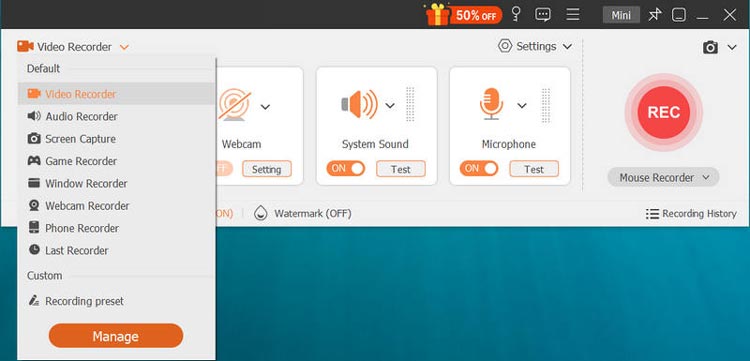
Screen Recorder is a flexible recording solution for users who need to capture both lecture audio and visual content. Unlike simple voice recorders, it can record screens, system sound, microphone audio, and webcam footage simultaneously. It is especially useful for online courses, webinars, training sessions, and lectures that include PowerPoint slides, software demonstrations, or screen sharing.
Key Features:
- Record full screen, selected areas, or specific windows.
- Capture microphone and system audio together.
- Record online lectures without relying on platform recording permissions.
- Add annotations and highlights during recording.
- Schedule recordings for long lectures.
- Save recordings in popular formats.
Download for Win Download for Mac
Pros:
* Support high-quality audio and video recording.
* Suitable for both online and offline lectures.
* Offer more flexibility than built-in recording tools.
* Include useful editing and management features.
Cons:
* Some advanced functions require a paid version.
* Long HD recordings may require significant storage space
* More powerful than necessary for users who only need voice notes.
Best for: Students, teachers, professionals, and anyone who needs complete lecture recordings with audio and video.
2. Otter.ai – Best AI Lecture Recorder for Automatic Notes
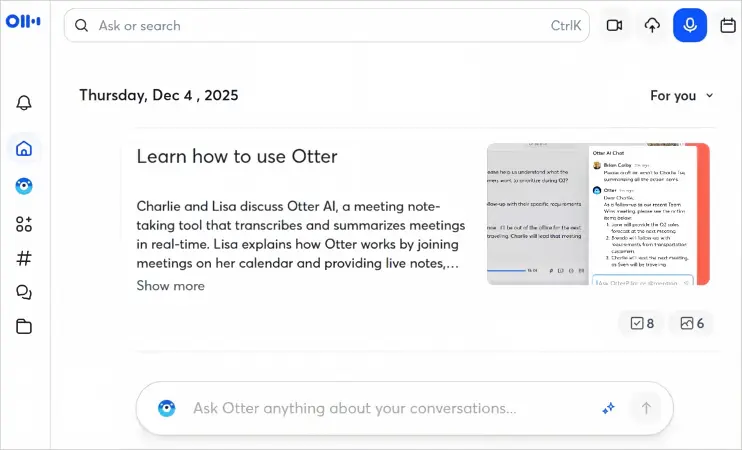
Otter.ai is an AI-powered lecture recorder designed to capture conversations and automatically convert them into searchable text. Instead of only saving audio files, it creates transcripts that allow users to quickly review important information. It is widely used by students, researchers, and professionals who want to spend less time manually writing notes.
Key Features:
- Automatic speech-to-text transcription.
- AI-generated summaries.
- Speaker identification.
- Searchable lecture transcripts.
- Cloud-based access.
Pros:
* Automatically creates lecture notes.
* Save time during long classes.
* Make important information easier to find.
* Useful for meetings and academic discussions.
Cons:
* Transcription accuracy depends on audio quality.
* Free plans have usage limitations.
* Does not focus on screen recording.
Best for: Students who want AI-generated notes from lectures.
3. Microsoft OneNote– Best Lecture Recorder for Note Organization
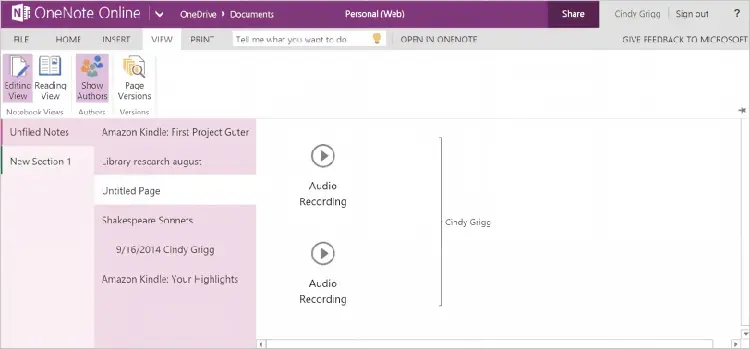
Microsoft OneNote combines digital note-taking with audio recording, making it a convenient option for students who want to organize recordings and written notes together. With this lecture recorder and note taker, users can record lectures directly inside notebooks while adding text, images, drawings, and highlights.
Key Features:
- Record audio inside digital notebooks.
- Organize notes by classes and subjects.
- Sync content across devices.
- Add text, images, and annotations.
Pros:
* Combine recording and note-taking.
* Work well with Microsoft Office tools.
* Easy for students to use.
* Good organization features.
Cons:
* Audio recording features are basic.
* Limited advanced recording controls.
* Not designed for professional video capture.
Best for: Students who want recordings combined with structured study notes.
4. Notta – Best Lecture Recorder for AI Transcription
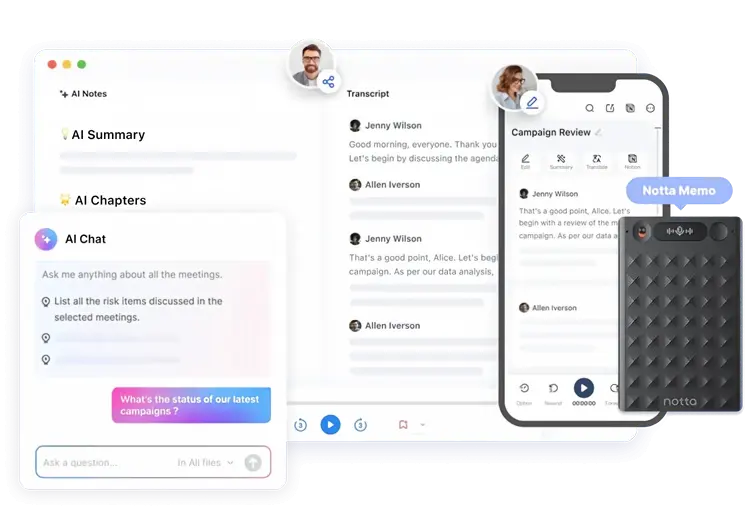
Notta is an AI lecture recorder and transcriber that records lectures and converts spoken content into text. It supports multiple languages and helps users quickly create notes from classes, interviews, and online lessons. For students who mainly need written summaries rather than video recordings, Notta can be a practical choice.
Key Features:
- Real-time transcription.
- Multi-language support.
- AI summaries.
- Audio-to-text conversion.
- Export options.
Pros:
* Quickly converts lectures into text.
* Support different languages.
* Reduce manual note-taking.
* Useful for reviewing complex lessons.
Cons:
* Require internet access for some features.
* Accuracy depends on recording conditions.
* Limited video recording capabilities.
Best for: Users who prioritize transcription and searchable lecture notes.
5. Loom – Best Lecture Recorder for Video Sharing
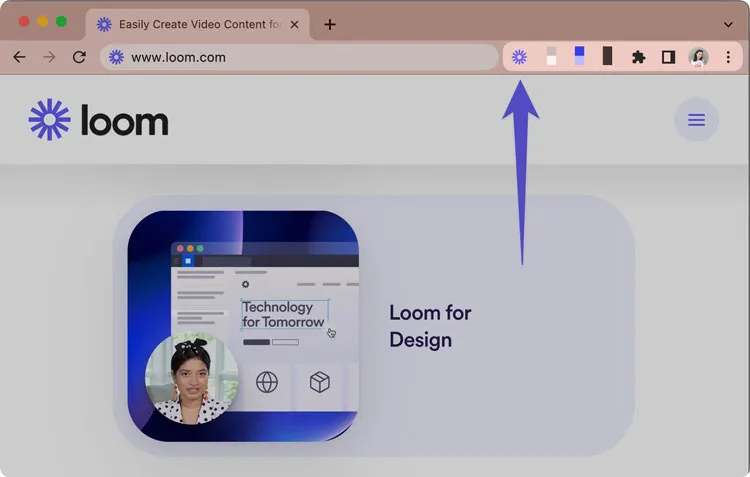
Loom is a screen recording platform designed for quickly creating and sharing videos. Although it is commonly used for workplace communication, it can also work as a lecture recorder app for students and teachers. It allows users to record screens, webcams, and voice, then share recordings through a link.
Key Features:
- Screen and webcam recording.
- Instant video sharing.
- Basic editing tools.
- Viewer feedback features.
Pros:
* Very easy to start recording.
* Convenient sharing workflow.
* Useful for tutorials and explanations.
* Cloud-based access.
Cons:
* Not ideal for very long classroom lectures.
* Free version has restrictions.
* Limited advanced recording features.
Best for: Teachers and creators who need to record and share short educational videos.
6. Zoom – Best Lecture Recorder for Online Classes
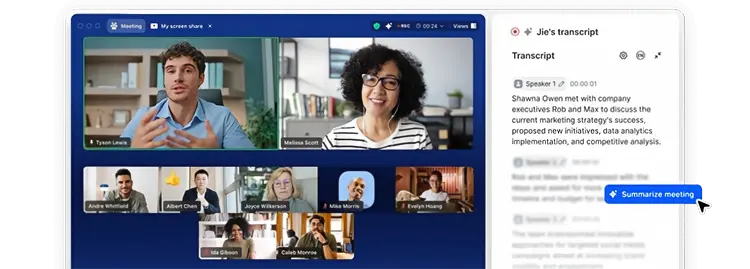
Zoom is one of the most popular platforms for online teaching and virtual classrooms. Its built-in recording feature allows users to capture online lectures, including participant audio, video, and shared screens. For classes already conducted through Zoom, the built-in recorder can be a convenient option to record lectures.
Key Features:
- Record online classes and webinars.
- Capture shared screens and presentations.
- Save recordings locally or in the cloud.
- Support multiple participants.
Pros:
* Convenient for Zoom-based lectures.
* No additional recording software required.
* Record audio, video, and screen content.
* Familiar interface.
Cons:
* Recording permissions depend on account settings.
* Cloud recording may require a paid plan.
* Only suitable for Zoom sessions.
Best for: Students and teachers who mainly use Zoom for online learning.
7. VEED – Best Online Lecture Recorder with Editing Tools
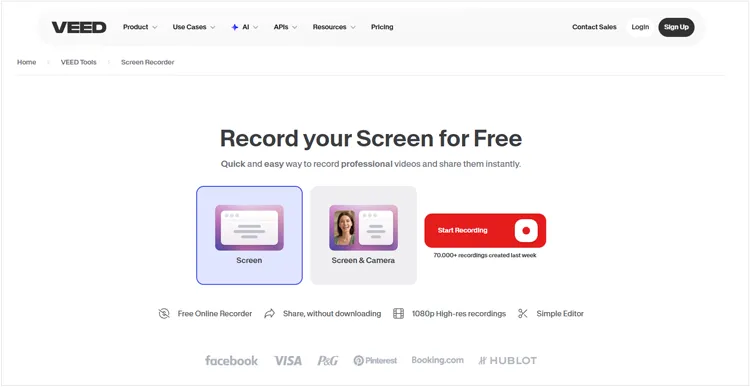
VEED is a browser-based recording and editing platform that allows users to capture lectures, presentations, and educational videos without installing desktop software. This free online lecture recorder is especially useful for teachers and creators who want to edit recordings before sharing them online.
Key Features:
- Browser-based screen recording.
- Webcam and microphone capture.
- Online video editing.
- Subtitle generation.
- Cloud sharing.
Pros:
* Work directly in a browser.
* Include editing and subtitle tools.
* Good for educational content creation.
* Easy sharing options.
Cons:
* Require a stable internet connection.
* Free version includes limitations.
* Less suitable for extremely long recordings.
Best for: Educators and creators who need to record, edit, and publish lecture videos.
Part 5. Common Problems When Recording Lectures
1. The Lecture Recording Has No Sound
Audio problems are among the most common recording issues. Possible causes include:
- Microphone permissions are disabled.
- Incorrect audio source selected.
- System sound is not enabled.
- Low microphone volume.
Before recording an important lecture, test your audio settings first.
2. Lecture Recording Files Are Too Large
Long video lectures can create large files, especially when recorded in high resolution. To reduce file size:
- Lower recording quality when possible.
- Compress videos after recording.
- Convert recordings into smaller formats.
3. Background Noise Reduces Audio Quality
Classrooms and home environments often contain unwanted noise. To improve recording quality:
- Use an external microphone.
- Record in a quiet location.
- Enable noise reduction features if available.
Part 6. Frequently Asked Questions About Lecture Recorders
Q1. What is the best free lecture recorder?
The best free option depends on your needs. Microsoft OneNote works well for students who want notes and audio together, while Zoom and built-in system tools are suitable for basic recording.
Q2. Can I record an online lecture?
Yes. Tools like Screen Recorder, Zoom, Loom, and VEED can capture online lectures with audio and video.
Q3. Should I record lectures as audio or video?
Audio recording is enough for discussion-based classes. Video recording is better for lectures with slides, demonstrations, diagrams, or screen sharing.
Q4. Can AI lecture recorders replace note-taking?
AI transcription tools like Otter.ai and Notta can reduce manual note-taking, but reviewing and organizing information is still important for effective learning.
Q5. Can I use ChatGPT to record lectures?
ChatGPT can help turn lecture recordings or transcripts into organized notes, summaries, and key takeaways. However, it is not designed to directly record lectures on your device. Whether you are using a laptop or smartphone, you can record the lecture first and then use ChatGPT to transcribe, summarize, and analyze the content.
Q6. Do free lecture recording apps offer enough minutes?
Yes. Some free lecture recording apps offer enough minutes for occasional classes. For example, Otter's free plan provides 300 transcription minutes per month, which can work well for students with lighter course schedules. For frequent or longer lectures, check the plan limits before choosing a free option.
Q7. Can I record lectures without the professor's permission?
It depends on your school's rules and local laws. Some schools allow recordings for personal study, while others require permission. To avoid potential issues, always ask your professor before recording a lecture.
Q8. How much storage do I need for lecture recordings?
Storage depends on the recording length, audio quality, and file format. One hour of audio typically uses 30–60 MB. Compressing recordings can help save space on your device.
Final Thoughts
The best lecture recorder depends on your learning style and recording needs.
Students who only need basic audio notes can choose simple tools like Microsoft OneNote or Zoom. Users who want automatic summaries may prefer AI-powered solutions such as Otter.ai and Notta. Teachers and creators who need to produce professional educational content can benefit from tools like Loom and VEED.
For users who need a complete recording solution with high-quality audio, screen capture, and flexible controls, Screen Recorder provides a more powerful experience than basic lecture recording tools.
Related Articles
Screen Recorder for Windows 11/10 PC: Top 11 Screen Recording Tools
Best Screen Recorder for Android: 11 Options (With or Without Computer)
Game Recording Software: Select the Best One to Record Gameplay
AZ Screen Recorder Guide and 9 Practical Alternatives and Review