

TL;DR:
Need the best webcam recording software? Here are 7 tools worth trying:
- Screen Recorder: All-in-one webcam and screen recording with AI background effects.
- ScreenRec: Free webcam recording and instant sharing.
- Bandicam: Windows webcam and external camera recording.
- OBS Studio: Free, open-source recording and streaming.
- Camtasia: Advanced recording and video editing.
- Loom: Quick webcam messages and team collaboration.
- VEED: Online webcam recording and editing.
Recording yourself with a webcam sounds simple, but finding the right tool can make all the difference in how your videos turn out. Whether you're creating YouTube videos, recording online classes, making tutorials, or joining virtual meetings, good webcam recording software helps you capture clear video and audio without a complicated setup. The good news is that you don't need to spend a fortune to get started.
There are plenty of options, from free webcam recording software for Windows 10 and Windows 11 to professional desktop applications and browser-based recorders for Mac and Linux. In this guide, we'll explore 7 popular webcam recording tools, compare their features, pros, and cons, and help you find the one that best fits your recording needs.
Quick Comparison: 7 Webcam Recording Software
| Software | Supported Platforms | Main Features | Free Version |
|---|---|---|---|
| Screen Recorder | Windows, Mac | Webcam recording, AI background removal, video editing | Free trial |
| ScreenRec | Windows, Mac, Linux | Webcam, screen, microphone, instant sharing | Yes |
| Bandicam | Windows | Webcam, HDMI, facecam overlay, high-quality capture | Yes, limited |
| OBS Studio | Windows, Mac, Linux | Webcam capture, audio mixing, live streaming | Completely free |
| Camtasia | Windows, Mac | Webcam, screen recording, multitrack editing | Free trial with watermark |
| Loom | Windows, Mac, Chrome, iOS, Android | Webcam messages, screen recording, cloud sharing | Yes, limited |
| VEED | Online | Webcam recording, background effects, video editing | Yes, with watermark |
1. Screen Recorder
Screen Recorder is a versatile webcam recording software for Windows and Mac that lets you capture webcam footage, screen activity, and audio in one application. Its dedicated Webcam Recorder mode allows you to select your camera, preview footage, adjust resolution and audio volume, apply camera effects, and take snapshots while recording. It also offers AI-powered background removal and replacement without requiring a physical green screen, although this feature needs an NVIDIA GeForce RTX 20 Series GPU or newer.
Beyond webcam capture, it supports screen, game, window, and audio recording. It provides MP4, MOV, MKV, and WMV output formats, basic video trimming, and support for up to 8K resolution and 120 FPS in compatible recording modes. These additional capabilities make it a good choice for users seeking the best webcam recording software with flexible recording and editing options.
Key Features:
- Support webcam, full-screen, custom-region, and window recording.
- Record system audio and microphone input simultaneously.
- Support screen mirroring and recording from iOS and Android devices.
- Provide real-time annotations, screenshots, and hotkeys.
- Include video trimming, merging, and scheduled recording.
- Offer multiple output settings, with support for up to 8K/120 FPS depending on the device and configuration.
Download for Win Download for Mac
How to Use Screen Recorder to Record Webcam:
-
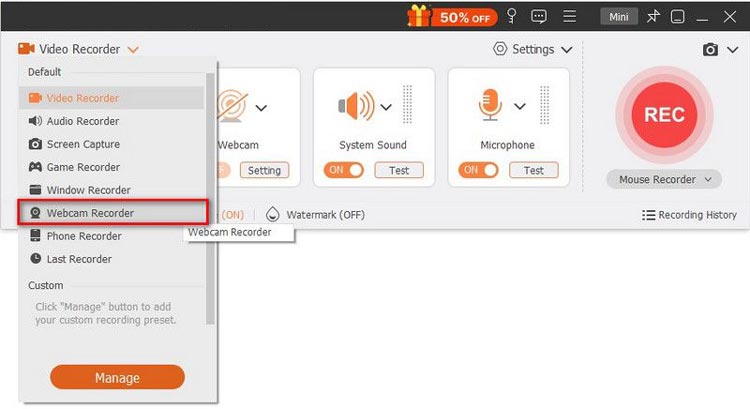
Open Screen Recorder and select "Webcam Recorder" from the top-left menu.
-
Choose your camera, preview the footage, and adjust the resolution, volume, camera effects, and image orientation. Then click "Record" to start recording.
-
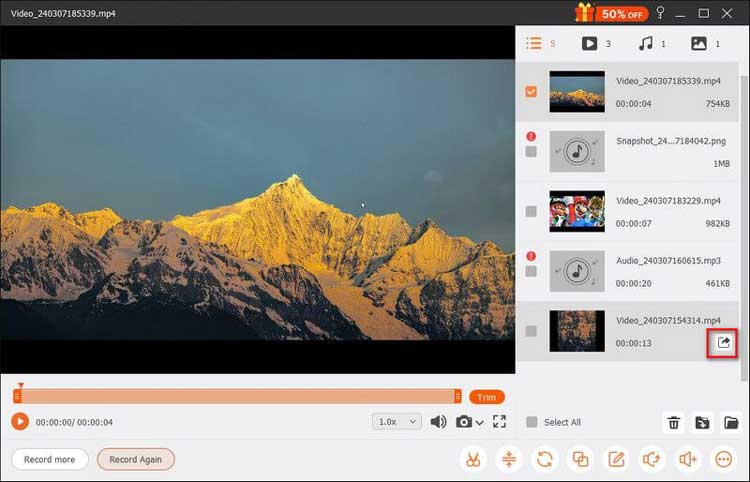
Pause or stop the recording whenever needed, and take snapshots using the "Camera" button. When finished, preview and trim the video, then click "Export" to save it.
- Combine webcam, screen, and audio recording in one application.
- Compatible with both Windows and Mac.
- Offer real-time annotations and basic video editing tools.
- Feature an intuitive interface suitable for everyday video creation.
- The free trial limits recordings to 3 minutes.
- Some advanced features require a paid license.
- High-resolution recording consumes more system resources and storage space.
- Recording DRM-protected content may be restricted.
Best For: Users who want an all-in-one webcam recording software for PC and Mac with adjustable recording settings, background effects, and additional screen capture features.
2. ScreenRec
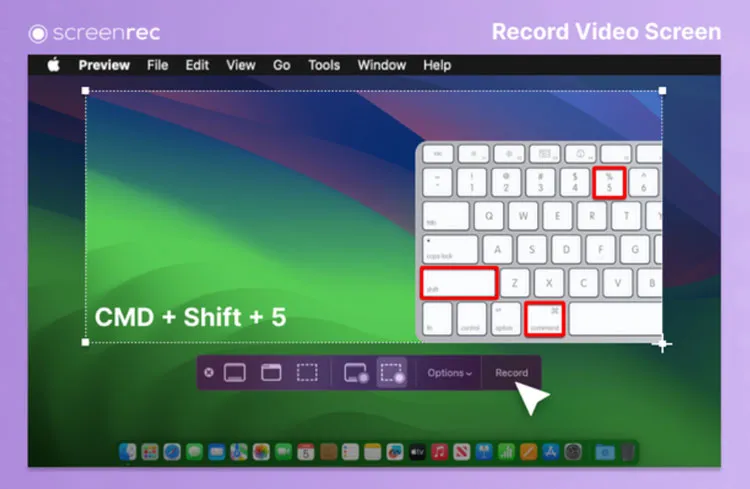
ScreenRec is a lightweight free webcam recording software for quickly capturing and sharing videos. It supports both webcam-only and screen-plus-webcam recording, making it suitable for online lessons, video messages, tutorials, and software demonstrations.
After recording, ScreenRec automatically saves your video and generates a private sharing link, so you can share footage without manually uploading it. It also captures microphone and system audio, lets you adjust the webcam overlay size, and offers desktop apps for Windows, Mac, and Linux.
Key Features:
- Record webcam footage independently or together with the screen.
- Capture microphone and system audio.
- Support adjustable webcam overlay size.
- Generate instant private sharing links.
- Save recordings in MP4 format.
- Provide desktop applications for Windows, Mac, and Linux.
- Offer unlimited recording length on its free plan.
- Free plan with no recording time limit.
- No watermark on free recordings.
- Simple interface suitable for beginners.
- Support webcam-only and screen-plus-webcam recording.
- Instant cloud sharing makes collaboration easier.
- Available on Windows, Mac, and Linux.
- Free recording quality is limited to 720p.
- Free cloud storage is limited to 2GB.
- Free users can create up to 50 video recordings per month.
- Require an internet connection for convenient cloud sharing.
- Fewer advanced editing features than dedicated video editors.
Best For: Users looking for a simple, free webcam recording software solution with unlimited recording length and convenient online sharing.
3. Bandicam
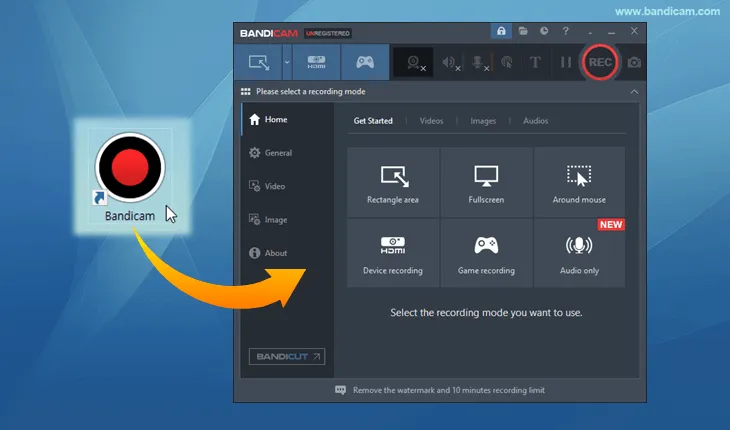
Bandicam is a screen and webcam recording software designed for Windows users. Whether you want to record personal videos, online lessons, gameplay, or video demonstrations, it offers a straightforward way to capture your footage.
Bandicam supports webcam recording and allows you to overlay webcam footage onto screen recordings. You can adjust the position and size of the webcam window to show your face alongside your on-screen activities. This is particularly useful for creating software tutorials, gaming commentary, and demonstration videos.
Key Features:
- Record footage from USB webcams and external video devices.
- Support HDMI capture cards and compatible camcorders.
- Offer Picture-in-Picture webcam overlays.
- Record webcam footage with audio.
- Support MP4 and AVI output formats.
- Provide automatic recording-stop settings.
- Support Windows 7, 10, and 11.
- Suitable for webcam, HDMI, and external camera recording.
- Support webcam overlays for gameplay and tutorials.
- Offer flexible recording settings.
- Support multiple recording modes in one application.
- Compatible with older Windows systems, including Windows 7.
- Provide a free version for testing.
- Windows-only desktop application.
- Free recordings are limited to five minutes each in the current version.
- Free edited video exports can contain a watermark.
- Some advanced features require a paid license.
- Its interface and recording options may take time for beginners to understand.
Best For: Windows users who need a dedicated webcam recorder for PC, especially for external camera capture, gaming videos, and picture-in-picture recordings.
4. OBS Studio
If you're looking for open-source webcam recording software, OBS Studio is a great option to consider. It's a free, open-source recording and live-streaming application for users who need more control over their recordings. It can capture webcam footage, screens, windows, gameplay, and audio, making it useful for tutorials, demonstrations, and live streams.
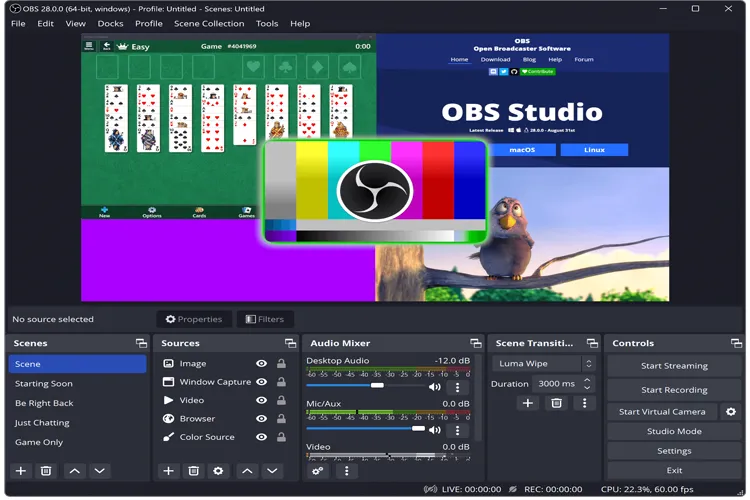
OBS Studio uses a Scenes and Sources system, allowing you to add your webcam, adjust its position and size, and combine it with screen recordings. For example, you can record a software tutorial with your screen as the main view and your webcam in the bottom-right corner using a picture-in-picture layout.
Another advantage is its cross-platform compatibility. OBS Studio works on Windows, Mac, and Linux, making it a flexible webcam recording software for Linux users as well.
Key Features:
- Record webcam footage, screens, windows, and gameplay.
- Capture microphone and system audio simultaneously.
- Offer scene transitions, video filters, and audio mixing.
- Support customizable recording resolution, frame rate, and output settings.
- Support local video recording and live streaming.
- Completely free and open-source, with no recording time limits.
- Support multiple video and audio sources.
- Offer extensive customization for complex recording needs.
- Compatible with Windows, Mac, and Linux.
- Require some time to learn, especially for first-time users.
- The interface and settings may not be intuitive for beginners.
- No built-in full-featured video editor; additional software is usually needed for editing and subtitles.
Best For: Users who need flexible, customizable, and free webcam recording software for Windows, Mac, or Linux, especially streamers and content creators.
5. Camtasia
Camtasia combines screen recording and video editing in one application, making it particularly suitable for creating online courses, training videos, product demonstrations, and educational content.
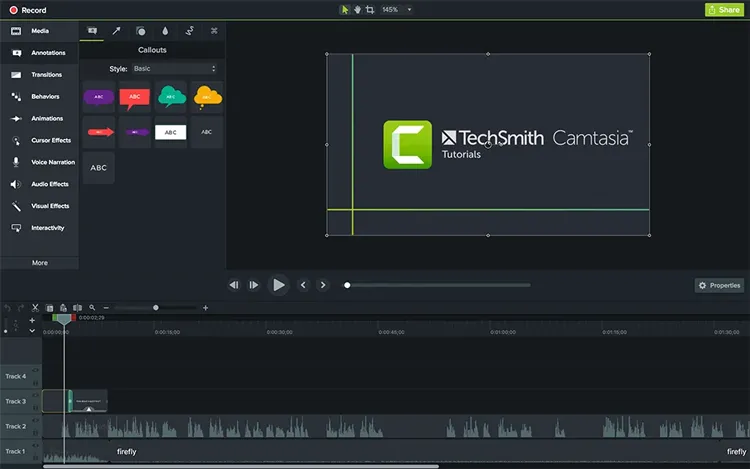
With Camtasia, you can capture webcam footage and microphone audio while recording your screen. Once recording is complete, your footage can be imported directly into the built-in editor, where you can trim, adjust, and arrange clips on the timeline.
Its strength lies not only in recording but also in post-production. You can add captions, annotations, animations, transitions, and zoom effects to turn simple webcam footage into more polished and engaging educational content.
Key Features:
- Record footage from built-in and external webcams.
- Support webcam-only and simultaneous screen-and-camera recording.
- Capture microphone and system audio.
- Provide separate tracks for camera, screen, and audio.
- Offer video editing, transitions, annotations, and visual effects.
- Include a browser-based webcam and screen recorder.
- Support up to 4K screen recording at 60 FPS in supported desktop workflows.
- Combine webcam recording and professional video editing.
- Support separate recording tracks for more flexible editing.
- Suitable for tutorials, presentations, and online courses.
- Allow users to adjust webcam footage after recording.
- Provide useful annotations, transitions, and visual effects.
- Offer an online recording option without software installation.
- The desktop software is paid.
- Free trial exports contain a watermark.
- More expensive than basic webcam recording applications.
- Advanced editing features may take time to learn.
- The browser-based recorder has a five-minute-per-scene limit.
Best For: Educators, businesses, and content creators who need webcam video recording software with advanced editing capabilities.
6. Loom
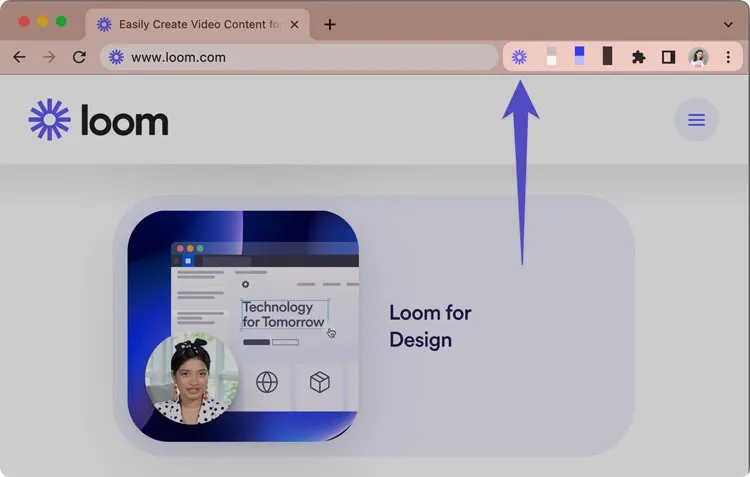
Loom is a webcam and screen recording platform built for quick, asynchronous video communication. It lets you record yourself, explain ideas, and share videos without scheduling a live meeting.
Loom supports both webcam-only and screen-and-camera recording. You can capture your webcam and microphone, use the camera bubble to show your face during screen demonstrations, and share recordings through a link.
It's particularly useful for remote teams, online teachers, and business professionals who need to communicate or explain things efficiently. After recording, you can manage your videos in Loom's online workspace, where you can edit clips, add comments and reactions, generate transcripts, and control sharing permissions.
Key Features:
- Record webcam-only videos and screen-plus-camera videos.
- Support camera bubble recording.
- Capture microphone and system audio.
- Generate shareable video links.
- Provide basic video editing tools.
- Support comments, emoji reactions, and video transcription.
- Offer desktop, browser, and mobile recording options.
- Very easy to use, even for beginners.
- Convenient for recording and sharing video messages.
- Support both webcam and screen recording.
- Provide useful collaboration and feedback features.
- Include transcription and closed captions.
- Work well for remote communication and online teaching.
- Free recordings are limited to five minutes.
- Free users can store only 25 videos per person.
- Free video quality is limited to 720p.
- Require an account to use its recording and sharing workflow.
- Less suitable for users who need extensive local recording controls.
- Advanced features require a paid plan.
Best For: Remote workers, educators, and business users who want convenient webcam recording software online for video messages, tutorials, and team communication.
7. VEED
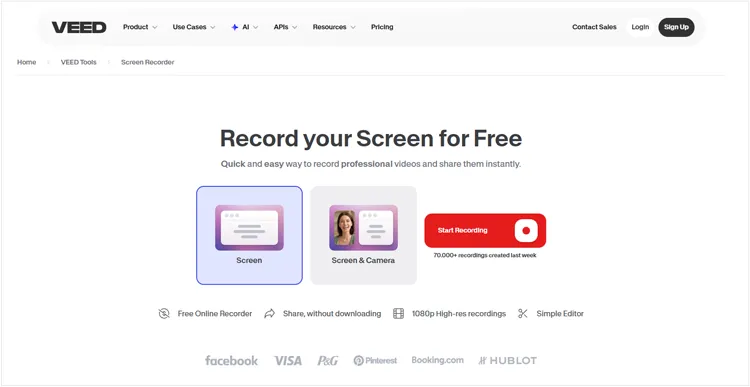
VEED is a browser-based webcam recording and video editing platform that requires no software installation. It supports camera-only, screen-only, audio-only, and screen-plus-webcam recording, making it suitable for video messages, tutorials, presentations, and social media content.
Its built-in editor lets you trim recordings, add text and music, generate subtitles, and remove backgrounds directly in your browser. With a simple interface and multiple recording modes, VEED is a convenient option for beginners who want to record and edit videos in one place.
Key Features:
- Browser-based webcam recording without installation.
- Support camera-only, screen-only, and combined recording.
- Capture webcam footage and microphone audio.
- Include a built-in video editor.
- Provide background removal and visual effects.
- Support text overlays, music, and automatic subtitles.
- Allow users to export and share edited videos online.
- No desktop installation required.
- Easy-to-use interface for beginners.
- Support multiple recording modes.
- Include recording and editing in one platform.
- Offer useful background effects and subtitle tools.
- Suitable for creating social media and marketing videos.
- Work across different desktop operating systems through a compatible browser.
- Free exports include a VEED watermark.
- Free export resolution is limited to 720p.
- Some advanced editing and AI features require a paid subscription.
- Require a stable internet connection for its online workflow.
- Large video projects may take longer to upload and process.
- Less suitable for users who prefer fully offline recording.
Best For: Users who want a convenient webcam recording software online solution with built-in editing, subtitles, and background effects.
Frequently Asked Questions
Q1. What is the difference between a webcam and a digital camera?
- Purpose: Webcams are designed for video calls and live streaming, while digital cameras are used for photography and high-quality video recording.
- Image Quality: Digital cameras generally offer better image quality and interchangeable lenses, while webcams prioritize convenience.
- Ease of Use: Webcams are usually plug-and-play, while digital cameras require more manual settings.
- Best For: Webcams suit everyday communication; digital cameras are better for professional photography.
- Price: Webcams are generally cheaper, while digital cameras are more expensive depending on their features.
Q2. How can you tell if your webcam is recording?
It depends on the software you use. Most recording tools display a recording indicator or minimize to the system tray while recording. You can open the software to check its recording status.
Q3. Why does my webcam video go out of sync with microphone audio?
Audio-video desync often happens when your CPU is overloaded during long recording sessions. The recording software may drop video frames while continuing to capture audio, causing the two to fall out of sync. To reduce this issue, use a dedicated GPU encoder to handle video processing and reduce CPU usage.
Final Words
Choosing the right webcam recording software depends on your needs and budget. OBS Studio is a great free option, ScreenRec makes recording and sharing easy, and Camtasia is ideal for users who need advanced editing tools.
If you prefer a more straightforward all-in-one solution, Screen Recorder is worth trying. It combines webcam and screen recording with adjustable camera settings, audio controls, and AI background effects, making it a convenient choice for creating tutorials, presentations, and webcam videos.
Download for Win Download for Mac
Related Articles
8 Popular Loom Alternatives for Screen Recording in 2026
Best Video Recording Software 2026: Top 10 Tools Compared
Best Screen Recording Software in 2026: Top 16 Screen Recorders
Icecream Screen Recorder Review: Features, Pros, Cons & Best Alternative