


TL;DR:
Recording your screen on an HP laptop is highly flexible, split between two main options:
- Quick & Built-in: If you need a fast recording without installing extra software, stick to native tools. The Windows 11 Snipping Tool and Microsoft PowerPoint are excellent for capturing custom areas or embedding clips into presentations, while the Xbox Game Bar provides a quick, hotkey-driven setup optimized for single application windows or gaming.
- Advanced & Professional: If you need robust features and total control, external programs are the better choice. Dedicated utilities like iReaShare Screen Recorder and ShareX offer smart automation, mouse tracking, and real-time annotations, while OBS Studio serves as the ultimate, free, open-source standard for complex multi-source layouts and high-frame-rate streaming.
Screen recording on an HP laptop is a practical way to capture tutorials, gameplay, meetings, or troubleshooting steps. Whether you are using Windows 10 or Windows 11, there are multiple built-in tools and third-party screen recorders available to help you record your screen efficiently. If you have been searching for how to record screen on HP laptop without hassle, this guide walks you through the most reliable methods step by step.
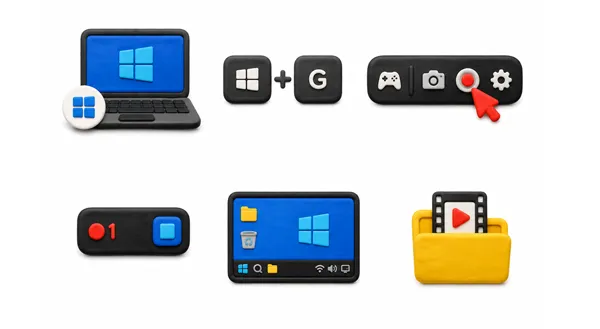
- Part 1: How to Record Screen on HP Laptop Windows 11 via Snipping Tool
- Part 2: How to Record Screen on HP Laptop Windows 10 via Xbox Game Bar
- Part 3: How to Record Screen on HP Laptop via iReaShare Screen Recorder
- Part 4: How to Screen Record on HP Laptop via PowerPoint
- Part 5: How to Record the HP Laptop Screen via OBS Studio
- Part 6: How to Record Screen on Windows 11 HP PC via ShareX
- Part 7: Q&A About Recording Screen on HP Laptop
Take a glance at the pros and cons of these tools:
| Method | Pros | Cons |
|---|---|---|
| Snipping Tool (Windows 11) | 1. Completely built-in; no installation required. 2. Very lightweight and simple to use. 3. Allows flexible custom region selection. |
1. Only available on Windows 11. 2. Extremely basic; lacks advanced editing or frame-rate settings. 3. No real-time annotation tools. |
| Xbox Game Bar (Windows 10/11) | 1. Pre-installed on both Windows 10 and 11. 2. Optimized for smooth gameplay and app recording. 3. Quick hotkey startup (Win + Alt + R). |
1. Cannot record the Windows Desktop or File Explorer. 2. Can only record one application window at a time. 3. Minimal editing or customization options. |
| iReaShare Screen Recorder | 1. Supports full screen, specific windows, or custom regions. 2. Includes advanced features like mouse tracking and audio sources. 3. Saves recorded videos as MP4 files. 4. Offers real-time drawing and annotation tools during taking screenshot. |
1. Requires downloading and installing third-party software. 2. The free version records a screen with a watermark. |
| Microsoft PowerPoint | 1. Great choice if you already have Microsoft Office installed. 2. Conveniently embeds videos directly into your slides. 3. Allows you to save the recording as a separate MP4 file easily. |
1. Requires a paid Microsoft 365 or Office subscription. 2. Slow workflow if you just want a quick, standalone video. 3. Lacks optimization for high-frame-rate tasks like gaming. |
| OBS Studio | 1. Completely free, open-source, and has no watermarks or time limits. 2. Highly professional; supports complex multi-source layouts and transitions. 3. Perfect for high-quality streaming and long-form recording. |
1. Steep learning curve for beginners. 2. Interface can feel overwhelming at first. 3. Heavier on system resources than basic built-in tools. |
| ShareX | 1. Free, open-source, lightweight, and completely ad-free. 2. Excellent automation options (e.g., auto-saving or instant cloud uploading). 3. Supports GIF creation alongside standard video recording. |
1. The user interface can feel a bit cluttered and complex. 2. Setting up audio recording configurations can sometimes require manual tweaks. |
Part 1: How to Record Screen on HP Laptop Windows 11 via Snipping Tool
If your HP laptop runs on Windows 11, the classic Snipping Tool has been upgraded to include a lightweight, native screen recorder. It is perfect for quick captures without any extra fluff.
Here's how:
-
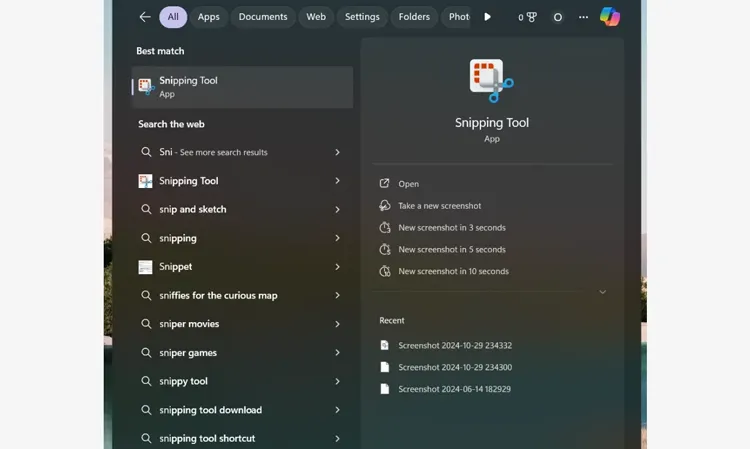
Press "Win + Shift + S" or search for "Snipping Tool" in the "Start" menu to open the app.
-
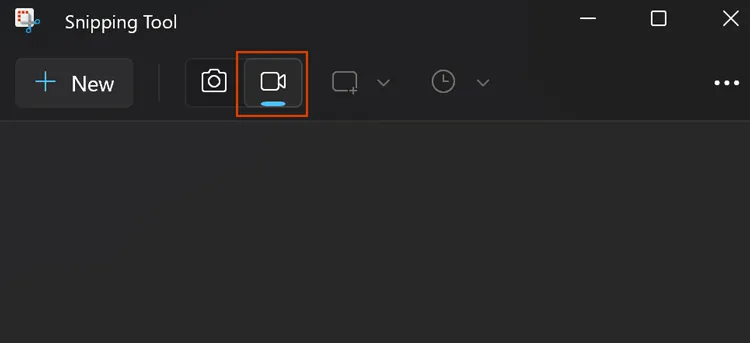
Click the "Video Camera" icon (Record) on the toolbar. Then tap the "New" button.
-
Click and drag your mouse to select the specific area of the screen you want to record (you can select the entire screen or just a portion).
-
Click the "Start" button at the top of the screen. A 3-second countdown will appear, and recording will begin. When finished, click the red "Stop" button. You can then preview, save, or copy the recording.
Part 2: How to Record Screen on HP Laptop Windows 10 via Xbox Game Bar
For HP laptops running Windows 10, the Xbox Game Bar is the go-to built-in feature. While designed for gaming, it works perfectly for recording almost any open application window. Please note that this tool cannot record the Windows desktop and File Explorer.
To record the screen on an HP laptop with Xbox Game Bar:
-
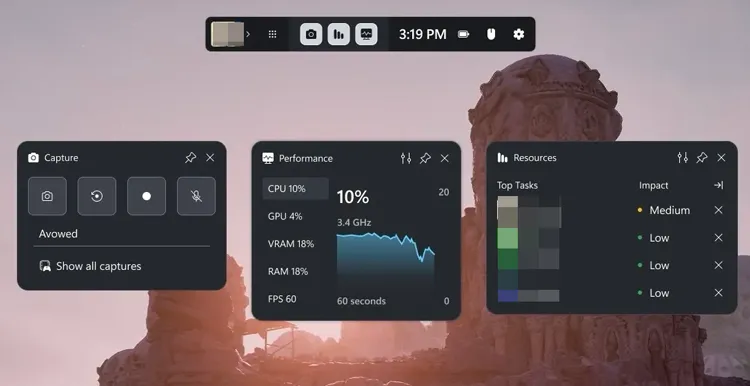
Open the application or window you want to record. Then press "Win + G" to open the Xbox Game Bar overlay.
-
In the "Capture" widget, look for the camera controls. Next, click the circle "Record" button, or press "Win + Alt + R" to start recording.
-
A small capturing status bar will appear on the side of your screen showing the duration. To stop recording, click the square "Stop" button on that status bar or press "Win + Alt + R" again.
See also: After recording, you can edit your video on your PC step by step.
Part 3: How to Record Screen on HP Laptop via iReaShare Screen Recorder
If you need advanced features like scheduling recording, real-time annotations, or mouse-tracking effects, a dedicated third-party tool like iReaShare Screen Recorder is an excellent choice. It allows you to record any screen you like, and select the specific area with drag and drop.
Main features of iReaShare Screen Recorder:
* Full-screen and custom area recording lets you capture your entire HP laptop screen or select a specific region depending on what you need to show.
* Simultaneous audio and video capture allows you to record your voice or system sound, and the screen content alongside your screen for tutorials or reaction videos.
* High-quality video output records smooth, lag-free footage and saves it as MP4, with no watermark once the software is registered.
* No time limits mean you can record long sessions without worrying about the video cutting off partway through.
* Instant screenshot capture and editing allow you to save images in PNG, JPG, JPEG, or BMP format and annotate them with text, arrows, and shapes right after capturing.
* 100% local processing keeps all recordings and screenshots on your device, with nothing uploaded to the cloud, so your data stays private and secure.
Download iReaShare Screen Recorder.
To record the screen on an HP laptop with this screen recorder:
-
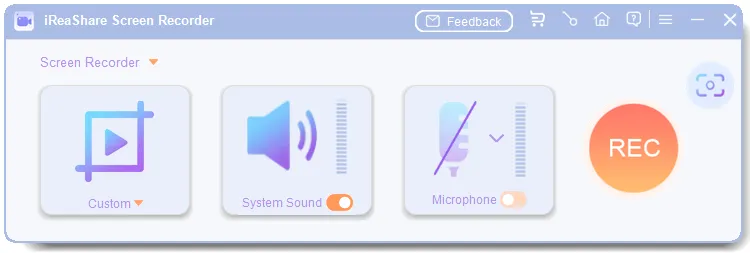
Download, install, and launch iReaShare Screen Recorder on your HP laptop. Then select the "Full Screen" or "Custom" mode, and navigate to the screen you want to record.
-
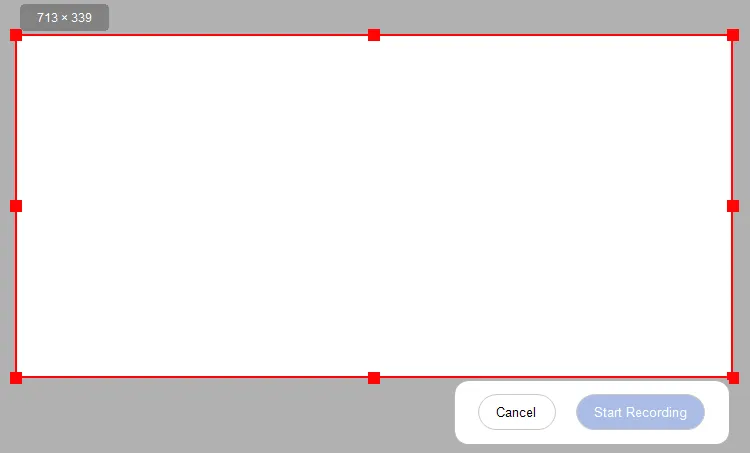
Enable "System Sound" or "Microphone" if needed, and click "REC". Then drag and select the region, and tap "Start Recording".
-
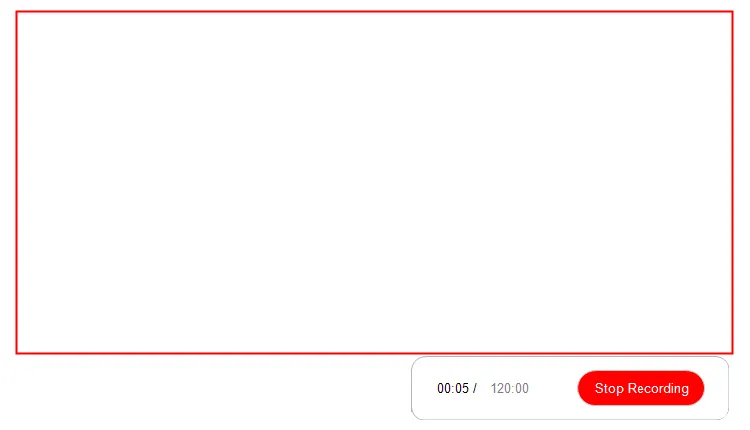
After recording, click "Stop Recording". Then you can copy the video to another app or document, or download it to the computer.
Follow the video guide to record the screen on your HP computer:
Part 4: How to Screen Record on HP Laptop via PowerPoint
Many people don't realize that Microsoft PowerPoint features a built-in screen recorder. If you are already working on a presentation with your HP laptop, this is an incredibly convenient method.
Here are the steps:
-
Open Microsoft PowerPoint and open an existing or blank presentation. Go to the "Insert" tab on the top ribbon.
-
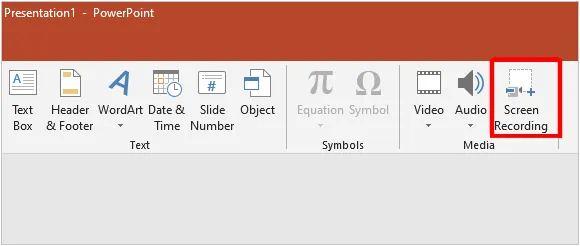
On the far right, click on "Screen Recording". A control dock will appear. Click "Select Area" and drag the crosshairs over the region of the screen you want to capture.
-
Click the "Record" button, or press "Win + Shift + R". To end the recording, move your mouse back to the top of the screen to reveal the dock and click "Stop", or press "Win + Shift + Q".
-
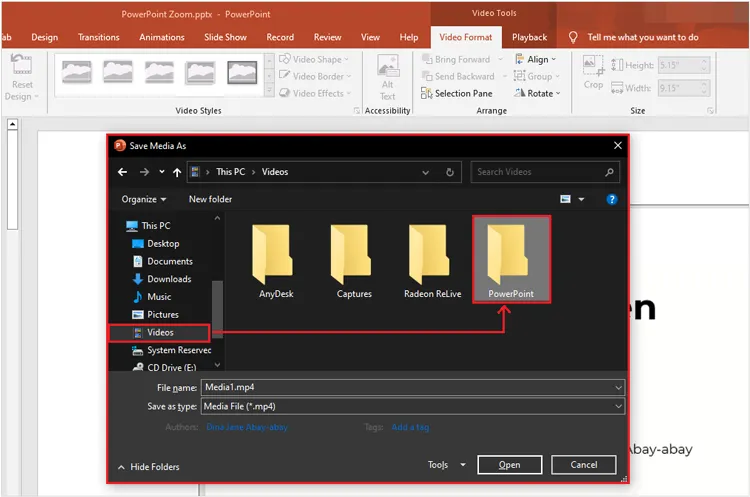
The video will automatically be embedded into your PowerPoint slide. To save it as a standalone file, right-click the video frame and select "Save Media as".
Tips: If the screen recording feature on PowerPoint is not working, you can fix it directly.
Part 5: How to Record the HP Laptop Screen via OBS Studio
For professionals, streamers, or anyone requiring multi-source layouts, OBS Studio (Open Broadcaster Software) is the gold standard. It is free, open-source, and highly customizable. Even though it is slightly complicated for beginners, it is functional for live streaming and high-definition screen recording.
Here's the guide:
-
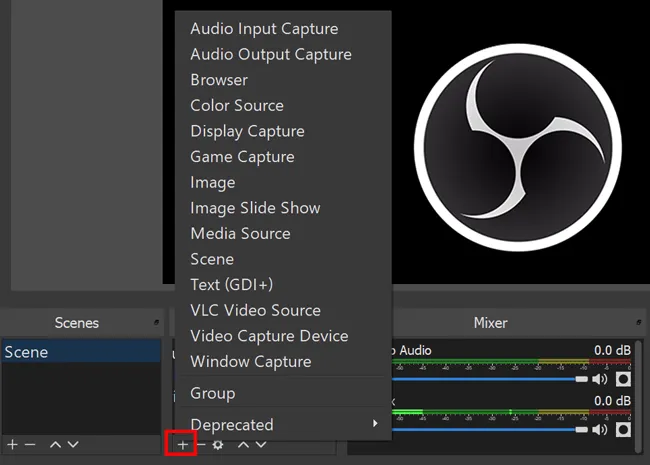
Download and install OBS Studio on your laptop, and open the program. Look at the "Sources" box at the bottom, click the "+" (plus) icon, and select "Display Capture" (to record the whole screen) or "Window Capture" (to record a specific app).
-
Name the source and click "OK". Ensure your display is visible in the OBS preview window. Then check your audio levels in the "Audio Mixer" box to ensure your microphone or desktop audio is active.
-
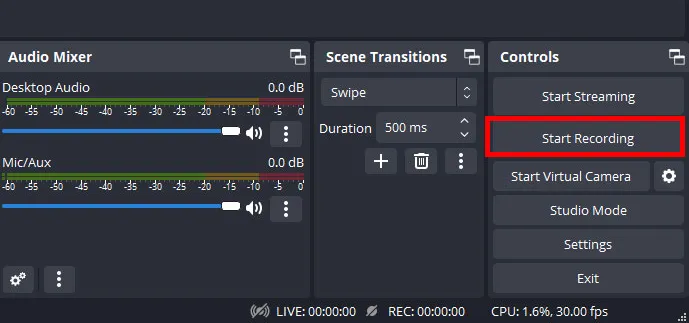
Click "Start Recording" in the "Controls" panel on the bottom right. When done, click "Stop Recording" in the exact same location. Your video will be saved to your local drive.
Part 6: How to Record Screen on Windows 11 HP PC via ShareX
ShareX is a powerful, lightweight, open-source productivity tool primarily known for screenshots, but it also features a robust, customizable screen recording function on a Windows computer.
To record a screen on a Windows 11 HP computer via ShareX:
-
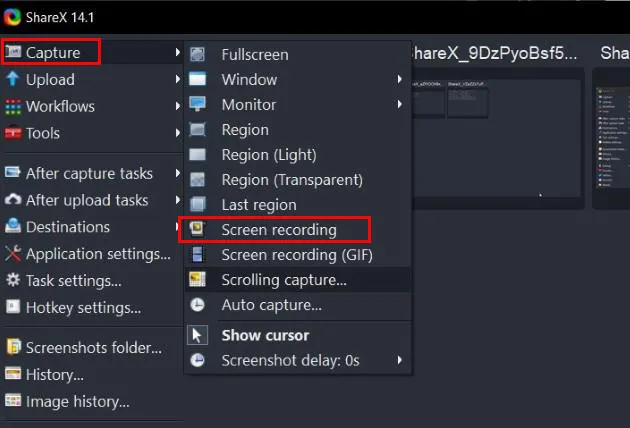
Install and open ShareX on your HP computer. Click on "Capture" in the left-hand menu, then select "Screen recording", or press "Shift + Print Screen".
-
Select the region of your screen you wish to record by clicking and dragging. ShareX will immediately begin recording.
-
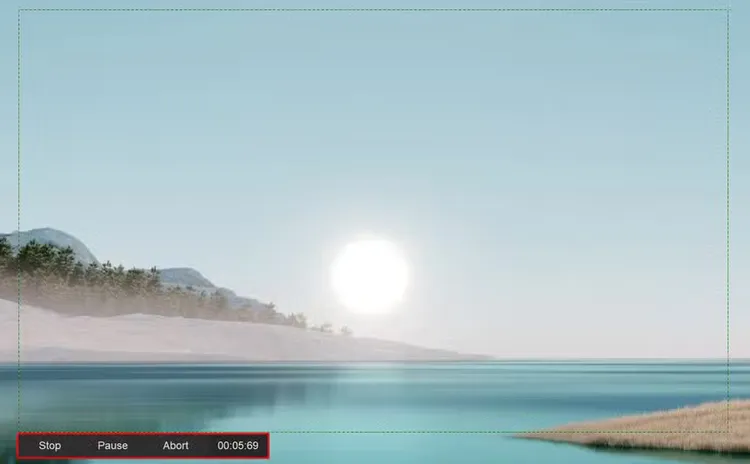
A small taskbar menu will appear at the bottom of the active region. When you are done, click the "Stop" button.
-
The video will be processed and appear in your ShareX main dashboard, where you can right-click it to locate the file or upload it instantly.
Part 7: Q&A About Recording Screen on HP Laptop
Q1: Why is the shortcut of Win + Alt + R not working on my HP laptop?
There are a few reasons why this Xbox Game Bar shortcut might fail:
- Feature Disabled: Game Bar might be turned off in your settings. Go to Settings > Gaming > Xbox Game Bar and ensure it is toggled On.
- Unsupported Screen: Xbox Game Bar cannot record the standard Windows Desktop or File Explorer. Ensure you have an active application or game window open before pressing the shortcut.
- Shortcut Conflict: Another background software (like HP OMEN Gaming Hub or Discord) might be overriding that specific hotkey combination.
Q2: Where are screen recordings saved on an HP laptop?
The destination depends entirely on the tool you used:
- Xbox Game Bar: Saved automatically to your user account under C:\Users\[YourUsername]\Videos\Captures.
- Snipping Tool: Saved to your Videos or Screenshots folder, though Windows 11 usually prompts a notification to let you choose where to save or copy it.
- iReaShare Screen Recorder: Allows you to select a folder to save your videos.
Q3: Q3: Can I record the entire screen, including desktop and File Explorer?
Yes, but not with Xbox Game Bar. To record your entire desktop, taskbar, and File Explorer, you should use the Windows 11 Snipping Tool, OBS Studio, ShareX, or iReaShare Screen Recorder, as these tools support full system display capture rather than limiting the recording to a single application window.
Conclusion
It's simple to record your screen on an HP laptop once you know which tool fits the job. For rapid, everyday captures, Windows 11's Snipping Tool or Windows 10's Game Bar work perfectly without requiring extra software.
For specialized tasks like presentations or professional tutorials, PowerPoint, ShareX, or a dedicated utility like iReaShare Screen Recorder provide excellent flexibility. If you want a user-friendly screen recorder, the built-in tools and iReaShare Screen Recorder are very suitable for you.
Related Articles
How to Record Roblox Gameplay Smoothly: 5 Effective Methods
ScreenFlow Review and Best Alternatives (Trustworthy Tutorial)
Corrupt Photo Repair Made Easy: Top Methods to Restore Important Pictures
How to Add Watermark to Videos Without Trouble (6 Ways)

