


Are you a Roblox enthusiast? If you want to record Roblox gameplay and share it on social platforms, you can get practical help from this guide. Whether you are looking for a quick built-in solution or professional-grade recording software, this guide covers the most effective methods to capture high-quality footage. Let's get started.
- Part 1: How to Record Roblox via Built-in Recorder
- Part 2: How to Record Roblox via iReaShare Screen Recorder
- Part 3: How to Record Roblox Gameplay with OBS Studio
- Part 4: How to Record Roblox via Windows Game Bar
- Part 5: How to Record the Gameplay of Roblox via VLC Screen Recorder
- Part 6: Q&A About Recording Roblox
Take a quick look at these recording methods:
| Method | Pros (The Good) | Cons (The Bad) |
|---|---|---|
| Built-in Recorder | 1. No extra software needed. 2. Extremely easy one-click start. |
1. Low video quality. 2. No webcam or microphone support. |
| iReaShare Screen Recorder | 1. High-quality output. 2. Record specific screen areas. 3. Very easy to use. |
1. Requires separate installation. 2. The free version has no time limit but contains a watermark. |
| OBS Studio | 1. Professional and 100% Free. 2. Supports webcams and overlays. |
1. Hard for beginners to learn. 2. High CPU/RAM usage. |
| Windows Game Bar | 1. Built into Windows 10/11. 2. Low impact on game speed. |
1. Only available for Windows. 2. Limited editing features. |
| VLC Media Player | 1. Free and lightweight. 2. Most users already have it. |
1. Complicated setup. 2. Produces very large file sizes. |
Part 1: How to Record Roblox via Built-in Recorder
For users who prefer a simple and efficient option, Roblox offers a built-in recorder that allows you to capture your gameplay without the need for third-party software. However, this feature is limited to certain devices and may not have all the advanced options that other tools provide.
To use the built-in recorder to capture Roblox gameplay:
-
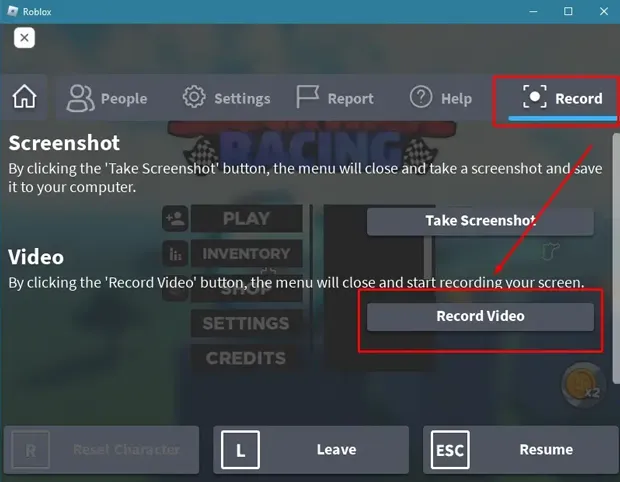
Launch any Roblox game and press "ESC" or click the "Roblox" icon in the top-left corner.
-
Navigate to the "Record" tab in the menu. Then click "Record Video". The menu will close, and a red border will appear around the screen.
-
To stop recording, click the red icon in the top-left or return to the menu and click "Stop Recording". Your video will be saved locally in your "Videos/Roblox" folder.
Part 2: How to Record Roblox via iReaShare Screen Recorder
For users who want more control over their output - such as selecting specific recording areas, choosing sound sources, or trimming videos - iReaShare Screen Recorder provides a robust and user-friendly interface. It also supports 4K or 8K resolution, and exports your videos with various file formats, like MP4, WMV, MOV, AVI, GIF, etc.
Main features of this screen recorder:
* Capture your Roblox gameplay without quality loss.
* Take screenshots and edit the pictures on your PC.
* Provides screen recorder with a custom screen size or a full screen.
* Enable you to record your phone screen on your computer if you mirror your phone screen to your PC.
* Record a screen with system or microphone sound.
Download this screen recorder software.
To record Roblox gameplay with this screen recorder:
-
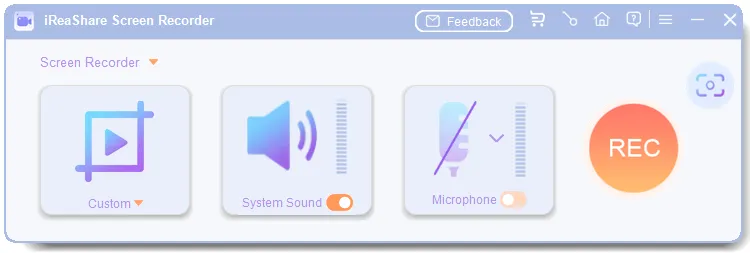
Begin by downloading and installing iReaShare Screen Recorder on your PC. Then open it, and choose the "Custom Screen" or "Full Screen" option.
-
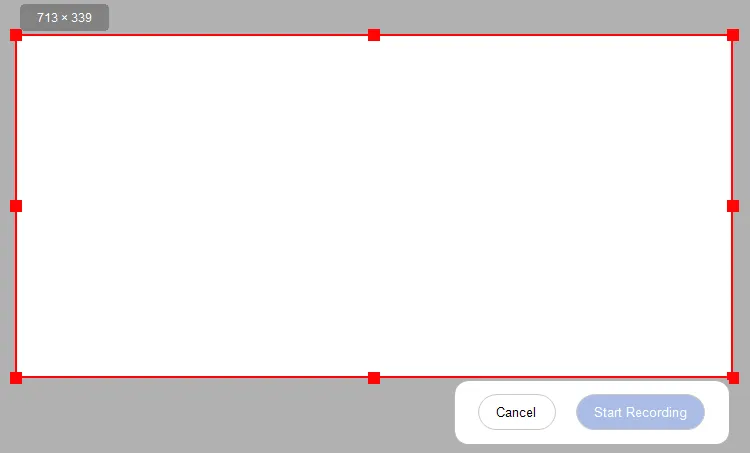
Now, enable the sound source you want, and tap "REC" to select the area of the game you want to record. Then click "Start Recording".
-
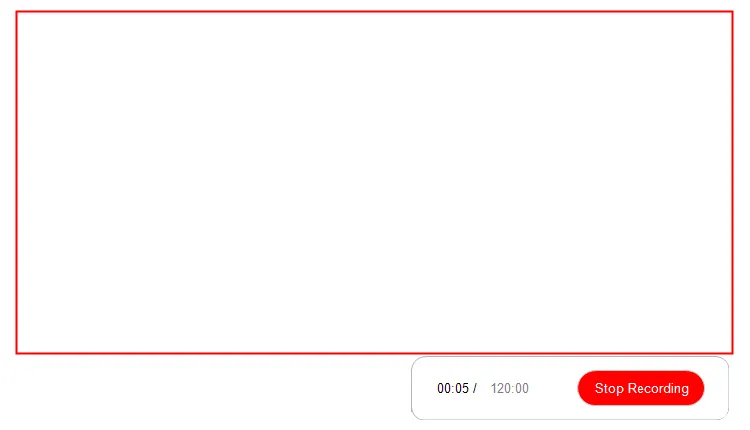
Once done, click the "Stop Recording" icon. Then click "Copy" to copy the video to a document or an app, or click "Save" to export to your computer.
Part 3: How to Record Roblox Gameplay with OBS Studio
For those who need even more control over the recording process, OBS Studio is a popular choice. It is an open-source tool that provides advanced features like customizable hotkeys, overlays, and multi-track audio.
To record Roblox gameplay with OBS Studio:
-
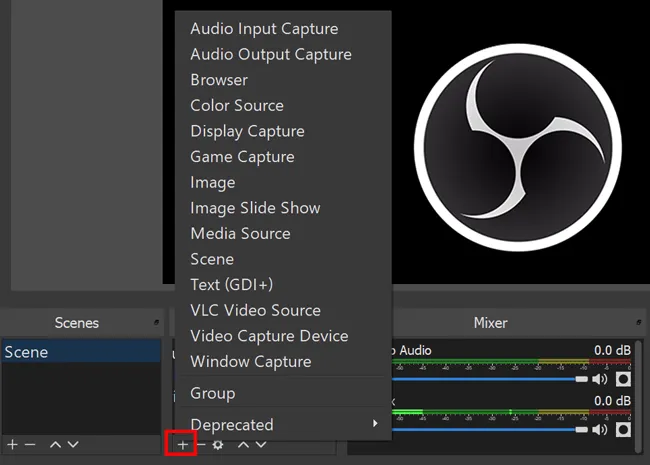
Open OBS Studio and click the "+" icon under the "Sources" dock.
-
Select "Game Capture", name it, and choose "Capture specific window". Select the Roblox window.
-
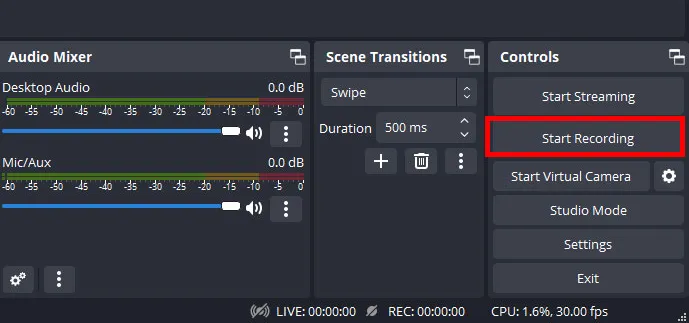
Ensure your Audio Mixer levels are green to avoid peaking. Go to "Settings" > "Output" to choose your recording format (like MP4 or MKV). Next, click "Start Recording" on the main dashboard.
-
After you're done recording, click "Stop Recording", and the file will be saved to your chosen folder.
Part 4: How to Record Roblox via Windows Game Bar
If you are on Windows 10 or 11, the Windows Game Bar is another convenient option for recording your Roblox gameplay. This built-in feature allows you to capture your screen with just a few clicks.
Here's how:
-
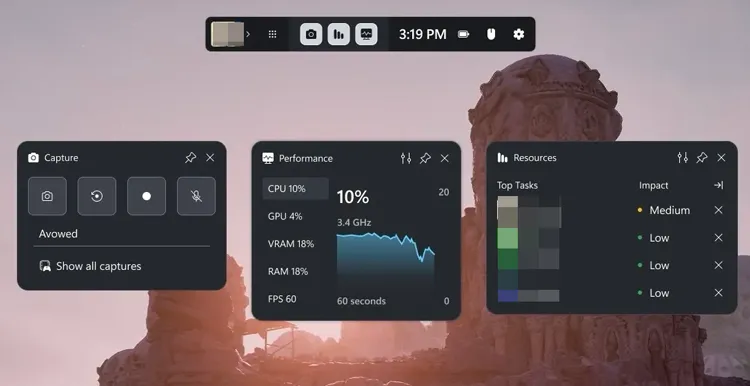
Press the "Win + G" keys on your keyboard to bring up the Game Bar while Roblox is running.
-
In the "Capture" widget, click the "Record" button (the circle icon) or press "Windows + Alt + R".
-
A small recording status bar will appear. You can toggle your mic on or off from here.
-
Once finished, press the "Stop" button. Videos are automatically saved to your "Captures" folder.
Part 5: How to Record the Gameplay of Roblox via VLC Screen Recorder
While primarily a media player, VLC is a surprisingly capable screen recorder for users who don't want to install extra "gaming" software. While VLC may not have the same advanced features as OBS or iReaShare, it's a great tool if you need something simple and free.
Here are the steps:
-
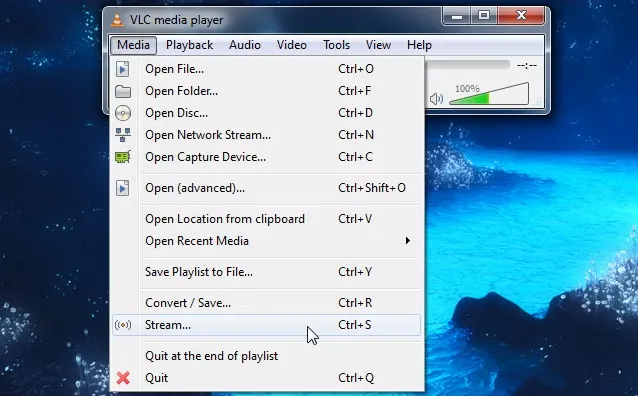
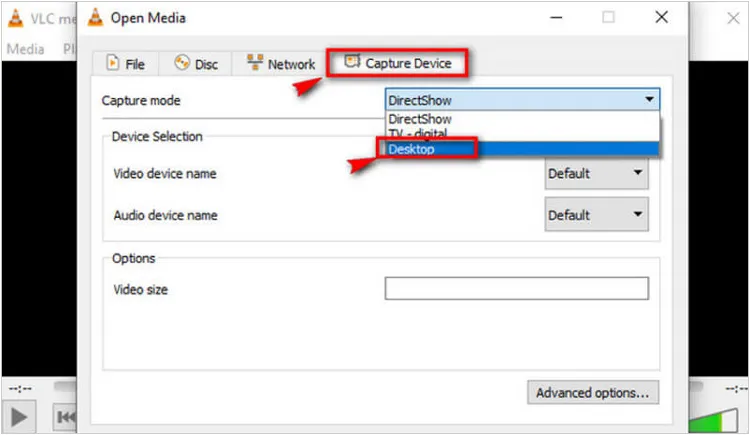
Open VLC Media Player and go to "Media" > "Open Capture Device". Then change "Capture mode" to "Desktop".
-
Set the frame rate (e.g., 30.00 f/s) for smoother playback, click the arrow next to "Play", and select "Convert".
-
Choose your destination file path and profile (Video - H.264 + MP3), then click "Start".
Part 6: Q&A About Recording Roblox
Q1: Can I record Roblox on a mobile device?
Yes. Both iOS and Android have built-in screen recording tools in their respective Control Centers or Quick Settings panels. Roblox also includes a record feature within the app settings on many mobile devices.
Q2: Can I record Roblox while using a microphone for commentary?
Absolutely. Using tools like OBS Studio, iReaShare Screen Recorder, or the Windows Game Bar allows you to select your microphone as a secondary audio input so you can narrate your gameplay in real-time.
Q3: How do I fix lag while recording Roblox?
Lag usually occurs when your hardware is overloaded. To fix this:
- Lower the Graphics Quality in the Roblox settings menu.
- Reduce the output resolution in your recording software (e.g., record at 720p instead of 1080p).
- Close unnecessary background applications (like Chrome or Spotify) to free up CPU and RAM.
Conclusion
Capturing your Roblox adventures has never been easier, right? Whether you prefer the simplicity of the Built-in recorder, the professional features of OBS, or the versatility of iReaShare Screen Recorder, there is a tool for every level of creator. Choose the method that best fits your hardware and start sharing your creations with the world.
Related Articles
Fix PowerPoint Screen Recording Not Working (13 Fixes and an Alternative)
How to Record Live TV on Different Devices with Reliable Methods
Screen Recorder for Windows 11/10 PC: Top 10 Screen Recording Tools
Snagit Screen Capture Software Review Guide and 15 Viable Alternatives

