


While PowerPoint is a powerhouse for presentations, its built-in screen recording feature can sometimes be temperamental. If you're staring at a grayed-out button or an error message, don't worry, most fixes are straightforward. Follow this comprehensive guide to troubleshooting PowerPoint screen recording not working issues and get a reliable alternative tool about screen recording to keep your workflow moving.
- Part 1: Fix PowerPoint Screen Recording Not Working
- 1.1 Restart PowerPoint as Administrator
- 1.2 Update PowerPoint to Latest
- 1.3 Restart Your Computer
- 1.4 Use Office Repair Tool
- 1.5 Reset Parameter RAM
- 1.6 Check Hard Drive Storage Space
- 1.7 Enter Safe Mode of PowerPoint
- 1.8 Disable Hardware Graphics Acceleration
- 1.9 Check Microphone Permissions
- 1.10 Disable Add-ins
- 1.11 Update Audio Drivers
- 1.12 Install Media Feature Pack
- 1.13 Close Background Programs
- Part 2: Use an Alternative - iReaShare Screen Recorder
Part 1: Fix PowerPoint Screen Recording Not Working
Get 13 fixes to repair the screen recording feature on PowerPoint from the following.
1.1 Restart PowerPoint as Administrator
Sometimes PowerPoint lacks the necessary permissions to access your system's recording hardware. Running PowerPoint with elevated privileges can resolve permission-related issues.
Run PowerPoint as Administrator on your PC:
-
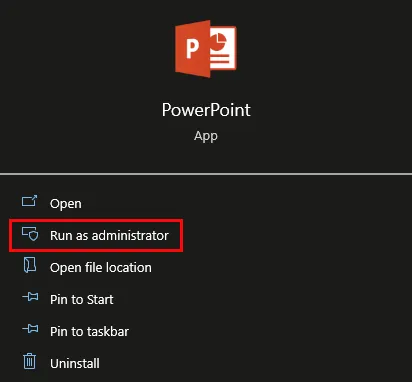
Close PowerPoint, and right-click the PowerPoint icon.
-
Select "Run as administrator". This ensures the application can access system resources required for recording.
Tips: If you find it difficult to use OBS Studio, you can get 10 alternatives to OBS from this guide for easy screen recording.
1.2 Update PowerPoint to Latest
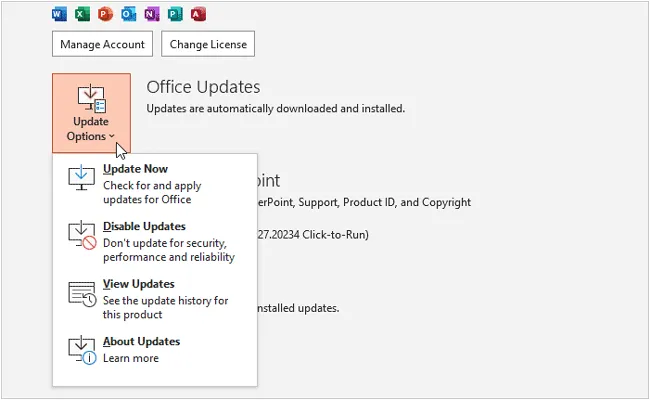
Bugs are often patched in newer releases. Open the app, and go to "File" > "Account" > "Update Options" > "Update Now". Ensuring you are on the latest build is the quickest way to resolve known software glitches.
1.3 Restart Your Computer
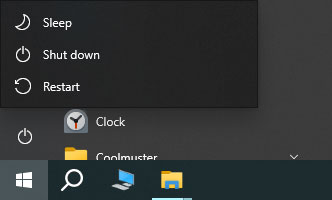
It sounds cliché, but a "cold boot" clears out temporary cache files and hung processes that might be interfering with your camera or microphone. Click the "Start" icon > "Power" > "Restart" to reboot your computer. Then try recording your screen with PowerPoint.
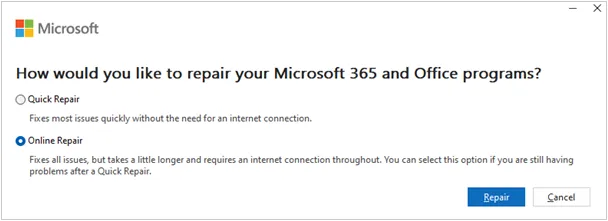
1.4 Use Office Repair Tool
If PowerPoint files are corrupted, the built-in repair tool can help.
Here's how:
-
Go to "Control Panel" > "Programs and Features".
-
Select "Microsoft Office" and click "Change". Then choose "Quick Repair" or "Online Repair".
1.5 Reset Parameter RAM
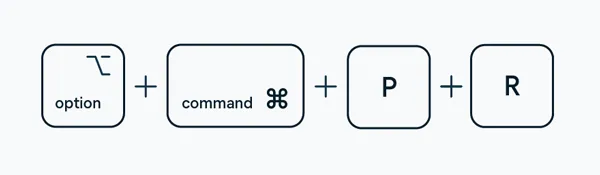
If you are using PowerPoint on macOS, resetting PRAM can fix audio/video hardware issues.
Here's how:
-
Shut down your Mac.
-
Turn it on and immediately hold "Option" + "Command" + "P" + "R" for about 20 seconds.
1.6 Check Hard Drive Storage Space
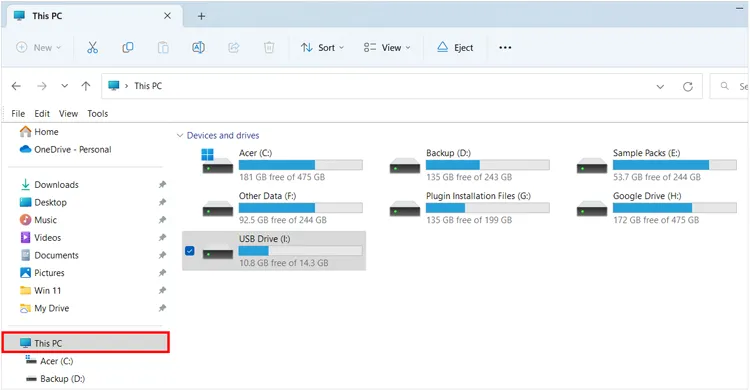
Screen recordings generate large video files. If your disk is nearly full, PowerPoint may refuse to start the recording. Ensure you have at least several gigabytes of free space.
1.7 Enter Safe Mode of PowerPoint
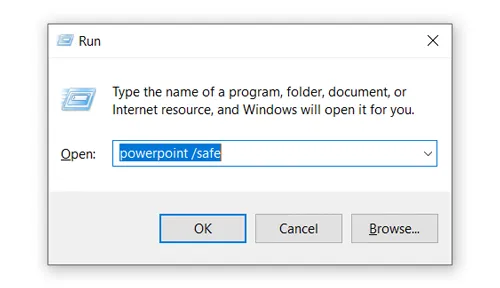
Safe Mode loads PowerPoint without add-ins or custom settings. Press "Win" + "R", type "powerpnt /safe", and press "Enter". If recording works in Safe Mode, add-ins or settings are likely causing conflicts.
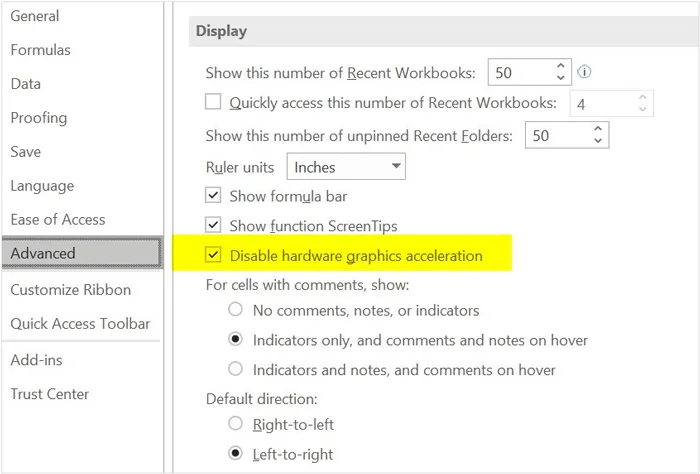
1.8 Disable Hardware Graphics Acceleration
Sometimes your GPU conflicts with the recording overlay. Go to "File" > "Options" > "Advanced", and under the "Display" section, check the box for "Disable hardware graphics acceleration".
1.9 Check Microphone Permissions
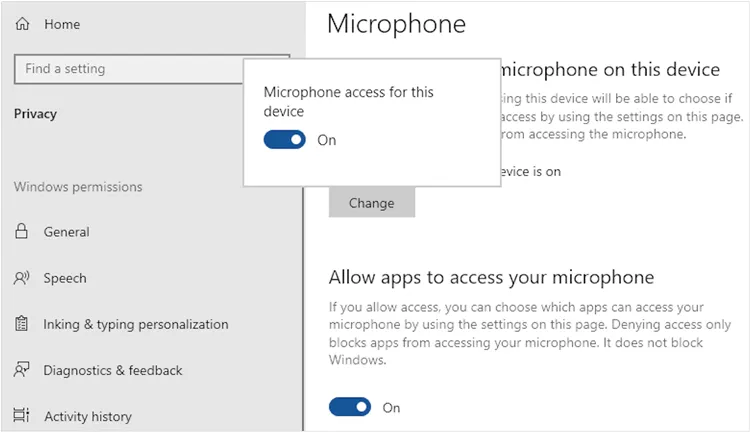
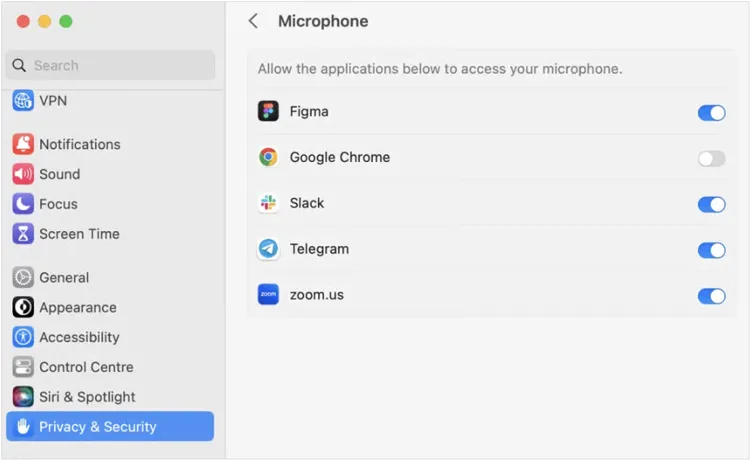
Windows and macOS have privacy toggles. If audio is missing:
- Windows: "Settings" > "Privacy" > "Microphone" > "Allow access".
- macOS: "System Settings" > "Privacy & Security" > "Microphone".
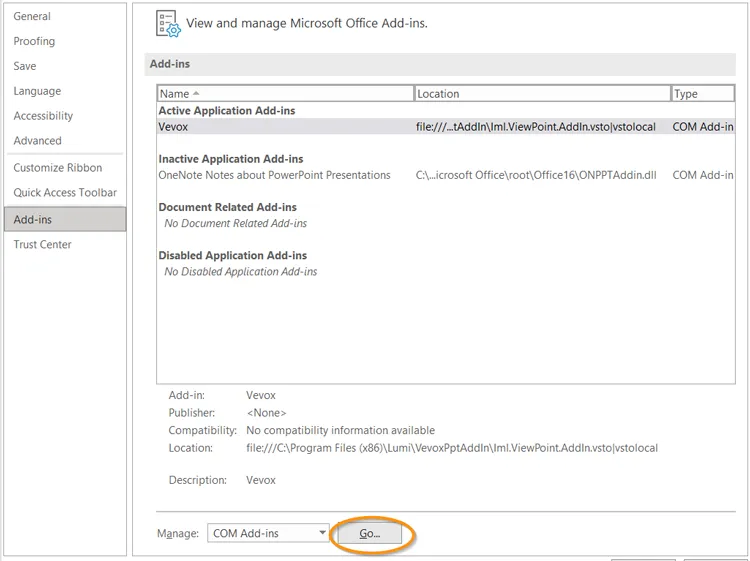
1.10 Disable Add-ins
Third-party add-ins can cause stability issues. Go to "File" > "Options" > "Add-ins", select "COM Add-ins" from the dropdown, click "Go", and uncheck all items to test if the recording feature returns.
1.11 Update Audio Drivers
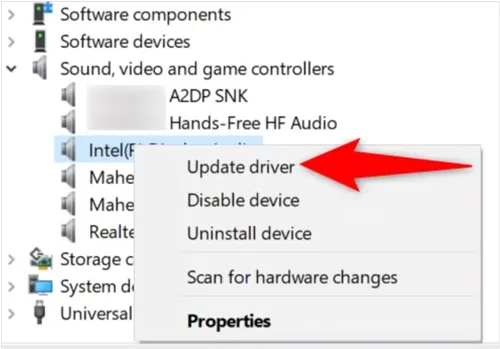
Outdated drivers can prevent the recording interface from capturing data. Open "Device Manager", find your Audio and Display adapters, right-click them, and select "Update driver".
1.12 Install Media Feature Pack
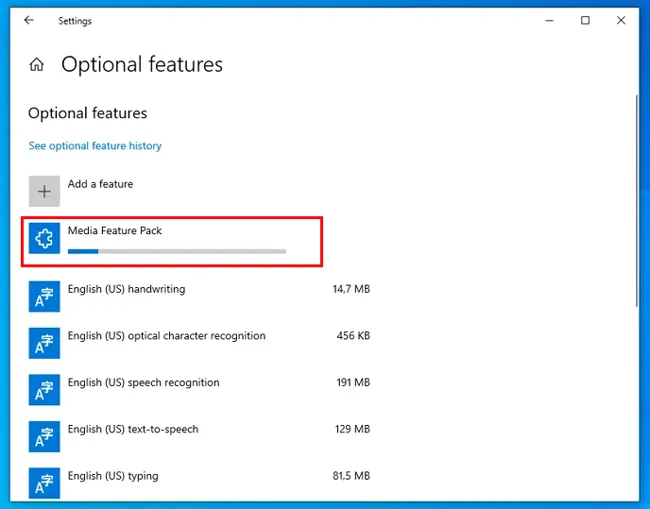
If you are using a Windows "N" version, it lacks the media technologies required for recording. You must download and install the Media Feature Pack from the Microsoft website. Please go to "Settings" > "Apps" > "Optional features" > "Add a feature", and select "Media Feature Pack" from the list. Then a restart is required after the installation.
1.13 Close Background Programs
Other apps using your camera or mic (like Zoom, Teams, or Discord) can "lock" the hardware. Close these apps completely before trying to record in PowerPoint.
Tips: What if I want to record the PowerPoint screen on my MacBook? Then you will need this Mac screen recording guide.
Part 2: Use an Alternative - iReaShare Screen Recorder
If you've tried the steps above and are still facing issues, or if you simply need more professional features like high-quality video output and screenshot editing, iReaShare Screen Recorder is an excellent alternative.
Unlike PowerPoint, which is a presentation tool with a recording "add-on", iReaShare Screen Recorder is built specifically for capturing your screen. It offers:
- Stable Performance: No crashes or "button gray-out" issues.
- Flexible Recording: Capture the full screen, a specific window, or just the PowerPoint slide area.
- Direct Export: Copy or save your video immediately after recording without needing extra software.
- Strong Compatibility: Can record a screen on a Windows 11/10/8/7 PC.
- Additional feature: Record a phone screen on an Android or iOS device on a PC after mirroring.
Download this screen recorder on your computer.
Here's how to use this alternative:
-
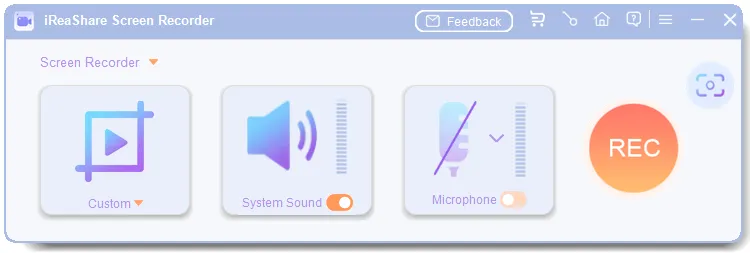
Install and launch iReaShare Screen Recorder. Then choose recording mode (full screen or custom area).
-
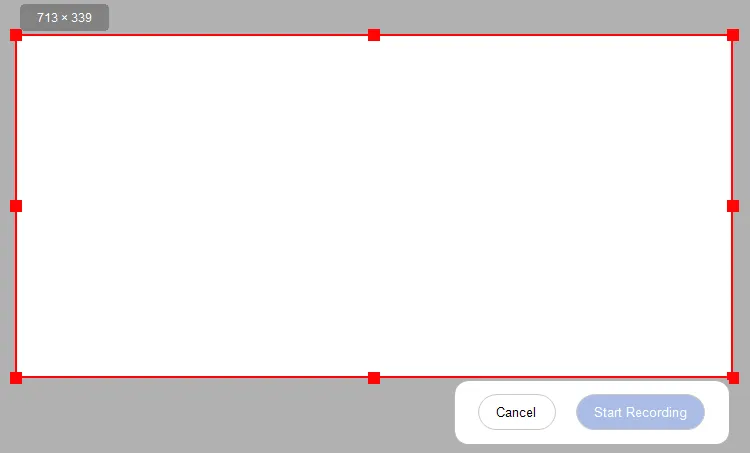
Enable "Microphone" or "System Sound" if needed. Then click "REC" to go on, select the area you want to record, and click "Start Recording".
-
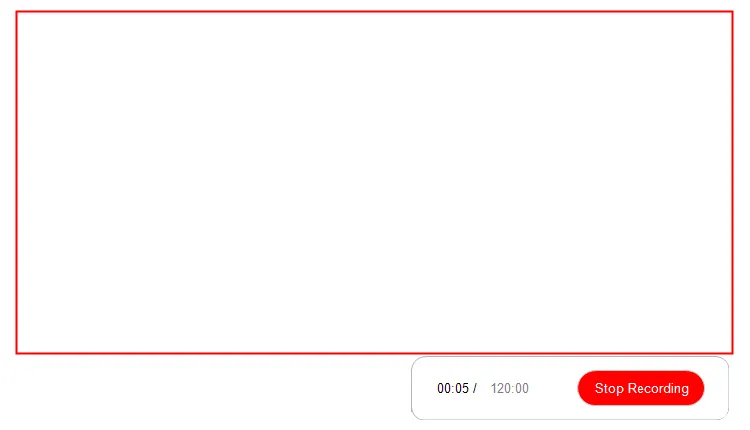
After that, click "Stop Recording" > "Save" to export the video on your computer. Or you can directly copy and insert it into PowerPoint if you want.
Conclusion
PowerPoint's screen recording feature is useful but can fail due to permission issues, outdated software, driver conflicts, or system limitations. By systematically applying the troubleshooting steps above, ranging from updating Office and disabling add-ins to checking hardware acceleration, you can resolve most recording problems.
When built-in tools are insufficient, switching to a dedicated solution like iReaShare Screen Recorder ensures reliable, high-quality recordings for your presentations. You can use it to record your screen on Windows and then add the video to your PowerPoint file.
Related Articles
Snagit Screen Capture Software Review Guide and 15 Viable Alternatives
Fix Google Photos Backup Stuck Effectively: 14 Fixes and 1 Alternative
iTunes Could Not Back Up iPhone Because an Error Occurred: Fix It in 10 Ways
Disk Cleanup Not Deleting Files: Find Out Reasons and Fix It

