


"Hello, my Google Photos on Pixel 7 Pro is stuck on getting ready for backup. I don't know what happened. Any solution? I'm pissed off with this corrupted backup feature. Thanks."
- From Google Community
When Google Photos backup is stuck, the process will last longer, which is time-consuming, especially you are about to use your phone to play games or watch a movie, etc. To solve this backup issue easily, we have listed 14 easy but practical fixes. If all of them are ineffective, you can still use an alternative to back up your photos and videos.

- Part 1: Quick Fixes for Google Photos Backup Stuck
- 1.1 Relaunch the Google Photos App
- 1.2 Check the Remaining Cloud Storage Space
- 1.3 Clear App Cache
- 1.4 Reinstall Google Photos
- 1.5 Restart Your Phone
- 1.6 Check the Internet
- 1.7 Update Operating System
- 1.8 Disable Battery Optimization
- 1.9 Empty the Trash
- 1.10 Sign In Again
- 1.11 Create New Folders
- 1.12 Disable Extensions
- 1.13 Manually Upload Photos and Videos
- 1.14 Check Google Services
- Part 2: Back Up Photos and Videos to Computer via iReaShare Android Manager
- Part 3: Q&A About Google Photos Backing Up Stuck
Part 1: Quick Fixes for Google Photos Backup Stuck
If your progress bar hasn't moved in hours, try these troubleshooting steps in order. Then the Google Photos upload will resume shortly.
1.1 Relaunch the Google Photos App
Sometimes, the issue of Google Photos backup can be as simple as a temporary glitch in the app. Close the Google Photos app completely and then reopen it. This can often resolve minor bugs causing the backup to freeze.
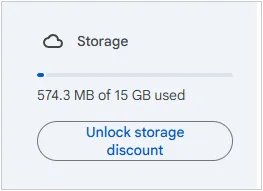
1.2 Check the Remaining Cloud Storage Space
If your Google Drive storage is full, Google Photos may not be able to back up new images. Head to Google Drive and check the available storage. If it's nearly full, consider upgrading your storage plan or deleting unnecessary files to free up space.
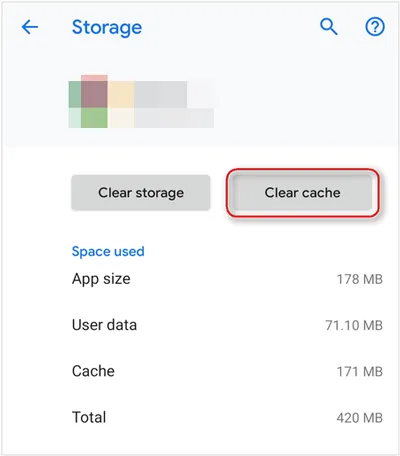
1.3 Clear App Cache
If Google Photos backing up stuck? Clearing the cache of the Google Photos app can help resolve issues caused by corrupted data. To do this, go to your device's Settings > "Apps" > "Google Photos" > "Storage", then click "Clear Cache". This won't delete your photos, but it can help the app function better.
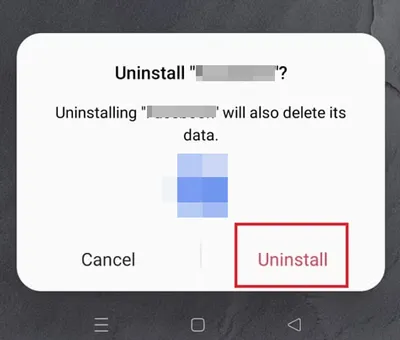
1.4 Reinstall Google Photos
Uninstall and reinstall the Google Photos app. This action can resolve any deeper issues with the app, ensuring that you're running the latest version and that any corrupted files are removed. You can close the app on your phone, and long-touch the app icon. Then choose "Uninstall" or "Remove". Then choose "Uninstall" again on the popup for confirmation.
1.5 Restart Your Phone
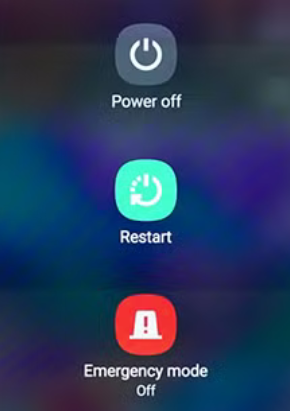
A simple restart can do wonders. It can fix network issues, app bugs, and syncing problems. Turn your phone off for a few seconds, then turn it back on, and try using Google Photos to back up your data again.
1.6 Check the Internet
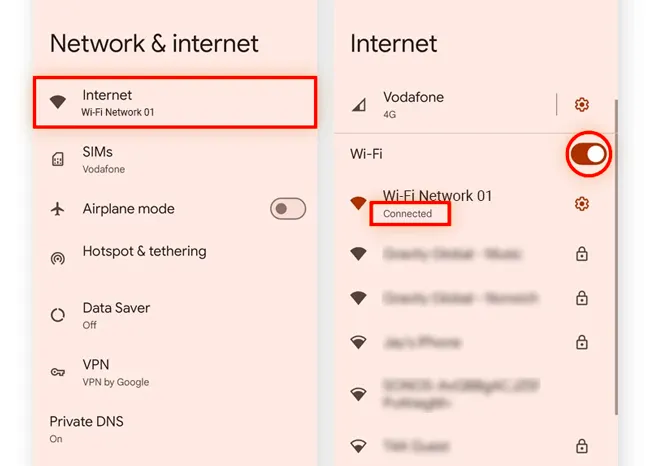
Google Photos needs a stable internet connection to upload your photos. If not, it will fail to back up your files automatically. Make sure you're connected to a reliable Wi-Fi network or that your mobile data is working properly. If you're on Wi-Fi, try restarting your router or connecting to a different network.
1.7 Update Operating System
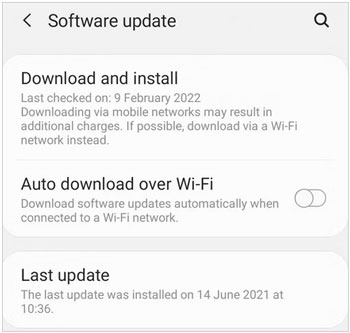
An outdated operating system can cause various issues, including problems with syncing photos. Check for any updates for your phone's operating system and install them if available. Go to Settings > "Software update" to ensure your phone is running the latest version.
1.8 Disable Battery Optimization
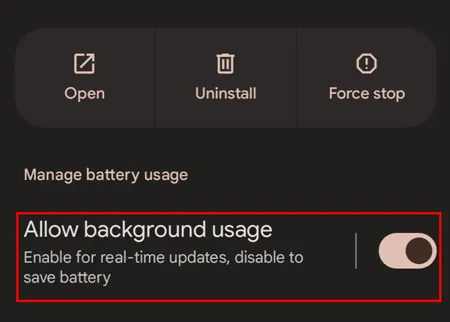
Battery optimization settings may restrict the app's background activities, preventing it from uploading photos. Disable battery optimization for Google Photos by going to Settings > "Apps" > "Google Photos" > "Battery" > "Unrestricted" or "Don't optimize". On some Android phones, you need to find the app, choose "App battery usage", and enable "Allow background usage".
1.9 Empty the Trash
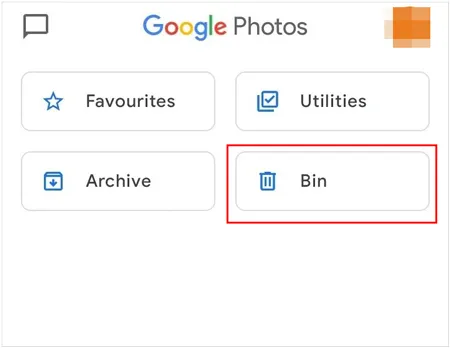
Google Photos has a trash bin that stores deleted photos and videos for 30 days. If your trash is full, it could be blocking further backups. Open Google Photos, go to "Trash" or "Bin", and permanently delete the items there. Besides, if you find some 0 byte images, remove them completely.
1.10 Sign In Again
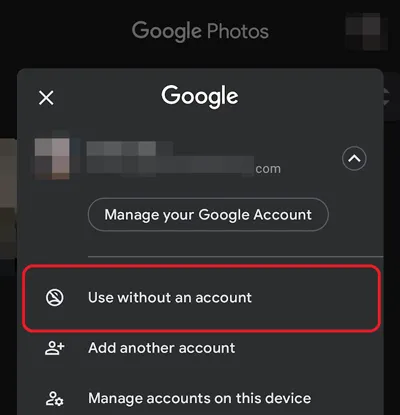
Signing out of your Google Account and signing back in can help refresh the connection between the app and the cloud service. Go to Settings > "Accounts" > "Google", and sign out of your account. Then sign back in and check if the backup resumes. By the way, you can also try using it without an account: On the app, choose your profile icon on upper right corner, and choose "Use without an account". After a while, turn off this feature. Then check the backup.
1.11 Create New Folders
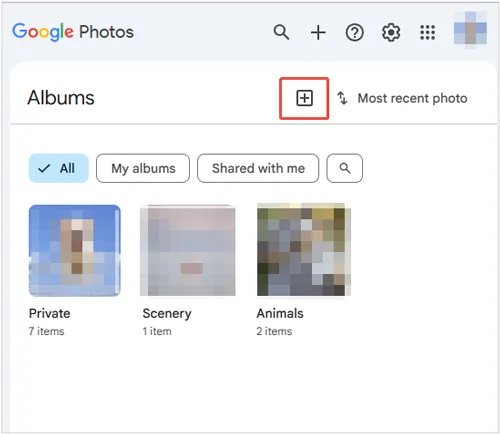
In some cases, creating new folders or albums in Google Photos may help kickstart the backup process. Create a new folder and move some photos there to see if they start uploading to the cloud.
1.12 Disable Extensions
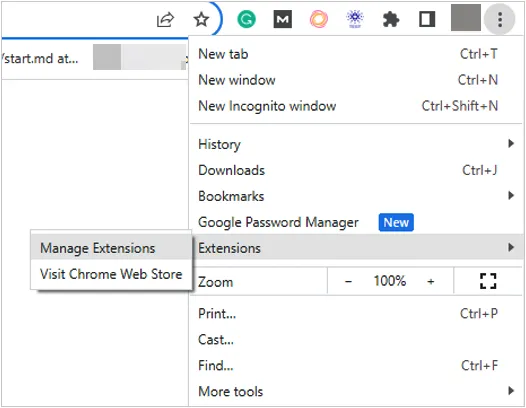
If you fail to back up your photos and videos to the web of Google Photos with your browser, the extensions you added might interfere with the backup process. Try disabling them temporarily and see if that resolves the issue.
1.13 Manually Upload Photos and Videos
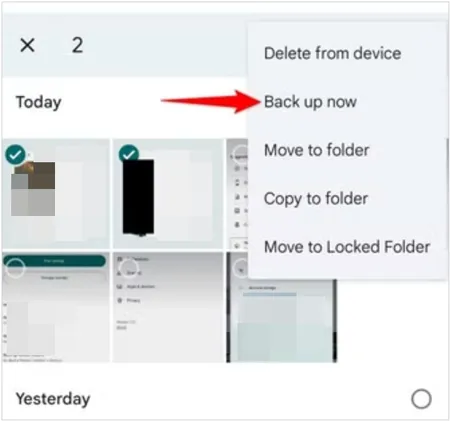
If your photos aren't uploading automatically, you can select a small batch of photos, tap the three dots (or the upload icon), click "Share", and select "Back up now". This can sometimes "force" the queue to wake up.
1.14 Check Google Services
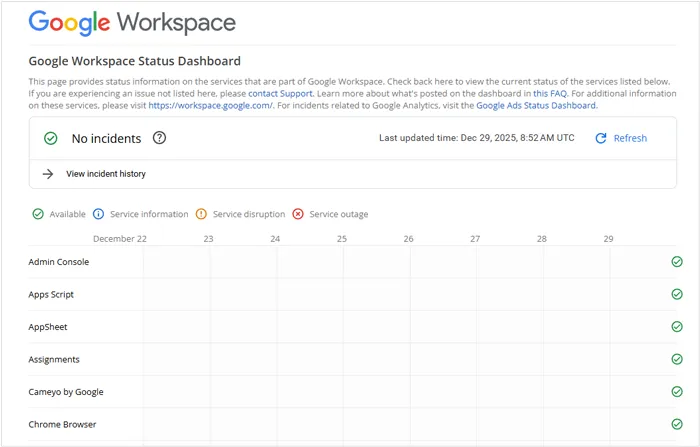
Sometimes the problem isn't with your phone or app, but with Google's servers themselves. Visit the Google Workspace Status Dashboard to check if there are any ongoing issues with Google Photos or Google Drive. If there's an outage, you may need to wait until Google resolves it. You can check the Google Workspace Status Dashboard to ensure that Google Photos services aren't experiencing a widespread outage.
Tips: If you want to back up photos on an iPhone easily, navigate to this guide.
Part 2: Back Up Photos and Videos to Computer via iReaShare Android Manager
While cloud storage is convenient, it is not foolproof. If Google Photos remains stubborn or you prefer to keep a physical copy of your media without relying on internet speeds, iReaShare Android Manager is a professional-grade alternative. This tool allows you to bypass the cloud entirely, and back up all your photos at once via USB, which will not depend on the network anymore.
Main features of iReaShare Android Manager:
* Move high-resolution photos and videos from Android to a computer via USB.
* View your photos on your PC/Mac before deciding what to back up.
* Maintain the original quality and formats so your can get the same files on your computer after backup.
* The "Super Toolkit" feature can back up your entire gallery to your Mac or Windows PC with a single click.
* Support the backup of contacts, SMS, documents, music, apps, and more.
* Work for a wide range of Android devices, such as Tecno, Motorola, Xiaomi, Google Pixel, Vivo, OPPO, Honor, realme, itel, TCL, etc.
Download iReaShare Android Manager to back up photos and videos.
Download for Win Download for Mac
Here's how to back up photos and videos to a computer via USB at once:
-
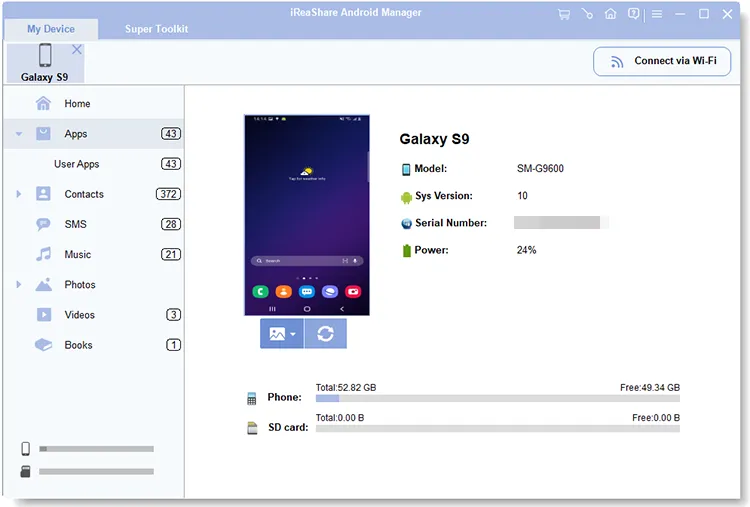
Download and install iReaShare Android Manager on your computer, and connect your Android device to the computer with a USB cable.
-
Launch the app, and choose "Transfer file" on the USB options. Then follow the guide to enable USB debugging mode. The program will recognize it.
-
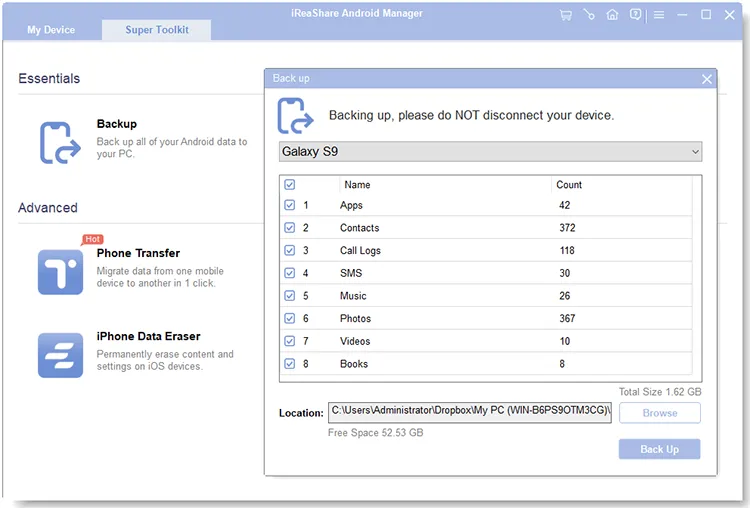
To back up all your photos and videos, at once, please go to "Super Toolkit", click "Backup", then check "Photos" and "Videos" only, and click "Back Up" to start it. Your media files will be saved to your computer for backup.
Part 3: Q&A About Google Photos Backing Up Stuck
Q1: Why is Google Photos backup stuck?
If your Google Photos backup is stuck, it could be due to a few common issues. Here are some potential reasons:
- The internet connection is slow or unstable.
- You have reached the storage limit of your Google Account.
- Apps are restricted from running in the background to save battery or data.
- The app is out of date.
- The backup settings might not be set correctly.
- Certain file types (like RAW images or large videos) may not back up properly due to size limitations.
- Cached data or corrupted files could cause the backup to fail.
- If there's an issue with your Google Account or sign-in, backup can get stuck.
- Your device is out of storage.
- Google Photos servers might be down or experiencing issues.
Q2: How long will it take to sync 10,000 photos?
The speed of your internet connection is the most significant factor. If you're uploading via Wi-Fi, speeds typically range from 1 Mbps to 100 Mbps, depending on your connection. Here is the example calculation:
- 1 Mbps = approx. 1 MB per second,
- 10,000 photos = avg. 3 MB per photo (total = ~30 GB),
- 30 GB ÷ 1 MB/s = 30,000 seconds (or 8.3 hours) at 1 Mbps.
- So, 10 Mbps: ~50% faster (around 4 hours).
By the way, if the photos are high resolution or RAW files, they will take longer than standard JPEGs. Large video files will also add significant time.
Q3: Does Google Photos only backup on Wi-Fi?
No, Google Photos doesn't only backup on Wi-Fi. By default, the app only backs up over Wi-Fi to avoid using mobile data, but you can enable backups over mobile data as well if you prefer. On your phone, you can set it up with these steps:
- Open Google Photos.
- Go to Settings > Backup & sync.
- Tap on Cellular data backup.
- Toggle Back up using cellular data to ON.
Conclusion
A stuck Google Photos backup is usually the result of a cache error, a storage limit, or aggressive battery saving. Most users find success by simply clearing the app cache or toggling their network settings. However, for those who want to avoid the headache of cloud troubleshooting altogether, a local backup using iReaShare Android Manager provides a faster, more stable solution.
Download for Win Download for Mac
Related Articles
Swiftly Transfer Photos from Samsung to PC | 7 Reliable Options
How to Transfer Photos from iPhone to Android Without Hassle (6 Methods)
How to Transfer Photos from Android to Android [Detailed Steps]
How to Send Long Videos on Android Device: 6 Viable Solutions

