


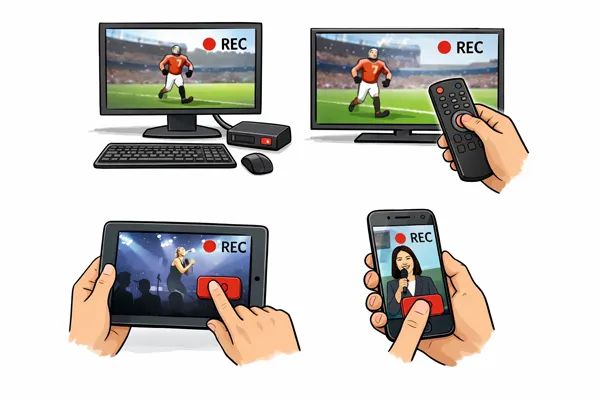
Staying glued to the couch to catch a live broadcast isn't always feasible. Thus, we need to record live TV to catch up on our favorite shows, create archives of live broadcasts, and then watch programs at a later time. Learn about how to record live TV on a computer, smart TV, Android device, or iOS device here. You can get 8 feasible methods directly from this guide.
Part 1: How to Record Live TV on Computer
Recording live TV on a PC or Mac offers the most flexibility, allowing you to save high-definition files directly to your hard drive.
1.1 Using iReaShare Screen Recorder
For those who want a "one-click" solution without a steep learning curve, iReaShare Screen Recorder is a top-tier choice. It is designed specifically to capture high-quality video and audio simultaneously. You simply select the region of your screen where the live TV stream is playing, hit "REC" and the software handles the rest.
Main features of this screen recorder:
* Record a screen on a Windows computer with high resolution.
* Allow you to select a screen area freely.
* Help you record your live TV with system sound and your microphone sound at the same time.
* Enable you to record a phone screen after mirrorring your mobile phone to your computer.
* Record gameplay on a computer without hassle.
* Support Window 11/10/8/7.
Download the screen recorder on your computer.
To record live TV on a computer with this screen recorder:
-
Install the correct version of this screen recorder on a computer. Then launch it.
-
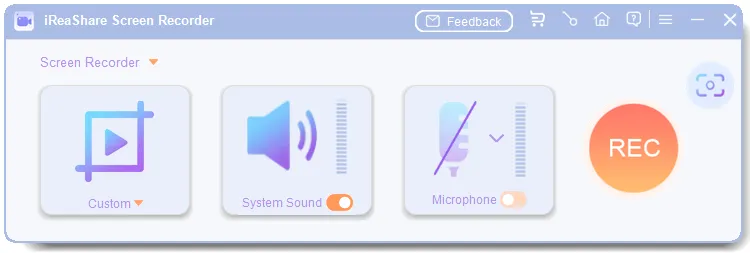
Navigate to the live TV screen on the PC, and opt for "Custom". Then enable "System Sound", and click "REC" to select the live TV screen.
-
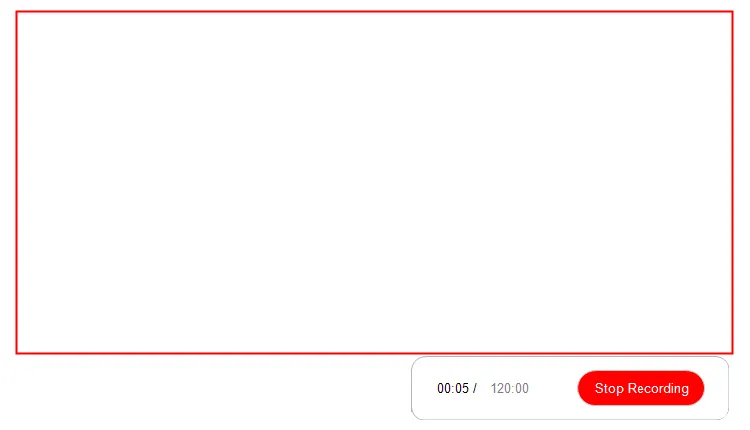
Click "Start Recording" to start recording your live TV on the computer. Once done, click "Stop Recording" and save the video on your computer.
1.2 Using OBS Studio
OBS Studio (Open Broadcaster Software) is a powerful screen recording software app for capturing live TV on your computer. It allows you to record content from your screen, as well as from external sources like webcams and capture cards. OBS Studio is free and supports multiple video and audio formats. It is an excellent choice for those who need high-quality recordings of live TV broadcasts.
To capture live TV on a computer with OBS Studio:
-
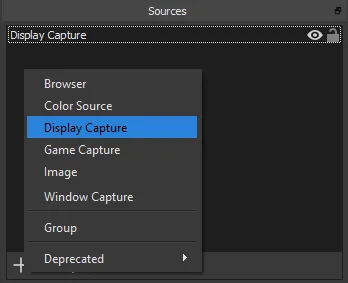
Open OBS. In the "Sources" box at the bottom, click the "+" icon and select "Window Capture" (if playing in a browser) or "Display Capture".
-
A pop-up will appear; select the specific window running the live TV stream. Look at the "Audio Mixer" dock to ensure the "Desktop Audio" bar moves when the TV plays.
-
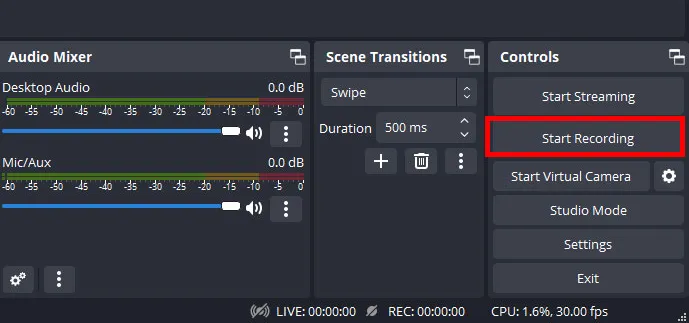
Go to "Settings" > "Output" and ensure the "Recording Format" is set to mp4 or mkv. Next, click "Start Recording" in the Controls dock. Click "Stop Recording" when finished.
1.3 Using VLC Media Player
Many people don't realize that VLC is more than just a player. If you have a network stream URL for your live TV, you can use this app to record the live TV. It's a lightweight way to capture content without installing additional heavy software.
Here are the detailed steps:
-
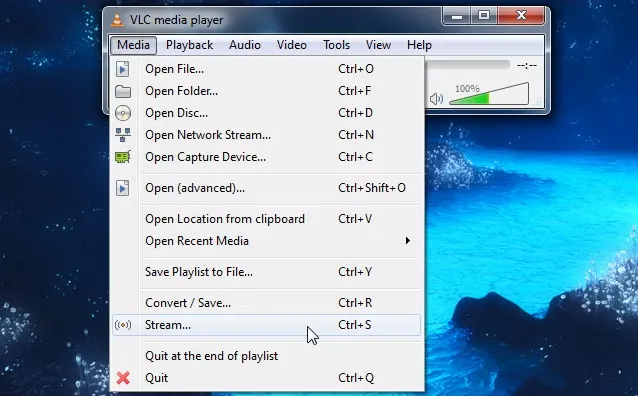
Open VLC on your computer. Go to the top menu and select "Media" > "Open Network Stream".
-
Enter the URL of the live TV stream and click the small arrow next to "Play", then select Stream (or simply click Play if you want to record manually).
-
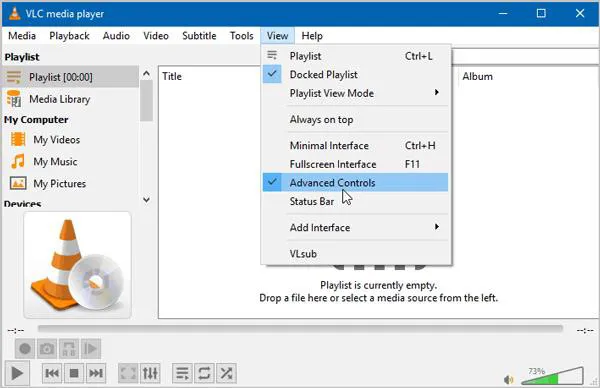
If the Record button isn't visible, go to "View" > "Advanced Controls". A red circle button will appear. While the stream is playing, click the "Red Record" button. Click it again to stop. The file is usually saved in your computer's "Videos" folder.
Part 2: How to Record Live TV on Smart TV
Modern smart TVs have largely replaced the old-fashioned VCR with digital alternatives. You can directly record live TV on your smart TV without a computer.
2.1 Using a USB Drive
Many smart TVs have a built-in feature that allows you to record live TV directly onto a USB drive. This method works by connecting a USB drive to the TV's USB port and selecting the "Record" option when watching live TV. However, keep in mind that some TVs might have limitations regarding the size of the USB drive or the format in which the recording is stored.
To record live TV on a smart TV with a USB drive:
-
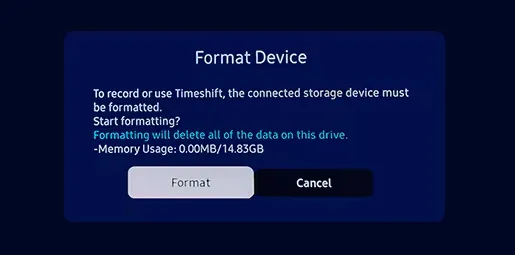
Plug a USB HDD or Flash Drive (minimum 64GB recommended) into the TV's USB port. Some TVs will ask to format it for recording - agree, but note this wipes existing data.
-
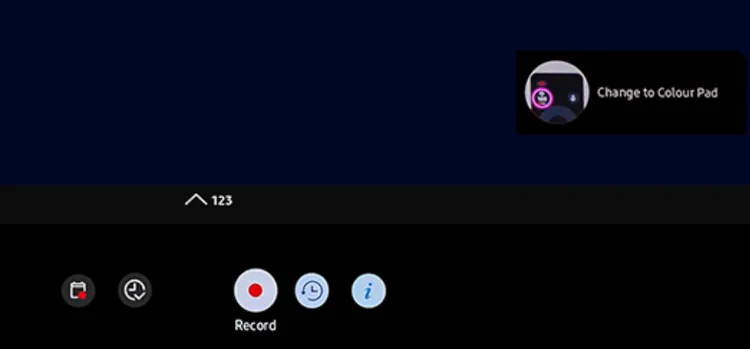
Use the TV's internal tuner to find the live broadcast. Press the "Record" button on your remote.
-
Open "Guide (EPG)", highlight a future program, and select "Record" or "Schedule Recording" to capture it even if the TV is "off" (Standby).
2.2 Using Cloud DVR
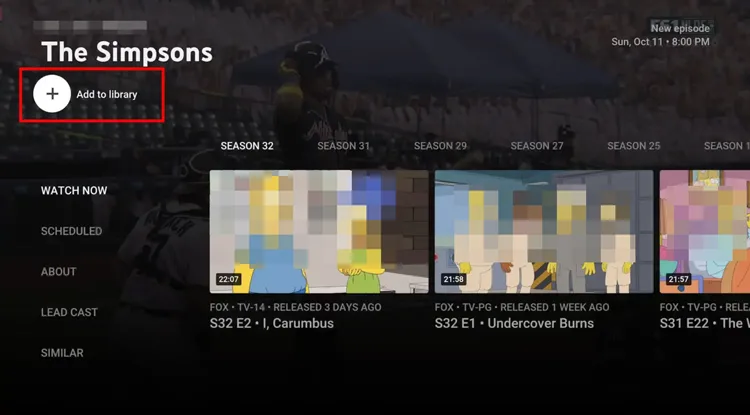
If you use streaming services like YouTube TV, Hulu + Live TV, or Sling TV on your Smart TV, you likely have access to a Cloud DVR. This doesn't require any hardware; you simply "follow" or "add to library" a program, and the service records it on their servers for you to watch anywhere.
To capture live TV with Cloud DVR:
-
Open your streaming app (e.g., YouTube TV) on your Smart TV. Search for the live program you want to save.
-
Click the "+ Add to library" icon.
-
The service will automatically record every airing. Access it later under the "Library" or "Recordings" tab.
2.3 By Mirroring TV Screen to Phone
While less common for high-quality archival, you can use Screen Mirroring (AirPlay or Miracast) to send your TV's content to a mobile device or another receiver that has recording capabilities. This is often a "last resort" method if the TV's native recording features are locked by DRM (Digital Rights Management).
Here's the guide:
-
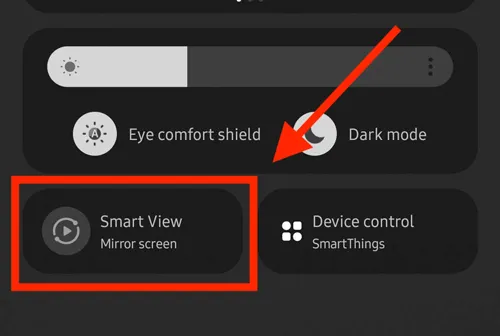
Ensure your TV and Phone are on the same Wi-Fi. On an iPhone, use "Screen Mirroring" from the Control Center. On Android, use "Smart View" or "Cast".
-
Begin playing the live TV stream on your smart TV. Once the content is mirrored to your phone, open the screen recording app on your phone.
-
Begin recording the TV stream on your phone. When the live TV program is over, stop the recording on your phone, and it will save the file.
Part 3: How to Record Live TV on Mobile Phone or Tablet
Capturing live TV on the go is easier than ever thanks to integrated mobile tools. You can record your live TV on your Android phone/tablet and iPhone/iPad without any hurdle.
3.1 Using Built-in Screen Recorder
Both iOS and Android now feature native screen recording tools in their control centers. Simply swipe down, tap the Screen Record icon, and start your live TV app. However, some premium apps (like Netflix or certain cable apps) may black out the screen during recording due to copyright protections.
To record live TV on a mobile device with a built-in screen recorder:
-
Open your live TV app and start the broadcast. On iPhone, swipe down from the top-right (or up from the bottom) and tap the "Record" (solid circle) icon.
-
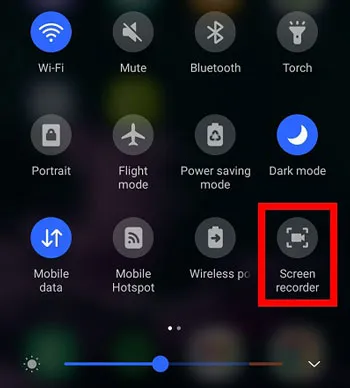
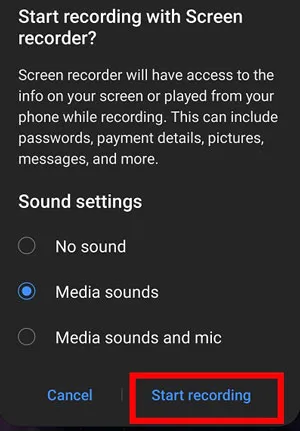
On Android, Swipe down the Quick Settings panel and find "Screen recorder".
-
Then choose a sound source on the Sound settings, and tap "Start recording". After that, tap the red status bar/timer and confirm you want to stop. The video is saved to your Photos or Gallery.
3.2 Using PlayOn Cloud
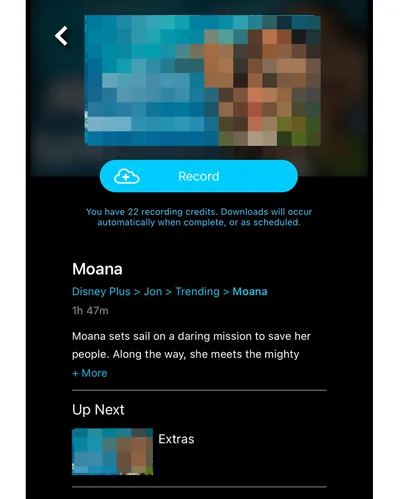
PlayOn Cloud is a unique service that acts as a remote DVR. You select a show from their supported channels, and their servers record it in the cloud. Once finished, you can download the MP4 file to your phone or tablet to watch offline without using your data.
To record live TV on a mobile device with PlayOn Cloud:
-
Download the PlayOn Cloud app from the App Store or Google Play. Sign in to your provider (e.g., Hulu, Amazon, or a local TV site).
-
Find the show and tap "Record" on the screen.
-
Since the recording happens on PlayOn's servers, wait for the notification that it's finished, then tap "Download" to save it to your device's local storage for offline viewing.
Part 4: Q&A About Recording Live TV
Q1: Can I record live TV with Xbox Game Bar or QuickTime Player on Windows or Mac computer?
Technically yes, but practically no. While both tools are excellent for recording your screen, they are almost always blocked by DRM (Digital Rights Management) when you try to record Live TV services like YouTube TV, Hulu+ Live TV, or Netflix. If you try to record a Live TV stream using Xbox Game Bar or QuickTime, you will likely encounter one of two things:
- A Black Screen: You will hear the audio, but the video window will be pitch black.
- An Error Message: The app may display a "Protected Content" error and refuse to play until you stop the recording.
This happens because of HDCP (High-bandwidth Digital Content Protection), a protocol that prevents digital content from being copied as it travels from the source to your screen.
Q2: Is there a device that can record live TV?
Yes. Beyond computers, you can use a DVR (Digital Video Recorder) like a TiVo or a Tablo. For those wanting to record from an HDMI source to a computer, a Capture Card (like those from Elgato) is the professional hardware solution.
Q3: How do I know if my smart TV is recording me?
While it is unlikely your TV is "recording and saving" video of you 24/7 (due to the massive storage and bandwidth that would require), many TVs do monitor audio for voice commands or viewing habits for ads.
Here is how to tell and how to stop it:
- Check for a Physical Camera: If your TV has a camera, it is the most direct way it could "see" you. Almost all smart TVs (Sony, Samsung, LG) are hardware-wired to a small LED (usually green or red). If that light is on and you aren't in a video call, an app is accessing the camera.
- Check the "Listening" Status (Microphone): Most TVs listen through the remote control, not the TV itself. If you aren't holding the "Voice" button, it's usually not transmitting, but some remotes have "always-on" listening.
- ACR (Automatic Content Recognition): This is the most common form of "recording", but it records what is on the screen, not you. It takes "fingerprints" of what you watch to target ads. If you see ads on your home screen for a movie you just watched on a different device, ACR is active.
Your TV is likely tracking your data, not filming your living room. However, for peace of mind:
- Tape the camera.
- Turn off ACR in the settings.
- Unplug the TV when you are doing something highly private, as a "software off" state isn't always truly off.
Conclusion
Recording live TV has never been easier, whether you're using a computer, smart TV, or mobile device. The variety of methods available ensures that you can capture your favorite shows, sports events, or news broadcasts no matter your setup. Be it through iReaShare Screen Recorder, OBS, USB drive, cloud DVR, or dedicated recording device, there is a solution for everyone.
Related Articles
Snagit Screen Capture Software Review Guide and 15 Viable Alternatives
Fix PowerPoint Screen Recording Not Working (13 Fixes and an Alternative)
Screen Recorder for Mac: 12 Tools for Screen Recording on Mac
How to Screen Record on Android: A Practical Guide with 5 Approaches

