


If you want to protect your video content and brand, you need to learn how to add watermark to videos. A watermark serves as a form of copyright protection by placing your logo, text, or graphic on the video itself. A watermark serves as a digital signature that discourages unauthorized use. Thus, go through this guide to get 6 methods to add a watermark to your videos.
- Part 1: How to Add Watermark to Videos via Video Watermark Maker
- Part 2: How to Add Watermark to a Video via VLC Media Player
- Part 3: How to Add Watermark to Videos via Shotcut
- Part 4: How to Watermark a Video on Computer via Kdenlive
- Part 5: How to Add Watermark to Video Online
- Part 6: Q&A About Adding Watermark to Videos
Compare the advantages and disadvantages of the 5 methods in advance:
| Method | Pros | Cons |
|---|---|---|
| Video Watermark Maker |
1. Add watermarks to videos offline on a computer. |
1. The free version has a limit on video length. 2. Requires an installation on a PC. |
| VLC Media Player | 1. Completely free and open-source with no hidden fees or advertisements. 2. Most users already have it for playback, saving system storage and setup time. 3. Runs efficiently on older hardware compared to professional editing suites. |
1. Requires manually typing in X and Y coordinates instead of moving the logo with a mouse. 2. The watermarking tool is buried deep within the "Transcode" menus and is difficult to find. 3. The conversion engine can be prone to crashing when processing high-resolution or long-duration files. |
| Shotcut | 1. Uses a non-linear timeline that allows for complex animations and multiple watermark layers. 2. Works identically on Windows, macOS, and Linux with no performance disparity. 3. Since it is offline and open-source, your video data never leaves your local machine. |
1. The professional interface can be intimidating for users who only need a simple overlay. |
| Kdenlive | 1. Features a powerful "Transform" effect that makes scaling and snapping to corners very easy. 2. Supports a wide array of professional formats, including high-bitrate camera files. 3. A very active community ensures bugs are fixed and new features are added frequently. |
1. Requires a relatively modern CPU and GPU to preview watermarks in real-time without lag. 2. While excellent on Linux and Windows, it can be less stable on some macOS versions. 3. The workspace is crowded with tools, which can be difficult to navigate on smaller laptop screens. |
| Online (Canva/Kapwing) | 1. Works entirely in the browser; no software installation or updates are ever needed. 2. Provides access to thousands of professional fonts, icons, and logo templates. 3. Projects are saved automatically, allowing you to edit on one device and download on another. |
1. Requires a stable, fast connection to upload large video files and render the final result. 2. High-resolution 4K exports and advanced branding features are usually locked behind a paywall. 3. Requires uploading your original footage to a third-party server, which may not be ideal for sensitive content. |
Part 1: How to Add Watermark to Videos via Video Watermark Maker
The dedicated video watermark software - Video Watermark Maker - enables you to add text and image watermarks to your videos with ease. You can also modify your watermarks with customizable size, opacity, position, and rotation. Besides, it can help you convert video formats and edit your videos on your computer.
Main features of Video Watermark Maker:
* Support adding text and image watermarks to videos.
* Customize watermark size, visibility durations, postion, etc.
* Allow you to add multiple watermarks to one video if needed.
* Enable you to export your videos as MP4, MOV, MKV, WMV, AVI, and more.
* Never damage your video quality, supporting HD, 4K, and up to 8K.
Download the watermark tool on your PC.
To add watermarks to a video on a PC:
-
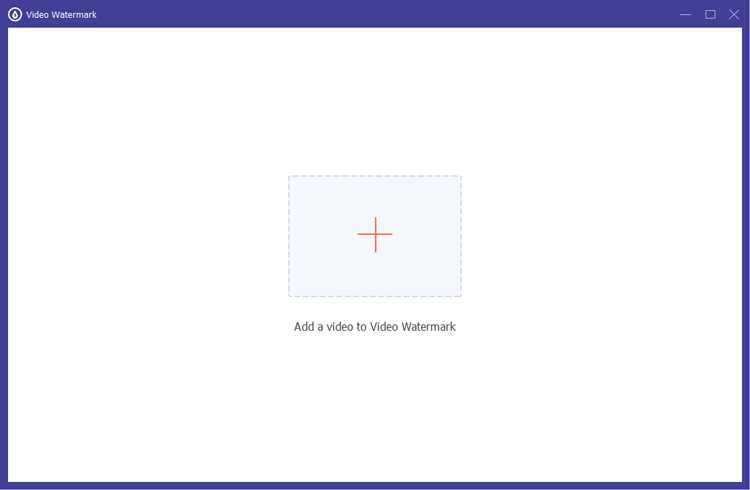
Install the Video Watermark Maker on your computer, and launch it. Then make sure your videos are stored on the PC. Then click "More Tools" > "Video Watermark", and add your video to the program.
-
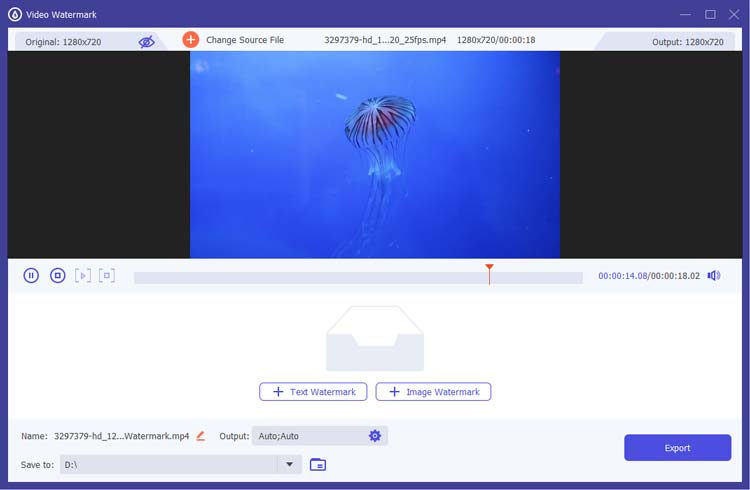
Choose "+ Text Watermark" or "+ Image Watermark" to input your watermark content. Preview it and adjust the font, size, color, etc.
-
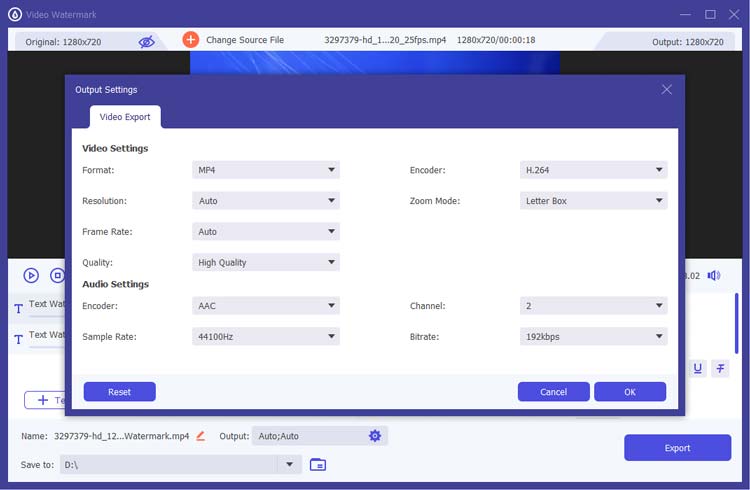
Finally, click "Export", select a file format, and save your video to your computer.
Part 2: How to Add Watermark to a Video via VLC Media Player
VLC is more than just a player; it has hidden editing features that allow for quick watermark overlays. While VLC is a great free tool for basic editing, it's not as flexible as dedicated video editing software.
Here's how to add a watermark to a video via VLC:
-
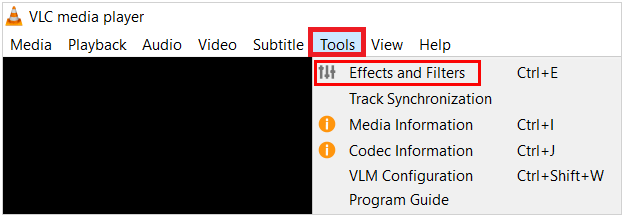
If you don't have VLC, download and install it. Then go to "Tools" > "Effects and Filters".
-
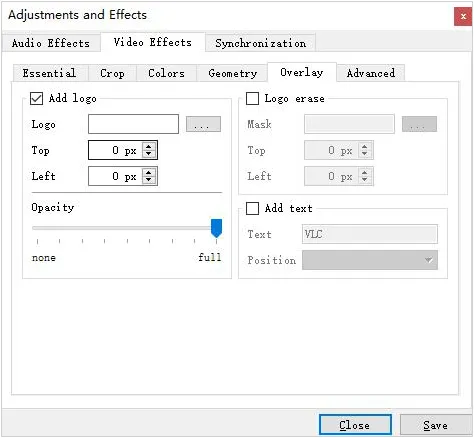
Navigate to the "Video Effects" tab, then select the "Overlay" sub-tab. Next, check the box for "Add logo" and browse for your image file.
-
Adjust the "Top" and "Left" coordinates to position it. Then click "Save" to export the video.
Tips: If you want to quickly compress videos with quality, you can follow this guide.
Part 3: How to Add Watermark to Videos via Shotcut
Shotcut allows you to create a dedicated video track for your watermark, offering high-level customization like "Size, Position & Rotate" filters. It is perfect for creators who want the watermark to blend perfectly with the background using various compositing modes. Its primary drawback is the steep learning curve; the interface is complex, and beginners may find the technical export options overwhelming.
To add a watermark to a video with Shotcut:
-
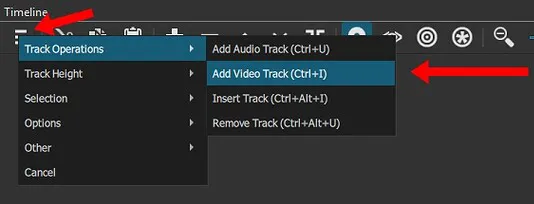
Open your video in Shotcut and drag it onto the "Timeline". Then right-click the track head and select "Track Operations" > "Add Video Track".
-
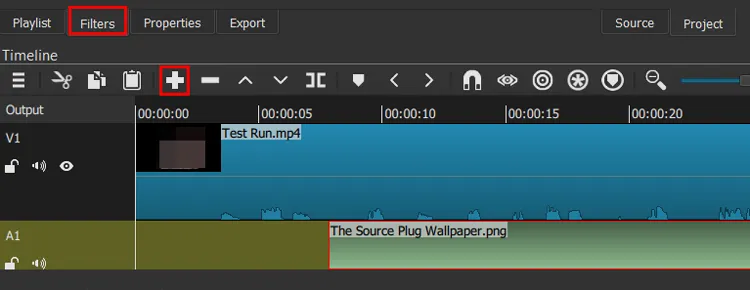
Drag your logo image onto the new upper track. Stretch the ends of the image clip so it covers the entire duration of the video.
-
Select the logo clip, go to the "Filters" panel, click "+", and search for "Size, Position & Rotate". Adjust the logo to your liking. At last, click "Export" and select your desired preset.
Part 4: How to Watermark a Video on Computer via Kdenlive
Kdenlive utilizes a "Transform" tool that makes it incredibly easy to scale and snap watermarks to specific areas of the frame. It supports a vast array of file formats, making it a reliable choice for editors working with high-bitrate camera files. However, it can be resource-intensive, requiring a decent GPU to preview the watermark without lag, and it occasionally experiences stability issues on macOS.
To watermark a video on a computer with Kdenlive:
-
Open the program on your computer, and import both your video and your watermark image into "Project Bin".
-
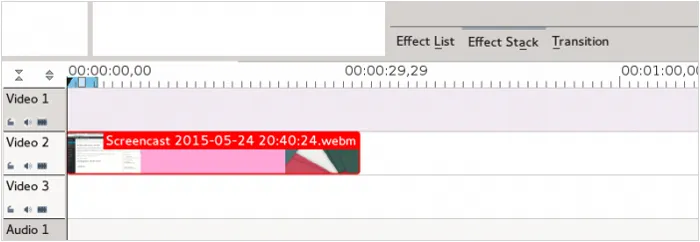
Place the video on "Track V1" and the watermark on "Track V2". Right-click the watermark clip on the timeline and select "Add Effect" > "Transform".
-
In the "Effect Stack", use the handles in the project monitor to resize and position your logo.
Part 5: How to Add Watermark to Video Online
If you prefer to add watermarks to your videos online, you can try Canva and Kapwing.
5.1 Using Canva
Canva offers an intuitive, drag-and-drop interface where you can upload your brand kit and simply place your logo over a video canvas. It is perfect for social media creators who want to use stylish fonts and pre-designed elements. The downside is that it requires a stable internet connection, and 4K exports are often locked behind a "Canva Pro" subscription.
To add watermarks to a video online via Canva:
-
Open the Canva website on your computer's browser, and select "Video". Then upload your video and drag it onto the canvas.
-
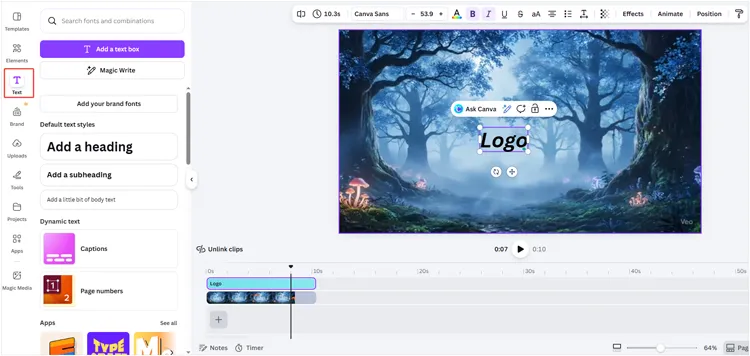
Go to "Uploads" to add your logo, or use the "Text" tool to type a watermark.
-
Lower the "Transparency" using the checkerboard icon at the top right. Next, click "Share" > "Download" to save.
5.2 Using Kapwing
Kapwing is a collaborative online suite that allows you to overlay text or images and adjust their timing with ease. It is an excellent choice for remote teams, as it supports cloud saving and real-time feedback. However, Kapwing's free tier is quite restrictive, limiting upload sizes and adding its own watermark unless you pay for a premium plan.
Here's the guide:
-
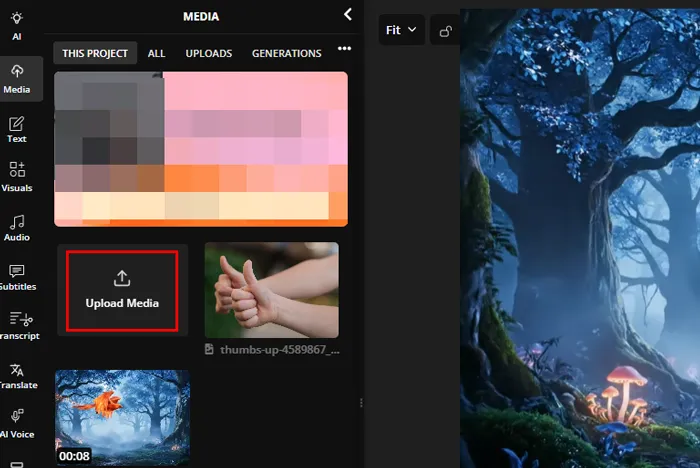
Go to Kapwing's Studio and upload your video. Click "Upload Media" to bring in your logo or "Text" to create a watermark.
-
Use the sidebar to adjust opacity and layer order.
-
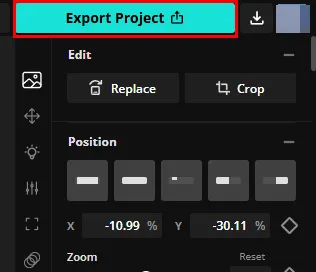
Click "Export Project" in the top right corner to save your video file.
Part 6: Q&A About Adding Watermark to Videos
Q1: Can I add watermark to my videos on my mobile phone with the built-in Photos/Gallery app?
Most built-in Gallery apps (iOS/Android) only allow you to add "Markups" or text to photos. For videos, you generally need to use the "Edit" function and look for a text overlay option, but for professional logos, you will usually need a third-party video editing app.
Q2: Can I watermark a video on CapCut?
Yes. Import your video, then use the Overlay tool to add your logo. Drag the logo clip to match the video's length. You can also use the Text tool to create a simple text watermark.
Q3: Does a watermark affect views?
A subtle, professional watermark usually does not affect views and can actually increase brand recognition. However, an oversized, opaque watermark that obstructs the content can annoy viewers and lead to lower retention rates.
Conclusion
Whether you choose a reliable offline tool, like Video Watermark Maker, VLC, etc., or the online watermark tools, such as Canva and Kapwing, you can easily add watermarks to videos. By following the steps above, you can ensure your content remains yours, no matter where it is shared.
Related Articles
How to Move Videos to SD Card from Android: 5 Solutions
How to Transfer Videos from iPhone to HP Laptop (7 Seamless Methods)
How to Convert MOV to MP3: 8 Best Tools and Methods
How to Remove TikTok Watermark from Videos: 5 Practical Methods

