


Video files can quickly become large, making them difficult to store, share, or upload. When you're preparing a presentation, sending a clip via email, or saving disk space, you need to know how to compress videos. This guide offers you 6 practical methods to compress videos on a computer while maintaining the best possible quality.
- Part 1: How to Compress Video with Clipchamp on Windows PC
- Part 2: How to Compress Video Without Losing Quality via Video Compressor
- Part 3: How to Compress Video in PowerPoint
- Part 4: How to Compress Video with VLC Media Player
- Part 5: How to Compress Video with Zipped Folder
- Part 6: How to Compress Videos on Windows via HandBrake
- Part 7: Q&A About Video Compression
Compare these 6 video compression methods:
|
Method
|
Pros
|
Cons
|
|---|---|---|
| 1. Clipchamp | 1. Pre-installed on Windows 11. 2. Intuitive drag-and-drop interface. 3. Simple resolution presets (480p to 1080p). |
1. Requires Microsoft account/Internet. 2. Limited control over specific bitrates. 3. Exporting large files can be slow. |
| 2. Video Compressor on iReaShare | 1. High compression efficiency with minimal quality loss. 2. Supports batch processing for multiple files. 3. Allows setting a specific target file size. 4. Allows previewing compressed videos. |
1. Desktop software requires installation. |
| 3. PowerPoint | 1. Compresses all videos in a presentation at once. 2. No additional software installation required. 3. Increases compatibility for sharing slide decks. |
1. Limited to only three quality presets. 2. Cannot fine-tune individual video settings. 3. Only works for videos already embedded in slides. |
| 4. VLC Media Player | 1. Completely free and open-source software. 2. Supports a vast array of input file formats. 3. No watermarks or file size limitations. |
1. Non-intuitive "Convert" menu for beginners. 2. No real-time preview of the result. 3. Lacks robust batch compression features. |
| 5. Zipped Folder | 1. 100% lossless; no data is removed. 2. Bundles multiple videos into a single file. 3. Extremely fast; no rendering time required. |
1. Very low compression ratio for video files. 2. Recipient must extract the file to play it. 3. Does not reduce actual video dimensions. |
| 6. HandBrake | 1. Professional control over codecs and bitrates. 2. Best-in-class size reduction for high quality. 3. Completely free with no hidden costs. |
1. Steep learning curve for non-technical users. 2. High CPU/GPU usage during encoding. 3. Interface can be overwhelming with options. |
Part 1: How to Compress Video with Clipchamp on Windows PC
Clipchamp is a built-in video editor on modern Windows 11 systems, offering a user-friendly way to compress videos on a PC. You can select a resolution you want.
To compress a video with Clipchamp:
-
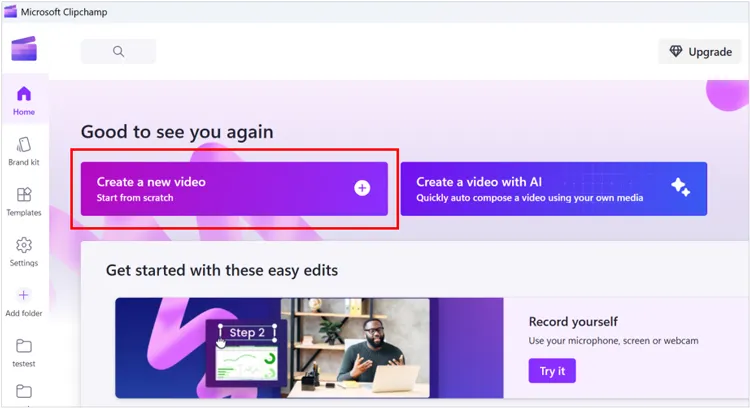
Open Clipchamp and click "Create a new video". Then import your video by dragging it into the media tab.
-
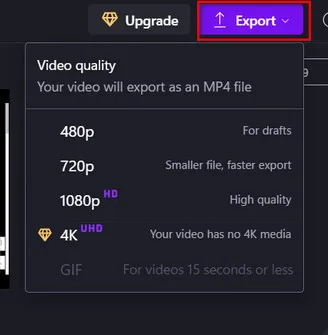
Drag the clip onto the timeline, and click "Export" in the top right corner.
-
Select a lower resolution (e.g., 720p instead of 1080p or 4K). Reducing the resolution is one of the most effective ways to drop the file size instantly.
Part 2: How to Compress Video Without Losing Quality via Video Compressor
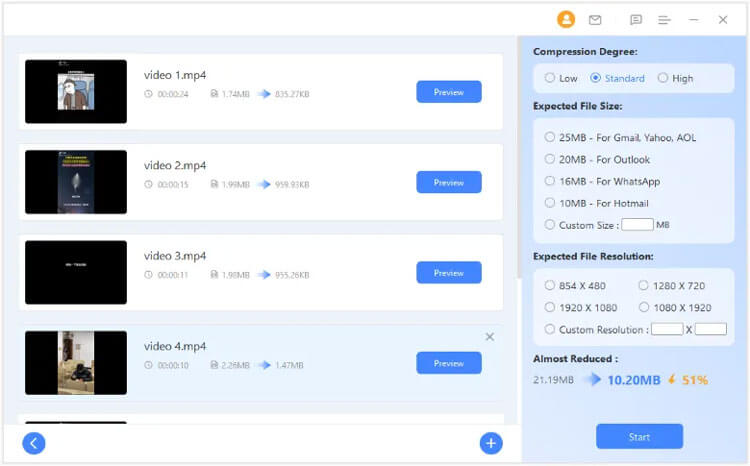
While all compression involves some data trade-off, using the dedicated Video Compressor on iReaShare allows you to tweak the bitrate. It aims at reducing file sizes quickly without significant quality loss. Furthermore, it enables you to directly select the file size you want.
Main features of this video compressor:
* Use advanced algorithms to shrink video files while attempting to maintain the original visual clarity and audio sync.
* Allow you to manually input a specific target file size to ensure it meets the strict requirements of email or messaging apps.
* Reduce video sizes by up to 90% or more in some scenarios.
* Enable you to upload and process dozens of videos simultaneously.
* Compress long videos with efficiency, typical 10-minute videos costing a minute depending on your hardware.
* Compatible with standard video formats including MP4, MOV, AVI, and others.
Download Video Compressor.
To compress your videos without losing quality with this video compressor:
-
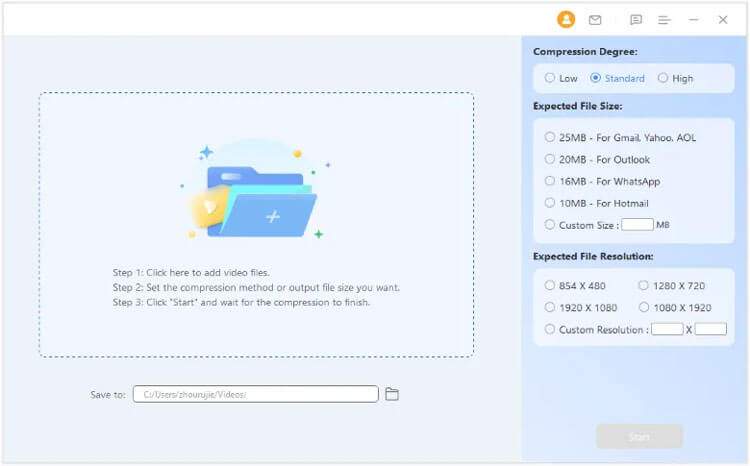
Install the video compression software on your PC, then launch it, and add your video to it.
-
Choose a compression degree, expected file size, and expected file resolution on the right panel.
-
Choose a save path, and click "Start" to compress the video.
Tips: You can follow this guide to use this video compressor without hurdles.
Part 3: How to Compress Video in PowerPoint
If your presentation is too large to email, PowerPoint has a built-in feature to shrink the videos embedded in your slides.
Here's how:
-
Open the presentation that you added your video to, and go to the "File" tab.
-
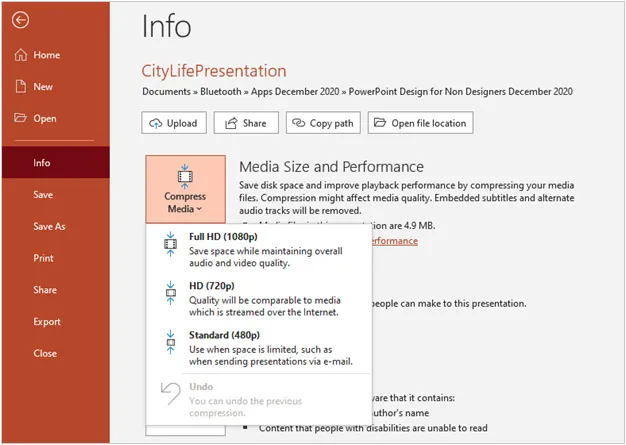
Click "Info" > "Compress Media".
-
Choose from three levels: Standard (480p), HD (720p), or Full HD (1080p). This will automatically resize all videos within the file. Finally, save the presentation.
Part 4: How to Compress Video with VLC Media Player
VLC is famous for playing everything, but it is also a powerful transcoder. You can use it to resize your video with ease. However, you cannot preview your video after compressing it.
To compress videos with VLC Media Player:
-
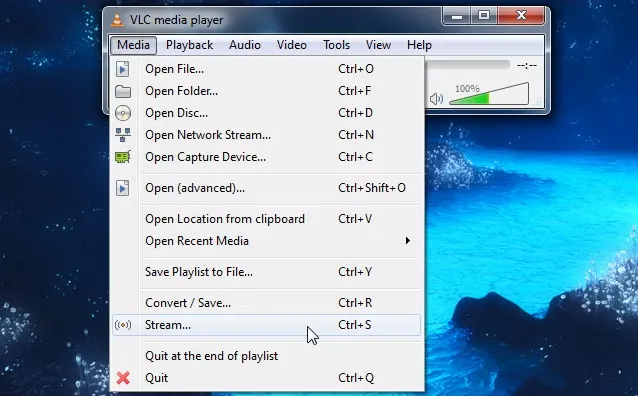
Launch VLC on your computer, and go to "Media" > "Convert/Save".
-
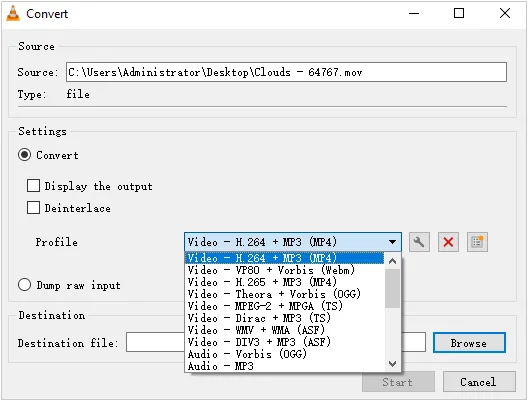
Then add your video and click "Convert/Save". In the "Profile" section, select "Video - H.264 + MP3 (MP4)".
-
Click "Settings" (wrench icon) to lower the bitrate or frame rate further if needed. Next, choose a destination and Tap on "Start".
Part 5: How to Compress Video with Zipped Folder
Zipping is the fastest "lossless" method, but it is less effective for video than for text files because video is already heavily compressed.
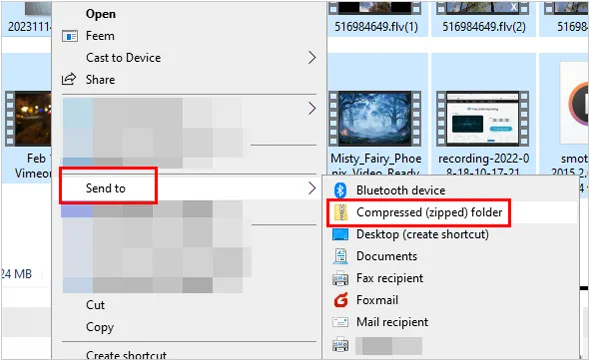
To compress a video with the zipping feature:
-
Right-click your video file on your PC, and select "Compress to ZIP file" (Windows 11) or "Send to" > "Compressed (zipped) folder" (Windows 10).
-
This bundles the file for easier transfer without changing the video data itself.
Part 6: How to Compress Videos on Windows via HandBrake
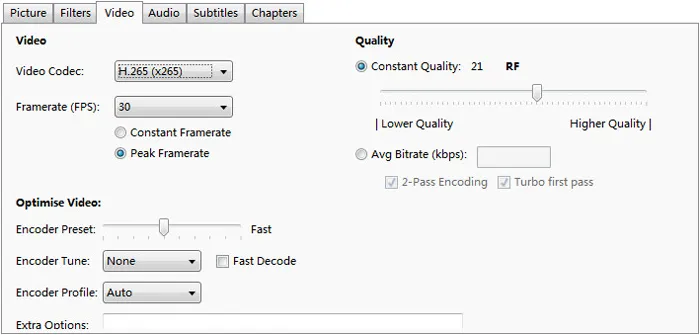
For those who want total control, HandBrake is the gold standard for free, open-source compression. HandBrake recommends using RF (Constant Quality) mode; while this mode guarantees clarity, you cannot predict the exact file size in MB after compression.
To compress videos with HandBrake:
-
Open HandBrake and drop your video file in, and then go to the "Video" tab.
-
Use the "Constant Quality" slider. Moving it to the left (higher RF number) increases compression. A range of "RF 20-23" is usually the sweet spot for quality vs. size.
-
Select the "Web Optimized" checkbox if you plan to upload it online. Then press "Start Encode".
Part 7: Q&A About Video Compression
Q1: Is it better to zip or compress a video?
It depends on your goal. If you need to send multiple files and want to ensure no data is lost, zipping is better. However, if you need a significantly smaller file that can still be played immediately, video compression (changing the format or bitrate) is far more effective.
Q2: What is the best format to compress a video?
MP4 (using the H.264 or H.265 codec) is currently the best balance of high compatibility and high compression. HEVC (H.265) offers even smaller file sizes than H.264 at the same quality level, though it requires more processing power to encode.
Q3: Does compressing a video inevitably result in pixel loss?
In most cases, yes, especially with lossy compression. However, the loss can be minimal and often unnoticeable if compression settings are optimized carefully. Using higher bitrates and efficient codecs helps preserve visual quality.
Q4: Can I compress videos online?
Yes, you can absolutely compress videos online. This is often the quickest method if you don't want to install software. Online compressors work by uploading your file to their servers, processing it using their hardware, and then letting you download the smaller version. By the way, please avoid uploading videos containing passwords, private ID info, and other sensitive data.
Conclusion
Video compression is an essential skill for managing digital media efficiently. Whether you're using built-in tools like Clipchamp and PowerPoint or advanced software like Video Compressor and HandBrake, each method offers different levels of control and convenience.
By understanding how resolution, bitrate, and codecs affect file size and quality, you can choose the best approach for your needs - ensuring your videos remain both compact and visually appealing.
Related Articles
How to Transfer Videos from Phone to Computer (Android and iPhone)
How to Transfer Large Video Files from iPhone to PC (No Quality Loss)
How to Use Audio Compressor on iReaShare
How to Send Video from iPhone to Android Device (No Quality Loss)

