


TL;DR:
Video editing on a PC is easier than ever thanks to a variety of beginner-friendly and professional editing tools. This article provides a comprehensive guide on how to edit videos on a PC using six popular software options, catering to different skill levels and project needs.
- Built-in & Web Tools (Clipchamp & Adobe Express): Best for quick, day-to-day editing and browser-based social media templates.
- AI & Trending Platforms (CapCut): Ideal for creators who need rapid timeline editing and advanced features like smart auto-captions.
- 100% Free Open-Source Software (Shotcut & OpenShot): Excellent for watermark-free editing on a budget, though they lack modern automated tools and have steeper learning curves.
- Beginner-Friendly Desktop Editors (Video Editor): Perfect for absolute novices due to its highly intuitive interface and one-click "Fast Video" creation templates.
Learning how to edit video on PC has never been more accessible. What once required expensive studio equipment and a production degree can now be done right from your Windows computer or laptop - no experience necessary.
Whether you're trimming a quick social media clip, building content for your online brand, or launching a YouTube channel, the right video editing software makes all the difference. But with so many options out there, knowing where to start isn't always easy. This guide covers six of the best video editors for PC, with step-by-step instructions for each, plus a practical Q&A section to help you sharpen your editing workflow.
- Part 1: How to Edit Video on PC via Clipchamp
- Part 2: How to Edit a Video on PC Windows 11 via Adobe Express
- Part 3: How to Edit Videos on Laptop via Video Editor
- Part 4: How to Edit Videos on PC via CapCut
- Part 5: How to Edit Videos on Laptop for YouTube via Shotcut
- Part 6: How to Edit Videos on Computer via OpenShot
- Part 7: Q&A About Editing Videos on PC
Take a quick look at these 6 video editing tools:
| Method / Software | Pros | Cons |
|---|---|---|
| Clipchamp | 1. Built directly into Windows 11. 2. Exceptionally clean interface. 3. Free 1080p exports. 4. Great auto-captioning tools. |
1. Requires an active internet connection for cloud assets. 2. Free tier lacks premium stock media. 3. Lacks advanced color grading. |
| Adobe Express | 1. Fully web-based with no heavy desktop installation. 2. Massive library of premium design templates. 3. Excellent for quick social media clips. |
1. Limited multi-layer timeline capabilities. 2. Performance depends heavily on browser speed. 3. Not suited for long-form video editing. |
| Video Editor | 1. Fast Video mode lets absolute beginners create videos with one click. 2. Features rich AI tools like built-in voice changers and text-to-speech. 3. Supports exporting for 4K video resolution at up to 60 frames per second. 4. Very easy to use. |
1. The desktop application requires a paid license for full features. 2. The free version for video editing with watermarks. |
| CapCut | 1. Incredibly fast timeline. 2. Packed with trending visual effects, stickers, and filters. 3. Industry-leading smart auto-captions. 4. Handles 4K smoothly. |
1. Some of the best effects and features are locked behind a paid "Pro" subscription. 2. Interface can feel cluttered with mobile-centric assets. |
| Shotcut | 1. 100% free and open-source with no watermarks. 2. Incredibly lightweight and robust format support. 3. Excellent control over audio tracks. |
1. Steeper learning curve. 2. Interface layout is highly traditional and less intuitive. 3. Lacks modern preset motion graphics and stickers. |
| OpenShot | 1. Completely free with an easy-to-understand drag-and-drop workflow. 2. Supports unlimited timeline tracks. 3. Great integration for 3D animated titles. |
1. Interface feels visually outdated. 2. Rendering speeds can be slow with large files. 3. Lacks cutting-edge AI features like motion tracking. |
Part 1: How to Edit Video on PC via Clipchamp
Clipchamp is Microsoft's official, built-in video editor for Windows 11. It is a fantastic, user-friendly tool for everyday video projects, offering intuitive timeline editing without a steep learning curve.
To edit a video on your PC with Clipchamp:
-
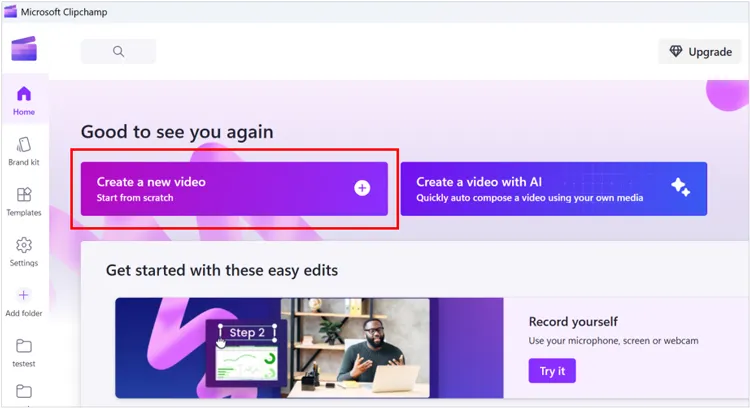
Open Clipchamp via your Windows "Start" menu. Click "Create a new video". Drag and drop your video, audio, and image assets into the Your media tab on the left.
-
Drag your clips from the media tab down onto the editing timeline at the bottom of the screen.
-
Move the seeking playhead to the exact moment you want to edit. Click the "Scissors" icon (or press S) to split the clip. Delete unwanted sections by selecting them and hitting "Delete".
-
Use the left sidebar to add text overlays, background music, or stock transitions between clips.
-
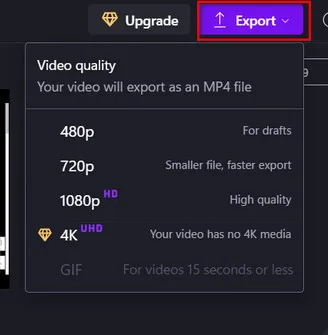
Click the "Export" button in the top right corner. Select your desired resolution (1080p is recommended for standard high-definition viewing) and save it to your computer.
Part 2: How to Edit a Video on PC Windows 11 via Adobe Express
Adobe Express is an agile, web-based design and video tool. It is perfect for creators who want to build sleek, template-driven content for TikTok, Instagram, or business presentations without installing heavy desktop programs.
To edit a video on a Windows 11 PC via Adobe Express:
-
Navigate to the Adobe Express website via your browser or open the desktop app on Windows 11.
-
Click the "+" icon and select Video. You can choose a pre-made canvas size optimized for specific social media platforms.
-
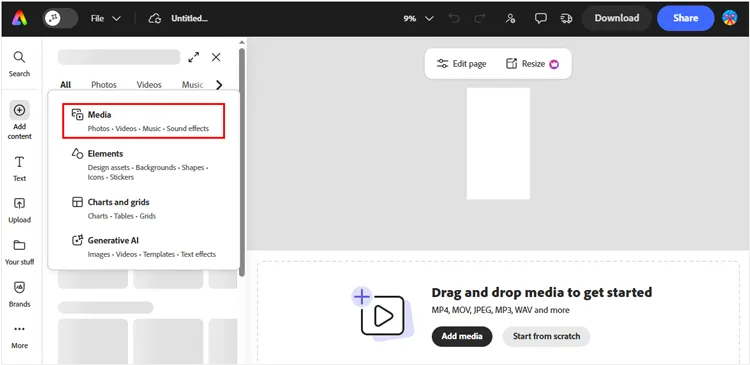
Upload your footage through the "Media" tab. Adobe Express operates on a simplified, layer-based system. Click on your video track to trim the handles. Use the "Text" and "Elements" menus to add animated graphics, icons, and trendy overlays.
-
Once satisfied, hit the "Download" button at the top, select your file format (MP4), and save it directly to your PC.
Part 3: How to Edit Videos on Laptop via Video Editor
Video Editor is a lightweight desktop application tailored specifically for beginners and laptop users. It features dedicated Fast Video modes that automatically compile footage into stylized templates. If you want an easy-to-use video editing tool, it will be an ideal option.
Main features of this video editor:
* The Auto Create option allows beginners to generate themed slideshows and videos in just one click using pre-made templates.
* Support up to 8 audio tracks and 10 video tracks simultaneously, allowing users to handle complex multi-layered media layouts easily.
* The built-in AI voice modification options let creators transform their narration audio into distinct character voices directly within the editor.
* Provide a responsive playback preview window so you can immediately see and adjust your edits before rendering.
* Include cutting-edge AI tools like text-to-speech and text-to-video capabilities to help automate the generation of social media content.
* Come packed with hundreds of royalty-free music tracks, audio effects, transition animations, cinematic filters, and text overlays.
* Allow users to extract and separate background audio from any video track with a single click for separate refinement.
Download this video editor below.
Here's how to edit videos on a PC with this video editor:
-
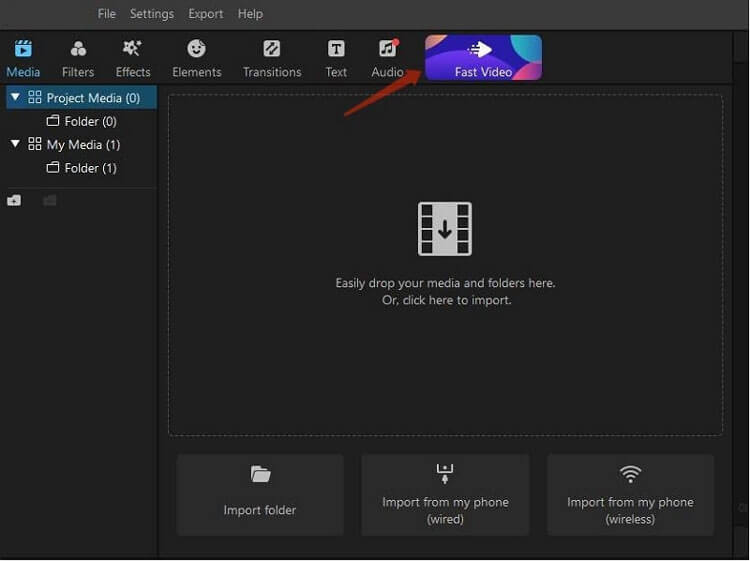
Open the video editor on your laptop after installing it. Select "Fast Video" if you want an automated template, or "New Project" for full manual editing.
-
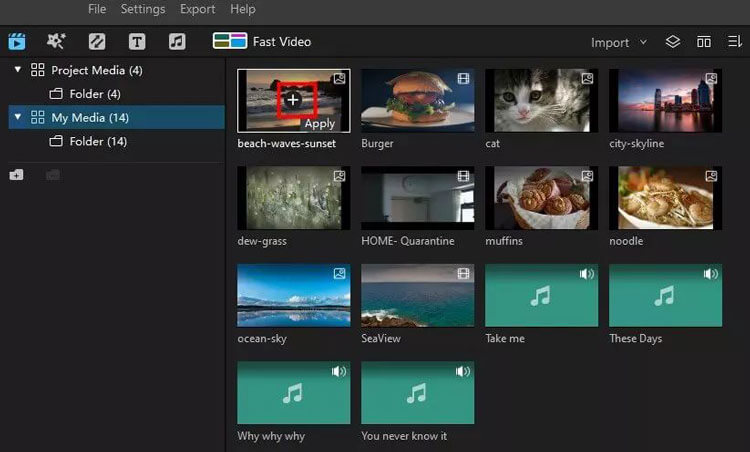
Click the import panel to upload your media clips into the project library. Next, lower your clips onto the timeline tracks. You can adjust the speed, crop the aspect ratio, or use the specialized audio editing tab to detach and clean up background noise.
-
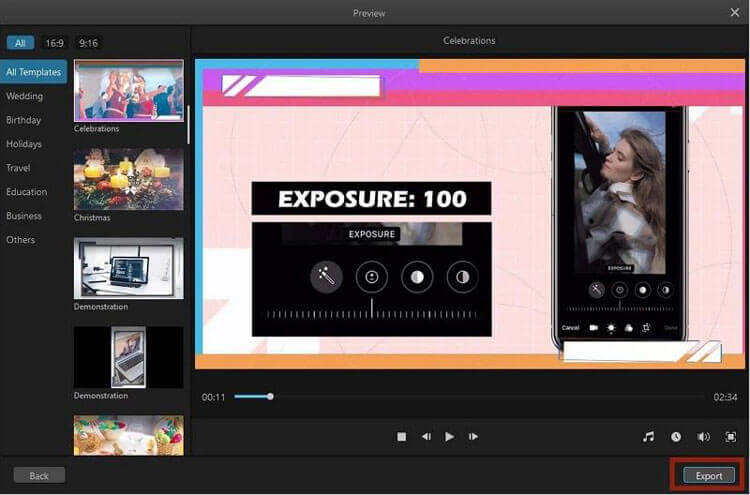
Browse through its library of filters, animations, and transitions, then drag them directly on top of your target clips. After that, click "Export" to render your video into formats like MP4 or AVI.
Tips: You can get the full guide for this video editor if needed.
Part 4: How to Edit Videos on PC via CapCut
CapCut has rapidly become one of the most popular video editors globally. Its desktop PC version combines lightning-fast mobile-style assets (like auto-captions and trending effects) with the precision of a desktop timeline.
Here the step-by-step editing workflow:
-
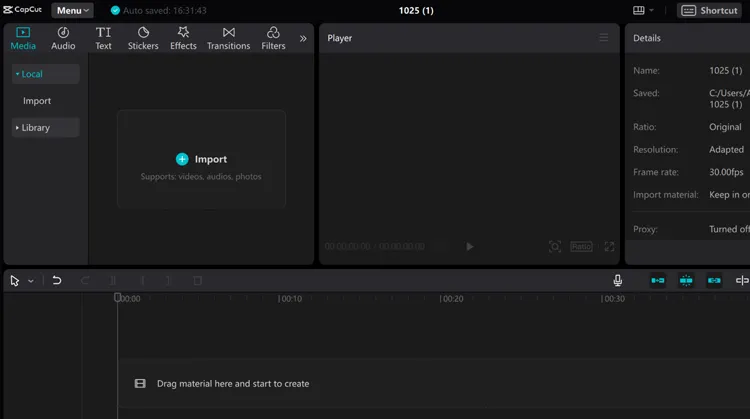
Launch CapCut PC and click "New Project". Click the "Import" button to load your video files. Then position your clips sequentially on the track.
-
To add subtitles automatically, go to the "Text" tab on the top menu, select "Auto Captions", choose your language, and click "Create". The software will transcribe your audio with high accuracy in seconds.
-
Use the "Effects", "Transitions", and "Audio" libraries to inject style into your edit. CapCut handles multi-layer video tracks effortlessly.
-
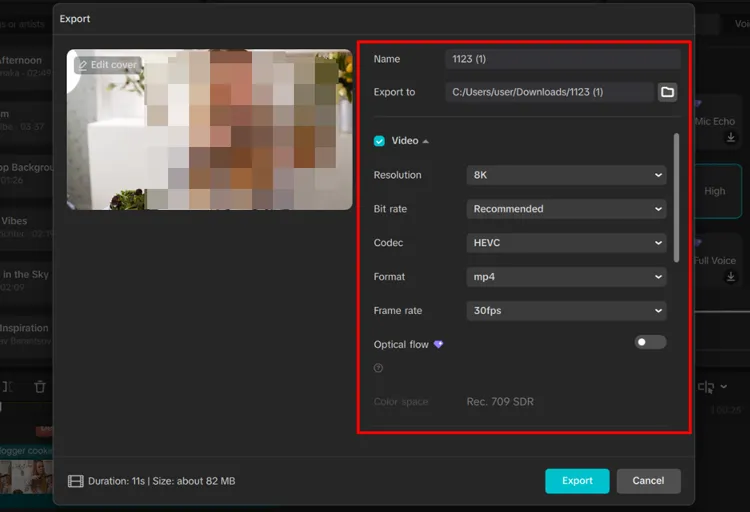
Click "Export" in the upper right. Customize your bitrate, resolution (up to 4K), and frame rate before saving.
See more: Want to remove watermarks from your video? Then you can use the watermark remover app to make it.
Part 5: How to Edit Videos on Laptop for YouTube via Shotcut
For YouTube creators using a laptop, Shotcut is a reliable, open-source, and entirely free powerhouse. It supports a vast range of video formats and doesn't lock advanced tools behind paywalls.
Here's how to use it to edit a video on a computer:
-
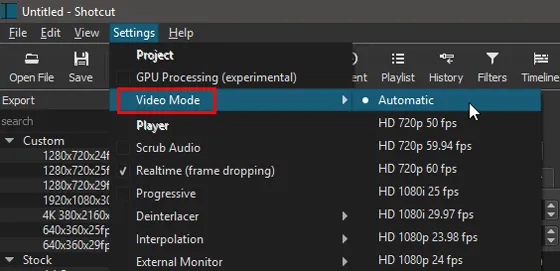
Open Shotcut, name your project, and set your "Video Mode" (e.g., HD 1080p 60fps for clean YouTube playback).
-
Click "Open File" to select your video. To edit cleanly, make sure your "Timeline" panel is visible (press Ctrl + M if it isn't). Drag the video preview down into the timeline.
-
Use the "S" key to split clips. Shotcut uses "Ripple Editing" options to automatically close up gaps when you delete sections of a video.
-
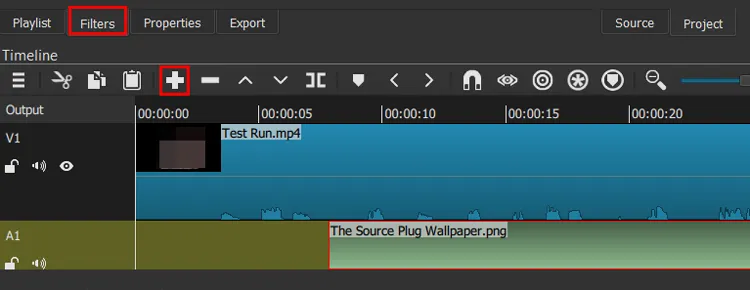
Click "Filters" (the "+" icon) to add color grading, audio normalization, or text overlays. You can add a separate audio track for background commentary or music.
-
Tap "Export", select the YouTube preset (which optimizes the codec settings for YouTube's compression algorithms), and render the file.
Part 6: How to Edit Videos on Computer via OpenShot
OpenShot is another award-winning, 100% open-source video editor. It is incredibly stable across Windows, Mac, and Linux, built explicitly with an easy drag-and-drop interface that makes it perfect for multi-layer editing.
Here's how:
-
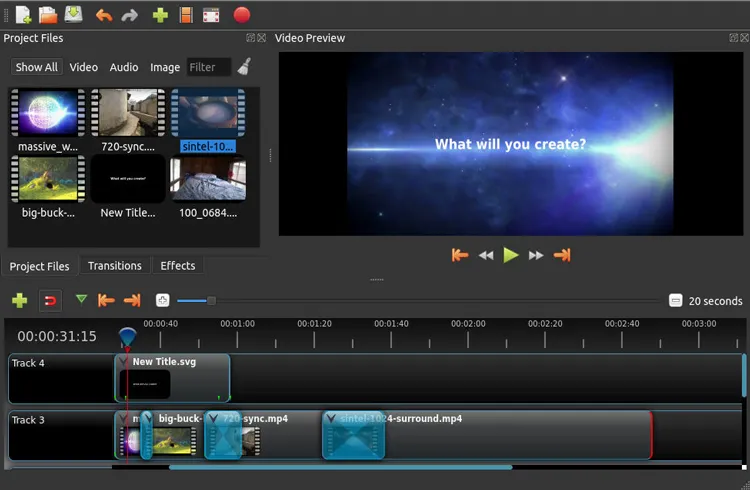
Drag your video, audio, and image files directly from your computer folders into the "Project Files" window in OpenShot.
-
OpenShot offers unlimited timeline tracks. Drag your main video to Track 4, background music to Track 3, and any watermark logos or text titles to Track 5.
-
You can easily trim a clip by dragging its left or right edges. Right-click any clip to instantly apply automatic fade-ins or fade-outs for smooth audio and video transitions.
-
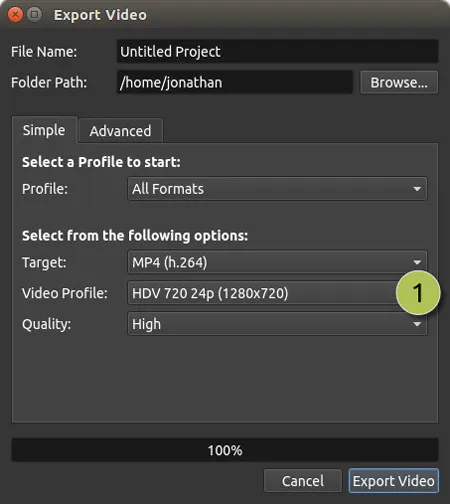
OpenShot integrates with Blender to allow creators to add beautiful, animated 3D titles directly from the top menu toolbar. At last, tap the red "Export Video" circle icon at the top to save your video to the computer.
Part 7: Q&A About Editing Videos on PC
Q1: Q1: Is there a 100% free video editor?
Yes. Shotcut and OpenShot are completely free, open-source programs. Unlike many "free" trials on the market, they do not add watermarks to your exported videos, they don't limit your export length, and they don't force you to purchase a premium subscription to unlock advanced tools. Clipchamp and Video Editor also offer an excellent, highly functional free tier for 1080p or higher exports.
Q2: Is CapCut or Canva better?
It depends entirely on your project goals:
- Choose CapCut if your focus is strictly video-centric. It is vastly superior for complex timeline editing, precise audio syncing, cutting vlog footage, and deploying advanced visual/audio effects.
- Choose Canva if you are designing overall brand assets. Canva excels at graphic design, layouts, presentations, and simple video templates where text, stock photos, and brand colors take priority over complex video splicing.
Q3: What does a PC need for video editing?
A good video editing PC should have:
- Processor: Intel Core i5/i7 or AMD Ryzen 5/7
- RAM: At least 16GB (32GB recommended for 4K editing)
- Graphics Card: Dedicated GPU such as NVIDIA GeForce RTX or AMD Radeon
- Storage: SSD with at least 512GB capacity
- Display: Full HD or higher resolution monitor
- Operating System: Windows 10 or Windows 11
Higher-end specifications will improve rendering speed and overall editing performance.
Conclusion
When picking a video editor for your PC, your experience level should guide your choice. Free, open-source tools like Shotcut and OpenShot are highly beneficial because they offer unrestricted editing power with absolutely no watermarks or hidden costs. However, they do have limitations, including steeper learning curves, and a lack of modern automated effects.
If you want to bypass these complex hurdles, Video Editor is an exceptional alternative. It is incredibly beginner-friendly, allowing absolute novices to skip tedious manual editing and instantly build polished videos using its one-click Fast Video templates. Ultimately, the best software is the one that fits your current skills - so choose your tool, import your footage, and start cutting!
Related Articles
How to Record Screen on Windows with Audio (System and Microphone)
How to Transfer Videos from Android to Mac Seamlessly (5 Ways)
How to Transfer Videos from iPhone to HP Laptop (7 Seamless Methods)
Best Video Compressor Software: Top 12 Tools Reviewed for High-Quality Video Compression

