

TL;DR:
Looking for the best MP4 screen recorder for Windows, Mac, or online use? These 7 tools offer different ways to capture tutorials, gameplay, meetings, and desktop activities in MP4 format. Whether you need advanced recording controls, a completely free solution, or a browser-based recorder, there's an option for your workflow.
- Screen Recorder: Best for feature-rich screen recording with customizable settings and multiple capture modes.
- OBS Studio: Ideal for free, advanced screen recording and live streaming.
- Bandicam: Great for Windows gameplay and desktop recording.
- ScreenRec: Suitable for lightweight recording and quick cloud sharing.
- AnyMP4 Screen Recorder: Good for flexible recording settings and annotations.
- VEED MP4 Recorder: Best for online screen recording with built-in video editing.
- Apowersoft Free Online Screen Recorder: A convenient choice for basic browser-based screen capture.
Looking for a reliable MP4 screen recorder to capture tutorials, gameplay, online meetings, or other on-screen activities? Choosing the right tool can make a big difference in video quality, recording stability, and how easily you can share or edit your recordings.
In this guide, we'll compare 7 of the best MP4 screen recorders, including free desktop applications, professional recording software, and online tools. We'll look at their key features, supported platforms, advantages, and limitations to help you find the right MP4 video screen recorder for your needs. Whether you need a free MP4 screen recorder for Windows 10, an MP4 screen recorder for Mac, or an MP4 screen recorder online, there's an option worth considering.
- 1. Screen Recorder – Best MP4 Screen Recorder for Windows and Mac
- 2. OBS Studio – Best Free MP4 Screen Recorder for Advanced Users
- 3. Bandicam – Best MP4 Screen Recorder for Windows Gameplay
- 4. ScreenRec – Best Lightweight MP4 Screen Recorder for Quick Sharing
- 5. AnyMP4 Screen Recorder– Best MP4 Screen Recorder for Custom Recording Settings
- 6. VEED MP4 Recorder – Best Online MP4 Screen Recorder for Editing
- 7. Apowersoft Free Online Screen Recorder – Best Free Online MP4 Screen Recorder for Basic Tasks
The table below compares the best MP4 screen recorders by platform, free version availability, and primary use case to help you quickly find the right tool for your recording needs.
| MP4 Screen Recorder | Platform | Free Version | Best For |
|---|---|---|---|
| Screen Recorder | Windows, Mac | 3-minute trial | Advanced recording |
| OBS Studio | Windows, Mac, Linux | Completely free | Gameplay and streaming |
| Bandicam | Windows | 5-minute limit | Game recording |
| ScreenRec | Windows, Mac, Linux | Free plan | Quick sharing |
| AnyMP4 Screen Recorder | Windows, Mac | 3-minute trial | Custom recording |
| VEED MP4 Recorder | Online | Free plan | Online editing |
| Apowersoft Free Online Screen Recorder | Online | Free | Basic online recording |
1. Screen Recorder – Best MP4 Screen Recorder for Windows and Mac
Best For: Users who need a feature-rich MP4 screen recorder for PC and Mac, especially for tutorials, online meetings, presentations, and gameplay.
Screen Recorder is a versatile MP4 screen recorder for Windows and macOS. It can capture full-screen activities, selected areas, application windows, webcam footage, and mobile device screens, making it suitable for recording tutorials, online classes, gameplay, and meetings. Users can customize the recording area, resolution, frame rate, and audio sources, as well as save videos in MP4 and other formats.
It also offers real-time annotation tools, allowing you to add text, arrows, shapes, and highlights while recording. Additional features include scheduled recording, customizable hotkeys, webcam capture, and basic video editing. It supports up to 8K resolution and 120 FPS under suitable hardware conditions, although these demanding settings may consume significant system resources.
Key Features:
- Record full-screen activities, selected regions, and specific application windows.
- Export screen recordings in MP4 and other supported video formats.
- Capture system audio and microphone input simultaneously.
- Record webcam footage and mobile device screens.
- Add real-time annotations, arrows, text, shapes, and highlights.
- Support high-resolution recording up to 8K and high frame rates up to 120 FPS, depending on hardware and settings.
- Schedule recordings and customize keyboard shortcuts.
- Preview, trim, merge, and manage recorded videos.
Download for Win Download for Mac
How to Use Screen Recorder to Record MP4 Videos:
-
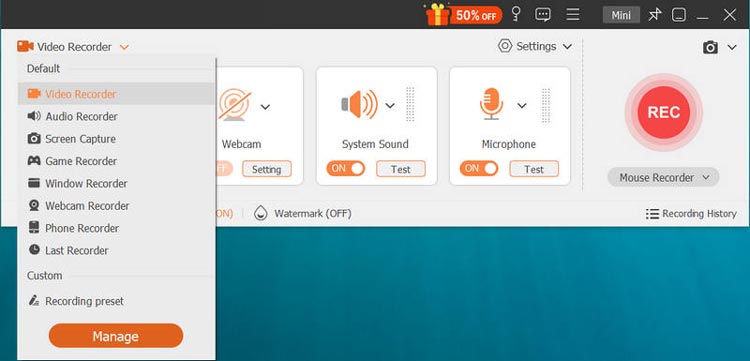
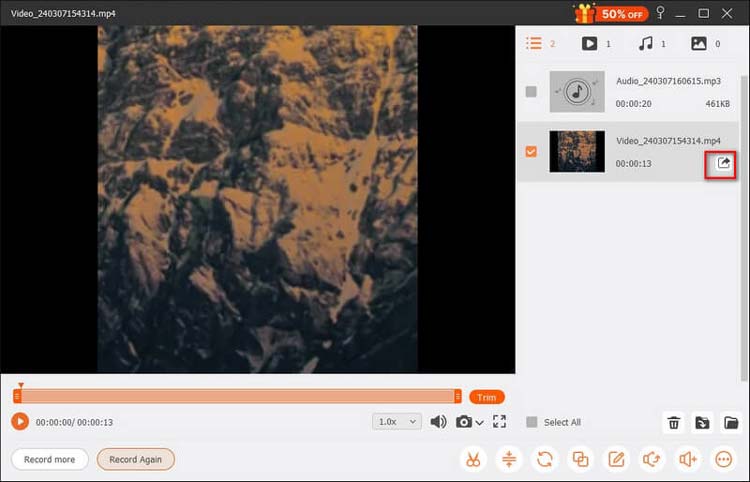
Download and install Screen Recorder on your computer. Launch the software and select "Video Recorder" from the main interface. Choose "Full" or "Custom" to capture the entire screen or a specific area. If you want to include yourself in the video, enable the "Webcam" option.
-
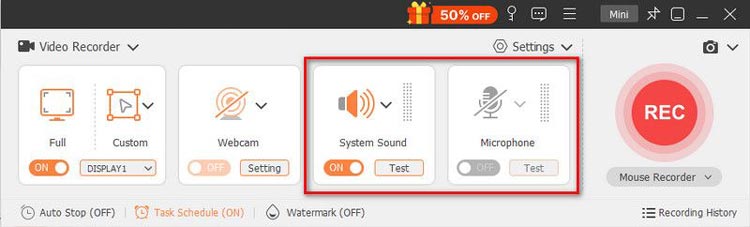
Enable "System Sound" to capture computer audio and "Microphone" to record your voice. Adjust the volume levels as needed. Then open the settings menu to customize the video quality, frame rate, and other output preferences. Make sure to select "MP4" as the output format.
-
Click "REC" to start recording your screen. You can use the built-in annotation tools to add text, arrows, and lines while recording. Once finished, click "Stop" to end the session. Preview the recorded video and trim any unwanted parts if necessary. Finally, click "Export" to save the MP4 video to your computer. You can also access your recordings through the Recording History section.
- Support both Windows and Mac, making it suitable for different desktop environments.
- Offer flexible recording areas and audio source selection.
- Provide useful annotation tools for tutorials and presentations.
- Support MP4 output and multiple other formats.
- Include webcam, phone, and scheduled recording capabilities.
- Offer more recording and editing controls than basic built-in screen recorders.
- The free trial limits each screen recording to 3 minutes, so it is not suitable for capturing long videos without purchasing a license.
- Some advanced recording and editing features require a paid version.
- High-resolution and high-frame-rate recording can consume considerable CPU, GPU, and storage resources.
- Wireless phone mirroring depends on network stability, so a weak Wi-Fi connection may cause lag or disconnection.
- DRM-protected streaming content may prevent successful recording.
2. OBS Studio – Best Free MP4 Screen Recorder for Advanced Users
Best For: Users looking for a free MP4 screen recorder for Windows or Mac with advanced recording controls, especially gamers, streamers, and content creators.
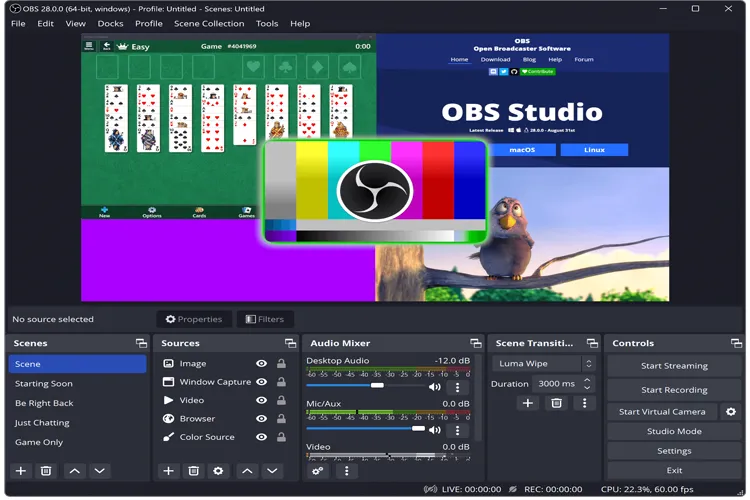
OBS Studio is a free, open-source screen recorder and live-streaming application available for Windows, macOS, and Linux. Unlike simple recording tools, OBS Studio provides a customizable production environment where users can combine multiple visual and audio sources into a single recording.
It is a strong choice if you want a free MP4 screen recorder without a built-in recording duration limit or forced watermark. You can capture your entire desktop, individual application windows, game footage, webcams, microphones, and other supported input sources. Its scene and source system also allows you to create different layouts for tutorials, gameplay videos, and presentations.
Key Features:
- Free and open-source screen recording without a mandatory watermark.
- Available for Windows, macOS, and Linux.
- Capture full-screen activities, application windows, games, and webcams.
- Combine multiple audio and video sources.
- Create customized scenes and recording layouts.
- Support MP4, MKV, and other recording formats.
- Customize video encoders, bitrates, resolutions, and frame rates.
- Support live streaming alongside local recording.
- Completely free to use without a paid subscription.
- No built-in recording duration restriction.
- Powerful recording and audio customization options.
- Support multiple sources and complex recording layouts.
- Suitable for gameplay, tutorials, live streaming, and professional content creation.
- Active open-source development and a large user community.
- The interface and configuration options can overwhelm beginners.
- Require some setup to achieve the desired MP4 output.
- Recording at high resolutions and frame rates can consume significant system resources.
- Does not provide a particularly beginner-friendly built-in video editing workflow.
- Incorrect encoder or recording settings can result in large files, dropped frames, or poor audio quality.
3. Bandicam – Best MP4 Screen Recorder for Windows Gameplay
Best For: Windows users who regularly record gameplay, software demonstrations, and desktop activities and want a dedicated MP4 video screen recorder.
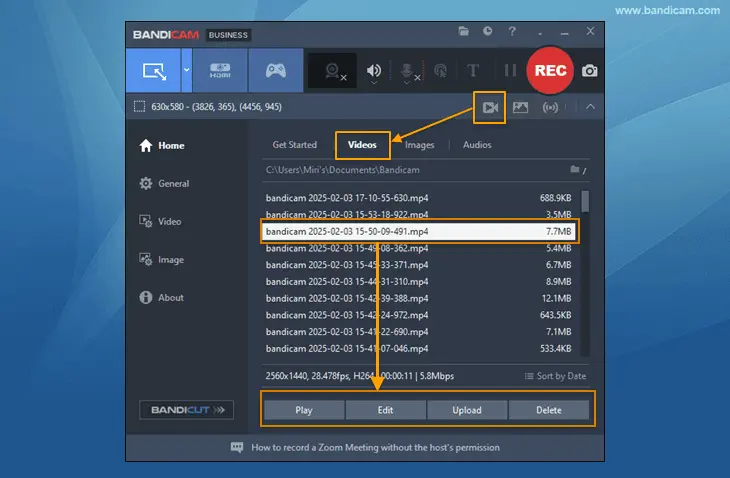
Bandicam is a dedicated Windows screen recorder for capturing desktop activities, gameplay, and external video devices. As a Windows screen recorder MP4 users can consider, it supports full-screen, selected-area, application, and game recording, with an FPS counter for gameplay capture.
It supports MP4 and AVI output, customizable resolution, frame rate, and recording quality, as well as hardware-accelerated encoding on compatible computers. However, the free version limits each video or audio recording to five minutes. While basic recordings have no watermark, edited video exports come with separate watermark restrictions. For longer gameplay sessions, tutorials, or webinars, the paid version is a more practical choice.
Key Features:
- Record full-screen activities, selected regions, and application windows.
- Capture supported games using a dedicated game recording mode.
- Save recordings in MP4 or AVI format.
- Support webcam overlays and external device recording.
- Display an FPS counter during supported game recordings.
- Adjust resolution, frame rate, and video quality.
- Support hardware-accelerated video encoding.
- Capture screenshots during recording.
- Straightforward interface for everyday screen recording.
- Dedicated game recording mode for gameplay capture.
- Support MP4 output for convenient video sharing.
- Offer customizable recording quality and frame rates.
- Hardware acceleration can improve recording efficiency on supported computers.
- Provide screen, game, and device recording modes.
- Only available for Windows, so Mac users need another solution.
- The free version limits each recording to five minutes.
- Free-version editing and export features have additional restrictions.
- Some advanced functions require a paid license.
- Does not offer the same scene customization and production flexibility as OBS Studio.
- High-quality recording can still affect gameplay performance on less powerful computers.
4. ScreenRec – Best Lightweight MP4 Screen Recorder for Quick Sharing
Best For: Users who want a lightweight screen recorder for quick tutorials, work demonstrations, and sharing recordings with colleagues.
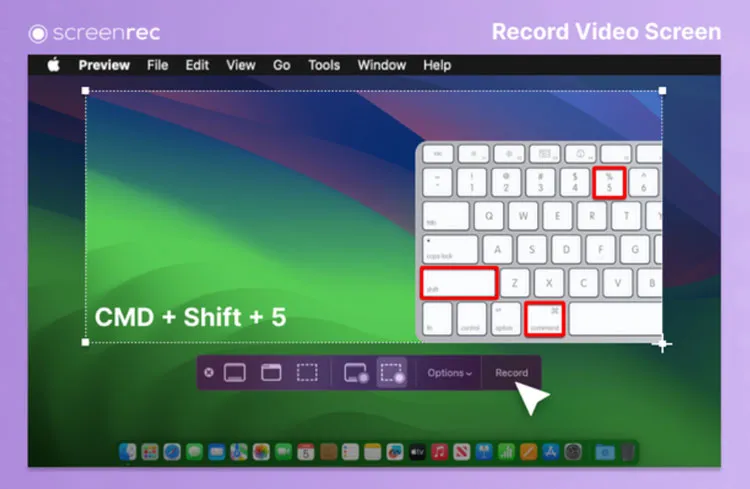
ScreenRec is a lightweight screen recorder for Windows, macOS, and Linux. It lets you capture your screen, webcam, and audio, making it useful for creating short tutorials, demonstrating software issues, and sharing work updates.
Its cloud-sharing feature allows you to distribute recordings quickly without manually uploading files to another platform. It also includes screenshot and annotation tools for highlighting important details.
ScreenRec is a convenient choice for quick recordings and team communication. However, it may not meet the needs of users who require advanced MP4 encoding controls or professional video editing features.
Key Features:
- Record desktop activities on Windows, Mac, and Linux.
- Capture screen, webcam, and audio.
- Create screenshots and add annotations.
- Share recordings through cloud-based workflows.
- Offer a free plan with unlimited recording length after registration.
- Support up to 720p recording quality on the free plan.
- Provide 2GB of free cloud storage.
- Offer higher-quality recording and additional features through paid plans.
- Simple interface that is easy for beginners to understand.
- Support multiple desktop operating systems.
- Free plan offers unlimited recording length after account registration.
- No watermark on free-plan recordings.
- Include screenshot and annotation functionality.
- Convenient cloud-sharing workflow.
- Free recording quality is limited to 720p.
- Free cloud storage is limited to 2GB.
- Unregistered users face a five-minute recording restriction.
- Advanced recording features require a paid plan.
- Provide fewer detailed encoding controls than OBS Studio.
- Cloud-based workflows may not suit users who prefer to manage all recordings locally.
5. AnyMP4 Screen Recorder – Best MP4 Screen Recorder for Custom Recording Settings
Best For: Users who need a customizable MP4 screen recorder for PC or Mac and want additional recording controls for tutorials, presentations, and gameplay.
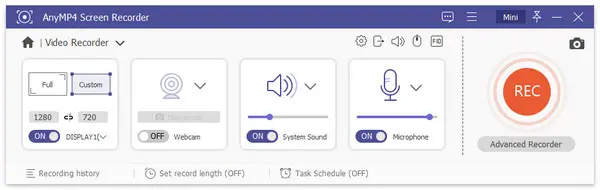
AnyMP4 Screen Recorder is a desktop MP4 screen recorder for capturing screen activities, gameplay, webcam footage, and audio. It offers full-screen and custom-area recording, with options to enable a webcam, select audio sources, and adjust output settings. Besides MP4, it supports formats such as WMV, MOV, and AVI, depending on the system and software version. You can also customize the frame rate and video codec to suit your recording needs.
For tutorials and presentations, it provides mouse-click effects, customizable hotkeys, annotations, and audio enhancement tools to make recordings clearer and easier to follow.
Key Features:
- Capture full-screen activities and customized recording areas.
- Record desktop audio and microphone input.
- Capture webcam footage and supported gameplay.
- Export recordings in MP4 and other video formats.
- Customize frame rate, video codec, and output settings.
- Add mouse-click effects and annotations.
- Use customizable hotkeys to control recording.
- Provide microphone noise reduction and enhancement.
- Support flexible recording areas and multiple capture modes.
- Provide MP4 and several alternative output formats.
- Offer useful mouse effects and annotation tools.
- Allow users to customize frame rate and encoding settings.
- Support webcam, microphone, and system audio recording.
- Provide a relatively straightforward desktop recording workflow.
- The free version limits each recording to three minutes.
- Longer recording sessions require a paid license.
- Some advanced editing and output features are unavailable in the unregistered version.
- High-resolution recording may require a relatively powerful computer.
- Its feature set overlaps with other paid screen recording applications.
- Users who only need basic recording may find the paid features unnecessary.
6. VEED MP4 Recorder – Best Online MP4 Screen Recorder for Editing
Best For: Content creators, educators, and professionals who want an MP4 screen recorder online with integrated video editing and sharing features.
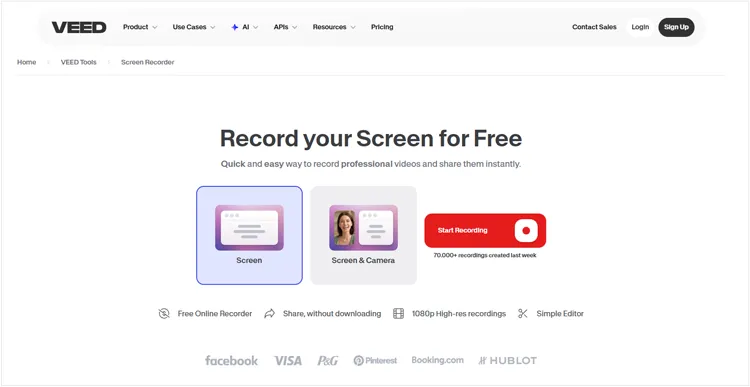
VEED is a browser-based video recording and editing platform that lets you capture your screen, webcam, and audio without installing software. As an MP4 screen recorder online, VEED supports screen-only, webcam-only, and screen-and-camera recording. After recording, you can trim clips, add subtitles, enhance audio, and use AI tools such as automatic subtitle generation and background removal.
Key Features:
- Record screen, webcam, and microphone audio online.
- Choose screen-only, camera-only, and combined recording layouts.
- Export completed recordings in MP4 format.
- Edit recordings directly in the browser.
- Trim videos and add subtitles.
- Use AI-assisted audio enhancement and background removal.
- Share completed projects through online links.
- Support different export resolutions depending on the subscription plan.
- No traditional desktop installation required.
- Provide recording and editing in one online platform.
- Support screen and webcam recording together.
- Offer convenient MP4 export.
- Include subtitle and AI-assisted editing tools.
- Useful for creating tutorials and social media content.
- Free exports include a VEED watermark.
- Free-plan exports are limited to 720p.
- Watermark-free exports require a paid subscription.
- Some advanced AI and editing features are paid.
- Browser-based recording and editing depend on available system resources and internet stability.
- Large video projects may take time to process and export.
7. Apowersoft Free Online Screen Recorder – Best Free Online MP4 Screen Recorder for Basic Tasks
Best For: Users who want a free MP4 screen recorder online for basic screen capture, presentations, and short tutorials without installing a full desktop application.
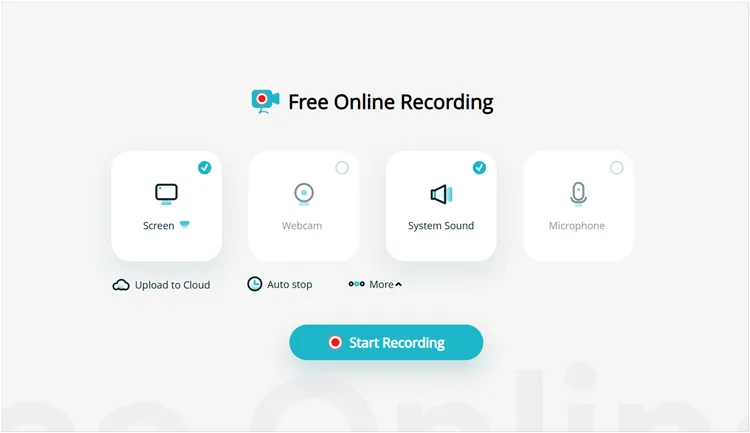
Apowersoft Free Online Screen Recorder is a browser-based tool that lets you capture screen activities, webcam footage, and audio without installing full desktop recording software.
As an MP4 screen recorder online, it supports full-screen and custom-region recording, making it suitable for capturing presentations, online lessons, browser activities, and software demonstrations. You can also record microphone and system audio under supported conditions, then save videos locally or upload them to cloud storage. Its simple interface makes recording easy, even for beginners, and it offers free recording without a fixed time limit.
Key Features:
- Record the entire screen or a selected screen region.
- Capture webcam footage and supported audio inputs.
- Record browser activities and desktop presentations.
- Save recordings locally or upload them to cloud storage.
- Provide an online recording workflow.
- Offer basic recording controls without complicated configuration.
- Support MP4 conversion and other video export options.
- Provide additional recording and editing features through the desktop application.
- Provide a convenient online recording option.
- Does not require installing a complete desktop recording suite.
- Support full-screen and custom-region capture.
- Can record webcam and audio under supported conditions.
- Offer local saving and cloud-sharing options.
- Suitable for basic tutorials and short demonstrations.
- May require installing a launcher before the first recording.
- Browser-based recording has fewer customization options than desktop software.
- Windows audio recording is not supported by the online version.
- macOS users may encounter system audio recording restrictions.
- Long recordings may fail to save because of browser memory limitations.
- Some downloaded recordings may require additional MP4 conversion or processing.
- The online workflow is less suitable for advanced gameplay and professional recording.
Conclusion
Overall, the best MP4 screen recorder depends on your operating system, recording needs, and budget. Screen Recorder and AnyMP4 Screen Recorder are worth considering if you want dedicated recording tools with customizable settings, while OBS Studio offers a free option for advanced recording and streaming. Bandicam is more suitable for Windows users who focus on gameplay, and ScreenRec provides a simple way to capture and share screen recordings. If you prefer recording directly in a browser, VEED and Apowersoft are convenient alternatives, although their free versions may have limitations. Compare their features and restrictions before choosing the tool that best fits your workflow.
Related Articles
Camtasia Screen Recording Software: Latest Review and Top 12 Alternatives
Best Screen Recorder for Android: 11 Options (With or Without Computer)
8 Popular Loom Alternatives for Screen Recording in 2026
Game Recording Software: Select the Best One to Record Gameplay