TL;DR:
Wondering how to screen record on a Dell laptop? Windows 11 and 10 offer built-in recording options, while PowerPoint, OBS Studio, and VLC provide alternatives for different needs. If you need flexible recording with system audio, microphone capture, webcam overlays, and customizable settings, Screen Recorder is another option worth considering.

Screen Recoder Record screen on PC/Mac with ease


Knowing how to screen record on a Dell laptop is useful for capturing online classes, work meetings, gameplay, software tutorials, and troubleshooting steps. Fortunately, you don't always need to install extra software. Windows includes built-in recording tools, and several free third-party programs can handle more advanced recording tasks.
This guide covers seven practical methods, explains how to screen record on Dell laptop with audio, and helps you choose the right solution for your Dell laptop.
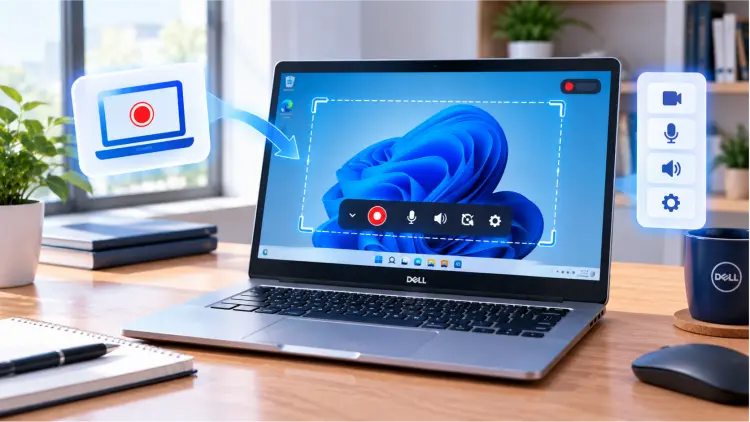
Here's a quick comparison before choosing a method.
| Screen Recorder | Compatibility | Record Audio | Free to Use | Best For |
|---|---|---|---|---|
| Xbox Game Bar | Windows 10/11 | System audio and microphone | Yes | Recording supported apps and gameplay |
| Snipping Tool | Supported Windows 11 versions | Audio options depend on version and settings | Yes | Recording a selected screen area |
| PowerPoint | Versions that support screen recording | Audio and microphone options | Depends on Office license | Tutorials, presentations, and training videos |
| OBS Studio | Windows, macOS, Linux | System audio and microphone | Yes | Advanced recording, gameplay, and multiple sources |
| VLC Media Player | Windows, macOS, Linux | Audio capture may require configuration | Yes | Basic screen recording and media tasks |
| Screen Recorder | Windows and supported macOS versions | System audio and microphone | Some features require payment | Tutorials, meetings, webcam recording, and scheduled tasks |
Part 1. How to Screen Record on Dell Laptop with Xbox Game Bar
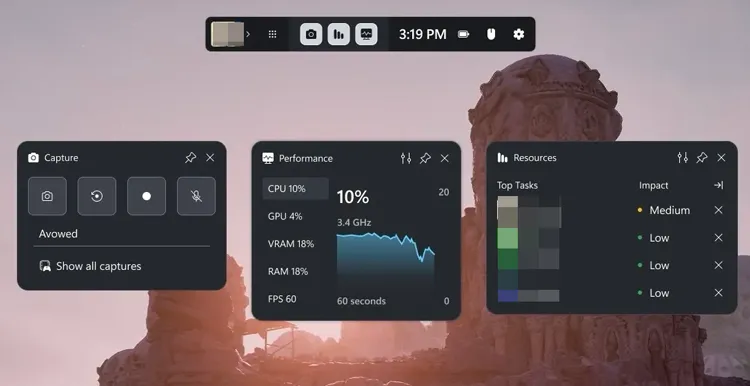
Xbox Game Bar is a built-in Windows utility that lets you record supported applications without installing additional software. It's a good starting point if you're using a Dell laptop running Windows 10 or Windows 11.
You can use it to capture gameplay, browser activity within supported applications, presentations, and other app windows. It can also record audio from your computer and your microphone when the relevant settings are enabled.
Here is how to screen record on a Dell laptop running Windows 10/11 via Xbox Game Bar:
Step 1. Press "Windows" + "I" to open "Settings". On Windows 10, go to "Gaming" > "Xbox Game Bar". On Windows 11, search Settings for Xbox Game Bar and make sure it is enabled if the option is available.
Step 2. Open the app or window you want to record, such as a browser, video player, or game.
Step 3. Press "Windows" + "G" to open Xbox Game Bar. If the Capture widget is not visible, click the "Capture" icon in the toolbar.
Step 4. Click the "Start recording" button (the circle icon) or press "Windows" + "Alt" + "R" to begin recording.
Step 5. If you want to record your voice, turn on the "microphone" icon in the Capture widget or recording toolbar.
Step 6. When you finish recording, press "Windows" + "Alt" + "R" again or click the "Stop" button on the recording status bar.
Step 7. Press "Windows" + "E" to open File Explorer, then navigate to "Videos" > "Captures" to find your recorded video, usually saved in MP4 format.
- Completely free and usually requires no additional software installation.
- Support keyboard shortcuts, making it convenient for recording games and apps.
- Can record system audio and microphone input.
- Primarily designed for recording games and app windows. It cannot directly record every interface, including the Windows desktop and File Explorer.
- Lack advanced video editing tools and detailed recording parameter controls.
- Some applications may not be captured properly.
Part 2. How to Screen Record on Dell Laptop Without Game Bar
If Xbox Game Bar is unavailable, disabled, or unable to capture the content you need, several alternatives can help.
2.1 Using Snipping Tool
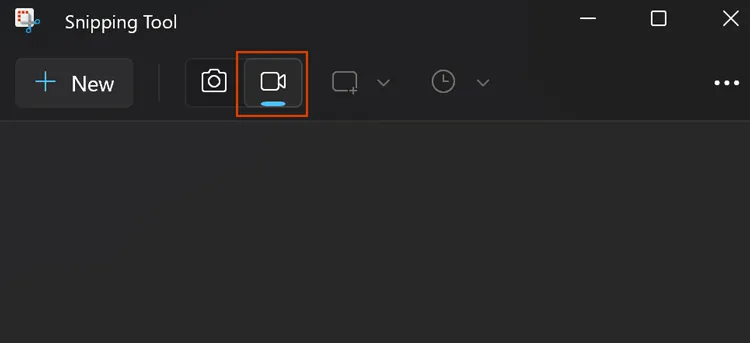
If your Dell laptop runs Windows 11, you can try the built-in Snipping Tool. It not only captures screenshots but also records a selected area of your screen, making it ideal for creating simple tutorials, presentations, and screen recordings.
Here is how to screen record on a Dell laptop on Windows 11 using Snipping Tool:
Step 1. Click the Windows Start menu, search for "Snipping Tool", and open the app.
Step 2. Select the "Record" icon in the toolbar instead of the screenshot mode, then click "New."
Step 3. Drag your mouse to select the area of the screen you want to record. Depending on your version and settings, you may also be able to choose available audio input options.
Step 4. Click "Start" to begin recording. When you're finished, click the "Stop" button, preview the video, and save it to your computer.
- Built into Windows 11, so no additional software installation is required.
- Allow you to select the specific area of the screen you want to record.
- Easy to use and suitable for quickly creating tutorial videos.
- Recording features depend on your Windows version and Snipping Tool updates.
- Lack the advanced controls and editing features found in professional screen recording software.
- Not suitable for projects that require complex scene transitions or multitrack audio processing.
2.2 Using PowerPoint
If Microsoft PowerPoint is already installed on your computer, you can also use its built-in screen recording feature. This method is particularly suitable for creating course presentations, office tutorials, and product introduction videos. After recording, you can also insert the video directly into a slide.
Here is how to screen record on a Dell laptop without the Windows key using PowerPoint:
Step 1. Open PowerPoint and create a blank presentation.
Step 2. Go to the "Insert" tab and locate "Screen Recording".
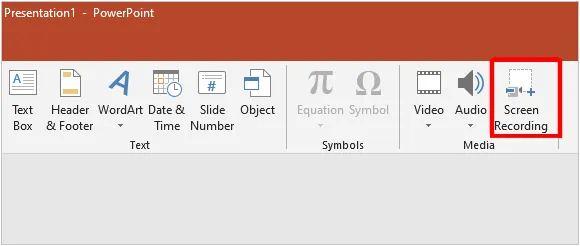
Step 3. Click "Select Area" and drag to select the portion of the screen you want to record.
Step 4. Enable the audio and mouse pointer recording options as needed.
Step 5. Click "Record" to start capturing your on-screen activities.
Step 6. Stop recording when you're finished. The video will be inserted into the current slide.
Step 7. Right-click the video, select "Save Media As", and save it as a video file.
- Suitable for creating courses, presentations, and office training materials.
- Allow you to insert recorded videos directly into slides.
- Convenient for users who already use Microsoft 365.
- Can capture on-screen activities, audio, and mouse pointer movements.
- Require a version of PowerPoint that supports screen recording.
- Less suitable than dedicated screen recording software for gameplay recording and advanced audio controls.
- Offer relatively limited video editing features.
- Not ideal for long gaming sessions or complex recordings involving multiple sources.
2.3 Using OBS Studio
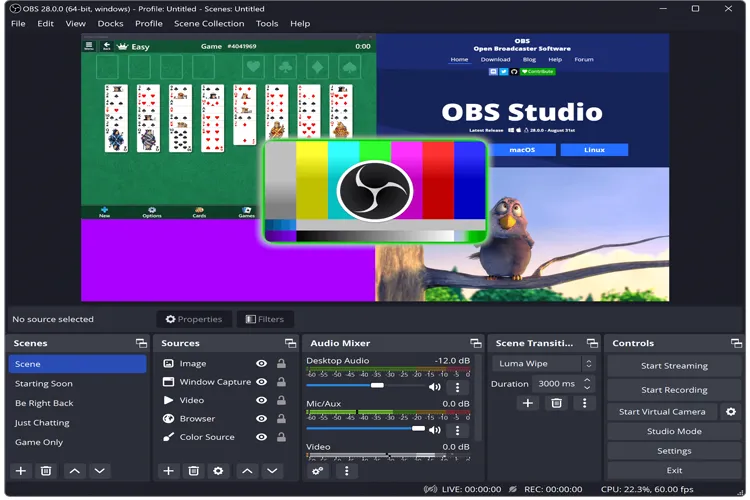
OBS Studio is a free, open-source screen recording and live streaming software designed for users who want control over their recording visuals, audio sources, and output quality. It supports display capture, window capture, game capture, and combining multiple sources, offering more advanced features than the built-in Windows tools.
Here is how to screen record on a Dell laptop with audio using OBS:
Step 1. Download and install OBS Studio from its official website.
Step 2. Launch OBS Studio and create a new scene in the "Scenes" panel.
Step 3. Under "Sources", click the "plus (+)" icon and select "Display Capture" or "Window Capture".
Step 4. Check the "Audio Mixer" to ensure that desktop audio and microphone inputs are configured as needed.
Step 5. Open "Settings" to adjust the video resolution, frame rate, output format, and recording path.
Step 6. Click "Start Recording" to begin.
Step 7. When you're finished, click "Stop Recording" and locate the file in your chosen save directory.
- Free and open-source, with no paid upgrade required for core recording features.
- Support full-display, window, game, and multi-source capture.
- Provide detailed control over audio, resolution, frame rate, and output settings.
- Suitable for gaming, tutorials, presentations, and long recording sessions.
- Beginners may need time to learn how to configure scenes, sources, and output settings.
- High-resolution or high-frame-rate recording can consume significant CPU, GPU, and storage resources.
- Users unfamiliar with encoding settings may need several attempts to achieve their desired video quality.
2.4 Using VLC Media Player
If VLC Media Player is already installed on your Dell laptop, you can use it for basic screen recording with audio. In addition to playing media files, VLC offers a screen capture feature that lets you record on-screen activity without installing another program.
Here is how to record the screen on a Dell laptop for free using VLC:
Step 1. Open VLC Media Player on your Dell laptop.
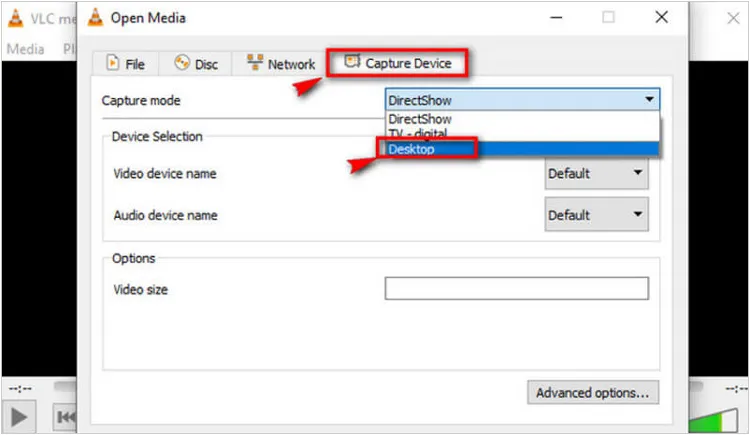
Step 2. Click "Media" > "Convert/Save", then select the "Capture Device" tab in the "Open Media" window. Alternatively, choose "Media" > "Open Capture Device".
Step 3. Select "Desktop" from the Capture mode drop-down menu.
Step 4. Under "Destination", click "Browse" to choose a save location and enter a name for the output video file.
Step 5. Click "Start" to begin recording your screen. When you're finished, use the available controls to stop recording. The video will be saved to the destination you selected.
- Free to use.
- Useful if VLC is already installed.
- Offer configurable output formats and conversion options.
- Can be a practical fallback for basic desktop capture.
- The recording workflow is less intuitive than that of dedicated screen recorders.
- Audio capture can require additional configuration or may not work as expected on a particular setup.
- Limited tools for webcam overlays, annotations, and managing multiple recording sources.
- Troubleshooting capture settings can take time.
2.5 Using Screen Recorder
If the built-in Windows tools are too limited and you don't want to configure OBS manually, Screen Recorder is another option to consider. It is a desktop screen recording program for Windows and Mac that helps Dell laptop users capture on-screen activities, app windows, gameplay, and webcam footage.
Unlike the built-in Xbox Game Bar and Snipping Tool, it offers multiple recording modes, customizable capture areas, system audio and microphone recording, and basic editing tools. It is suitable for creating tutorials, recording online meetings, capturing gameplay, and making software demonstrations.
Key features of Screen Recorder:
- Record the full screen, a selected area, a specific window, gameplay, or webcam footage.
- Capture system audio, microphone input, or both simultaneously.
- Adjust the recording area, video quality, frame rate, output format, and save location.
- Add text, arrows, lines, and other markings to highlight important details during recording.
- Preview recordings and trim unwanted sections before exporting.
- Set up recording tasks to capture activities at specified times.
- Compatible with Windows 11 and Windows 10, as well as supported macOS versions.
Download for Win Download for Mac
How do you screen record on a Dell with Screen Recorder?
-
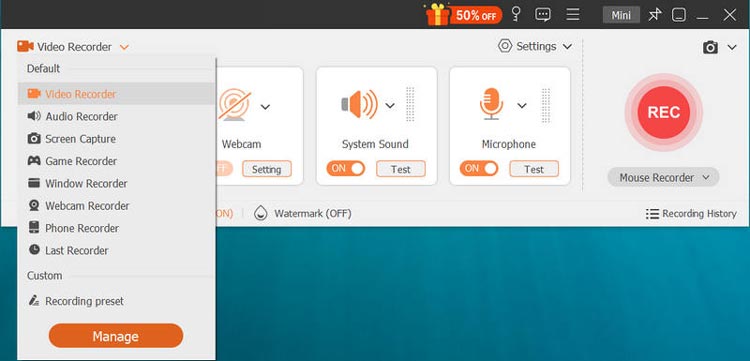
Download and install Screen Recorder on your Dell laptop. Launch the program, select "Video Recorder", and choose the full screen or a specific area you want to capture.
-
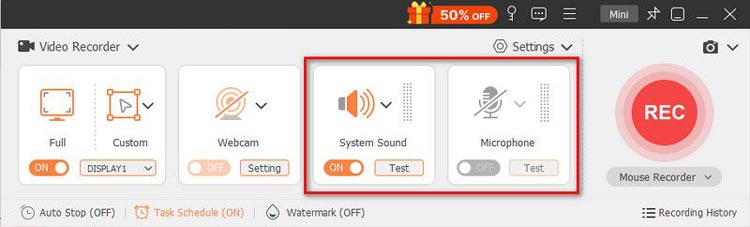
Enable or disable "System Sound" and "Microphone" according to your recording needs. If you want to include your face in the video, turn on "Webcam".
-
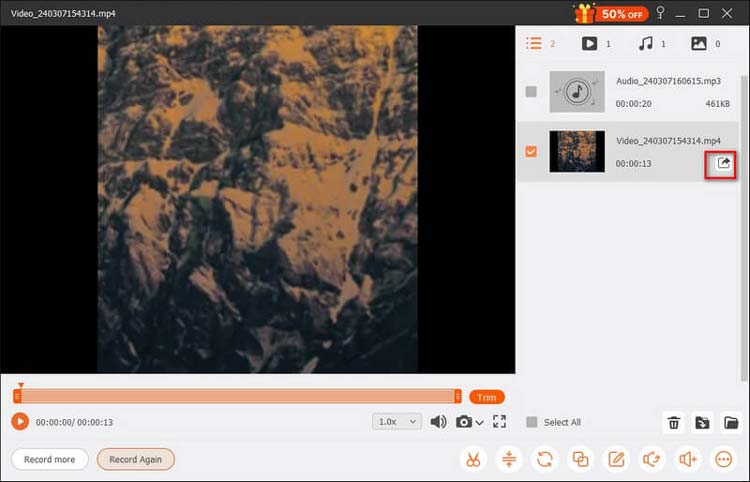
Click "REC" to start recording your Dell laptop screen. During recording, you can add text, draw shapes, and highlight cursor movements. Click "Stop" when you're finished, then preview the recording and save the video to your computer.
- Offer more recording modes and customization options than basic built-in Windows tools.
- Can record system audio and microphone input together, making it useful for tutorials and presentations.
- Include annotation and trimming features for creating instructional videos.
- Support scheduled recording, which is useful for capturing time-sensitive content.
- Unlike Xbox Game Bar and Snipping Tool, it requires downloading and installing third-party software.
- Some advanced features require a paid license, so it is not a completely free solution.
- Its additional settings may be unnecessary for users who only need occasional, simple screen recordings.
- Recording performance and output quality depend on your Dell laptop's hardware and configuration.
Part 3. FAQs on How to Screen Record on a Dell Laptop
Q1. Does a Dell laptop have a built-in screen recording feature?
Yes, you can screen record on a Dell laptop using built-in Windows tools without installing additional software.
- Xbox Game Bar: Available on Windows 10 and Windows 11, this tool lets you record supported apps and games. Press Windows + G to open it, or use Windows + Alt + R to start or stop recording.
- Snipping Tool: Available on supported versions of Windows 11, this tool lets you select a specific area of your screen, record it, and save the result as a video file.
Q2. What should I do if my screen recording has no sound?
Check that your screen recording software is configured to capture audio from the correct source, such as system sound or your microphone. Verify that your Dell laptop's audio settings are correct and that your microphone is working properly. Also, make sure the recorder's audio inputs are enabled, and the volume levels are high enough.
Q3. How much storage space do I need to screen record on a Dell laptop?
The storage space required depends on the recording duration, resolution, frame rate, and bitrate. For example, a 1080p screen recording may use several gigabytes per hour, depending on the recording settings and compression format.
Q4. How to zoom in on a Dell laptop?
To zoom in on a Dell laptop, press Ctrl + + (plus sign) simultaneously. To zoom out, press Ctrl + - (minus sign). These shortcuts work in most web browsers and many applications.
Summary
In conclusion, there are several ways to record a screen on a Dell laptop, including Xbox Game Bar, Snipping Tool, PowerPoint, OBS Studio, and VLC. While free tools are suitable for basic screen capture, they may have limitations in audio configuration, recording controls, or compatibility with older Windows versions.
If you frequently record tutorials, online meetings, or software demonstrations, Screen Recorder is our recommended choice. It offers a user-friendly interface, flexible screen capture options, and separate system sound and microphone controls, making it easier to create clear recordings with audio.
Screen Recoder Record screen on PC/Mac with ease
Related Articles
How to Screen Record on Snapchat on iPhone/Android/Computer?
How to Record Teams Meeting on PC, Mac, iPhone & Android
How to Screen Record on a Lenovo Laptop with Sound in 4 Easy Ways