TL;DR:
Want to screen record on Snapchat without a notification? Learn how to record Snapchat on iPhone, Android, Windows, and Mac, understand when Snapchat may detect recordings, and explore practical recording options while protecting privacy.
Screen recording on Snapchat can be useful when you want to save a memorable Story, capture a helpful conversation, or keep a copy of important visual content before it disappears. However, many users are unsure how Snapchat handles screen recordings and whether the app detects or notifies others when a recording starts.
In this guide, we'll explain everything about screen recording on Snapchat, including whether Snapchat sends notifications, how to screen record on Snapchat on iPhone, Android, and computer, and what you should know before capturing content.
- Part 1. Does Snapchat Notify When You Screen Record?
- Part 2. Can You Screen Record Snapchat Without a Notification?
- Part 3. How to Screen Record on Snapchat on iPhone Without Them Knowing
- Part 4. How to Screen Record on Snapchat on Android Without Them Knowing
- Part 5. How to Record Snapchat Screen Without Notification on Windows/Mac
- Part 6. FAQs on How to Record Snapchat Screen
Part 1. Does Snapchat Notify When You Screen Record?
Yes, Snapchat can detect and notify users when certain content is captured. This includes screenshots and, in some cases, screen recordings on supported devices and app versions. However, Snapchat's notification behavior is not always the same and may depend on factors such as the type of content being recorded, your device, the Snapchat version you're using, and whether you access Snapchat through the mobile app or Snapchat for Web.
If you're recording private Snapchat content, it's best to assume that the other person may be notified or may otherwise know that you captured it. This can include private chats, Snaps sent by others, someone else's Stories, photos, videos, and other shared content.
If you plan to save personal conversations or content sent directly to you, getting the sender's permission first is the safest approach.
Part 2. Can You Screen Record Snapchat Without a Notification?
There is currently no foolproof setting that can guarantee Snapchat won't detect a screen recording. However, some users have tried various workarounds on mobile devices to avoid triggering a notification.
1. Disconnect from the Internet or turn on Airplane Mode
Turning on Airplane Mode or disabling both Wi-Fi and cellular data can sometimes prevent Snapchat from immediately sending recording-related information to its servers. However, you should load the Snap or Story you want to capture before disconnecting from the Internet.
Note: Snapchat regularly updates how it detects screenshots and screen recordings. Although this workaround may have worked in the past, it is not reliable in 2026, and Snapchat could potentially detect the recording and send a notification after your device reconnects to the internet.
2. Mirror your phone to a PC or Mac
You can also mirror your phone's screen to a PC or Mac and use desktop screen recording software to capture the Snapchat content. This approach lets you record what appears on your computer screen rather than recording directly on your phone.
3. Record the screen with another phone or camera
Another simple option is to use a second phone or camera to record your Snapchat screen. This does not rely on Snapchat's built-in screen recording detection, but the resulting video may have lower image quality, reflections, or other visual issues.
Part 3. How to Screen Record on Snapchat on iPhone Without Them Knowing
If your iPhone is running iOS 11 or later, you can use the built-in Screen Recording feature to capture Snapchat content without installing any additional apps. You can access it directly from Control Center and start recording your screen whenever needed.
If you do not want Snapchat to send a screen recording notification to the sender or creator, make sure to disconnect your phone from the internet before recording, or mirror your iPhone or iPad screen to a computer while viewing the Snap or Story, then use screen recording software to capture the mirrored display.
Here is how to screen record Snapchat without it showing iPhone:
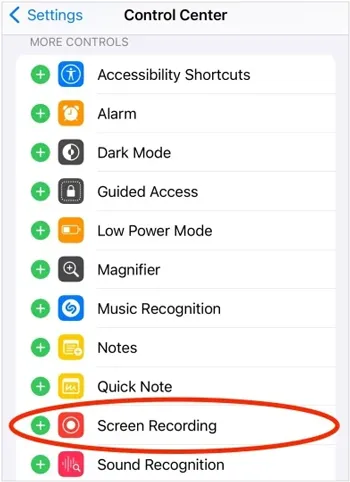
Step 1. Open the "Settings" app on your iPhone and go to "Control Center". Find "Screen Recording" from the list of available controls and tap the "+" button to add it to your Control Center.
Step 2. Swipe down from the top-right corner of your iPhone screen to open Control Center, then tap the "Screen Recording" button. After the countdown, your iPhone will start recording everything displayed on the screen.
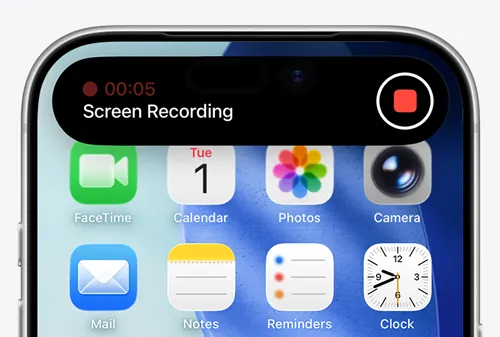
Step 3. Launch Snapchat and navigate to the Snap, Story, or other content you want to record. Your iPhone will capture the Snapchat screen while the recording is active.
Step 4. When you finish recording, open Control Center again and tap the "Screen Recording" button to stop. The recorded Snapchat video will be automatically saved to the "Photos" app on your iPhone.
Part 4. How to Screen Record on Snapchat on Android Without Them Knowing
Like iPhone, most newer Android phones come with a built-in screen recording feature, including devices from Samsung, Google Pixel, and other Android brands.
If you do not want Snapchat to send a screen recording notification, you can mirror your Android phone to a PC and use desktop screen recording software to capture Snapchat content or turn on Airplane Mode before recording.
Here is how to screen record on Snapchat on Samsung:
Step 1. Swipe down from the top of your Android screen to open the "Quick Settings" panel, then tap "Screen Record" to start recording. If you cannot find the option, tap "Edit" and add "Screen Record" to your "Quick Settings" menu.
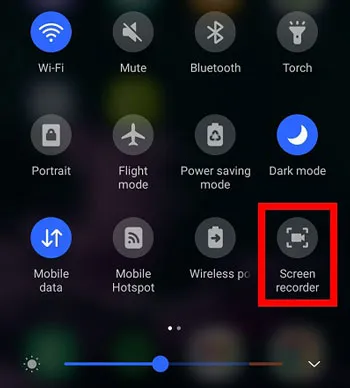
Step 2. Open Snapchat and navigate to the Snap, Story, or other content you want to capture. Your Android phone will record the screen while the content is playing.
Step 3. After finishing the recording, swipe down from the top of your screen and tap the "Screen Recorder" notification to stop the recording. The captured video will be saved to your device's gallery or Photos app.
Part 5. How to Record Snapchat Screen Without Notification on Windows/Mac
Screen Recorder is a versatile screen recording tool for Windows and Mac that allows you to capture Snapchat content by recording your computer screen. Instead of recording directly on your mobile device, you can mirror your iPhone or Android screen to a PC/Mac and use Screen Recorder to capture Snaps, Stories, or other content with high-quality output.
It supports full-screen, custom area, and window recording, along with system audio and microphone capture, making it suitable for saving screen activities, tutorials, and online content. With additional features like real-time annotations, webcam recording, and flexible recording settings, it provides a convenient way to record Snapchat screens on desktop devices.
However, users should respect others' privacy and obtain permission before saving private Snapchat content.
The highlights of Screen Recorder:
- Record Snapchat content by capturing a mirrored phone screen on Windows or Mac.
- Support full screen, custom area, and specific window recording modes.
- Capture system audio and microphone sound simultaneously.
- Record high-quality videos with support for up to 4K/8K output in supported settings.
- Add real-time annotations, drawings, text, and highlights while recording.
- Schedule recordings with Task Scheduler to start and stop automatically.
- Record webcam footage and create picture-in-picture videos.
- Provide AI-powered noise cancellation, audio enhancement, and echo removal features.
- Save recordings in popular formats, including MP4, MOV, WMV, and more.
- Offer built-in editing tools to trim recordings and make quick adjustments before saving.
Download for Win Download for Mac
How to Record Snapchat Screen Without Notification on Windows/Mac?
-
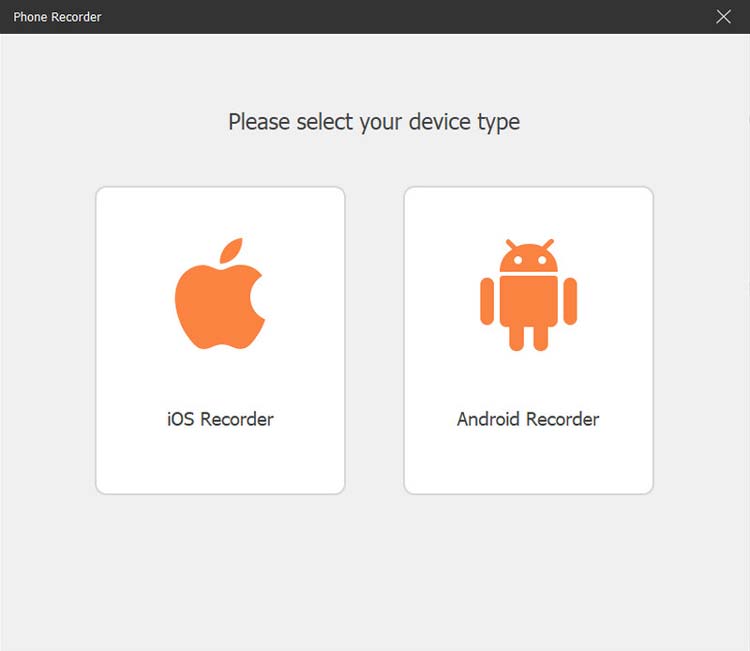
Launch Screen Recorder on your computer and select "Phone Recorder" from the main interface. Choose "iOS Recorder" or "Android Recorder" based on your mobile device.
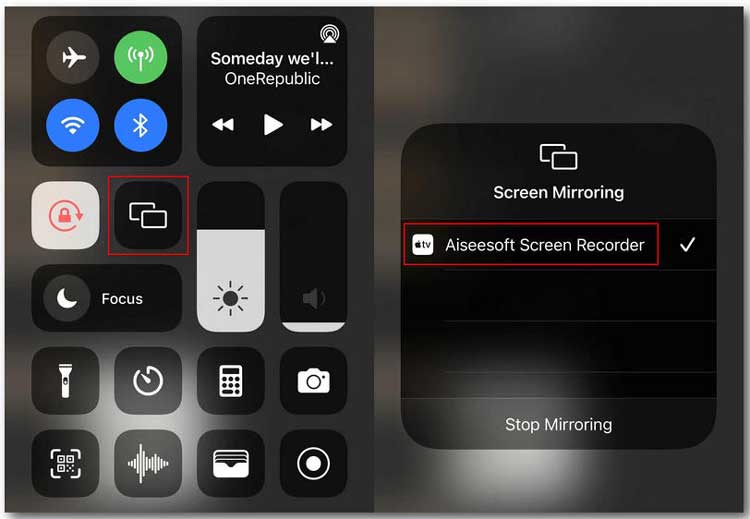
For iPhone users, you need to mirror your iPhone screen to the computer first. To mirror an iPhone screen, make sure your iPhone and computer are connected to the same Wi-Fi network. Then open "Control Center" on your iPhone, tap the "Screen Mirroring" option, and select "Screen Recorder" as the target device.
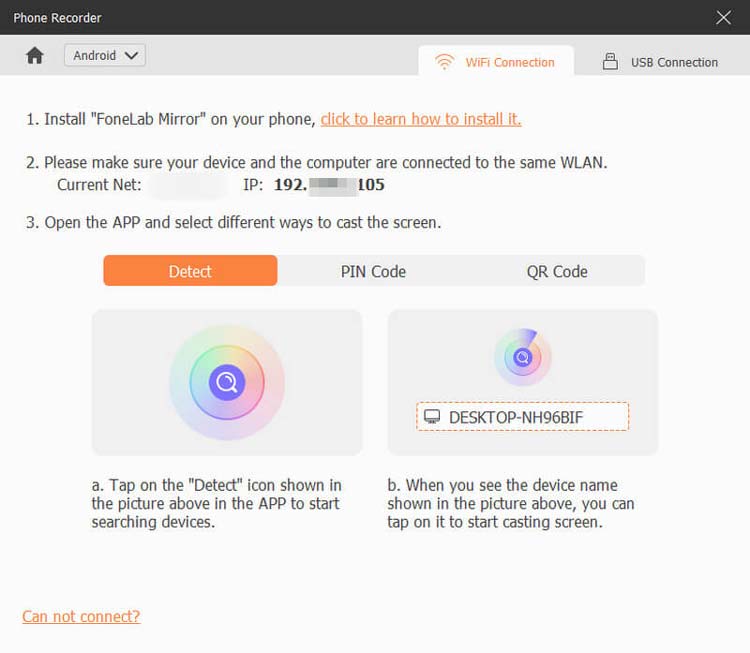
Android users can connect their devices through Wi-Fi or USB, with Wi-Fi connection options including PIN Code and QR Code.
-
Once the connection is established, your phone screen will appear on your computer. Open Snapchat and play the Snap, Story, or other content you want to capture, then start recording your phone screen through Screen Recorder.
-
After recording, preview the captured video and use the built-in editing tools to make adjustments if needed. When you are satisfied with the result, click "Export" to save the recording.
Part 6. FAQs on How to Record Snapchat Screen
Q1. Is it illegal to screen record on Snapchat?
No, screen recording Snapchat Snaps is not generally illegal. However, Snapchat has built-in features that may notify users when someone takes a screenshot or captures certain photos or videos. Therefore, it is important to respect other users' privacy and follow Snapchat's privacy guidelines, as recording or sharing someone else's private content without permission may be considered inappropriate or a violation of their privacy.
Q2. Can an older Snapchat version avoid screen recording notifications?
It may, but there is no guarantee. As of August 2026, some Android users reported that Snapchat version 14.12.0.46 did not trigger screen-recording notifications for Snaps and videos on their devices. However, this is a community-reported workaround rather than an official Snapchat feature. The result can vary depending on the Android device, Snapchat account, and app version, and Snapchat may change its detection behavior through future updates. Version 14.12.0.46 is also an older release dated June 25, 2026.
Q3. Can Snapchat detect screen recording on Android?
Yes, Snapchat can detect screen recordings on some Android devices and app versions. Newer Snapchat versions may detect recordings made with built-in screen recording tools on certain Android phones. However, the detection behavior can vary depending on the device model, Android version, Snapchat version, and the type of content being recorded.
Q4. Does Snapchat detect screen recording on iPhone?
Yes, Snapchat may detect screen recordings on iPhone, so the built-in iOS Screen Recording feature should not be considered a guaranteed way to avoid notifications. There is no iOS setting that reliably prevents individual apps from detecting screen recordings, and using Airplane Mode is not a guaranteed workaround either.
Q5. Does Snapchat allow screen recording of disappearing messages?
Yes, you can screen record disappearing messages while they are still available, but Snapchat may notify the sender when you capture the content. Once the message disappears, it can no longer be accessed or recorded directly through Snapchat.
Q6. Can I record video calls on Snapchat?
Yes, you can record Snapchat video calls using a screen recorder that supports capturing on-screen video and audio. However, Snapchat may detect the recording and notify the other participant, so make sure to respect their privacy and get permission before recording.
Final Thoughts
Snapchat screen recording is possible on iPhone, Android, Windows, and Mac, but there is currently no method that can guarantee the other person will not be notified when you record private Snapchat content. Snapchat's detection behavior may vary depending on the device, app version, and type of content being captured, so workarounds such as Airplane Mode or using an older version of Snapchat should not be considered foolproof.
For simple recordings, the built-in screen recorder on your iPhone or Android phone is usually sufficient. If you want more control over recording quality, audio, screen area, and editing, you can mirror your phone screen to a computer and use a desktop screen recorder such as Screen Recorder for greater flexibility.
Most importantly, always consider privacy, obtain consent when appropriate, and follow local laws before recording or sharing someone else's Snapchat content.
Download for Win Download for Mac
Related Articles
How to Record iPhone Screen with Audio: A Complete Guide
How to Screen Record on Android: A Practical Guide with 5 Approaches
How to Record a TikTok Video on iPhone/Android/Windows/Mac?
How to Screen Record Instagram Stories Without Trouble (New Guide)