


TL;DR:
Instagram Stories vanish after 24 hours without a built-in save option. This guide breaks down how to capture them across different platforms and addresses crucial privacy rules.
- On Mobile: Use the built-in screen recorders in the iOS Control Center or Android Quick Settings.
- On Desktop: Use native tools (Windows Snipping Tool / Mac shortcut Cmd+Shift+5) or a practical third-party program like iReaShare Screen Recorder for advanced capture.
- Privacy & Legality: Instagram never notifies users when you record their stories. While saving them for personal use is fine, re-uploading someone else's content violates copyright laws.
Instagram Stories are the perfect way to share fleeting, everyday moments. Because they vanish after 24 hours, you might often find yourself wanting to screen record an Instagram Story before it disappears forever — whether it's something memorable, hilarious, or genuinely useful.
While Instagram doesn't provide a built-in "Download" button for other users' stories, screen recording is an incredibly easy workaround. Whether you are using an iPhone, an Android device, a Windows PC, or a Mac, this guide will walk you through exactly how to capture those moments, followed by some important privacy and legal FAQs.

Part 1: How to Screen Record Instagram Story on iPhone
iOS has an excellent, built-in screen recorder that captures high-quality video and audio directly from your screen. If you want to record an IG story on your iPhone, that's easy.
Here's how:
-
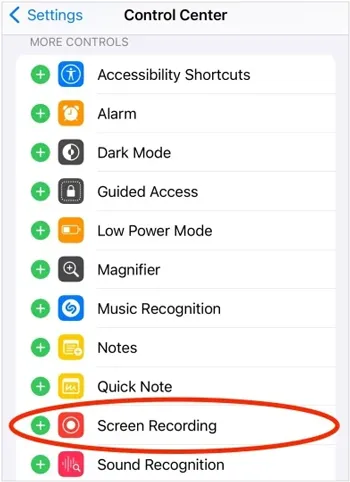
Go to Settings > "Control Center" and tap the green "+" icon next to "Screen Recording" to add it to your active controls.
-
Open Instagram and find the specific story you want to record. Then swipe down from the top-right corner of your screen (or swipe up from the bottom on older iPhone models) to open "Control Center".
-
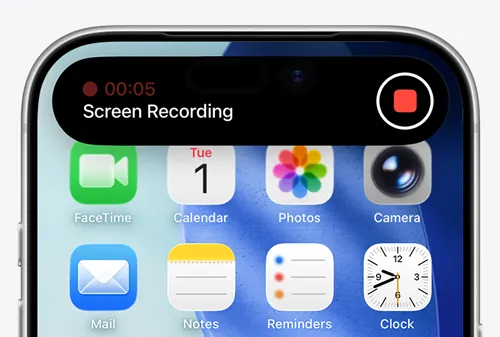
Tap the "Screen Recording" button (a solid circle inside a ring). A 3-second countdown will begin. Quickly close "Control Center" and let the Instagram Story play through.
-
Once done, tap the red status bar or floating bubble at the top of your screen and hit "Stop". The video will automatically save to your Photos app.
Part 2: How to Screen Record IG Story on Android
Most modern Android devices (running Android 11 or later, such as Samsung, Google Pixel, or OnePlus) come with a native screen recording tool. Thus, you can record the screen of Instagram stories on an Android device as well.
Here are the steps:
-
Open Instagram and locate the story you wish to save, and swipe down twice from the top of your screen to fully reveal the Quick Settings panel.
-
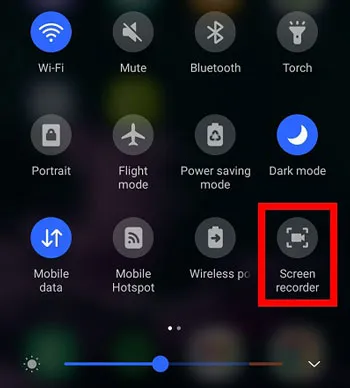
Look for the "Screen record" or "Screen recorder" tile. If you don't see it, swipe left or tap the edit (pencil) icon to add it to your panel.
-
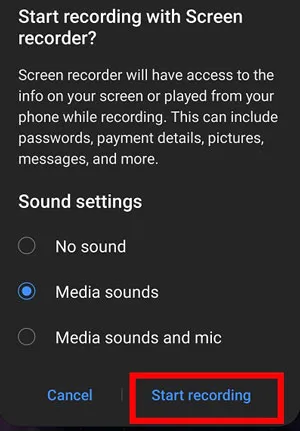
A pop-up will ask about sound settings. Choose "Media sounds" if you want to capture the audio from the Instagram Story. Tap "Start recording".
-
After the countdown, play the story. When it finishes, swipe down again and tap "Stop" on the recording notification toolbar. Your video will be saved in your Gallery or Google Photos.
Part 3: How to Record Instagram Story on Windows PC
If you are browsing Instagram on your desktop or laptop via a web browser, Windows offers a couple of great ways to capture your screen.
3.1 Using Snipping Tool
The classic Snipping Tool in Windows 11 now features a robust built-in screen recorder. You can use it to record the IG stories you want on your PC without any hurdles.
Here's the guide:
-
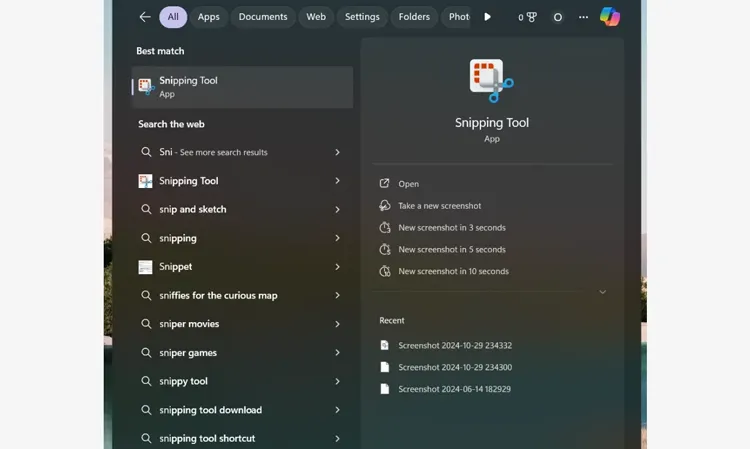
Press "Windows Key + Shift + S" or search for "Snipping Tool" in the "Start" menu.
-
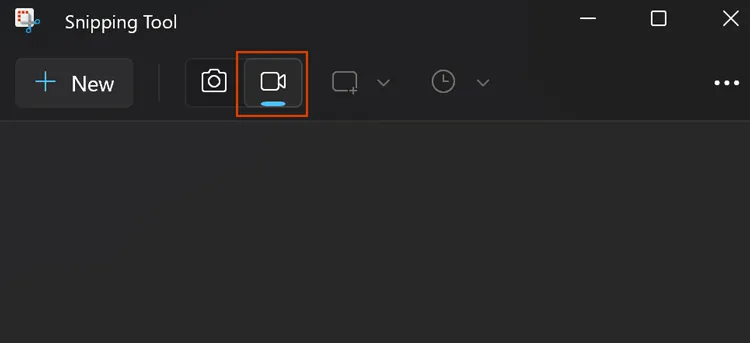
Click the "Camera/Video" icon on the Snipping Tool toolbar to switch to recording mode.
-
Click "New", then click and drag a box specifically around the Instagram Story window on your browser.
-
Click the "Start" button at the top. Once the story is done, click the red "Stop" button. You can then preview and save the file to your computer.
Tips: You can edit the video on your PC with ease after recording.
3.2 Using iReaShare Screen Recorder
iReaShare Screen Recorder is a lightweight yet powerful desktop tool that makes it simple to screen record Instagram Stories on your Windows PC, delivering high-quality captures with no watermark after registering and complete privacy. If there is no Snipping Tool on your computer, you can use this alternative.
Main features of iReaShare Screen Recorder:
* Record Instagram Stories in high quality and save them as MP4 files for smooth playback and easy sharing.
* Capture as long as you need without any watermark after registration, making it perfect for saving lengthy stories.
* Choose to record your entire screen or drag to select a specific region, ideal for focusing on just the Instagram Story window.
* Record system audio or microphone input, or go completely silent if preferred.
* Take screenshots and annotate them directly with text, arrows, and shapes without needing a separate editing tool.
Download iReaShare Screen Recorder.
To record an Instagram story on a PC with this software:
-
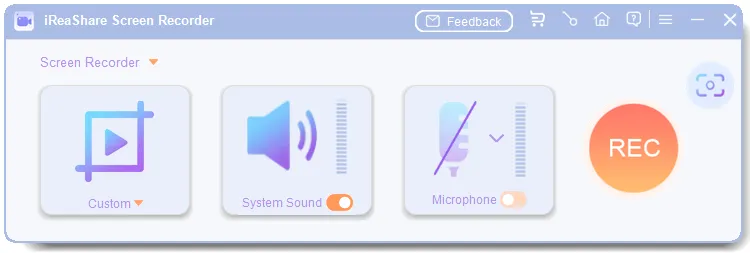
Download, install, and open the Screen Recorder software on your PC. Then choose the "Custom" or "Full Screen" mode.
-
Then enable an audio source: System Sound or Microphone. Then navigate to the Instagram story you want, and click "REC".
-
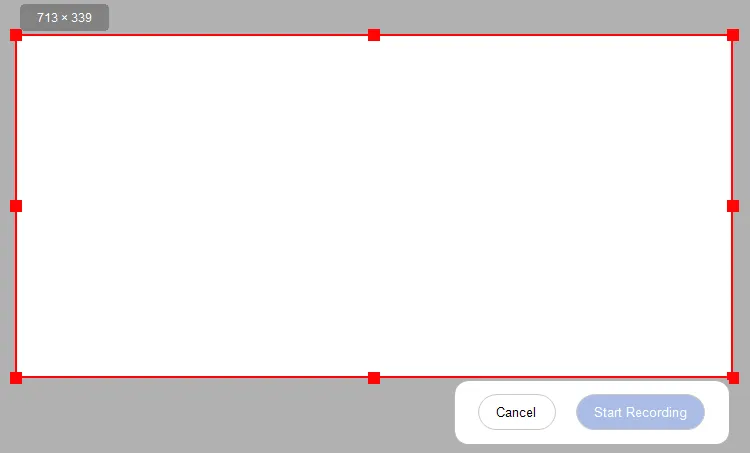
Drag and select the screen area, and tap "Start Recording". Once completed, tap "Stop Recording", preview the video, and save it to your PC.
Here's the video guide on how to use this screen recording tool:
Part 4: How to Record Screen of IG Story on Mac
Mac users can effortlessly capture an Instagram story using native tools without downloading external software.
Here's how:
-
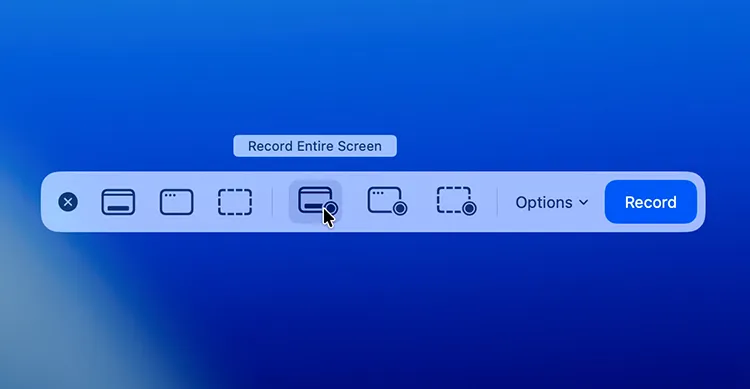
On your keyboard, press "Command + Shift + 5". This opens the native screenshot and screen recording overlay.
-
Click "Record Selected Portion" to bring up a resizable bounding box. Drag this box over the Instagram Story playing in your Safari or Chrome browser.
-
Click "Options" within the toolbar to ensure your microphone is turned off (unless you want to narrate) and to choose where you want to save the final file (e.g., Desktop).
-
Click "Record". Play the story. When the story ends, click the "Stop" button located in the menu bar at the top right of your Mac screen. Your recording will appear as a thumbnail on your desktop.
Part 5: Q&A About Screen Recording IG Story
Q1: Does Instagram notify when you screen record a story?
No. Instagram currently does not send a notification to the user if you screen record or screenshot their regular public or private Stories. You can record safely without worrying about an awkward alert. (Note: Instagram does notify users if you screenshot or record disappearing photos/videos sent via Direct Message).
Q2: Is it legal to take a recording of an Instagram story?
For personal use (e.g., saving a recipe, remembering a meme, keeping a video of a friend), it is generally legal and falls under fair use. However, re-uploading, distributing, or using someone else's copyrighted content for commercial purposes without their explicit permission is a violation of copyright law and Instagram's Terms of Service. Always respect people's privacy.
Q3: How do I find out who took screenshots or recorded my IG story?
Because Instagram prioritizes viewer privacy regarding screen captures, there is no feature or loophole that lets you see who screen recorded or screenshotted your Story. You can only see the total view count and the list of specific users who viewed your story. Beware of third-party apps claiming they can reveal this information; they are usually scams designed to steal your login credentials.
Conclusion
Capturing an Instagram Story is incredibly straightforward, no matter what device you are using. Mobile users can rely on quick built-in toggles, while desktop users have access to native widgets like the Snipping Tool or robust software like iReaShare Screen Recorder, which can record your screen easily without time limit.
By the way, while you can record freely without triggering notifications, always keep digital etiquette and copyright in mind when handling other people's media.
Related Articles
How to Record Screen on HP Laptop with Quick and Simple Steps
Camtasia Screen Recording Software: Latest Review and Top 12 Alternatives
How to Record Live TV on Different Devices with Reliable Methods
How to Send Video from iPhone to Android Device (No Quality Loss)

