TL;DR:
Want to record a TikTok video with sound? This guide shows you how to screen record TikTok on iPhone, Android, Windows, and Mac using simple built-in tools and professional screen recorder software. Learn how to capture TikTok videos, live streams, and high-quality recordings easily without missing audio.
TikTok has become a popular platform for watching and creating short videos, but many users want to know how to record a TikTok video for different purposes, such as saving useful tutorials, capturing interesting clips, creating reaction videos, or keeping memorable content. Although TikTok allows users to download some videos directly, many videos may not offer a download option. In these cases, screen recording is a simple and effective solution.
Whether you use an iPhone, Android phone, Windows PC, or Mac, there are multiple ways to record TikTok videos. This guide will explain how to record a TikTok video on different devices step by step.
- Part 1. Important Notice Before Recording TikTok Videos
- Part 2. How to Record a TikTok Video on iPhone
- Part 3. How to Record a TikTok Video on Android
- Part 4. How to Record a TikTok Video on Mac with QuickTime Player
- Part 5. How to Record a TikTok Video on PC/Mac via Screen Recorder
- Part 6. How to Fix TikTok Screen Recording Problems
- Part 7. Frequently Asked Questions
Part 1. Important Notice Before Recording TikTok Videos
Before recording TikTok videos, make sure you have the right to save and use the content. Screen recording is useful for personal purposes, such as:
- Saving your own TikTok videos.
- Recording tutorials or educational content.
- Creating authorized reaction videos.
- Keeping personal copies of livestreams you are allowed to save.
However, recording and reposting someone else's TikTok content without permission may violate copyright laws or TikTok's community guidelines.
Always:
- Respect the original creator's rights.
- Ask for permission before using recorded content commercially.
- Avoid recording private or sensitive content without authorization.
Method Comparison Table
| Feature | iPhone/Android Screen Recorder | QuickTime Player | Screen Recorder |
|---|---|---|---|
| Platform | Mobile devices | Mac | Windows & Mac |
| Record system audio | Yes | Requires setup | Yes |
| Microphone recording | Yes | Yes | Yes |
| Webcam recording | No | No | Yes |
| Custom recording area | Limited | Yes | Yes |
| Real-time annotation | No | No | Yes |
| Scheduled recording | No | No | Yes |
| Best for | Quick captures | Basic Mac recording | Content creators and advanced users |
Part 2. How to Record a TikTok Video on iPhone
iPhone users can record TikTok videos directly with the built-in screen recording feature. This method does not require installing additional apps and allows you to capture both video and audio from your screen.
Here is how to record a TikTok video on iPhone with sound:
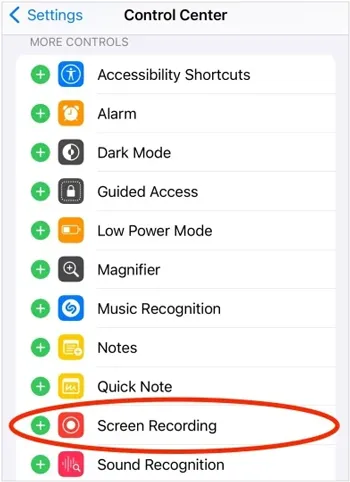
Step 1. Open the "Settings" app on your iPhone and go to "Control Center".
Step 2. Find "Screen Recording" and tap the "+" button to add it to Control Center.
Step 3. Open TikTok on your iPhone and find the video you want to record.
Step 4. Swipe down from the top-right corner of your iPhone screen to open Control Center.
Step 5. Tap the "Screen Recording" button to start recording. If you want to record your own voice or external audio, press and hold the "Screen Recording" button and turn on the "Microphone" option before starting.
Step 6. Wait for the three-second countdown and play the TikTok video.
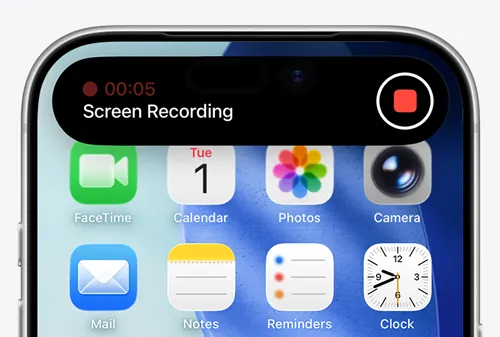
Step 7. When you finish recording, tap the red status bar at the top of the screen and select "Stop". The recorded TikTok video will automatically be saved to the "Photos" app.
- Turn on Do Not Disturb to prevent notifications from appearing.
- Make sure your iPhone has enough storage space.
- Use a stable Wi-Fi connection when recording TikTok Live.
- Avoid using Bluetooth headphones if audio is missing.
Part 3. How to Record a TikTok Video on Android
Most Android phones also include a built-in screen recorder that can help you capture TikTok videos quickly. The exact steps may vary depending on your phone brand, such as Samsung, Google Pixel, Xiaomi, or OnePlus.
Here is how to record a TikTok live on Android with sound:
Step 1. Open the TikTok app and locate the video you want to record.
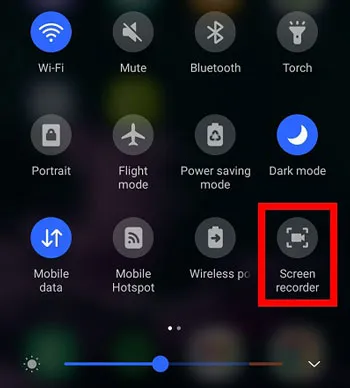
Step 2. Swipe down from the top of your screen to access the "Quick Settings" panel.
Step 3. Find and tap the "Screen Recorder" option.
Step 4. Choose your preferred sound source, such as device audio, microphone, or both. You can also adjust recording quality settings if available.
Step 5. Tap "Start Recording" and play the TikTok video.
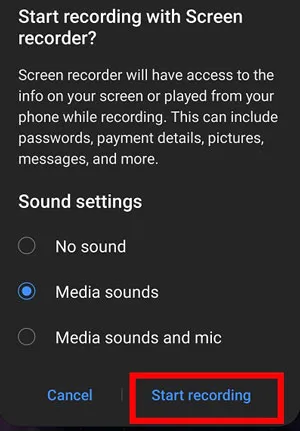
Step 6. Tap the "Stop" button when the recording is complete.
Step 7. Open your Gallery or Photos app to find the recorded TikTok video.
Note: If your Android phone does not have a built-in recorder, you can download a third-party TikTok video recorder app for Android from the Google Play Store. These apps usually provide additional features, such as higher-quality recording, editing tools, and audio controls.
Part 4. How to Record a TikTok Video on Mac with QuickTime Player
For Mac users, you can screen record TikTok videos on Mac with the built-in QuickTime Player without downloading or installing any additional software on macOS. However, QuickTime Player mainly focuses on screen capture and may require additional audio settings if you want to screen record TikTok with sound. (How to screen record on Mac?)
Follow these steps to create a TikTok video recording on Mac:
Step 1. Open TikTok in a web browser, such as Safari or Chrome.
Step 2. Launch QuickTime Player on your Mac.
Step 3. Click "File" in the top menu and select "New Screen Recording".
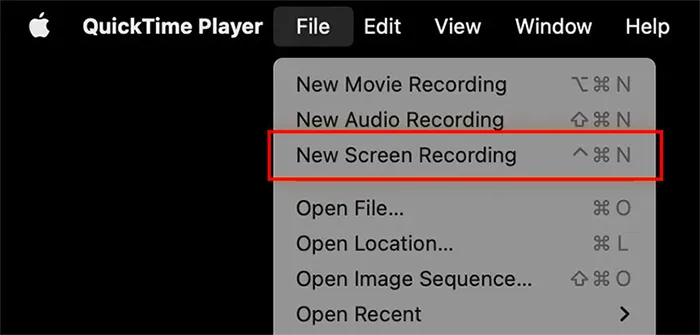
Step 4. Choose whether to record the entire screen or select a specific area.
Step 5. Click the "Record" button and start playing the TikTok video.
Step 6. Once the video finishes, click the "Stop" button in the menu bar.
Step 7. Preview the recording and save it to your Mac.
Part 5. How to Record a TikTok Video on PC/Mac via Screen Recorder
When you need to record TikTok videos on a desktop, Screen Recorder is a reliable choice. It provides powerful screen recording capabilities, allowing you to capture everything happening on your screen with high-quality video and audio. It supports both Windows and Mac systems. Compared with built-in screen recording tools, it provides more flexible recording options, allowing you to capture TikTok videos in high quality while recording system sound and microphone audio at the same time.
The highlights of Screen Recorder:
* Record a TikTok video on Windows/Mac with ease.
* Record Android and iPhone screens on a computer easily.
* Support full screen, custom area, window, and webcam recording modes.
* Add real-time annotations like text, shapes, and highlights.
* Capture system sound and microphone audio simultaneously.
* Schedule recordings with automatic start and stop.
* Work smoothly on both Windows and Mac.
Download for Win Download for Mac
Here is how to record a TikTok video on a laptop with sound via Screen Recorder:
-
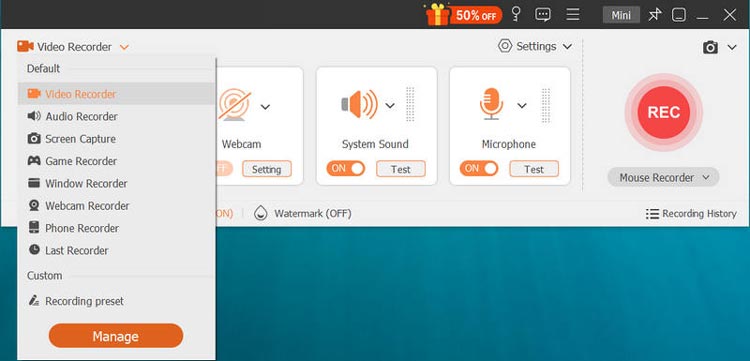
Launch Screen Recorder and select "Video Recorder" mode to start recording TikTok videos with audio.
-
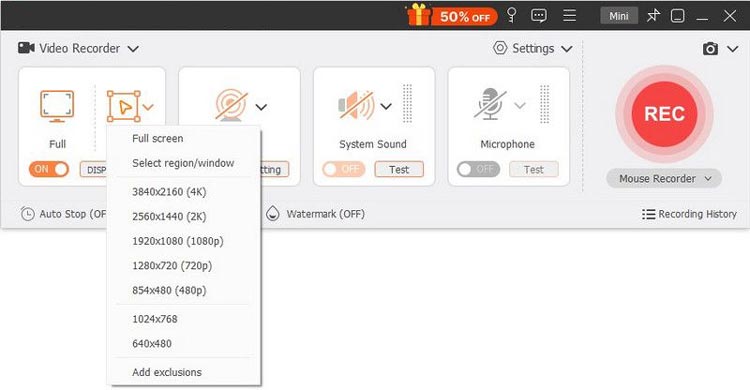
Open the TikTok video you want to record and adjust the recording area. You can record the full screen, select a specific window, or manually adjust the recording frame to fit the TikTok video.
-
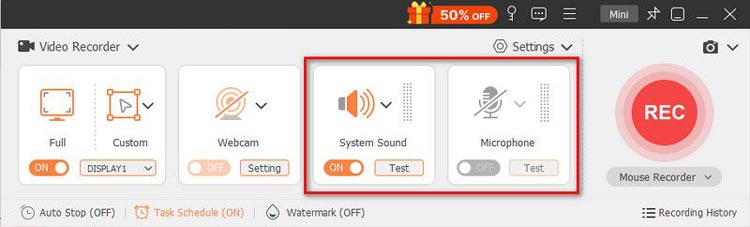
Enable "System Sound" to capture the TikTok video's audio. You can also turn on "Microphone" if you want to add your own voice or commentary. Then, play the TikTok video you want to record and click the "REC" button to begin.
-
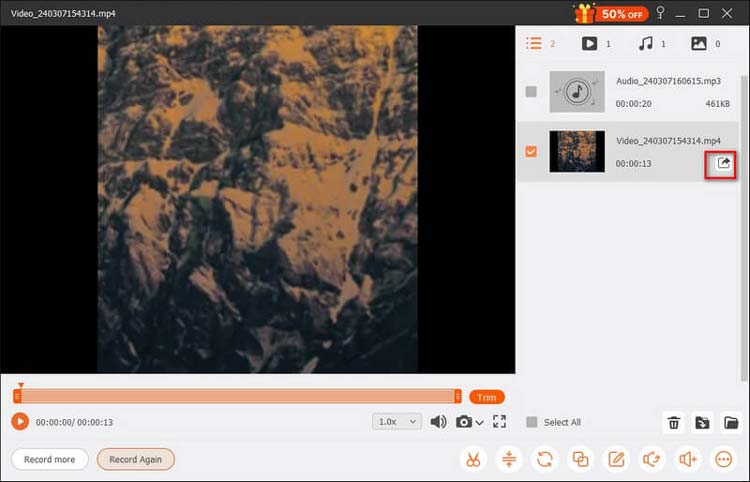
When the recording is complete, click the "Stop" button to preview the recorded TikTok video, then click "Export" to save it to your computer.
Drawbacks When Recording TikTok Videos via Screen Recorder
- Requires manual operation: You need to start and stop recording yourself, which may be inconvenient for long videos.
- May capture unwanted content: Notifications, pop-ups, or other screen activities can appear in the recording.
- Uses system resources: Recording high-quality TikTok videos may affect computer performance.
- Large output files: High-resolution recordings can take up considerable storage space.
- Limited editing features: It mainly focuses on recording and may require additional tools for advanced video editing.
Part 6. How to Fix TikTok Screen Recording Problems
Sometimes TikTok recording may fail because of audio settings, device limitations, or insufficient storage. Try these solutions if your TikTok recording does not work properly.
TikTok Screen Recording Has No Sound
Possible causes:
- System audio is disabled. Microphone permission is turned off.
- Bluetooth headphones affect audio capture.
- The wrong audio source is selected.
Solutions:
- Check your device sound settings.
- Enable system audio recording.
- Disconnect Bluetooth devices and test again.
- Make a short test recording before capturing a long video.
TikTok Recording Is Blurry or Low Quality
Possible reasons:
- Low recording resolution. Insufficient device performance.
- TikTok video quality itself is limited.
Solutions:
- Choose a higher recording resolution.
- Close unnecessary background apps.
- Use a computer-based recorder for long recordings.
- Make sure your device has enough storage.
TikTok Screen Recording Stops Automatically
Possible reasons:
- Battery-saving mode interrupts recording.
- Storage space is full.
- Device overheating.
- Long recording duration.
Solutions:
- Charge your device before recording.
- Free up storage space.
- Disable unnecessary power-saving features.
- Use a computer for long TikTok Live recordings.
Part 7. Frequently Asked Questions
Q1. Does TikTok notify screen recording?
No, TikTok does not notify creators when you screen record their videos or take screenshots. Whether you record a TikTok video once or multiple times, the creator will not receive any alerts or notifications.
Q2. Can I edit someone else's TikTok video and repost it?
Editing and reposting someone else's TikTok video without permission may violate copyright laws and TikTok's community guidelines. Always respect the original creator's intellectual property rights.
If you want to reuse a TikTok video, it is best to ask the creator for permission first and give proper credit when sharing or reposting the content.
Q3. Can you prevent screen recording on TikTok?
The answer is no. TikTok does not offer a built-in feature to disable screen recording or prevent others from capturing your videos. Even if such a feature existed, it could potentially be bypassed through other recording methods. To better protect your content, consider adjusting your privacy settings, limiting who can view your videos, or avoiding sharing sensitive content publicly.
Q4. Can I record TikTok Live videos?
Yes. You can record TikTok Live streams using built-in screen recording tools on phones or professional screen recorders on computers. For long livestreams, desktop recording software is usually more stable because it provides better storage management and recording controls.
Q5. Can I record TikTok videos without a watermark?
Screen recording captures what appears on your screen, so it does not automatically remove existing watermarks from TikTok videos. If you need to reuse content, make sure you have permission and follow TikTok's content policies.
The Bottom Line
That's all the information you need to record a TikTok video easily. Since TikTok does not provide a built-in screen recording feature, you need to use a TikTok video recorder to save TikTok videos or record a TikTok live.
For a smoother recording experience, better video quality, and clearer audio, Screen Recorder is a great choice. It allows you to screen record TikTok with sound on Windows and Mac, helping you capture TikTok videos, live streams, and other screen activities easily.
Related Articles
How to Remove TikTok Watermark from Videos: 5 Practical Methods
How to Record Live TV on Different Devices with Reliable Methods
How to Screen Record Instagram Stories Without Trouble (New Guide)
How to Record Roblox Gameplay Smoothly: 5 Effective Methods