TL;DR:
Want to know how to screen record on a Lenovo laptop with sound? This guide covers 4 easy methods for Windows 10 and Windows 11, including Lenovo Vantage, Xbox Game Bar, Snipping Tool, and a professional screen recorder. Whether you need to capture meetings, tutorials, gameplay, or webcam videos, you'll find the best way to record your Lenovo laptop screen with audio, high quality, and flexible settings.
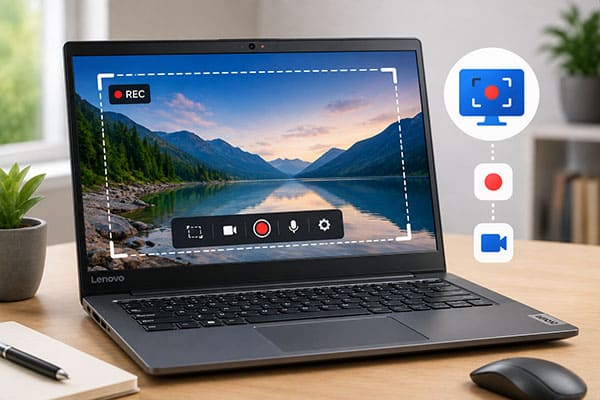
Whether you want to record an online meeting, capture a gaming session, create a tutorial, or save an important video call, knowing how to screen record on a Lenovo laptop can be extremely useful. How do I record a video of myself on a Lenovo laptop? In this guide, we will introduce multiple ways to screen record on a Lenovo laptop. Whether you are using Windows 10 or Windows 11, you can find a suitable solution to record your Lenovo laptop screen easily.
- Part 1. How to Screen Record on a Lenovo Laptop with Lenovo Vantage
- Part 2. How to Screen Record on a Lenovo Laptop Using Screen Recorder
- Part 3. How to Screen Record on a Lenovo Laptop Windows 10/11 via Xbox Game Bar
- Part 4. How to Screen Record on a Lenovo Laptop Windows 11 Using Snipping Tool
- Part 5. FAQs on How to Screen Record on a Lenovo Laptop
Part 1. How to Screen Record on a Lenovo Laptop with Lenovo Vantage
Lenovo Vantage is a comprehensive utility developed by Lenovo that allows users to manage device settings, optimize system performance, and access various hardware-related features from a single interface. In addition to tools for system maintenance and customization, it also includes a built-in screen recording function that can help users capture on-screen activities.
Here is how to screen record on a Lenovo laptop without a Windows key using Lenovo Vantage:
Step 1. Launch Lenovo Vantage from the "Start" menu, or download and install the app from the Microsoft Store if it is not already available on your Lenovo laptop.
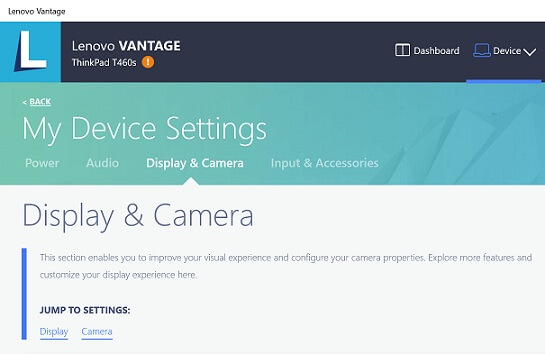
Step 2. Open the application and navigate to "My Device Settings" > "Display & Camera" to access related device features.
Step 3. Look for available recording-related options, such as "Camera Privacy Mode" or other integrated recording tools supported by your device.
Step 4. If the screen recording feature is available, follow the on-screen instructions to enable it. You may also be able to use a keyboard shortcut, such as "Ctrl" + "Shift" + "R", to start or stop recording.
Step 5. After recording is complete, check your "Videos" folder or the designated save location to find the recorded files.
Lenovo Vantage Screen Recording Limitations You Should Know
Lenovo Vantage is a useful system management application for Lenovo laptops, but it is important to know that it is not a universal screen recording tool available on every Lenovo device.
The available features in Lenovo Vantage may vary depending on your laptop model, Windows version, installed drivers, and Lenovo services. Some Lenovo laptops may not provide built-in screen recording options through Lenovo Vantage.
Part 2. How to Screen Record on a Lenovo Laptop Using Screen Recorder
If your Lenovo model does not support Lenovo Vantage, Screen Recorder is a more professional alternative. It is a powerful and easy-to-use screen recording tool that allows you to capture your screen, system audio, microphone voice, and webcam footage on both Windows and Mac. It lets users customize the recording area, adjust video quality, and enhance recordings with features like real-time drawing and editing tools. Whether you need to record online meetings, tutorials, gameplay, software demonstrations, or personal videos, Screen Recorder delivers a stable and high-quality recording experience.
The highlights of Screen Recorder:
- Record on a Lenovo laptop with sound with ease.
- Support multiple recording modes, including full-screen, custom-area, selected window, and webcam recording.
- Provide real-time annotation tools, allowing you to add highlights, shapes, text, and drawings during recording.
- Enable users to record Android and iPhone screens directly.
- Capture system audio and microphone sound simultaneously for complete audio recording.
- Offer scheduled recording features with automatic start and stop settings.
Download for Win Download for Mac
How do I record my screen on my laptop with sound? Follow the steps below:
-
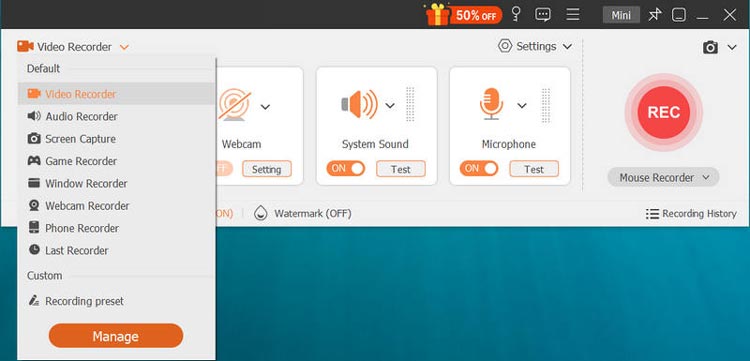
Download and install Screen Recorder on your Lenovo laptop. Open the program and select "Video Recorder".
-
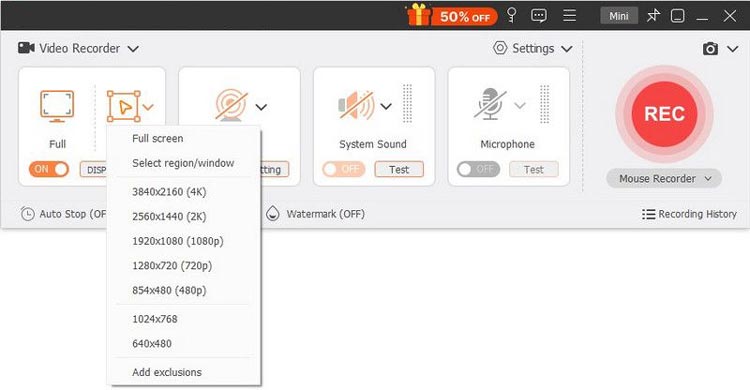
Choose a recording area, such as full screen, custom area, or a specific window. Enable the webcam if you want to record yourself during the process.
-
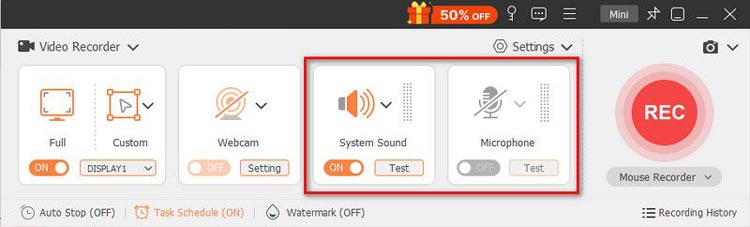
Adjust audio settings by enabling "System Sound" and turning the " Microphone " on or off based on your needs.
-
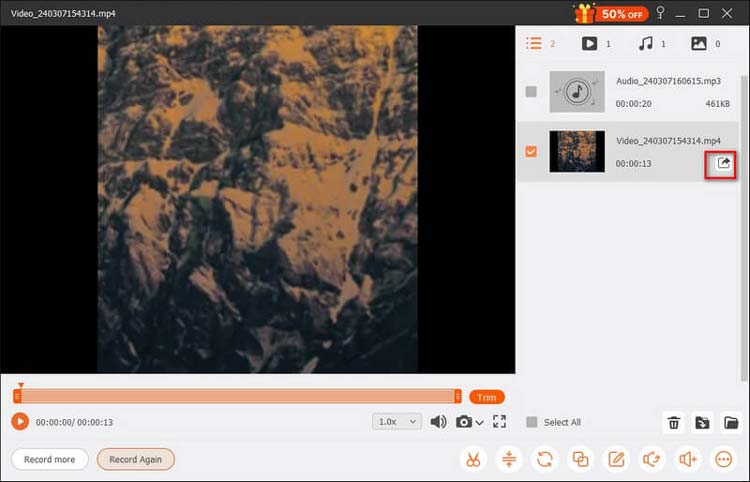
Click "REC" to start recording. Use the toolbar to add annotations if needed, then preview, edit, and export the video in formats like MP4, MOV, FLV, or MKV.
Drawbacks When Recording Lenovo Laptop Screen via Screen Recorder
Although Screen Recorder provides more recording features than Windows built-in tools, it also has some limitations.
- Long recordings may use more system resources: Recording hours of meetings, courses, or gameplay videos at high quality can increase CPU and memory usage.
- Large video files require more storage space: High-resolution recordings with system audio and webcam footage can quickly consume available disk space.
- Older Lenovo laptops may experience performance issues: Devices with limited hardware resources may experience lag when recording while running other demanding applications.
- The free version may have limitations: Trial versions may include restrictions such as watermarks or limited access to advanced features.
- Recording protected content may fail: Some streaming platforms or protected videos may block recording due to DRM technology.
Before starting a long recording session, it is recommended to check available storage space and close unnecessary applications.
Part 3. How to Screen Record on a Lenovo Laptop Windows 10/11 via Xbox Game Bar
Xbox Game Bar is a built-in Windows feature that allows users to record screen activities without downloading additional software. Although it was originally designed for gamers, it can also record many applications, online classes, presentations, and browser activities. However, Xbox Game Bar has some limitations. It cannot record the entire desktop or File Explorer, and it offers fewer customization options compared with professional screen recording software.
Here is how to screen record on a Lenovo laptop with Windows 10/11 via Xbox Game Bar:
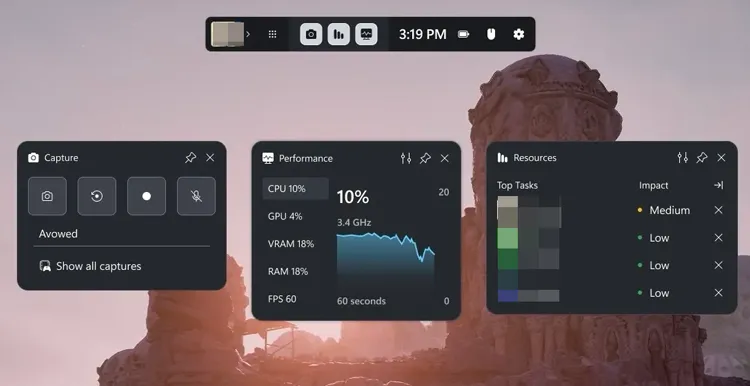
Step 1. Press "Windows" + "G" on your Lenovo laptop to open the Xbox Game Bar overlay when you want to record a game or application.
Step 2. Open the "Captures" widget and click the "Record" button to start recording. You can also use the shortcut "Windows" + "Alt" + "R" to begin recording quickly. A timer will appear on the screen during the recording.
Step 3. When you finish recording, click the "Stop" button on the timer or press "Windows" + "Alt" + "R" again. The recorded video will be automatically saved as an MP4 file in the "Captures" folder.
Part 4. How to Screen Record on a Lenovo Laptop Windows 11 Using Snipping Tool
Windows 11 users can also use the updated Snipping Tool, which includes a screen recording feature. This built-in tool allows you to capture part of your screen without installing third-party software.
Here is how to screen record on a Lenovo laptop with Windows 11 using Snipping Tool:
Step 1. Click the Start menu and search for "Snipping Tool".
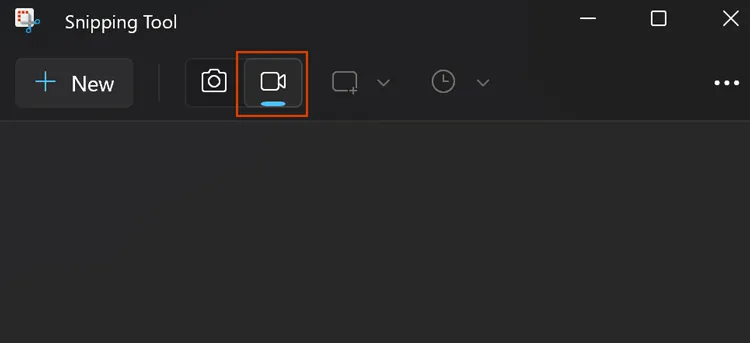
Step 2. Switch to video recording mode by clicking the "camera" icon.
Step 3. Click the "New" button to create a new recording and drag your mouse to select the area you want to record.
Step 4. Click "Start" to begin recording your screen.
Step 5. When you are done, click "Stop" to finish the recording and save the captured video.
Which Method Should You Choose to Screen Record on a Lenovo Laptop?
| Method | Best For | Advantages | Limitations |
|---|---|---|---|
| Lenovo Vantage | Lenovo users checking built-in device features | Integrated with Lenovo software; no extra installation if supported | Not available on all Lenovo laptops; recording features vary by model |
| Screen Recorder | Tutorials, meetings, gameplay, and professional recordings | Records screen, system audio, microphone, webcam; supports annotations and scheduled recording | Requires installation; advanced features may require a paid version |
| Xbox Game Bar | Quick game and app recording | Free and built into Windows 10/11; simple shortcuts | Cannot record the entire desktop or File Explorer; limited controls |
| Snipping Tool | Quick screen clips on Windows 11 | Lightweight and easy to use; no additional software needed | Limited recording features; no webcam or advanced editing options |
Part 5. FAQs on How to Screen Record on a Lenovo Laptop
Q1. Where are screen recordings saved on my Lenovo laptop?
If you use Xbox Game Bar to record your Lenovo laptop screen, the recordings are automatically saved in the Captures folder by default. You can find them at C:\Users[Your Username]\Videos\Captures. For third-party tools like Screen Recorder, you can customize the save location through the software settings.
Q2. Can I screen record on a Lenovo laptop without any software?
Yes. You can screen record on a Lenovo laptop without installing additional software by using Xbox Game Bar on Windows 10/11 or Snipping Tool on Windows 11.
Q3. Can you screen record on a Lenovo laptop with sound?
Yes. You can record your Lenovo laptop screen with sound. Xbox Game Bar can capture microphone audio, while Screen Recorder can record both system audio and microphone sound. Before recording, make sure your audio devices are enabled.
Q4. Why does my Lenovo screen recording have no sound?
Your recording may have no sound because:
- System audio is disabled.
- The wrong audio source is selected.
- Microphone permission is blocked.
- Audio drivers need updating.
Check your Windows sound settings and recording software settings before trying again.
Conclusion
There are several ways to screen record on a Lenovo laptop, including Lenovo Vantage, Xbox Game Bar, Snipping Tool, and professional recording software. Built-in tools are convenient for quick recordings, but they may lack advanced features and flexibility. For users who want to record Lenovo laptop screens with audio, webcam, high-quality output, and editing options, Screen Recorder is a recommended choice. It provides an easy and reliable way to capture any activity on your Lenovo laptop for work, study, entertainment, and content creation.
Related Articles
How to Record Screen on HP Laptop with Quick and Simple Steps
How to Screen Record on Acer Laptop (Windows 11/10 Guide)
Camtasia Screen Recording Software: Latest Review and Top 12 Alternatives
How to Screen Record Instagram Stories Without Trouble (New Guide)