TL;DR:
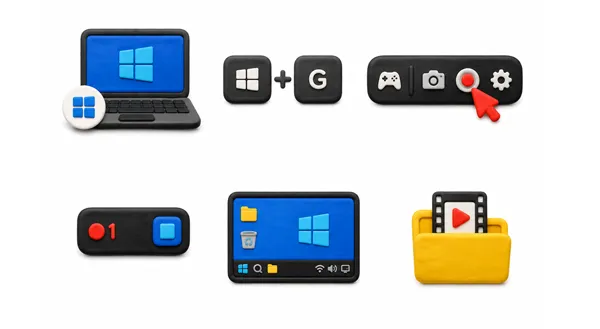
Quick Answer:To record a single active app or game on an Acer laptop running Windows 10 or 11, press `Windows Key + Alt + R` to start recording immediately using the built-in Xbox Game Bar. To stop, press `Windows Key + Alt + R` again.
Note: Xbox Game Bar cannot record the full Windows Desktop or File Explorer. For full-screen, dual audio (system + mic), and no watermark without lag, use a dedicated desktop tool like iReaShare Screen Recorder.
Whether you need to capture a video tutorial, record online lectures, stream gameplay on an Acer Nitro, or save an important virtual meeting on an Acer Aspire, recording your screen on an Acer laptop is quick and straightforward.
Acer laptops run on Windows 11, Windows 10, or ChromeOS. This guide details the 5 most effective methods to screen record on an Acer laptop, complete with hotkeys, step-by-step instructions, and fixes for common recording issues.
- Method 1: Best Screen Recorder for Acer Laptops with Internal Audio (iReaShare)
- Method 2: Screen Record on Acer Laptop via Xbox Game Bar Hotkey
- Method 3: Record Screen on Acer Windows 11 Using Free Snipping Tool
- Method 4: Screen Record Acer Gaming Laptops (Nitro & Predator) via NVIDIA Overlay
- Method 5: Record Laptop Screen on Acer via Free OBS Studio
- Tailored Screen Capture Settings for Acer Aspire, Swift & Chromebook Series
- How to Fix Common Acer Screen Recording Issues (Audio, Lag & Black Screen)
- Frequently Asked Questions About Screen Recording on Acer Laptops
Method Comparison Table
| Method | Best For | Hotkey / Shortcut | Full Desktop Capture? | System Audio + Mic? |
|---|---|---|---|---|
| iReaShare Screen Recorder | Full-Screen, custom region, no watermark | Customizable | Yes | Yes |
| Xbox Game Bar | Single Game / App Window | `Win + Alt + R` | No | Partial |
| Windows 11 Snipping Tool | Short Silent Desktop Clips | `Win + Shift + R` | Yes | Limited |
| NVIDIA GeForce Experience | High-FPS Gaming (Nitro/Predator) | `Alt + Z` / `Alt + F9` | Yes | Yes |
| OBS Studio | Advanced Live Streaming | User-Defined | Yes | Yes |
Method 1: Best Screen Recorder for Acer Laptops with Internal Audio (iReaShare)
While Windows built-in tools work for basic tasks, they carry notable limitations: Xbox Game Bar cannot capture your full desktop or File Explorer, and Windows Snipping Tool lacks advanced audio routing.
For a seamless recording experience across all Acer models (including budget Acer Aspire, Swift, and high-performance Nitro series), iReaShare Screen Recorder is the most versatile solution.
Key Advantages of iReaShare Screen Recorder:
- Flexible Capture Modes: Record full screen, custom selected regions, or specific windows.
- Dual Audio Capture: Record system sound and microphone audio simultaneously with noise cancellation and echo reduction.
- High FPS Performance: Hardware acceleration ensures smooth 60 FPS recording with minimal CPU utilization—ideal for Acer laptops with integrated graphics.
- No Time Limits or Watermarks: Record long-form webinars, online courses, or gaming sessions without artificial restrictions.
- Real-time Annotations & Editing: Draw, highlight, add text, and trim recordings directly within the software.
How to Screen Record on Acer Laptop via iReaShare:
Step 1: Install and Launch Software
Download and install iReaShare Screen Recorder on your Acer laptop running Windows 11/10/7, then open it.
Step 2: Configure Display and Audio Inputs
* Display Area: Choose Full to capture your whole screen, or Custom to draw a specific box.
* Audio: Enable System Sound (to capture laptop audio) and Microphone (to record your voice).
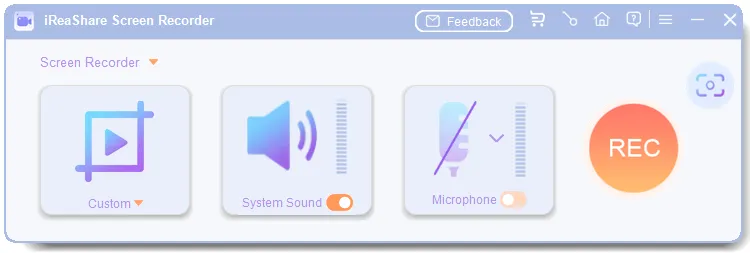
Step 3: Start Recording
Click the red REC button (or press your custom hotkey), select the recording region if you have chosen the Custom mode in last step, then click Start Recording.
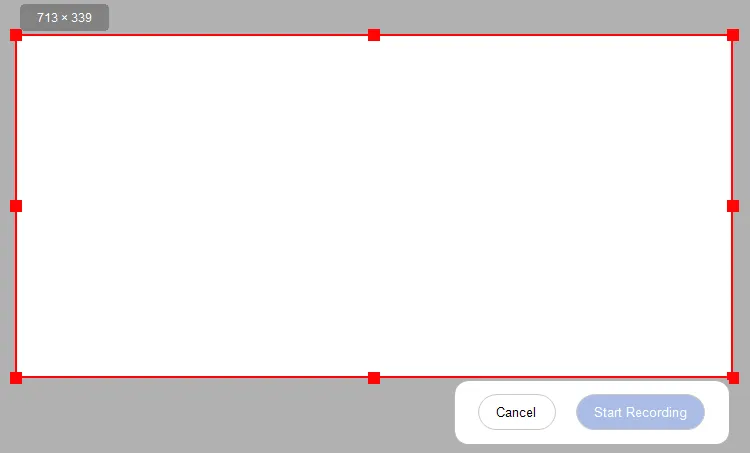
Step 4: Preview and Save
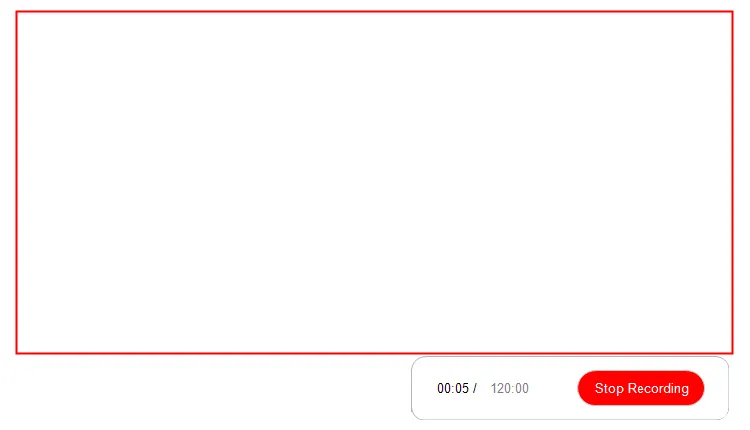
Click the Stop Recording button when finished. Use the built-in media editor to trim unwanted parts, then save and export your video in MP4 format.
Video Guide: See how to record screen on Acer laptop via iReaShare Screen Recorder.
Method 2: Screen Record on Acer Laptop via Xbox Game Bar Hotkey
Every Acer laptop running Windows 10 or Windows 11 comes with the native Xbox Game Bar app preinstalled. It is designed primarily for quick gaming captures, but works on most desktop applications.
How to Record using Xbox Game Bar:
Step 1: Open the application or game you wish to capture on your Acer laptop.
Step 2: Press `Windows Key + G` to bring up the Game Bar overlay.
Step 3: Click the Capture widget icon (camera icon), then click the solid Record button (or press `Windows Key + Alt + R`).
Step 4: A small floating timer will appear on the top-right corner of your screen showing that recording is active.
Step 5: To stop, click the stop button on the timer bar or hit `Windows Key + Alt + R` again. Recorded MP4 files are automatically saved to `C:\Users\YourName\Videos\Captures`.
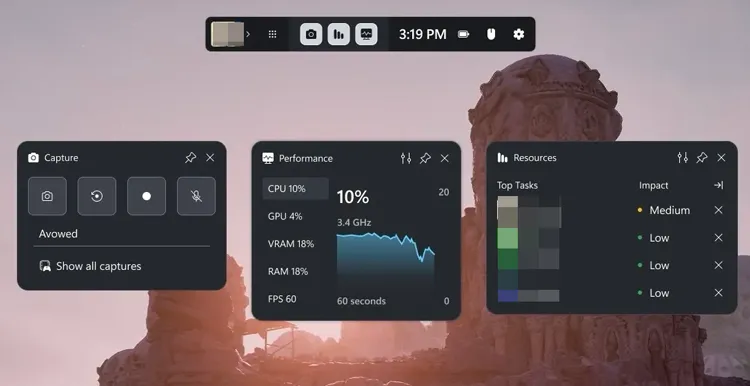
Game Bar Limitations to Keep in Mind:
- Cannot record the Windows Desktop or File Explorer interface.
- Automatically terminates if you minimize or switch target app windows.
- Capped at a maximum recording length of 4 hours per session.
Method 3: Record Screen on Acer Windows 11 Using Free Snipping Tool
If your Acer laptop is running Windows 11 (Build 22621 or newer), the default Snipping Tool includes a built-in screen recording feature.
Step-by-Step Instructions:
Step 1: Press `Windows Key + Shift + S` or open Snipping Tool from the Start menu.
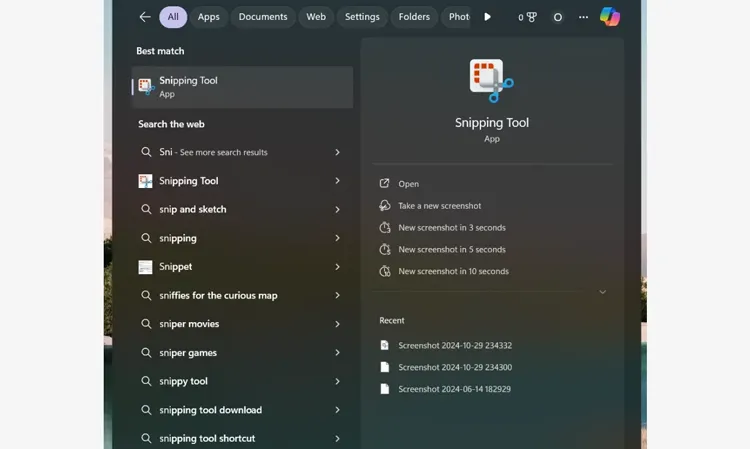
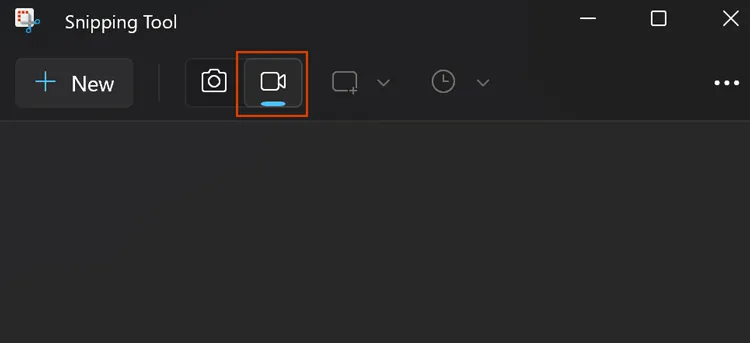
Step 2: Switch from the Snip (camera) icon to the Record (video camera) icon at the top toolbar.
Step 3: Click New, then click and drag your cursor over the area of the Acer display you want to record.
Step 4: Click Start to begin a 3-second countdown.
Step 5: Click Stop when finished. You can preview, trim, and save the MP4 video directly.
Method 4: Screen Record Acer Gaming Laptops (Nitro & Predator) via NVIDIA Overlay
If you own an Acer gaming laptop equipped with a discrete NVIDIA graphics card (such as the Acer Nitro 5/16/V 15 or Acer Predator Helios 300/16), you can leverage NVIDIA ShadowPlay (via GeForce Experience or the newer NVIDIA App).
How to Record via NVIDIA Overlay:
Step 1: Ensure NVIDIA GeForce Experience or NVIDIA App is installed and in-game overlay is enabled.
Step 2: Press `Alt + Z` on your keyboard to open the NVIDIA overlay.
Step 3: Click Record > Start (or press shortcut `Alt + F9`).
Step 4: Press `Alt + F9` again to finish recording.
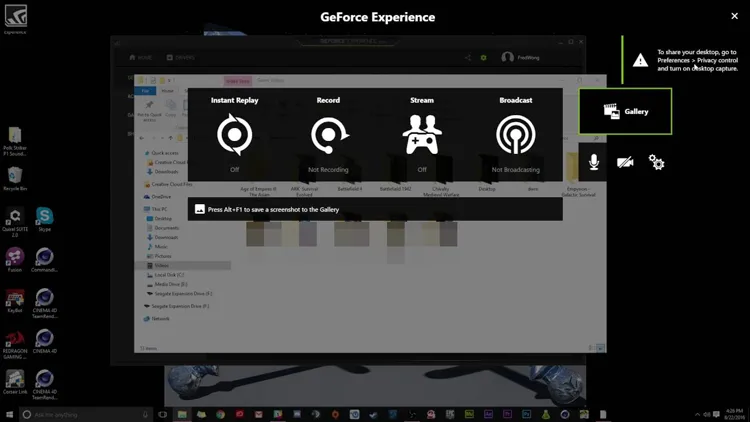
Advantage: NVIDIA hardware encoding (NVENC) offloads processing from the CPU to the dedicated GPU, delivering maximum frame rates during heavy gameplay.
Method 5: Record Laptop Screen on Acer via Free OBS Studio
For users requiring open-source software with advanced scene switching, OBS (Open Broadcaster Software) Studio is a robust option.
Step 1: Download OBS Studio and complete the Auto-Configuration Wizard.
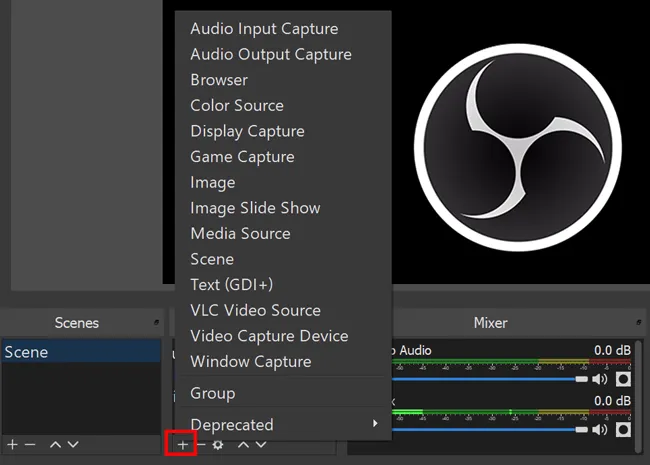
Step 2: Under Sources, click `+` and add Display Capture (for full screen) or Window Capture.
Step 3: Under Audio Mixer, set your desktop audio and microphone levels.
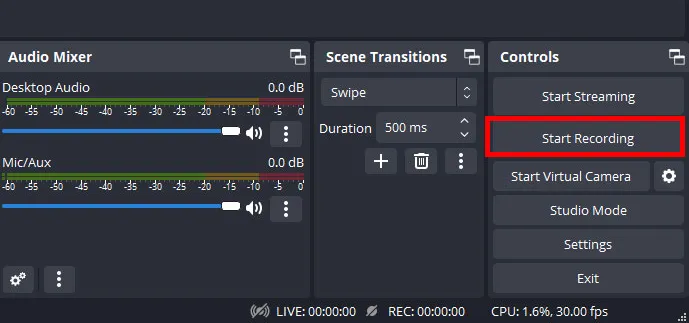
Step 4: Click Start Recording on the bottom-right panel.
Note: OBS has a steeper learning curve and requires manual source configuration, which can result in black screens on laptops with hybrid graphics (Intel integrated GPU + NVIDIA discrete GPU).
Tailored Screen Capture Settings for Acer Aspire, Swift & Chromebook Series
Different Acer laptop lineups feature distinct hardware configurations. Tailor your setup based on your specific model:
Acer Aspire & Swift Series (Integrated Graphics):
Laptops with Intel Iris Xe or AMD Radeon integrated graphics have limited encoding overhead. Use light tools like iReaShare Screen Recorder or Snipping Tool to avoid system stutters and heavy CPU load.
Acer Nitro & Predator Series (Dual GPU Laptops):
These gaming laptops feature hybrid graphics switching (NVIDIA Optimus). If you encounter a black screen during desktop capture, force your recording app to run on the integrated GPU via Windows Display Settings > Graphics Settings.
Acer Chromebook Series (ChromeOS):
Press `Ctrl + Show Windows` (the key with a rectangle and two lines) and choose the video camera tab to record natively on ChromeOS.
How to Fix Common Acer Screen Recording Issues (Audio, Lag & Black Screen)
Issue 1: Black Screen when Recording Games on Acer Laptops
Cause: Windows running the recorder on a different graphics processing unit (GPU) than the game.
Fix:
- Open Settings > System > Display > Graphics.
- Select your screen recorder app (e.g., OBS or iReaShare).
- Click Options and set graphics preference to Power saving (Integrated GPU) for desktop capture, or High performance (NVIDIA/AMD GPU) for game capture.
Issue 2: `Win + G` / Game Bar Shortcut Not Working
Cause: Game Bar disabled in Windows settings.
Fix: Navigate to Settings > Gaming > Xbox Game Bar and toggle the switch to On. Also verify that your hotkey bindings haven't been changed.
Issue 3: No Internal System Audio or Mic Sound
Cause: Wrong default playback/input device selected or privacy permissions blocked.
Fix:
- Go to Settings > Privacy & Security > Microphone and ensure "Allow apps to access your microphone" is set to On.
- Open Sound Settings (`Win + R` > type `mmsys.cpl`) and verify your laptop speakers/headphones are designated as the Default Device.
Frequently Asked Questions About Screen Recording on Acer Laptops
What is the keyboard shortcut to screen record on an Acer laptop?
The primary built-in shortcut key for screen recording on an Acer laptop (Windows 10/11) is `Windows Key + Alt + R`. You can also press `Windows Key + G` to open the full Xbox Game Bar menu, or `Windows Key + Shift + S` to open the Windows 11 Snipping Tool video capture menu.
How do I screen record on an Acer laptop without Xbox Game Bar?
You can screen record without Xbox Game Bar by using third-party desktop utilities like iReaShare Screen Recorder for full-screen and screen capture, the native Windows 11 Snipping Tool, NVIDIA GeForce Experience (`Alt + F9`), or OBS Studio.
Can I screen record on an Acer laptop with internal audio?
Yes. Built-in tools like Game Bar capture basic app audio, but dedicated software like iReaShare Screen Recorder allows you to capture system sound, browser audio, and external microphone voice concurrently with precise volume balancing.
Conclusion
Recording your screen on an Acer laptop is simple once you choose the right tool for your specific needs:
- Use `Win + Alt + R` (Xbox Game Bar) or Snipping Tool for quick, basic app captures.
- Use NVIDIA GeForce Experience (`Alt + F9`) for gameplay on Acer Nitro or Predator laptops.
- Use iReaShare Screen Recorder for professional, high-quality, full-desktop recording with internal audio, webcam overlays, and zero lag.
Related Articles:
Best Screen Recording Software in 2026: Top 16 Screen Recorders
How to Record Live TV on Different Devices with Reliable Methods
How to Screen Record on Mac Step by Step | Advanced Guide
How to Record Google Meet Meetings: 3 Easy Methods for 2026