TL;DR:
Want to know how to record a Teams meeting with audio? This guide covers all ways to record Microsoft Teams meetings on Windows, Mac, iPhone, and Android. Learn how to use the Microsoft Teams built-in recording feature when you have recording permission and how to capture meetings without permission and knowing.
Microsoft Teams has become an essential tool for remote work, online classes, business meetings, and team collaboration. Many users want to record Teams meetings to save important discussions, review training sessions, or share meeting content. However, many people are still unsure about how to record Teams meetings. This article will provide a detailed guide on how to record Teams meetings, including methods for Windows, Mac, iPhone, and Android devices, helping you easily capture and save Teams meetings.
- Part 1. Can You Record a Teams Meeting?
- Part 2. How to Record a Teams Meeting Using the Built-in Recording Feature
- Part 3. How to Record a Teams Meeting Without Permission on Windows/Mac via Screen Recorder
- Part 4. How to Record a Meeting in Microsoft Teams on Windows with Xbox Game Bar
- Part 5. How to Screen Record a Teams Meeting on Mac with QuickTime Player
- Part 6. How to Record a Teams Meeting on a Phone
- Part 7. FAQs on Teams Meeting Recording
Part 1. Can You Record a Teams Meeting?
Yes, you can record a Microsoft Teams meeting, but whether you can use the built-in Teams recording feature depends on your account permissions and meeting settings.
If you are the meeting organizer or a participant with recording permission, you can directly use the built-in Teams recording function. However, if you are only a regular participant and have not received permission from the host, you usually cannot access the Teams recording button. In this case, you can use third-party screen recording software to capture the Teams meeting video and audio.
Important Privacy Notice Before Recording Teams Meetings
No matter which recording method you use, you should always:
- Inform participants that the meeting is being recorded when required.
- Follow your company's privacy and security policies.
- Avoid recording confidential information without authorization.
- Comply with applicable local laws and regulations.
Method Comparison Table
| Method | Best For | Advantages | Limitations |
|---|---|---|---|
| Microsoft Teams Built-in Recorder | Hosts and authorized users | Official recording solution; saves meeting video and audio automatically | Requires recording permission; controlled by Teams policies |
| Screen Recorder | Users who need flexible recording options | Captures screen, system audio, microphone, webcam, annotations, and custom areas | Requires installation; may use more system resources |
| Xbox Game Bar | Windows users who need quick recordings | Free and built into Windows 10/11; easy shortcut recording | Limited editing features; cannot record everything on screen |
| QuickTime Player | Mac users needing basic screen capture | Free and pre-installed on macOS | Cannot capture Mac system audio directly |
Part 2. How to Record a Teams Meeting Using the Built-in Recording Feature
The easiest way to record a Teams meeting is by using the built-in recording feature provided by Microsoft Teams. This method is recommended if you are the meeting organizer or have recording permission because it can capture meeting video, participant audio, and sometimes transcripts automatically.
The Teams recording feature allows you to record a Microsoft Teams meeting without installing additional software. After recording, the video will be available through Teams chat, OneDrive, or SharePoint.
Here is how to record a Teams Meeting as an organizer or presenter:
Step 1. Open Microsoft Teams and join the meeting you want to record.
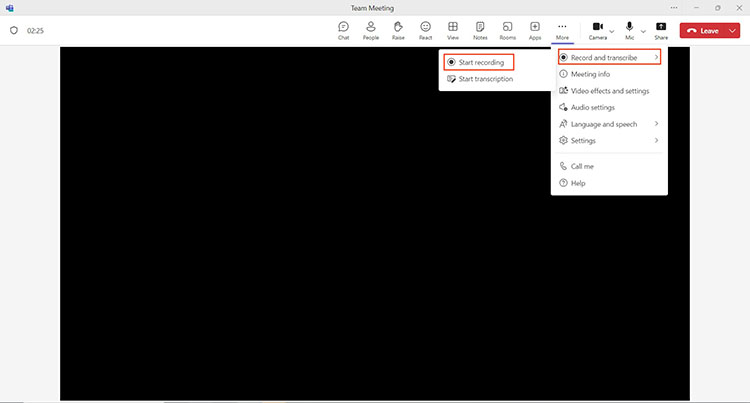
Step 2. Click the "More" actions button in the meeting controls.
Step 3. Choose "Record and transcribe" and select "Start recording" to begin recording the Teams meeting.
Step 4. Once recording starts, Teams will notify all meeting participants that the session is being recorded.
Step 5. After the meeting ends, go to "More" actions → "Record and transcribe" → "Stop recording" to finish the recording.
Step 6. The recorded Teams meeting will be processed and saved automatically to OneDrive or SharePoint, where you can access, share, or review it later.
How to record a Teams meeting as a participant using the built-in feature? In some organizations, participants can also record Teams meetings if the admin has enabled this permission. Join the meeting and check More actions to see if the Start recording option is available. If it is missing or unavailable, you need to ask the organizer to start the recording or grant you presenter permissions before recording.
Part 3. How to Record a Teams Meeting Without Permission on Windows/Mac via Screen Recorder
If you don't have permission to record a Teams meeting or want to record a Teams Meeting without being known, you can use a professional screen recording tool, such as Screen Recorder. It works on both Windows and Mac, allowing users to record the entire screen, a specific Teams meeting window, or a customized recording area with high-quality video and audio. It also supports recording system sound and microphone simultaneously, making it ideal for recording Teams meetings with audio.
What can Screen Recorder do for you?
* Record Microsoft Teams meetings in high quality on Windows and Mac.
* Capture Teams meeting audio from system sound and microphone.
* Record full screen, selected windows, or custom recording areas.
* Add annotations, text, arrows, and highlights while recording.
* Create scheduled recordings for automatic meeting capture.
* Preview, trim, and edit recorded videos after recording.
Download for Win Download for Mac
How to record a Teams meeting without notifying everyone?
-
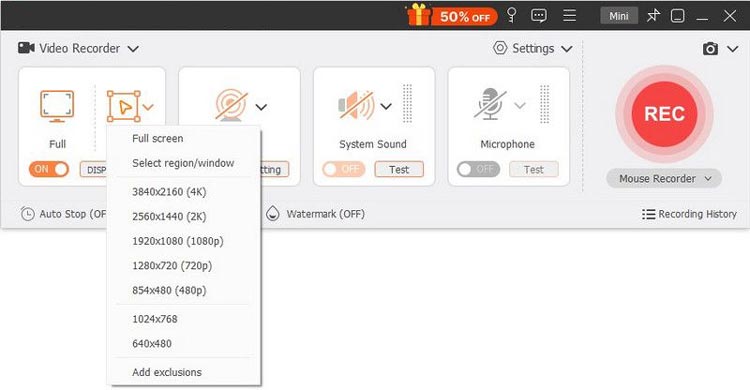
Open Screen Recorder on your computer and select "Video Recorder" from the main interface. Choose the recording area, such as "Full Screen" or a "Custom" region.
-
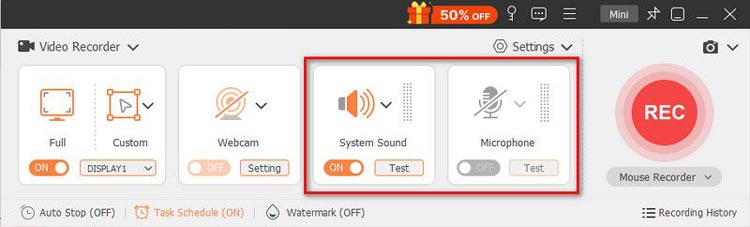
Enable "System Sound" to capture the Teams meeting audio. If you want to record your webcam and voice, turn on "Webcam" and "Microphone". You can also adjust more recording settings in "Preferences".
-
Join the Microsoft Teams meeting you want to record. Click the "REC" button to start recording manually, or use the "Task Schedule" feature to set a recording time in advance and let the program start automatically.
-
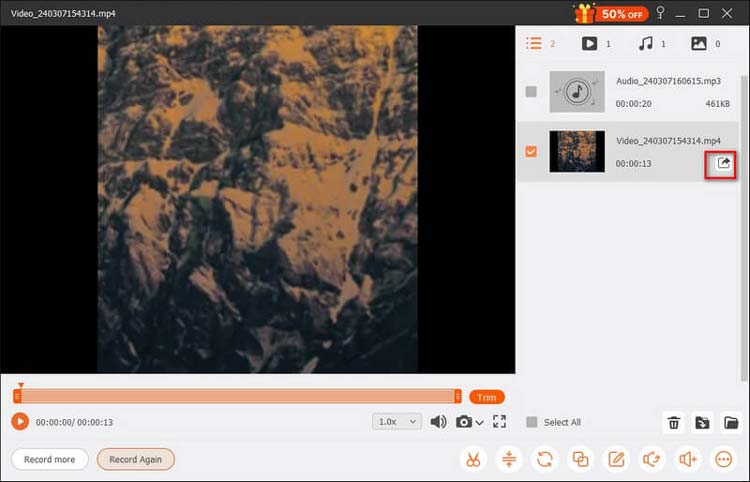
When the meeting ends, click the "Stop" button to finish recording. Preview the recorded video, trim unwanted parts with the built-in clip tool if needed, and click "Save" to export the Teams meeting recording.
Drawbacks When Recording Teams Meetings via Screen Recorder
Although Screen Recorder offers more flexible recording options, it also has some limitations:
- Higher CPU usage: Long or high-quality recordings may consume more system resources, especially with webcam and audio enabled.
- Large file sizes: Long Teams meetings can create large video files, requiring enough storage space.
- Possible audio-video sync issues: Unstable performance or network problems may cause delays between audio and video.
- Free version limitations: The trial version may include restrictions such as watermarks or limited features.
- DRM recording restrictions: Some protected content may result in black screens, missing audio, or failed recordings.
Part 4. How to Record a Meeting in Microsoft Teams on Windows with Xbox Game Bar
If you are using Windows 10 or Windows 11, you can also use the built-in Xbox Game Bar to record a Teams meeting as a participant. Although it was designed mainly for gameplay recording, it can capture Teams meeting windows as well, making it a simple solution for users who want to record a Microsoft Teams meeting without installing extra software.
Xbox Game Bar allows you to record your Teams meeting screen and microphone audio. However, compared with professional recording software, it has some limitations. For example, it cannot record the entire desktop in some situations and does not provide advanced editing features. This method is suitable for users who want a quick way to record a Teams meeting by themselves on a Windows computer.
Here is how to record a Teams meeting as a participant with Xbox Game Bar:
Step 1. Open Microsoft Teams and join the meeting you want to record.
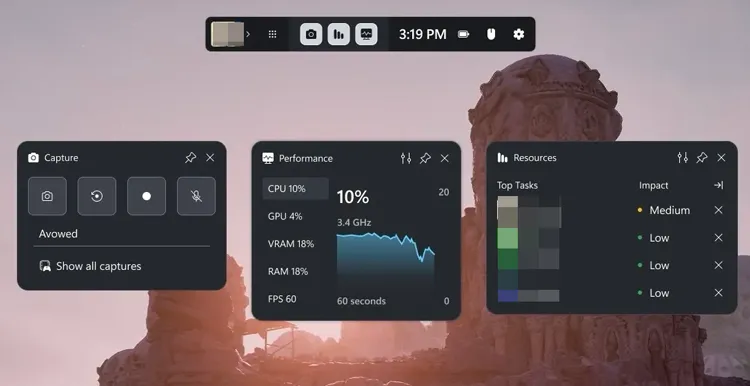
Step 2. Press "Windows" + "G" to launch Xbox Game Bar, then open the "Capture" widget from the toolbar.
Step 3. Enable the "microphone" option if you want to record your voice, and click the "Record" button to start capturing the Teams meeting.
Step 4. Continue the meeting while Xbox Game Bar records the screen and audio. When the meeting ends, click the "Stop" button to finish recording.
Step 5. Go to the "Videos" > "Captures" folder on your Windows computer to find and view the recorded Teams meeting.
Part 5. How to Screen Record a Teams Meeting on Mac with QuickTime Player
Mac users can use the built-in QuickTime Player to record their screen. It can capture the Teams meeting video, but it cannot record internal system audio by default. Additional audio configuration or an external audio device may be required to capture the meeting sound.
Here is how to screen record a Teams meeting on a Mac without knowing:
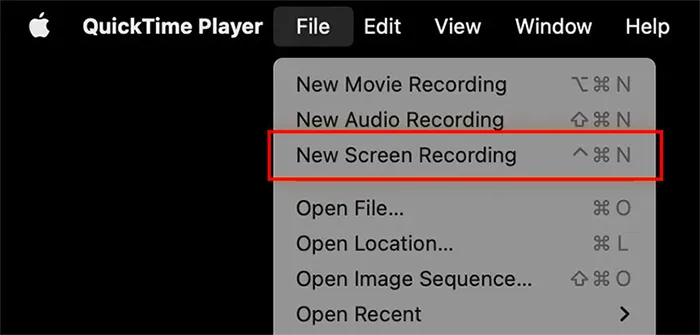
Step 1. Open QuickTime Player on your Mac and select "File" → "New Screen Recording" from the top menu.
Step 2. Choose to record the entire screen or a selected area, then click the "Record" button to start capturing.
Step 3. Open Microsoft Teams and join the meeting you want to record while QuickTime continues recording your screen.
Step 4. When the meeting ends, click the "Stop" button in the menu bar to finish the recording.
Step 5. Preview the recorded video in QuickTime Player and save the file to your preferred location.
Part 6. How to Record a Teams Meeting on a Phone
Besides using a computer, users can also record Teams meetings on their mobile phones. Both iPhone and Android devices offer built-in screen recording features, allowing users to quickly capture and save meeting content.
6.1 How to Record a Teams Meeting on iPhone with Audio
Step 1. Open the "Settings" app on your iPhone, go to "Control Center", and add "Screen Recording" if it is not already available.
Step 2. Open Microsoft Teams and join the meeting you want to record.
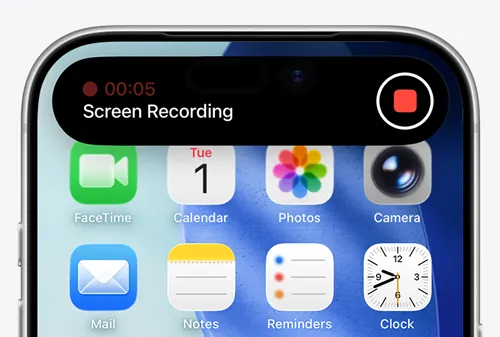
Step 3. Swipe down from the top-right corner to open "Control Center", press and hold the "Screen Recording" button, enable the "microphone" option, and tap "Start Recording".
Step 4. Return to the Teams meeting and let your iPhone capture the meeting screen and audio. When the meeting ends, tap the recording indicator to stop recording.
Step 5. Open the "Photos" app to find, preview, and manage your recorded Teams meeting video.
6.2 How to Record a Teams Meeting on Android Phone with Audio
Step 1. Open Microsoft Teams and join the meeting you want to record.
Step 2. Swipe down from the top of your Android screen to open "Quick Settings", then select "Screen Recorder".
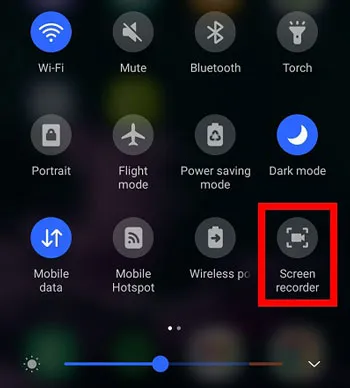
Step 3. Choose the desired audio source and tap "Start recording" to begin capturing the Teams meeting.
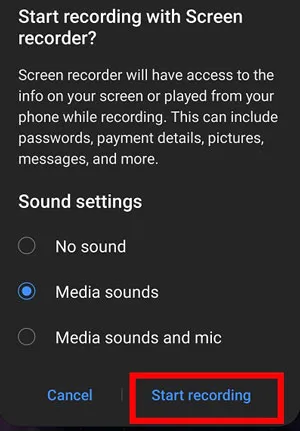
Step 4. Continue the meeting while your phone records the screen and audio. When finished, tap "Stop" to end the recording.
Step 5. Open the "Gallery" app on your Android phone to view and manage the recorded Teams meeting video.
Note: If your Android device does not have a built-in screen recorder, you can use a third-party screen recorder for Android instead.
Part 7. FAQs on Teams Meeting Recording
Q1. Can others see that I am recording a Teams meeting?
If you use the built-in Teams recording feature, all participants will receive a notification that the meeting is being recorded. However, if you use third-party screen recording software to capture the meeting locally, Teams usually does not display a recording notification.
Q2. How long are Teams recordings kept?
Teams recordings are typically stored according to your organization's retention settings. By default, recordings may be automatically deleted after 120 days. Administrators can change the retention period through OneDrive and SharePoint policies, with options ranging from 30 to 99,999 days. The recordings also use your OneDrive or SharePoint storage space.
Q3. Can I record a Teams meeting if I am not the host?
Without permission from the meeting organizer, you usually cannot use the built-in Teams recording feature. However, you can use a screen recording tool to capture the meeting content.
Q4. Why can't I record my Teams meeting?
You may be unable to record a Teams meeting for the following reasons:
- You don't have recording permission.
- The administrator has disabled the recording feature.
- Your Teams version does not support recording.
- There is not enough storage space available in OneDrive or SharePoint.
- Your network connection is unstable.
Q5. How do you set up a Teams meeting to automatically record?
You can set up automatic recording for a scheduled Teams meeting by following these steps:
- Open your "Teams Calendar" and select the scheduled meeting.
- Click "Edit" to modify the meeting settings.
- Select "Meeting options".
- Enable Record automatically by switching it to "Yes".
Q6. Where are Microsoft Teams recordings stored?
Microsoft Teams meeting recordings are no longer saved to Microsoft Stream by default. Instead, they are automatically stored in OneDrive for Business for private meetings and SharePoint for channel meetings. Even if your Teams meeting policies were previously configured to use Stream, new recordings are saved to OneDrive or SharePoint.
Conclusion
After learning how to record Teams meetings, you can choose the right method based on your needs. If you have recording permission, you can use the built-in Microsoft Teams recording feature directly. If you need to record Teams meetings without permission, without being detected, or want higher-quality video and audio, Screen Recorder is a more flexible option.
It supports both Windows and Mac and can easily capture Teams meeting video, system audio, and microphone sound. With high-definition output and simple editing features, it is a reliable tool for saving online meeting content.
Related Articles
How to Record a Zoom Meeting with Audio: Complete Guide 2026
How to Screen Record Instagram Stories Without Trouble (New Guide)
How to Record Google Meet Meetings: 3 Easy Methods for 2026
How to Record a Webex Meeting on Windows/Mac/iPhone/iPad/Android?