

TL;DR:
DU Screen Recorder combines screen recording, livestreaming, and basic video editing, but some features require payment, and its Android app is no longer on Google Play. Here are 3 alternatives worth considering:
- iOS Built-in Recorder: Free and simple iPhone/iPad screen recording.
- AZ Screen Recorder: Android recording, editing, and livestreaming.
- Screen Recorder: A flexible Windows and Mac alternative with phone mirroring, high-quality recording, and real-time annotations.
Looking for an easy way to record mobile gameplay, video calls, tutorials, or other on-screen activities? A good screen recorder should make the process simple without requiring complicated settings or technical knowledge. DU Screen Recorder is one option worth considering, offering screen recording, live streaming, and basic video editing features. But is the DU Recorder app still a good choice? Does it work on Android, iPhone, Windows, and Mac? Are its free features enough for everyday recording, or will you need a premium subscription?
In this DU Screen Recorder review, we'll explore its main features, advantages, disadvantages, and usage instructions. We'll also compare three alternatives to help you choose the right tool for your needs.
Part 1. What Is DU Recorder?
DU Screen Recorder is a screen recording and live-streaming tool designed primarily for mobile users. It lets you capture gameplay, app activity, videos, and other on-screen content. It also offers video editing, audio recording, webcam overlays, and live streaming.
DU Recorder was once a popular choice for creating gameplay videos, recording app tutorials, and sharing mobile screen activities. Its main advantage is combining recording, streaming, and basic editing in one app, so you don't need multiple tools to capture, edit, and share videos.
Part 2. Key Features of DU Screen Recorder
DU Screen Recorder is more than just a basic mobile screen recorder; it also offers useful extra features for content creators.
1. HD Screen Recording
DU Screen Recorder lets you capture various on-screen activities, including gameplay, app usage, online classes, and video calls. You can start recording through your device's Control Center and save videos locally.
It's especially useful for gamers who want to capture gameplay, highlight moments, and create tutorials.
2. Internal Audio and Microphone Recording
DU Screen Recorder supports audio recording. Its iOS version also offers the ability to capture internal audio and microphone sound simultaneously. You can use this feature to:
- Record gameplay with in-game audio.
- Create tutorials with voice narration.
- Capture app activities with spoken explanations.
Note that internal audio recording may depend on your device, system version, app permissions, and content restrictions.
3. Live Screen Streaming
DU Recorder lets you stream your phone screen to platforms such as YouTube, Facebook, and Twitch. Its live-streaming features include:
- Adjustable streaming resolution.
- Public, unlisted, and private streaming options.
- RTMP streaming support.
- Custom watermarks and themes.
- Front-camera picture-in-picture.
- Pause and resume controls.
These features are useful for sharing gameplay, demonstrating apps, and creating interactive content.
4. Built-in Video Editing Tools
DU Recorder includes basic editing tools, so you can edit recordings without installing separate software. Key editing features include:
- Trim: Remove unwanted video segments.
- Add Music: Insert background music.
- Add Text: Add text and subtitles.
- Change Speed: Adjust playback speed.
- Crop Video: Resize the video frame.
- Merge Videos: Combine multiple clips.
- Filters: Apply visual effects.
- Video to GIF: Convert videos into GIFs.
- Facecam: Add facecam reaction footage.
Part 3. Pros & Cons of DU Screen Recorder
DU Screen Recorder combines screen recording, live streaming, and video editing in one convenient tool. However, it also has some limitations worth considering.
- Combine screen recording, live streaming, and video editing in one tool.
- Support recording gameplay, app activities, and other on-screen content.
- Can capture internal audio and microphone sound simultaneously.
- Support live streaming to YouTube, Facebook, and Twitch.
- Offer basic editing tools, including trimming, cropping, merging, and adding music and subtitles.
- Support front-camera picture-in-picture for gameplay reaction videos.
- Removing watermarks, adding custom watermarks, and accessing some editing features require payment.
- The original Android app is no longer available on Google Play.
- Some recording features may be limited by device compatibility, system settings, and app permissions.
- Built-in editing tools are suitable for basic edits but not complex video post-production.
- HD recording and live streaming can consume significant device resources.
Part 4. How to Use DU Screen Recorder on iPhone/iPad
DU Screen Recorder uses Apple's built-in Screen Recording feature to capture your iPhone or iPad screen. You can launch it directly from Control Center, enable microphone audio, and save your recordings to your device. Follow these steps to get started.
Step 1. Download and install DU Recorder from the Apple App Store. Open the app and follow the on-screen instructions to complete the initial setup.
Step 2. Open "Settings" > "Control Center" and add the "Screen Recording" feature if it is not already available.
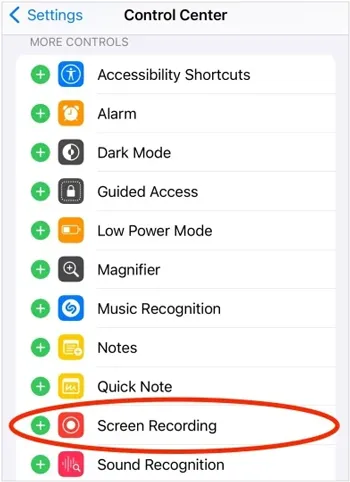
Step 3. Swipe down from the upper-right corner to open Control Center.
Step 4. Press and hold the "Screen Recording" icon, select "DU Recorder", and enable the microphone if you want to record your voice.
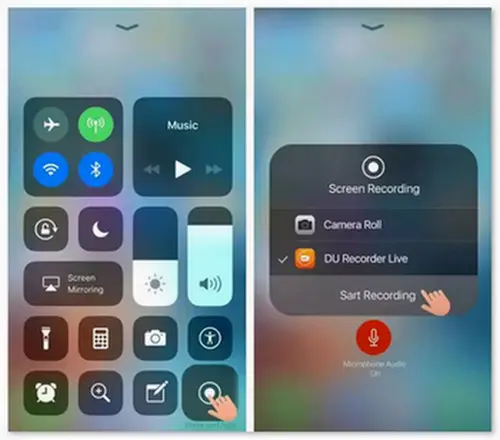
Step 5. Tap "Start Recording" and wait for the three-second countdown.
Step 6. To stop recording, open Control Center and tap the red recording button.
Step 7. Find your recorded video in the Photos app. You can then use DU Recorder's editing tools to trim clips, add music, insert subtitles, or adjust playback speed.
Part 5. Best Alternatives to DU Screen Recorder
If DU Screen Recorder doesn't meet your needs, or you're looking for other screen recording tools for Windows, Mac, Android, or iPhone, consider the following alternatives.
1. iOS Built-in Screen Recorder
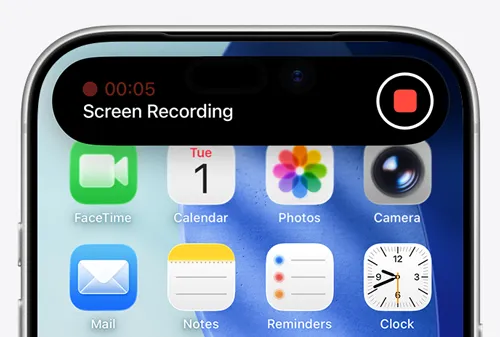
If you use an iPhone or iPad, the built-in iOS Screen Recorder is one of the best free alternatives to DU Recorder. It is integrated into iOS, so you don't need to download additional software or create an account. You can start recording directly from Control Center and save the video to your Photos library.
Key Features:
- Record your iPhone or iPad screen without installing another app.
- Enable microphone audio for voice commentary.
- Automatically save recordings to the Photos app.
- Use the built-in recording control with a three-second countdown.
- Access recordings directly from your device.
- Completely free with no additional subscription.
- No third-party application installation required.
- Simple recording process.
- Automatically saves videos to Photos.
- Limited video editing capabilities.
- No built-in advanced annotation tools.
- Some apps restrict screen or audio capture.
- Not suitable for users who need professional recording controls.
Best For: iPhone and iPad users who want a simple, free way to record their screens without installing another app.
2. AZ Screen Recorder
If you are specifically looking for a DU Screen Recorder for Android alternative, AZ Screen Recorder is worth trying. Available through Google Play, AZ Screen Recorder combines screen recording, video editing, screenshots, and live streaming. It is particularly useful for Android gamers and content creators who want more recording and editing options.
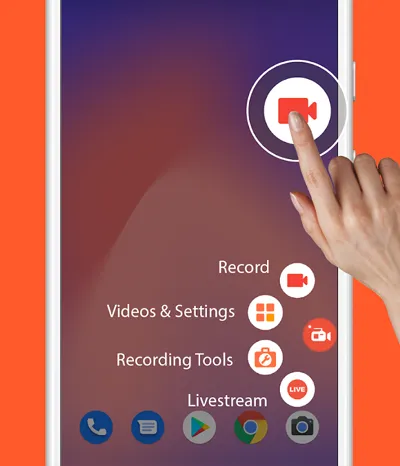
Key Features:
- Record Android screens with microphone and supported internal audio.
- Pause and resume screen recordings.
- Capture facecam videos using a floating camera window.
- Draw on the screen while recording.
- Create GIFs from screen recordings.
- Trim, merge, crop, rotate, and compress videos.
- Add background music and subtitles.
- Livestream to YouTube and Facebook.
- Available through Google Play.
- No watermark according to its listing.
- No advertised recording time limit.
- Include useful video editing tools.
- Support microphone and internal audio on compatible devices.
- Contain advertisements.
- Some features require in-app purchases.
- Internal audio recording depends on Android version and app restrictions.
- High-quality recording can consume considerable storage and system resources.
Best For: Android users who want a feature-rich screen recorder with built-in editing and livestreaming capabilities.
3. Screen Recorder
If you need more than basic mobile screen recording, Screen Recorder is a more comprehensive desktop alternative to DU Recorder. It is designed for Windows and Mac users who need to record computer screens, gameplay, online meetings, presentations, and webcam videos. Unlike DU Recorder's mobile-focused experience, Screen Recorder provides multiple recording modes and more advanced audio and video controls.
Key Features:
- Record the full screen, a selected area, a specific window, gameplay, or webcam footage.
- Capture videos at resolutions up to 8K and frame rates up to 120 FPS, depending on your hardware and settings.
- Record system audio and microphone input simultaneously with separate audio controls.
- Mirror and record iPhone and Android screens on your computer via wireless or USB connections.
- Add text, arrows, shapes, highlights, and other annotations in real time while recording.
- Schedule automatic recording start and stop times.
- Preview, trim, merge, compress, and convert recorded videos using built-in editing tools.
Download for Win Download for Mac
Steps to Record an iPhone Screen with Audio Using Screen Recorder:
-
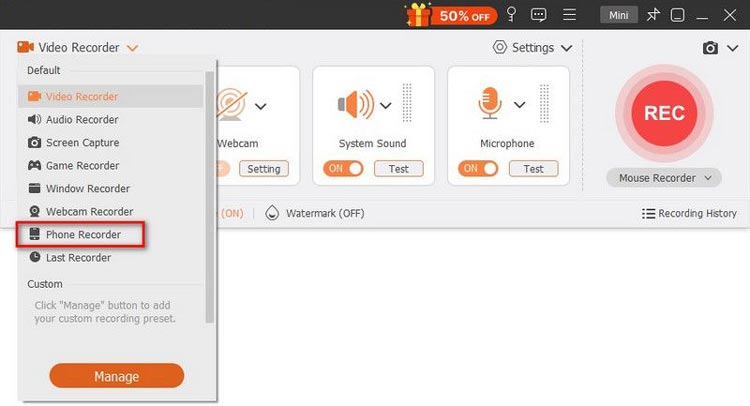
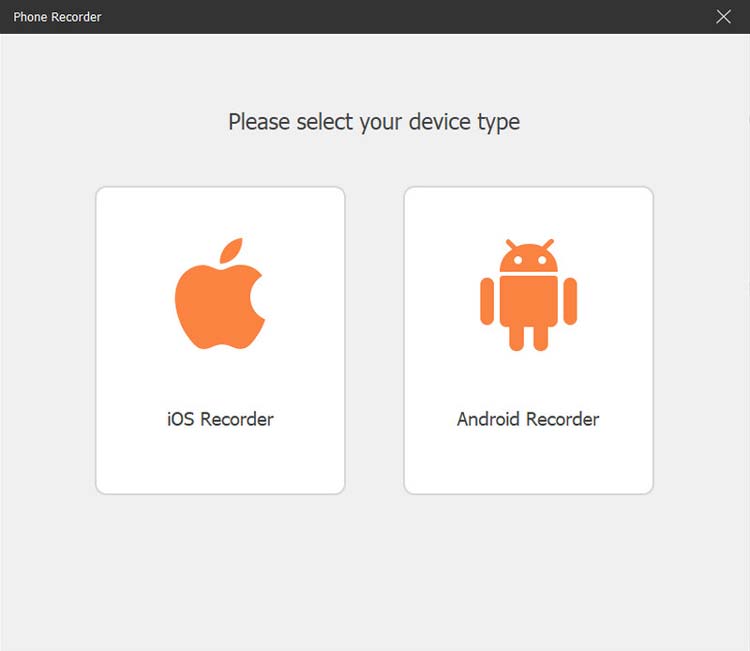
Download and install Screen Recorder on your computer. Launch the program and select "Phone Recorder" from the main interface.
-
Choose "iOS Recorder" and connect your iPhone and computer to the same Wi-Fi network.
-
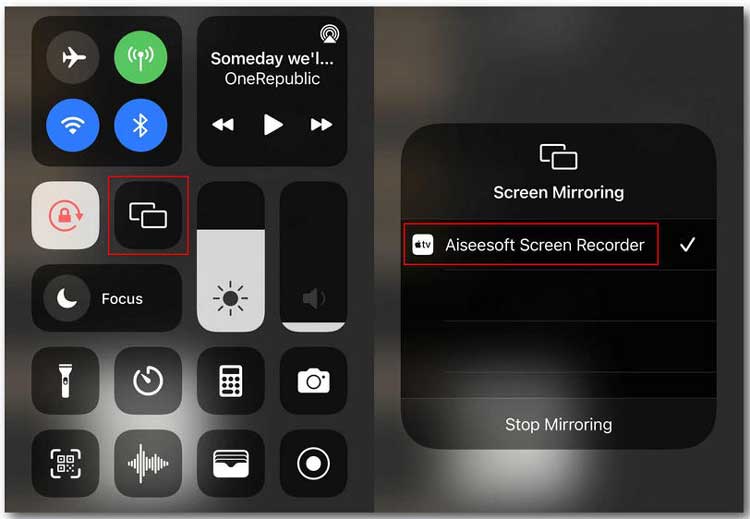
Open Control Center on your iPhone, tap "Screen Mirroring", and select "Screen Recorder" from the device list. Your iPhone screen will then appear on your computer.
-
Configure the recording settings, including resolution, output quality, and recording area. Click "Record" to start capturing your iPhone screen with audio.
-
Click "Stop" when the recording is complete. Preview and trim the video if necessary, then click "Export" to save it to your computer.
- Support multiple recording modes for different scenarios.
- Offer high-resolution and high-frame-rate recording.
- Can record system audio and microphone input simultaneously.
- Support iPhone and Android screen mirroring.
- Include real-time annotation and scheduled recording.
- Provide built-in video and audio editing tools.
- Require installation on a Windows or Mac computer.
- Advanced features require a paid license.
- The free trial limits screen recording to 3 minutes.
- High-resolution recording requires sufficient hardware performance and storage.
- Wireless phone mirroring may experience delays or interruptions when the network connection is unstable.
Best For: Users who need flexible desktop screen recording, phone mirroring, high-quality gameplay capture, and advanced recording controls.
Part 6. FAQs on DU Screen Recorder
Q1. Is DU Recorder free to use?
DU Recorder offers free features, but some functions come with limitations. Watermark removal, ad-free recording, audio recording, and advanced editing options may require a Premium subscription.
Q2. Is DU Recorder safe?
DU Recorder's safety depends on the version and download source. Some users have reported crashes, privacy concerns, and other potential issues. To reduce risks, download it from official sources, review its permissions, and avoid granting unnecessary access.
Q3. Why was DU Recorder removed from Play Store?
DU Recorder was removed from the Google Play Store in 2019 after concerns were raised about its compliance with Google's policies. Reports linked the removal to violations involving misleading ownership information and ad fraud. These issues led Google to take action against the app and remove it from its platform.
Q4. Is the DU Recorder available for Windows?
Yes. Although DU Recorder is widely known as a mobile screen recording app, it also offers desktop versions for Windows and macOS. You can download the latest version from the official DU Recorder website.
Q5. How long can you record with DU Recorder?
The recording duration mainly depends on your device's performance and available storage space. There is generally no fixed time limit, so you can record for extended periods as long as your device has enough free space.
Summary
Overall, DU Screen Recorder is a handy option for capturing gameplay, recording screen activities, livestreaming, and making quick video edits. It offers a useful range of features across mobile and desktop platforms, although some advanced functions require a paid subscription and its Android availability is limited.
If you're looking for a more flexible DU Recorder alternative, Screen Recorder is worth considering. It supports Windows and Mac, offers multiple recording modes, captures system audio and microphone sound, and includes useful features such as phone mirroring, real-time annotations, and scheduled recording. Whether you need to record tutorials, gameplay, or mobile screen activities, it provides a more comprehensive set of recording options.
Download for Win Download for Mac
Related Articles
Best iPhone Screen Recorder App: 4 Popular Options Compared
Best Screen Recorder for Android: 11 Options (With or Without Computer)