TL;DR:
Removing a video watermark depends entirely on your balance of privacy, budget, and precision. Methods generally fall into two categories:
- Offline Tools (Watermark Remover, CapCut, VSR): Best for large files and data privacy. They offer high precision through specialized text-erasing algorithms or manual editing workarounds (cropping/blurring). While they provide steady performance without internet reliance, they require software installation and can be pricey or technically complex.
- Online Tools (PhotoCat, Morph Studio): Best for quick, casual edits on the go. They offer maximum convenience and cutting-edge generative AI filling right from your browser. However, they are limited by file size caps, internet speeds, and occasional visual glitches on moving backgrounds.
Watermarks are frequently used by content creators to protect their intellectual property. However, there are many legitimate reasons you might need to remove the watermark from a video - such as repurposing your own footage when you've lost the original unwatermarked file, or cleaning up a video for a clean presentation.
Whether you prefer powerful desktop software or quick cloud-based tools, this comprehensive guide will walk you through the best methods to remove watermarks from videos both offline and online, followed by crucial legal and practical questions answered.
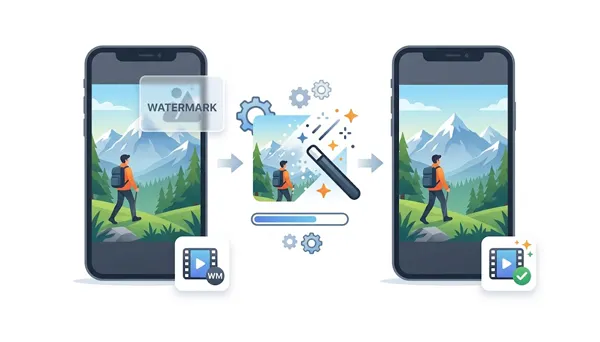
Part 1: Remove Watermark from Video Offline
If you deal with large files, care deeply about privacy, or need advanced editing control, offline desktop watermark removers are your best bet.
1.1 Using Watermark Remover
Watermark Remover utilizes artificial intelligence to detect and smooth out watermarks. It offers several texture-filling algorithms to replace the watermarked area seamlessly. This tool helps users remove watermarks from video content quickly and without damaging quality.
Main features of this video watermark remover:
* Automatically identify watermarks, logos, and text overlays for precise, one-click removal.
* Allow users to remove watermarks from multiple videos simultaneously, saving significant time.
* Preserve original video resolution and clarity even after the watermark is removed.
* Support watermark removal for different social platforms like TikTok, Ins, etc.
* Compatible with popular video formats such as MP4, MOV, AVI, and more.
* Offer a simple, intuitive workflow suitable for both beginners and experienced editors.
Download this watermark remover software.
Here's how to remove a logo and watermark from a video:
-
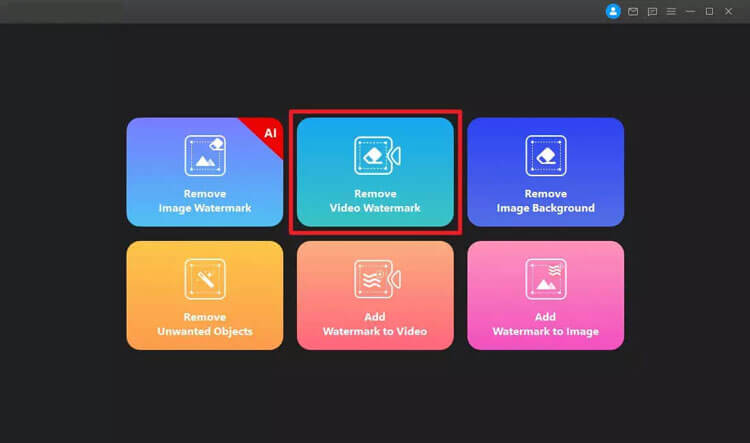
Download and install the software on your Windows computer. Then select the "Remove Video Watermark" option and import your video.
-
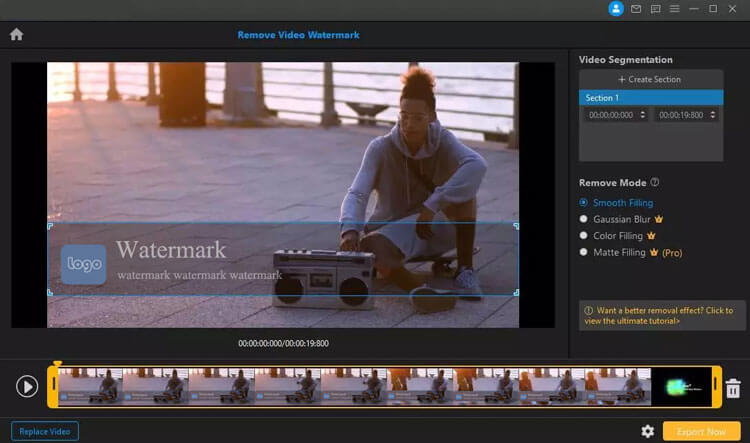
Use the selection box to cover the watermark. You can choose different removal modes (like AI removal, smooth filling, or matte filling).
-
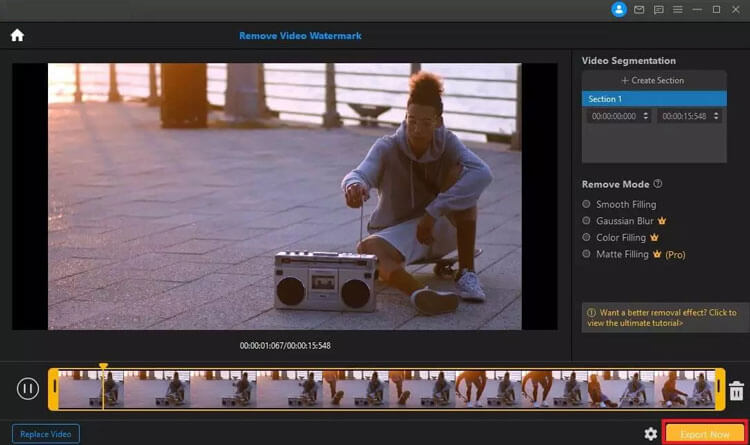
Preview the result and click "Export" to save the clean video.
Read more: You can read the full guide for this watermark remover, and use it with ease.
- The dedicated AI algorithms are highly effective at detecting textures and smoothly blending pixels, resulting in a cleaner look compared to standard blurring.
- Give you flexibility by offering different removal methods depending on how complex the video background is.
- Save time by allowing you to remove watermarks from multiple videos simultaneously.
- The advanced AI rendering can consume a lot of CPU and GPU power, which might slow down older computers.
- Require you to purchase a subscription to get the full benefits.
Tips: If you want to add your own watermark to your videos easily, use these 6 approaches.
1.2 Using CapCut
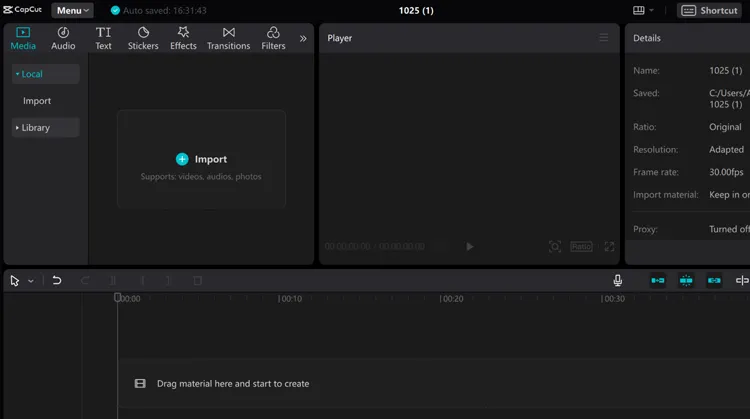
CapCut is a highly popular video editor available for desktop. While it doesn't have a single-click "AI watermark remover" button, it offers three highly effective workarounds: cropping, blurring, or masking.
Here's how:
-
Import your video, go to the crop tool, and adjust the frame to cut out the corner where the watermark sits.
-
Add the video to your timeline, apply a "Blur" effect from the "Effects" tab, and use a mask (like a rectangle) to confine the blur strictly over the watermark.
-
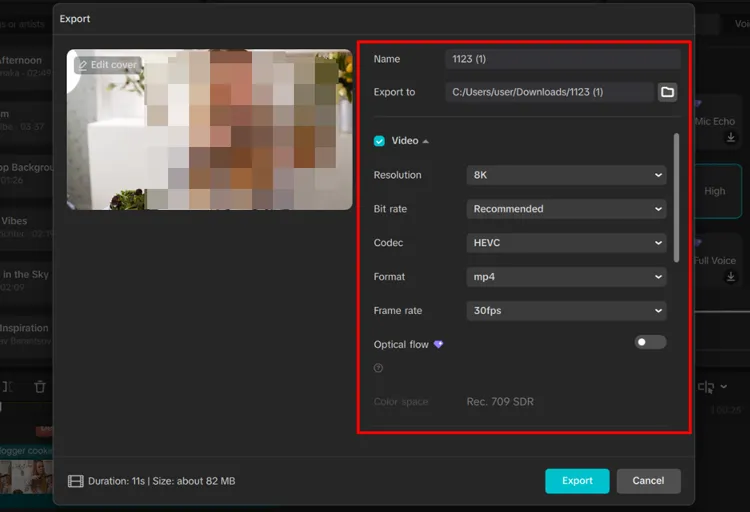
Overlay your own logo, text, or a sticker directly on top of the original watermark. Finally, click "Export" to save the video.
- Give you access to all its editing features, transitions, and export options without forcing a paid subscription.
- Since it is a full-fledged editor, you can seamlessly add background music, apply filters, or color-correct your video after hiding the watermark.
- Give you multiple ways to handle a watermark, whether you choose to crop it out entirely, blur it, or cover it up with a custom sticker/logo.
- It does not feature a dedicated one-click AI brush to magically erase objects; you have to manually set up masks or crops.
- If you choose the cropping method to get rid of a corner watermark, you will lose a portion of your original video composition.
1.3 Using Video Subtitle Remover (VSR)
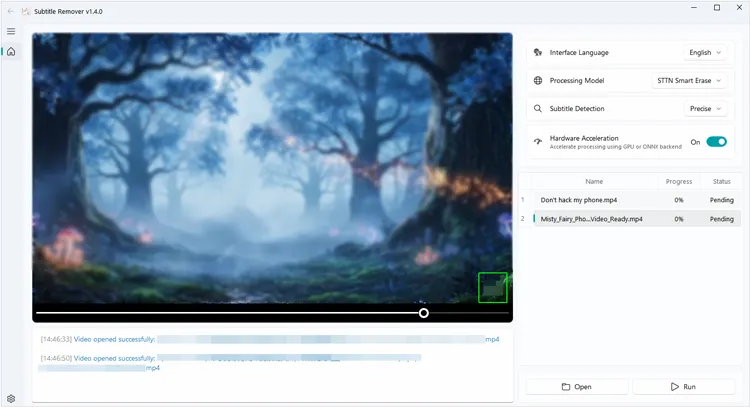
VSR is an open-source, specialized tool designed explicitly for removing hardcoded subtitles and text watermarks from videos. It works incredibly well for static text overlay.
To remove watermarks from videos with VSR:
-
Launch VSR after installing it, and load your video file.
-
Use the tool's selection timeline to highlight the area where the subtitles or watermarks appear.
-
VSR analyzes the surrounding pixels frame by frame to intelligently inpaint and wipe out the text. Run the batch process and export the processed video.
- Exceptionally accurate at identifying and wiping out hardcoded subtitles or text overlays without affecting the rest of the video frame.
- Run entirely offline on your local machine, ensuring absolute data privacy for sensitive videos.
- Completely free to use with no hidden premium paywalls or subscription prompts.
- The user interface is highly technical and less intuitive compared to modern commercial software, making it slightly intimidating for beginners.
- It heavily relies on your computer's graphics card (especially NVIDIA CUDA) for efficient processing; without a strong GPU, rendering can take a long time.
Part 2: Remove Watermark from Video Online
If you just have a quick, short video clip and don't want to install heavy software, online watermark removers can get the job done in seconds right from your web browser.
2.1 Using PhotoCat Video Watermark Remover
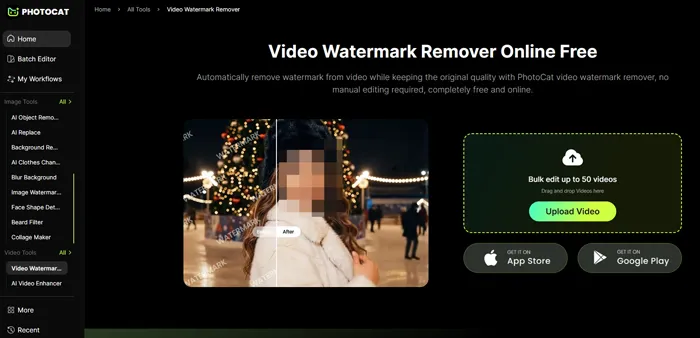
PhotoCat offers a simple, browser-based solution designed for quick image and video fixes. It allows users to remove unwanted elements from videos without installing desktop software.
To remove watermark online with PhotoCat:
-
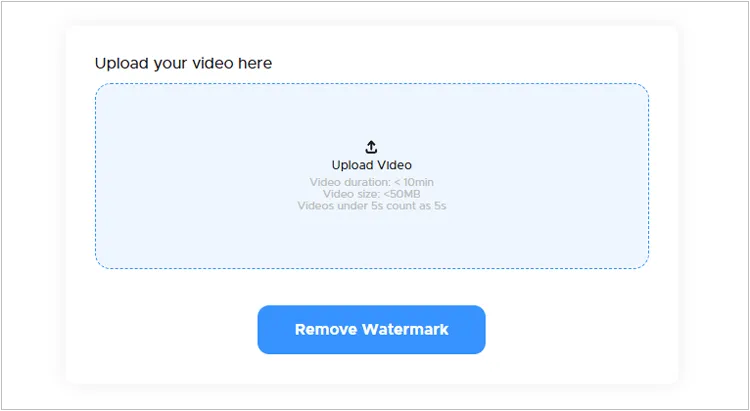
Go to the website and upload your video file. Then click "Upload Video".
-
Click the "Process Full Video" button. The server-side algorithm will blur or blend the selected pixels.

-
After that, download the resulting video back to your device.
- Runs instantly right inside your web browser, making it perfect for quick fixes on public computers or Chromebooks.
- The learning curve is practically zero—you just upload, paint over the watermark with a brush, and click process.
- Because processing happens on cloud servers, it won't slow down your local computer.
- Like most online tools, it usually restricts the maximum file size or video length you can upload for free.
- The algorithm generally relies on a simple smart-blur or mosaic effect, which can leave a noticeably muddy or distorted patch on complex video backgrounds.
2.2 Using Morph Studio
Morph Studio leverages advanced generative AI video-to-video capabilities. Instead of simply blurring a watermark, it can re-imagine or cleanly fill the missing details based on contextual prompts.
To remove a watermark from a full video via Morph Studio:
-
Log into the Morph Studio web platform and click "Upload Video". Then sign up with your Google Account.
-
Now, click "Upload Video" on the left panel, and tap "Generate" to begin removing the watermark.
-
Once completed, choose "Download" to export the newly rendered, watermark-free asset.

- Instead of just blurring the area, it uses advanced AI to intelligently regenerate the missing background details, often making the watermark completely invisible.
- Allows you to guide the AI with text descriptions, giving you control over what should replace the masked area.
- Accessible from any browser with heavy AI computations handled entirely on their remote servers.
- Require a fast and stable internet connection to upload videos and download the newly rendered AI assets.
- While it works beautifully on static or slow-moving backgrounds, the AI can sometimes create weird visual glitches (artifacts) if the watermark is over a highly chaotic or fast-moving scene.
Part 6: Q&A About Removing Watermark from Video
Q1: Can ChatGPT remove watermarks from videos?
No. ChatGPT is a text-based and multimodal language model. While it can write code scripts (such as Python scripts using OpenCV) or instruct you on how to use editing software to erase watermarks, it cannot directly process, edit, or manipulate video files to strip out visual elements natively. You will need dedicated video processors or AI editing platforms like the ones mentioned above.
Q2: What is the best video watermark remover?
The best video watermark remover depends on your needs:
- For professional-quality results: AI-powered desktop tools such as Watermark Remover in Part 1.1 may provide better accuracy.
- For simple edits: CapCut is a convenient choice because it combines watermark removal with full video editing features.
- For quick online processing: Browser-based tools like PhotoCat and Morph Studio are suitable when you do not want to install software.
When choosing a tool, consider factors such as removal accuracy, supported formats, processing speed, privacy protection, and whether the watermark is static or moving.
Q3: Q3: Can removing a watermark be illegal?
Yes, removing a watermark can be illegal in some situations. Watermarks are often used to protect copyright ownership, and removing them from someone else's content without permission may violate copyright laws or the creator's rights.
You should only remove watermarks from videos that you own, have permission to edit, or have legal rights to modify. If you want to use copyrighted content, it is better to obtain permission from the owner or use properly licensed material.
Conclusion
Video watermark removal has become easier than ever thanks to modern video editors and generative AI tools. If you need absolute control and handle large files, offline software like CapCut or Watermark Remover provides the best stability. If you want an offline, user-friendly, and accurate AI-powered remover, choose Watermark Remover. For quick fixes on the fly, web tools like PhotoCat or Morph Studio offer effortless convenience.
Always remember to respect copyright laws and ensure you have the proper rights to a video before you strip away its original attribution.
Related Articles
Can't Send Video from iPhone to Android: Solve the Problem with Ease
How to Use Video Watermark Maker Without Trouble
How to Remove Background from Picture on Computer and Mobile Devices
File Date Changer: The Complete Guide to Modify File Dates on Windows