


"Why won't my iPhone send a video? I just went to send a 29-second video on my iPhone, not even half a minute and it immediately fails to send. Thinking it had to do with the size I cropped it 2 seconds and it sent perfectly fine. Obviously annoyed I had to go out of my way to shave a literal couple of seconds off the video."
- From Reddit
We can stream 4K movies in seconds, it is incredibly frustrating to find that a simple video sent from an iPhone to an Android device looks like a blurry relic from the 1990s - or worse, fails to send at all. This "compatibility gap" remains one of the most common complaints for smartphone users today. When you can't send a video from an iPhone to an Android phone, come here to get the fixes and methods.
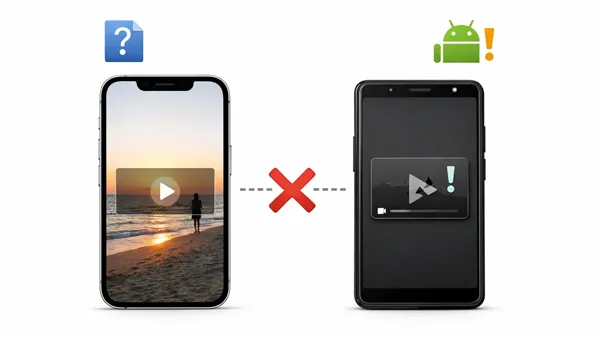
Part 1: Why Can't I Send a Video from iPhone to Android with Messages?
The primary reason you cannot send high-quality videos from an iPhone to an Android via the Messages app is the technological gap between iMessage and SMS/MMS. When you message another iPhone, Apple uses iMessage, which sends data over the internet. When you message an Android, the system reverts to SMS/MMS, a technology from the early 2000s that has severe limitations.
- File Size Limits: Most cellular carriers have a strict file size limit for MMS, often between 600 KB and 3.5 MB.
- Carrier Restrictions: Even if your phone is ready to send the file, your cellular carrier (or the recipient's carrier) may block the transfer if the file is too large or if the network is congested. If "MMS Messaging" is disabled in your settings, the video won't go through at all.
- Lack of RCS Support: While Apple has begun adopting RCS (Rich Communication Services) - the modern standard that allows high-quality transfers between iPhone and Android - it requires both a newer iOS update and carrier support. If you or the recipient are on older software, you remain stuck with the outdated MMS format.
Part 2: Can't Send Video from iPhone to Android? Fix It Now
If you are struggling to get a video through to an Android device, follow these troubleshooting steps to ensure your iPhone is configured correctly.
2.1 Enable Cellular Data
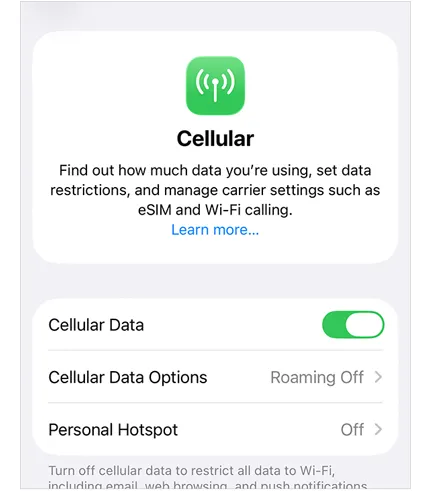
MMS requires a cellular data connection rather than just a standard voice signal. Even if you are on Wi-Fi, some carriers require cellular data to be active to process the handshake for an MMS transfer. Ensure cellular data is toggled on in your Settings.
Go to Settings > "Cellular" and turn on "Cellular Data".
2.2 Turn on MMS
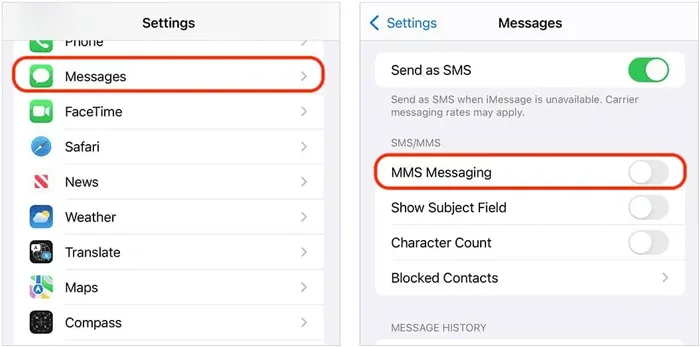
If this setting is disabled, your iPhone won't send a video, but only send plain text (SMS) to non-iPhone users.
Go to Settings > "Messages". Then ensure "MMS Messaging" is toggled "ON".
2.3 Reset Network Settings
Incorrect or corrupted network settings can prevent messages from sending videos from an iPhone to Android via MMS. In this case, you need to reset the network on your iPhone.
Go to Settings > "General" > "Transfer or Reset iPhone" > "Reset". Then select "Reset Network Settings".
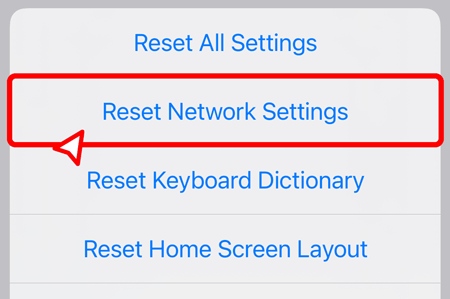
Note: This will clear your saved Wi-Fi passwords.
2.4 Restart Your iPhone
It sounds simple, but a restart clears the cache and temporary glitches affecting message delivery, and re-establishes a fresh connection with your service provider, which can often resolve stuck outgoing messages.
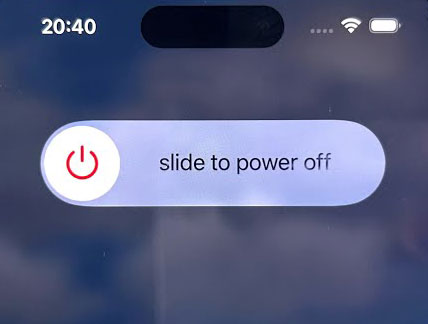
Hold the power button, slide to power off, then turn it back on.
2.5 Update iOS to the Latest
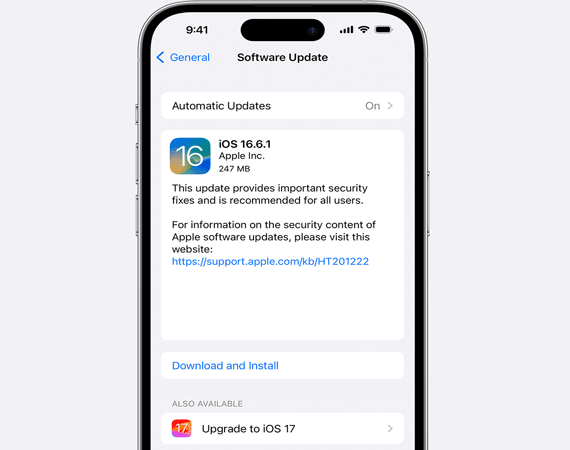
Apple frequently releases patches for connectivity issues. If you are running an outdated version of iOS, you may be missing critical fixes for cross-platform messaging.
Check Settings > "General" > "Software Update", and install any available updates.
2.6 Check Video Size Limits
If your video is several minutes long, it is likely too large for MMS. Carriers often cap MMS at 3MB or less. If your video exceeds this, the message will fail. Try sending a much shorter clip (3–5 seconds) to see if it goes through; if it does, the issue is the file size.
2.7 Check iPhone Storage Space
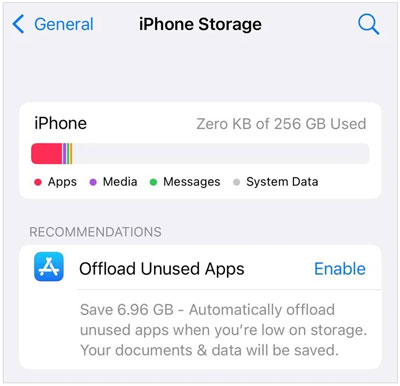
If your iPhone is almost full, it may not have enough temporary "scratch space" to compress and process the video for sending. Ensure you have at least a few hundred megabytes of free space in Settings > "General" > "iPhone Storage".
Part 3: Send Videos from iPhone to Android in Other Ways
Since MMS is a limited technology, the best way to send high-quality video is to bypass the Messages app entirely.
3.1 Using iReaShare Phone Transfer
For users who need to send large batches of videos or entire libraries from an iPhone to an Android device, professional tools like iReaShare Phone Transfer are the most efficient. This software allows for a direct wired connection between the two devices, transferring files at high speeds without any quality compression.
Main features of iReaShare Phone Transfer:
* Copy videos from an iPhone to an Android device directly.
* No resolution loss during the process.
* Transfer various data types from iOS to Android like photos, messages, contacts, etc.
* Move data from Android to iPhone, iPhone to iPhone, and Android to Android.
* No ads and support read-only mode to ensure a secure transfer.
* Support Android 6.0 or later, and iOS 5.0 or higher.
Download iReaShare Phone Transfer.
Download for Win Download for Mac
To send videos from an iPhone to an Android phone with the phone data transfer software:
-
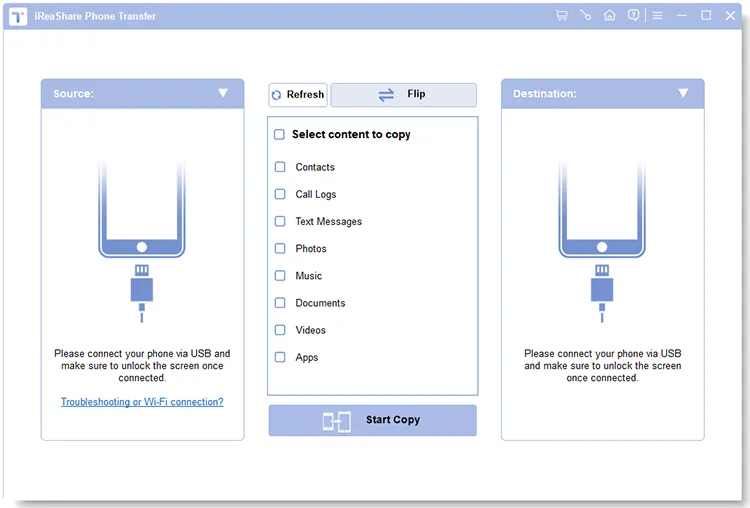
Download and install the data transfer software on a computer, and connect your iPhone and Android phone to the PC or Mac with workable USB cables.
-
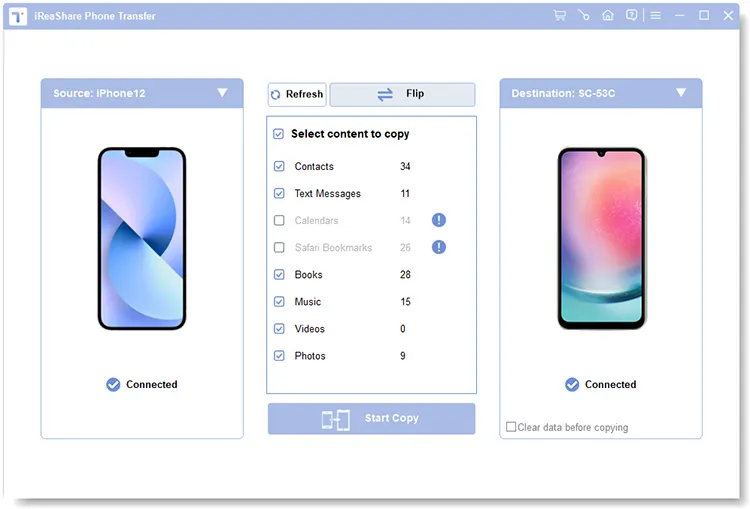
Tap the "Trust" option on your iPhone, and enable the USB debugging on Android. Then the program will recognize your devices quickly. Once connected, check if your Android device on the "Destination" side. If not, click "Flip".
-
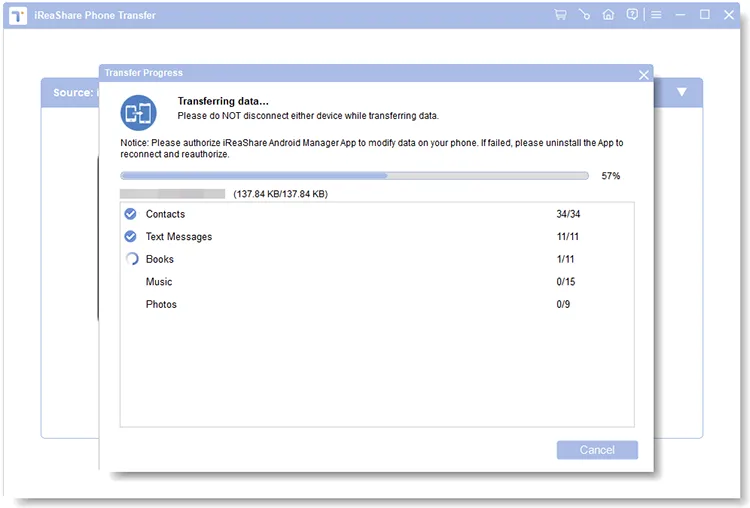
Select the "Videos" category, and click "Start Copy" to begin sending the iPhone videos to the Android gadget.
You can watch the video to transfer videos swiftly:
3.2 Using Google Photos
When your iPhone cannot send videos to Android with the Messages app, you can use Google Photos to sync videos from iPhone to Android via the cloud services. As long as your devices are connected to a stable network, you can access your videos across both your mobile devices with ease.
To share videos from iPhone to Android via Google Photos:
-
Install Google Photos on your iPhone and Android phone from their own app stores. Then log in to your Google Account on both devices.
-
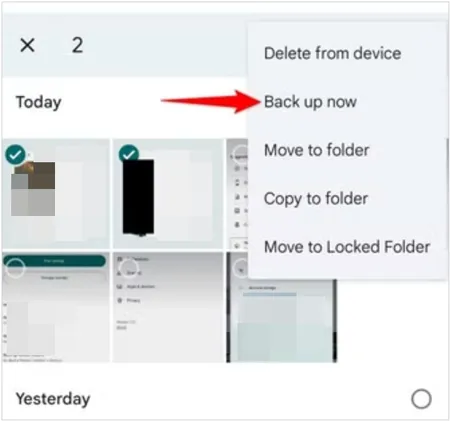
If you want to upload a specific video, navigate to the video, and open it. Then tap "Back up now".
-
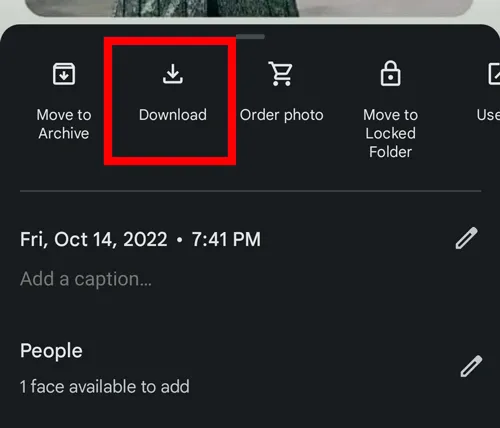
Once done, you will see the iPhone video on the Android phone with Google Photos. If needed, you can download it to the local Android folder.
Read more: You can move your videos from your to your laptop for backup without any hurdle.
3.3 Using AirDrop and Quick Share
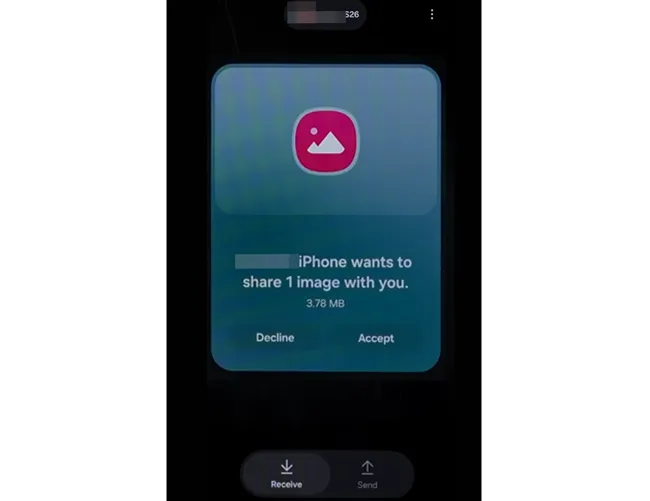
On some Android devices, like Google Pixel 10 and Samsung Galaxy S26, their Quick Share feature supports linking to the iPhone's AirDrop, so you can use this approach to send your video. However, this way is not available on all Android and iOS devices.
To send a video from an iPhone to an Android phone with AirDrop and Quick Share:
-
Ensure Bluetooth and Wi-Fi are turned on for both the iPhone and the Android device. Then enable the "Quick Share" feature on Android and "AirDrop" on iOS. Next, choose the "Receive" tab on Android.
-
Locate the video file on your iPhone, and tap "Share" > "AirDrop". Next, select your Android device.
-
After a while, you will see a pop-up on your Android phone. Please click "Accept" to get the video.
Conclusion
The friction between iPhone and Android messaging remains a common frustration, primarily due to the limitations of MMS technology. By ensuring your settings are optimized or—better yet—utilizing cloud-sharing and the specialized transfer tool, iReaShare Phone Transfer, you can ensure your videos reach their destination without losing their quality.
For the best experience, moving toward link-based sharing or dedicated transfer software is almost always superior to a standard text message.
Download for Win Download for Mac
Related Articles
How to AirDrop iPhone to Android Easily and 4 Alternatives
iPhone to Android Transfer App: Detailed Review About 12 Transfer Tools
How to Compress Video Without Hassle: 6 Effective Solutions
How to Send Long Videos on Android Device: 6 Viable Solutions

