


Can you Bluetooth photos from iPhone to Android? Unfortunately, no, you can't. While Bluetooth is a staple for pairing headphones or speakers, it doesn't work for direct file transfers between iOS and Android due to OS restrictions. If you've recently switched phones or need to send a high-res shot to a friend, you'll need an alternative. Here is a guide on the best ways to share photos from iPhone to Android via Bluetooth alternatives.
Part 1: How to Share Photos from iPhone to Android via Bluetooth Alternatives
Here are five Bluetooth alternatives that can help you seamlessly transfer photos from an iPhone to an Android device. Take a quick look at these alternative methods:
| Method | Pros | Cons |
|---|---|---|
| Quick Share | 1. Fastest and most seamless. 2. Works like AirDrop. 3. No extra apps needed on iPhone. |
1. Limited to newest flagships (Pixel 9/10, S26). 2. Requires specific visibility settings. |
| iReaShare Phone Transfer | 1. Best for bulk transfers. 2. Highest speed via cable. 3. No quality loss. 4. Handles thousands of photos easily. |
1. Requires a computer and USB cables. 2. Not ideal for sending a single quick photo. 3. Need a license for full features. |
| Google Drive | 1. Very reliable. 2. Keeps a permanent backup in the cloud. 3. Accessible from any device. |
1. Limited by free storage space (15GB). 2. Requires a good internet connection for uploading and downloading. |
| Android Switch | 1. Best for new phone setups. 2. Moves everything (contacts, messages, photos) at once. 3. Works for all brands like Xiaomi and Honor. |
1. Mainly intended for the initial setup of a new phone. 2. Can be slow if done wirelessly. |
| Send Anywhere | 1. Great for quick, one-off transfers. 2. No account registration needed. 3. Works across all brands. |
1. Requires installing the app on both phones. 2. The 6-digit security code expires quickly. |
1.1 Using Quick Share
Even though you cannot directly Bluetooth photos from an iPhone to an Android, you can now utilize Quick Share and AirDrop to send your photos between some iOS and Android devices. As of early 2026, the long-standing barrier between iOS and Android has been bridged through a groundbreaking update to the Quick Share protocol.
This feature is natively supported on the Google Pixel 10 and Pixel 9 series, as well as the newly released Samsung Galaxy S26 series (running One UI 8.5 or later). This interoperability allows these specific Android flagships to "handshake" directly with Apple's AirDrop protocol, making cross-platform sharing seamless for the first time.
To share photos from iPhone to Android via Quick Share and AirDrop:
-
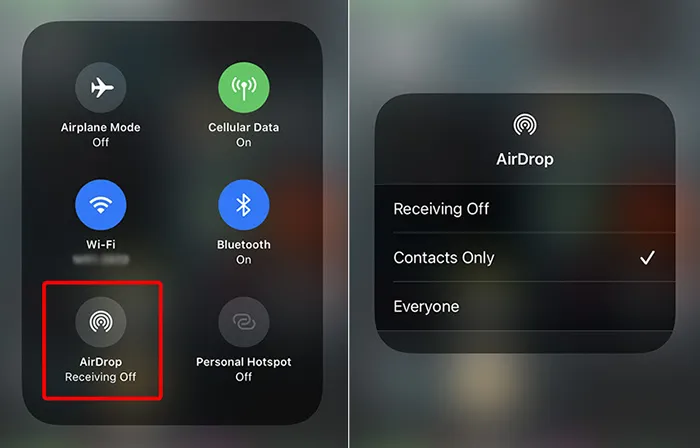
On your Android device, swipe down the Quick Settings panel, and long-press the "Quick Share" icon. Set visibility to "Everyone".
-
On the iPhone, open the Photos app and select the images you wish to share. Tap the "Share" button and then tap "AirDrop". Wait for the Android device's name to appear in the AirDrop discovery circle.
-
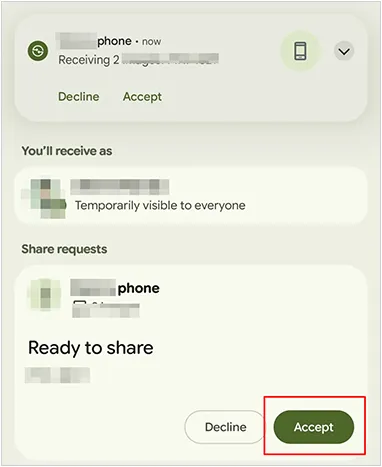
Tap the Android device's name on your iPhone. A Quick Share prompt will appear on the Android screen. Tap "Accept" to receive the files directly into your Android Gallery.
1.2 Using iReaShare Phone Transfer
iReaShare Phone Transfer is a professional data transfer tool created to move files directly between different mobile operating systems. It supports transferring photos, videos, contacts, and other data from an iPhone to an Android device with just a few steps.
Main features of this alternative:
* Copy photos from iPhone to Android via USB without losing resolution.
* Transfer all your photos at once.
* Different data types are supported, including photos, contacts, text messages, music, videos, and more.
* Transfer data from iPhone to iPhone, Android to iPhone, and Android to Android as well.
* Support iOS 5.0 or later, and Android 6.0 or higher, including iOS 26 and Android 16.
* No ad or data loss during the transfer.
Download iReaShare Phone Transfer.
Download for Win Download for Mac
To share pictures from an iPhone to an Android device via this software:
-
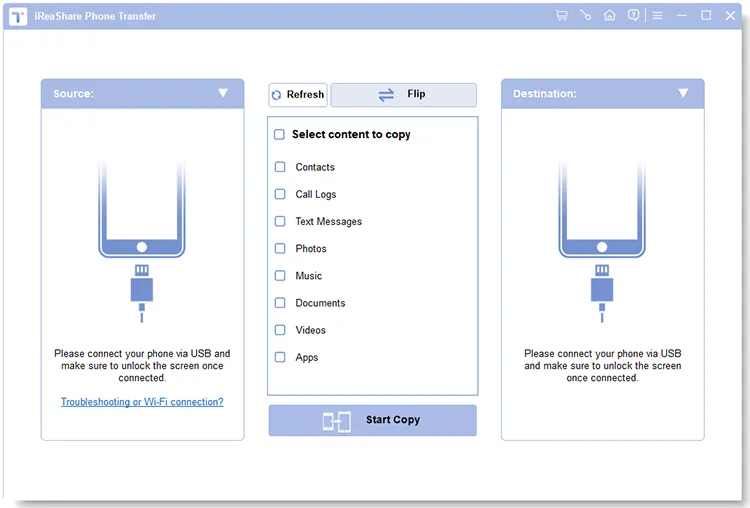
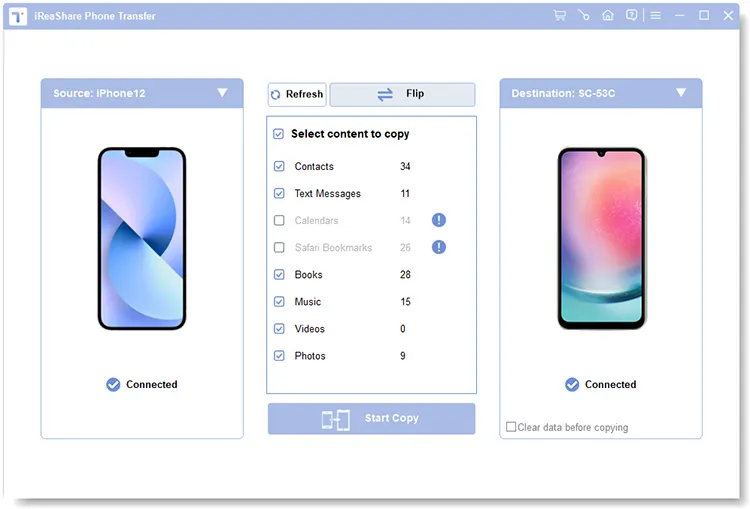
Install iReaShare Phone Transfer on your computer. Then connect both the iPhone and Android phone to the computer using USB cables.
-
Enable the USB debugging mode on Android, and tap the "Trust" option on your iPhone. Then the connection will be completed. Check if your Android phone is the "Destination" device. If not, click "Flip".
-
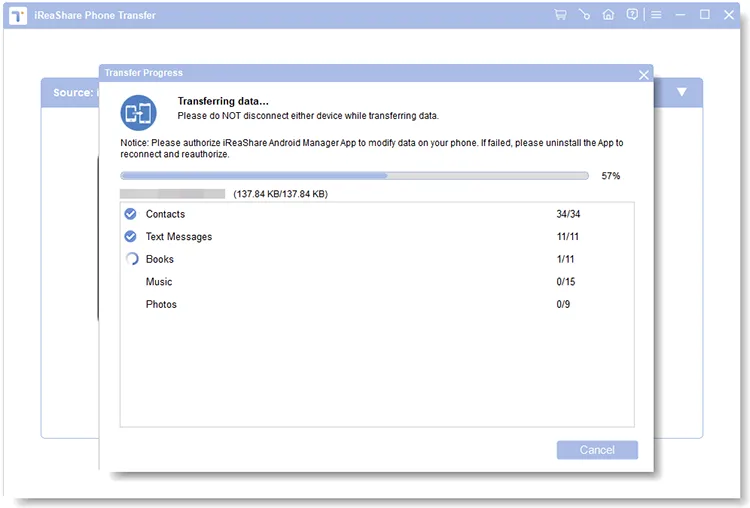
Select the "Photos" category, and click "Start Copy" to move your photos from the iPhone to the Android phone.
1.3 Using Google Drive
Google Drive is one of the easiest ways to send photos from an iPhone to an Android phone because it works across platforms. As long as there is a stable internet network, you can share your photos wirelessly between your iPhone and Android device.
Here's how:
-
Install and open Google Drive on your iPhone, and log in to your Google Account. If you don't have an account, you can sign up for one.
-
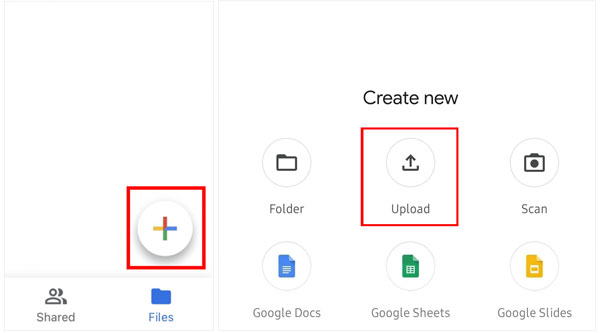
Then tap the "+" button and select "Upload". Choose the photos you want to upload from the iPhone's Photos app.
-
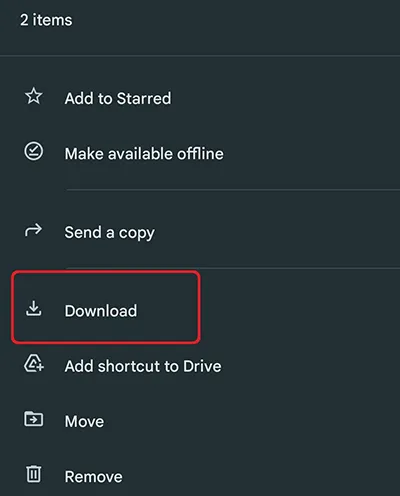
Once uploaded, install Google Drive on your Android device. Then sign in to the same Google Account on the Android phone. Now, download the photos to the Android mobile device.
1.4 Using Android Switch
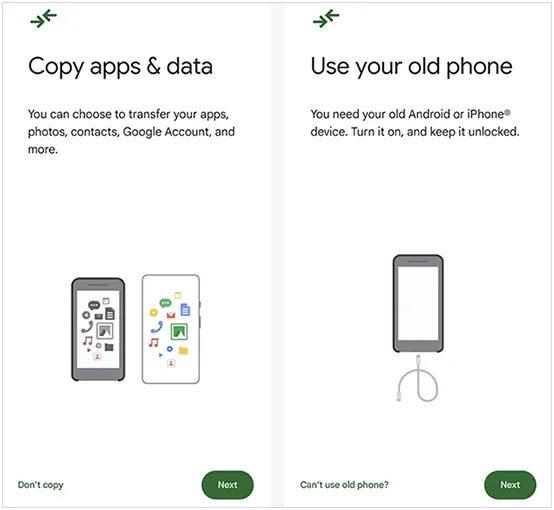
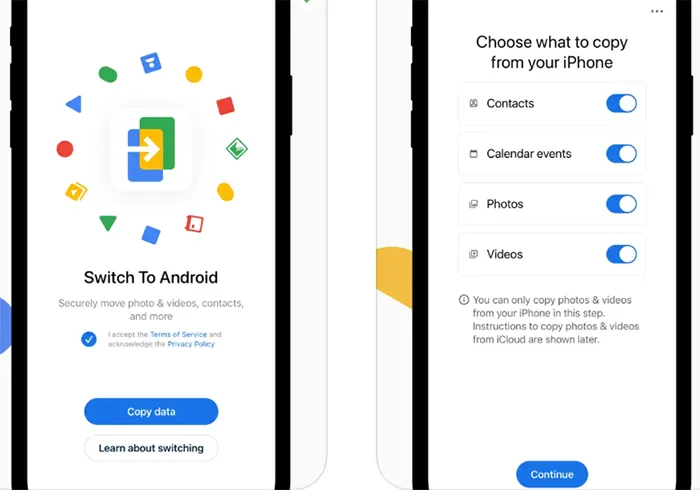
If you are setting up a brand-new Android device for the first time, Google's Android Switch (formerly Switch to Android) app is the way to go. During the initial setup of the Android phone, the app allows you to pair the devices via a QR code. It safely migrates your photo library, contacts, calendar events, and more data wirelessly.
To transfer photos from iPhone to Android via this Bluetooth alternative:
-
Download the Android Switch app from the App Store, and open the app. On your new Android device, start the setup wizard. When asked to "Copy apps & data", select "An iPhone or iPad".
-
You can connect the two phones using a USB-C to Lightning (or USB-C to USB-C) cable for maximum speed, or choose "No Cable?" to pair them wirelessly via a QR code.
-
Select your photos, and other data types you want, like videos, contacts, etc. Next, begin the migration.
1.5 Using Send Anywhere
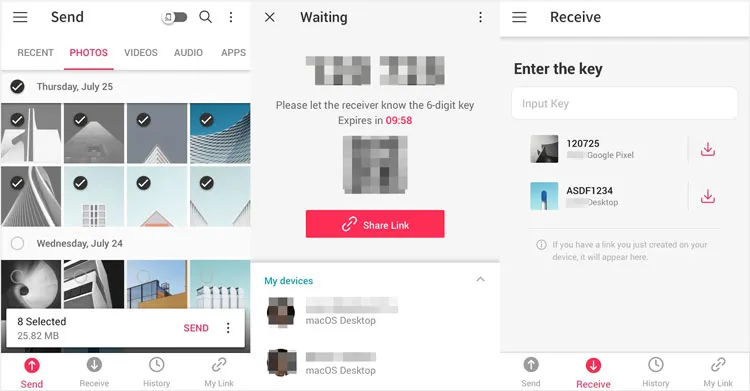
Send Anywhere is a popular cross-platform file sharing application that allows users to transfer files without cables. It is convenient because it does not require cloud storage and maintains the original photo quality, so you can use it to replace Bluetooth.
To send photos from iPhone to Android via Send Anywhere:
-
Install Send Anywhere on both the iPhone and Android phone.
-
Open the app on the iPhone and select the photos you want to send. Then tap "Send" to generate a six-digit key.
-
Open Send Anywhere on the Android device and enter the key in the "Receive" section. The photos will begin transferring instantly.
Part 2: Q&A About Sending Photos from iPhone to Android
Q1: Can I AirDrop from iPhone to Android?
No. AirDrop is a proprietary Apple technology that uses a combination of Bluetooth and specialized Wi-Fi Direct protocols available only on Apple hardware. Android devices cannot "see" or "receive" AirDrop signals.
Q2: Can I share a photo album from iPhone to Android?
Yes, but not through the native "Shared Albums" feature in iCloud, as that requires an Apple ID. You can share an entire album via Google Photos. Create a shared link in Google Photos and send it to the Android user; they will be able to view and download the entire collection. Or share all your photos at once via iReaShare Phone Transfer.
Q3: Will photos lose quality after sending from iPhone to Android?
It depends on the method. Sending photos via WhatsApp or SMS/MMS will significantly compress the image. However, using Google Drive, Send Anywhere, or iReaShare Phone Transfer preserves the original resolution and metadata, ensuring no loss in quality.
Conclusion
Although Bluetooth is not the best option for transferring photos between an iPhone and an Android phone, there are many effective alternatives available. Tools like Quick Share, iReaShare Phone Transfer, Google Drive, Android Switch, and Send Anywhere make it easy to move photos across different platforms. If you want to move all the photos at once without data loss, iReaShare Phone Transfer will be the most suitable option.
Download for Win Download for Mac
Related Articles
Fix Google Photos Backup Stuck Effectively: 14 Fixes and 1 Alternative
How to Transfer Contacts from iPhone to Android via Bluetooth (Answered)
How to Transfer Videos from Android to Mac Seamlessly (5 Ways)
Which is the Best App to Transfer Data from Android to iPhone? Listed

