


"Wanna the best app to transfer media or data from Android to my new iPhone. I need transfer photos with size of 1.33 GB and I hope it will be quick and effective, as I tried a lot of apps, and none of them are working."
- From Reddit
If you want to transfer many files from one device to another, and the devices are running different OSes, that could be more difficult. So, which is the best app to transfer data from Android to iPhone? To get your answer, you can read the authentic review of 8 transfer apps first.
Part 1: Apps to Transfer Data from Android to iPhone
Here are 8 file transfer apps for Android to iPhone. Check their pros and cons before you make a decision.
You can take a quick look at the recommended apps for different requirements:
| User Need | Recommended Tool | Main Benefit |
|---|---|---|
| New iPhone Setup | Move to iOS | Official Apple integration; transfers messages and settings directly. |
| Stable/Huge Data Transfer | iReaShare Phone Transfer | Wired connection prevents disconnection; best for large libraries. |
| Quick Photo/File Sharing | Send Anywhere / Zapya | Fast, no-account-needed sharing via 6-digit keys or QR codes. |
| Cloud Convenience | Google Drive / Dropbox | Access files across any device via login; built-in backup. |
| No Internet Connection | SHAREit / Zapya | Uses local Wi-Fi hotspots to transfer files without data usage. |
| Remote File Management | AirDroid Personal | Manage and move files via a web browser on your computer. |
1.1 iReaShare Phone Transfer
iReaShare Phone Transfer is a robust desktop-based solution designed for high-speed data migration. Unlike wireless apps that can fail if the Wi-Fi flickers, iReaShare provides a stable cable connection to move contacts and documents from Android to iOS. Besides, it can copy photos, videos, music, and even text messages from an iOS device to an Android device.
Main features of this Android to iPhone transfer app:
* Transfers data from Android to iPhone with USB after setup.
* Seamlessly copies files from iOS to Android without losing data.
* Lists data types on the interface and support selection.
* Moves data from Android to Android and iOS to iOS.
* Compatible with Android 6.0 or later, and iOS 5.0 or upper, including the latest versions.
Download iReaShare Phone Transfer.
Download for Win Download for Mac
Pros:
+ Supports cross-platform transfer (Android to iPhone and vice versa).
+ Works offline via USB connection, ensuring data security and stable transfer speed.
+ Displays a progress of data transfer on the interface.
+ Simple and intuitive interface suitable for non-technical users.
+ Follows read-only mode and no ads.
Cons:
- Requires a computer to complete the transfer.
- The full version is paid, with limited functionality in the trial version.
Here's how to use this app to transfer data from Android to iPhone:
-
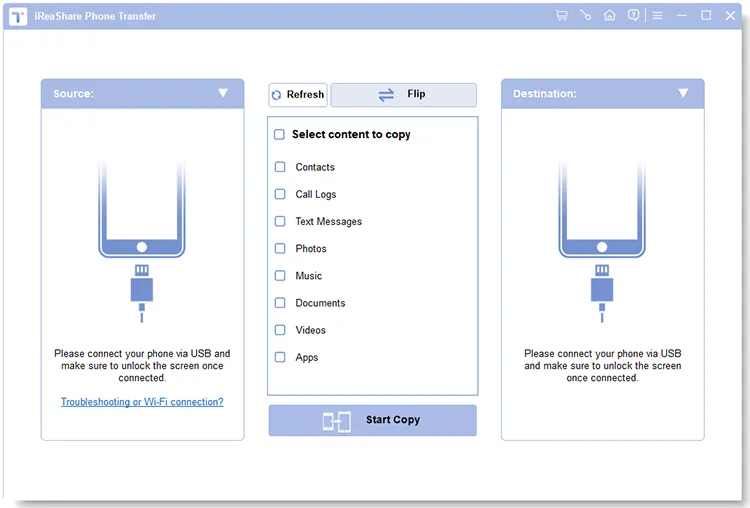
Install iReaShare Phone Transfer on your computer after downloading it. Then connect your iPhone and Android phone to your computer with USB, and open the software.
-
Enable USB debugging on Android, and choose "Trust" on your iPhone. Then the connection will be established. Now, check if your iPhone is the "Destination" device. If not, click "Flip".
-
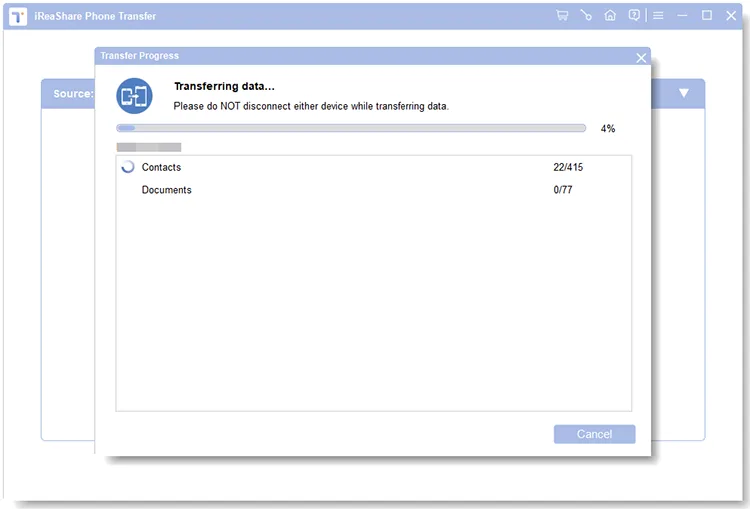
Select the data types you want, and click "Start Copy" to transfer your Android data to your iPhone. It will show you the progress of the transfer. Once done, you can directly access the data on the iPhone.
Here's the video guide you can watch:
1.2 Move to iOS
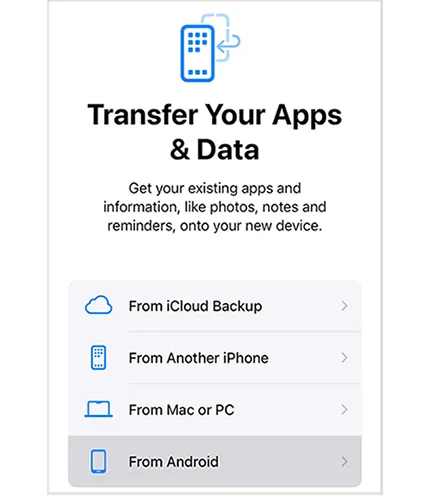
Move to iOS is an Apple app designed specifically for transferring data from an Android phone to an iPhone. The app ensures that your contacts, message history, photos, videos, web bookmarks, and calendars are transferred safely. It's a free and simple way to move your data during the initial iPhone setup, with minimal fuss.
Pros:
+ Official Apple tool, optimized for Android-to-iPhone migration.
+ A free Android to iPhone transfer app without ads.
+ Transfers essential data such as contacts, messages, photos, videos, calendars, etc.
+ Automatically installs compatible free apps from the App Store.
+ Well integrated into the iPhone setup process.
Cons:
- Can only be used during initial iPhone setup; not available after setup is complete.
- Transfer speed can be slow, especially for large data volumes.
- Transfer process may fail if Wi-Fi is unstable.
- Does not transfer paid apps or app data.
1.3 Send Anywhere
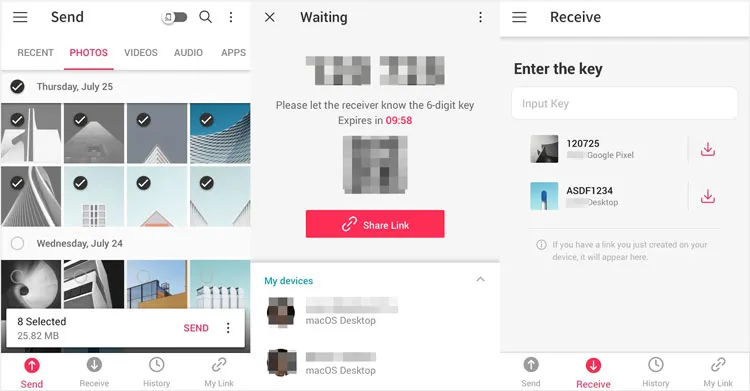
If you only need to move specific files rather than an entire backup, Send Anywhere maybe your best app to transfer data from Android to iOS. It uses a 6-digit key to pair devices. It's platform-agnostic, making it a great "all-purpose" tool for sending high-resolution videos or large documents without compression.
Pros:
+ Supports cross-platform file transfer without USB cables.
+ Allows transfer via Wi-Fi, QR code, or 6-digit key.
+ Maintains original file quality (no compression).
+ Easy to use for quick, selective file sharing.
Cons:
- Not designed for full phone migration.
- Cannot transfer contacts, SMS, or app data directly.
- Ads are present in the free version.
1.4 Google Drive
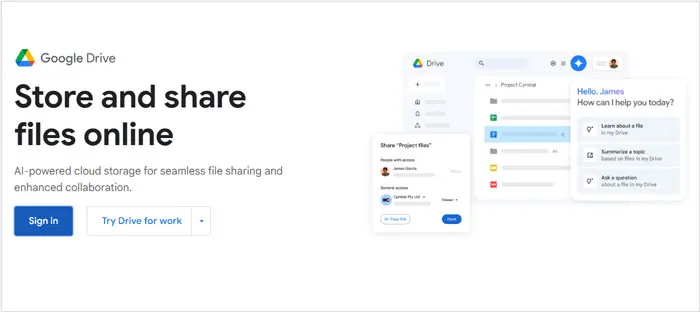
Since most Android users already have a Google Account, Google Drive is a seamless way to move contacts, calendar events, and photos. By backing up your Android data to the cloud and then logging into the Google app on your iPhone, your essential information syncs automatically.
Pros:
+ Cloud-based solution accessible on both Android and iPhone.
+ Reliable and secure with Google Account integration.
+ Ideal for backing up and transferring photos, videos, documents, and files.
+ No need for cables or local network connections.
+ Offers automatic backup options on Android.
Cons:
- Free storage is limited (15 GB shared across Google services).
- Uploading and downloading large files can be time-consuming.
- Not suitable for transferring SMS, call logs, or app data.
- Requires a stable internet connection.
1.5 SHAREit
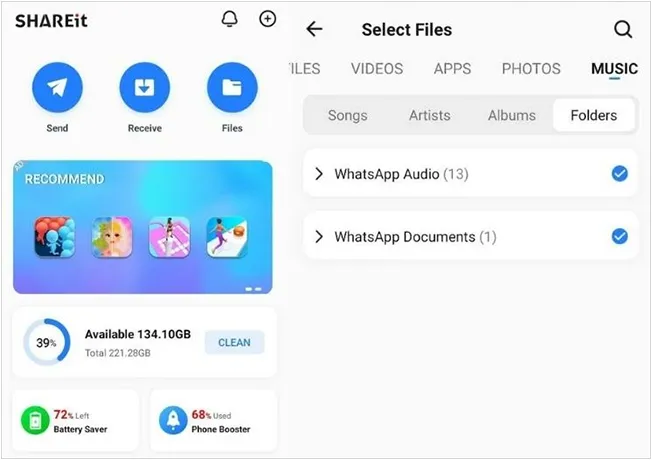
SHAREit is a popular app that allows users to transfer files between devices without the need for an internet connection. It supports cross-platform transfers, meaning you can use it to move data from Android to iPhone. SHAREit offers fast file transfer speeds, and it supports various file types, including videos, music, apps, and documents. However, the app requires both devices to be connected to the same Wi-Fi network.
Pros:
+ High-speed wireless transfer without internet usage.
+ Supports multiple file types, including photos, videos, music, and documents.
+ Cross-platform compatibility.
+ Easy for bulk file transfers.
Cons:
- Increasingly cluttered interface with ads and extra features.
- Security and privacy concerns reported by some users.
- iOS version has more restrictions than Android.
- Not ideal for contacts, messages, or full device migration.
1.6 AirDroid Personal
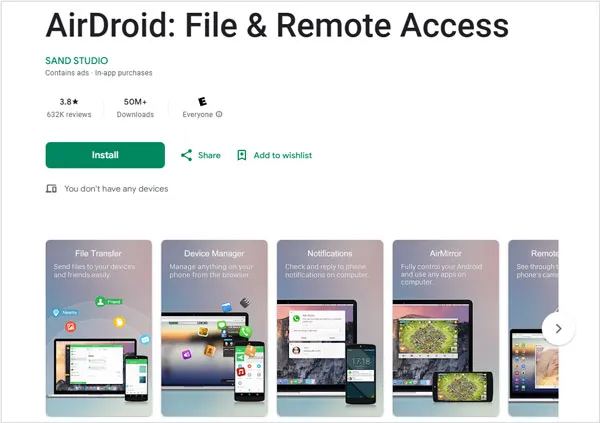
AirDroid is more than just a transfer tool; it's a management suite. While it excels at moving files wirelessly between Android and iPhone via a web browser or app, it also allows you to manage your phone's files from a PC or Mac, offering great flexibility for power users.
Pros:
+ Supports wireless file transfer and remote device management.
+ Works across Android, iOS, Windows, and macOS.
+ Useful for transferring photos, videos, and documents.
+ Offers additional features such as notifications, mirroring and remote access.
Cons:
- Free version has transfer limits if using different networks.
- Not suitable for transferring SMS, call logs, or app data to iPhone.
- Requires account registration.
- The free version cannot transfer folders.
1.7 Zapya
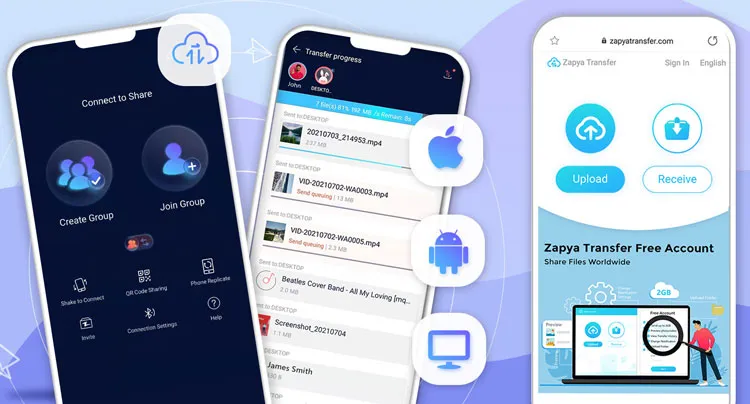
Similar to SHAREit, Zapya is known for its "QR Code" sharing method. You simply scan a code on one device to establish a connection with the other. It supports multiple file formats and is a reliable choice for quick, cable-free transfers.
Pros:
+ Fast offline file transfer using local Wi-Fi hotspot.
+ No need for internet or cables.
+ Supports various file types, including photos, videos, music, and apps.
+ User-friendly interface for group sharing.
Cons:
- iOS version functionality is limited due to system restrictions.
- Contains ads in the free version.
- Cannot transfer SMS, call logs, or most app data.
1.8 Dropbox
Dropbox operates on a cloud-storage model. By uploading your Android files to a Dropbox folder, you can access them on your iPhone once the upload is complete. This is best for users who want to keep their files stored in the cloud long-term rather than just doing a one-time move.

Pros:
+ Reliable cloud storage with strong cross-platform support.
+ Excellent for transferring documents, photos, and videos.
+ Automatic file synchronization across devices.
+ High security and version history support.
Cons:
- Very limited free storage (2 GB).
- Requires internet access for upload and download.
- Not designed for phone data migration.
- Cannot transfer contacts, messages, or apps.
Part 2: Q&A About Apps to Transfer Data from Android to iPhone
Q1: Can I transfer everything from Android to an iPhone?
While you can transfer the vast majority of your data (contacts, photos, videos, and calendars), you cannot transfer everything. For example, Android apps themselves cannot be "moved" to iOS because they use different file formats. However, the Move to iOS app will identify free apps you owned on Android and suggest downloading their iOS versions from the App Store.
Q2: Can the Android Switch app transfer files from an Android device to an iOS device?
No, the Android Switch app (developed by Google) cannot transfer files from an Android device to an iPhone. Its purpose is the exact opposite: from iOS to Android. If you need a tool that can transfer files from iOS to Android and vice versa, choose iReaShare Phone Transfer.
Q3: Can I do a quick share from Android to an iPhone?
Strictly speaking, no. You can now send or receive files between iPhone and Google Pixel 10 series via Quick Share and AirDrop. However, this feature isn't supported among other Android or iOS devices.
Conclusion
If you want an app used to transfer data from Android to iPhone, you can check the 8 apps above, which are selected by users, and we summarized them in this post. If you want a stable USB data migration, iReaShare Phone Transfer will be the best. Anywhere, different users have different requirements, hope you can select the best one.
Download for Win Download for Mac
Related Articles
Review: 10 Android Backup Software and Apps (Latest Info)
10 Reliable Android File Transfer Apps: Transfer Files Easily
Transfer Files from PC to iPhone Without iTunes (7 Methods)
How to Export Bookmarks from Safari on Different Apple Devices (Solved)

