


"My dad recently got an iPhone, and it's set up and he's been using it for a while. However, he still has an old Android phone and service that he ALSO still uses... but wants to get rid of because he likes the iPhone better. How can I help transfer his contacts, and messages, and photos from the old android phone to the iPhone since the iPhone is already set up and has new messages and contacts and photos on it also?"
- From Reddit
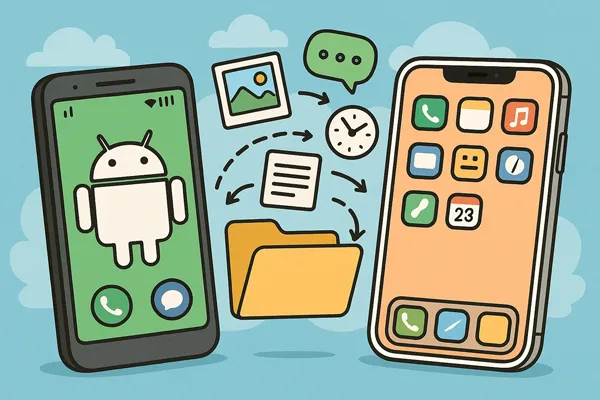
Switching from an Android device to an iPhone is exciting, but the data transfer process can be tricky, especially if you've already completed the initial setup of your new iPhone. While Apple's Move to iOS app is the official solution, it requires a factory reset if your iPhone is already set up. So, how can we transfer data from Android to iPhone after setup without or with resetting? Read on to get the answer.
- Part 1: Transfer Data from Android to iPhone After Setup via iReaShare Phone Transfer
- Part 2: Transfer Android to iPhone After Setup via Google Drive
- Part 3: Move Data from Android to iPhone After Setup via Factory Reset
- Part 4: Transfer Photos from Android to iPhone After Setup via AirDroid Personal
- Part 5: Send Data from Android to iPhone After Setup via SHAREit
- Part 6: Q&A About Transferring Data from Android to iPhone After Setup
Take a quick look at these 5 methods:
| Method | Pros | Cons |
|---|---|---|
| 1. iReaShare Phone Transfer |
1. Transfers contacts and documents directly. |
1. Requires purchasing a license for the full version. 2. Requires a computer and installing a program. |
| 2. Google Drive | 1. Uses built-in Google services; free of charge. 2. Data is synced easily; no cables or computer needed for contacts. 3. Excellent for contacts, calendars, and documents. |
1. Photos/videos require manual downloading/saving from the Drive app to the iPhone's camera roll. 2. Does not transfer app data or messages. |
| 3. Factory Reset (Move to iOS) | 1. Transfers nearly all data types (apps, messages, settings, etc.). 2. Most reliable for a full migration. 3. Built into both operating systems. |
1. Wipes all existing data on the new iPhone; cannot be used without resetting. 2. Only works during the initial iPhone setup phase. |
| 4. AirDroid Personal | 1. Transfers files over Wi-Fi; excellent for media (photos/videos). 2. Works after iPhone is set up. 3. Good for file management outside of initial migration. |
1. Primarily focused on media files and documents, not messages or settings. 2. Free tier may have file size or speed restrictions. |
| 5. SHAREit | 1. Utilizes high-speed local Wi-Fi connection for quick transfers. 2. Works after iPhone is set up. 3. Excellent for transferring large videos or photo albums quickly. |
1. Both devices must have the SHAREit app installed. 2. Primarily for media/files; not for system data, settings, or contacts. 3. The app often contains in-app advertisements. |
Part 1: Transfer Data from Android to iPhone After Setup via iReaShare Phone Transfer
If you want a tool to transfer data from Android to an iPhone after setup, iReaShare Phone Transfer will be a suitable option. It can transfer your contacts and documents at once, and you don't need to reset your iPhone. The transferred files will not replace your existing ones.
Main features of iReaShare Phone Transfer:
* Transfer data from an Android device to an iPhone or iPad after setup with ease.
* Copy files from iOS to Android, including photos, videos, music, and more.
* Also support the transfer of Android to Android and iOS to iOS.
* Compatible with Android 6.0 or later and iOS 5.0 or higher, including Android 16 and iOS 26.
* Work for most Android and iOS devices, such as iPhone 17 Pro Max/17 Pro/17/Air/16/15/14/13/12/11/X, iPad Pro, iPad Air, iPad mini, OnePlus, Google, Motorola, Honor, Vivo, OPPO, Tecno, TCL, and more.
Download iReaShare Phone Transfer.
Download for Win Download for Mac
Here's how to transfer Android data to an iPhone after setup with this program:
-
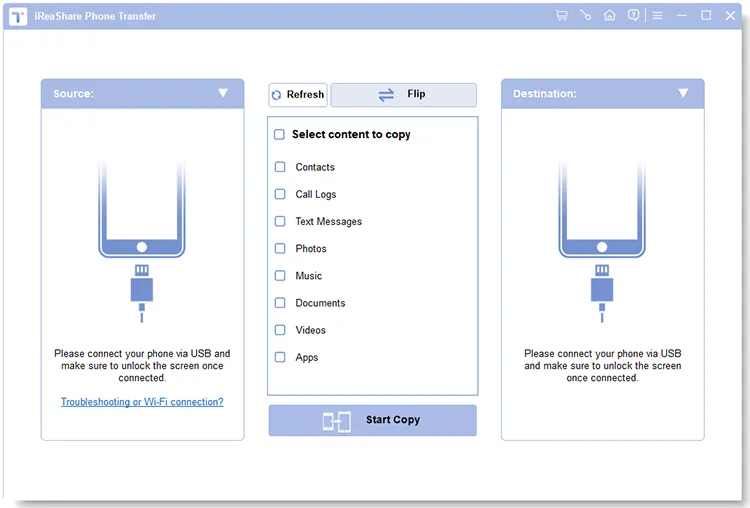
Install iReaShare Phone Transfer on your computer after downloading it. Then launch it and connect both your mobile phones to the computer with USB.
-
Enable the USB debugging mode on your Android phone, and then click "Trust" on your iPhone. The software will recognize your devices quickly. Once connected, ensure your iPhone is the "Destination" device, or tap "Flip".
-
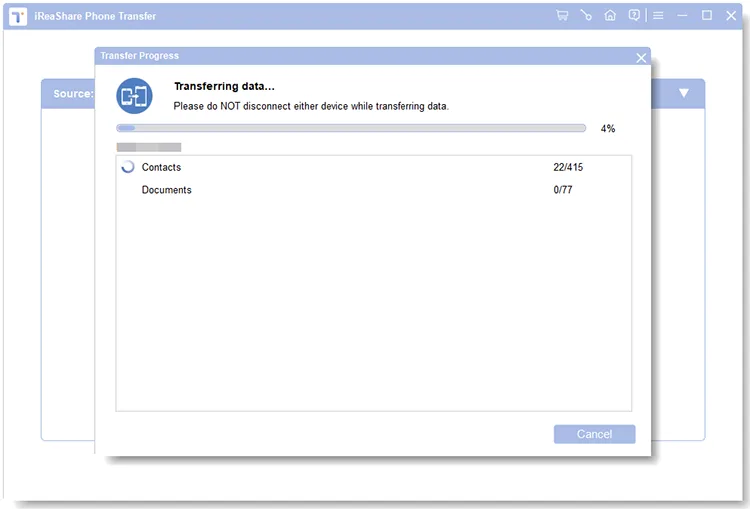
Select the data types you want to transfer, and then click "Start Copy". Your Android data will be copied to your iPhone directly.
Here's the video guide you can watch:
Part 2: Transfer Android to iPhone After Setup via Google Drive
Google Drive and your Google Account offer a simple, cloud-based solution that works well for contacts, calendar data, and various documents, photos, and videos. This method is effective for transferring files without needing to reset your device.
To transfer Android data to an iPhone after setup with Google Drive:
-
Download and install Google Drive on both your mobile phones. Then log in with your Google Account on both devices.
-
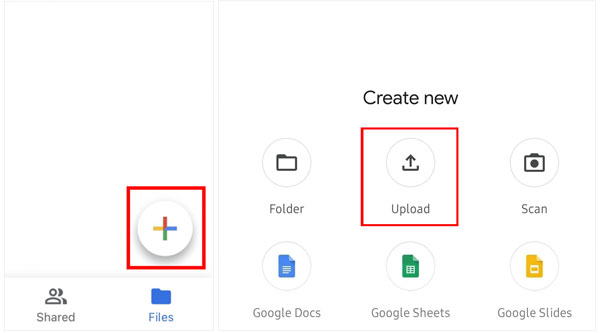
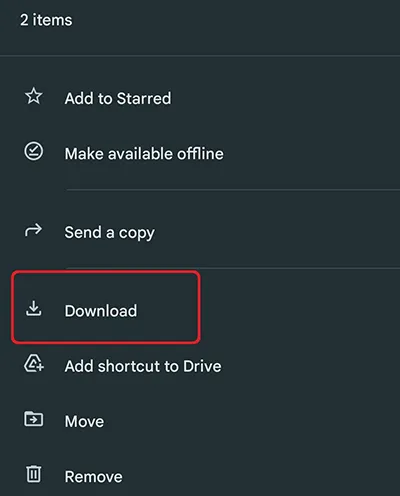
Open the app on your Android phone, and then click "+" > "Upload" to select files from your Android device. Then upload them to Google Drive.
-
After that, open the app on your iPhone. Then you will see your uploaded files. Now, select the files, and download them to your iPhone.
Tips: By the way, if you want to sync contacts, notes, calendars and mails, you can add your account to both phones with the Settings app. Then turn on the options you want.
Part 3: Move Data from Android to iPhone After Setup via Factory Reset
While the goal is to transfer data after setup, a factory reset is the necessary prerequisite to use the official and most comprehensive transfer method: Apple's Move to iOS app. If you haven't accumulated significant data on your new iPhone yet and want the most complete transfer possible, this is the recommended route.
To transfer data from Android to an iPhone via resetting and Move to iOS:
-
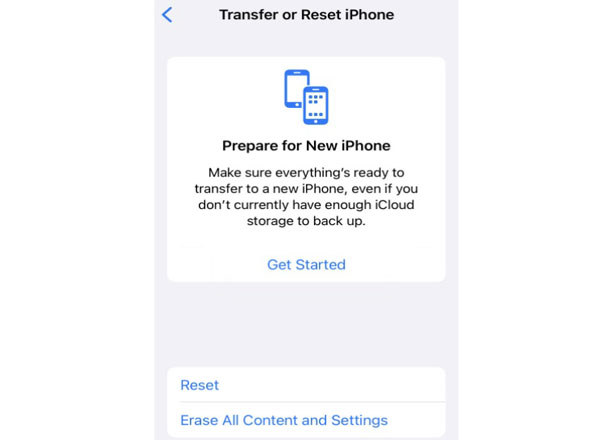
On your iPhone, go to Settings > "General" > "Transfer or Reset iPhone" > "Erase All Content and Settings". This will wipe your device and return it to the "Hello" setup screen.
-
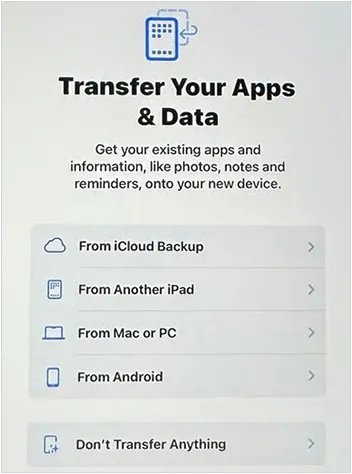
Start the iPhone setup process. When you reach the "Transfer Your Apps & Data" screen, select "From Android". On your Android, download and open the Move to iOS app. Tap "Continue" and agree to the terms.
-
A ten-digit or six-digit code will appear on your iPhone. Enter this code on your Android device to establish a connection. Select the content you wish to transfer and tap "Continue" to start the migration.
Note: If you have important files on your iPhone, please back up the files before resetting the iPhone. For instance, you can back up your contacts to iCloud. After transferring data from Android and complete the setup. Export your contacts from iCloud to your computer as a VCF file. Then send the file to yourself with email. Now, you can import the contacts to your iPhone without losing current contacts.
Part 4: Transfer Photos from Android to iPhone After Setup via AirDroid Personal
AirDroid Personal is a versatile file transfer and management application that excels at moving specific types of files, like photos and videos, wirelessly between different operating systems. This is an excellent solution for selectively transferring media files between Android and iOS devices without a factory reset.
Here's how:
-
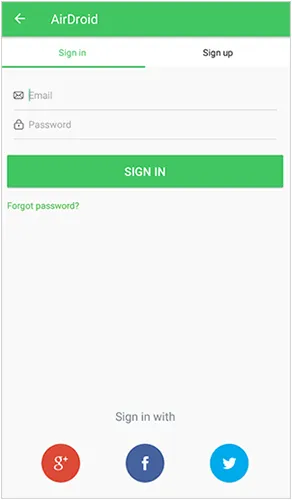
Download and install the AirDroid Personal app on both your Android and iPhone. Sign in to the same AirDroid account on both devices.
-
On your Android, open the app, go to the "Transfer" tab, and select your iPhone from the "My Devices" list.
-
Tap the "Paperclip" or "Photo" icon in the chat interface to browse your Android's gallery. Select the photos you want to transfer.
-
The selected photos will be sent to your iPhone's AirDroid app. You can then save them to your iPhone's local Photos app.

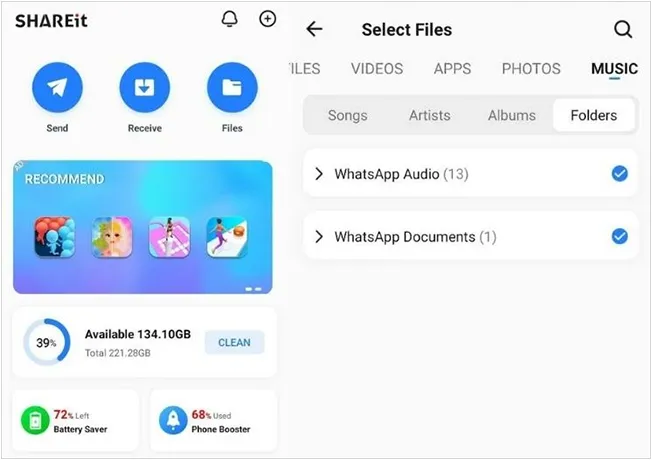
Part 5: Send Data from Android to iPhone After Setup via SHAREit
SHAREit is a popular peer-to-peer file sharing application that allows for fast, cross-platform transfer of files using a local Wi-Fi connection. It is highly effective for files like videos or photo albums.
To transfer photos from Android to an iPhone after setup via SHAREit:
-
Download and install the SHAREit app on both your Android phone and iPhone. Ensure both devices are connected to the same Wi-Fi network.
-
Open the SHAREit app on your Android and tap "Send". Select the photos and other files you wish to transfer. Then open the SHAREit app on your iPhone and tap "Receive".
-
The Android device will scan for the iPhone. Once found (usually through an avatar/device name), tap it to connect. The file transfer will begin, utilizing the high-speed local connection.
Part 6: Q&A About Transferring Data from Android to iPhone After Setup
Q1: Can I transfer WhatsApp messages from Android to iPhone after setup?
Yes, it is possible to transfer WhatsApp messages after setup, but it requires using specific methods like WhatsApp's official transfer method, iCloud backup, or third-party apps.
Q2: Will my text messages and call history transfer?
With the Move to iOS app, text messages (SMS) and call history will be transferred. However, you cannot transfer them if you didn't use the app during the initial setup.
Q3: If I have stored some files on my iPhone, how can I transfer my data from the old phone without losing the existing files?
In this case, you can use iReaShare Phone Transfer, which supports data transfer after setup, and the transferred data will not overwrite the existing data. Besides, you can upload your files to iCloud or Google Drive first, then reset your iPhone, and transfer your old phone data. After that, download the files from the cloud.
Conclusion
There are several ways to transfer data from your Android phone to your iPhone, even after you've already completed the initial setup. If you use the specialized app iReaShare Phone Transfer, you can directly copy your Android data to your iPhone. You can also use Google Drive, AirDroid, and SHAREit. If there is no important files on your iPhone, you can reset your iPhone and transfer your data with Move to iOS.
Download for Win Download for Mac
Related Articles
Easily Transfer iPhone to iPhone After Setup (No Data Loss)
How to Send Video from iPhone to Android Device (No Quality Loss)
Efficiently Transfer Music from iPhone to Android [Detailed Guide]
How to Wipe Phone for Trade-in Easily and Safely (Full Guide)

