


You want to export bookmarks from Safari on your iPhone, iPad, or Mac? Anyway, no matter where you want to export your bookmarks from, you can easily do that today. This guide has provided you with effective approaches and the correct steps. Thus, you can export and manage your Safari bookmarks without trouble.
Part 1: How to Export Safari Bookmarks from iPhone or iPad
The primary method for exporting or backing up your bookmarks from an iOS/iPadOS device is by syncing them to your Mac via iCloud, which then allows you to export them as a file. If you don't want to use iCloud, you can try iReaShare iPhone Manager to export your Safari bookmarks from your iPhone to your computer.
1.1 Using Settings App
Exporting Safari bookmarks from an iPhone or iPad directly is not as straightforward as it is on a Mac, but you can still back them up or sync them across your devices by using iCloud.
Here's how to do it:
-
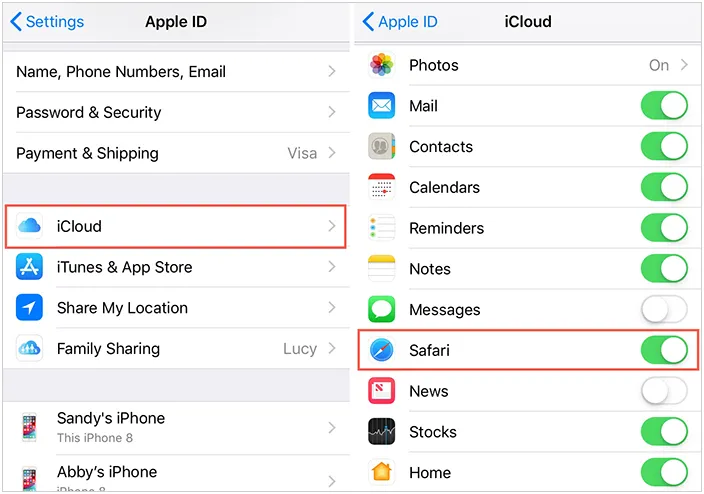
Go to Settings on your iPhone or iPad, and tap your Apple ID banner at the top. Then choose "iCloud".
-
Under "Apps Using iCloud", ensure Safari is toggled "ON" (green). This will sync your bookmarks, reading list, and open tabs to all your other signed-in iCloud devices, including your Mac.
-
Ensure you are signed in with the same Apple ID and that Safari sync is enabled in your Mac's iCloud settings (System Settings/Preferences > Apple ID > iCloud > Safari). Once done, your bookmarks will be available on your Mac computer.
1.2 Using iReaShare iPhone Manager
Since there is no direct file export on iOS/iPadOS, some users turn to a comprehensive management tool to export their Safari bookmarks directly. This tool is iReaShare iPhone Manager, supporting export bookmarks from an iOS device to a computer as an HTML or XML file, so you can directly access your bookmarks on your computer, including Windows and Mac.
Main features of iReaShare iPhone Manager:
* Display all your Safari bookmarks for your preview.
* Enable you to select and export bookmarks from your iOS device to your computer.
* Save Safari bookmarks as an HTML and XML file, which is easily accessible.
* Allow you to edit, delete, and add bookmarks on a computer.
* Export your contacts, text messages, calendar events, notes as well.
* Back up your iPhone photos, videos, music, and more, to your computer without iCloud.
* Compatible with iOS 5.0 and later, including iOS 26.
Download iReaShare iPhone Manager.
Download for Win Download for Mac
To export Safari bookmarks from an iPhone to a computer:
-
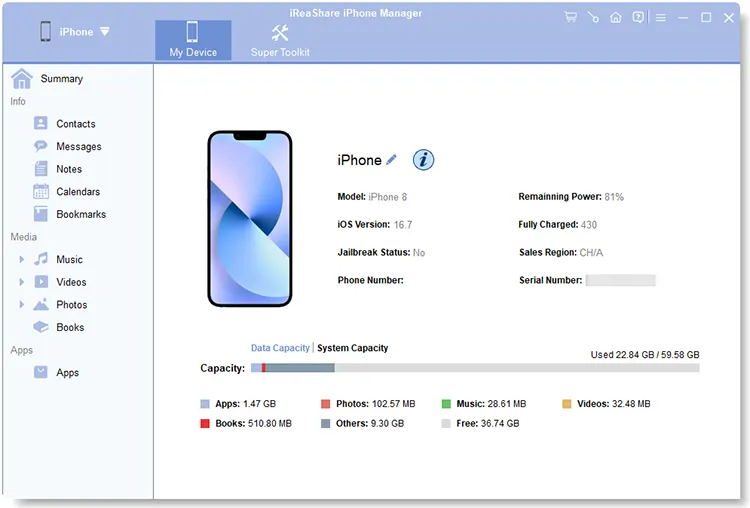
Install the iPhone Manager software on your Mac or Windows computer, and then connect your iPhone to the computer with USB.
-
Launch the software, and choose "Trust" on the iOS device. Once done, the program will recognize your mobile device and load your data.
-
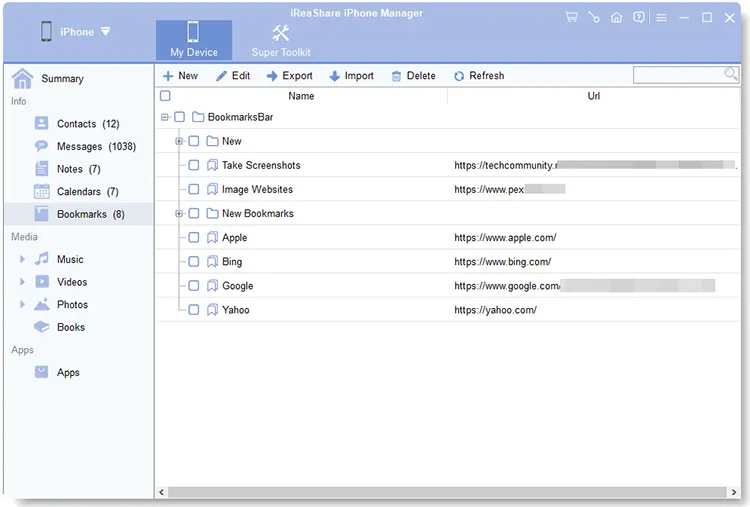
Choose "Bookmarks", and check the bookmarks you want to transfer. Then click "Export" to save them to your computer.
Tips: You can access your iPhone data on your Windows PC without iTunes, since there are seven effective alternatives.
Part 2: How to Export Bookmarks from Safari on Mac
The Mac is the only device in the Apple ecosystem that allows you to directly export your Safari bookmarks into a standard HTML file. This file can then be imported into any other browser or used as a backup.
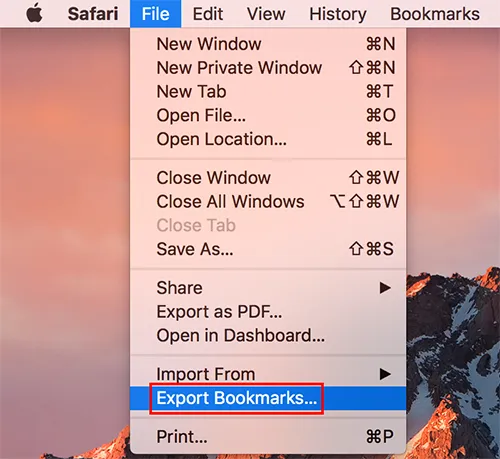
To export bookmarks from Safari on a Mac computer:
-
Open Safari on your Mac. In the menu bar, click "File".
-
Select "Export Bookmarks...". Then a dialog box will appear, allowing you to name the file and choose the save location.
-
After that, click "Save". Your bookmarks are now saved as an HTML file, which is a universal format for transferring bookmarks between different browsers.
Part 3: Q&A About Managing Safari Bookmarks
Q1: How to export Safari bookmarks to Chrome?
This is a two-step process. First, export the bookmarks from Safari (on Mac), and then import the resulting file into Chrome.
- Follow the instructions in Part 2 to save your Safari bookmarks as an HTML file on your Mac.
- Open Google Chrome on your Mac or PC, and click the three-dot menu in the upper-right corner.
- Hover over "Bookmarks" and then click "Import Bookmarks and Settings...".
- In the drop-down menu under "From", select "Bookmarks HTML File", and then click "Choose File".
- Locate and select the Safari Bookmarks.html file you saved. Click "Done".
Q2: How to import bookmarks from Chrome to Safari?
The process is similar to Q1, but in reverse. You need to export your bookmarks from your Chrome browser, and them import them to Safari.
- Open Chrome and click the three dots in the top-right corner.
- Select "Bookmarks" > "Bookmark Manager".
- In the Bookmark Manager, click on the three dots again and select "Export Bookmarks". This will save your bookmarks as an HTML file.
- To import bookmarks to Safari, please open Safari and click "File".
- Tap "Import From" > "Bookmarks HTML File". Then locate the file you exported from Chrome and select it to import your bookmarks. After completing these steps, your Chrome bookmarks will appear in Safari, ready for use.
Conclusion
It's very easy to export bookmarks from Safari on your iOS or Mac device, right? When you use iCloud, you can sync your bookmarks from your iPhone or iPad to your Mac, and then export them on the computer. If you utilize iReaShare iPhone Manager, you can directly export your bookmarks from your iOS device to your computer. Furthermore, it supports HTML and XML formats. It also allows you to import bookmarks from your computer to your iOS device.
Download for Win Download for Mac
Related Articles
How to Back Up iPhone Without iTunes: 5 Reliable Backup Solutions
How to Send Pictures from iPhone to Android Quickly (6 Methods)
Solve Notes Not Syncing Between iPhone and Mac in 9 Ways
How to Get iPhone Text Messages on Windows 10/11 with 4 Viable Methods

