


"How can I send pictures from iPhone to Android without losing photo quality? Bluetooth doesn't seem to work, and I want to share photos with my friends, but our phones are running different OSes."
- From Reddit
To solve how to send pictures from iPhone to Android, we've tested and summarized 6 methods, and listed them in this guide. You can now follow the steps below to send your photos without hurdles. You can even transfer all your pictures at once without losing any quality.
- Part 1: How to Send Pictures from iPhone to Android via iReaShare Phone Transfer
- Part 2: How to Send Pictures from iPhone to Android via Send Anywhere
- Part 3: How to Send Images from iPhone to Android via LocalSend
- Part 4: How to Share Photos from iPhone to Android via Google Photos
- Part 5: How to Send Photos from iPhone to Android via Messages App
- Part 6: How to Send Pictures from iPhone to Android via AirDroid Personal
- Part 7: Q&A About Sending Pictures from iPhone to Android
Take a quick look at the pros and cons of these 6 methods:
| Method | Pros | Cons |
|---|---|---|
| iReaShare Phone Transfer | 1. Transfers various data types, including photos, videos, music, documents, contacts, SMS etc. 2. Enables you to send all your photos at once, which is ideal for very large photo libraries. 3. Transfers your pictures while preserving original quality format. 4. Supports the Android and iOS devices running Android 6.0 or iOS 5.0 and later. |
1. Needs a computer to install the software app. 2. Requires a license. 3. At present, cannot transfer pictures from Android to iPhone. |
| Send Anywhere | 1, Fast, direct transfer using a one-time 6-digit key (no sign-up). 2. Works seamlessly across iOS, Android, and PC/Mac. 3. Transfers files in their original quality and size. |
1. Recipient must receive the file within a short time window (e.g., 10 minutes). 2. Needs an active connection to initiate transfer. 3. Free tier may have speed restrictions or ads. |
| LocalSend | 1. Fast transfer using your local Wi-Fi (requires no internet). 2. Open-source, secure, completely free, and no sign-up or ads. |
1. Both devices must be on the same Wi-Fi network. 2. Requires the app to be explicitly open on both devices. |
| Google Photos | 1. Automatic, background backup/sync. 2. Access photos anytime, anywhere. 3. Excellent AI-powered features. |
1. Upload and download speeds depend on internet quality. 2. Uses your Google account's shared storage (15 GB free limit). 3. May compress images if using the "Storage saver" setting. |
| Messages App | 1. Uses apps most people already have installed (no new downloads). 2. Quick and easy for sharing a few photos instantly. |
1. Most apps compress photos significantly, reducing quality. 2. Impractical and time-consuming for large batches. |
| AirDroid Personal | 1. Can transfer files even when devices are not on the same local network. 2. Offers other utilities like remote device management. |
1. Requires account sign-up and sign-in on both devices. 2. Free version often limits monthly data transfer size. |
Part 1: How to Send Pictures from iPhone to Android via iReaShare Phone Transfer
Dedicated phone transfer software like iReaShare Phone Transfer is designed to move large amounts of data, including photos, between different operating systems quickly and reliably. As long as you install it on your computer, you can use USB cables to directly copy your pictures from iPhone to Android without losing resolution.
Main features of iReaShare Phone Transfer:
* Send photos from an iPhone to an Android device without size limits.
* Can transfer videos, music, contacts, SMS, books as well.
* Copy different data from iPhone to Android, iPhone to iPhone, Android to Android, and Android to iPhone.
* Allow you to select data types before start the process.
* Compatible with most iOS and Android devices, such as iPhone 17 Pro Max/17 Pro/17/Air/16/16/15/14/13/12/11/X, iPad Air, iPad mini, iPad Pro, OnePlus 15/13/12/11/10/9/8/7, Motorola Edge 70/Edge 60 Neo/Moto G67 Power/Moto G Play, Google Pixel 10 Pro XL/10 Pro Fold/10 Pro/10/9/8/7/6, Xiaomi, Samsung, TCL, OPPO, Vivo, Honor, Tecno, Infinix, and more.
Download iReaShare Phone Transfer on a Windows or Mac computer.
Download for Win Download for Mac
To send photos from an iPhone to an Android device with this app:
-
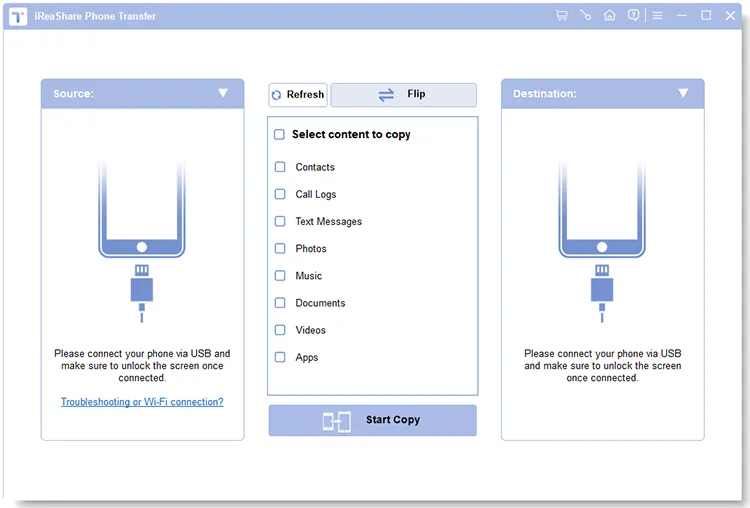
Install and launch iReaShare Phone Transfer on your computer, and connect your iPhone and Android device to the computer with USB cables.
-
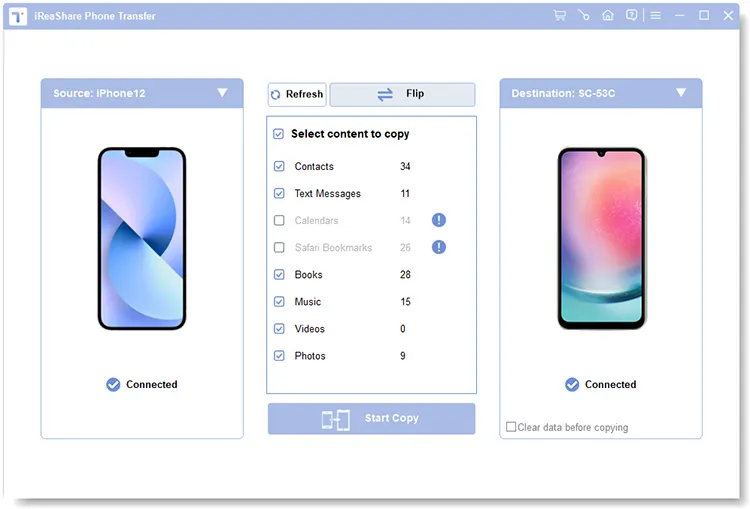
Enable the USB debugging mode on Android, and choose "Trust" on iOS. Then the software will recognize both devices. After connecting, ensure your Android phone is the "Destination" device, or click "Flip".
-
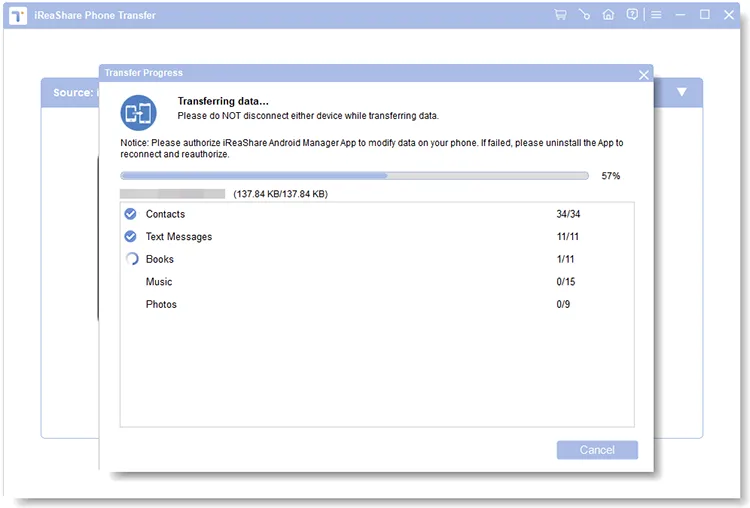
Select the "Photos" option, and click "Start Copy" to begin the process. Your iPhone pictures will be copied to your Android phone.
You can watch the video guide to transfer your pictures:
Part 2: How to Send Pictures from iPhone to Android via Send Anywhere
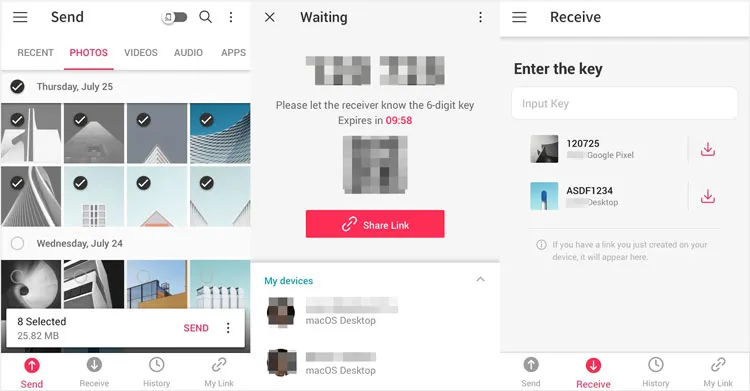
Send Anywhere is a cross-platform file sharing service that uses a secure six-digit key for direct, peer-to-peer file transfer without relying on cloud storage or sign-ups. You can use it send your pictures from an iPhone to Android without quality loss.
To send pictures from iOS to Android via Send Anywhere:
-
Download and install the Send Anywhere app on both your iPhone and your Android device.
-
Open the app, select the "Send" tab, and choose the pictures you want to share. Tap the "Send" button.
-
A six-digit numerical Key (and a QR code) will appear on the iPhone's screen. This key is only valid for 10 minutes. Now, open the app, select the "Receive" tab, and enter the six-digit key displayed on the iPhone.
-
The transfer will begin immediately, and the photos will be saved directly to your Android device.
Part 3: How to Send Images from iPhone to Android via LocalSend
You can use LocalSend, an open-source, cross-platform application that allows you to securely transfer files to nearby devices using your local network (Wi-Fi). It's great for privacy as the data never leaves your local network.
To copy images from iPhone to Android via LocalSend:
-
Install the LocalSend app on both the iPhone and the Android phone and make sure both devices are connected to the same Wi-Fi network.
-
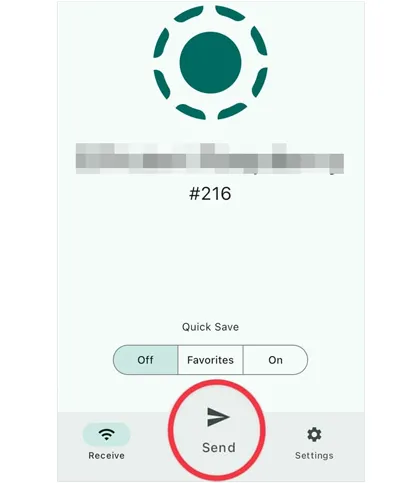
Open LocalSend and tap the "Send" button. Select the images you want to transfer. After selecting the files, LocalSend will automatically discover available devices on the network. Select your Android phone from the list of recipients.
-
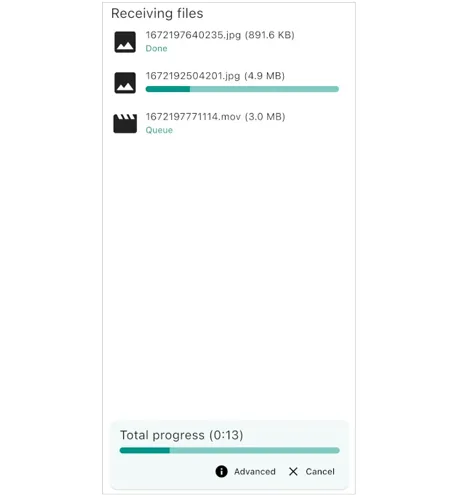
A prompt will appear on the Android phone asking to accept the incoming transfer. Tap "Accept". The photos will transfer quickly over the local network.
Part 4: How to Share Photos from iPhone to Android via Google Photos
Google Photos is an excellent cloud-based solution for seamlessly sharing high-quality images across different operating systems, as it is native to Android but fully available on iOS. It will sync your photos automatically when the mobile or Wi-Fi network is available.
To sync photos from iPhone to Android via Google Photos:
-
Ensure the Google Photos app is installed on your iPhone and set to back up your photos. This uploads your pictures to your Google Account. Click your profile after logging in, and tap "Turn on backup".

-
Now, choose the backup quality. If you don't want to lose quality, please choose "Original quality".
-
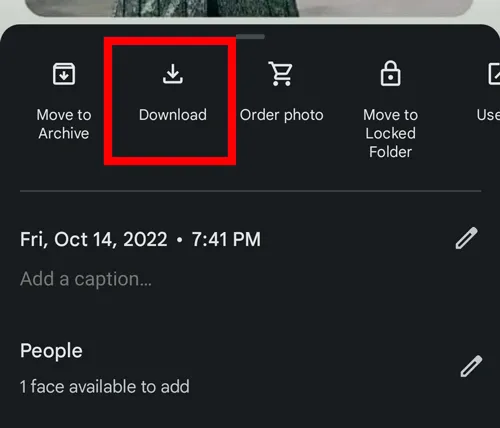
Open the Google Photos app on your Android phone. Your backed-up photos will be immediately visible. Select the photos you wish to save locally and tap the "More" menu (three dots) > "Download" to save them to your Android device's storage.
Part 5: How to Send Photos from iPhone to Android via Messages App
You can send your photos from an iPhone to an Android phone with the built-in Messages app, even though you don't have a network. However, the pictures you send will lose quality because they will be compressed.
To send photos from iPhone to Android via the Messages app:
-
Open the Messages app on your iPhone, and start a conversation with the Android user. If there is no SIM card on the Android device, you cannot send your photos by sending MMS.
-
Tap "+" > "Photos", choose the images you want to send, and hit "Send".
-
After a while, you will receive the message on your Android phone. Now, save the pictures to the internal storage.

Part 6: How to Send Pictures from iPhone to Android via AirDroid Personal
AirDroid Personal is a robust, all-in-one management tool that specializes in cross-platform file transfers, remote management, and mirroring. You can utilize it to send pictures from iOS to Android and vice versa.
Here's how:
-
Install the AirDroid Personal app on both the iPhone and Android devices and sign in with the same account.
-
Ensure the devices are linked to the same network. Then open AirDroid on your iPhone, and navigate to the "Transfer" tab. Select your Android device from the "My Devices" list.
-
Tap the paperclip or the picture icon. Then select the images you wish to send from your iPhone's library.
-
The photos will appear in the chat interface on the Android device, ready to be downloaded and saved to your phone's storage.

Part 7: Q&A About Sending Pictures from iPhone to Android
Q1: Can I AirDrop pictures from an iPhone to an Android phone?
Yes, you can now AirDrop pictures from a compatible iPhone to an Android phone, but it requires the Android device to be running Google's Quick Share feature with AirDrop interoperability enabled. This feature is currently rolling out, starting with the Google Pixel 10 series and the latest versions of their respective operating systems.
Q2: Why do photos lose quality when I send them via text message?
MMS compresses images heavily. iMessage (between Apple devices) does not, but Android does not support iMessage, so the iPhone falls back to MMS, causing quality loss. If you don't want to lose your photo quality, you can use other methods.
Q3: Does iCloud work with Android?
Not directly for syncing, but you can share an iCloud link to an Android user, they can view and download the images via a browser.
Conclusion
Sending photos from an iPhone to an Android is now incredibly simple thanks to all the great tools out there. You've got a few options - some prefer using iReaShare Phone Transfer for a direct bulk transfer, others like Send Anywhere or LocalSend for a wireless option, and then there's the cloud-based approach of Google Photos. Choose the method that suits you best and enjoy easily sharing your photos across platforms.
Download for Win Download for Mac
Related Articles
Repaired: Photos Disappeared from iPhone with Reliable Solutions
How to Transfer Photos from Computer to Android with Ease (Latest)
How to Transfer Photos from iPad to PC Without iTunes (6 Ways)
How to Switch Android Phones Easily (Bring Your Data to New Phone)

