


iTunes was once the standard way to manage content on your iPhone, but many users find it slow and clunky. Luckily, you can now transfer files from a PC to an iPhone without iTunes. Dedicated transfer software apps, cloud services, and wireless apps are excellent options. They enable you to transfer various files between your computer and iPhone.
- Part 1: Transfer Files from PC to iPhone Without iTunes via iReaShare iPhone Manager
- Part 2: Copy Files to iPhone Without iTunes via LocalSend
- Part 3: Transfer Files from PC to iPhone Without iTunes via Google Drive
- Part 4: Send Files from PC to iPhone Without iTunes via AirDroid
- Part 5: Transfer Files to iPhone Without iTunes via Send Anywhere
- Part 6: Sync Files from PC to iPhone Without iTunes via iCloud Drive
- Part 7: Transfer Files from PC to iPhone Without iTunes via Email
- Part 8: Q&A About PC to iPhone File Transfer
Take a quick look at the pros and cons of the 7 methods:
| Method | Pros | Cons |
|---|---|---|
| 1. iReaShare iPhone Manager | 1. Directly imports and integrates files into native iOS apps (Music, Photos, Contacts, etc.). 2. Handles large volumes and multiple file types efficiently. 3. Provides better control than iTunes (selective transfer). 4. Supports most iOS generations, ranging from iOS 5.0 to the latest. |
1. Requires software installation on PC. 2. Involves a cost for full features. 3. Needs a USB cable connection. |
| 2. LocalSend | 1. Transfers are local (LAN/Wi-Fi only), and no internet connection or cloud upload is needed. 2. No ads, tracking, or hidden costs. 3. Simple, direct interface for quick transfers of multiple file types. |
1. Both devices must be on the exact same Wi-Fi network. 2. App must be installed and running on both the PC and the iPhone. 3. Non-photo files (audio, docs) are saved to the Files App; users must manually share them to other specific apps (e.g., Music player). |
| 3. Google Drive | 1. Wireless and accessible from anywhere. 2. Generous free storage (15GB). 3. Cross-platform (PC, iPhone, Android). |
1. Requires internet connection for upload/download. 2. Storage limits may require a subscription. 3. Files are stored in the Drive app first, not native libraries. |
| 4. AirDroid | 1. Completely wireless via local Wi-Fi. 2. Allows for remote file management and other features. 3. Drag-and-drop simplicity via a web browser or desktop app. |
1. Requires app installation and sign-in on both devices. 2. Transfer speed depends heavily on Wi-Fi quality. 3. Free version may have file size or speed limits. |
| 5. Send Anywhere | 1. Peer-to-peer transfer (no cloud storage needed). 2. Uses a 6-digit key for secure, temporary connection. 3. Good for large, single files; fast on a local network. |
1. Requires app/web access on both devices simultaneously. 2. Can be slow for many small, individual files. 3. Connection is temporary and must be initiated each time. |
| 6. iCloud Drive | 1. Native to the Apple ecosystem (seamless integration). 2. Files appear in the native Files app instantly. 3. Can be set up to sync automatically on the PC. |
1. Only 5 GB free storage. 2. Requires iCloud for Windows app on the PC. 3. Primarily for documents and general files, not core media libraries (like Music). |
| 7. Email | 1. Universal and requires no special app (just a browser/mail client). 2. Excellent for quick, one-off documents. |
1. Strict file size limits (usually 25MB or less). 2. Transfer process is manual (attach, send, open, download, save). 3. Impractical for large files or bulk transfers. |
Part 1: Transfer Files from PC to iPhone Without iTunes via iReaShare iPhone Manager
If you prefer a USB connection between your PC and iPhone, iReaShare iPhone Manager will be a better replacement for iTunes to transfer files from a PC to an iPhone. With it, you can directly access the iPhone data on your Windows/Mac computer, such as photos, videos, audio files, contacts, messages, books, and more. You can import e-books, bookmarks, contacts, calendar events, etc., from your computer to your iPhone without iTunes.
Main features of iReaShare iPhone Manager:
* Seamlessly transfer files from a computer to an iOS device.
* Display your iPhone data on the interface by category.
* Export iPhone data to your computer with USB.
* Transfer media files with original quality and formats.
* Enable you to edit contacts, add bookmarks, and uninstall apps on your PC or Mac.
* Back up iPhone data to a computer and restore backup data without any hassle.
* Compatible with most iOS devices, including iPhone 17 Pro Max/17 Pro/17/Air/16/15/14/13/12/11/X, iPad Pro, iPad mini, iPad Air, and more.
* No ads and follow the read-only mode.
Download iReaShare iPhone Manager.
Download for Win Download for Mac
Here's how to copy files to an iPhone without iTunes on a PC:
-
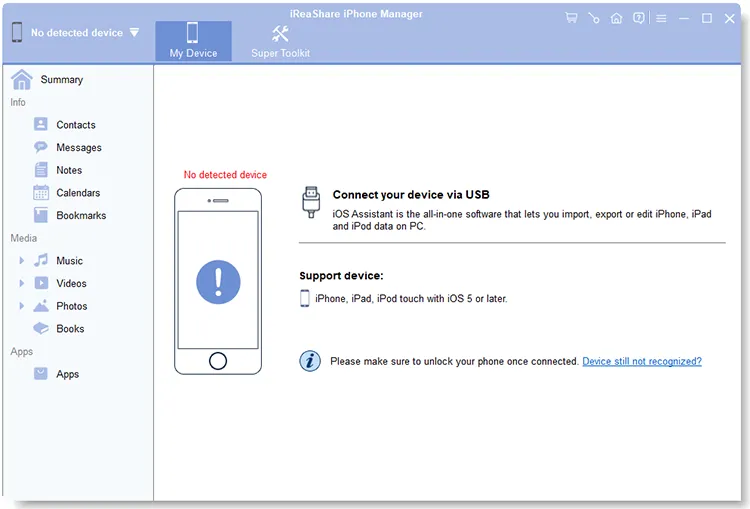
Start by downloading the iReaShare iPhone Manager on your PC. Then install and launch it.
-
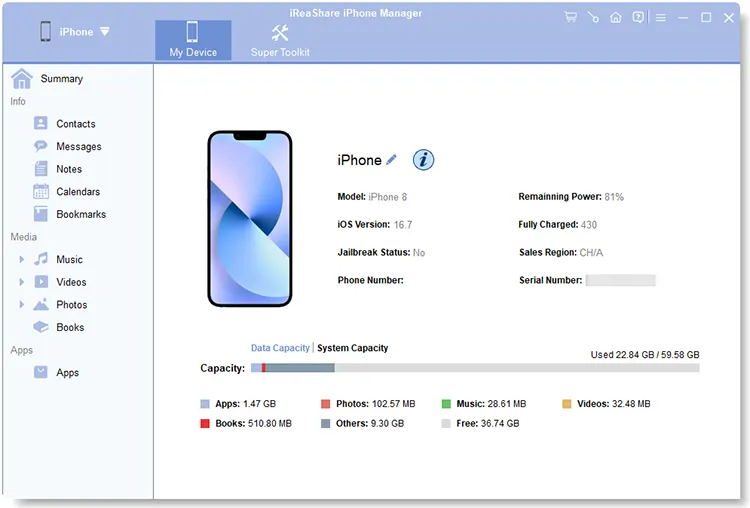
Use a USB cable to connect your iPhone to your PC. Then choose "Trust" on your iPhone. The software will recognize your device quickly.
-
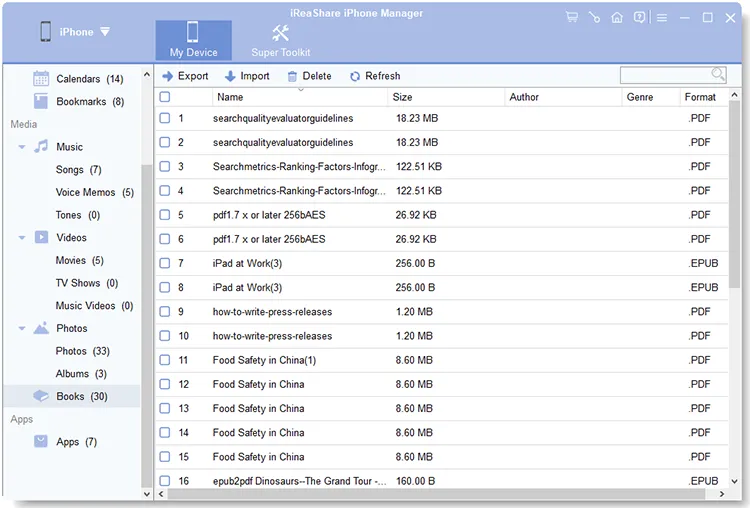
Choose a file type on the left panel, and click "Import". Then select the files from your computer, and then click "Open" to transfer them to your iPhone.
Part 2: Copy Files to iPhone Without iTunes via LocalSend
LocalSend is a free, open-source application that allows you to securely send files and folders between devices over your local network without relying on the internet or a dedicated server. Thus, you can transfer your PC files to your iPhone with this app.
To transfer videos from a PC to an iPhone without iTunes via LocalSend:
-
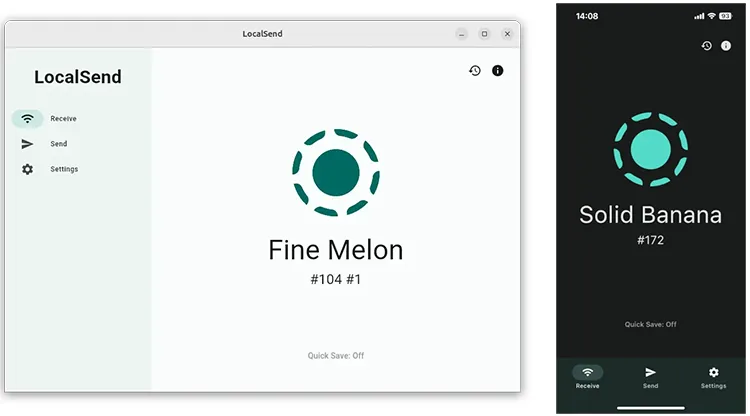
Install the LocalSend app on both your PC and your iPhone, and make sure both devices are connected to the same Wi-Fi network.
-
On your PC, open LocalSend, click "Send", and select the files or folder you want to transfer. The iPhone running LocalSend should automatically appear as a receiver. Select the iPhone and initiate the transfer.
-
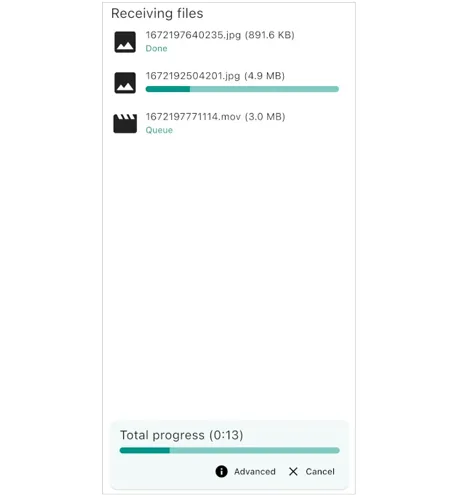
On the iPhone, click "Receive" > "Accept". Then the files will be saved to your iPhone.
Part 3: Transfer Files from PC to iPhone Without iTunes via Google Drive
If you prefer cloud-based solutions, Google Drive is an excellent option for transferring files. With Google Drive, you can upload files from your PC and then access them on your iPhone through the Google Drive app.
Guide on PC to iPhone file transfer without iTunes using Google Drive:
-
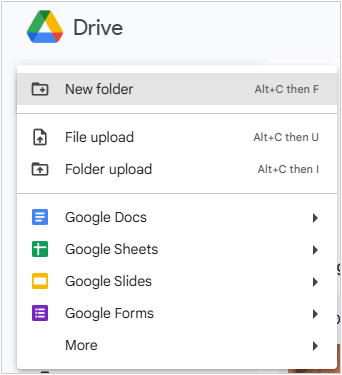
Open Google Drive on your PC, log in to your Google Account, and upload the files you want to transfer.
-
If you don't already have it, download and install the Google Drive app from the App Store. Open the app and sign in with the same account.
-
Then you can nagivate to the files you uploaded. To save the files to your iPhone, please tap the three-dot menu next to the file, and choose "Make available offline" > "Save to Files".

Part 4: Send Files from PC to iPhone Without iTunes via AirDroid
AirDroid is another versatile solution that works for file transfers between your PC and iPhone without the need for iTunes. It supports wireless file transfers, so you don't even need a USB cable.
To send files from a PC to an iPhone with AirDroid:
-
Download and install the AirDroid app on both your PC and your iPhone. Sign in to your AirDroid account on both devices or register an account.
-
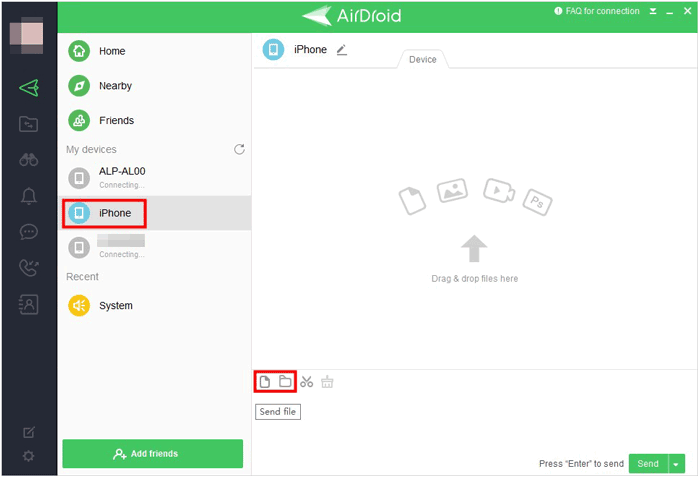
In the AirDroid interface on your PC, select the iPhone under "My devices". Then drag and drop your files to the interface. Or click the "File" or "Folder" icon to select your files from the PC. Send the files.
-
Then you will get the files on your iPhone.
Part 5: Transfer Files to iPhone Without iTunes via Send Anywhere
Send Anywhere is a straightforward tool for transferring files from your PC to your iPhone without using iTunes. It supports cross-platform file transfers, meaning you can send files between different operating systems.
Here's how:
-
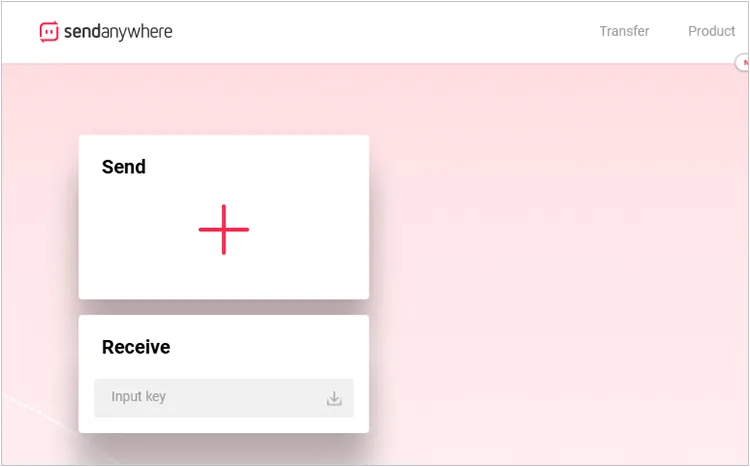
On your PC, go to the Send Anywhere website or use the desktop app, click "Send", and select the files you want to send.
-
A 6-digit key will be generated. Then install the Send Anywhere app on your iPhone.
-
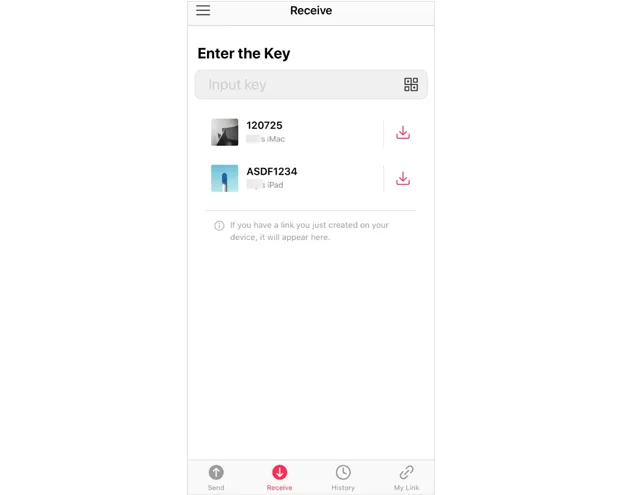
Open the Send Anywhere app on your iPhone, enter the code, and the files will be transferred. After that, you can now access the transferred files directly on your iPhone.
Part 6: Sync Files from PC to iPhone Without iTunes via iCloud Drive
If you prefer using Apple's ecosystem, iCloud Drive offers seamless integration for transferring files between your PC and iPhone. Once set up, iCloud Drive syncs files automatically across devices. However, iCloud Drive provides 5GB of free storage only.
To sync files from a PC to an iPhone with iCloud Drive:
-
Download and install iCloud for Windows on your PC. Sign in with your Apple ID.
-
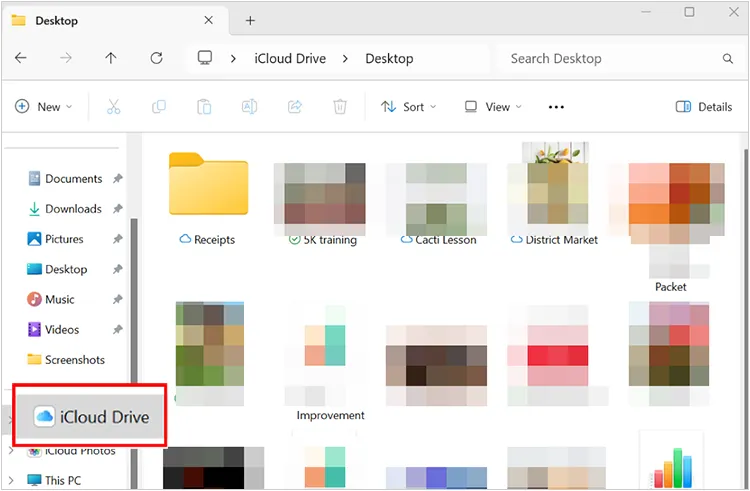
After setup, you'll have access to the iCloud Drive folder on your PC. Drag the files you want to transfer into this folder.
-
On your iPhone, open the Files app and navigate to iCloud Drive. You should see all the files you uploaded. You can either download the files to your iPhone or view them directly from the Files app.
Part 7: Transfer Files from PC to iPhone Without iTunes via Email
Lastly, a simple and effective method is using email. While it may not be the fastest for large files, emailing yourself files is a reliable and free method of transferring data between your PC and iPhone.
Here are the steps:
-
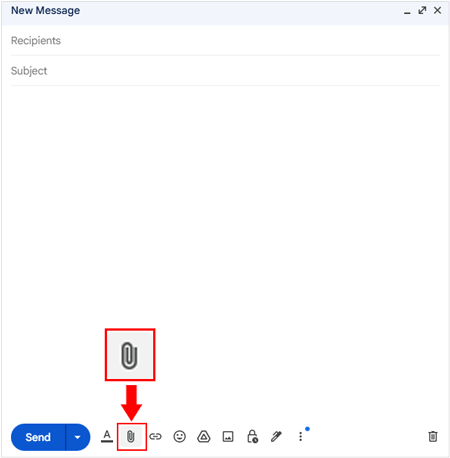
On your PC, create a new email, attach the files you want to transfer, and send them to your own email address.
-
Open the email app on your iPhone (Mail, Gmail, etc.) and locate the email you just sent. Tap on the attachments to download them directly to your iPhone.
-
Once downloaded, the files will be available for you to view and use on your iPhone.
Part 8: Q&A About PC to iPhone File Transfer
Q1: Why can't I copy documents from my PC to my iPhone with drag and drop?
The core issue is that your iPhone does not expose its entire file storage as a simple, accessible drive (like a USB stick) when connected to a Windows PC. iOS uses a "sandboxed" environment. This means every app, like your Mail app, your Word app, or your Photos app, stores its data in a private, isolated container (its own sandbox).
When you drag a document, your PC doesn't know which app's sandbox on the iPhone the file is intended for, and the iPhone won't allow the PC direct access to dump files anywhere it wants.
Q2: Can I use Quick Share or Bluetooth to send files from my PC to an iPhone wirelessly?
No, you cannot use Quick Share or standard Bluetooth file transfer directly from a PC to an iPhone. Quick Share is a proprietary file-sharing protocol developed by Google (and formerly Samsung) for use on Android devices and Windows PCs. Even if Quick Share and AirDrop can send and receive files between some Android phones and iPhones, this cannot work between PCs and iPhones yet.
Q3: If I jailbreak my iPhone, can I access more iPhone files on my PC?
Yes. Jailbreaking removes these security restrictions, giving you and specialized PC software "root access" to the entire operating system structure. For instance, you can install AFC2 (Apple File Conduit 2) via the jailbreak app store. It can modify the underlying file sharing service to grant access to the entire root file system of the iPhone, not just the user-accessible folders. However, be cautious with security risks.
Conclusion
If you prefer the robust management of a professional app like iReaShare iPhone Manager, you can download it and then seamlessly transfer your files from a PC to an iPhone and vice versa. This tool will provide you with more useful features. If you enjoy the convenience of cloud services such as Google Drive and iCloud, you can use them directly to sync your files between your devices. Anyway, you can choose a method to transfer your files without iTunes.
Download for Win Download for Mac
Related Articles
How to Transfer Large Video Files from iPhone to PC (No Quality Loss)
How to Save Texts from iPhone to Computer Swiftly [Latest Tutorial]
How to Transfer Contacts from iPhone to iPhone Easily (Proven Guide)
How to Prepare iPhone for Trade-In Securely (Step by Step)

